What is "Check if affected" in the app, and how do I read the result?
Last updated 2026-10-07 · The precise eligibility criteria follow the official status report and the app's "Check if affected" feature (blog as of 2026-09-17).
First, note this. If any assets remain in your App Wallet, we recommend moving all of them now, regardless of the check result or whether you are a target. The precise eligibility is determined by the app's "Check if affected" feature and the official status report. This feature tells you "whether action is needed" based on the App Wallet's own history, so you don't need to dig through transaction history or query a block explorer.
1. How to use it (app v10.0.0 or later)
- Update the DCENT app to the latest version. Update only through the official app stores.
- Tap the Check if affected button in the notice pop-up shown at app launch, or the Check if affected badge on the App Wallet home.
- The check targets the one App Wallet currently selected. If you have multiple App Wallets, switch between them and check each. If you are viewing a hardware wallet, a "Switch to App Wallet" prompt appears.
- Wait until the on-chain check completes.
The screen differs depending on the selected wallet mode. Check if affected is shown differently based on the wallet currently selected in the app.
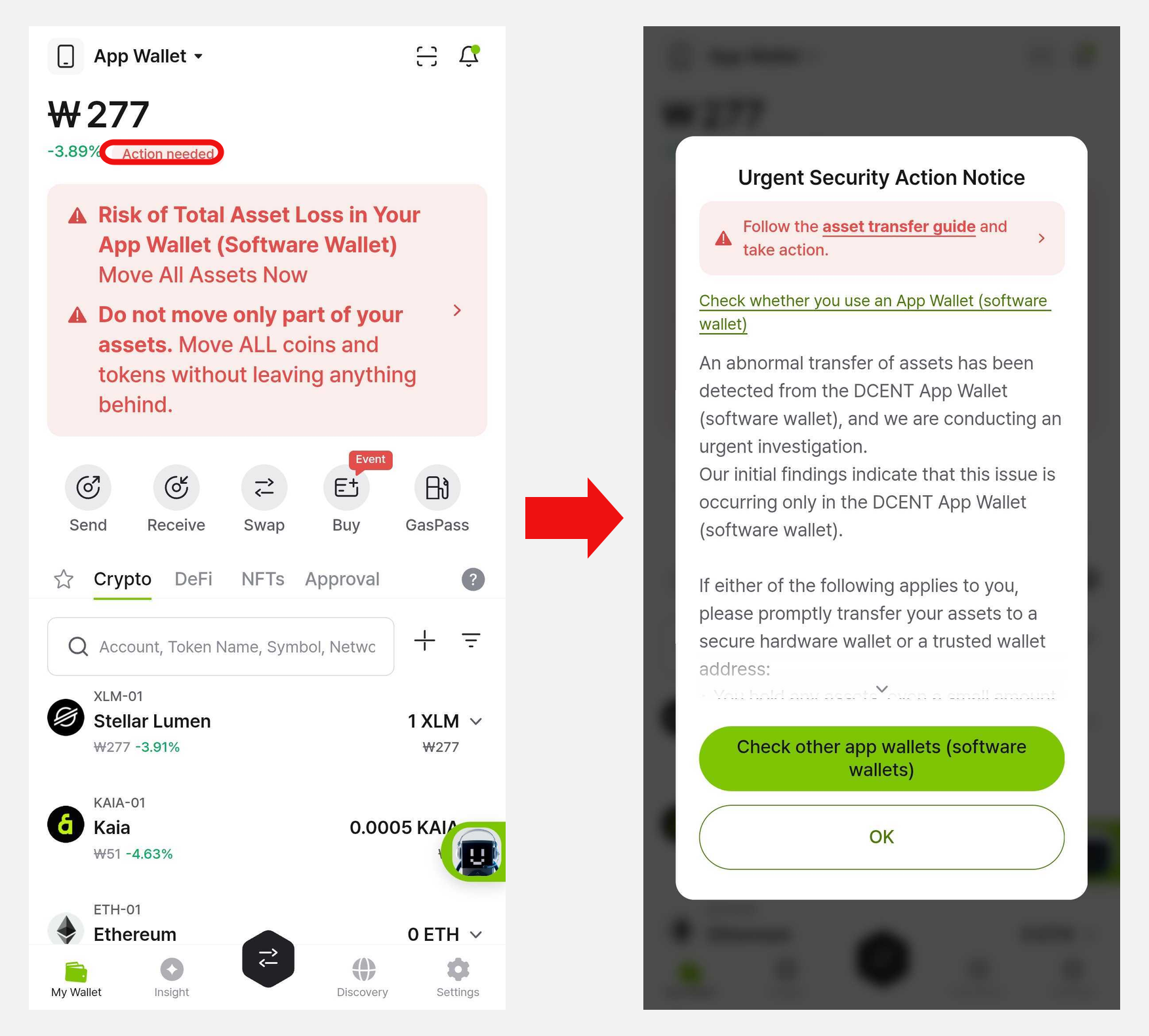
① When an App Wallet is selected — a red "Action needed" badge and a warning banner appear at the top of the home, and tapping the banner opens a pop-up guiding you to move all assets.
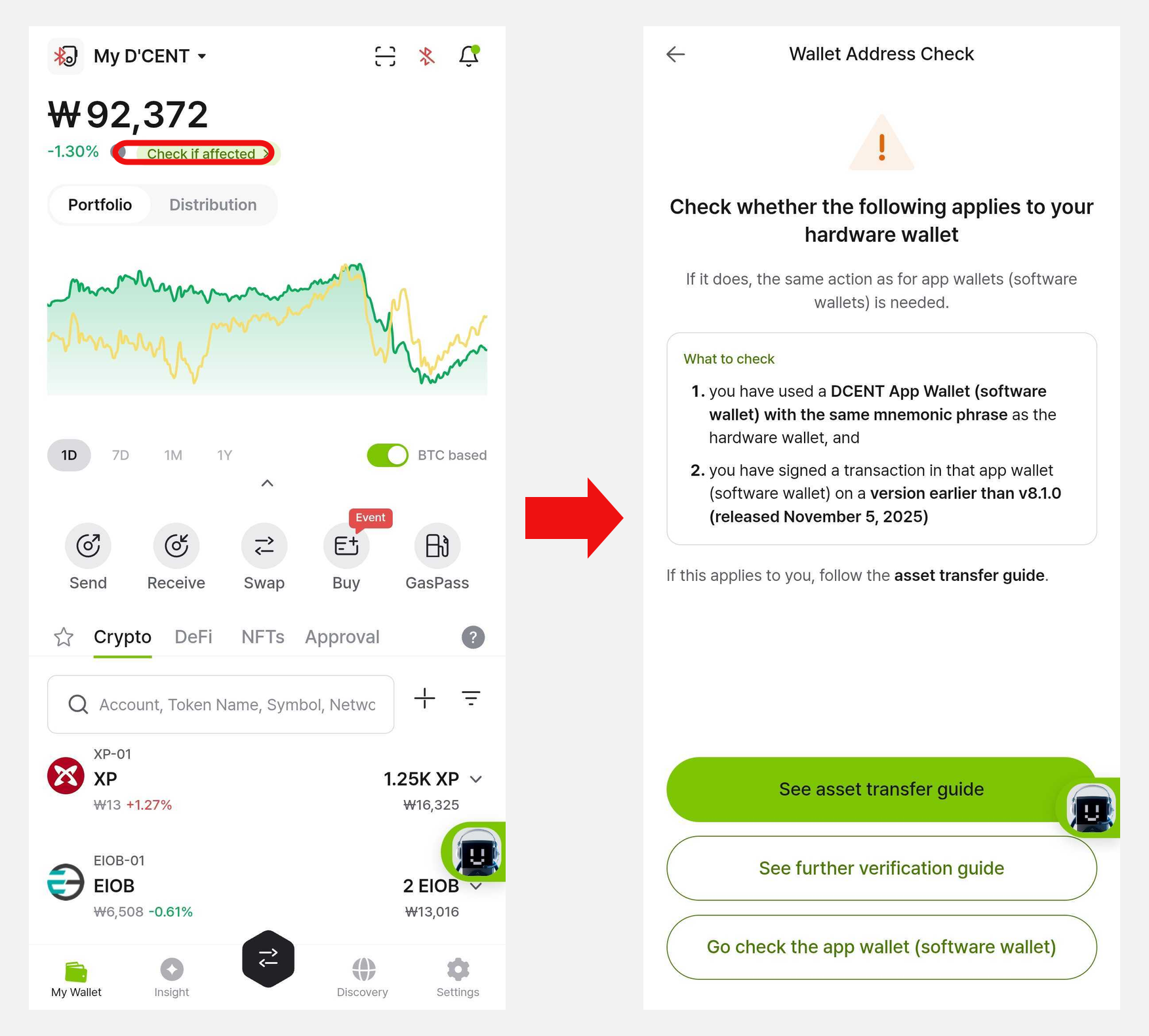
② When a hardware wallet is selected — a green "Check if affected" badge appears at the top of the home, and tapping it opens the "Wallet Address Check" screen, which explains the criteria for whether the hardware wallet is affected (you used an App Wallet with the same mnemonic, and you signed a transaction on a version earlier than v8.1.0).
2. There are three results, and there is no "safe" result
| Result | Meaning | What to do |
|---|---|---|
| Action needed | This App Wallet is a target for the asset-move action | Move everything following the asset-move article |
| Not confirmed | No basis for "action needed" was found within the checkable range, but this does not mean you are not a target | See the additional check guide; if you can't confirm, treat it as a target and move your assets |
| Not checked | Not yet checked, or not completed | Check again |
This check never produces a "safe" result. Even after checking every account and finding no basis, the conclusion is still "Not confirmed."
3. If you want to check manually
- Whether you have an App Wallet: My Wallet tab → wallet name → Manage All Wallets → check the "App Wallets" group (see the "How do I know whether I have an App Wallet?" article)
- When the app was installed: On iPhone, App Store → profile → Purchased, search "DCENT Wallet." On Android, the install date of a free app is often not visible.
- The only exemptions are: ① you first installed the app on v8.1.0 or later after November 5, 2025, or ② you use only a hardware wallet and have never entered (restored) its recovery phrase into an App Wallet or signed with an App Wallet. For the detailed criteria, see the status report and the app's "Check if affected" feature. If you are unsure, or if assets remain in your App Wallet, we recommend treating it as a target and moving them.
4. Frequently asked
-
I closed the pop-up. A warning banner is shown on the home for wallets that need action, and a toned-down asset-guide banner for checked wallets too. Tap the banner to check again.
-
The warning keeps appearing. It keeps showing while assets or accounts remain in the App Wallet. Even after moving all assets, do not keep using the App Wallet itself.
-
Why am I a target? The determination is an official feature that computes the wallet's history on the device; the detailed criteria are not disclosed. If the result is hard to interpret, let us know via 1:1 support.