Connect with Android phone
Mobile App Download
You can download the DCENT mobile app from this link.
.png)
Mobile App basic setting
Select Wallet mode
The first time you launch the mobile app, you'll go through an initial setup and choose a wallet mode.
This guide is based on DCENT mobile app v10.0.0. To update to the latest version, tap here.
When the app opens, select "Biometric Wallet" as shown below.
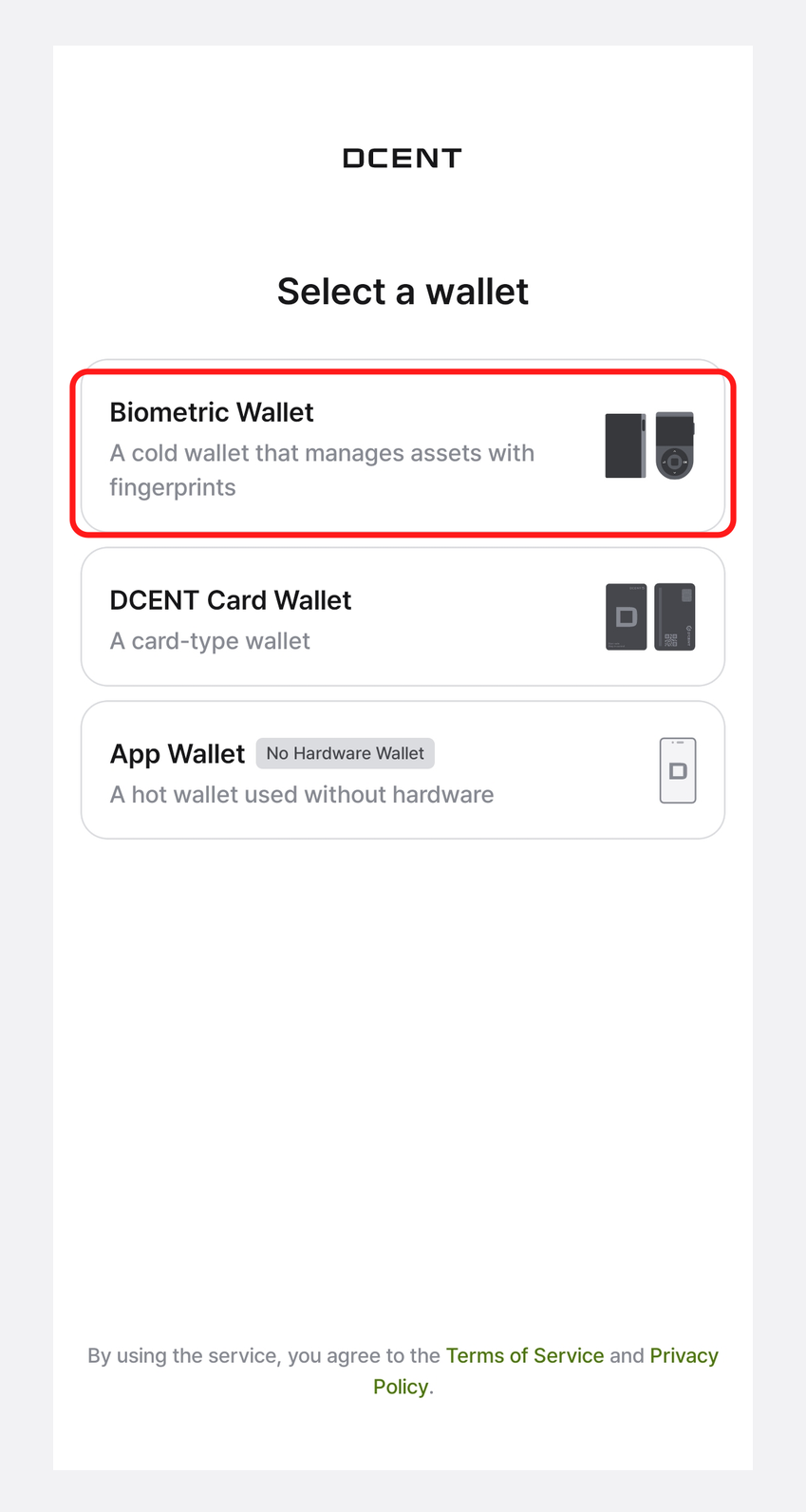
You can change the wallet mode at any time from the Settings tab in the mobile app.
If you're using a Biometric cold wallet, make sure the wallet mode is set to "Biometric" in the mobile app.
For step-by-step instructions, see this guide.
Mobile App Permission Settings
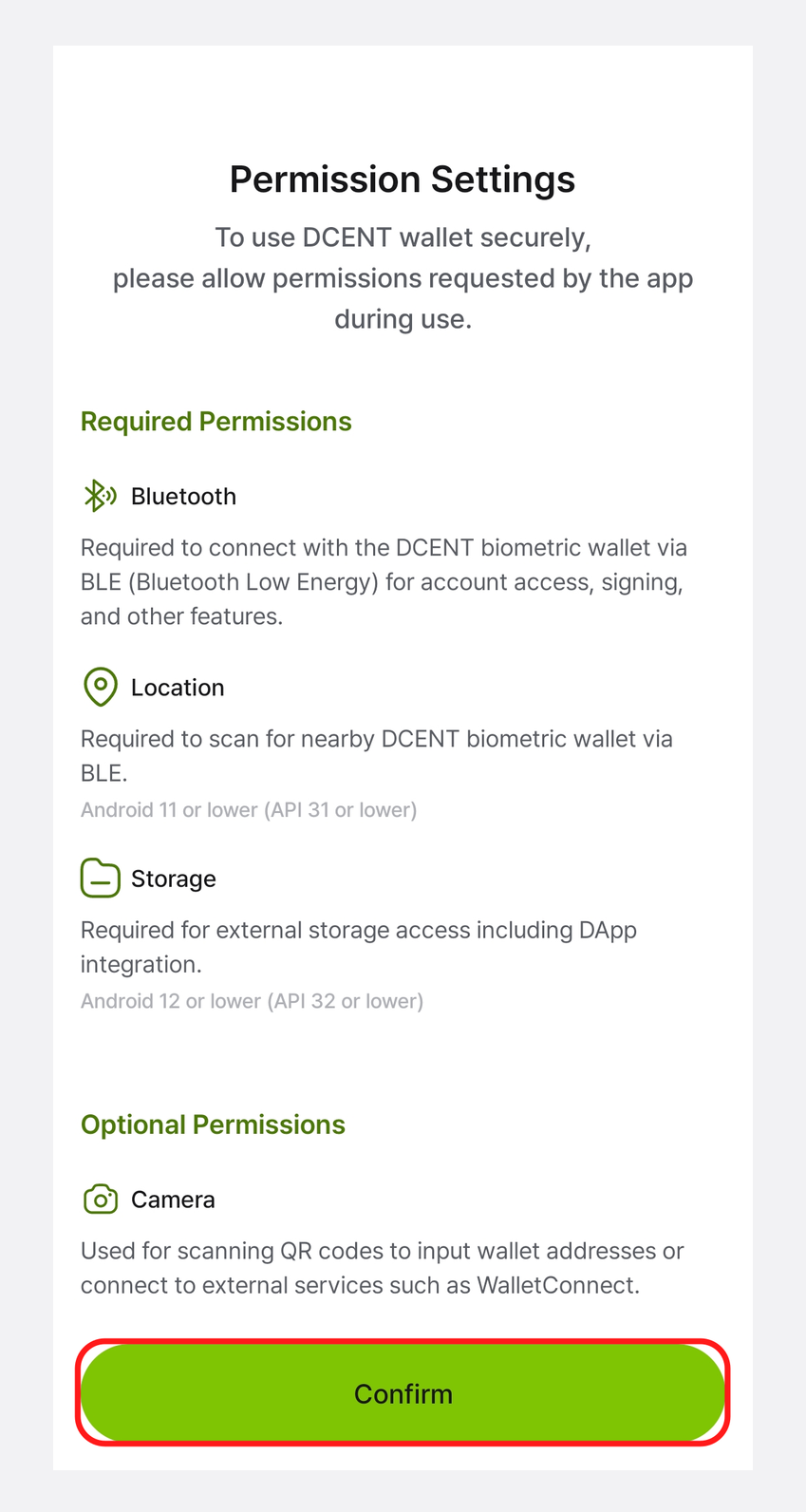
When you launch the DCENT mobile app, a permission request popup appears. Review the permissions, then tap Confirm to continue.
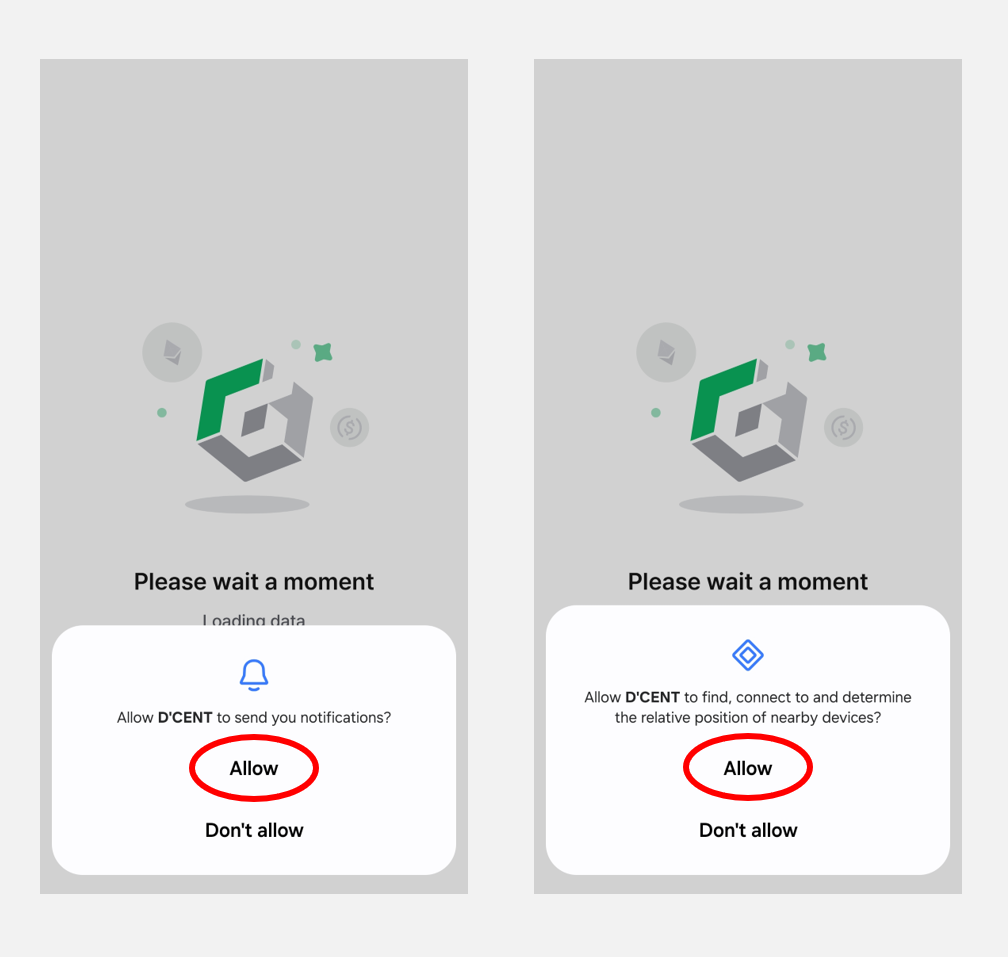
Next, tap Allow for both the Notification and Nearby Devices permissions to continue.
The Notification permission is optional — you can tap Don't allow and still connect your wallet without any issues. The Nearby Devices permission, however, is required to sync with the cold wallet.
If you deny it, the cold wallet cannot sync and the app's features will be limited.
Be sure to allow this permission.
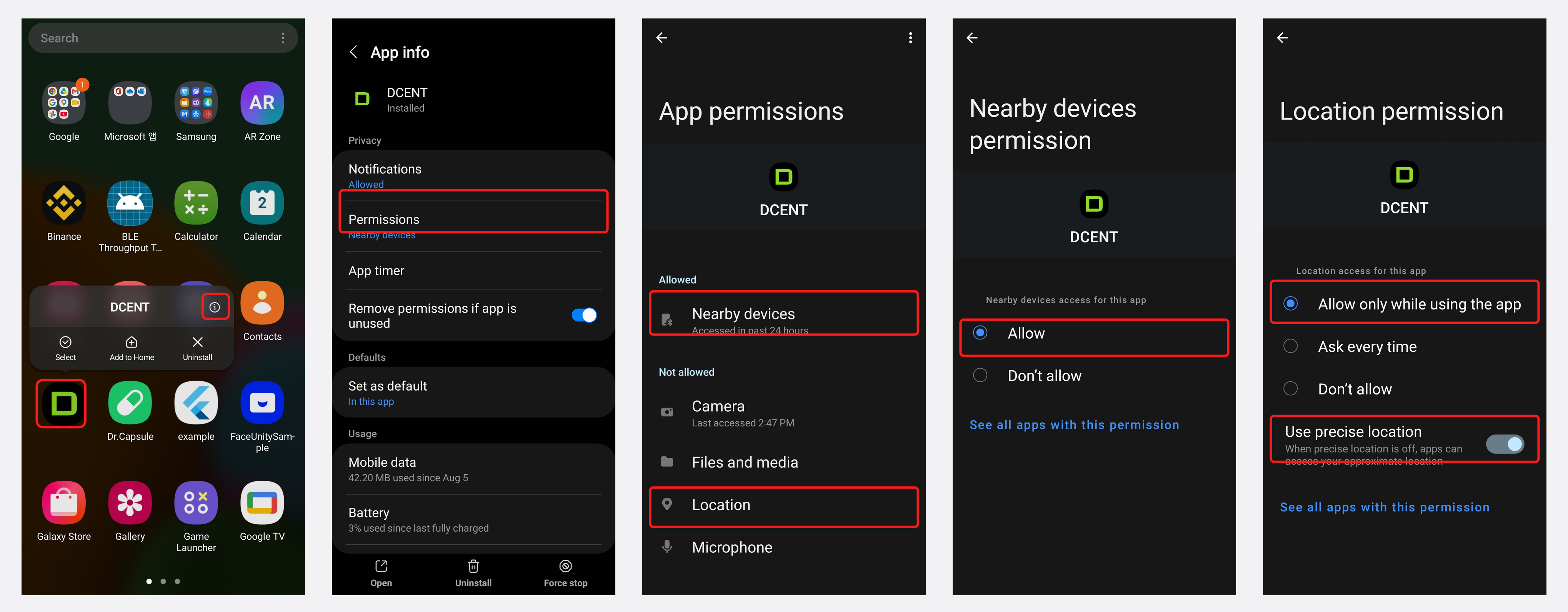
If the permission popup doesn't appear, or if you accidentally tapped Don't allow, you can enable the Nearby Devices permission manually by following the steps below.
Bluetooth pairing with Cold Wallet
First, turn on the cold wallet and unlock it with your fingerprint or PIN.
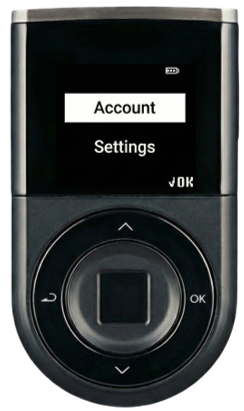
Follow the steps below to connect your cold wallet to the DCENT mobile app via Bluetooth.
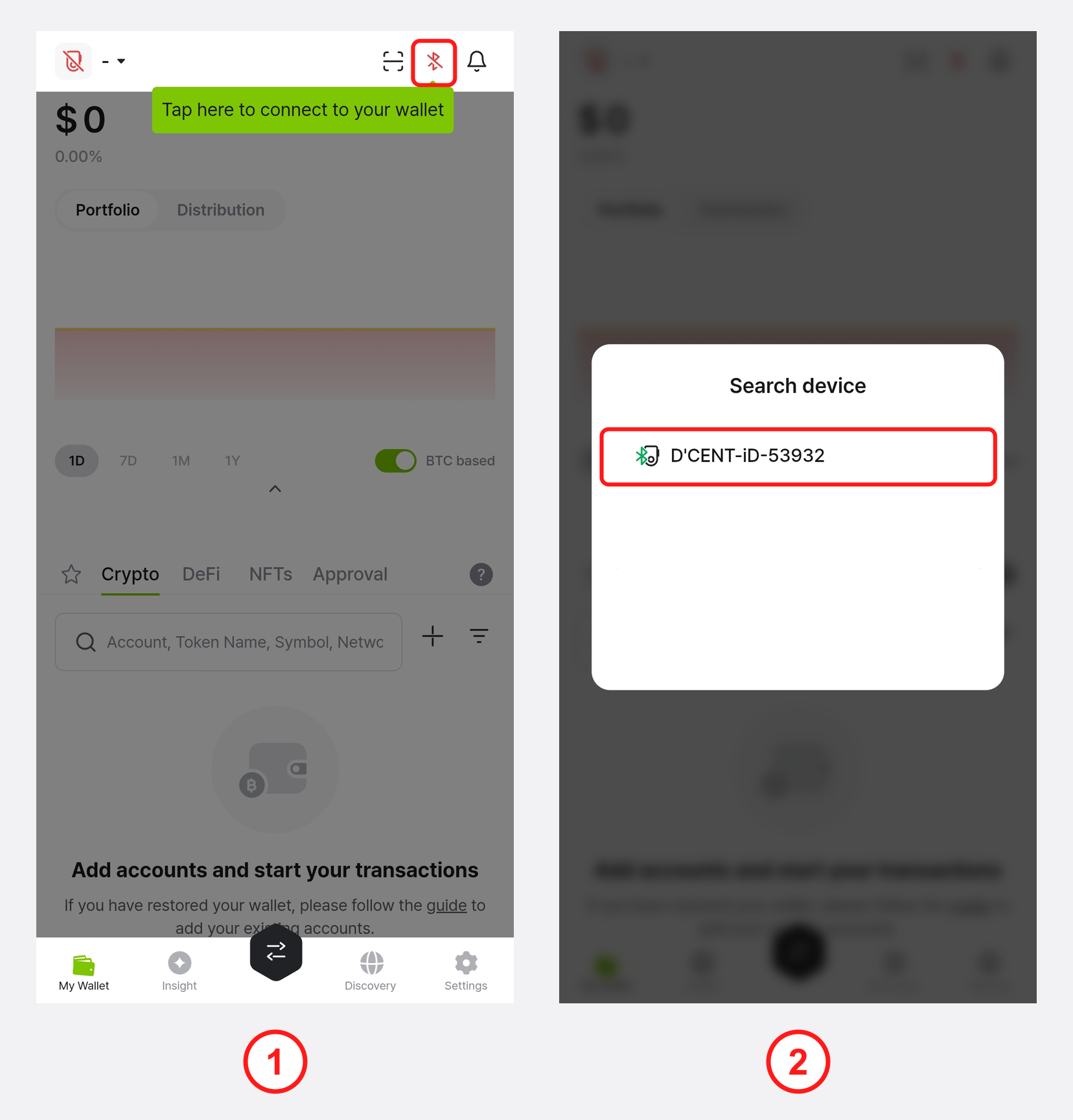
1) Open the DCENT mobile app and tap the Bluetooth icon at the top of the My Wallet tab.
2) A Search Device popup appears, showing your cold wallet's Device ID (DCENT-iD-<numbers or letters>).
To find the Device ID on your cold wallet, see this guide.
If your cold wallet's Device ID doesn't appear in the Search Device popup, make sure Bluetooth is enabled in your Android phone's settings. If you're not sure how to find the Bluetooth menu, see this guide.
3) Tap the Device ID, and the cold wallet starts syncing automatically. It may take a few seconds for synchronization to begin.
4) When synchronization finishes:
- A connection indicator appears at the top of the mobile app.
- A blue Bluetooth indicator stays lit in the top-right corner of the cold wallet.
If you prefer not to use Bluetooth, you can also connect the cold wallet to your Android phone with an OTG cable. For detailed instructions, see this guide.
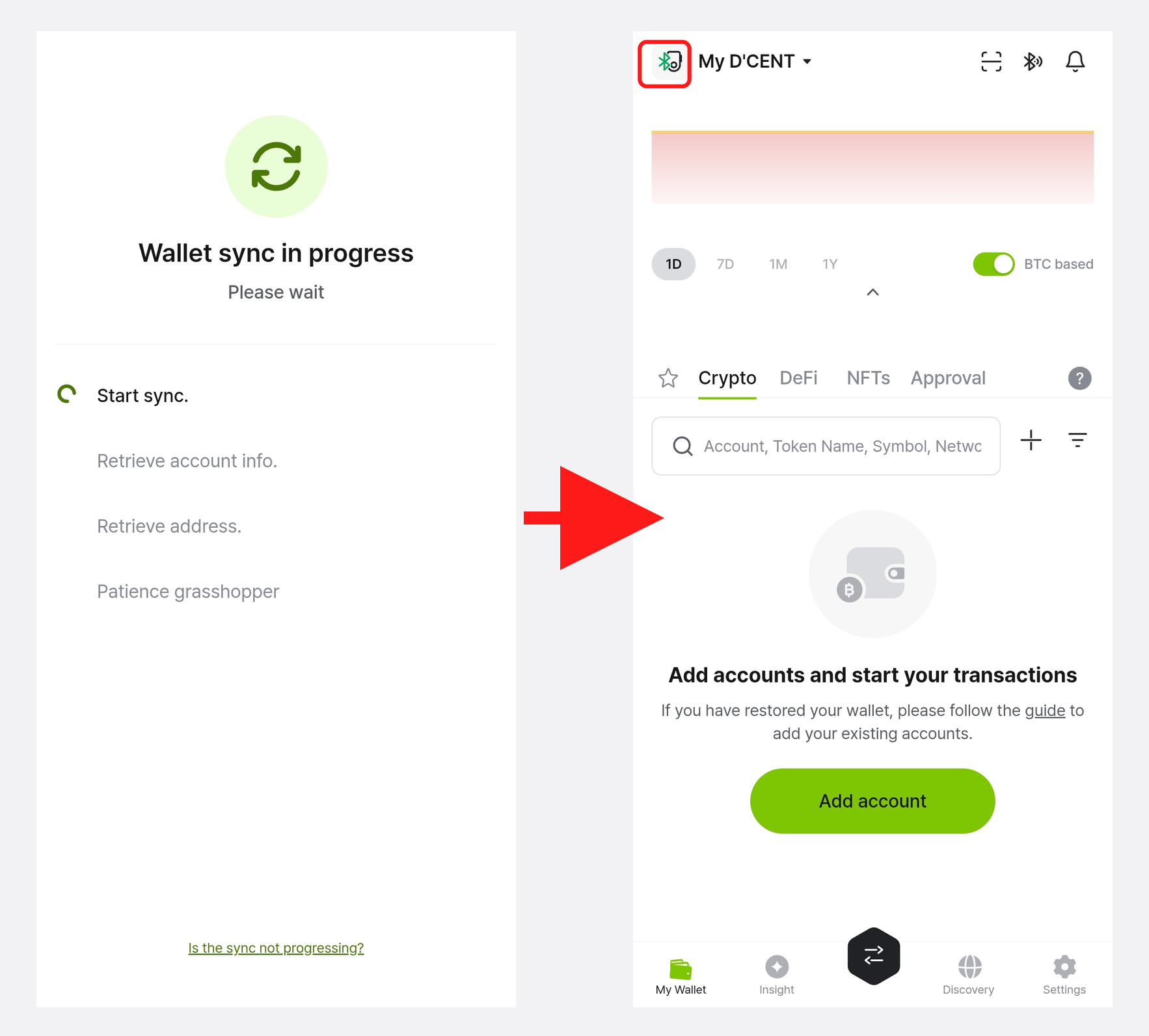
You can now tap the Add Account button to add the coin accounts you need. For detailed instructions on adding coin accounts, see this guide.
How to Check the Device ID
Each Biometric cold wallet has a unique Device ID. Follow the steps below to find yours.
.png)
1) Turn on the cold wallet and authenticate with your fingerprint or PIN, then go to the Settings menu and press OK.
2) Select the Device Info. menu and press OK.
3) The Device ID (DCENT-iD-<numbers or letters>) is shown on the Device Info screen.
If you run into issues connecting the cold wallet, see the Troubleshooting Guide below.