Using OTG cable for physical connection
With an OTG cable, you can sync the Biometric Wallet with your Android phone over a wired connection instead of Bluetooth.
When connecting via OTG cable, we recommend turning off Bluetooth on your Android phone.
What is an OTG cable?
OTG stands for "On-The-Go" and refers to a cable or adapter that lets USB devices connect to an Android phone. One end plugs into the phone's charging port, while the other end is a standard USB port (typically USB Type-A). Just connect the OTG cable to your Android phone.
.png)
OTG cables are not included with the DCENT Biometric Wallet and must be purchased separately.
Types of OTG devices
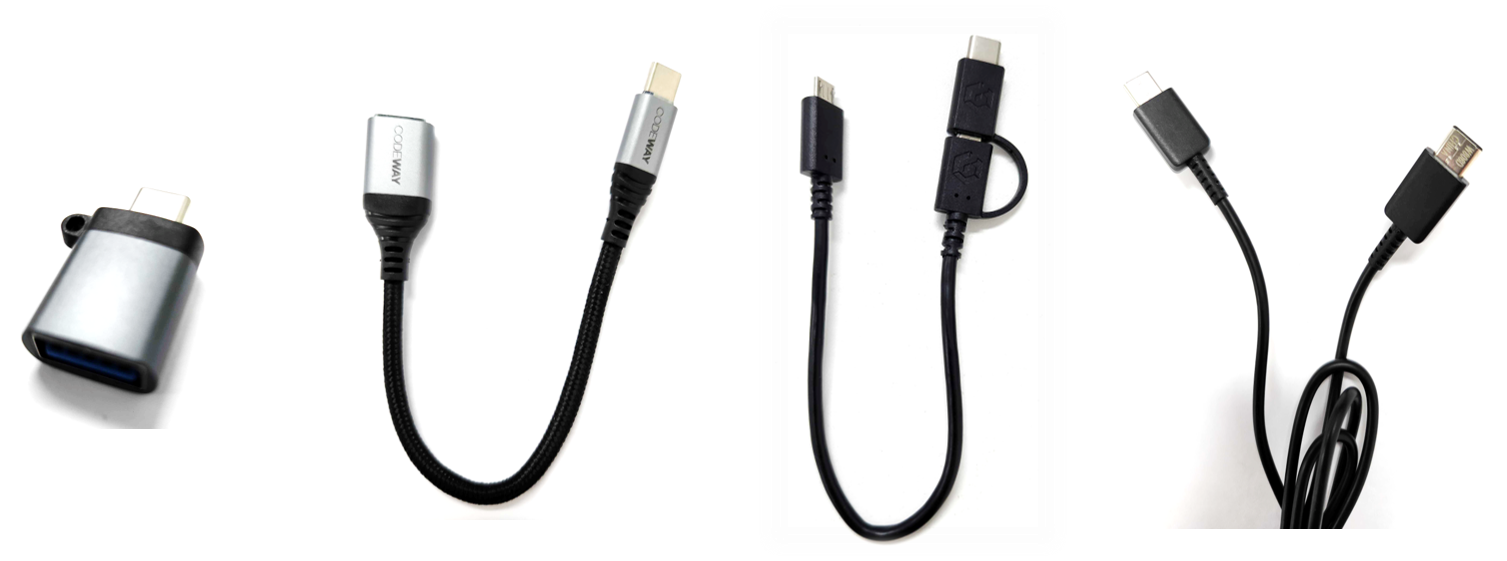
OTG products come in several forms, including adapter-type and cable-type devices. There are also C-to-C cables that connect directly between the phone and the Biometric Wallet's charging port without needing a separate adapter.
Use an OTG cable that's compatible with both your Android phone and the Biometric Wallet's charging port.
This guide is based on DCENT mobile app v10.0.0. To update to the latest version, tap here.
Using Biometric Wallet by connecting with an OTG cable
Launch the DCENT mobile app
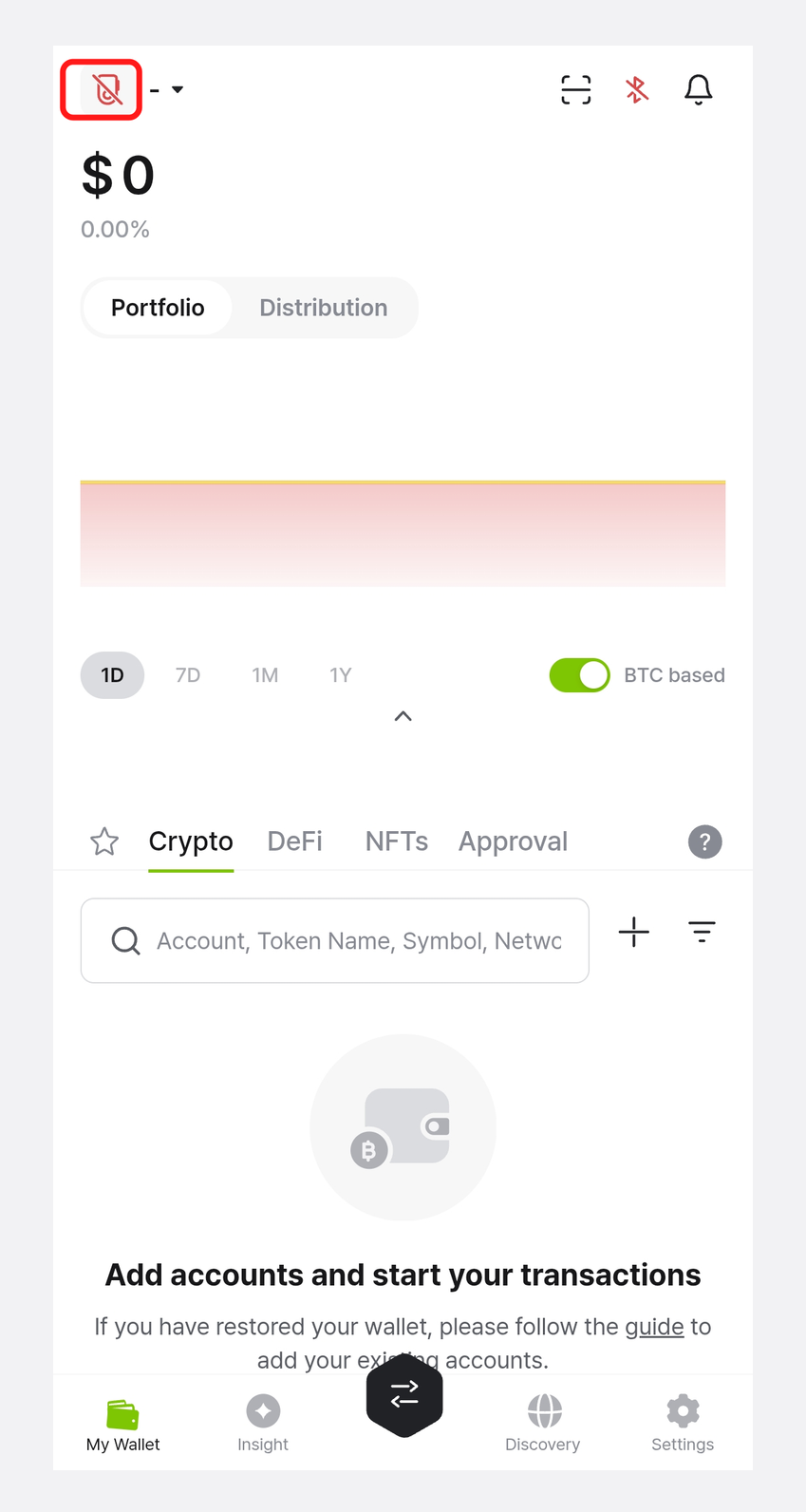
Launch the DCENT mobile app first, with the wallet mode set to Biometric Wallet.
The image below shows the app before any Biometric Wallet is connected.
Connect Android device and Biometric Wallet with OTG cable
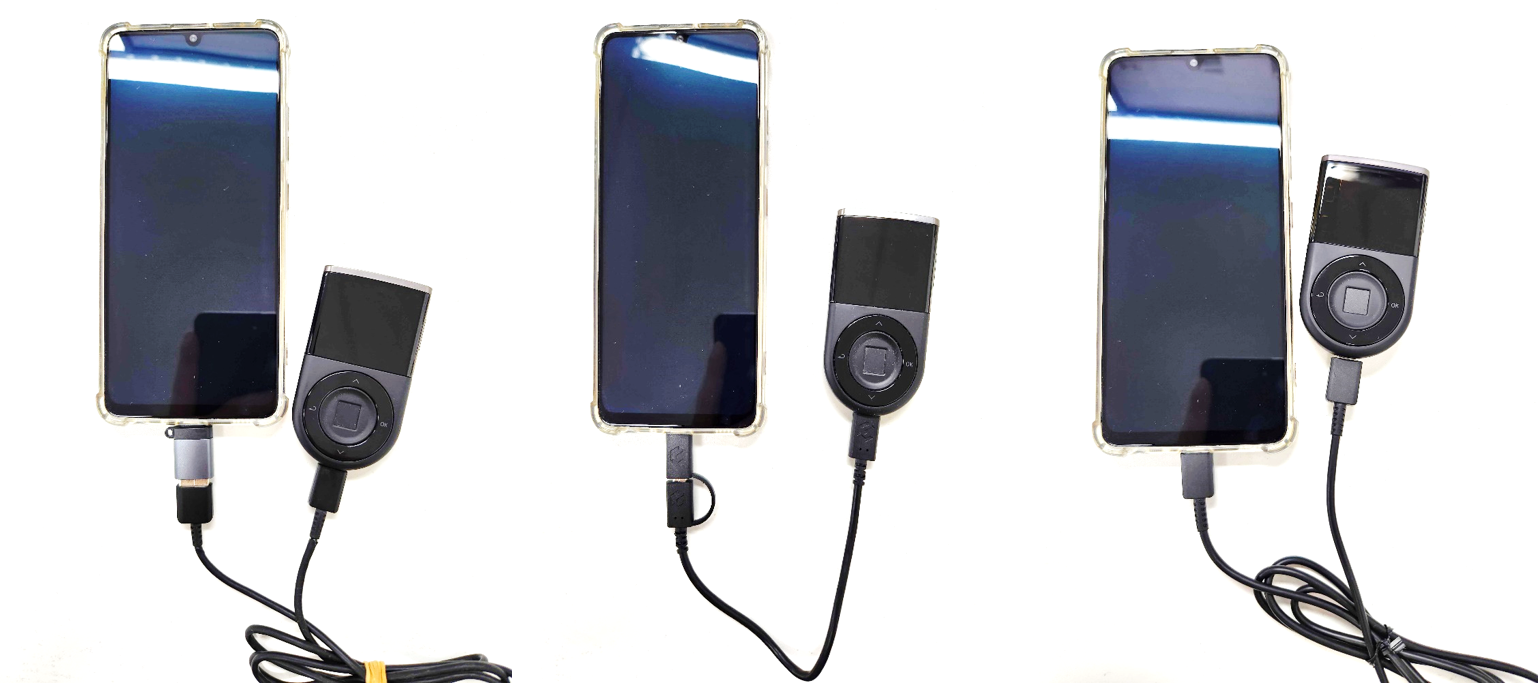
Depending on the OTG cable you own, connect the Biometric Wallet and the Android device as shown in the picture below.
Allow USB access
1) When the OTG cable is connected, the following pop-up appears. Tap OK.
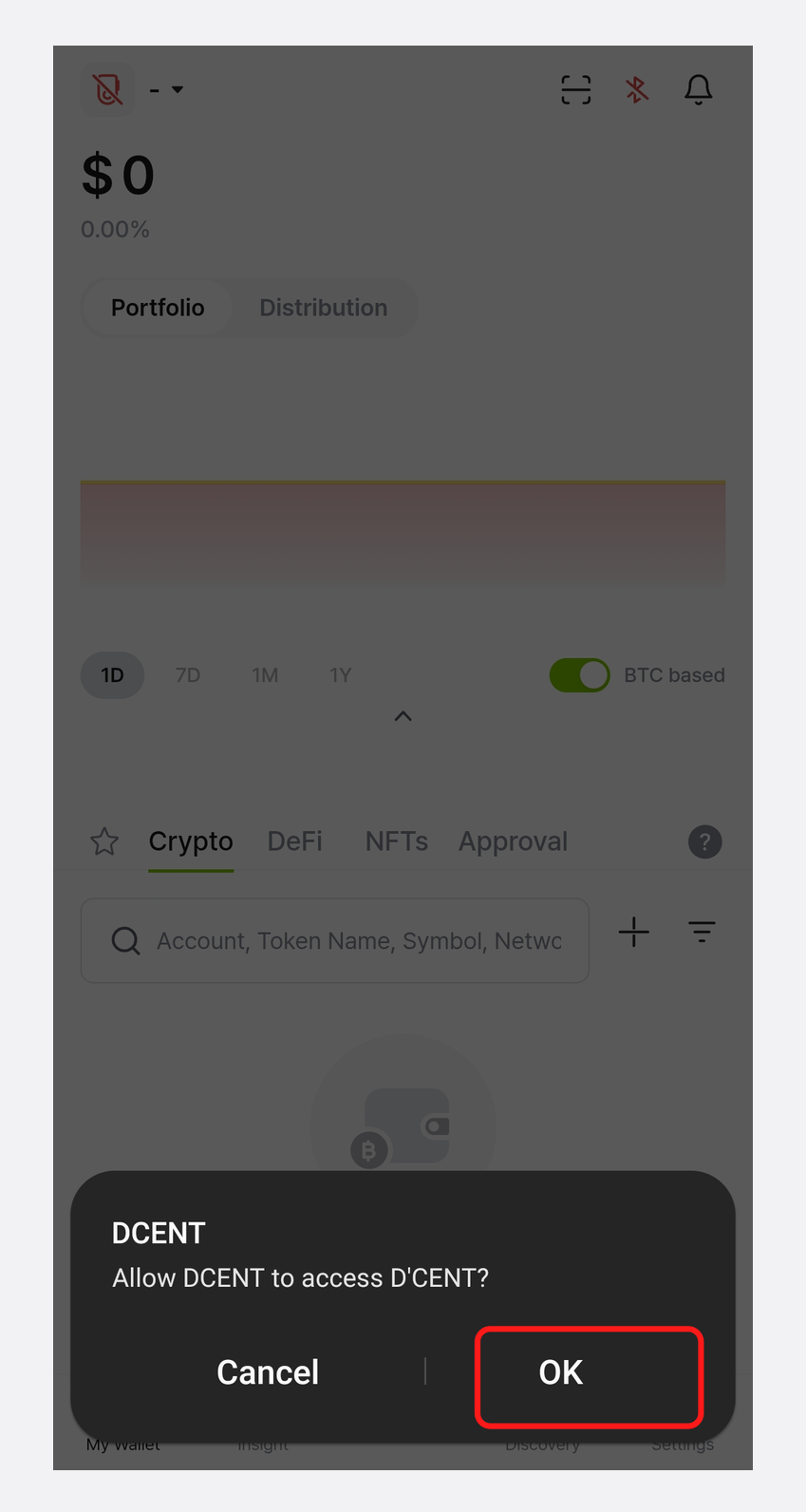
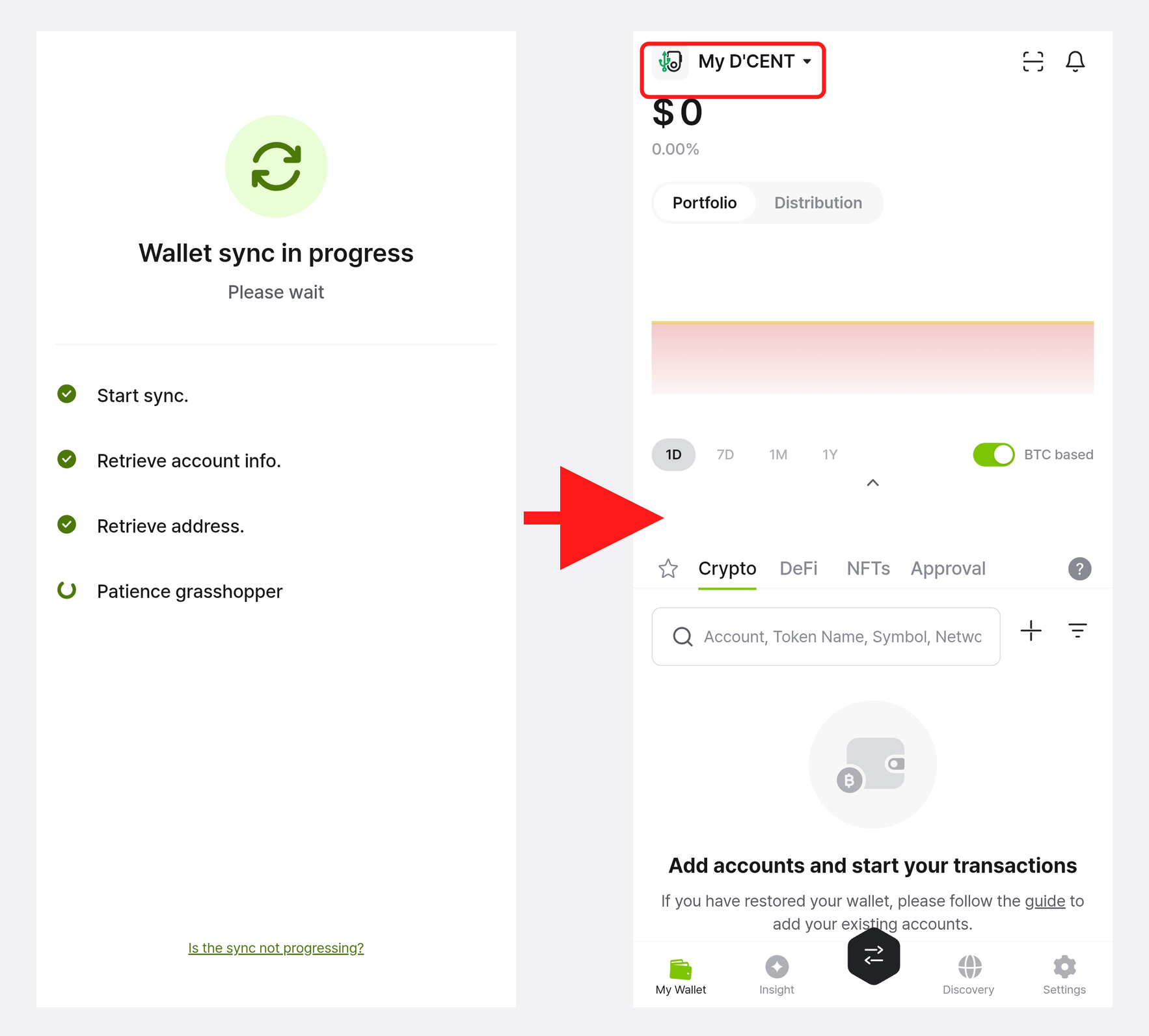
2) Once the connection is established, synchronization with the Biometric Wallet starts automatically. You can begin using the wallet as soon as it finishes.
Firmware Update
You can update the Biometric Wallet's firmware directly from your phone using an OTG cable.
For step-by-step instructions, see the user guide below.
Your OTG cable must support data transfer in order to perform a firmware update.