Troubleshooting Guide (Android Bluetooth Error)
How to solve issues relating to Bluetooth connection errors
For a smooth connection between your phone and the hardware wallet, check the following:
1) Make sure Bluetooth is enabled on your Android phone. See this guide for how to find the Bluetooth menu.
2) Make sure the DCENT app is set to Biometric Wallet mode when using your Biometric Wallet.
Reset Android Bluetooth Settings
If your Biometric Wallet was connected before but now fails to connect, or if the device doesn't appear in the Search Device popup after switching phones, resetting your Android Bluetooth settings may resolve the issue.
This reset removes all saved Bluetooth and Wi-Fi connections. You'll need to reconnect your devices afterward.
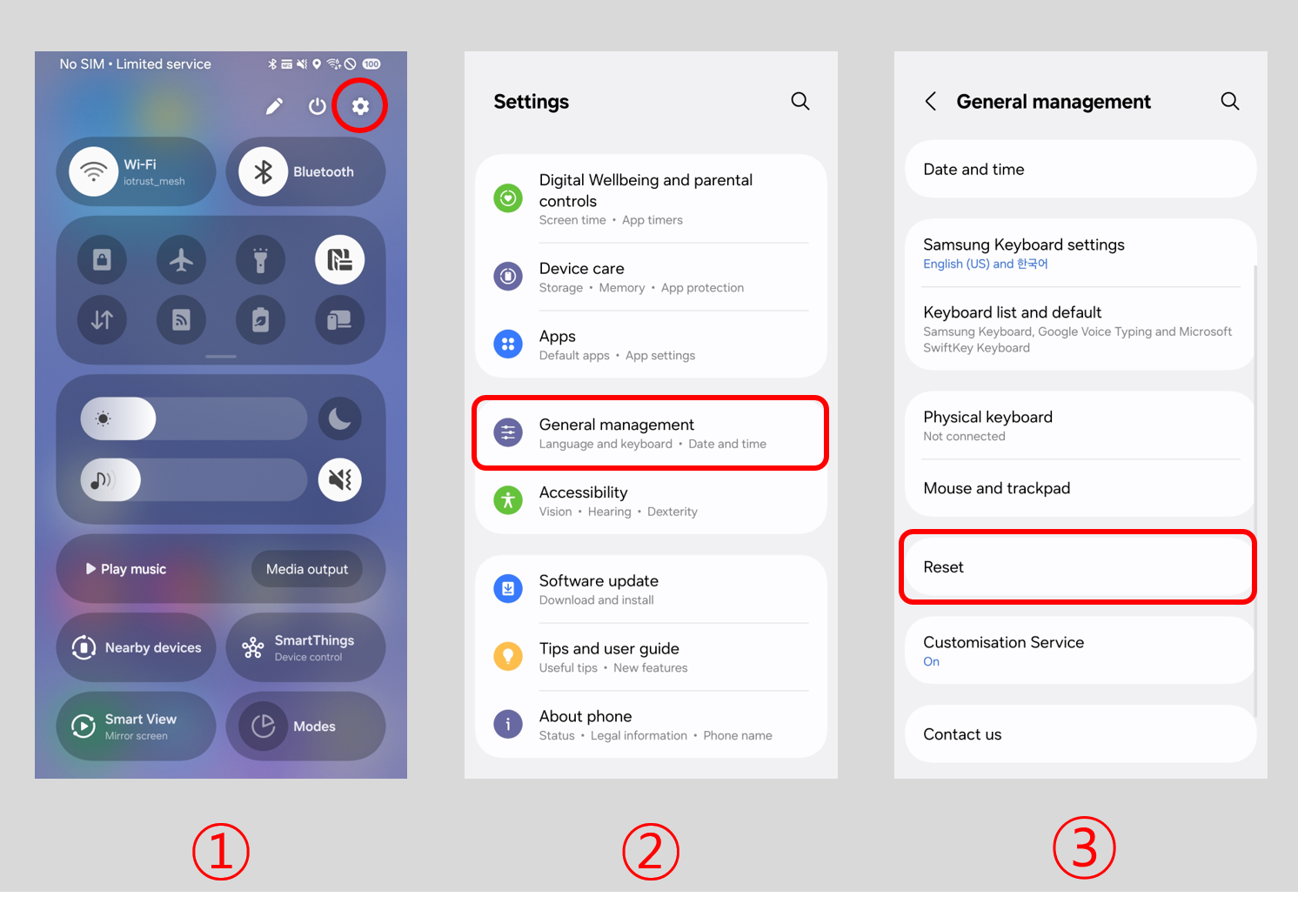
1) Go to Settings.
2) Go to "General management."
3) Go to "Reset."
The exact location of the Reset menu may vary depending on your phone model and Android version.
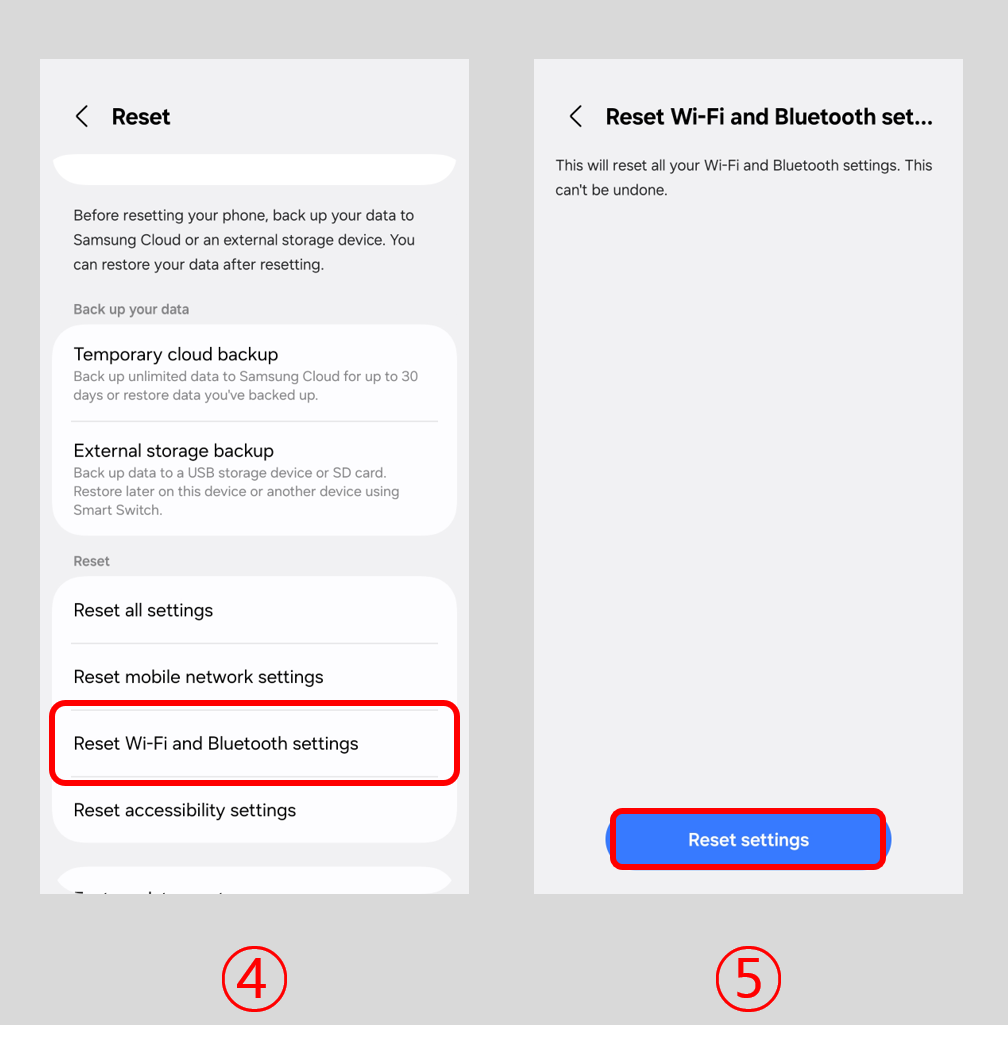
4) Select "Reset Wi-Fi and Bluetooth settings."
5) Click on "Reset settings."
This reset removes all saved Bluetooth and Wi-Fi connections. You'll need to reconnect your devices afterward.
Depending on your phone model and Android version, this option may instead appear as "Reset network settings".
Once the reset is complete, turn Bluetooth back on, relaunch the DCENT app, and try connecting your Biometric Wallet again. For connection steps, see this guide.