Firmware Update (from computer)
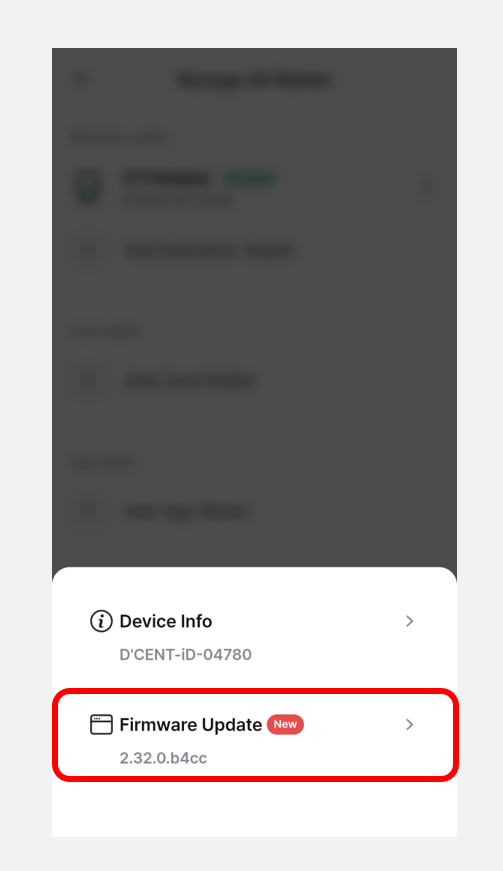
Firmware update indicator
Whenever DCENT adds support for a new coin or releases a bug fix, new firmware becomes available. The mobile app shows a notification when a newer firmware version is released.
Firmware updates can be performed from a PC or a Mac.
Before you update the firmware
Make sure you have your Mnemonic Code (24 seeds/words) for recovery
During the initial setup of your Biometric Wallet, you wrote 24 recovery words on your Recovery Card. Make sure you still have that card before continuing.
Unlike other hardware wallets, your DCENT wallet remains safely stored inside the secure chip even after a firmware update. You do not need to recover your wallet every time you update.
(Still, keep your Recovery Card on hand in case your Biometric Wallet becomes inaccessible — for example, if the device gets bricked or something goes wrong during the update.)
Once the firmware is updated, you cannot roll back to a previous version.
The firmware update takes approximately 3 minutes to complete.
We recommend closing the DCENT mobile app before starting the firmware update.
How to update firmware
Requirements for the firmware update
✅ Firmware can ONLY be updated from a personal computer running a 64-bit OS (Windows or Mac).
✅ You must use the Google Chrome browser.
✅ You must use a USB cable that supports data transfer.
(If your Biometric Wallet uses a Micro USB 5-pin port, we recommend the USB cable included in the package.)
If you are ready, click here to go to the Firmware Update homepage.
Connect Biometric Wallet to your computer
1) Connect the Biometric Wallet to your computer with a USB cable.
2) Unlock the Biometric Wallet with your fingerprint or PIN.
Start the firmware update
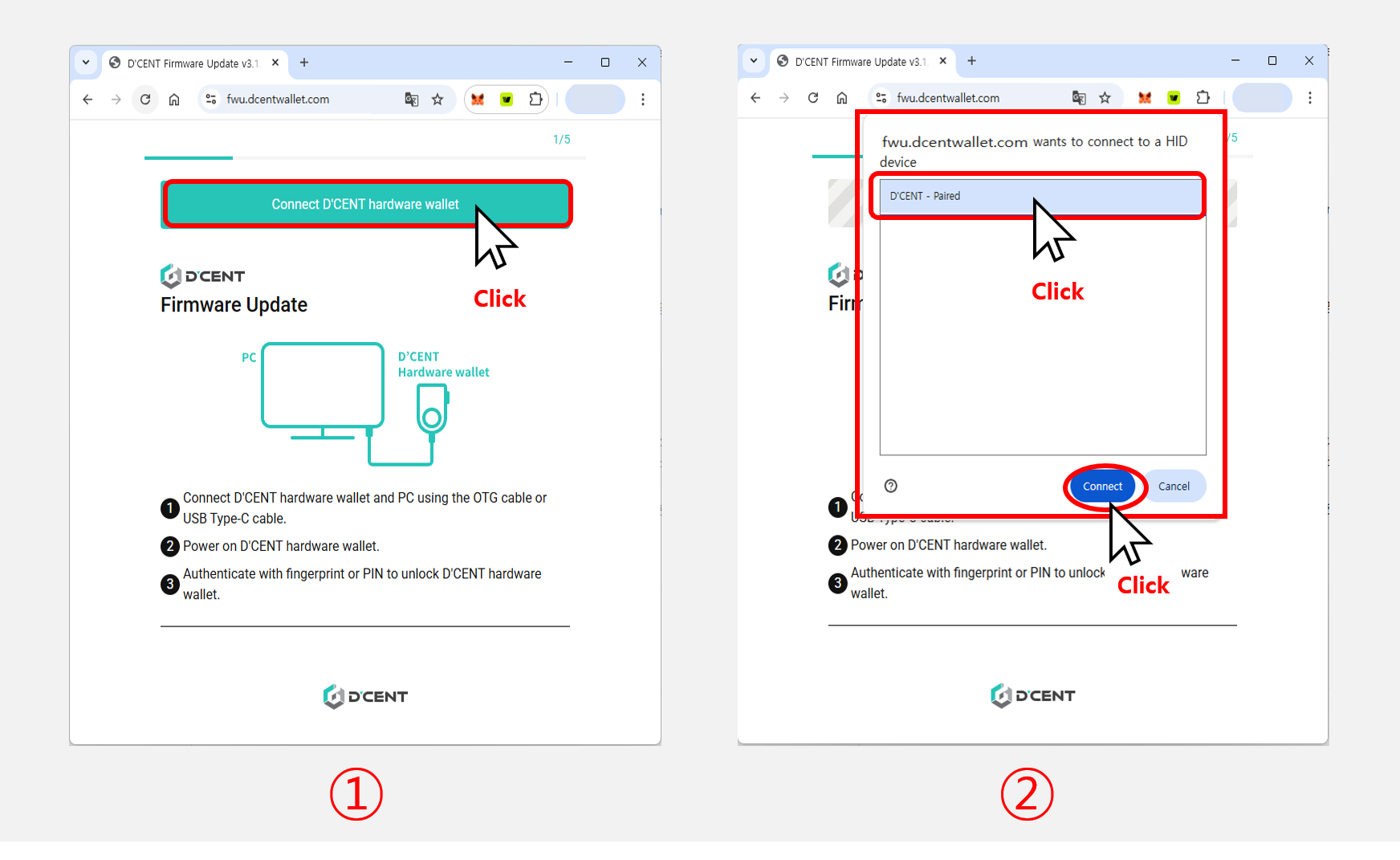
1) On the firmware update page, click the Connect DCENT hardware wallet button.
2) When the browser shows a connection popup, select the DCENT device and click Connect.
If the connected Biometric Wallet is already running the latest firmware, the following screen appears.
.png)
3) Click the Start the update button.
4) Click the Reboot to bootloader mode button. The Biometric Wallet automatically reboots into bootloader mode.
.png)
When the device enters bootloader mode, the following screen appears on the Biometric Wallet's display.
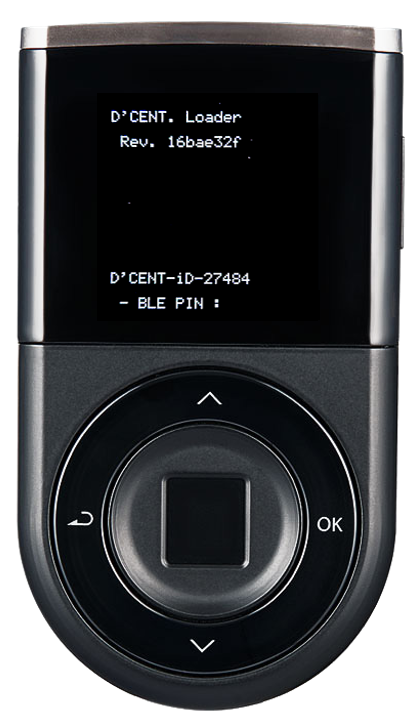
5) Once the Biometric Wallet has rebooted into bootloader mode, click the Keep updating button.
6) When the browser shows another connection popup, select the DCENT device and click Connect.
.png)
7) The update takes about 3 minutes to reach 100%. Please wait until it finishes.
8) You can also follow the update progress on the Biometric Wallet's screen.
.png)
Completing the firmware update
When the firmware update finishes, the Biometric Wallet automatically reboots back to normal mode.
Depending on your Biometric Wallet's current firmware version, the update may need to run twice in a row.
.png)
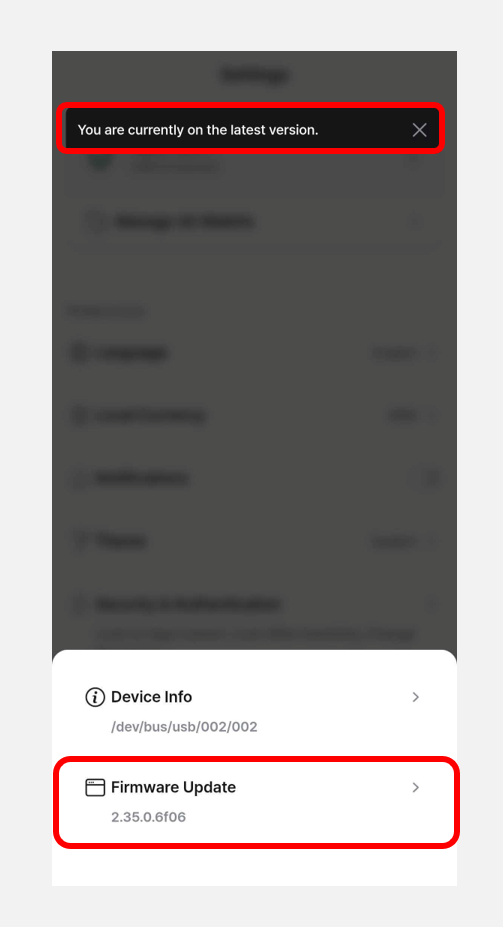
You can now confirm the latest firmware information by launching the DCENT mobile app and connecting your Biometric Wallet.
If you run into issues during the firmware update, see the troubleshooting guides below.