Troubleshooting Guide (Mac)
What to do when the Biometric Wallet screen gets stuck during a firmware update
First, disconnect your DCENT wallet from the computer.
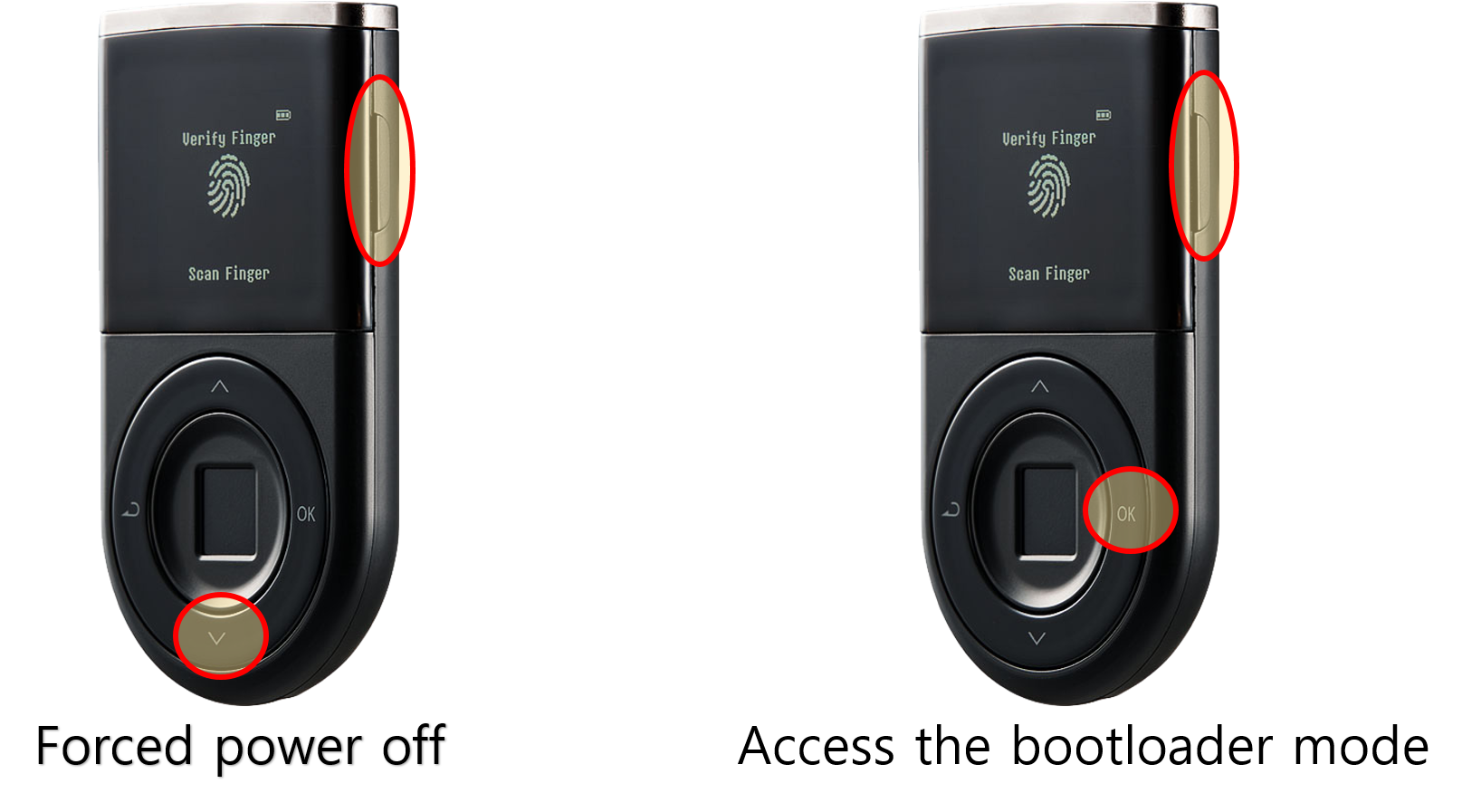
Press and hold the Down (∨) button and the Power button together for a few seconds to force the device off.
If the device gets bricked during a firmware update, you can still enter bootloader mode by pressing and holding the OK button and the Power button together for 10 seconds.
From bootloader mode, you can retry the firmware update to recover your Biometric Wallet.
What to do when the Biometric Wallet is not recognized by the Mac
In rare cases, macOS may stop recognizing the DCENT wallet even though it worked before. You can troubleshoot this from the system's settings.
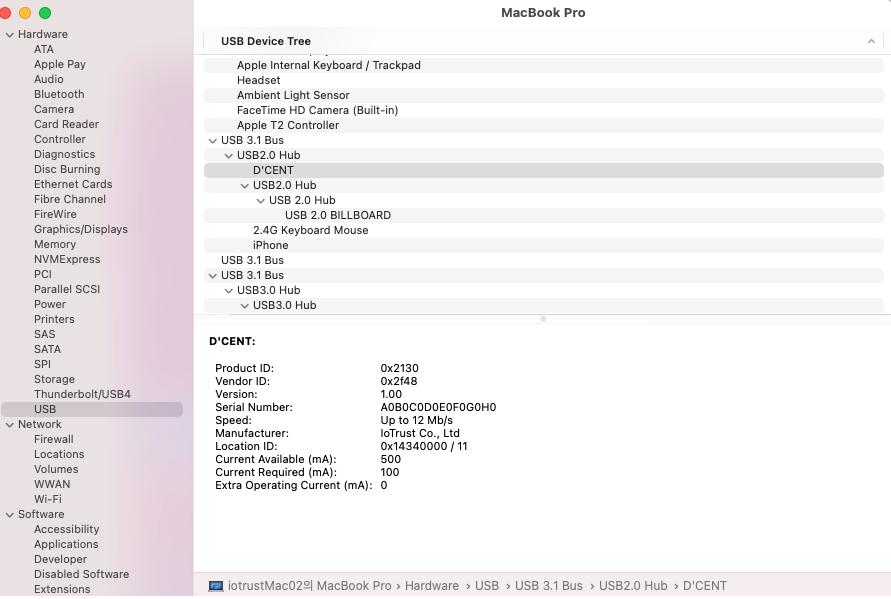
Go to About This Mac > Overview > System Report.
Under Hardware > USB, check whether the DCENT device appears as shown in the image below.
If the Biometric Wallet is still not recognized, the problem may be a faulty USB cable or a bad USB port on your computer.
Try a different USB cable, switch to another USB port, or connect to a different computer. When swapping cables, make sure the new one supports data transfer.