Firmware Update (from mobile)
Mobile Firmware update
Mobile firmware updates are currently only supported on Android phones.
Android users can update the firmware directly from their phone using an OTG cable.
OTG cable
An OTG cable is an adapter or cable that lets your Android phone communicate with the Biometric Wallet so you can update its firmware. Use an OTG cable that's compatible with both your Android phone and the Biometric Wallet's charging port.
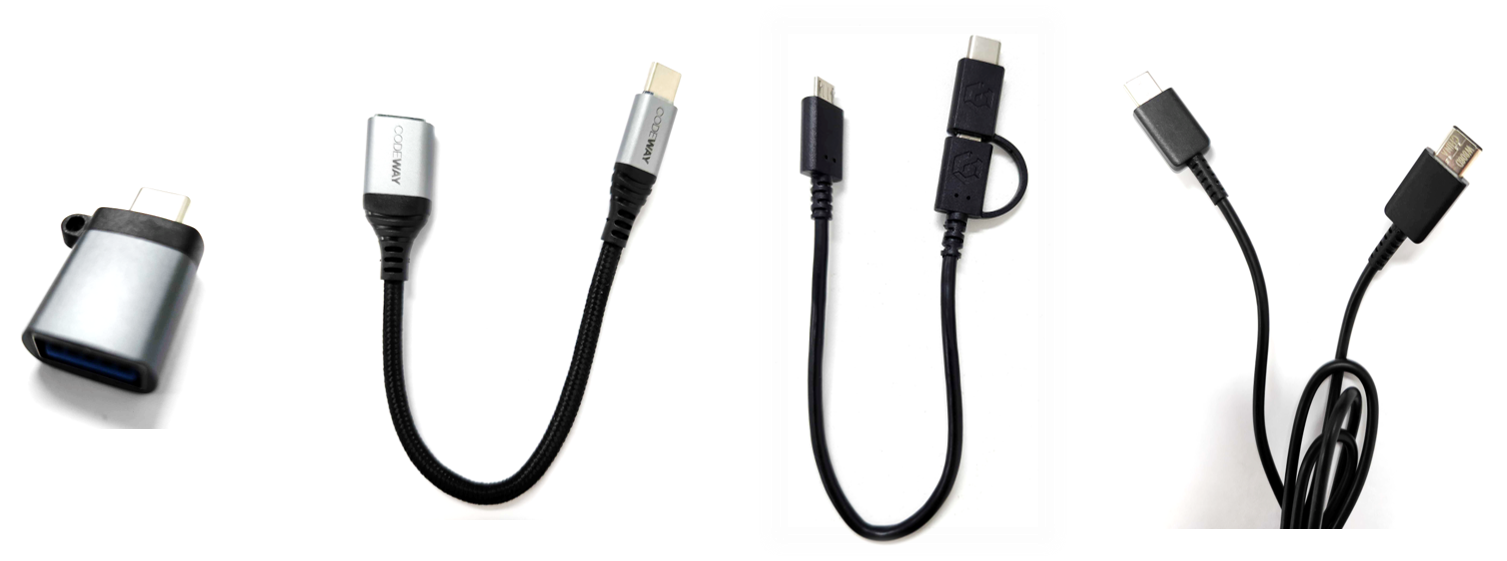
Your OTG cable must support data transfer in order to perform a firmware update.
If your Biometric Wallet uses a Micro USB 5-pin charging port, you can use the genuine DCENT OTG cable to update.
The genuine DCENT OTG cable is available from the official DCENT website.
Firmware update indicator
Whenever DCENT adds support for a new blockchain network, a new firmware version is released. The mobile app displays a notification when a newer firmware is available.
.png)
Before you update the firmware
Make sure you have your Mnemonic Code (24 seeds/words) for recovery
During the initial setup of your Biometric Wallet, you wrote 24 recovery words on your Recovery Card. Make sure you still have that card before starting the firmware update.
Unlike other hardware wallets, your DCENT wallet remains safely stored inside the secure chip even after a firmware update. This means you do not have to recover your wallet every time you update — unlike some other products.
Once the firmware is updated, you cannot roll back to a previous version.
If you are using a separate OTG cable, make sure it supports data transfer.
The firmware update takes approximately 3 minutes to complete.
Updating the firmware from an Android phone
Connect Biometric Wallet with Android Phone using an OTG cable
Depending on the OTG cable you own, connect the Biometric Wallet and the Android device as shown in the picture below.
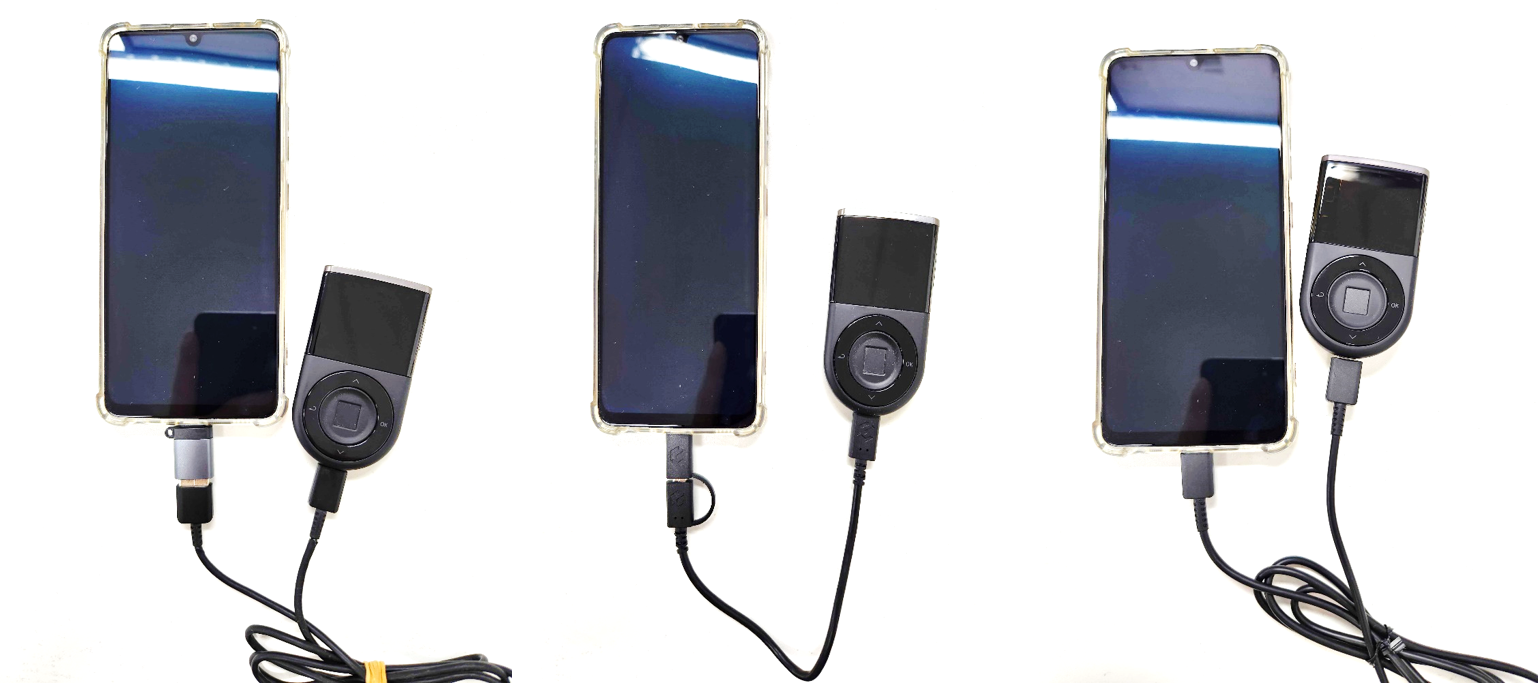
When the Biometric Wallet is connected to your Android phone via the OTG cable, a pop-up appears on the phone. Press OK to allow the connection.
.png)
In the Settings tab, tap the More Options (⋮) button and select Firmware Update.
.png)
Proceed with the firmware update
.png)
1) Tap the Update button.
2) Wait until the Biometric Wallet is detected.
3) Tap the Start the update button.
.png)
4) Tap the Reboot to bootloader mode button.
5) The Biometric Wallet automatically reboots. When the pop-up appears on your phone, press OK to allow the connection.
6) Tap the Keep updating button.
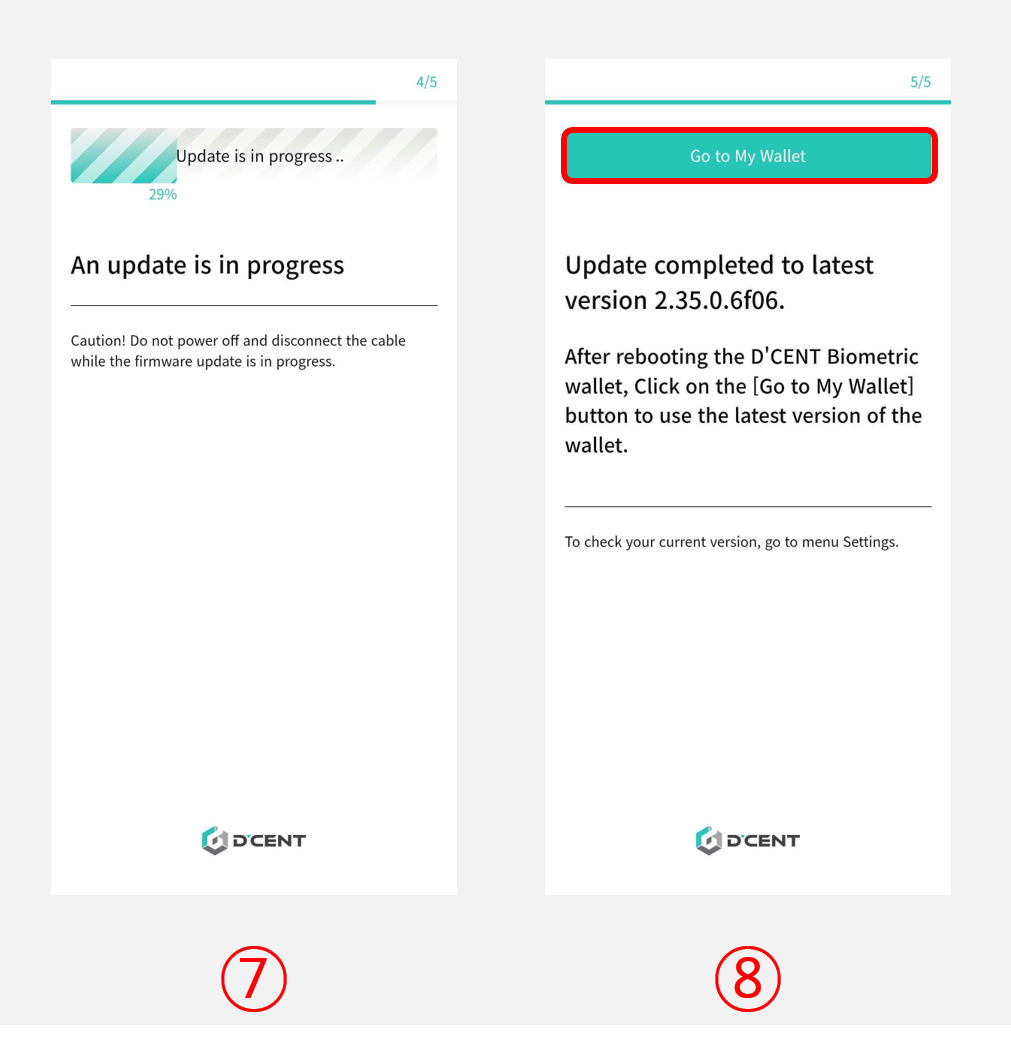
7) Wait about 3 minutes for the update to finish. When it's done, the Biometric Wallet automatically reboots back to normal mode.
8) Tap the Go to My Wallet button to finish.