Biometric Wallet "Setting" menu
Bluetooth Menu
Use this menu to connect the Biometric Wallet to an Android or iOS phone via Bluetooth.
- For Bluetooth pairing on Android, see this guide.
- For Bluetooth pairing on iOS, see this guide.
Security Menu
Change PIN
Your PIN (4 to 8 digits) is used to authenticate when fingerprint authentication fails, and is also required to add or remove fingerprints. To change your PIN, enter the old PIN, then enter the new PIN twice. Choose your PIN carefully and make sure to remember it. For step-by-step instructions, see this guide.
Enroll Finger
You can enroll up to 2 fingerprints on the Biometric Wallet.
You'll need to enter your PIN to enroll a new fingerprint.
The second fingerprint has the same privileges as the first one — including the ability to authorize coin transfers. Only enroll a second fingerprint that belongs to you, and never add someone else's.
Delete Account
The Delete Account menu erases all public information for your wallet accounts. It does not delete the private keys associated with those accounts. After syncing the Biometric Wallet with the mobile app, you'll see that no accounts appear under the Account tab. If you re-add a coin account from the mobile app, your existing account will reappear.
.png)
This is useful if you've added many wallet accounts that you no longer use or no longer want to see in the mobile app.
Before running Delete Account, keep a record of every coin account you've created so you can re-add them later if needed.
Delete Finger
Use this menu to delete all stored fingerprint data. You'll need to enter your PIN, then confirm the deletion.
If 2 fingerprints are stored, both will be deleted at the same time.
Device Wipe
Device Wipe resets your Biometric Wallet to factory state — the same condition as a newly purchased device.
.png)
Performing a Device Wipe deletes your entire wallet, including all private keys.
To run Device Wipe, enter your PIN, read the warning carefully, and press OK to confirm. The device powers off, and the next time you turn it on, your Biometric Wallet will be in factory state.
Confirming Device Wipe deletes everything, including your private keys. Make sure you have your mnemonic recovery words before performing Device Wipe.
25th Word (the Passphrase)
The passphrase (25th word) is an advanced security feature on the DCENT Biometric hardware wallet. It adds one extra word on top of your existing 24-word mnemonic to derive a completely new set of private keys (accounts). See the link below for details.
Seed Check
The Seed Check menu lets you verify that the mnemonic code (24 words, or 24 words + 25th word) you have on hand matches the one stored on your current device.
- 24 words: After entering all 24 words, select "I am ready" on the Review screen to start the check.
If the words match, the screen displays "Match". - 25 words: If you've set a 25th word (the passphrase), enter all 24 words first, then enter your 25th word to verify both together.
Language Menu
You can change the language used on the Biometric Wallet.
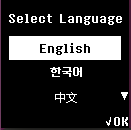
Language support : English, Korean, Chinese, Japanese, Spanish
Device Info Menu
You can check the Biometric Wallet device information from this menu.
.png)