25th Word (the Passphrase)
Remember: anyone who gets hold of your 24-word mnemonic can recreate your wallet and steal your funds.
The passphrase (25th word) is an advanced security feature on the DCENT Biometric hardware wallet. It adds one extra word on top of your existing 24-word mnemonic to derive a completely new set of private keys (accounts). Even if someone discovers your mnemonic, they cannot recreate your wallet without also knowing the 25th word.
You choose the passphrase yourself. It can be up to 8 characters and may contain numbers and/or letters. Choose a 25th word you can remember perfectly.
If you already hold crypto assets in your wallet, transfer them to another address before setting the 25th word.
Note: once the 25th word is set, your wallet uses a brand-new private key, and your previously managed coin accounts will no longer be accessible from this wallet.
How to set up the 25th word (Passphrase)
Requirements
To use the passphrase feature, your DCENT Biometric Wallet must have a security chipset running KSM version 1.1 or higher. Older Biometric Wallet models with a lower KSM version do not support the passphrase feature.
You can check the KSM version under Setting > Device Info.
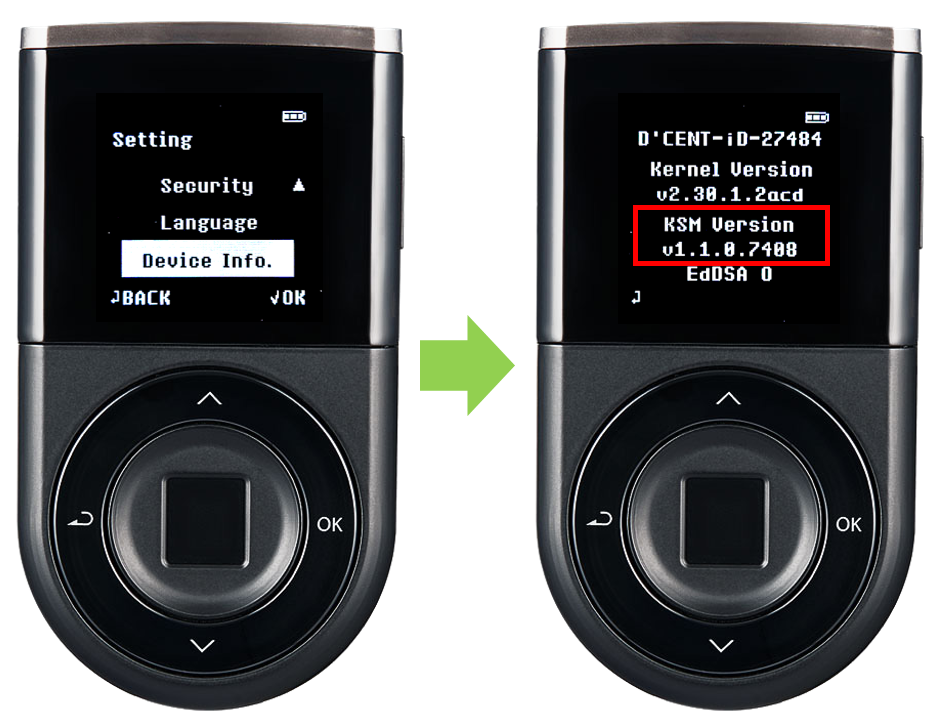
Set up the 25th Word
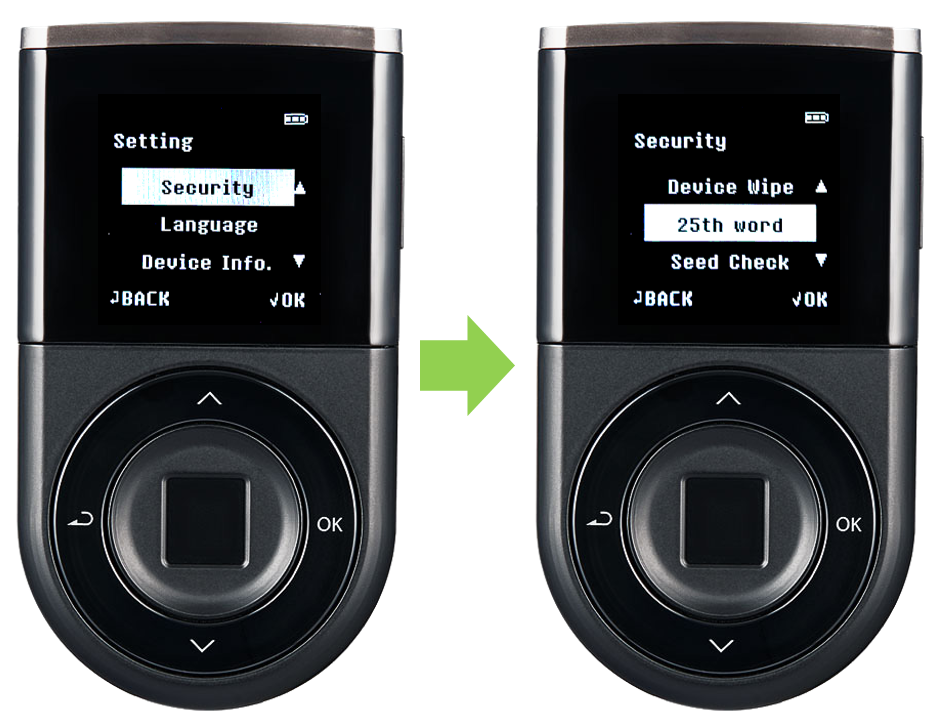
1) Open the 25th Word menu by going to Setting > Security > 25th Word.
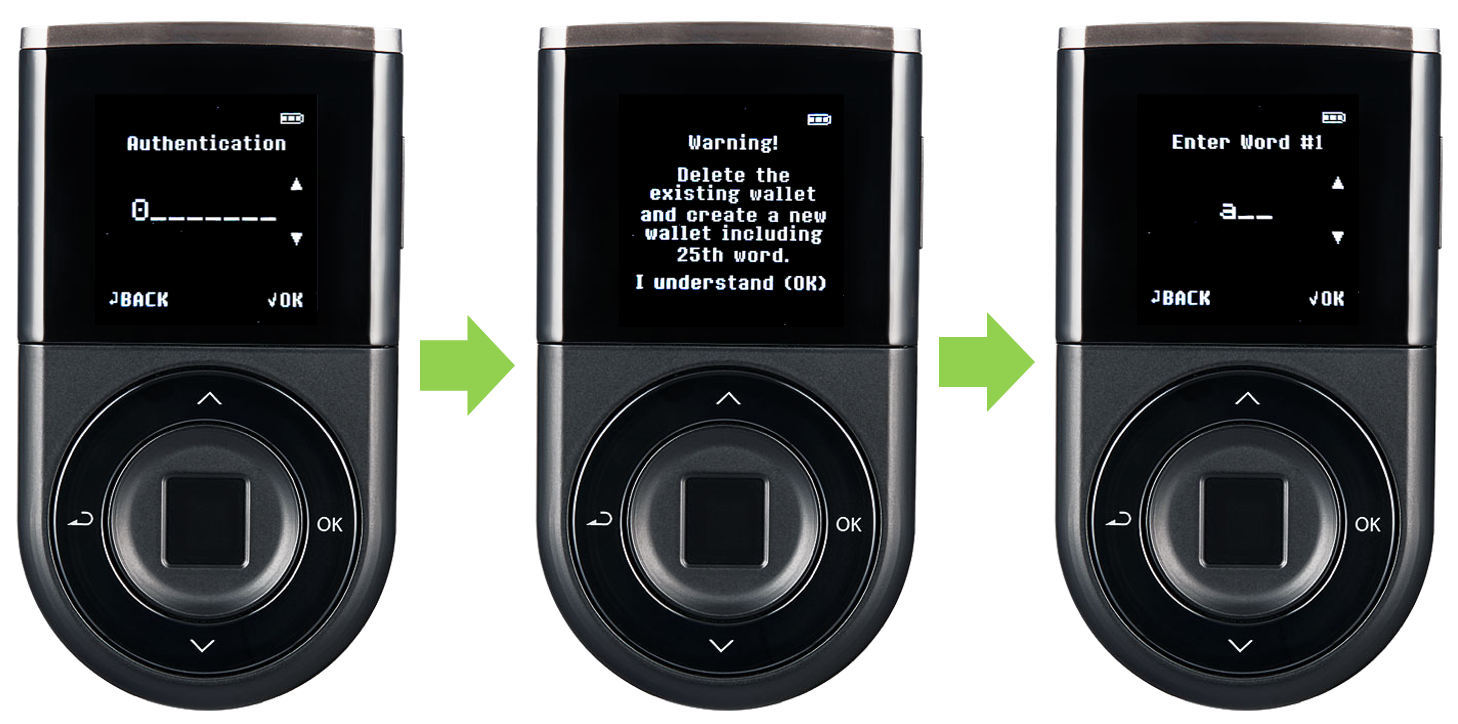
2) Enter your wallet PIN (4 to 8 digits) to authenticate.
Read the warning carefully. Setting up the 25th word completely removes the current wallet from the device.
Press the OK button on the device to continue. You'll then be asked to enter all 24 words of your mnemonic.
3) After entering all 24 words, select "I am ready" on the review screen to continue. Read the warning carefully. In the next step, you'll be asked to choose your own 25th word. Press OK to continue.
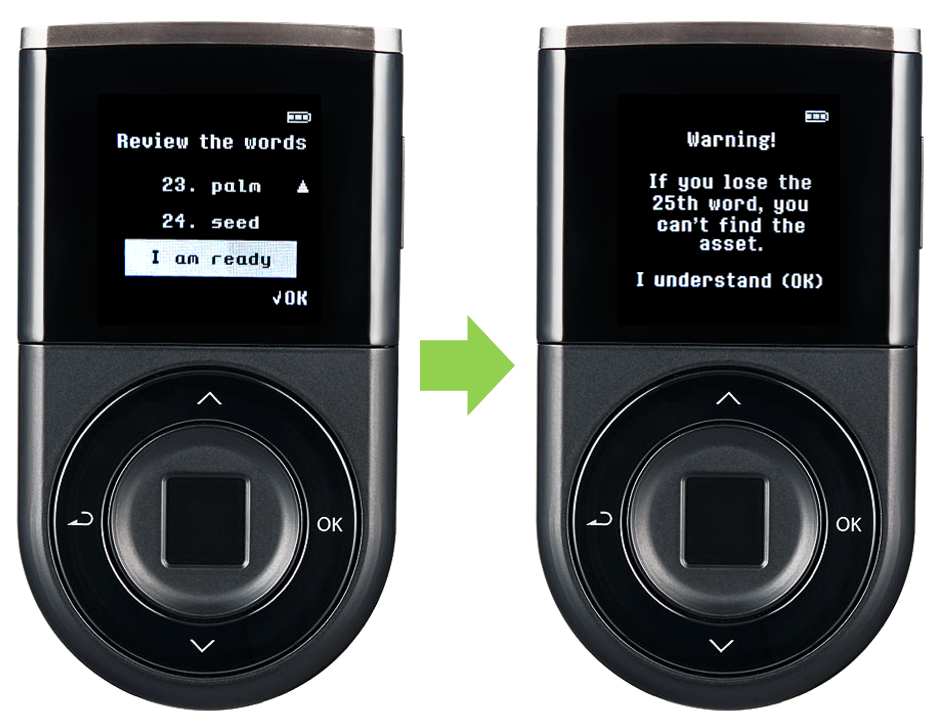
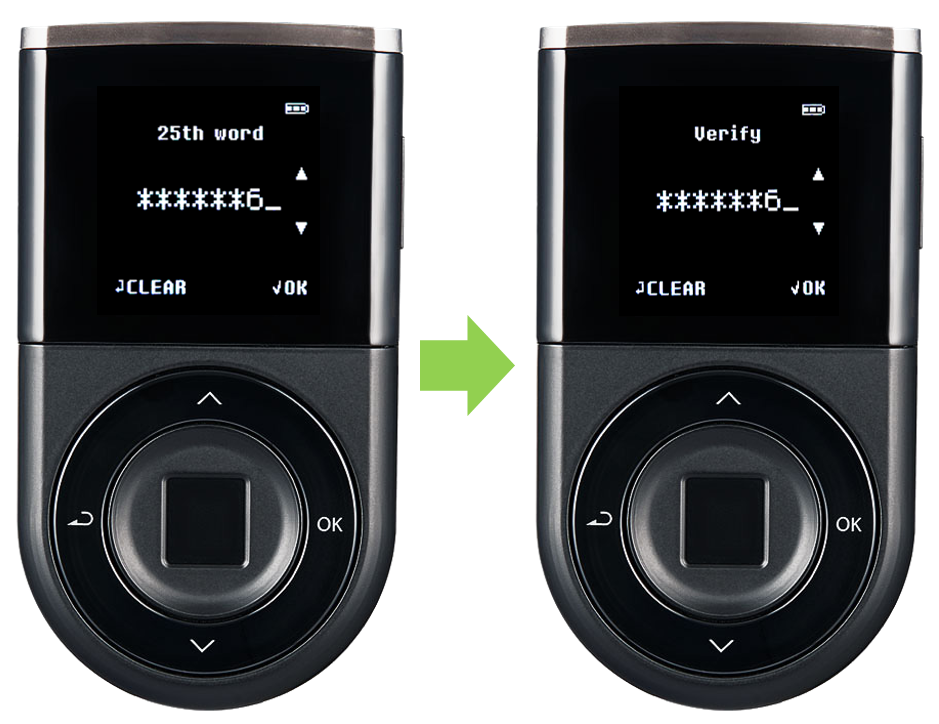
4) Choose your own 25th word (the passphrase). It can be 1 to 8 characters long and can include letters and/or numbers. Choose carefully and pick something you can remember perfectly — without your 25th word, you cannot recover your wallet. Enter your 25th word, then enter the exact same word again to verify it.
5) After Step 4 finishes, your Biometric Wallet powers off automatically. Turn it back on, and the wallet will now contain an entirely new set of private keys (accounts).