Initial Setup
Before you begin
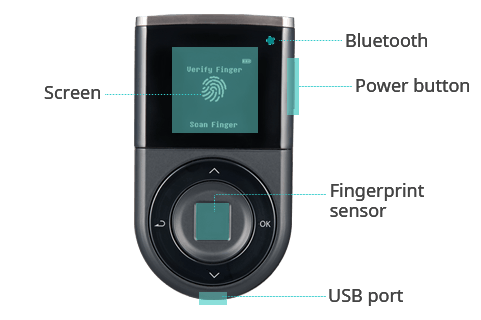
The DCENT Biometric Wallet has 4 buttons for navigation.
- Up (∧) / Down (∨) buttons: Move between menu items, or change a number or character value.
- OK button: Confirm the selected item or input value.
- Back button: Return to the previous menu, or cancel the current input.
Step-1 : Select Language & Create Wallet
Power on DCENT Biometric Wallet
To power on the device, press and hold the "Power" button on the right side for 3 seconds.
If the cold wallet does not turn on, charge the battery with a USB cable first, then try again.
For safe charging, plug the charging adapter into the outlet before connecting it to the cold wallet.
Select Language
Use the Up (∧) / Down (∨) buttons to select your language, then press OK.
.png)
Language support : English, Korean, Chinese, Japanese, Spanish
After setting up your cold wallet, you can change the Language from the Setting menu.
Select "Create Wallet"
To create a new wallet, select "Create Wallet" from the menu.
.png)
Selecting "Create Wallet" generates a brand-new private key.
To recover an existing wallet instead, see this guide.
Step-2 : Register PIN & Fingerprint
To protect access to your wallet, register a new PIN and your fingerprint.
Firmware versions below v2.5.5 only support a 4-digit PIN.
Register a new PIN (4 to 8 digits)
Use the Up (∧) button to increase the number and the Down (∨) button to decrease it. Press OK on the cold wallet to confirm each digit.
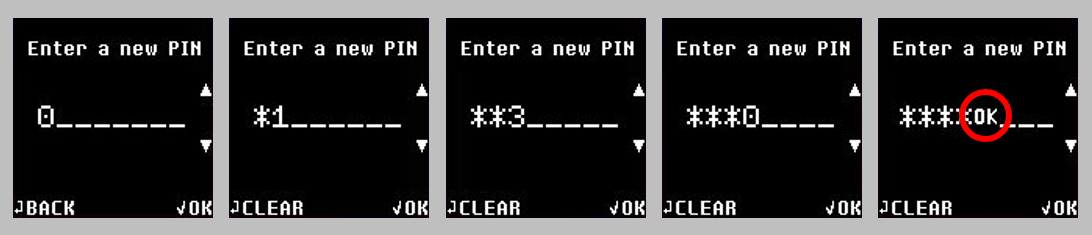
After entering 4 digits, "OK" appears on the screen. To use a 4-digit PIN, press the OK button on the hardware wallet.
To set a longer PIN, change the "OK" value with the Up (∧) / Down (∨) buttons and add more digits. Your PIN can be 4, 5, 6, 7, or 8 digits long.
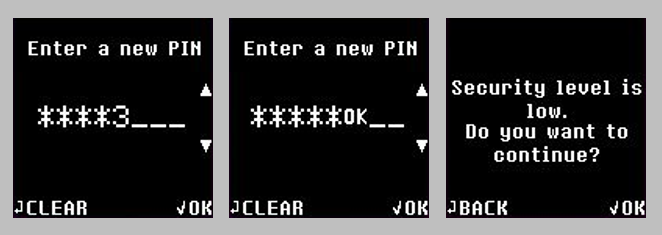
If you register a 4-digit PIN, a "Security level is low" warning appears. To continue with a 4-digit PIN, press the OK button on the cold wallet.
Verify your PIN
Re-enter the same PIN to confirm it.
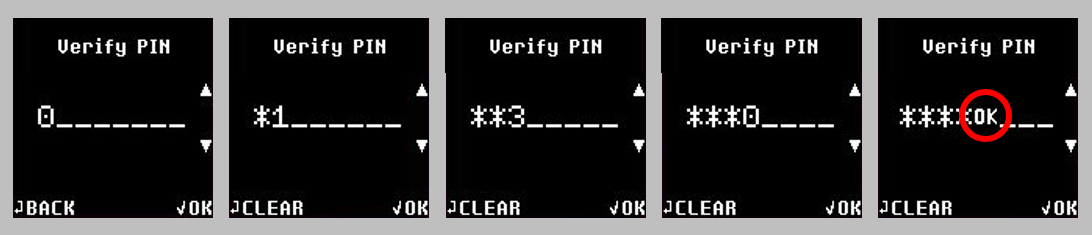
※ If the two PINs do not match, you will need to restart PIN registration.
After setting up your cold wallet, you can change the PIN value from the Biometric Wallet Setting menu.
Register Fingerprint
1) Place your finger on the sensor to begin scanning.
.png)
The fingerprint sensor sits in the middle of the navigation buttons.
See the fingerprint sensor location.
2) Slightly change the angle of the same finger between scans, and repeat until you reach 100% (8 successful scans).
.png)
Verify Fingerprint
Scan your fingerprint one last time to confirm that it was registered correctly.
.png)
※ If the fingerprint does not match, you will need to restart fingerprint registration.
※ When re-registering, try using a different finger.
※ If you cannot register your fingerprint for any reason, you can skip this step. You can register a fingerprint later from the Setting menu.
※ If fingerprint verification fails, your fingerprint will not be saved.
Step-3 : Write down the recovery seeds
Before you begin - What are recovery seeds(Mnemonic code)?
Recovery seeds are the words you use to restore your wallet.
If your DCENT Cold Wallet is ever lost, stolen, damaged, or wiped, the recovery seeds are the only way to restore your wallet.
You MUST write down every recovery seed on the Recovery Card and store it in a safe place.
The recovery seeds are shown only once, during initial setup. If you lose your Recovery Card, no one — including DCENT — can help you recover your funds. You alone are responsible for keeping the Recovery Card safe.
If you lose your Recovery Card, there is no other way to recover your wallet and your funds will be lost.
Write down the recovery seeds from the lists
1) Read the WARNING carefully, and press the OK button only after you fully understand it.
.png)
2) Write down every recovery word shown on the cold wallet screen. Press the OK button to see the next group of words.
The 24 words are split into 6 screens, with 4 words per screen. Make sure to write them down accurately and in the exact order shown.
.png)
When writing down the recovery words, double-check the spelling of each word.
3) Once you have written down all 24 words, press the OK button to continue.
.png)
Never photograph or save digital images of your recovery words or Recovery Card. You alone are responsible for keeping your recovery words secure. DCENT is not liable for any loss of crypto assets caused by user negligence, such as a stolen Recovery Card or saved image files.
Store the Recovery Card safely — away from fire, water, sunlight, and pets.
Recovery Seeds Verification
Enter all 24 words from your Recovery Card to verify them.
Enter the first 3 characters
.png)
※ How to input : Use the "Up(∧)/Down(∨)" buttons - ∧(increase value from a to z) or ∨(decrease value z to a)
For example, if the recovery word is "patch", enter "p" and press OK → enter "a" and press OK → enter "t" and press OK.
Finding suggestion from the list shown
From the list of suggested words, use the Up (∧) / Down (∨) buttons to select the correct word (patch), then press OK to confirm.
.png)
※ If you notice that a word was written down incorrectly, press the OK button (RETRY) to re-enter the recovery seeds for review.
Repeat this process for all 24 words to finish verification.
Step-4 : Completing the Initial Setup
.png)
Congratulations — you've passed the quiz and your new wallet is ready. You can browse the available coin accounts directly from your cold wallet. You're now ready to use it together with the mobile app.
You can find the complete list of cryptocurrency assets supported on DCENT Biometric Wallet from https://www.dcentwallet.com/en/supportedcoin
Check for the latest Firmware
After finishing the initial setup, visit the DCENT Wallet website to check for the latest firmware. Newer firmware versions may add support for more crypto assets and introduce new wallet features.
More information on firmware update can be found from here.