Step 3: Recover backup image
This guide is based on DCENT mobile app version 10.0.0.
You can recover your wallet with a Backup Card when your All-in-One Wallet is lost, stolen, or damaged, or when the card is blocked after 10 or more failed PIN attempts.
There are two ways to recover:
- When you have a Backup Card — Load a Backup Card that already holds a completed backup directly into the app.
- Recover onto a newly purchased Backup Card using saved backup data — Transfer your previously saved backup data onto a new Backup Card, then load it.
When you have a Backup Card
If you already have a Backup Card that holds a saved backup image, you simply need to add it to the app as a card wallet.
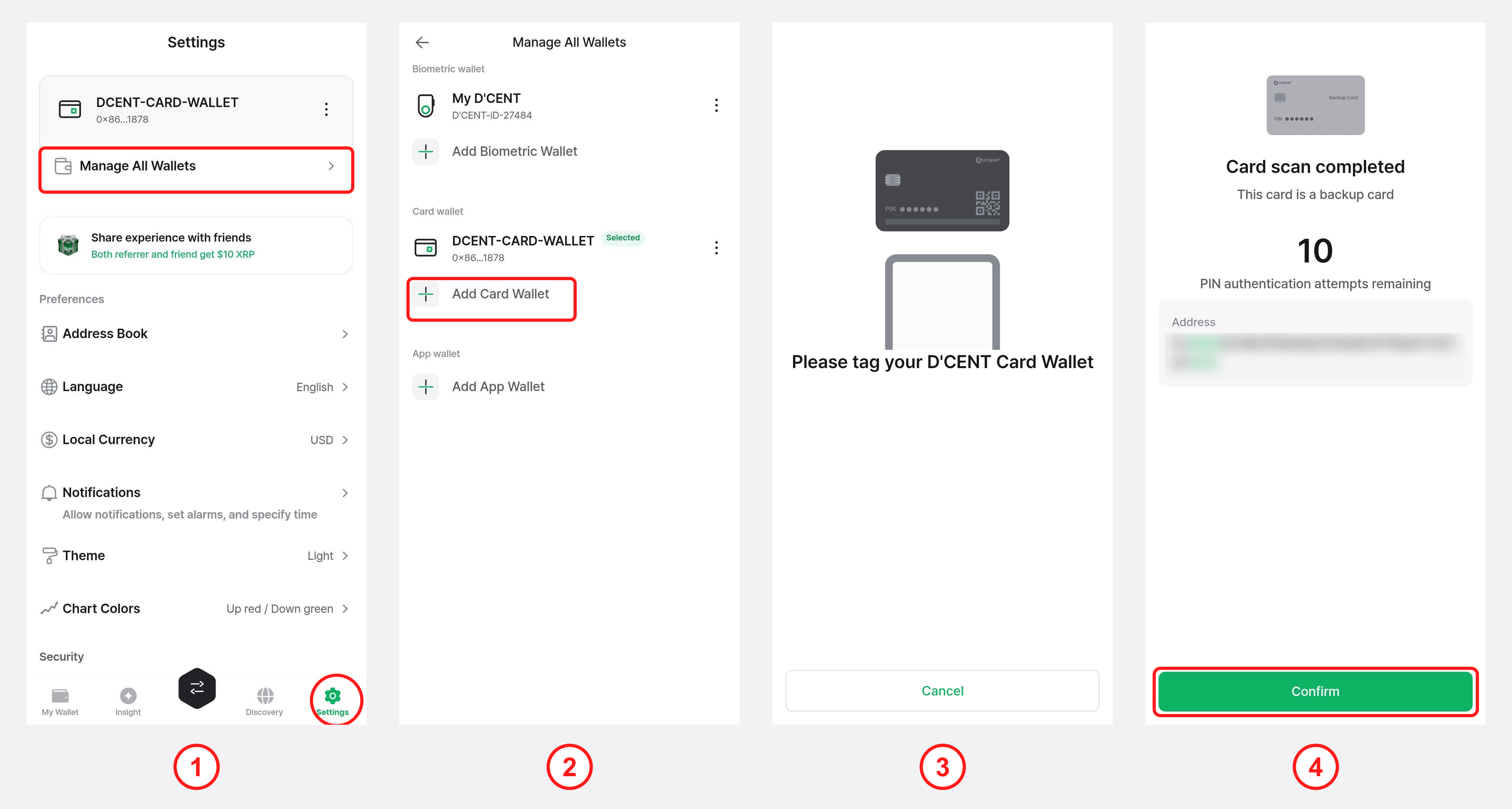
1) Open the Settings tab and select "Manage All Wallets".
2) Select "Add Card Wallet".
3) Hold the Backup Card against the back of your phone to scan it.
4) When the "Card scan completed" screen appears, check that the address matches the address of your original All-in-One Wallet, then tap "Confirm".
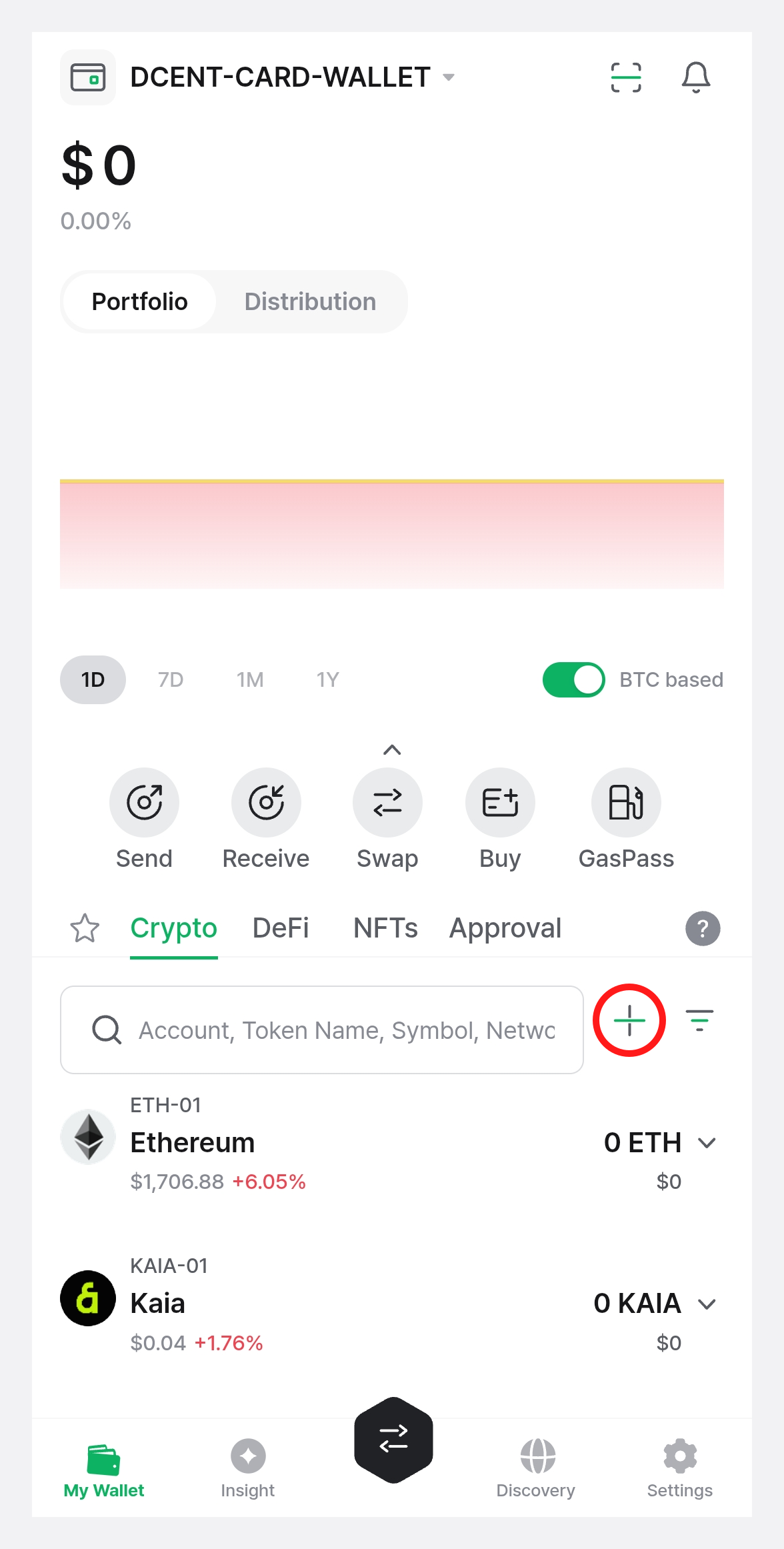
The recovered card wallet shows only the default accounts (Ethereum, Kaia, Polygon). If you were managing other accounts before, tap the "+ Add Account" button next to the search bar to add them again.
Recover onto a newly purchased Backup Card using saved backup data
Recover your previously saved backup image data onto a new Backup Card. Before you start, have your backup image data and encryption password ready.
If you bought a new Backup Card, you must change its factory PIN to your own PIN before recovering. See here for how to change the factory PIN.
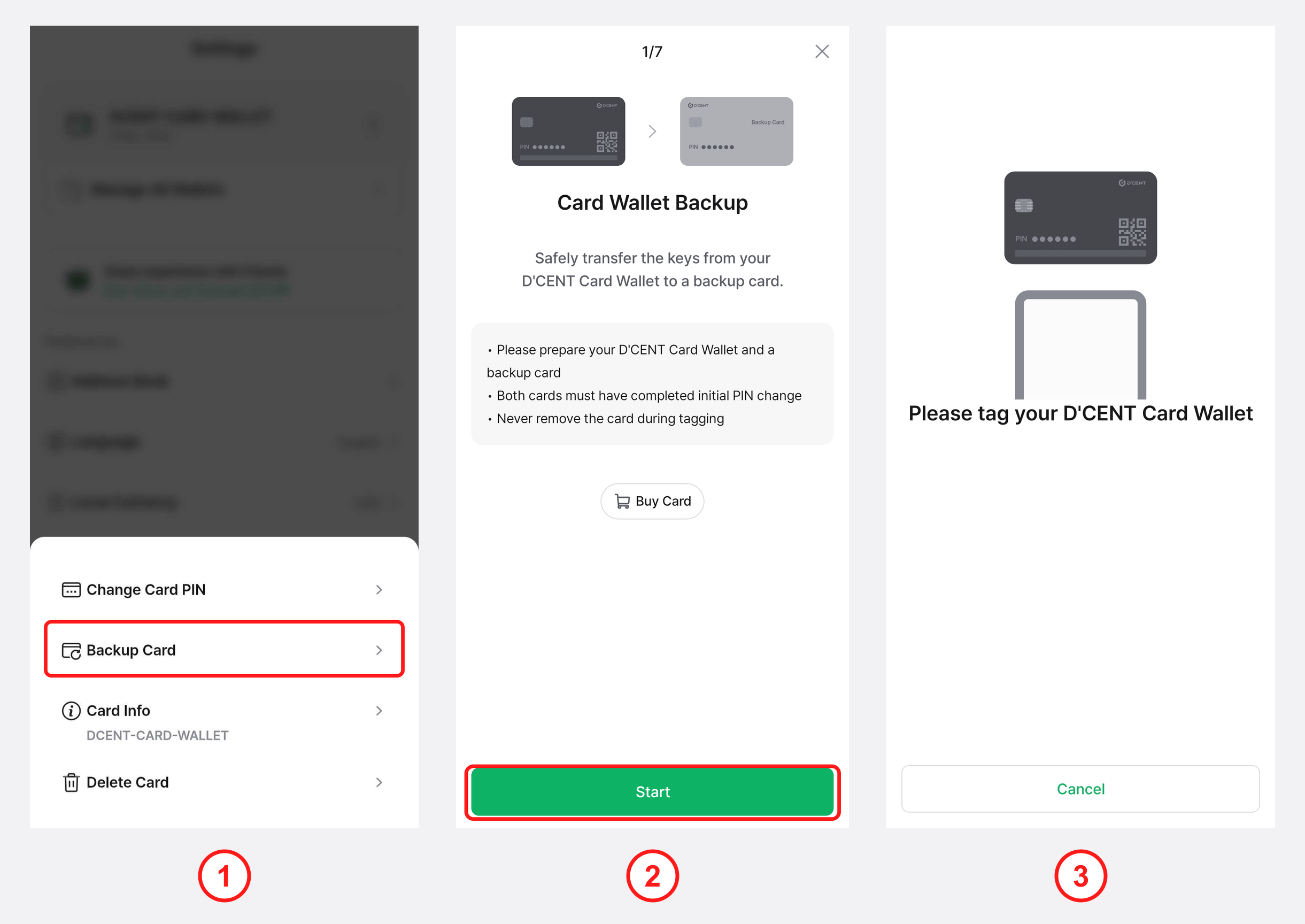
1) Open the Settings tab, tap the More (⋮) button, then select "Card Backup".
2) Tap "Start".
3) Hold the newly purchased Backup Card against the back of your phone to scan it. Keep the card in place while it is being recognized.
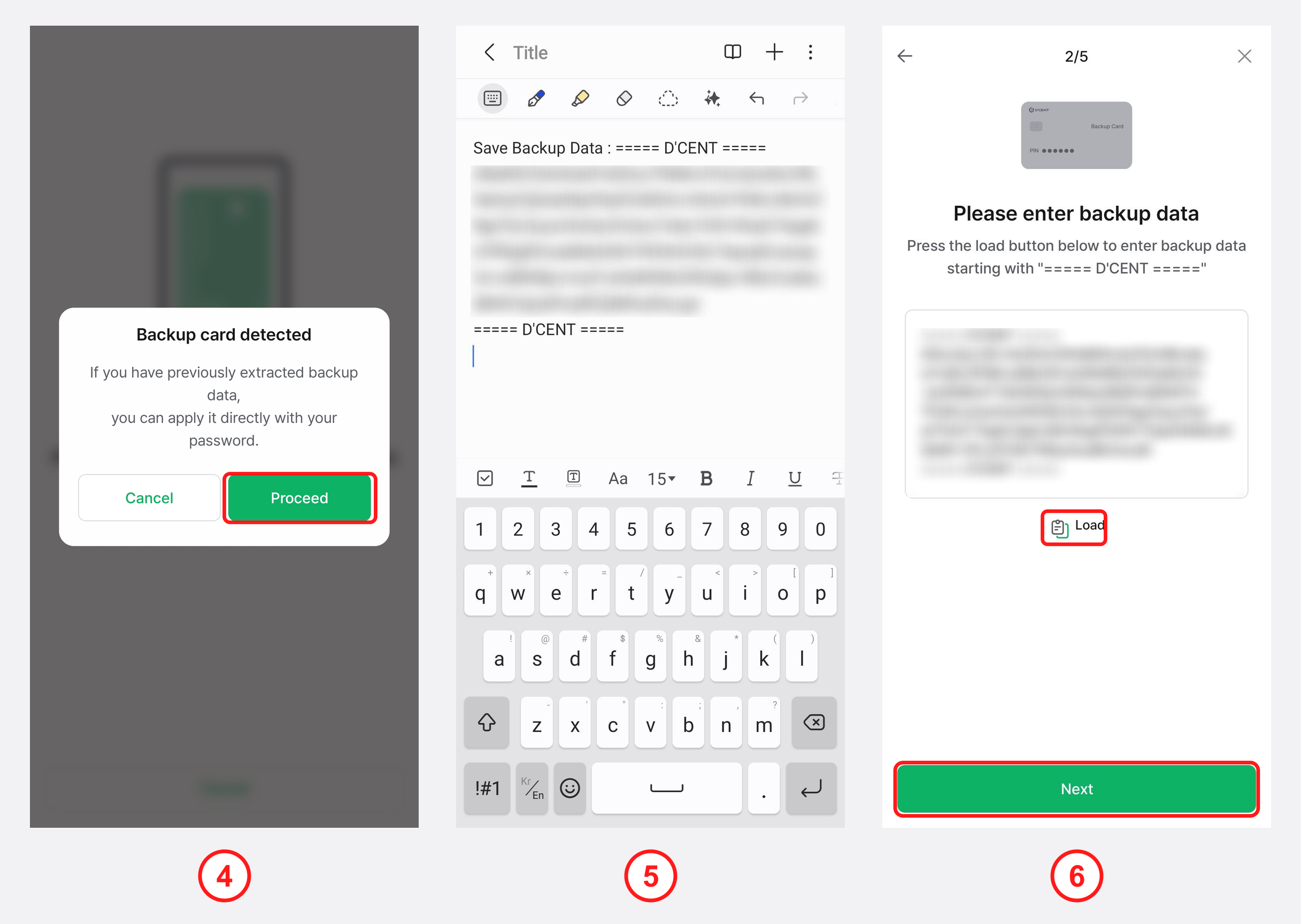
4) When the message "Backup card detected" appears, tap "Proceed".
5) Copy the encrypted backup image data from where you saved it (memo/notes app, message, email, etc.).
6) Tap "Load" to paste in the copied backup image data, then tap "Next".
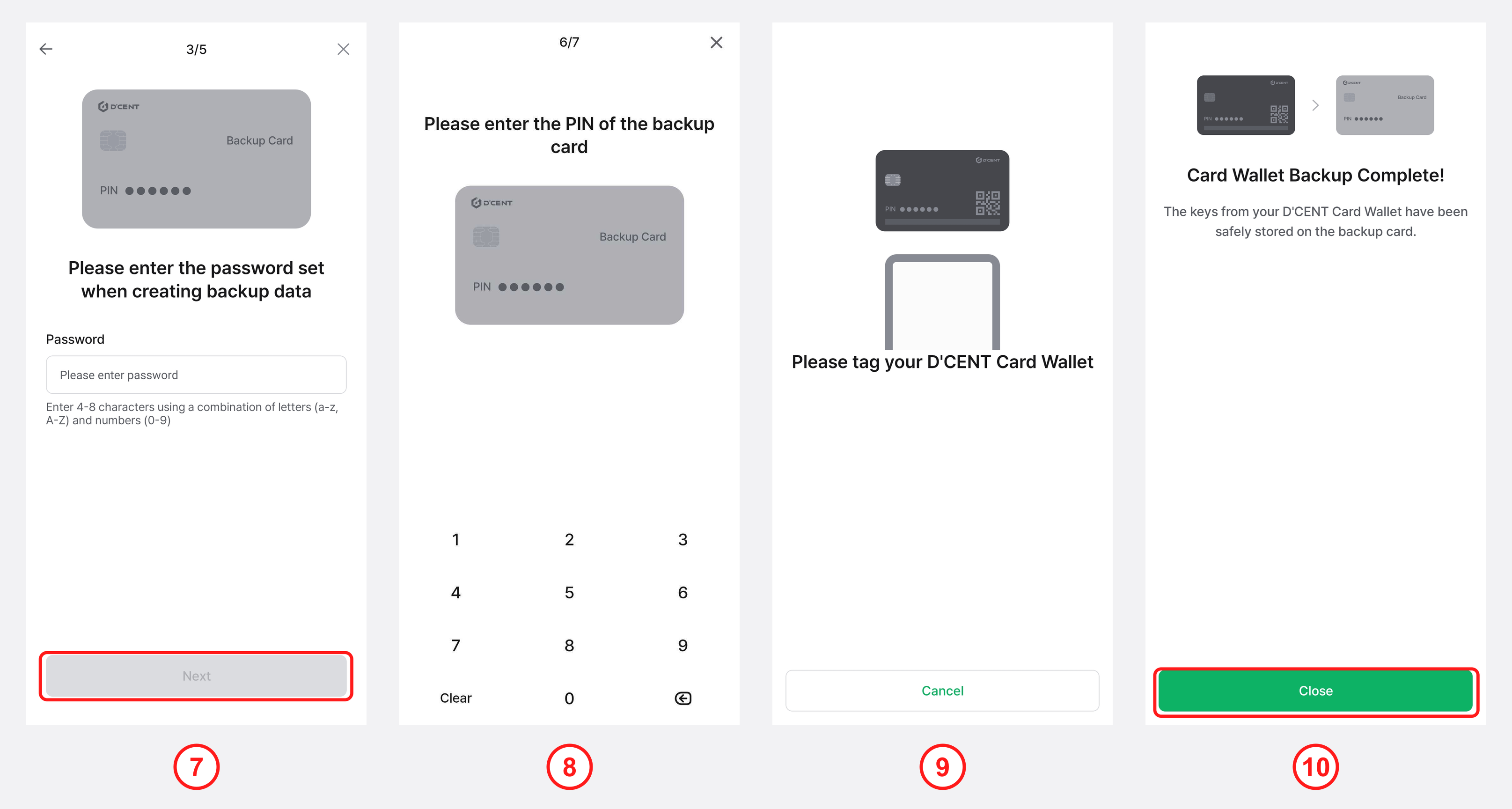
7) Enter the encryption password you used when creating the backup image, then tap "Next".
If you forget the encryption password, you cannot recover using the saved backup image data.
8) Enter the card PIN of your Backup Card.
9) Hold the Backup Card against the back of your phone to scan it.
10) When the message "Card Wallet Backup Complete" appears, tap "Close" to finish.
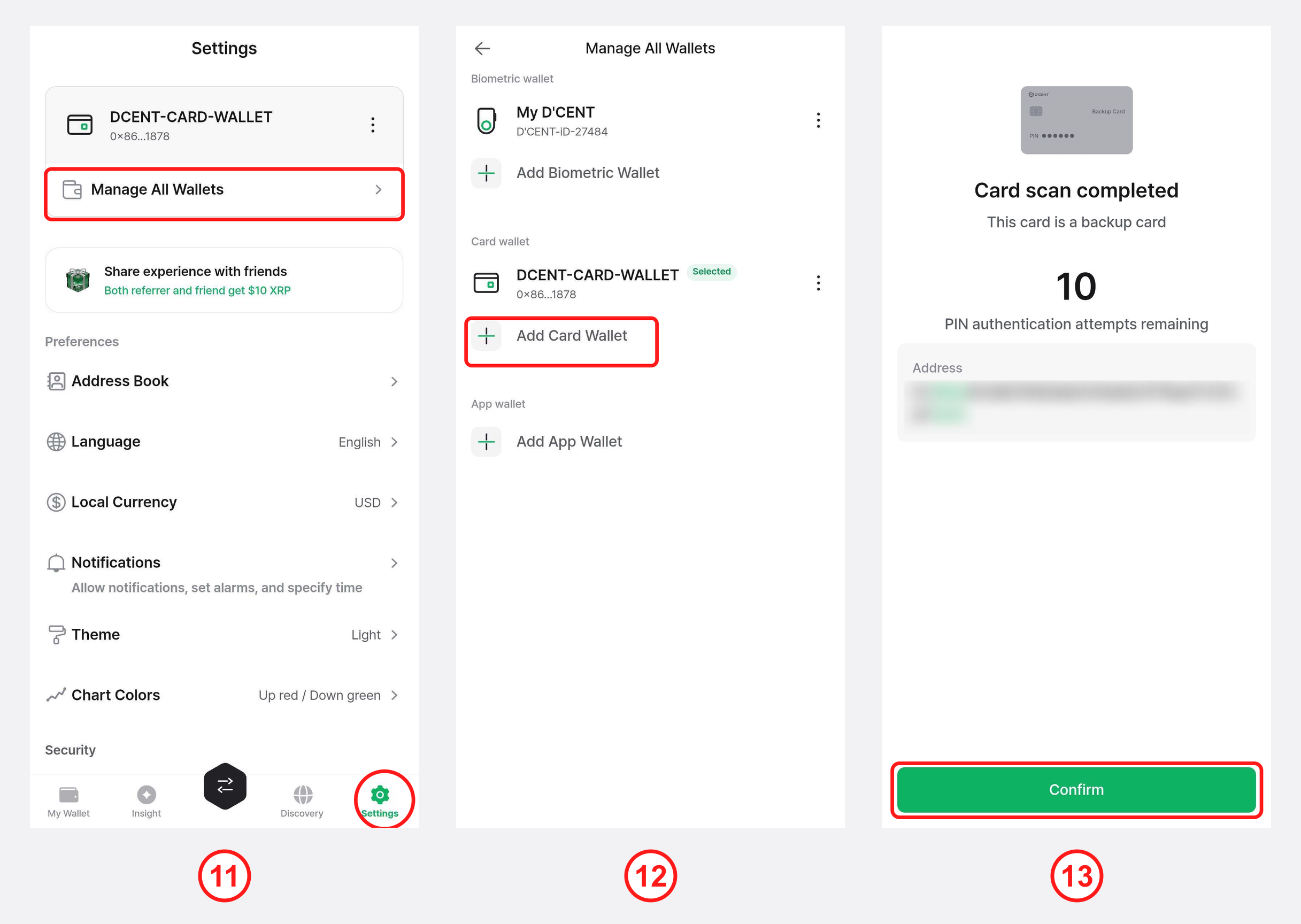
11) Open the Settings tab and select "Manage All Wallets".
12) Select "Add Card Wallet".
13) Hold the Backup Card against the back of your phone to scan it, then on the "Card scan completed" screen check that the address matches your original All-in-One Wallet and tap "Confirm".
The recovered card wallet shows only the default accounts (Ethereum, Kaia, Polygon). If you were managing other accounts before, tap the "+ Add Account" button next to the search bar to add them again.