Set up your All-in-One Wallet
To use the All-in-One Wallet on iOS, your iPhone must support NFC. NFC is available on iPhone 7 and newer models, and your device must be running iOS 13 or higher.
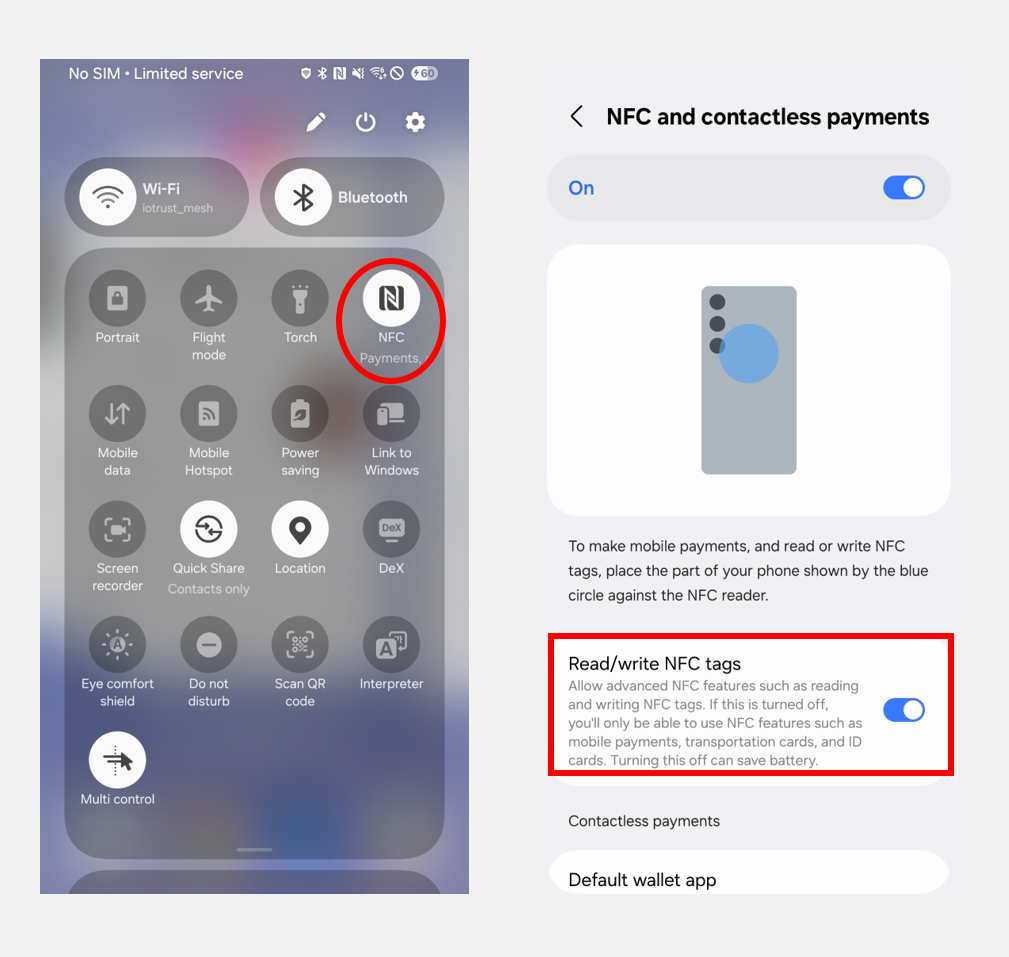
Enable NFC on your phone
On iPhone, NFC is enabled by default.
On Android, turn NFC on and set it to "Read/write NFC tags".
Download DCENT App (Android & iOS)
Search for DCENT Wallet on your mobile app store, or use one of the official download links below.
Mobile App basic setting
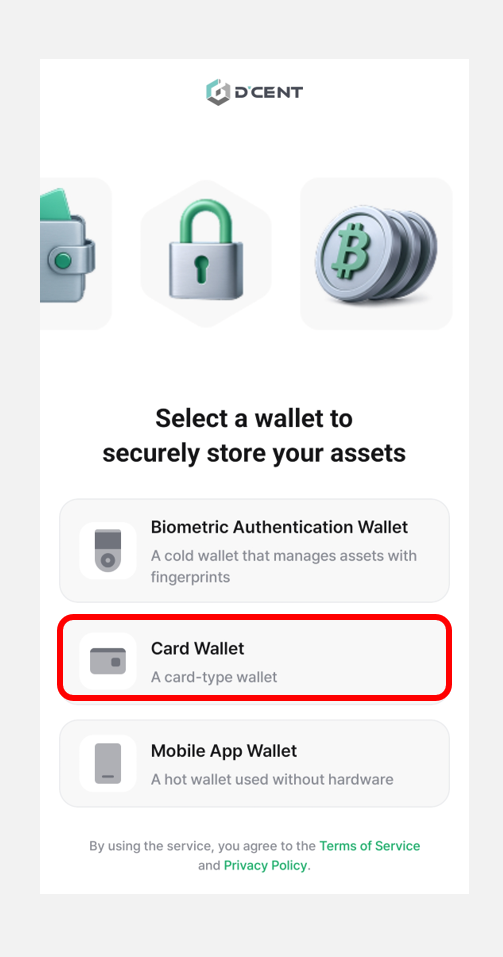
Select Wallet mode
When you launch the mobile app for the first time, follow the initial setup and choose a wallet mode.
This guide is based on DCENT mobile app version 10.0.0.
On the wallet selection screen, choose "Card Wallet" as shown below.
Mobile App Permission Settings
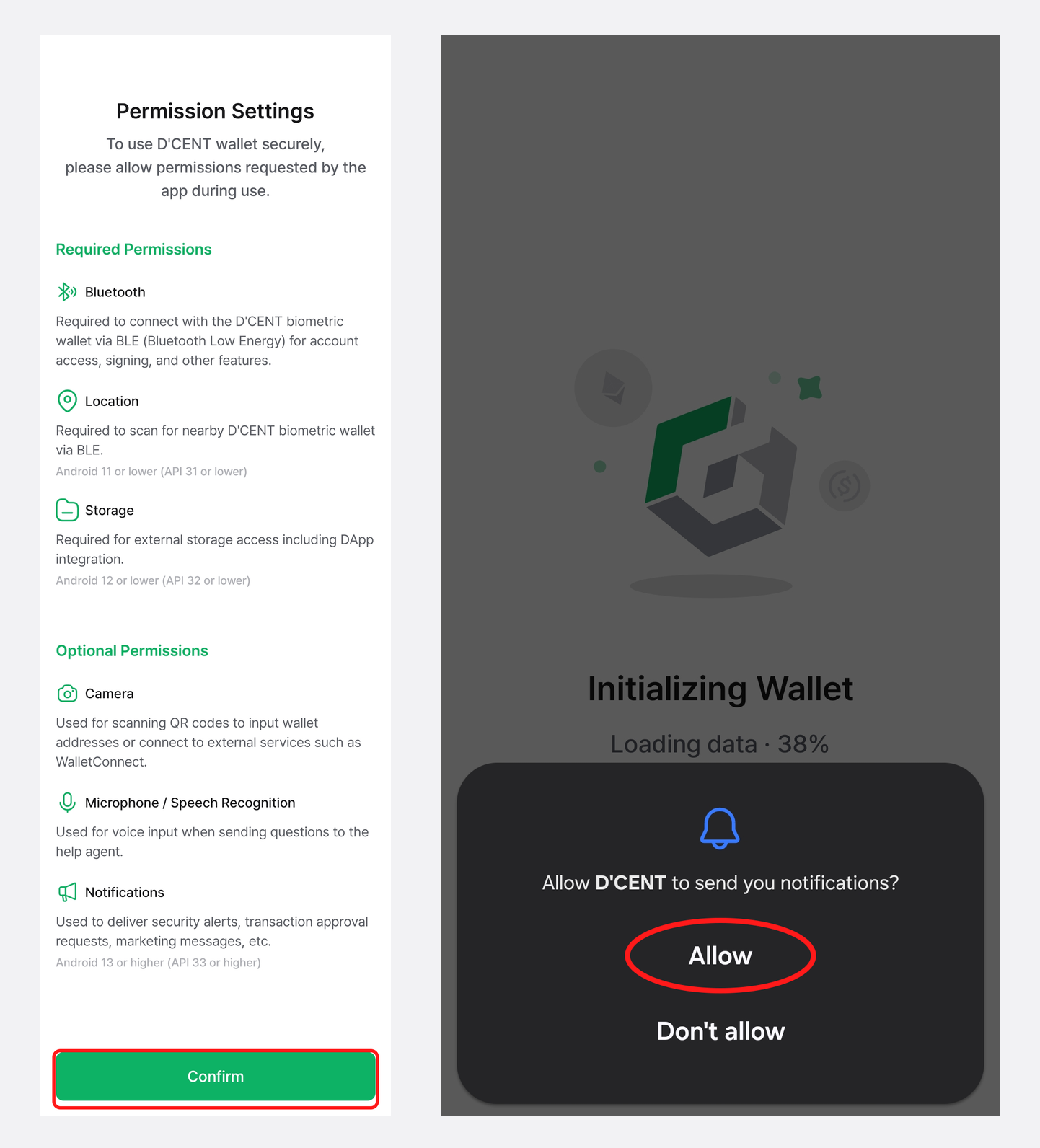
When you launch the DCENT mobile app, a permission request popup appears. Review the requested permissions, then tap "Confirm" to continue. When the notification permission prompt appears, tap "Allow" to continue. You can turn notifications On or Off at any time from the Settings menu.
Set up the All-in-One Wallet
Scan your All-in-One Wallet
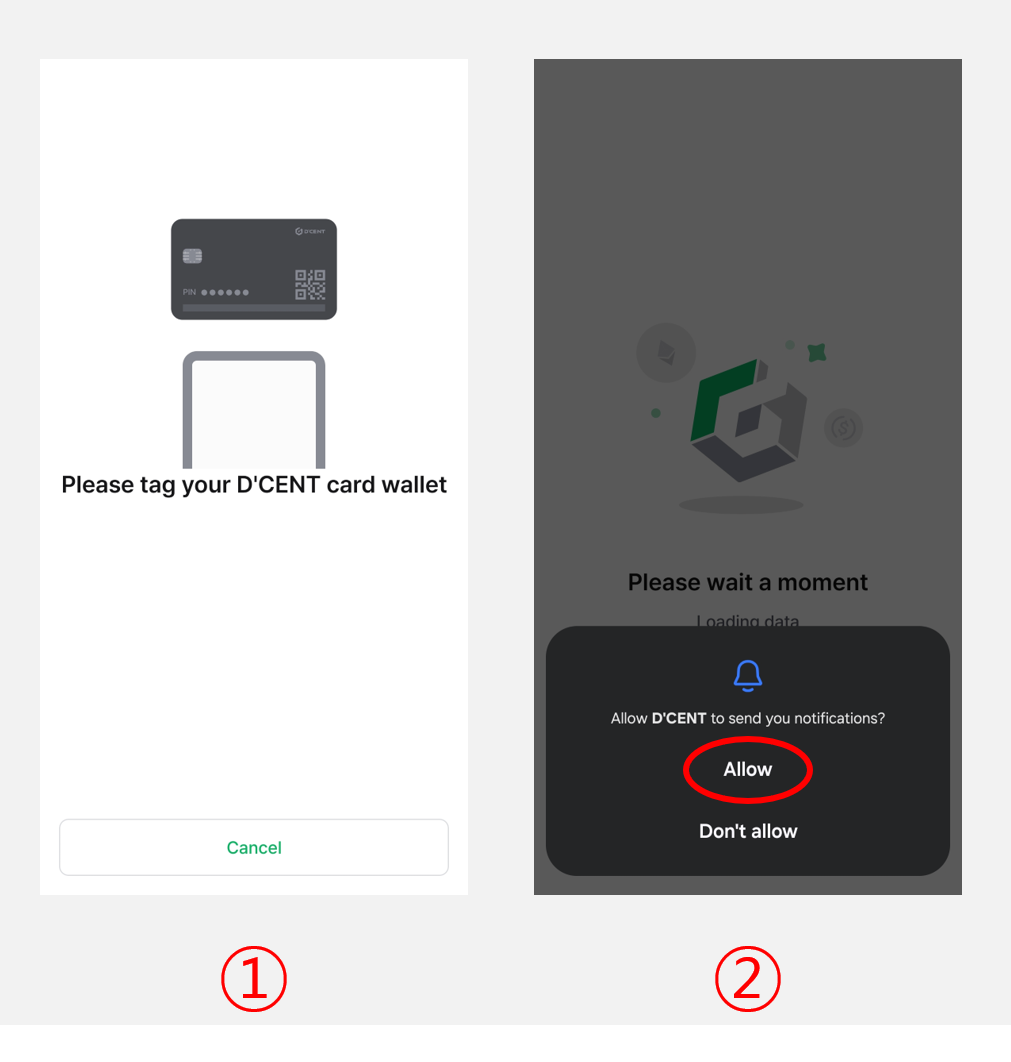
1) Hold the All-in-One Wallet against the back of your phone to scan it. Keep it in place until the scan finishes.
2) When the scan is complete, the card's PIN authentication attempts remaining and backup attempts remaining are displayed. Tap "Confirm" to continue.
The NFC antenna is located in a different spot on every phone model. Check your phone manufacturer's guide to find the exact antenna location before tapping.
A thick case, a physical card kept inside the case, a ring holder (grip, etc.), or metal/magnetic accessories (MagSafe, etc.) can weaken NFC recognition. If it isn't detected, remove them and try again.
Tapping too briefly can cause the scan to fail, so hold the card in place long enough.
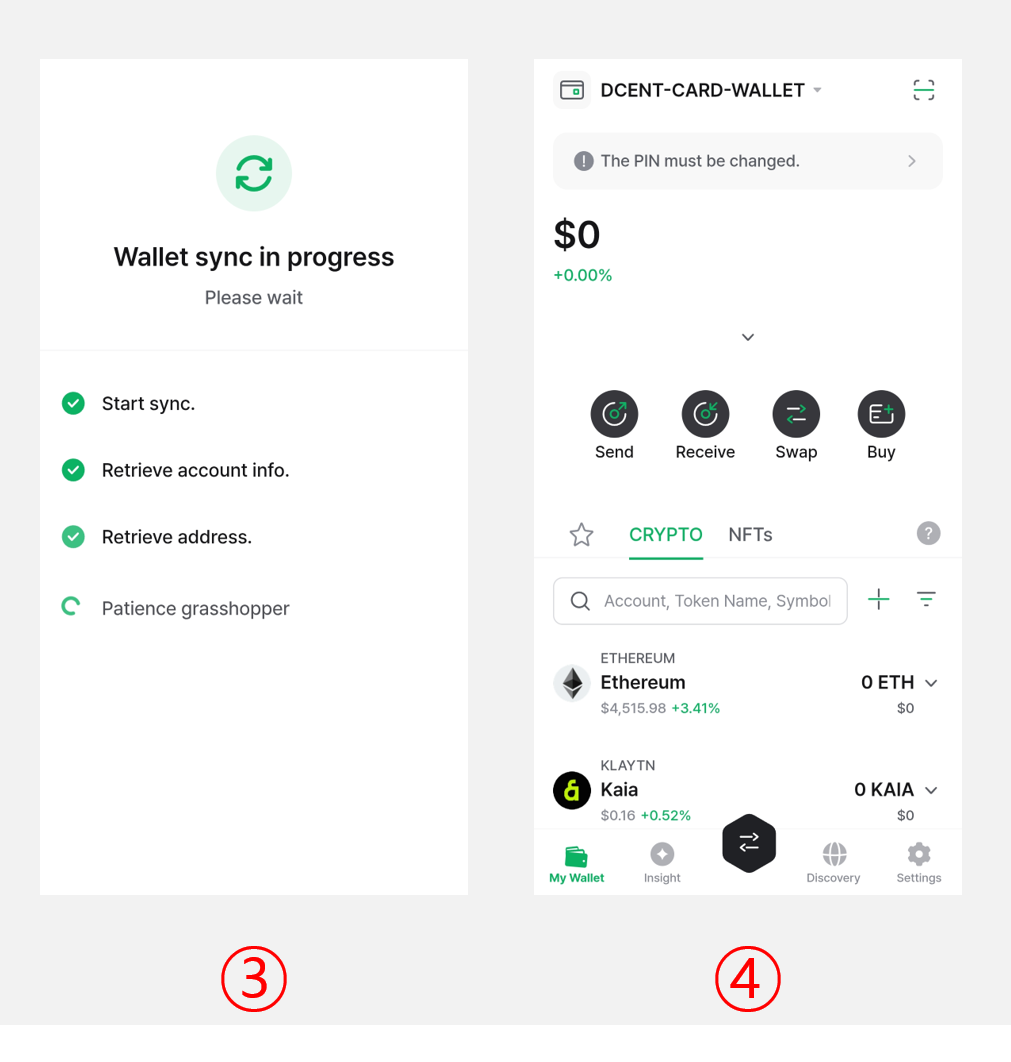
3) Once the All-in-One Wallet is recognized, wallet synchronization begins automatically.
4) When the sync finishes, the My Wallet tab shows three default accounts: Ethereum, Kaia, and Polygon. To add more coin or token accounts, tap "+ Add Account".
Change the factory PIN to your own PIN
The first time you scan the All-in-One Wallet, a banner appears asking you to change the factory PIN.
Before you can use the wallet, you must replace the factory PIN with your own PIN.
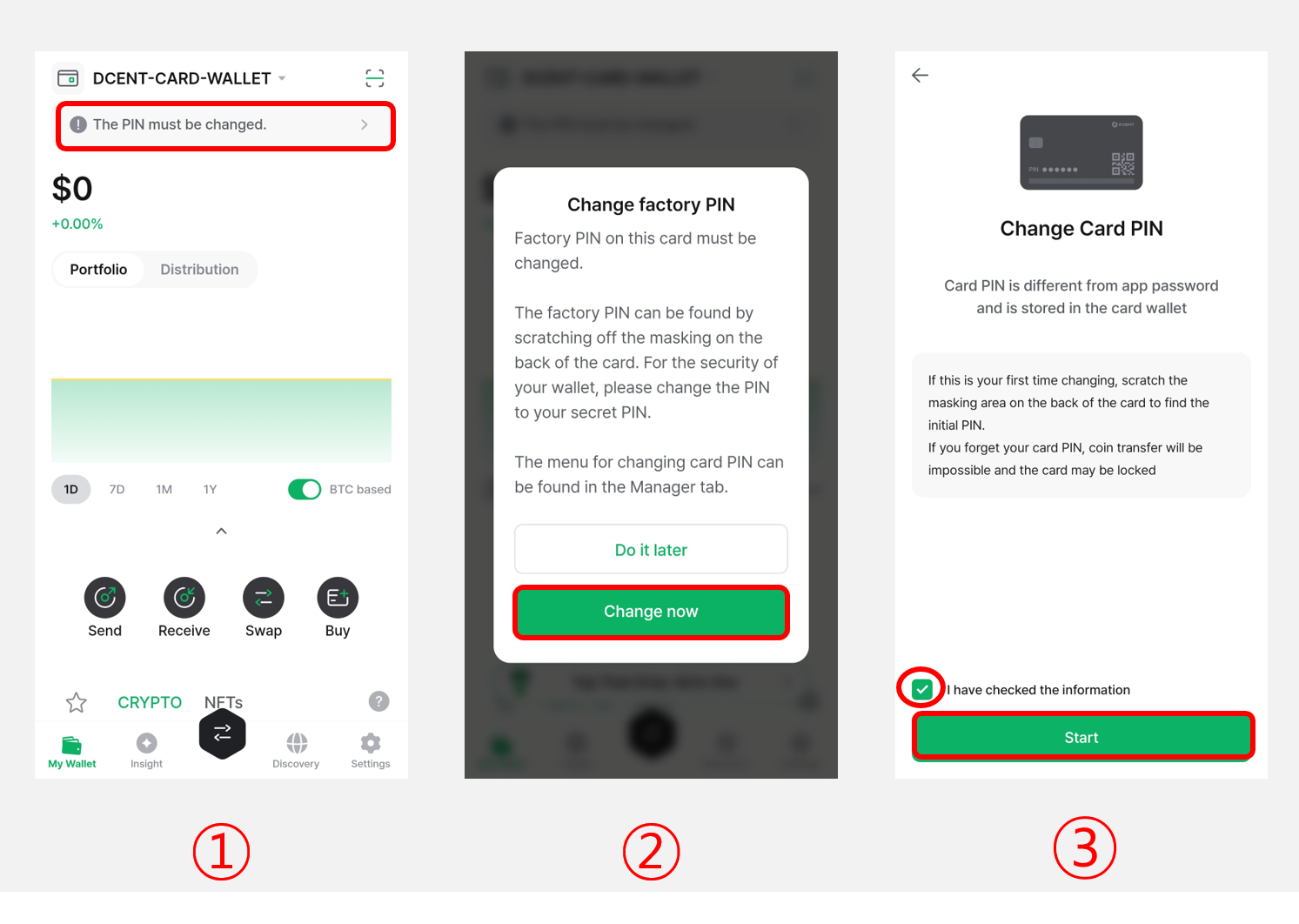
1) Tap the banner at the top of the screen to start the PIN change.
2) Tap "Change now".
3) Check "I have checked the information", then tap "Start".
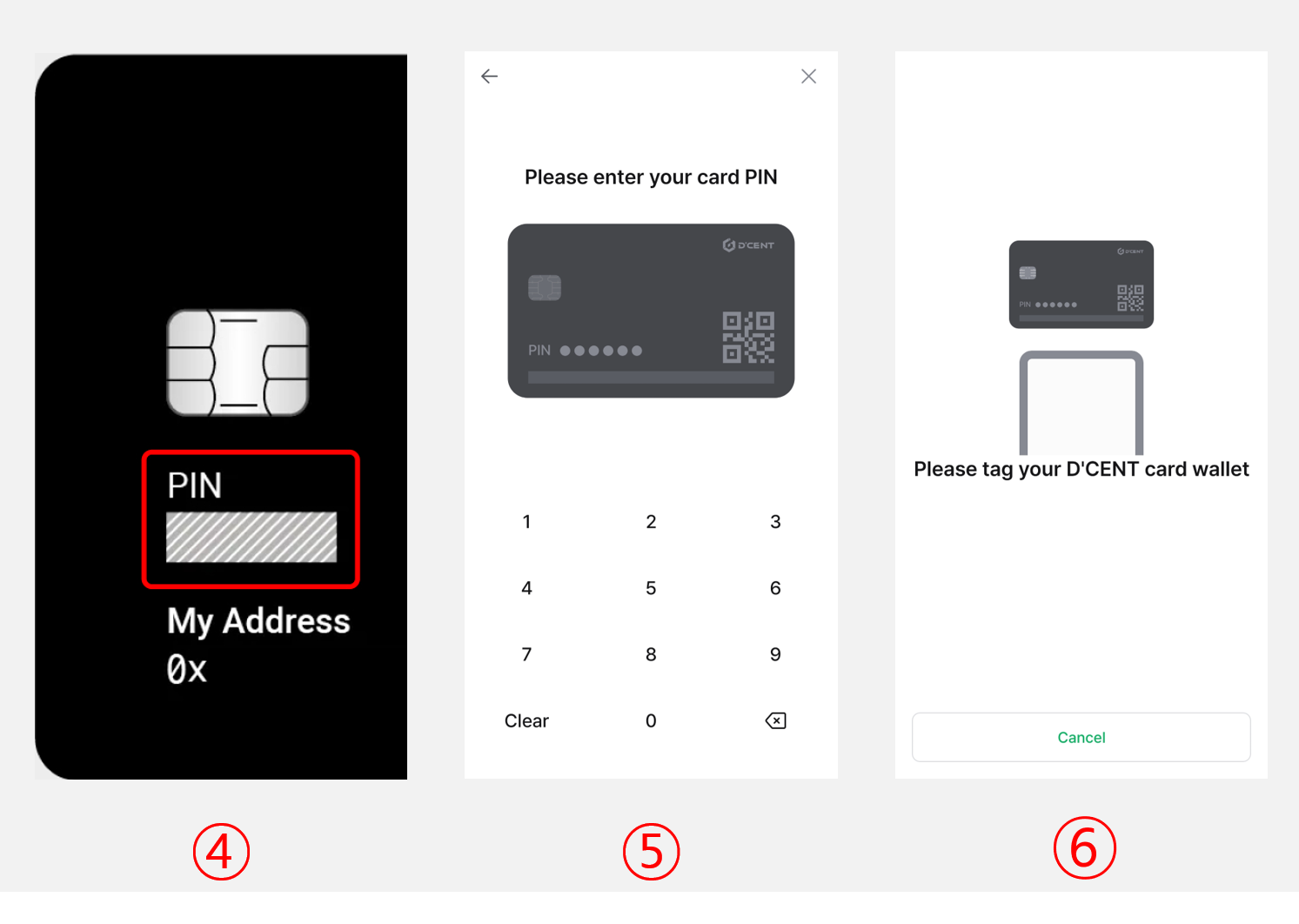
4) Reveal the factory PIN by gently scratching off the ribbon masking on your All-in-One Wallet.
Use your fingernail or a blunt tool to remove the ribbon masking. Do not use sharp objects—they may damage the card.
5) Enter the 6-digit factory PIN (for example: 530226).
6) Enter a new 6-digit PIN for your All-in-One Wallet (for example: 123456).
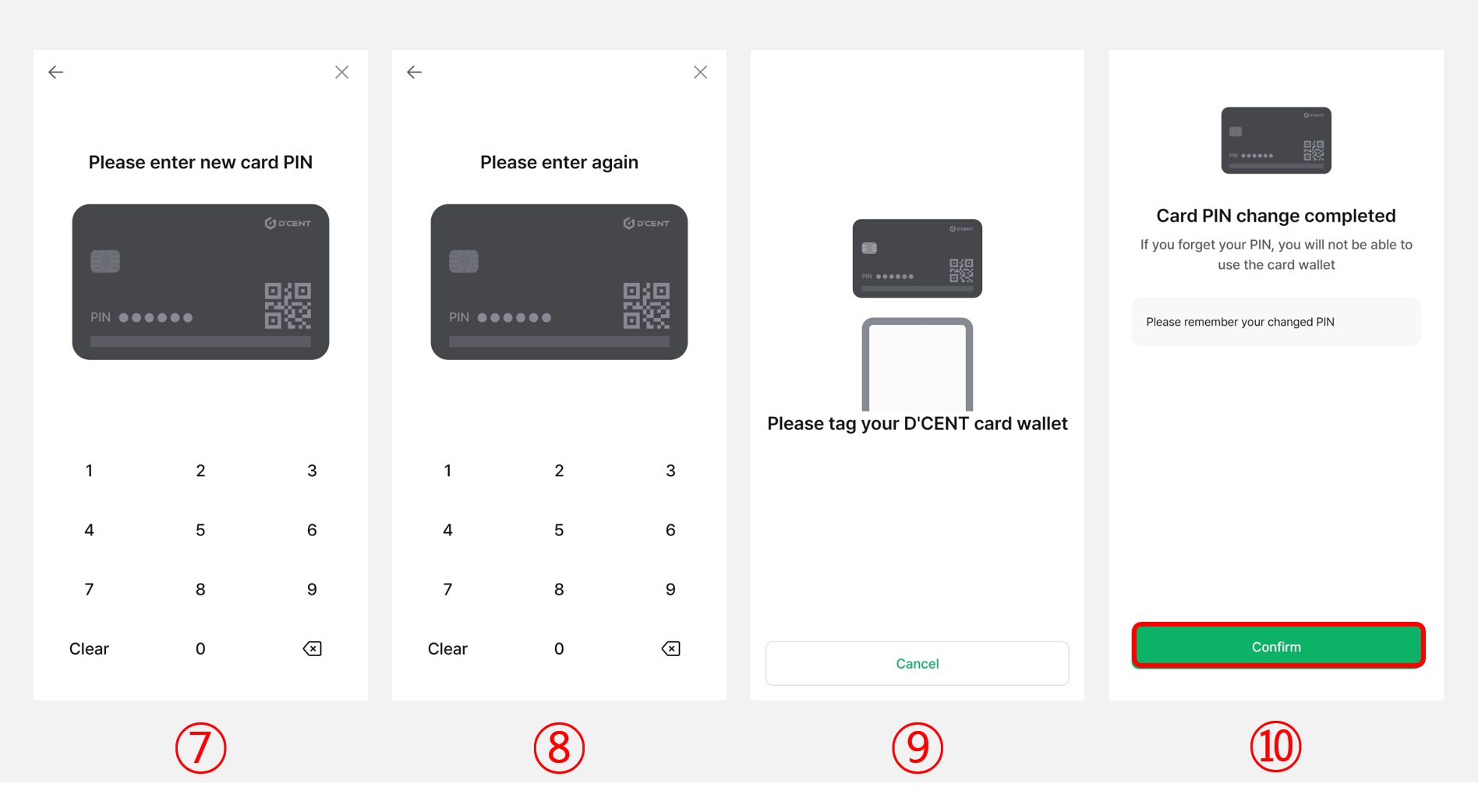
7) Re-enter the same new PIN to confirm it.
8) Hold the All-in-One Wallet against the back of your phone to scan it.
9) Tap "Confirm" to finish changing the PIN.
The card PIN of the All-in-One Wallet is different from the 6-digit app password used in the DCENT mobile app. Mixing them up can lock you out of your wallet, so be sure to remember each one separately.