How to use Stellar Lumen (XLM) account
This guide is based on DCENT Mobile App v10.0.0.
The Biometric Wallet supports Stellar on firmware v2.1.0 or later. For firmware update steps, see here.
How to create a Stellar Lumen (XLM) account
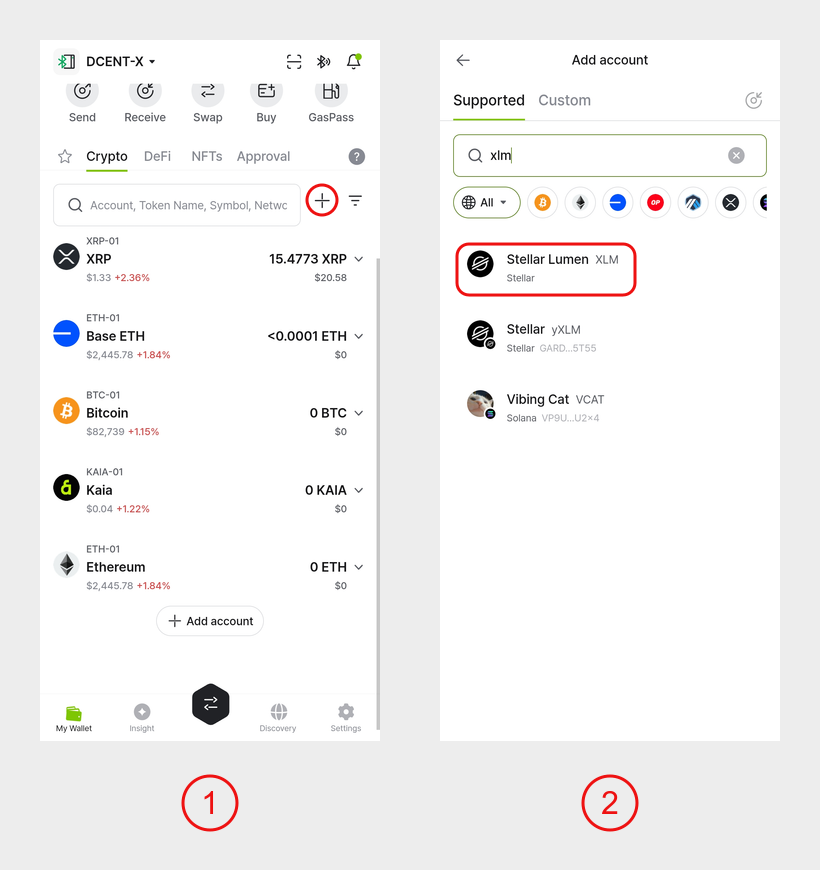
1) In the My Wallet tab, tap the Add account (+) button next to the search bar.
2) Enter xlm in the search bar and select Stellar Lumen (XLM).
3) Follow the on-screen steps to add the account. Your Stellar account then appears in the My Wallet tab.
If Stellar does not appear in search on your Biometric Wallet
Even on firmware v2.1.0 or later, Stellar may not appear if the device shipped with firmware older than v2.0.1, because the new Stellar key algorithm could not be applied. Wipe the device and recover it with your recovery words to create a Stellar account. Never wipe the device if you do not have your recovery words.
Stellar (XLM) wallet activation
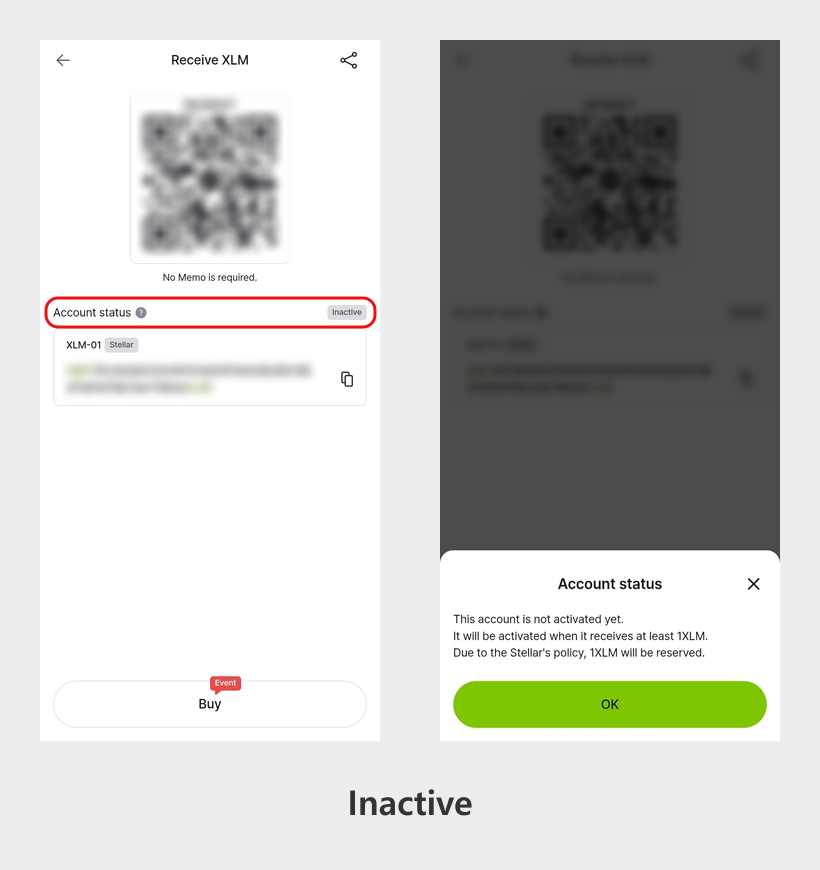
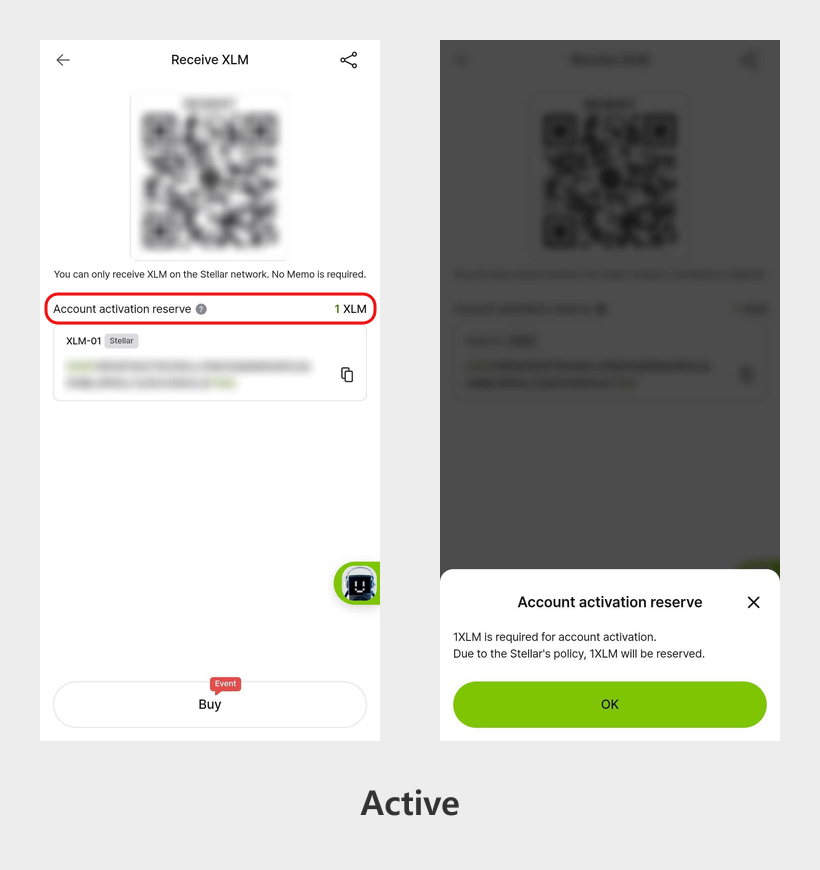
When you first add a Stellar (XLM) account, it is inactive. Stellar's policy requires you to receive at least 1 XLM at the address before it becomes active. That 1 XLM is permanently locked in the account as a minimum balance.
In practice, if you hold 100 XLM, only 99 XLM (including fees) can be sent out. The 1 XLM reserve always stays in the account.
Some exchanges may restrict transfers to inactive Stellar addresses.
Stellar Memo
Exchanges typically share a single Stellar deposit address across all of their users. To tell each user's deposit apart, the exchange assigns each account a unique Memo.
When sending XLM to an exchange address, you MUST enter the correct Memo. Otherwise, the exchange cannot credit your deposit.
Stellar wallet created on DCENT Wallet
A Stellar wallet you create yourself, such as on DCENT Wallet, has only an account address and does not use a Memo.
No Memo is needed to receive XLM at a self-created Stellar address such as a DCENT Wallet address.