How to use Stellar Lumen (XLM) account
Check the firmware version
Stellar (XLM) is supported on Biometric Wallets running firmware v2.1.0 or higher. See the links below for instructions on how to update the firmware.
How to create a Stellar Lumen (XLM) account
If you do not yet have a Stellar Lumen account, create one in the app. The coin name to look for is Stellar (XLM).
For full account-creation steps, see the link below.
If you can't create a Stellar account
In some cases, you may not be able to create a Stellar account even on firmware v2.1.0 or higher. This happens when the device originally shipped with firmware lower than v2.0.1, because the cryptographic algorithm Stellar requires cannot be enabled afterward by a firmware update alone.
In that situation, when you search for Stellar in the mobile app, it will not appear as an account you can add. See the screenshot below.
.png)
Solution
You can add a Stellar account after recovering your wallet from your recovery words. To do this, you must first perform a device wipe from the Biometric Wallet's settings menu.
1) See here for instructions on how to wipe (initialize) the Biometric Wallet.
2) See here for instructions on how to recover your wallet.
Warning! Do NOT wipe your device unless you have your recovery words safely stored. Without them, your wallet cannot be restored.
Stellar (XLM) wallet activation
When you first add a Stellar (XLM) account in the mobile app, it is disabled — it does not yet exist on the Stellar network.
Per Stellar's policy, you must transfer at least 1 XLM to the address to activate the account on the Stellar network.
Some exchanges may restrict transfers to inactive XLM addresses.
In addition, 1 XLM is permanently locked in the account as a minimum reserve. For example, if you receive 100 XLM after activation, only 99 XLM (minus the network fee) can ever be sent out. As shown below, even when you tap Max, this 1 XLM reserve cannot be transferred.
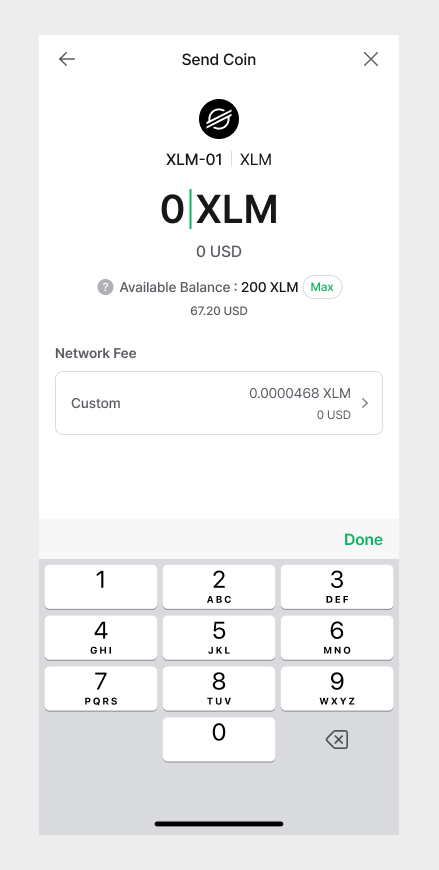
In some cases, the lock-up amount may be different. See the link below for more details. https://www.stellar.org/developers/guides/concepts/fees.html#minimum-account-balance
Stellar Memo
Exchanges typically share a single XLM deposit address across all of their users. To tell each user's deposit apart, the exchange assigns each account a unique Memo.
When sending XLM to an exchange address, you MUST enter the correct Memo. Otherwise, the exchange cannot credit your deposit.
Receive Stellar coin
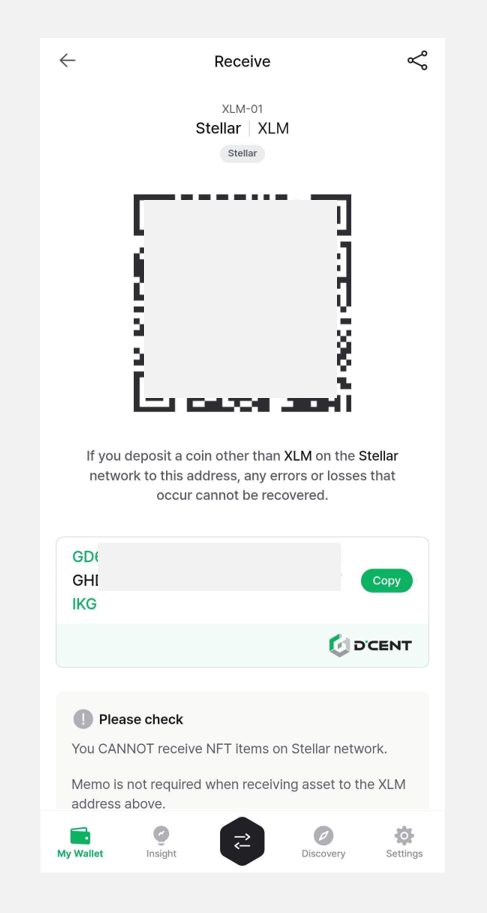
On your XLM account, tap Receive to view the account address.
Sending Stellar coin
When sending XLM to an exchange account, you MUST enter the Memo.
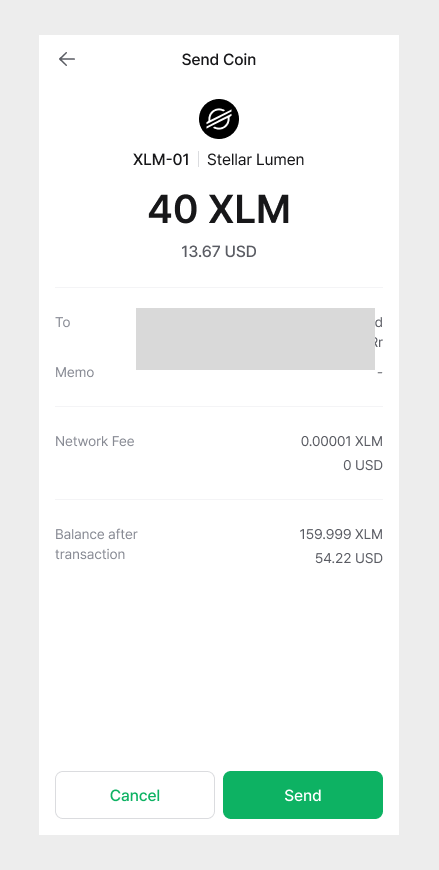
When sending to a personal wallet such as DCENT Wallet, the Memo is optional. You can leave a free-form note or change the Memo type as needed.
.png)
Before final confirmation, double-check both the address and the Memo.