Using TrustLine for XRPL
This guide explains how to add a TrustLine account to your XRP Ledger account and how to activate it so you can receive Trust Assets (IOUs).
How to add a TrustLine account
.png)
1) Tap the Add account + button and search for the name of the TrustLine asset you want to add.
2) In this example we add Elysian (ELS). Search for ELS and tap the Elysian (ELS) TrustLine entry in the results.
3) Choose the XRP account that will pay the network fees (the Fee Account), then tap Next.
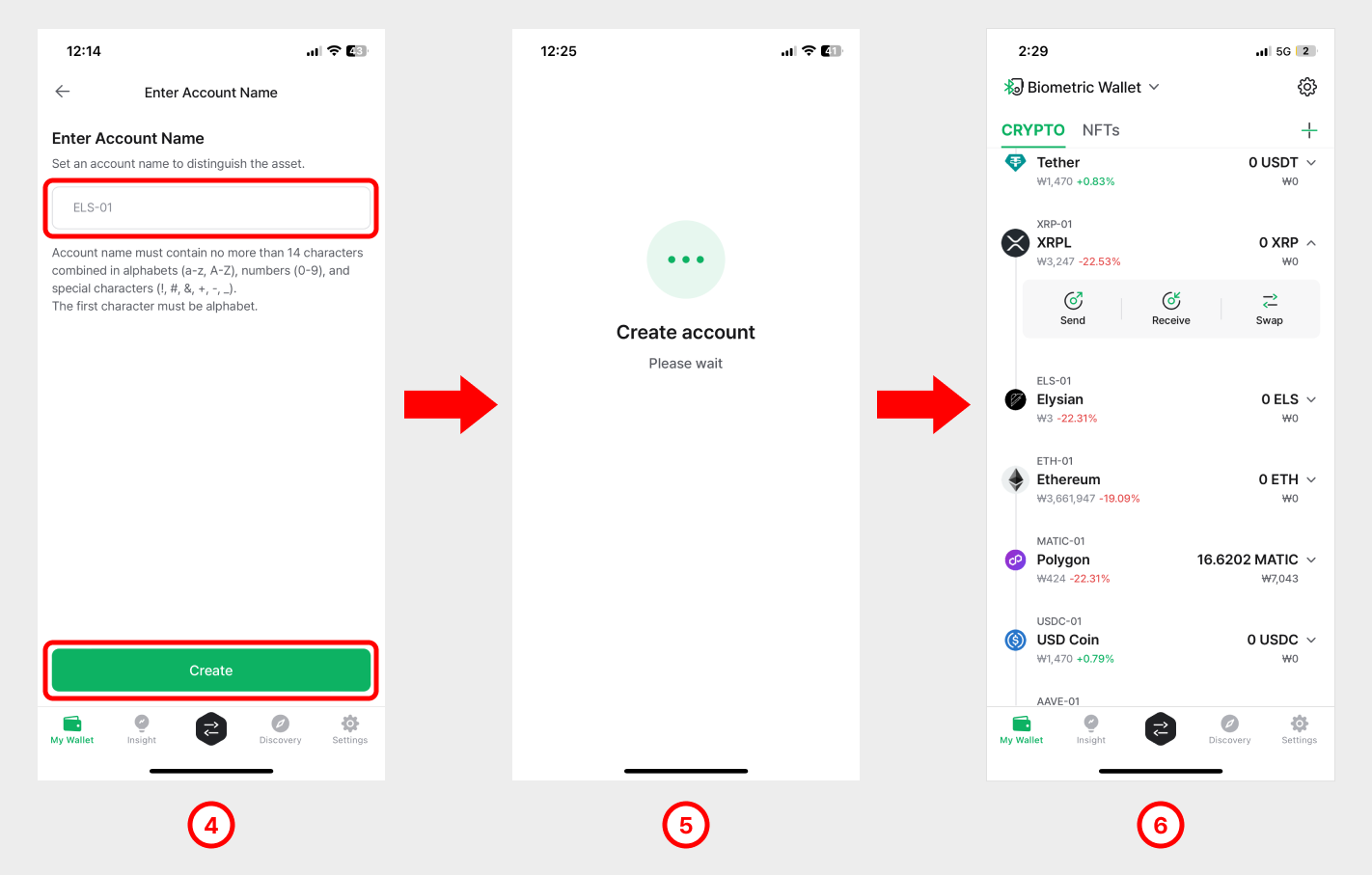
4) Optionally label the account or set it as default, then tap Create to add the TrustLine account.
5) The new TrustLine account now appears underneath your XRP account.
How to set (activate) a TrustLine
Adding a TrustLine alone does not let you receive the Trust Asset (IOU). You must first set (activate) the TrustLine before you can receive funds.
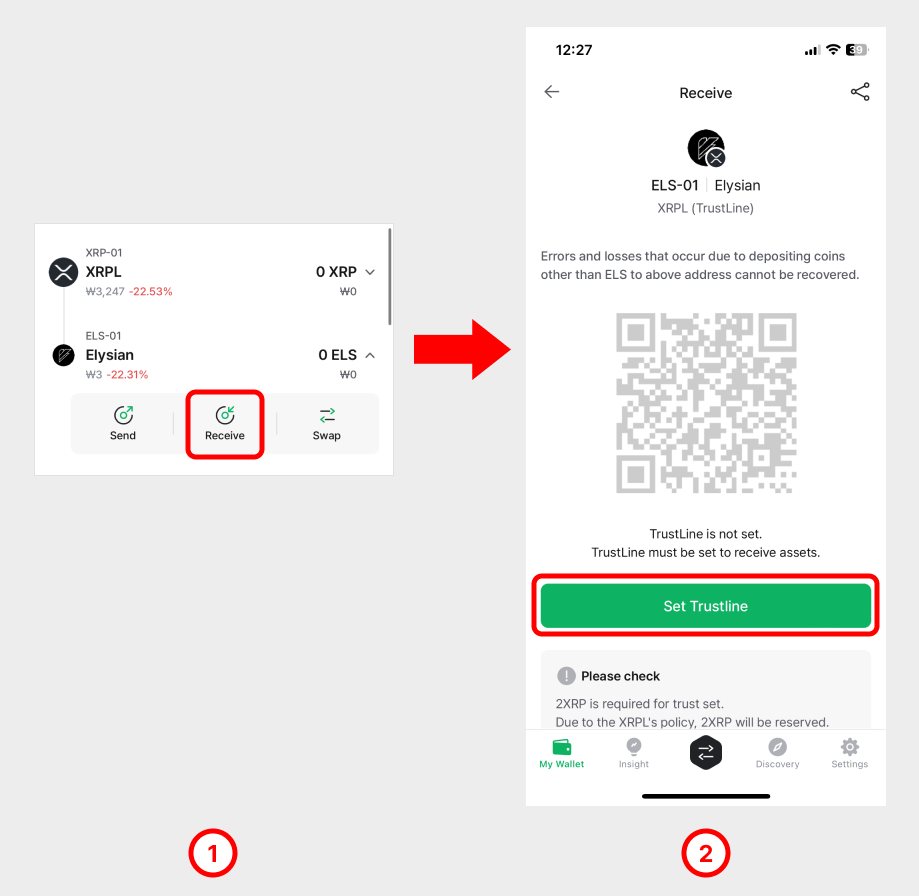
1) Open the TrustLine account and tap Receive.
2) Before activation, the address is hidden. Tap Set Trustline to start the activation.
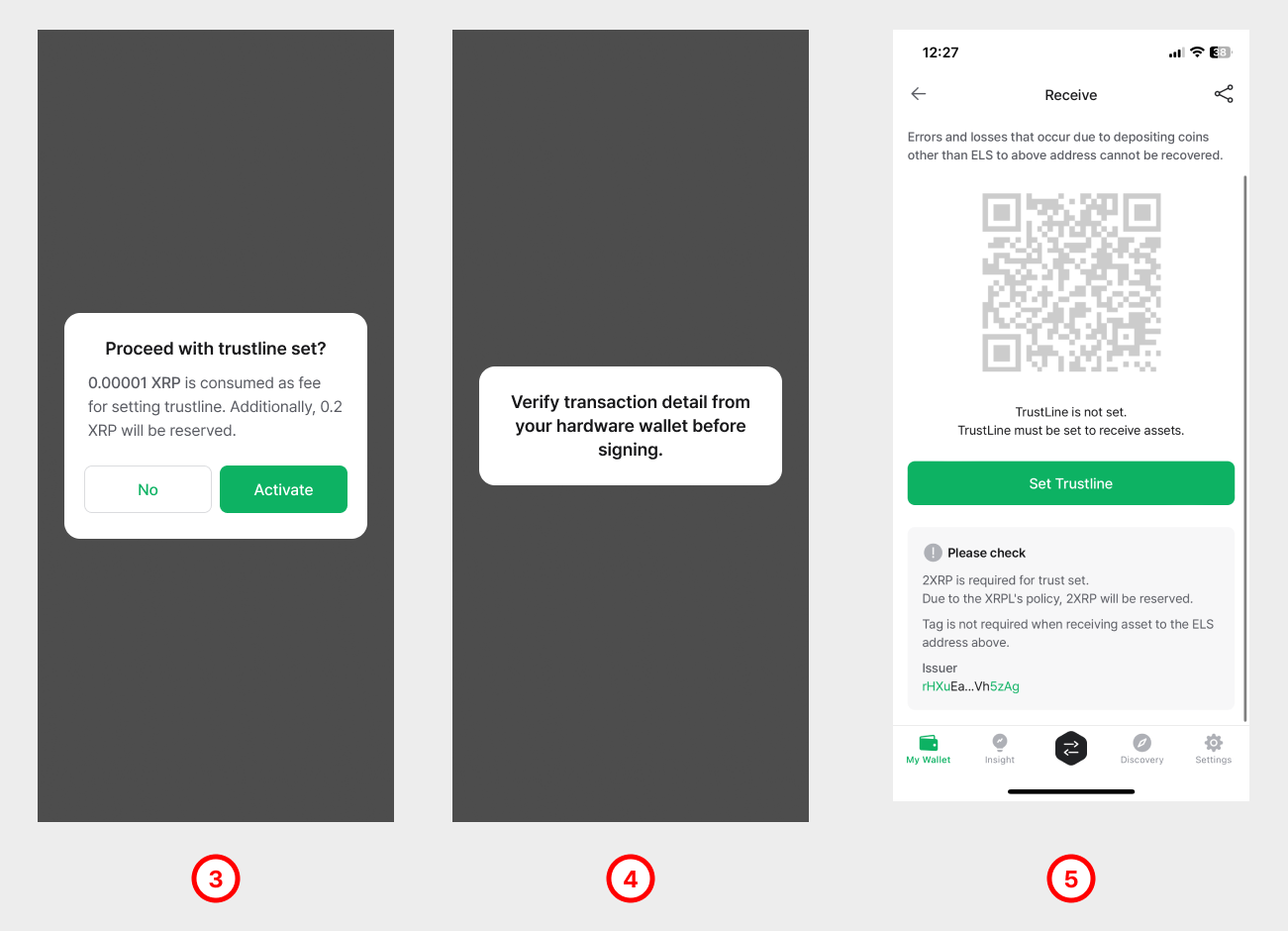
3) Note that setting (activating) a TrustLine reserves 0.2 XRP (at the time of writing). Tap OK to confirm.
4) Activating a TrustLine sends a transaction to the XRPL network and requires a small fee. Enter your password to sign the transaction, or sign on your Biometric Wallet if you are using one.
5) Once activated, the account displays its receiving address.
How to disable a TrustLine
A TrustLine can be disabled at any time, even if it still holds a balance. However, any remaining balance in a disabled TrustLine account becomes non-transferable. The 0.2 XRP reserved when setting the TrustLine is only freed if the TrustLine has a zero balance, so it is strongly recommended to empty the account before disabling it.
👉 Disabling a TrustLine account frees up the 0.2 XRP reserved (locked) in your XRPL account.
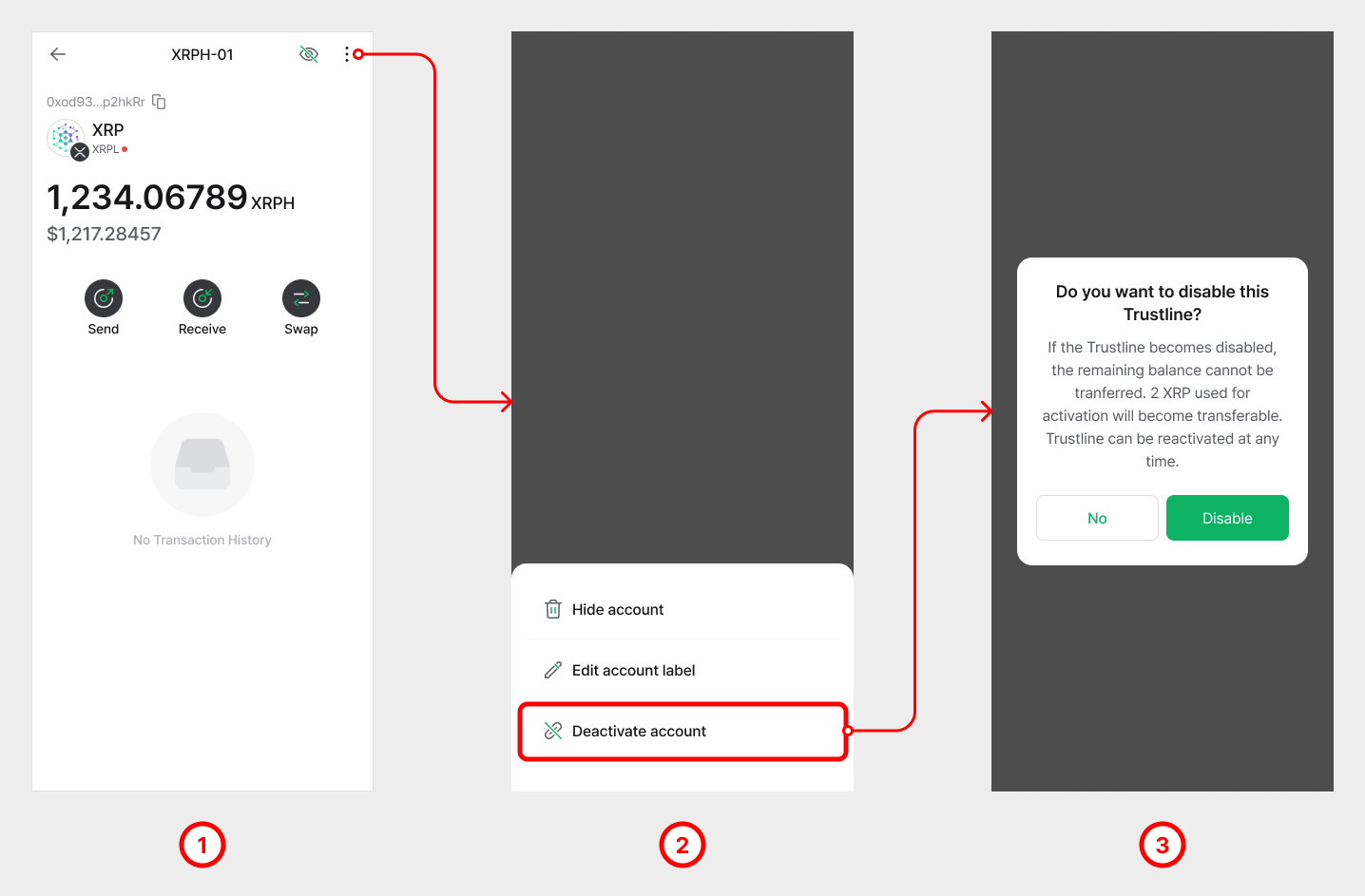
1) Open the TrustLine account you want to disable and go to its Account Details screen.
2) Tap the [︙] (More) button in the top-right corner and choose Disable Trustline.
3) Read the warning and tap Disable.
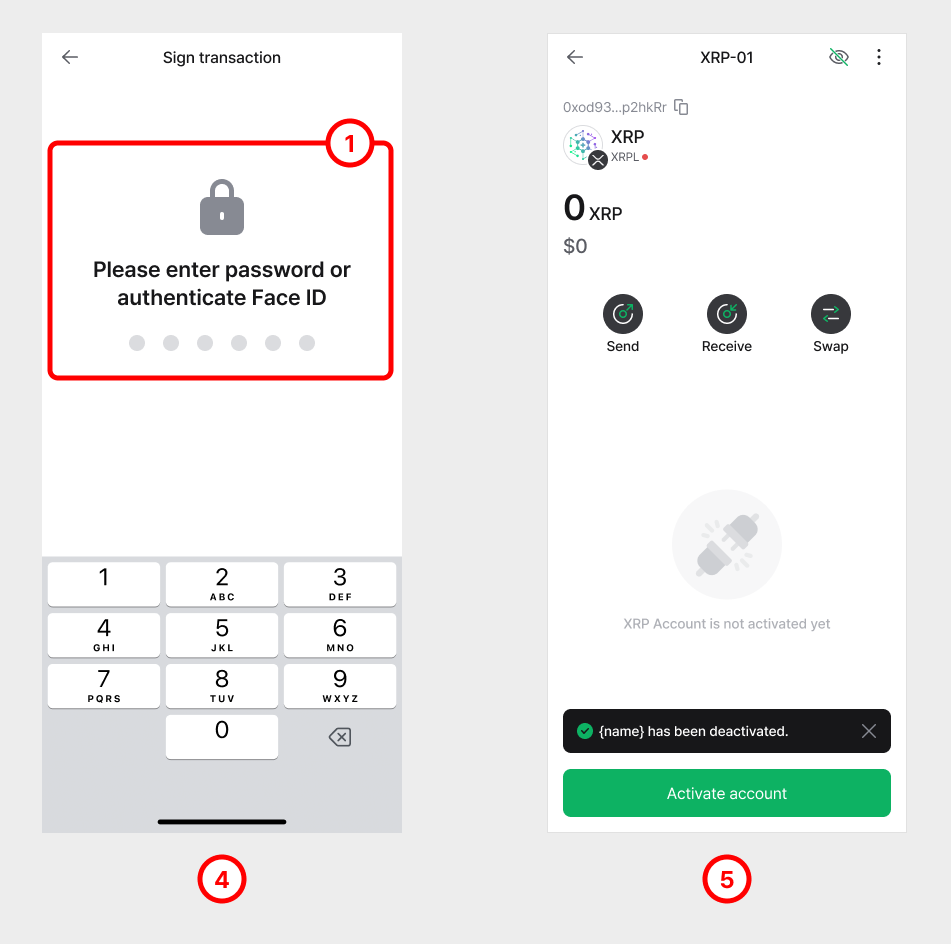
4) Disabling a TrustLine sends a transaction to the XRPL network and requires a small fee. Enter your password to sign the transaction, or sign on your Biometric Wallet if you are using one.
5) Once the TrustLine is disabled, the account shows the message "Trustline is not activated yet".
How to remove a TrustLine account
Removing a TrustLine account from your wallet is straightforward.
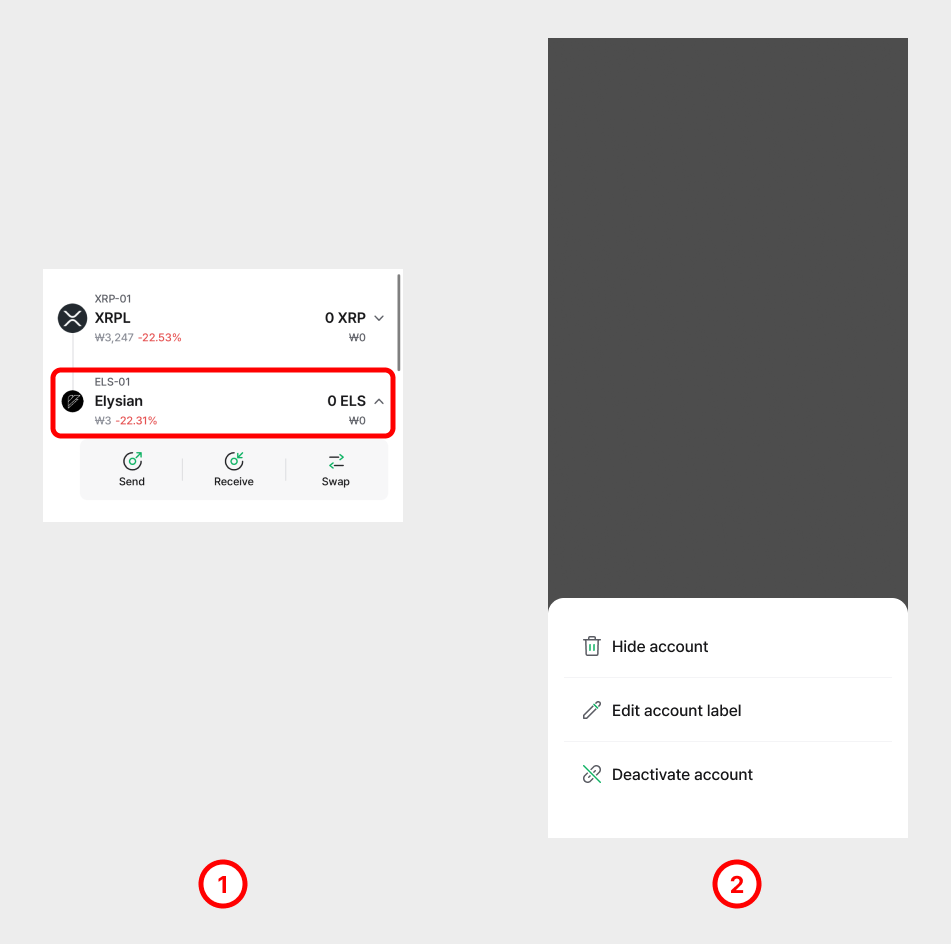
1) Open the TrustLine account you want to remove.
2) Tap Hide account to remove it from the wallet.