Send from DCENT X
DCENT X can send coins only while connected to the mobile app over Bluetooth.
Enter the receiver address
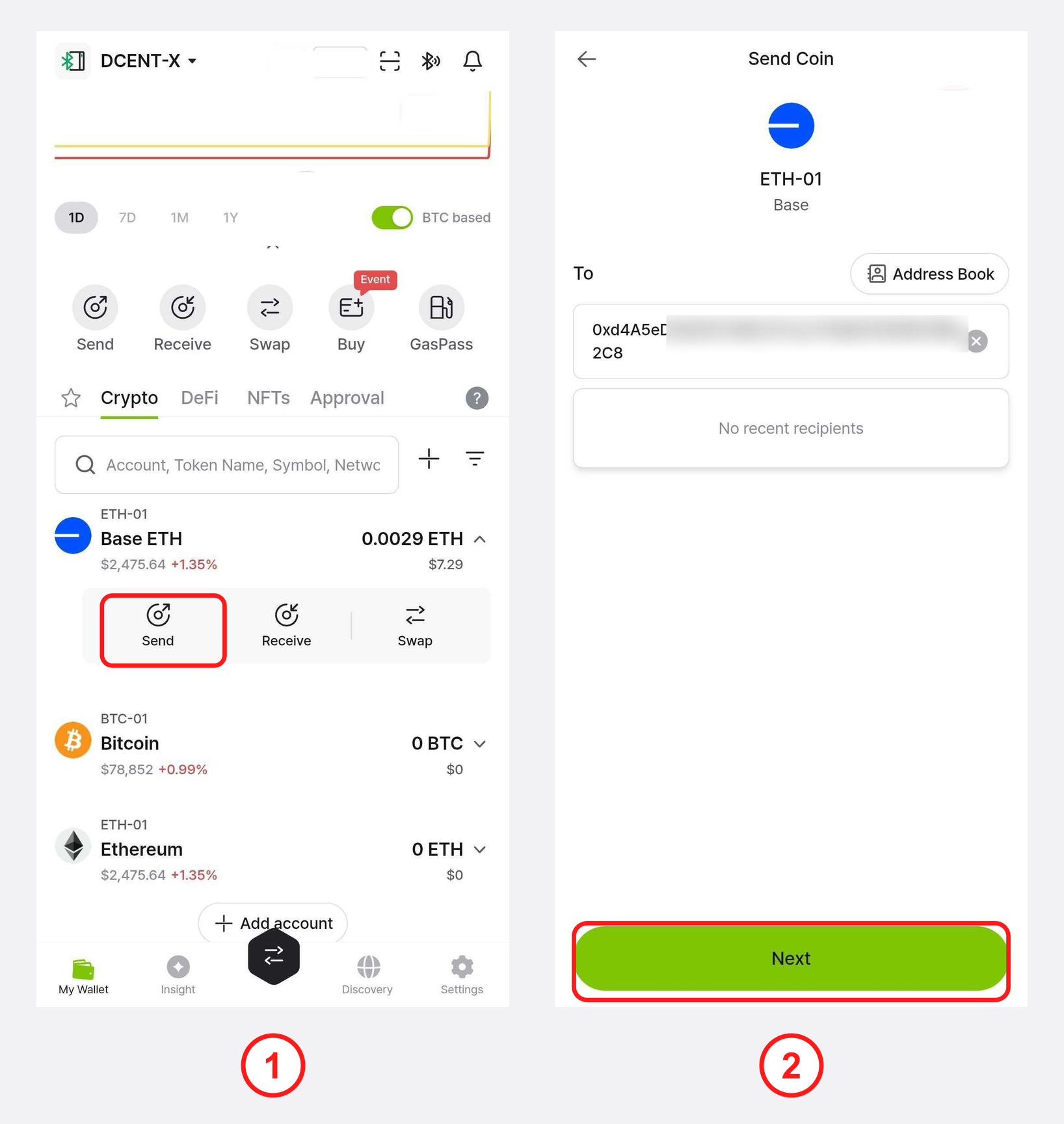
1) On the My Wallet tab, select the coin account you want to send from and tap Send.
2) Enter the recipient's address directly, or use one of the following.
- Address Book lets you pick an address you saved earlier.
- Paste enters the address copied to your clipboard.
- QR scan opens the camera to scan a QR code.
3) Check that the address is correct, then tap Next.
Enter the amount and set the fee
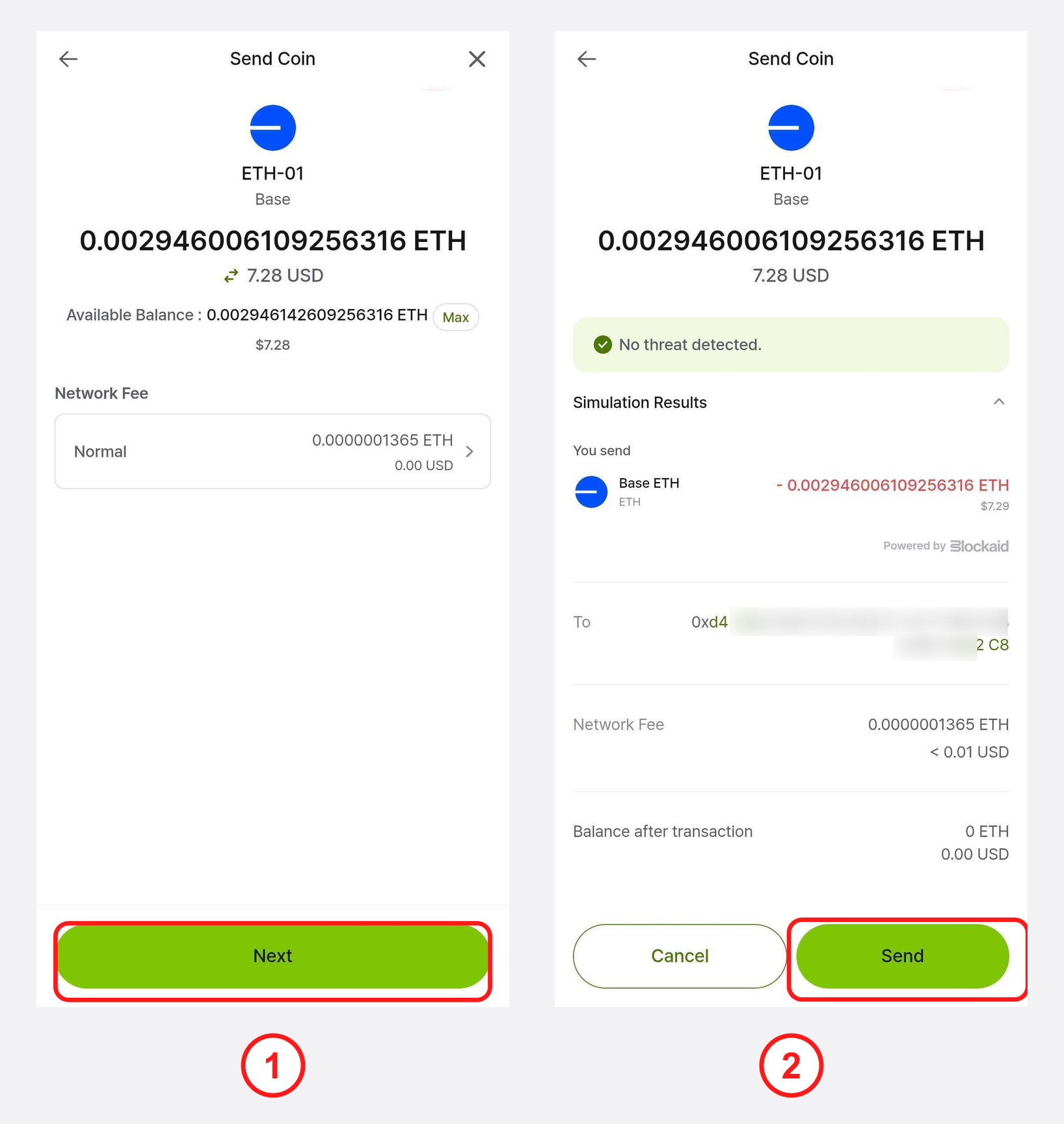
1) Enter the amount of coin to send, choose the network fee (Slow / Normal / Fast), then tap Next. You can also enter it as a local-currency amount, and setting the fee to Fast confirms the transaction sooner.
2) On the review screen, check the recipient address, amount, and fee once more, then tap Send to request a signature from DCENT X.
Final confirmation on DCENT X
1) When the app shows the "Sign transaction / Verify your device" screen, check your connected DCENT X.
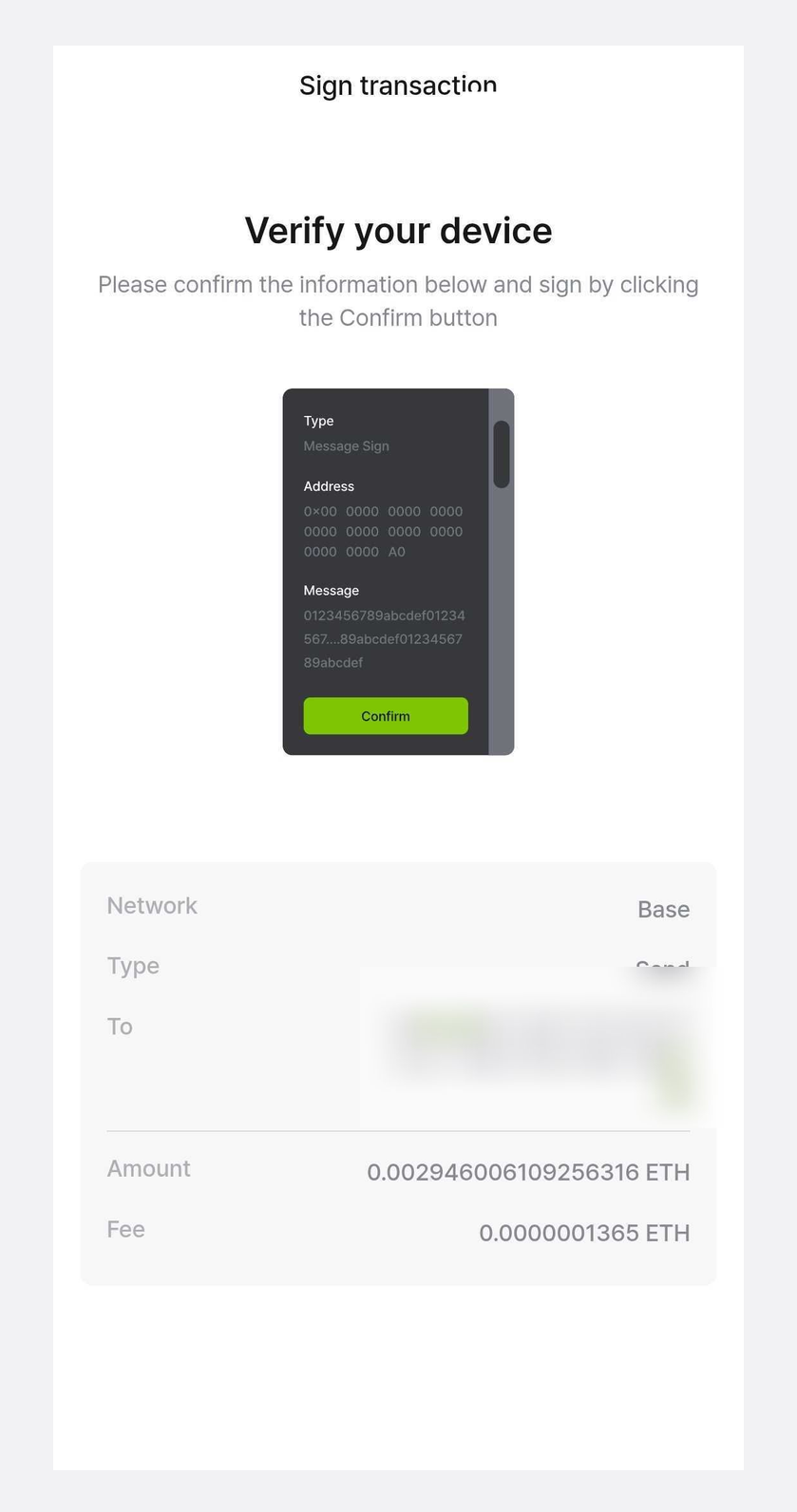
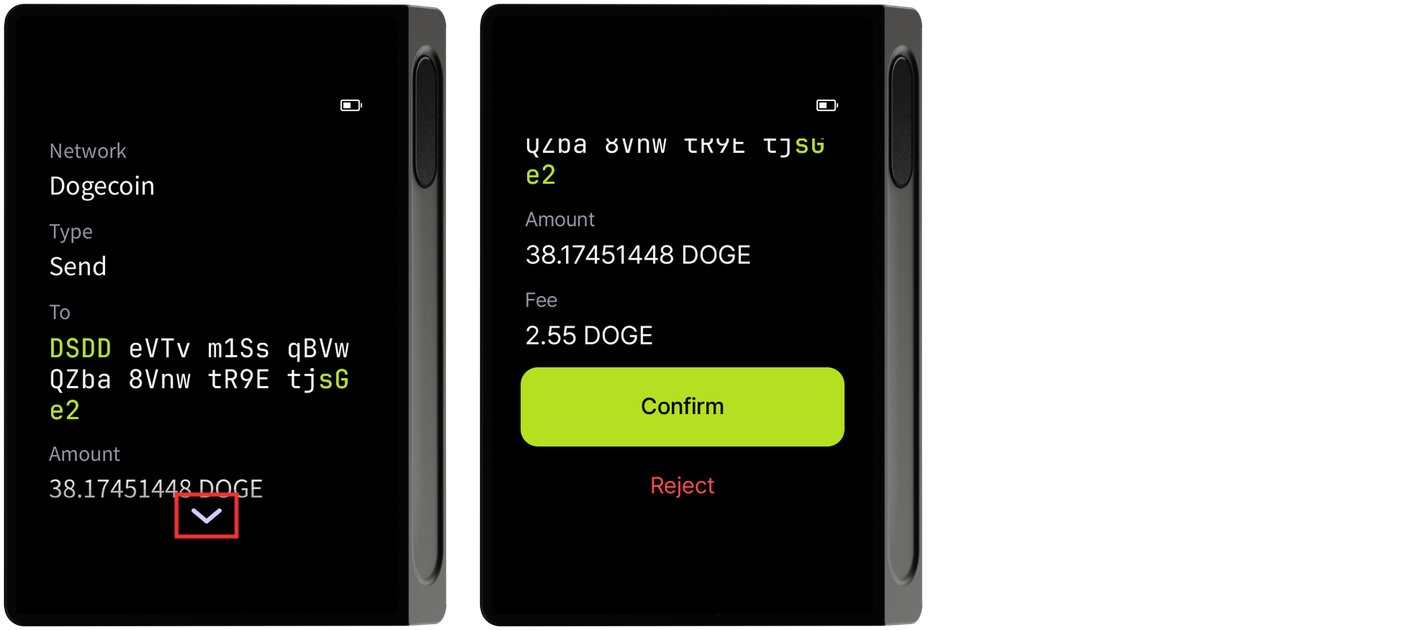
2) Review the transaction details on DCENT X. Scroll from the top items (Network, Type) down to To, Amount, and Fee using the arrow, then tap Confirm.
3) Sign with your registered fingerprint to give final approval. If you haven't registered a fingerprint, you can approve with your PIN.
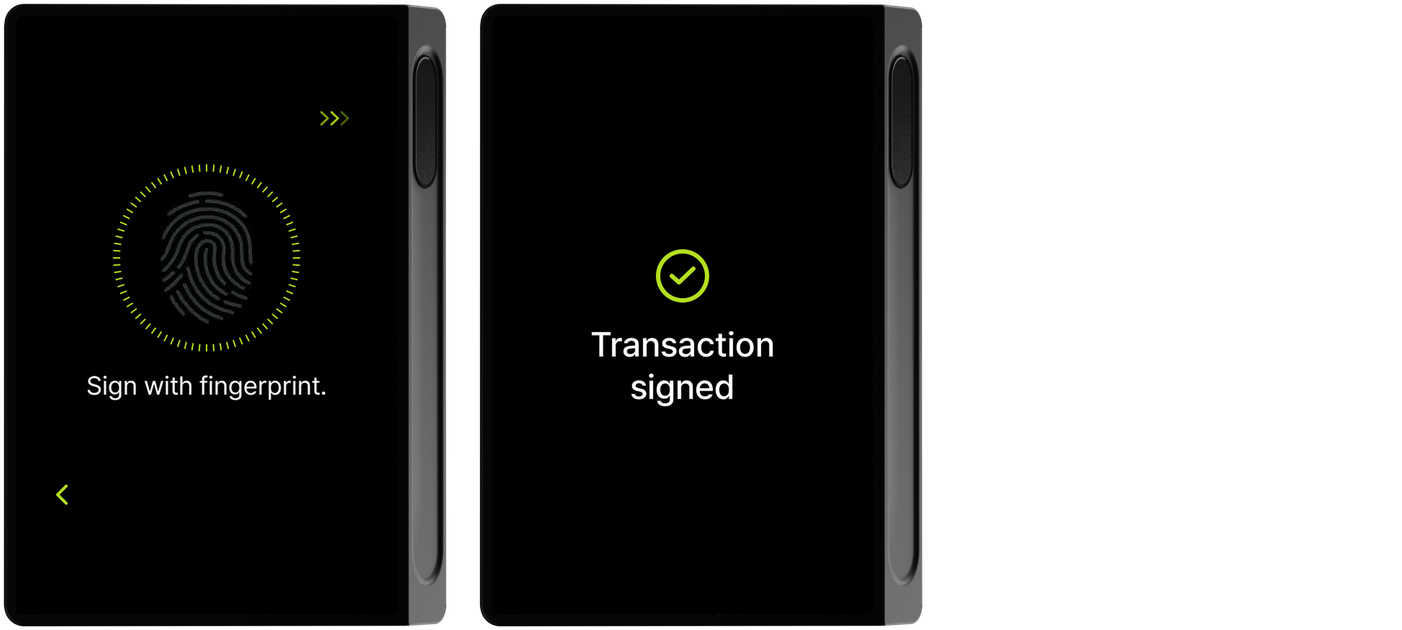
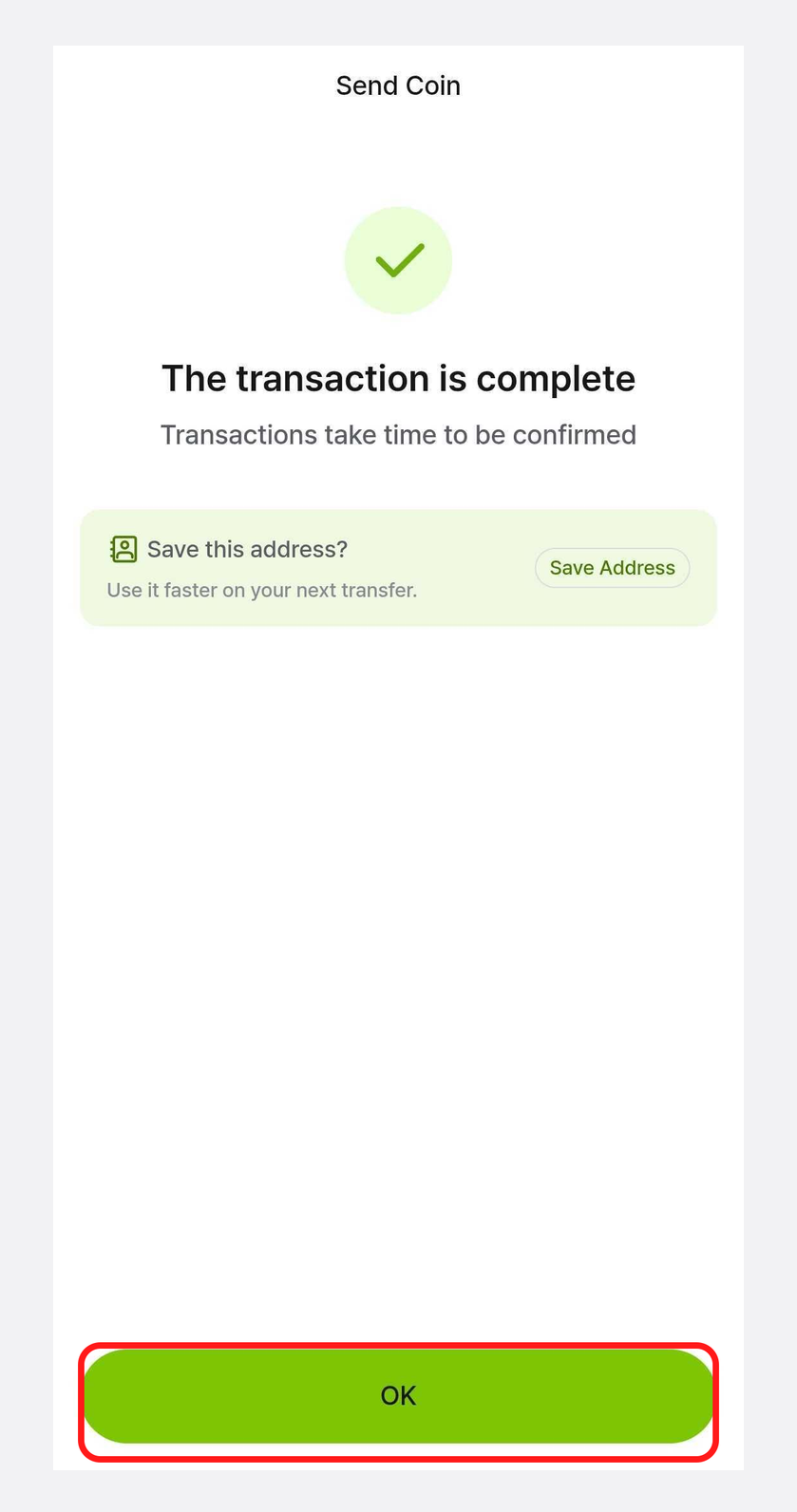
4) Once the transaction is sent to the blockchain, DCENT X shows a "Transaction signed" screen and the mobile app shows "The transaction is complete". Tap OK to return to the main screen.