Send from Software Wallet
The App Wallet (software wallet) is related to the September 2026 unauthorized asset transfers. If you use an App Wallet, please review the official guidance below first and move your assets to a hardware wallet or the exchange you mainly use.
The App Wallet is a free software wallet that works without a hardware wallet. For more secure asset management, consider using a DCENT hardware wallet.
Enter the recipient address
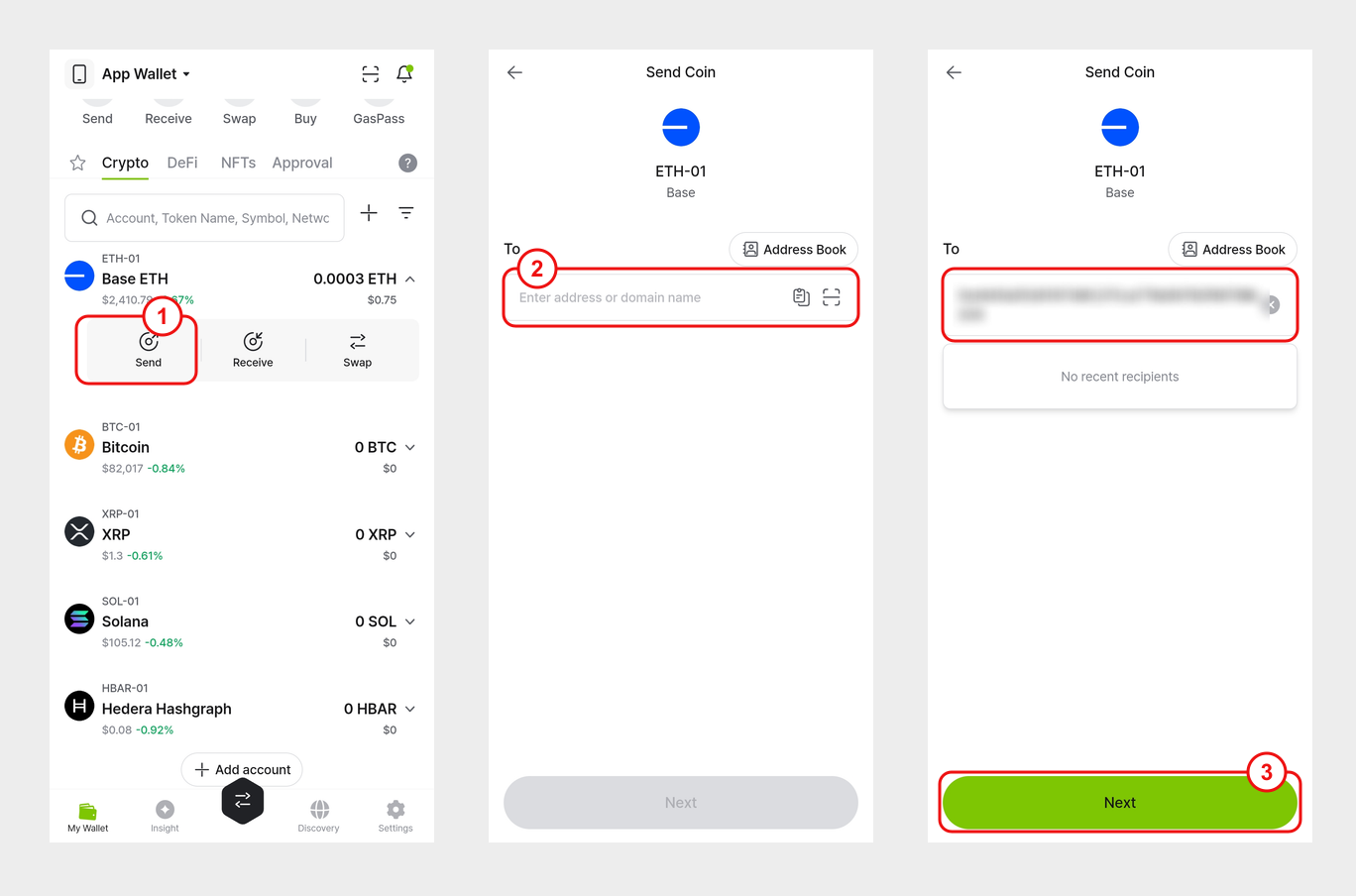
1) In the My Wallet tab of the mobile app, tap the coin account you want to use to expand it, then tap Send.
2) Type the recipient address into the address field, or:
- Tap the QR Scan icon in the address field to open the camera and scan an address in QR code format.
- Tap the Paste icon in the address field to fill in an address you copied earlier.
- Tap Address Book to load an address saved in your address book.
3) Once the address is entered, tap Next.
Enter the amount and set the fee
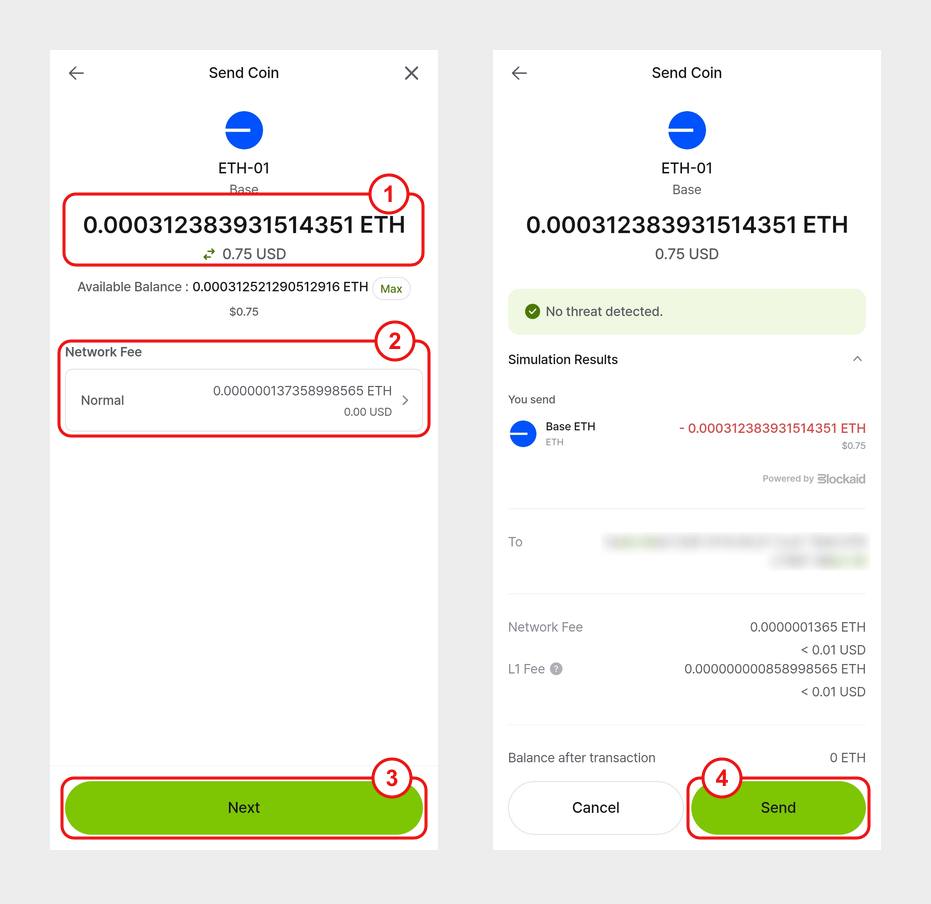
1) Enter the amount to send, either in the coin's units or in your local currency.
2) Choose a network fee level: Slow, Normal, or Fast. Choosing Fast pays a higher fee and usually shortens processing time.
3) When the amount and fee are set, tap Next.
4) Review the transaction details on screen (recipient address, fee, and balance after transaction), then tap Send.
Final confirmation on your App Wallet
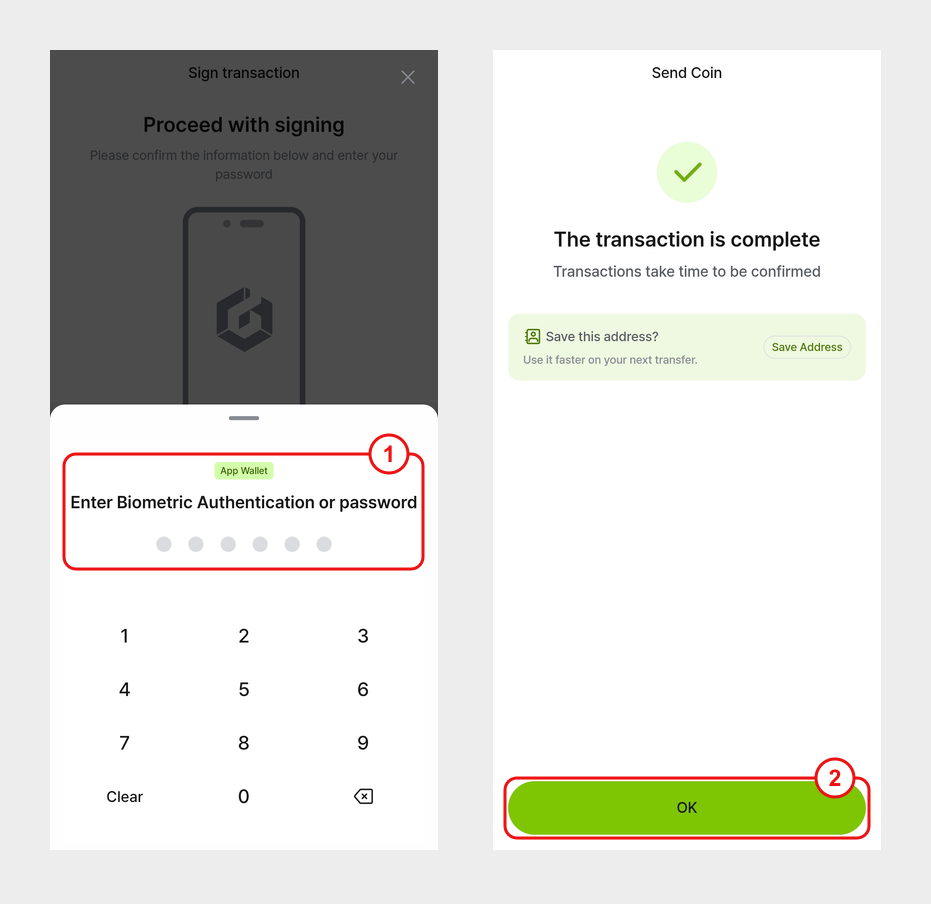
1) When the Enter Biometric Authentication or password screen appears, enter the 6-digit password you set when securing the mobile app. If you have enabled biometric authentication, you can use fingerprint or Face ID instead.
2) Once the transaction is broadcast to the blockchain, the mobile app shows a completion message. Tap OK to return to the main screen.