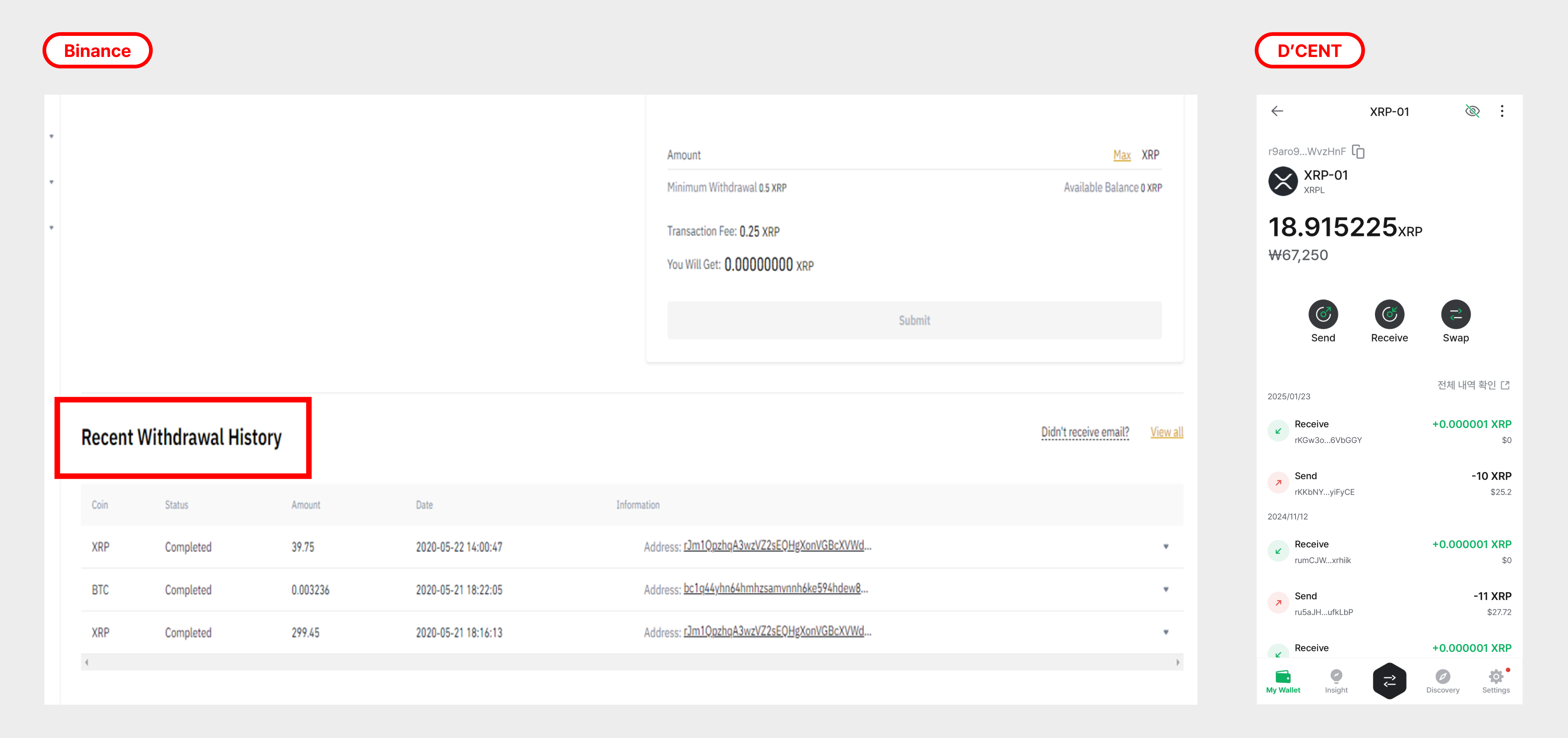
Using Binance exchange for transfers (XRP example)
Sending fund to your Binance wallet account
Check the receiving address on Binance
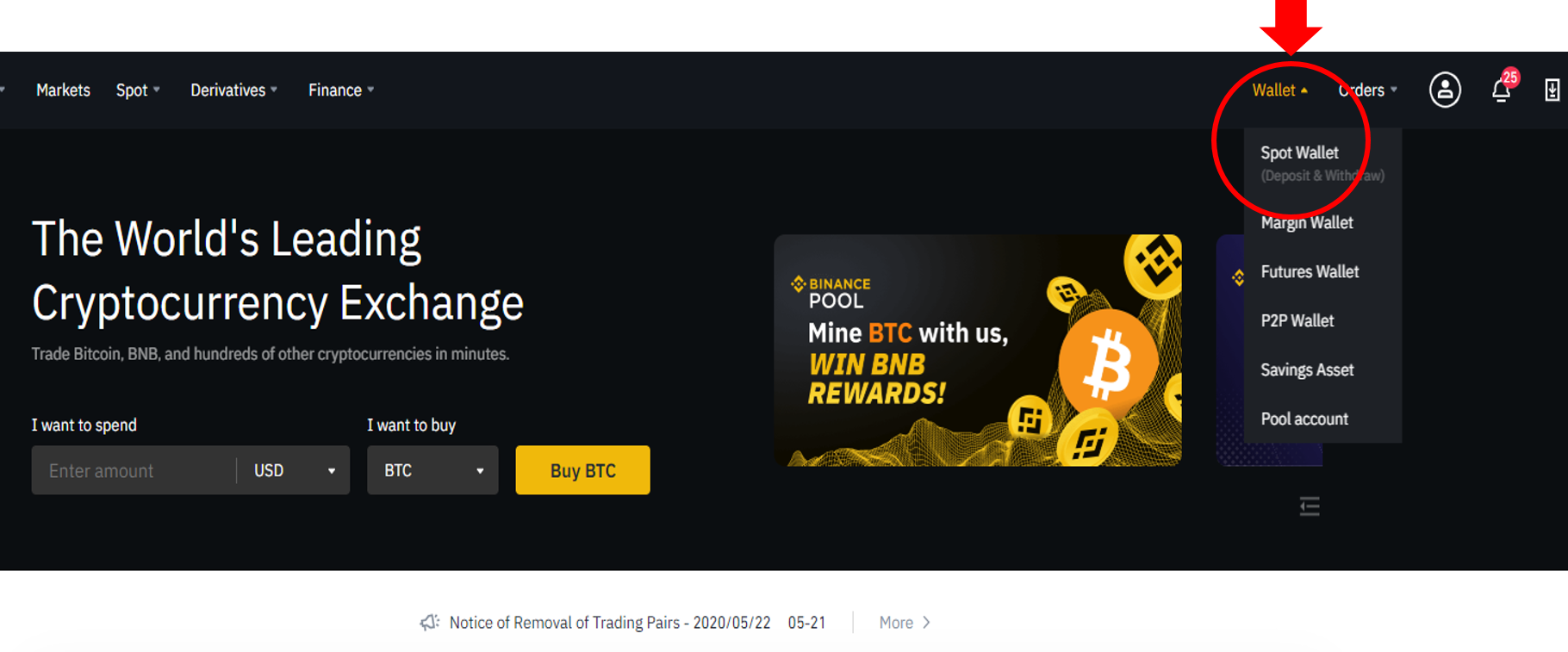
To send crypto to your Binance account, you first need its deposit address.
Log in to Binance and open the wallet you want to use, for example Spot Wallet.
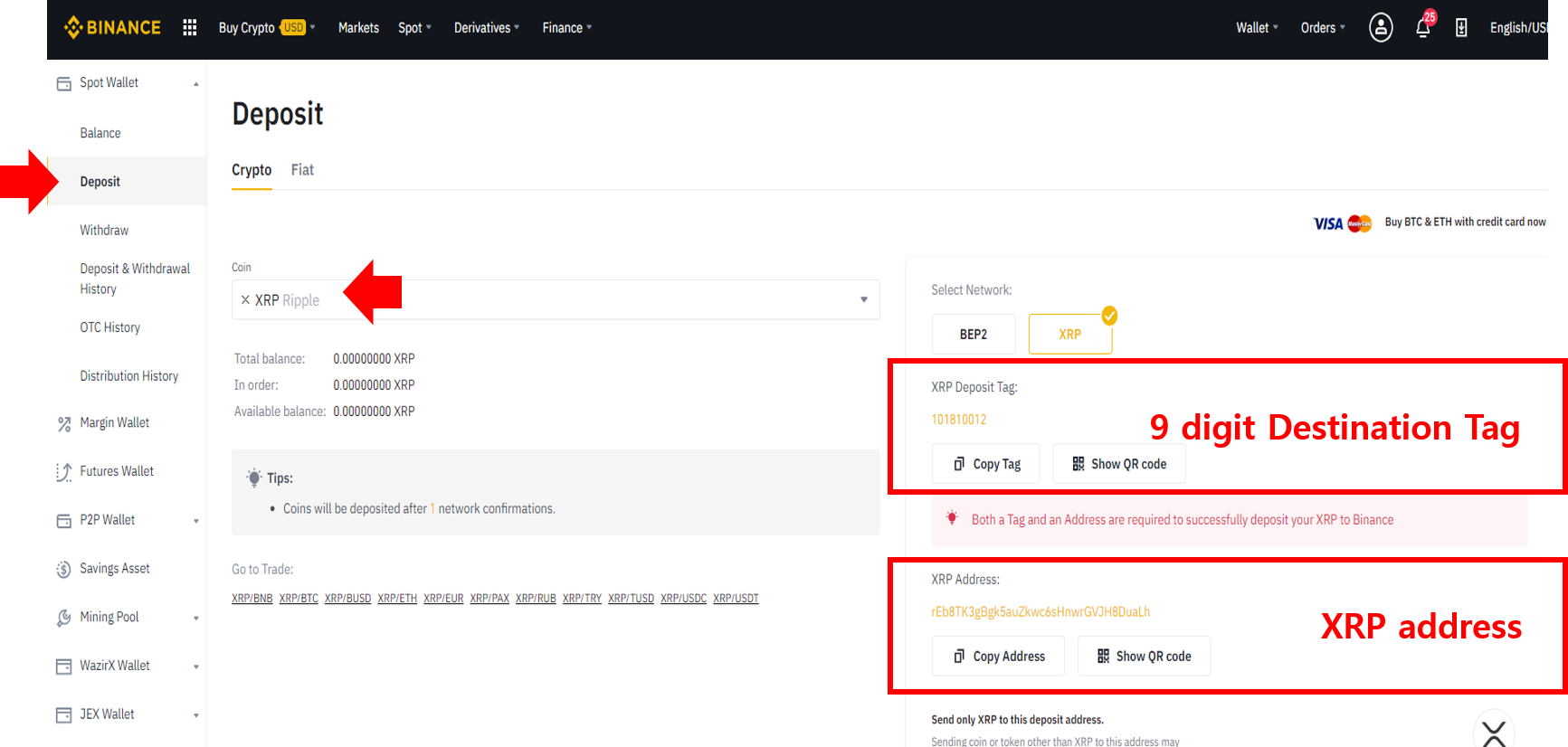
1) Tap Deposit.
2) Pick the coin you want to deposit from the drop-down list (for example, XRP).
3) Note the 9-digit XRP Deposit Tag. This Tag is mandatory when sending XRP to an exchange address.
4) Note the XRP address shown below — this is the recipient address you will send to.
Preparing for a Send transaction from D'CENT Wallet
Open the D'CENT mobile app and make sure your phone is connected to your D'CENT Biometric Wallet.
.jpg)
1) On your crypto account (for example, XRP), tap Send.
2) Tap QR Scan to scan the QR code shown by Binance. The recipient address is filled in automatically.
3) You MUST enter the Destination Tag (Deposit Tag) that Binance assigned to your XRP account.
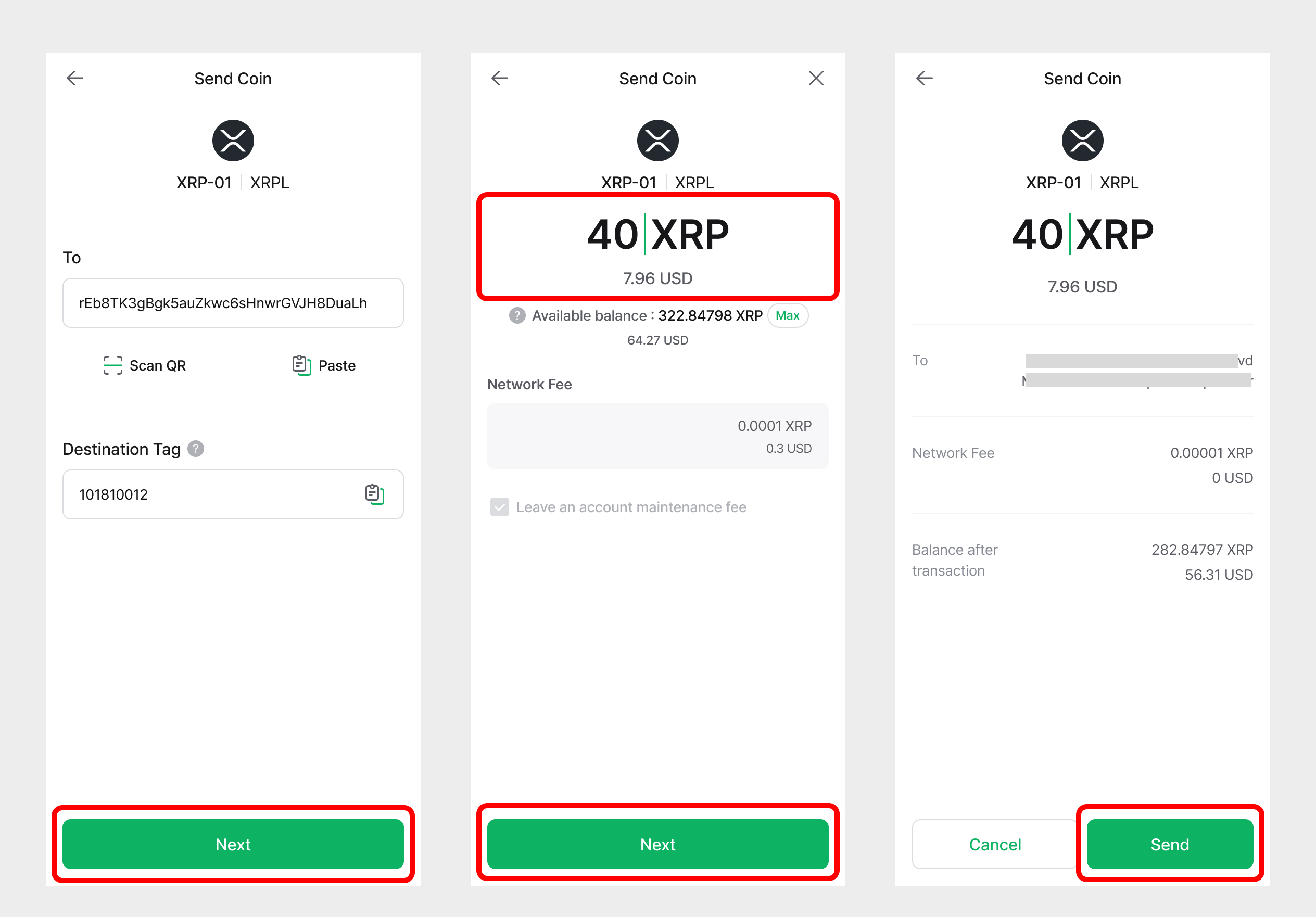
4) Once both the address and the Destination Tag are entered, tap Next.
5) Enter the amount to send, either in XRP or in fiat value.
6) Tap Next.
7) Review the transaction details and tap Send.
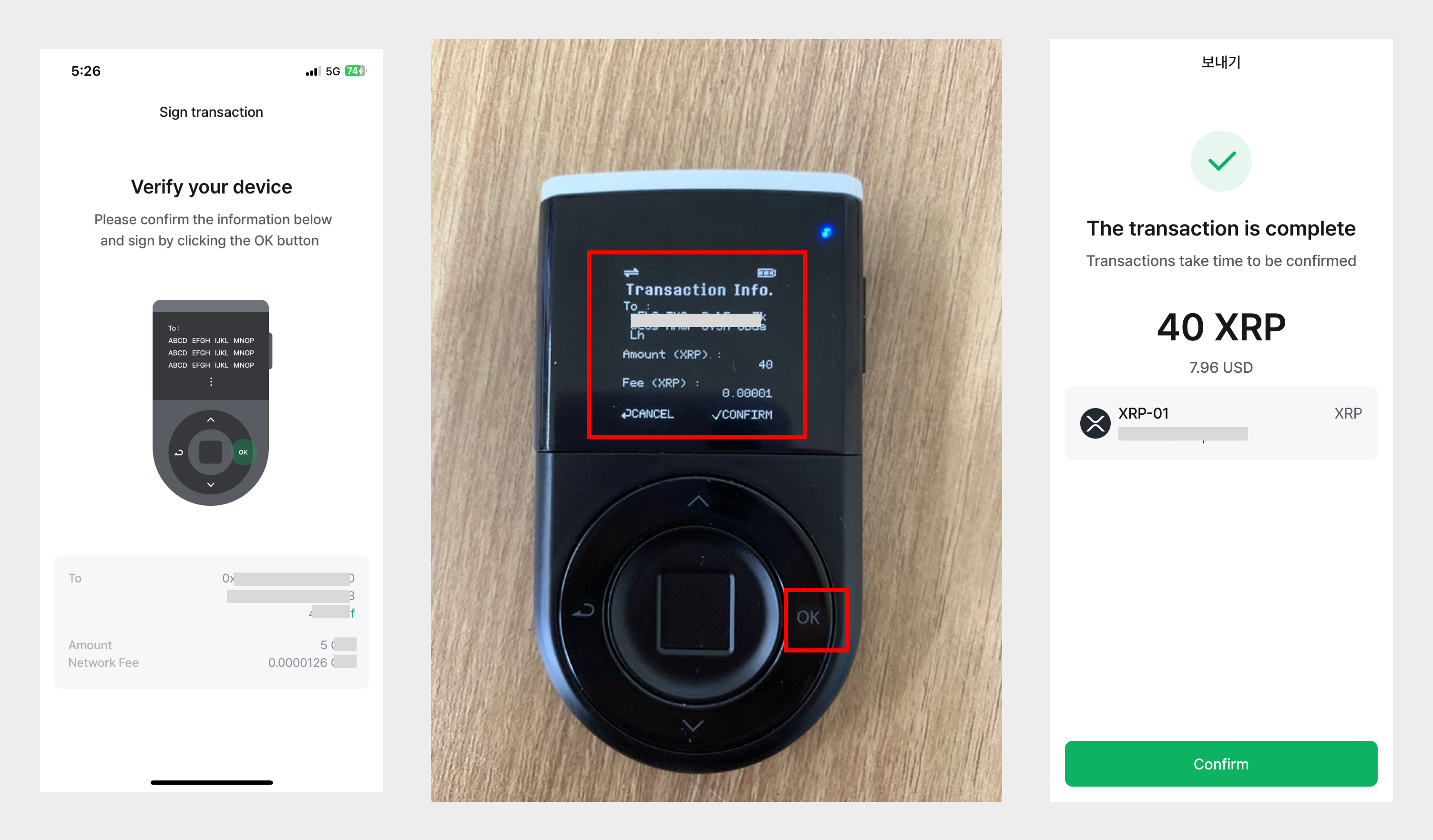
8) On your D'CENT Biometric Wallet, review the details and press OK to confirm. You also need to authenticate with your fingerprint or PIN.
9) After authentication, your Send transaction is broadcast to the blockchain network.
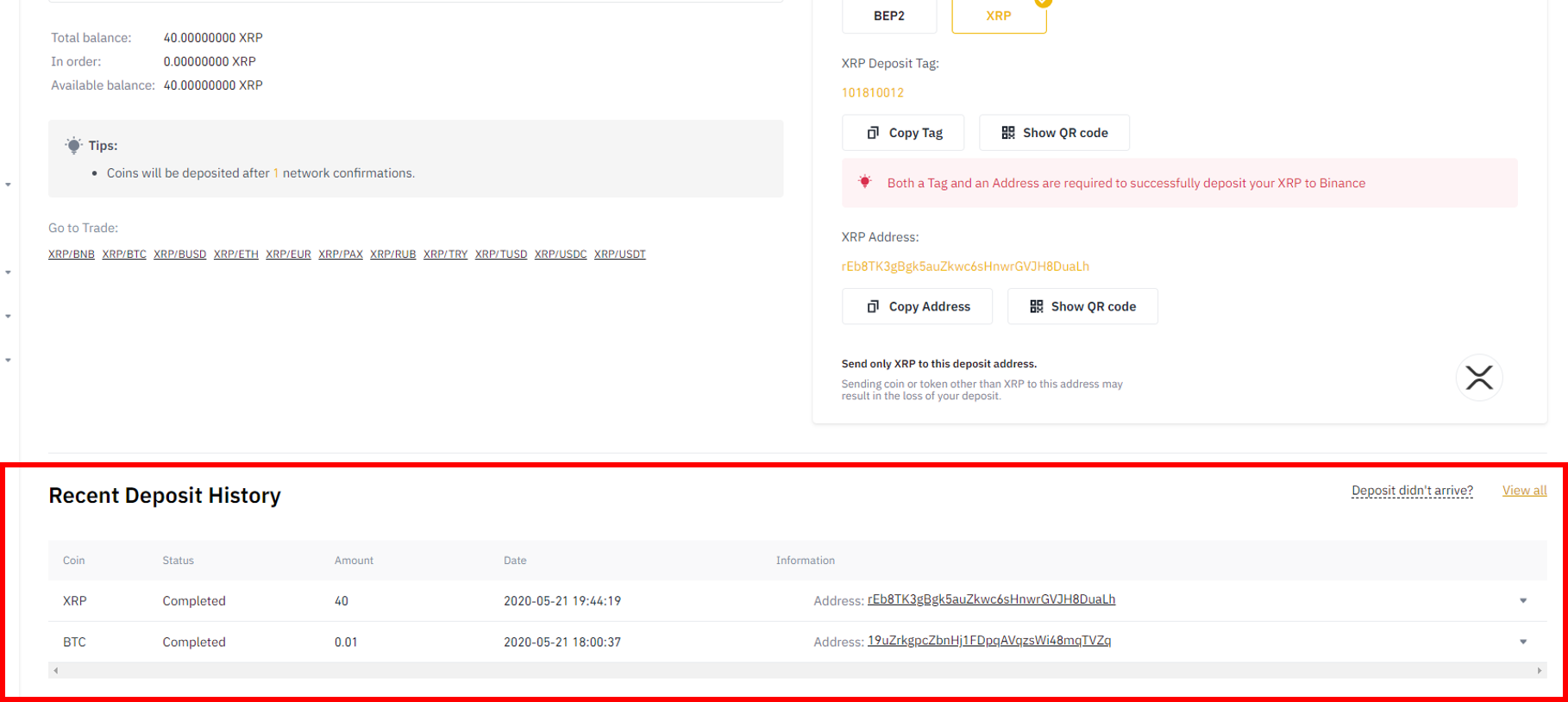
10) Back in your Binance account, check that the funds from D'CENT Wallet have arrived. Look under Recent Deposit History for transaction details.
Sending fund to your D'CENT wallet account
Check the receiving address on D'CENT Wallet
To send crypto to your D'CENT Wallet account, you first need its address.
In the mobile app, tap Receive to see the account address.
-b0035b722a4c1ab12390bb8f278da635.jpg)
There are two ways to share your address:
Copy — copies the address so you can paste it into a message or email.
Share — copies the address and lets you share it through any compatible app installed on your phone.
Preparing for a Send transaction from your Binance account
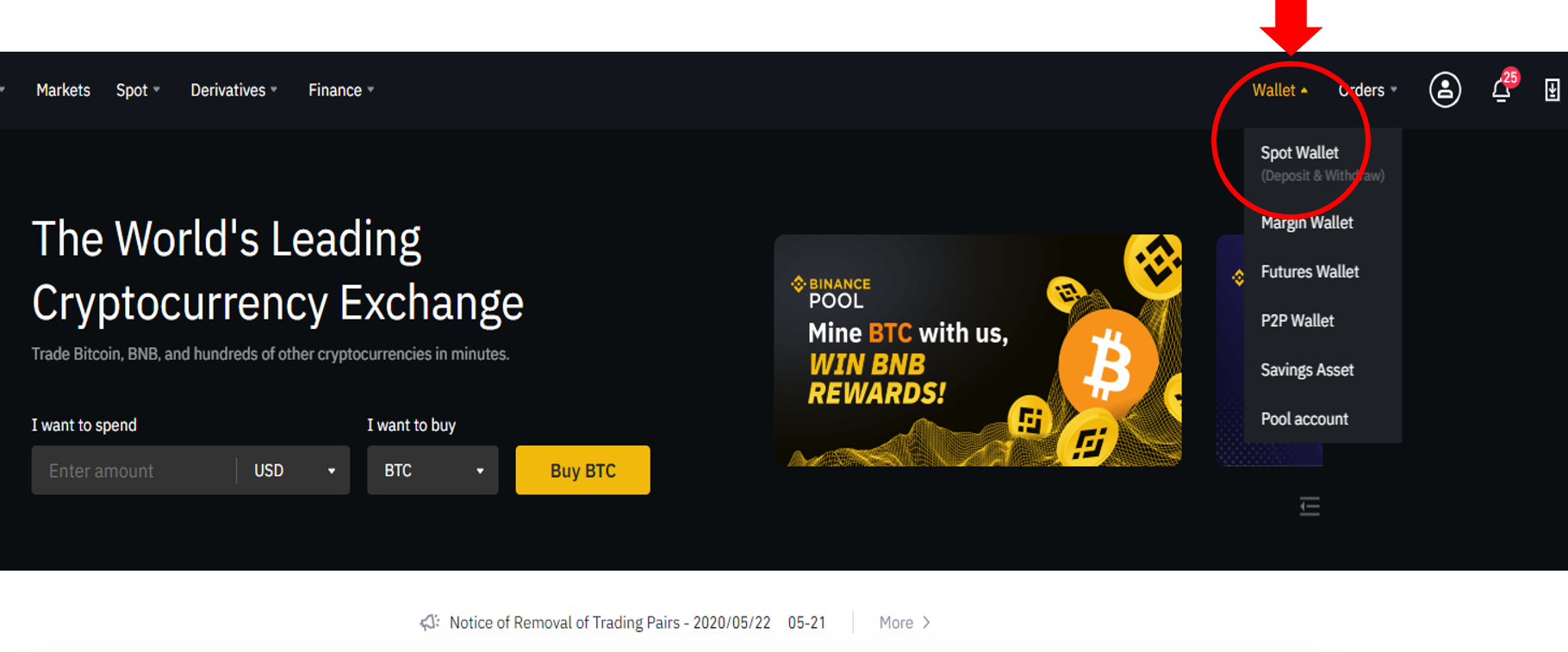
Log in to Binance and open Spot Wallet.
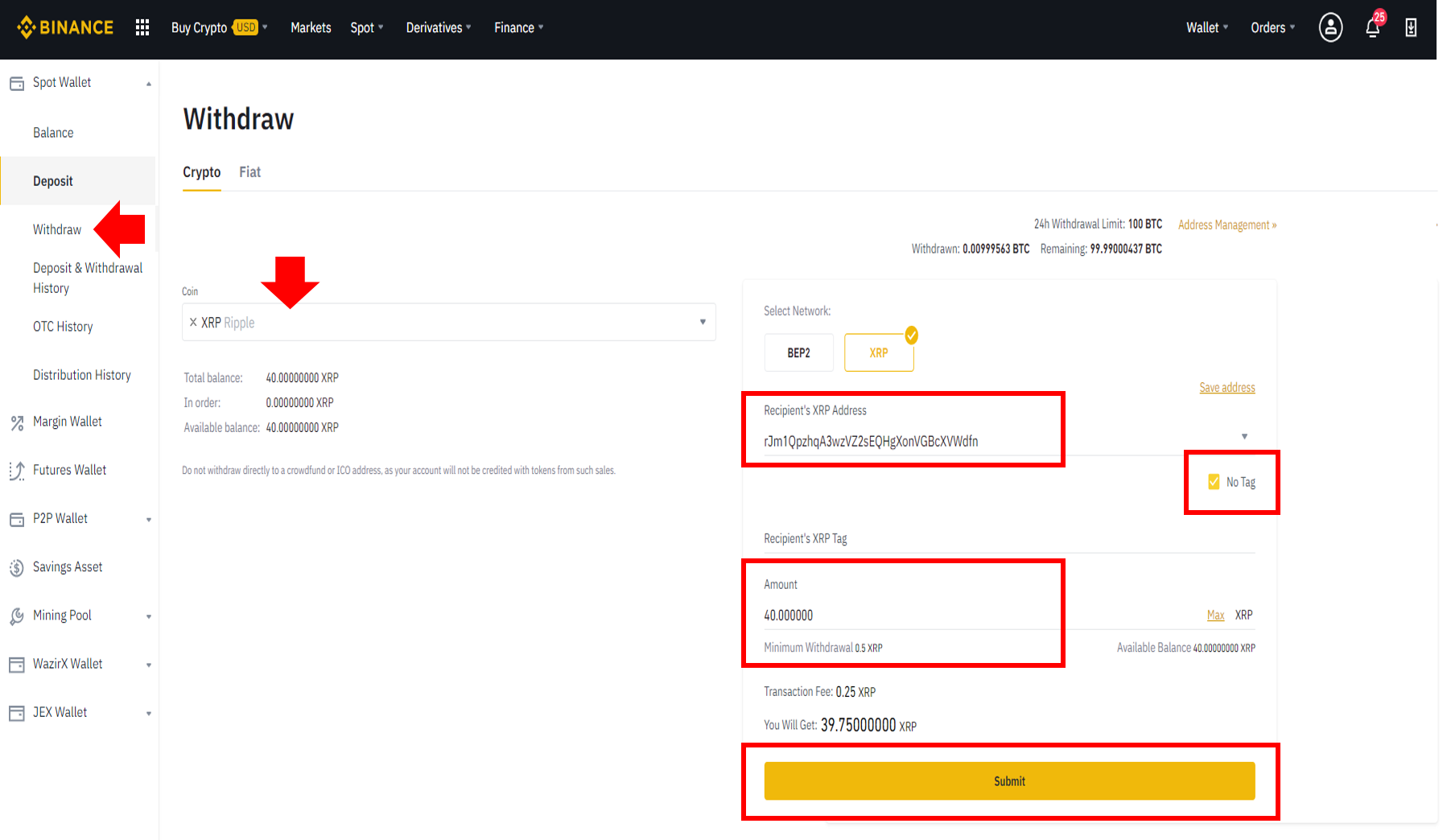
1) Tap Withdraw.
2) Pick the coin you want to withdraw from the drop-down list (for example, XRP).
3) Paste your D'CENT account address into the Recipient's XRP Address field.
4) Tick the No Tag checkbox. Personal wallets such as D'CENT Wallet do not use a Destination Tag.
5) Enter the amount to send.
6) Tap Submit.
If you have enabled two-factor authentication, Binance will ask you to authenticate again through a separate channel. Google Authenticator is one supported option.
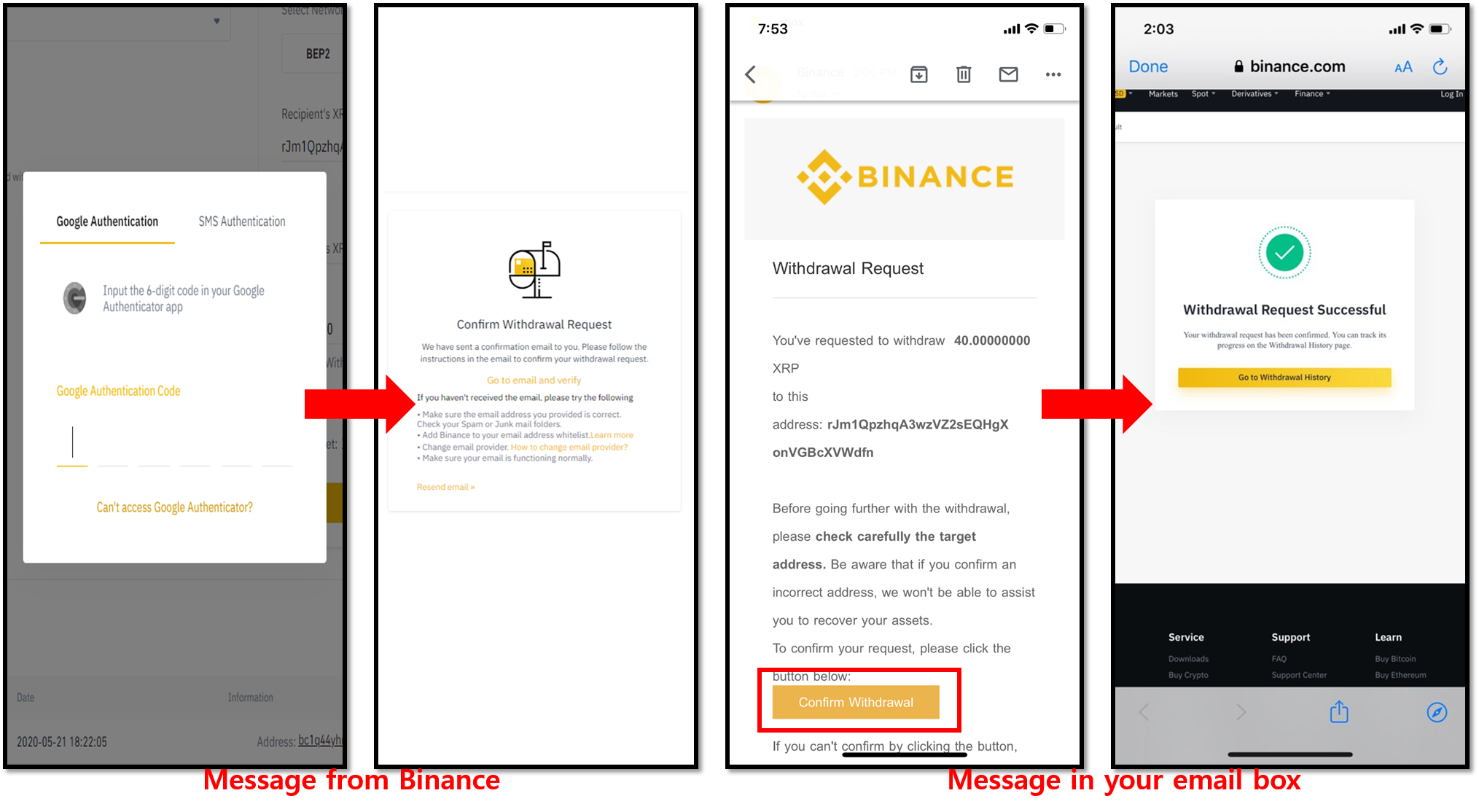
7) Complete the second authentication step. Binance will then process your withdrawal request.
8) Check the transaction status on Binance. You can also check it from D'CENT Wallet.