Using Coinbase exchange for transfers (Bitcoin example)
Sending fund to your Coinbase wallet account
Check the receiving address on Coinbase
To send crypto to your Coinbase account, you first need its deposit address.
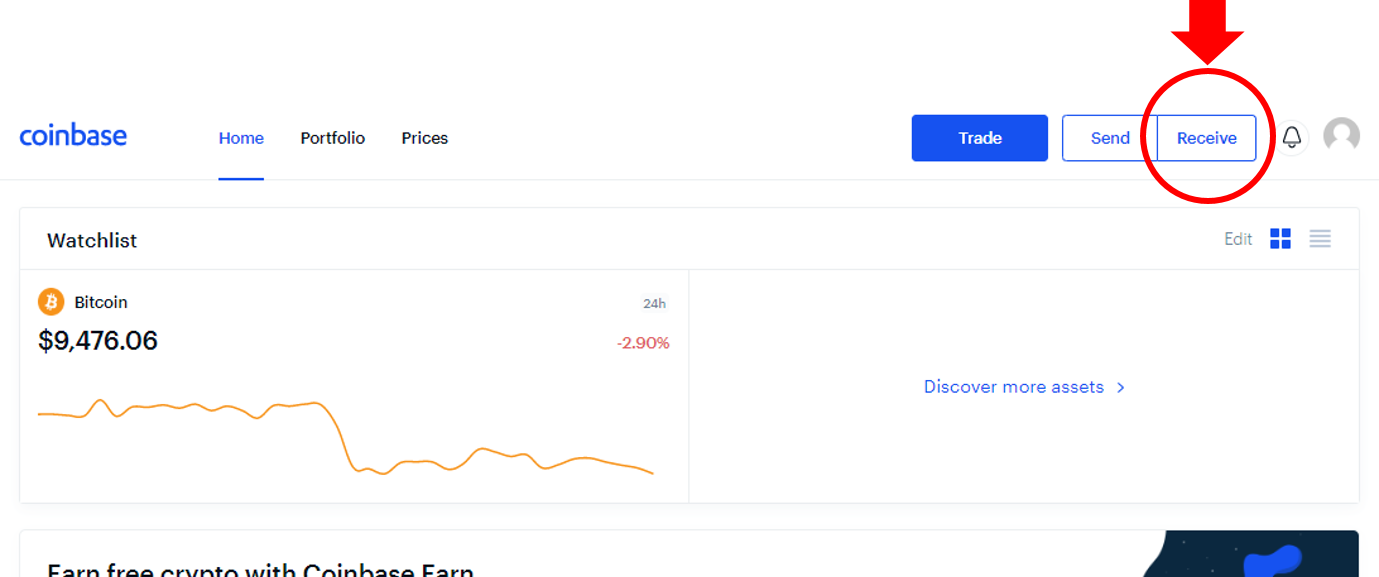
Log in to Coinbase and tap Receive.
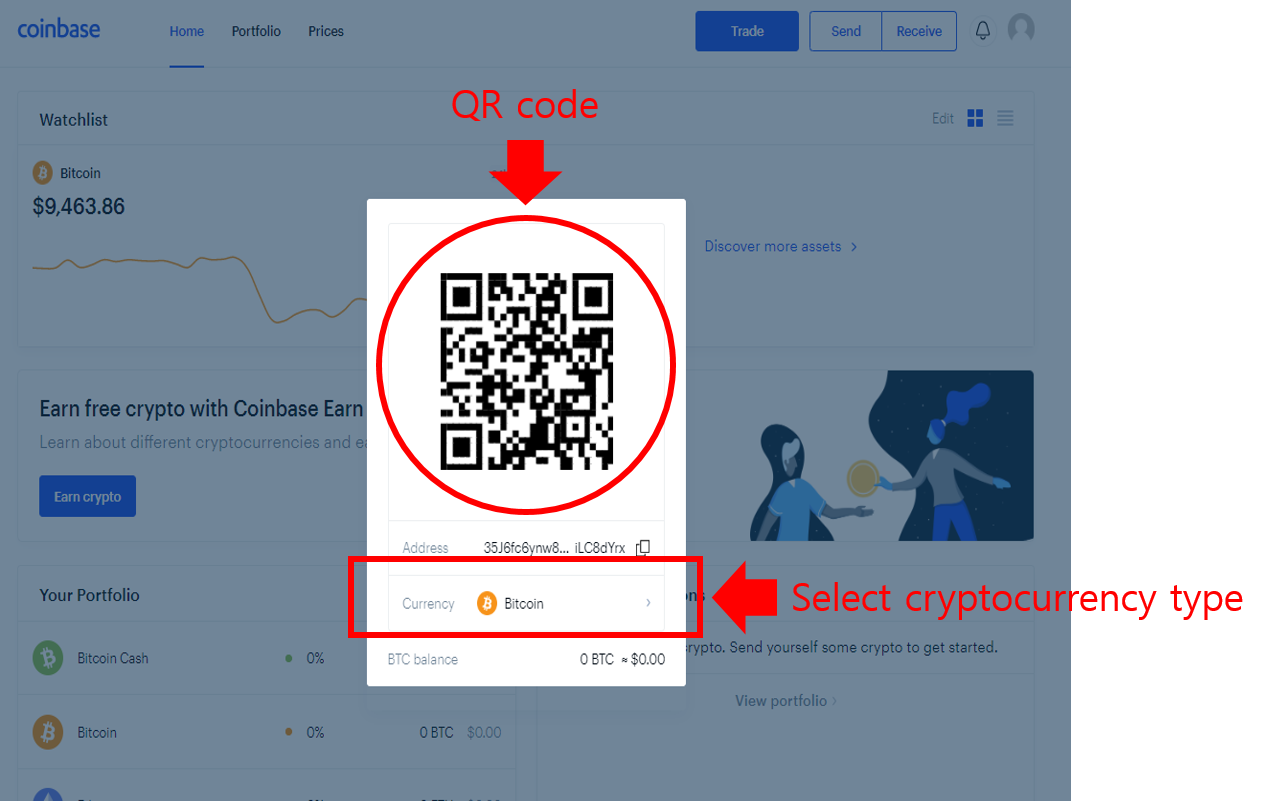
The screenshot below shows how Coinbase displays your address — in this example, Bitcoin. The QR code at the top encodes the same address shown in text form just below it.
You can switch to a different coin from the Currency selector.
Preparing for a Send transaction from D'CENT Wallet
Open the D'CENT mobile app and make sure your phone is connected to your D'CENT Biometric Wallet.
.png)
1) On your crypto account (for example, Bitcoin), tap Send.
2) Tap QR Scan to scan the QR code shown by Coinbase.
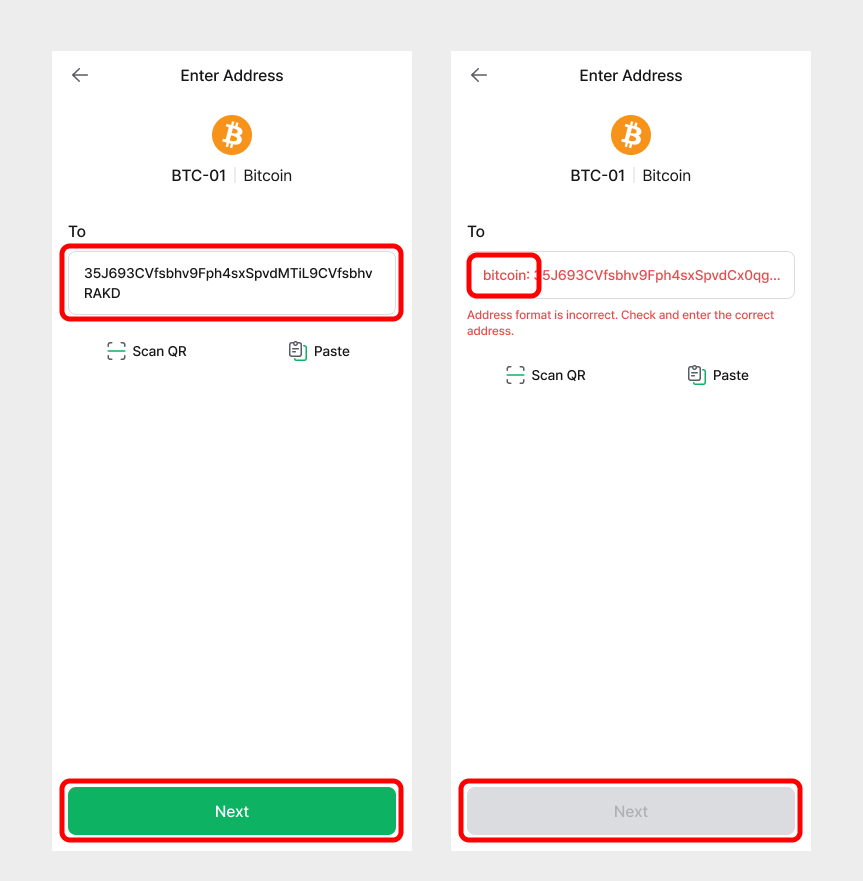
3) If the QR code is scanned correctly, the recipient address is filled in automatically. It is always a good idea to double-check that the address matches the one you intend to send to.
4) Tap Next.
If Next stays disabled and the red message "Address format is incorrect" appears, the address has an extra bitcoin: prefix at the beginning. Delete that prefix and the Next button becomes active.
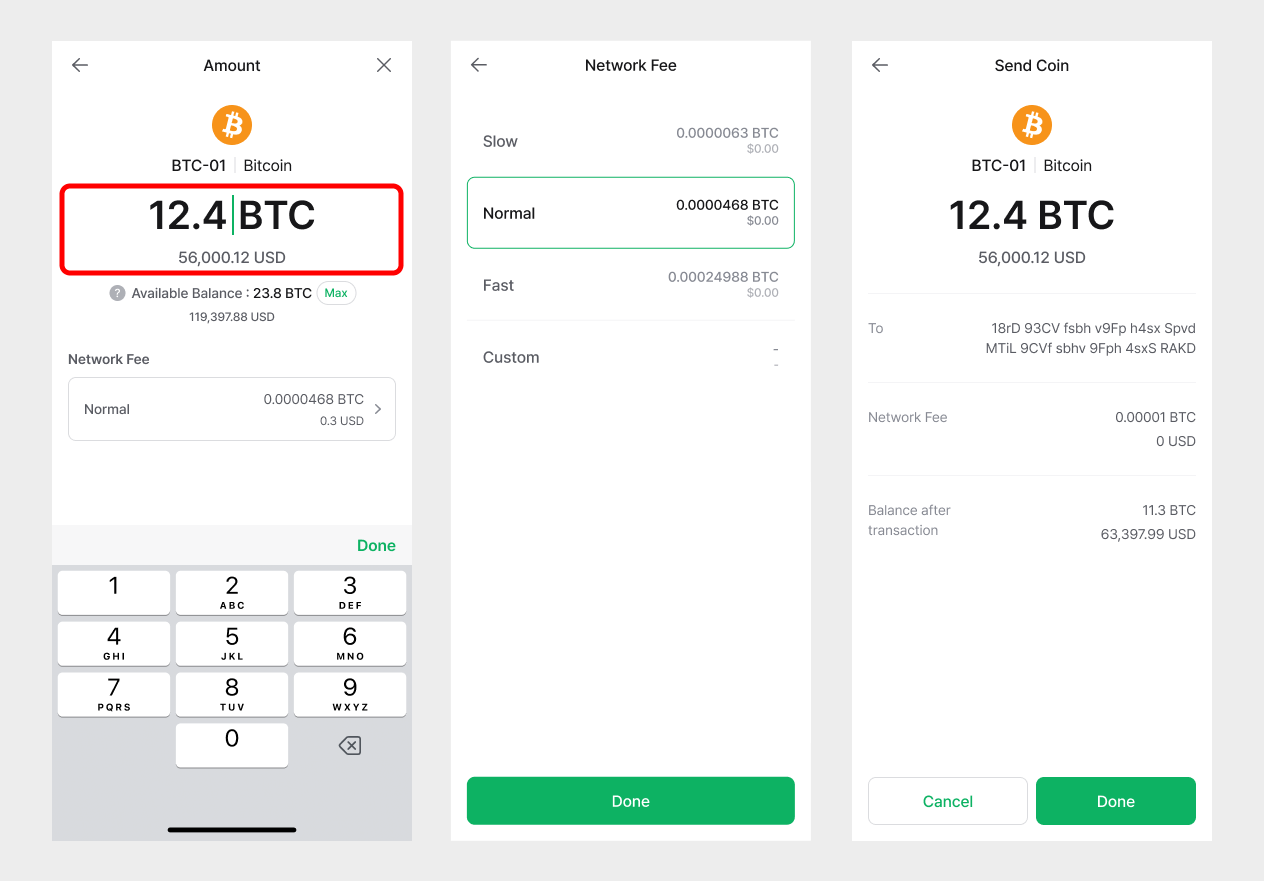
5) First, set the network fee. You can adjust it with the slider. Choosing High improves the chance that the network will process the transaction with priority.
6) Next, enter the amount to send, either in the coin's units or in fiat value. To send your entire balance, tap Max.
7) Tap Next.
8) On the next screen, double-check the recipient address and the amount. When everything looks correct, tap Send.
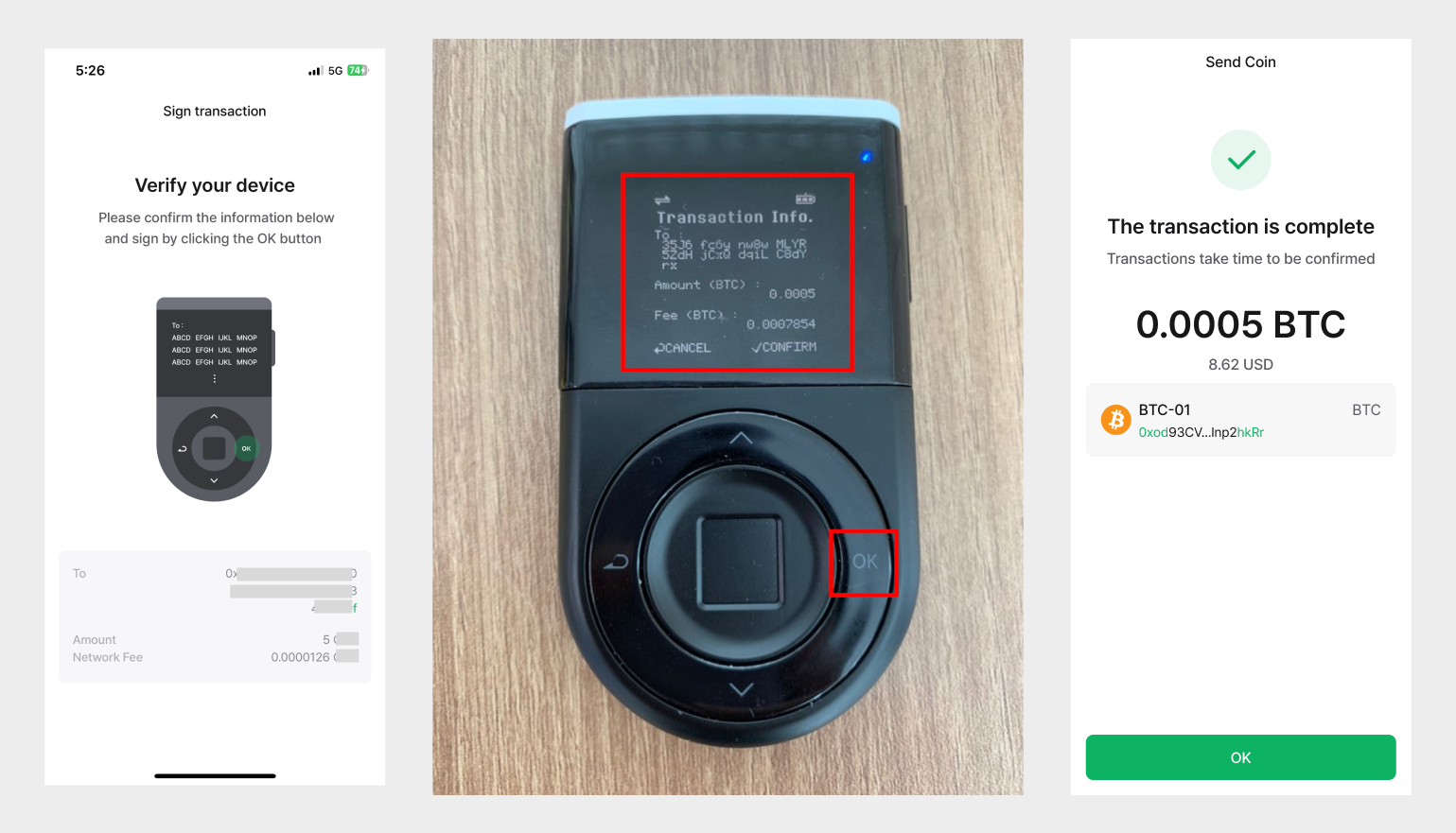
9) On your D'CENT Biometric Wallet, review the details and press OK to confirm. You also need to authenticate with your fingerprint or PIN.
10) After authentication, your Send transaction is broadcast to the blockchain network.
11) Back in your Coinbase account, check that the funds from D'CENT Wallet have arrived.
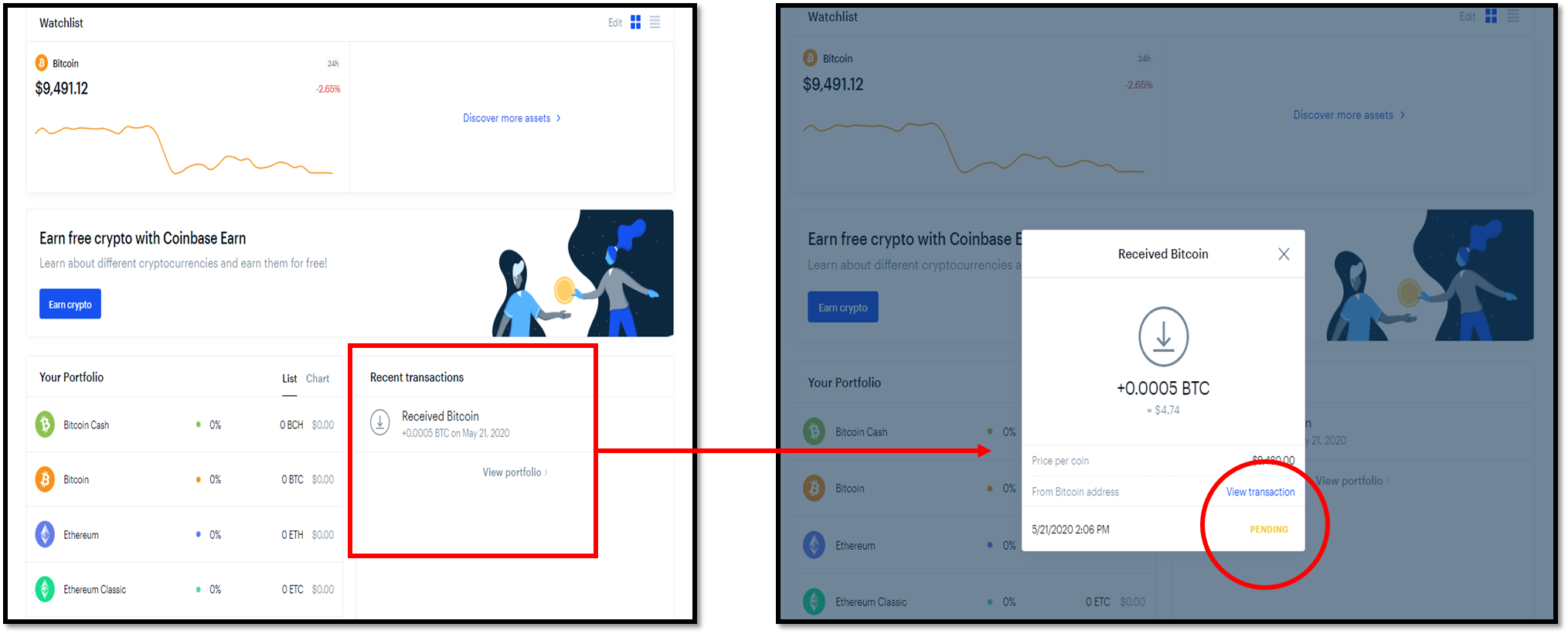
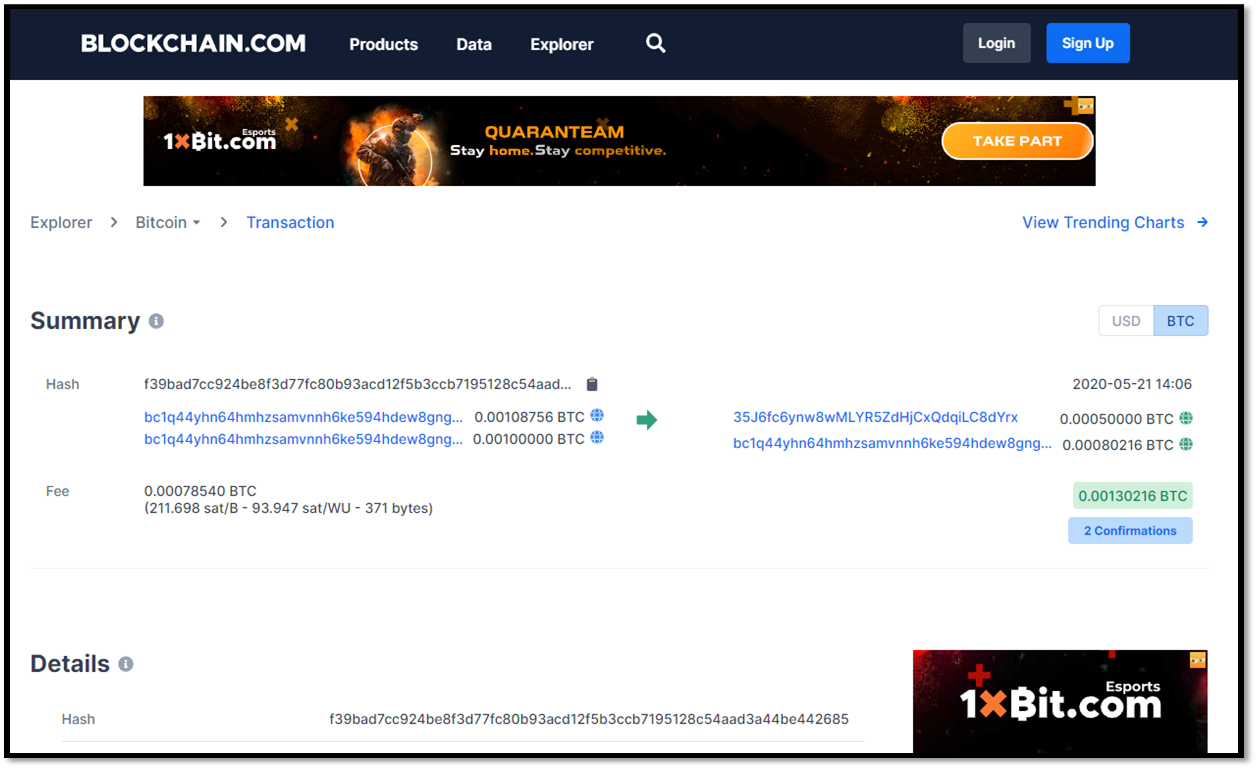
Coinbase shows your Recent Transactions history. A PENDING status means the network is still confirming the transaction. Tap View Transaction to open the transaction in a block explorer for more detail.
Sending fund to your D'CENT wallet account
Check the receiving address on D'CENT Wallet
To send crypto to your D'CENT Wallet account, you first need its address.
In the mobile app, tap Receive to see the account address.
There are two ways to share your address:
Copy — copies the address so you can paste it into a message or email.
Share — copies the address and lets you share it through any compatible app installed on your phone.
Preparing for a Send transaction from your Coinbase account
On Coinbase, tap Send.
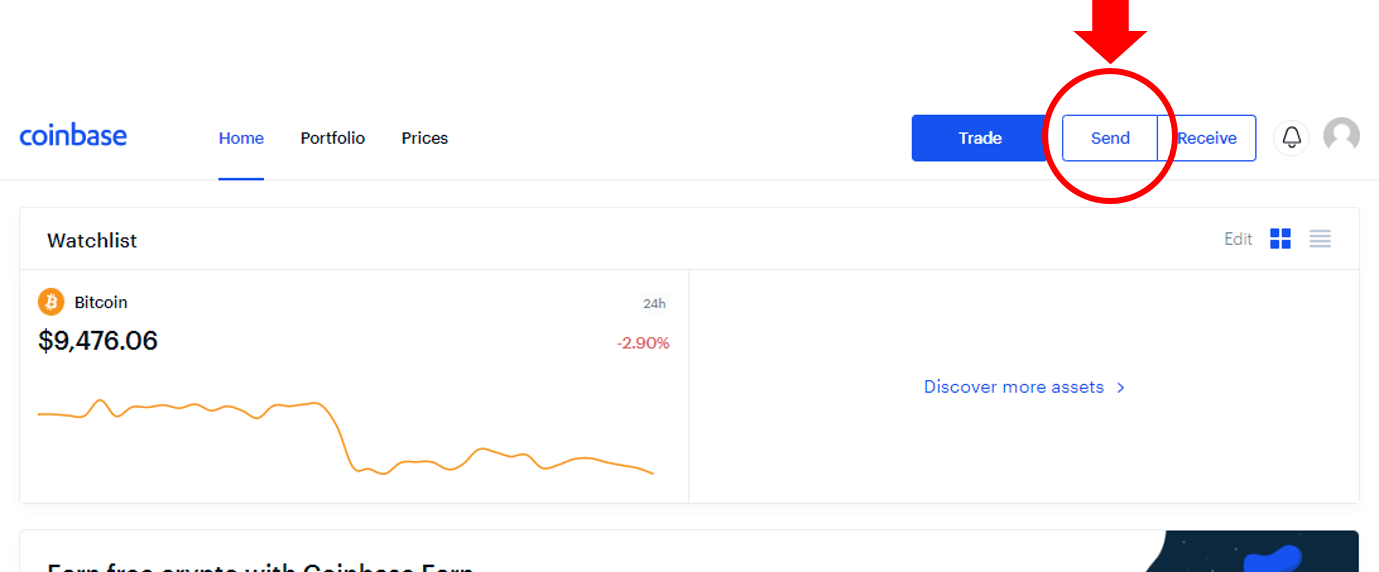
The screenshots below show the Coinbase wallet interface.
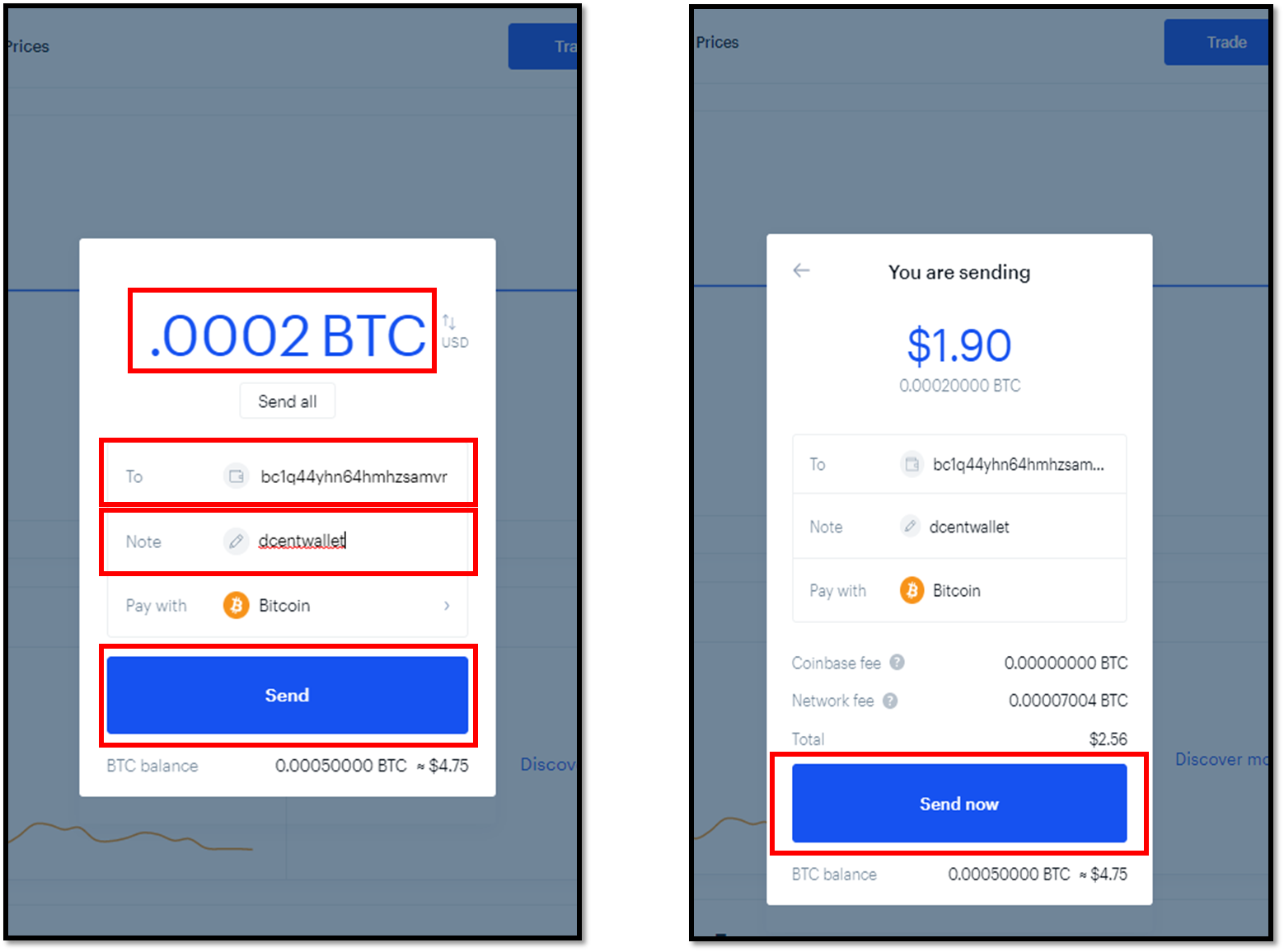
1) Enter the amount to send.
2) Paste your D'CENT account address into the To field.
3) Optionally add a label in the Note field to help you remember what the transaction was for (for example, "dcentwallet").
4) Tap Send.
5) The next screen shows the full details of the transaction you are about to submit. Tap Send now to continue.
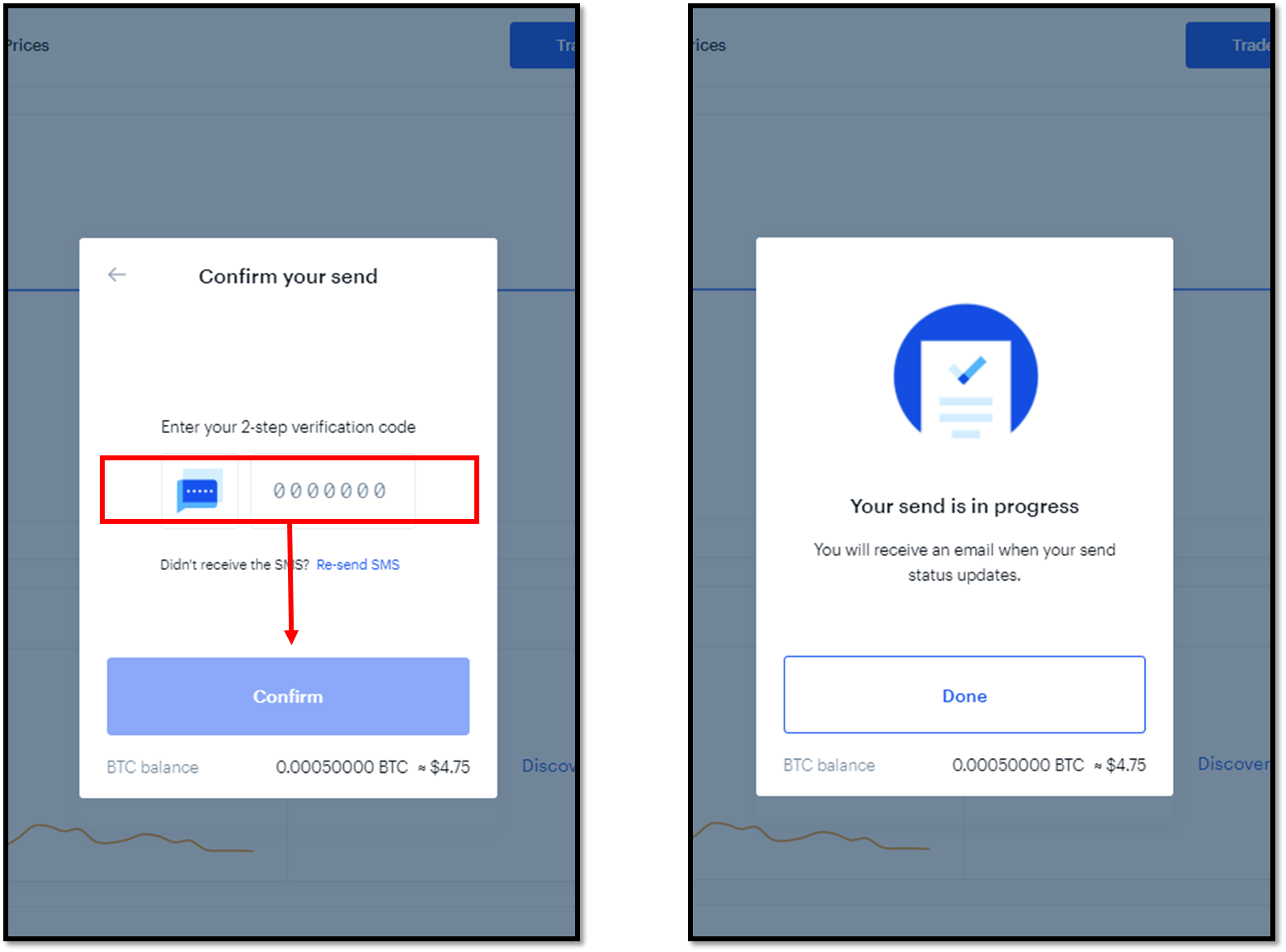
6) Enter the 2-step verification code you received via SMS.
7) Tap Confirm to submit the Send transaction.