How to create a coin account
How to create an account
From the "My Wallet" tab, tap the "Add Account +" button to create a new account.
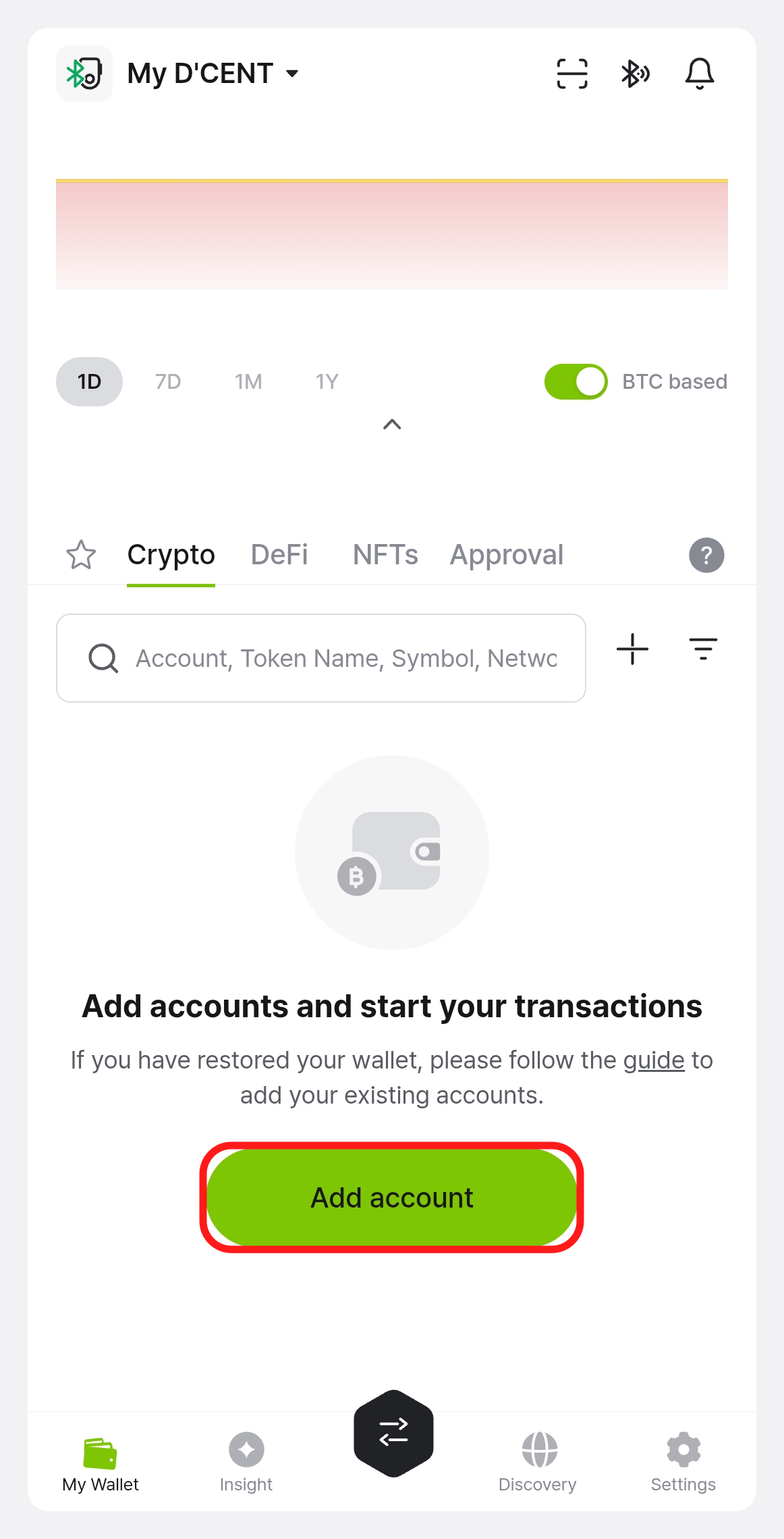
If you are using Biometric Wallet mode, your Biometric Wallet must be connected to create an account.
Select the Coin/Token
Pick the coin you want to add from the list. You can also search by coin name or symbol.
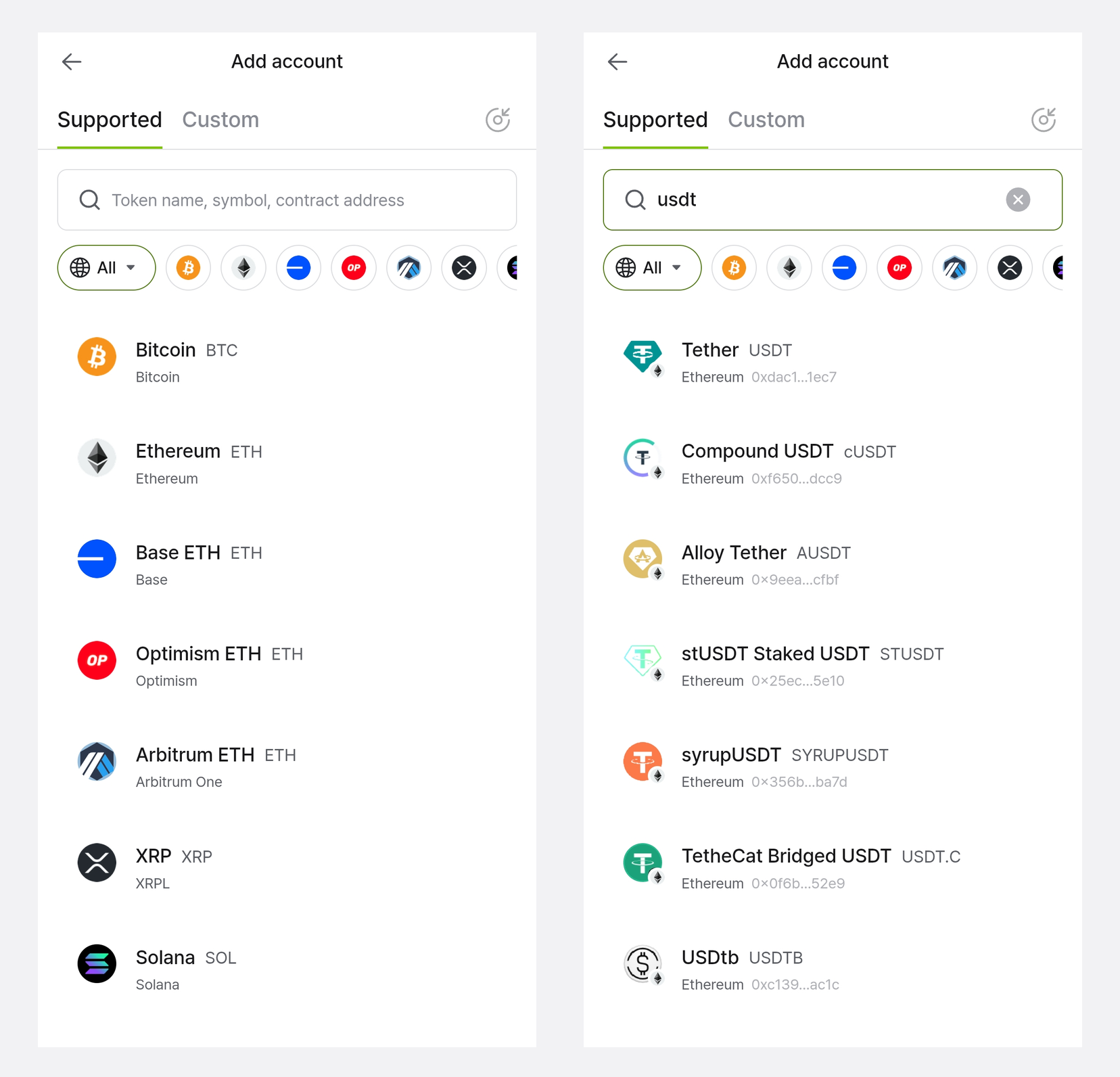
Click here for a full list of cryptocurrencies supported by DCENT Wallet.
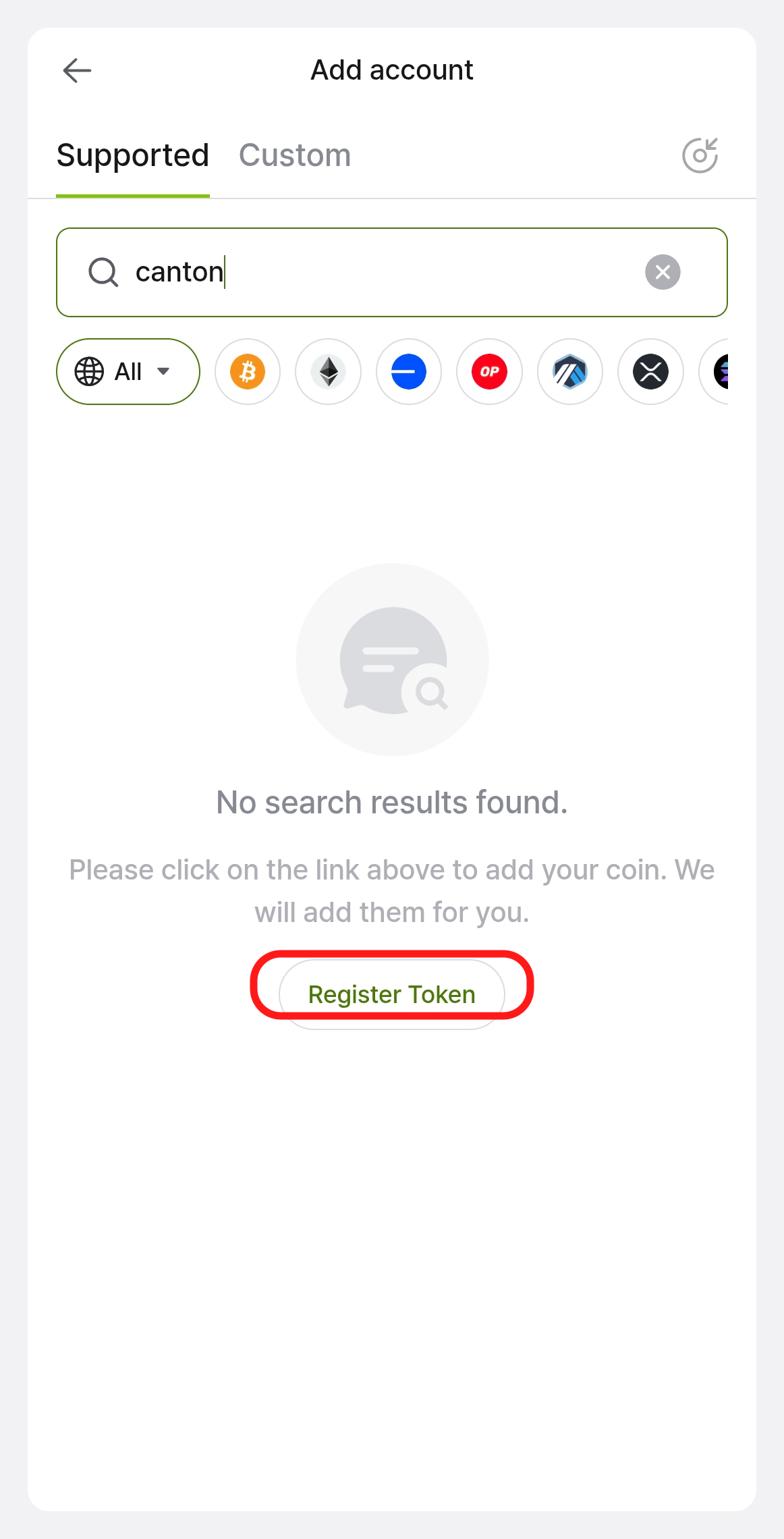
What if the Coin/Token you want to add is not on the list?
If you can't find the coin or token you want, you can ask the DCENT team to add it.
Open the "Crypto Asset Request" form and fill it out. The DCENT team will review your request as soon as possible.
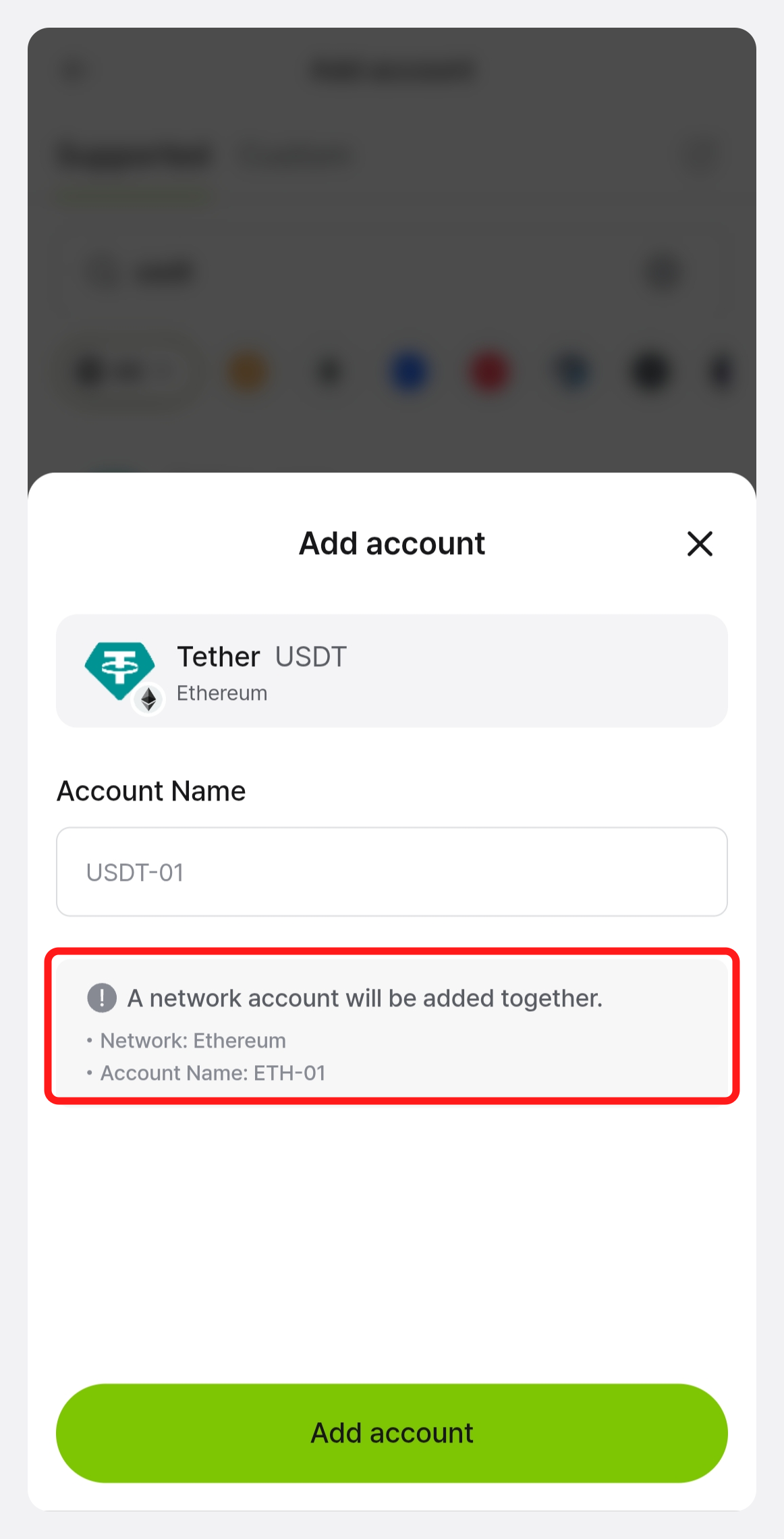
When trying to add a token account without the fee account
To create a token account such as ERC20, BEP20, RRC20, or KCT, the matching mainnet account must already exist.
- ERC20 token account → Ethereum account required
- BEP20 token account → BNB Smart Chain account required
- RRC20 token account → RSK account required
- KCT token account → Kaia account required
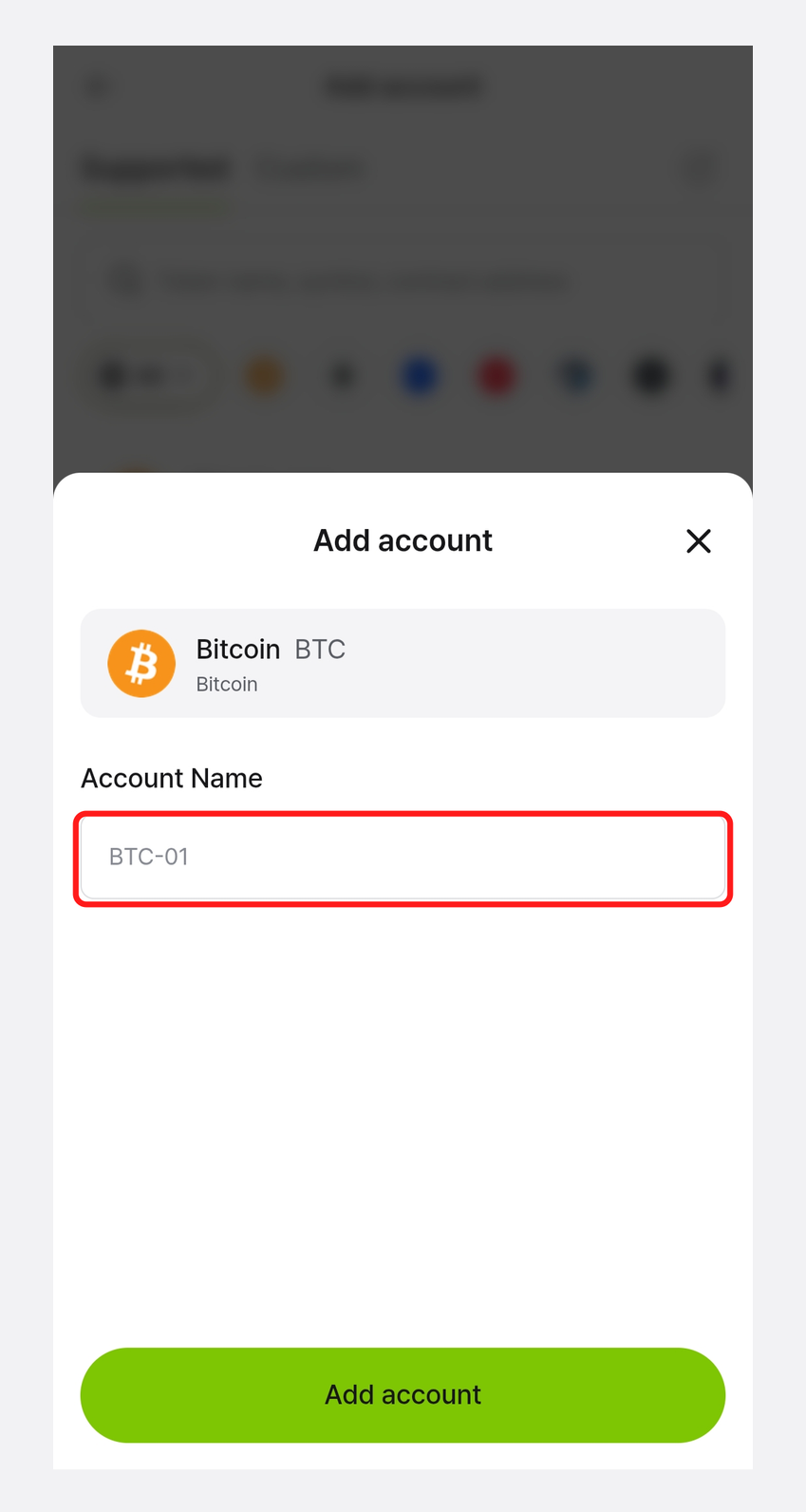
Set Account Name
After selecting the coin or token, set an account name. If you tap "Add Account" without entering one, a default name is used. The account name is just a nickname for the account—it's shown in the mobile app and also on the Biometric Wallet display.
Account created successfully
Once the account is created, it appears in the "My Wallet" tab. The balance is fetched directly from the blockchain network.
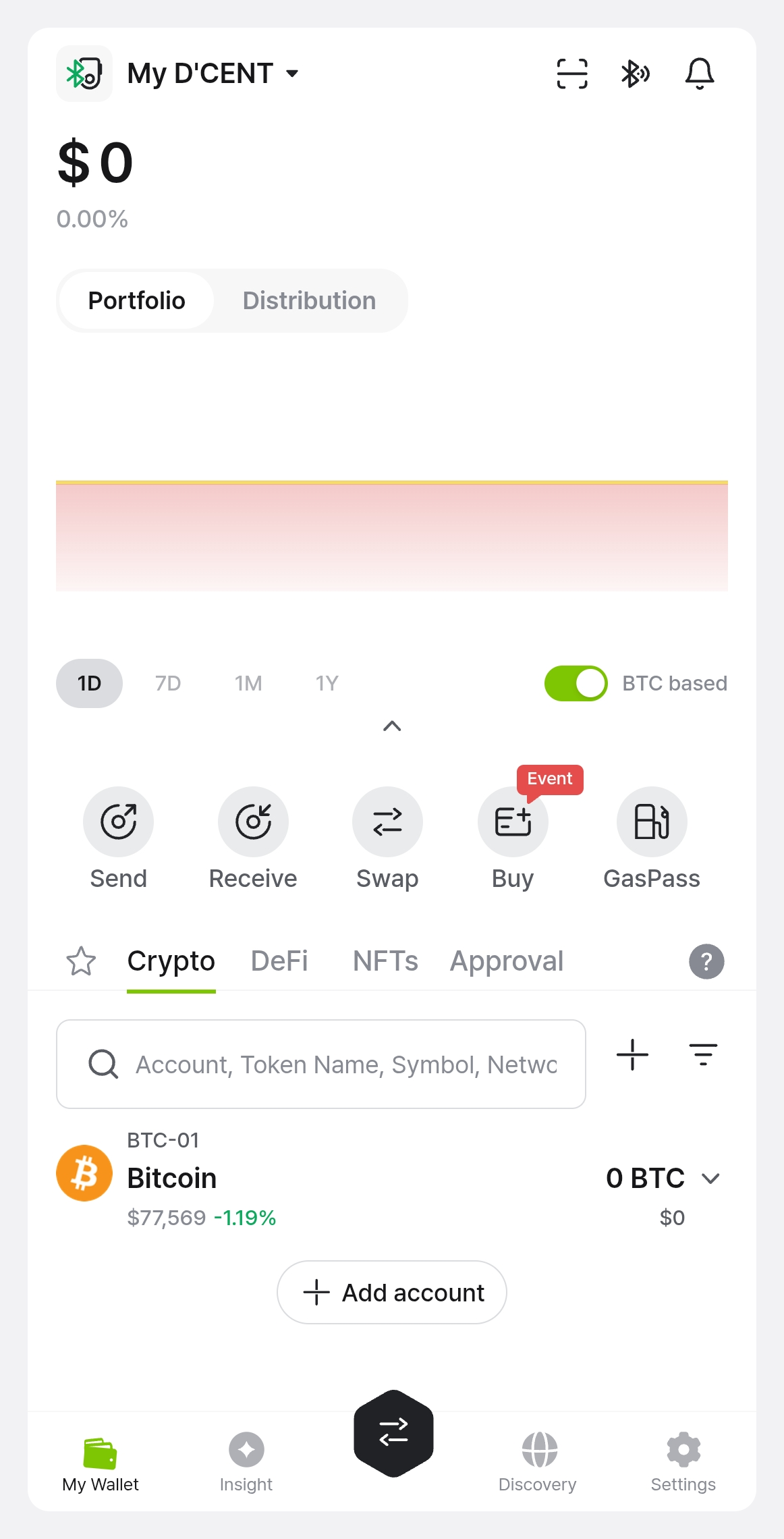
Now you can try Send or Receive from your new account.
When an account is created in the Biometric Wallet mode
When an account is created in Biometric Wallet mode, the new account information is also updated on the Biometric Wallet itself. For more details, see Synchronizing the Biometric Wallet with the Mobile App.
Maximum number of accounts
You can create up to 80 accounts on a Biometric Wallet.