How to add a custom path account
This guide walks you through adding a custom path BTC account.
Add a Custom Path Account
.png)
1) Open the "Settings" tab.
2) Scroll down and tap "Laboratory".
3) Turn on "Custom Path Account".
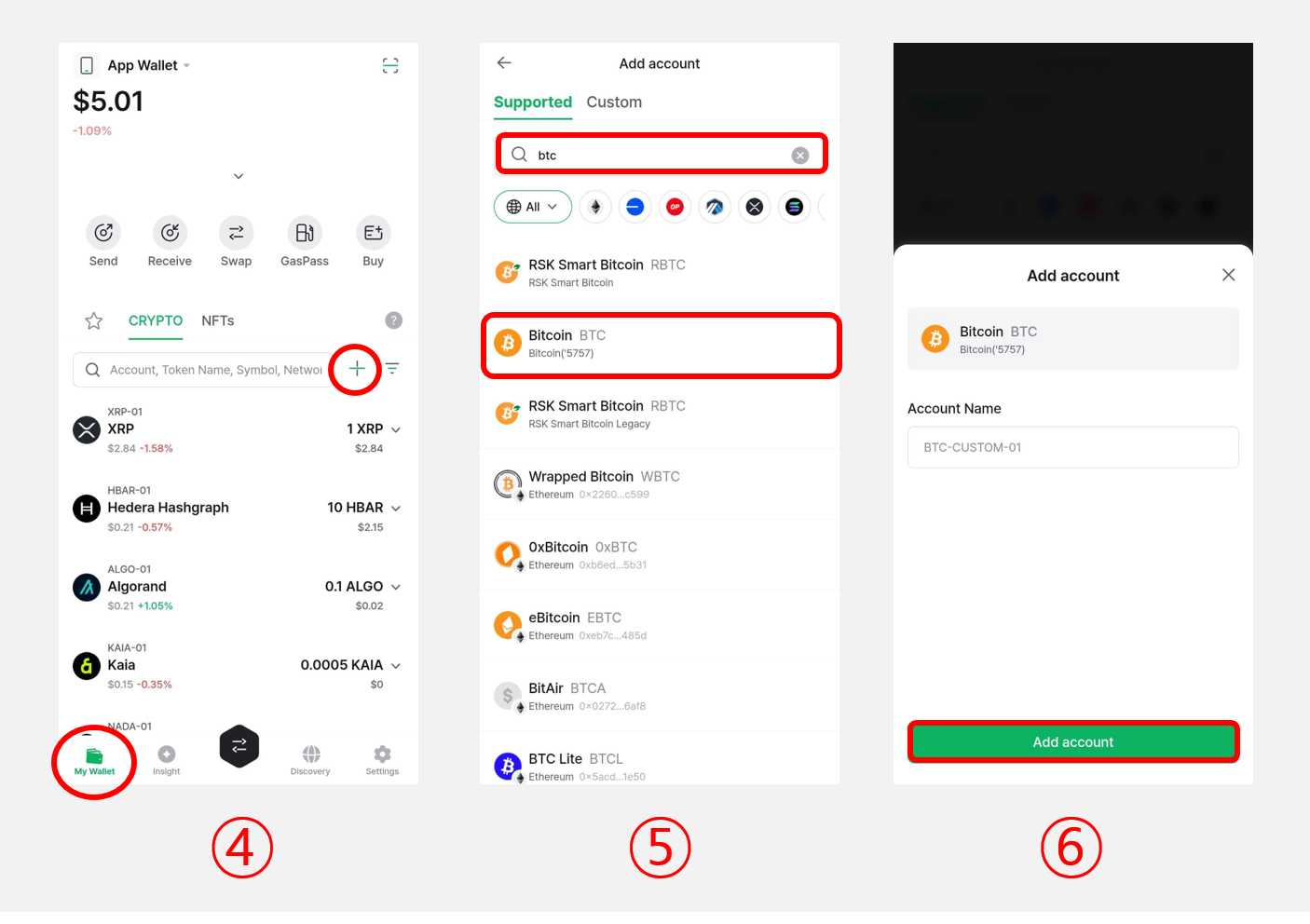
4) Go to the "My Wallet" tab and tap the "Add Account +" button.
5) Search for BTC and pick the entry with a number appended to it (for example, BTC - 5757).
6) Set an account name (optional) to finish adding the account.
You can add custom path accounts for other networks such as ETH or BNB in the same way.
Add a Vendor Lock-In Account
A "Vendor Lock-In Account" is a type of custom path account that lets you generate wallet addresses compatible with external wallets such as MetaMask or Phantom.
If you imported a wallet into DCENT using a mnemonic from an external wallet but some addresses look different, adding a Vendor Lock-In Account gives you the same addresses you had in the original wallet.
Requirements for Vendor Lock-In Account
Minimum supported version
- DCENT mobile app: v8.0.0 or later
- Supported only on App Wallet (not available for Biometric Wallet or Card Wallet)
Supported Networks
- Ethereum (ERC20)
- Base (BASE-ERC20)
- Solana (SPL-Token)
Adding a Vendor Lock-In Account follows the same steps as adding a Custom Path Account.
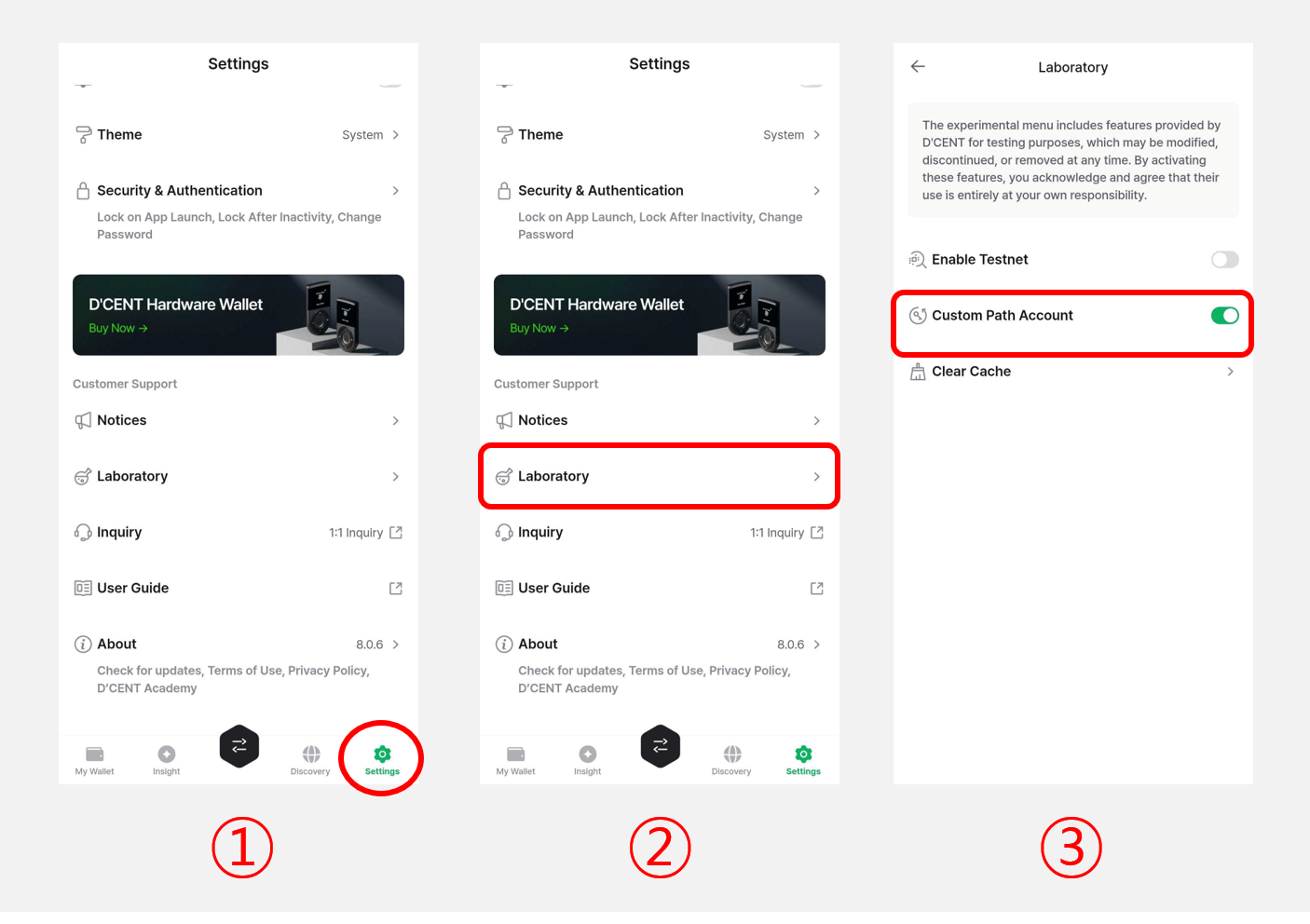
1) Open the "Settings" tab.
2) Scroll down and tap "Laboratory".
3) Turn on "Custom Path Account".
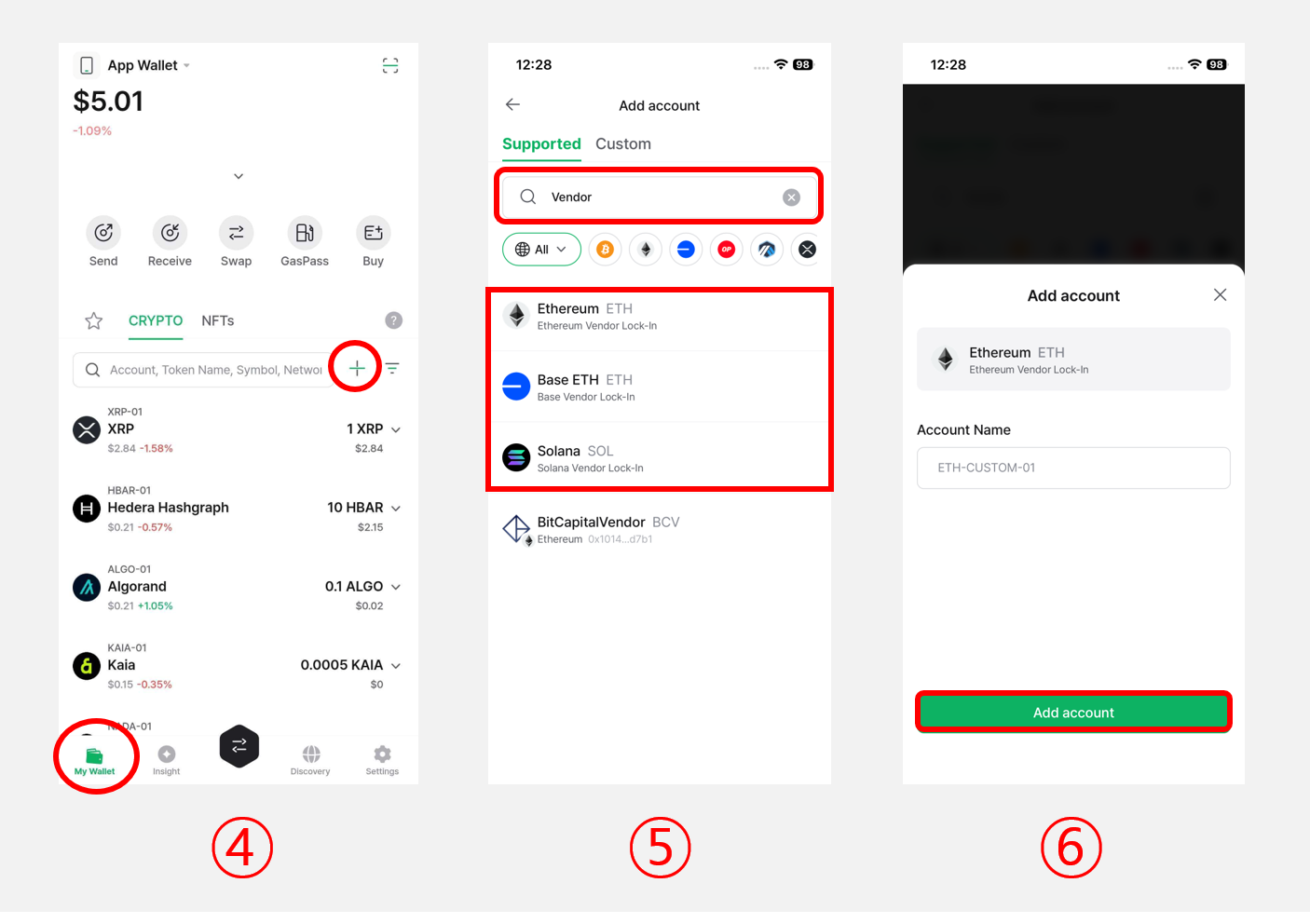
4) Go to the "My Wallet" tab and tap the "Add Account +" button.
5) Type "Vendor" into the search bar to see the Vendor Lock-In entries for Ethereum, Base, and Solana.
6) Set an account name (optional) to finish adding the account.