How to add a custom token account
Custom tokens are tokens that are not on DCENT Wallet's official supported list. You can add them manually so you can manage them inside the app.
For custom token accounts, only the token balance is shown. Market price and converted (fiat) balance are not displayed.
To request official support for a specific token, please use the Google form below. Adding support for a brand-new blockchain network can take a significant amount of time.
Request form for additional tokens/coins
Custom tokens can be added for the following blockchain networks:
✅ Ethereum (ERC20)
✅ RSK Smart Bitcoin (RRC20)
✅ Kaia (KCT)
✅ Binance Smart Chain (BEP20)
✅ XDC (XinFin) (XRC20)
✅ Polygon (Polygon-ERC20)
✅ Luniverse (Luniverse-TKN)
✅ Hedera (Hedera-HTS)
✅ Stacks (SIP010)
✅ Solana (SPL-TOKEN)
✅ Conflux (CFX-CRC20)
✅ Tezos (XTZ-FA)
✅ Vechain (VET-TOKEN)
✅ Havah (HAVAH-HSP20)
✅ Near (NEAR-TOKEN)
✅ TX (SMART-TOKEN)
✅ Algorand (ALGO-ASSET)
✅ Algorand (ALGO-APP)
✅ HECO (HRC20)
✅ Gnosis Chain (xDai-ERC20)
✅ FTM (FTM-ERC20)
✅ Celo (Celo-ERC20)
✅ Metadium (Meta-MRC20)
✅ KCC (KCC-ERC20)
✅ Songbird Canary-Network (Songbird-ERC20)
✅ AVAX C-Chain (AVAX-ERC20)
✅ EWC (EWC-ERC20)
✅ Arbitrum One (Arbitrum-ERC20)
✅ BOBA L2 (BOBA-ERC20)
✅ OEC (OEC KIP20)
✅ Harmony (harmony-HRC20)
✅ Orbit Chain (ORC-ERC20)
✅ Open Chain (OC-ERC20)
✅ Cronos (CRO-ERC20)
✅ Flare Network (FLR-ERC20)
✅ Oasys Games (OAS-ERC20)
✅ Optimism (OPTIMISM-ERC20)
✅ MEVerse (MEV-ERC20)
✅ Base (BASE-ERC20)
✅ Kroma (Kroma-ERC20)
✅ ASTAR-EVM (ASTAR-ERC20)
✅ ASTAR (ASTR-ERC20)
✅ OKX Chain (KIP-20)
✅ EIOB (EIP-20)
✅ VERY Mainnet (VRC-20)
✅ XPLA (XRC20)
✅ Japan Open Chain (JOC-ERC20)
✅ Gravity Alpha (Gravity-ERC20)
✅ Creditcoin EVM (CTC20)
✅ Filecoin EVM (FEVM-ERC20)
✅ NERO (NERO-ERC20)
✅ Sonic (Sonic-ERC20)
✅ MAP Protocol (MAP-ERC20)
✅ Soneium (Soneium-ERC20)
✅ Scroll (Scroll-ERC20)
✅ Edu Chain (Edu-ERC20)
✅ Skate (Skate-ERC20)
✅ Ancient8 (A8-ERC20)
✅ Chiliz (CAP20)
✅ Taiko Alethia (Taiko-ERC20)
✅ Berachain (Bera-ERC20)
✅ Story Network (Story-ERC20)
✅ XRPL EVM (XRPL-ERC20)
✅ Manta Pacific (Manta-ERC20)
✅ Xphere (Xphere-ERC20)
✅ HyperEVM (Hyper-ERC20)
✅ Camp Mainnet (Camp-ERC20)
✅ Humanity Protocol (Humanity-ERC20)
✅ JuChain (Ju-ERC20)
✅ Sophon (Sophon-ERC20)
✅ MemeCore (Meme-ERC20)
✅ Plume (Plume-ERC20)
✅ opBNB (BEP20)
✅ Monad Mainnet (Monad-ERC20)
How to add a custom token account
Adding a custom token is simple. Before you start, make sure you have already created an account on the matching blockchain network.
For example, to add an ERC20 token, you must first have an Ethereum account in your wallet.
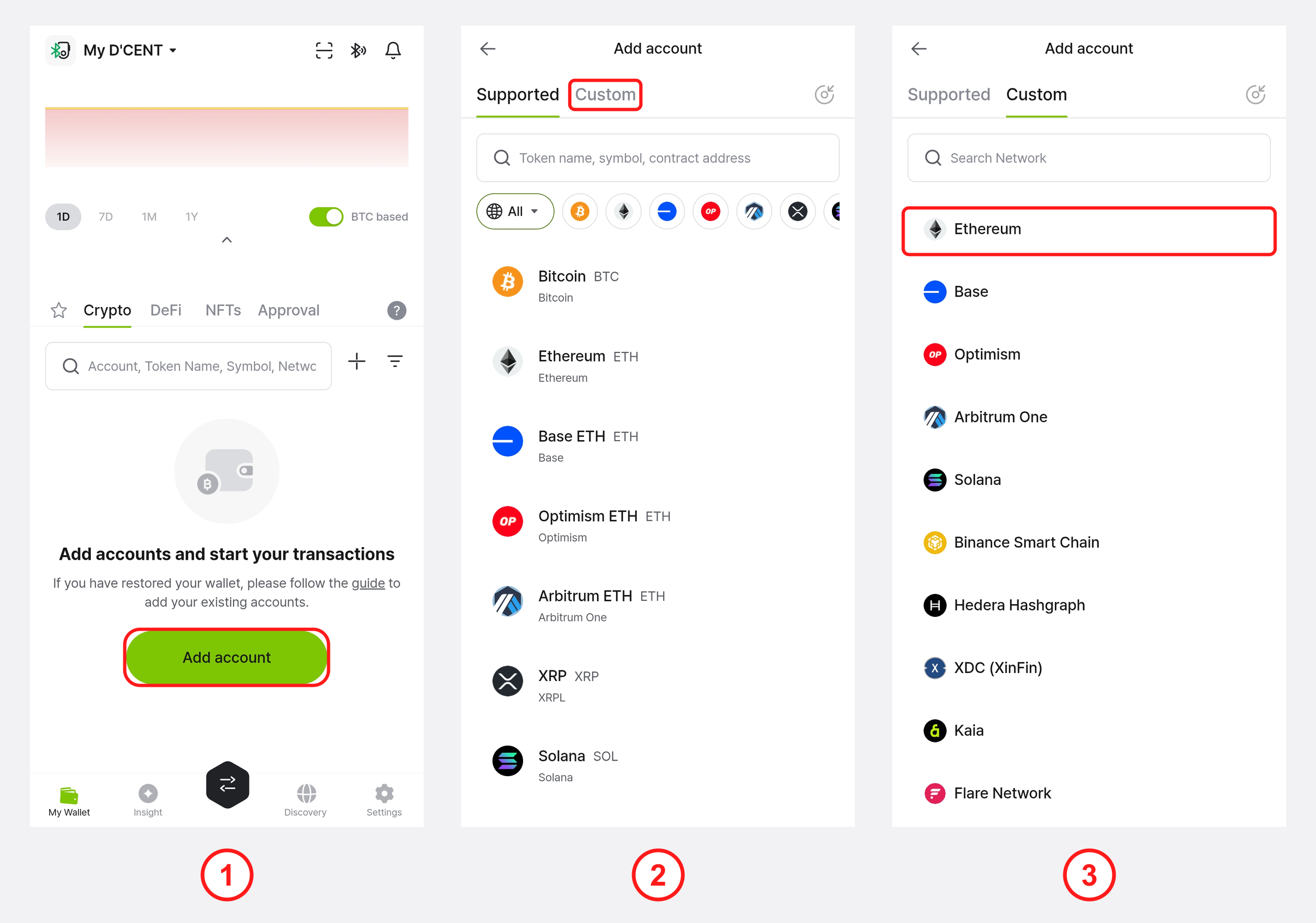
1) Tap the "Add Account +" button.
2) Select the "Custom" tab.
3) From the list, select the network the token was issued on.
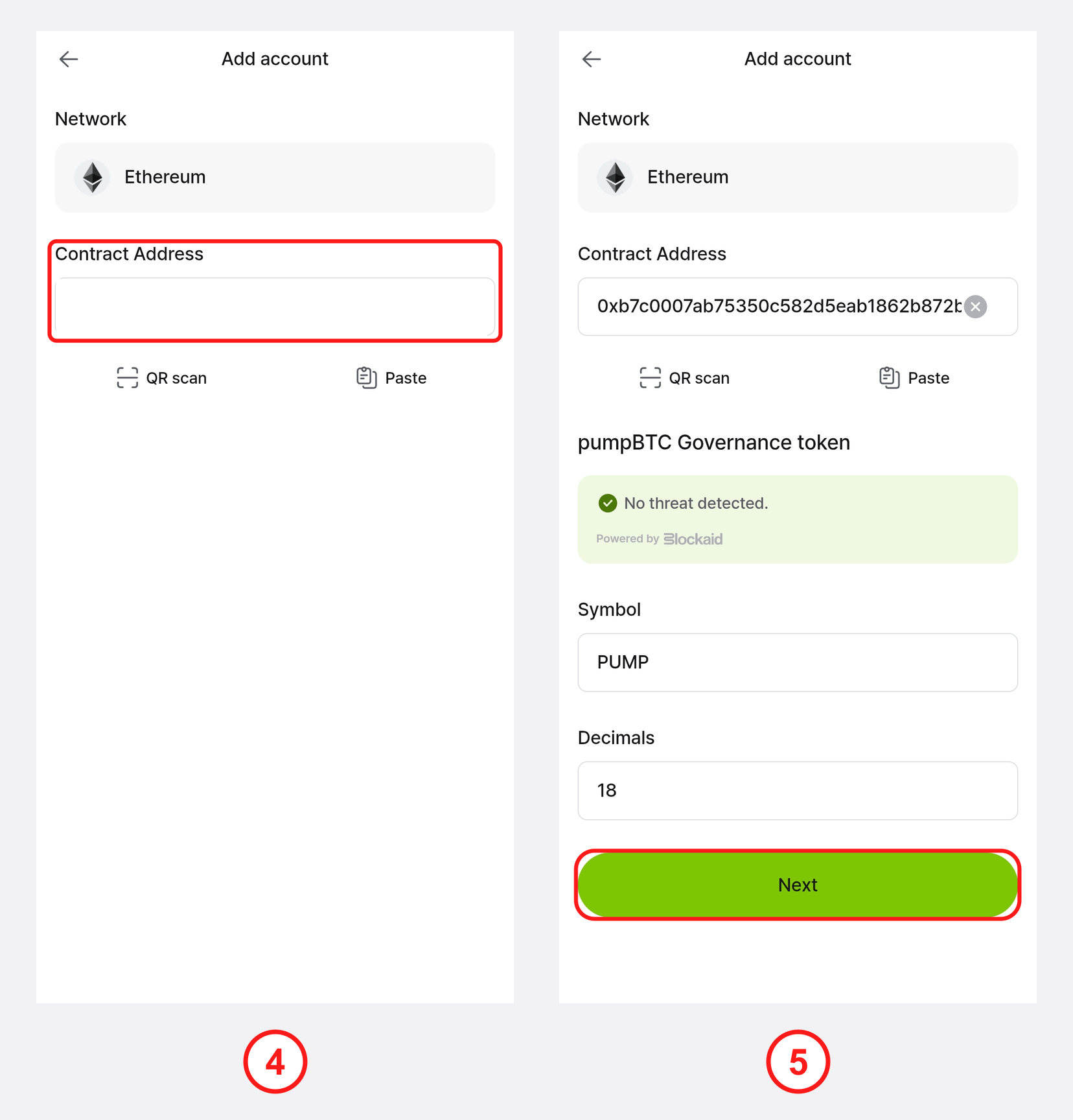
4) Enter the contract address. The coin information (symbol, decimals) appears below. Check that it is correct, then tap "Next".
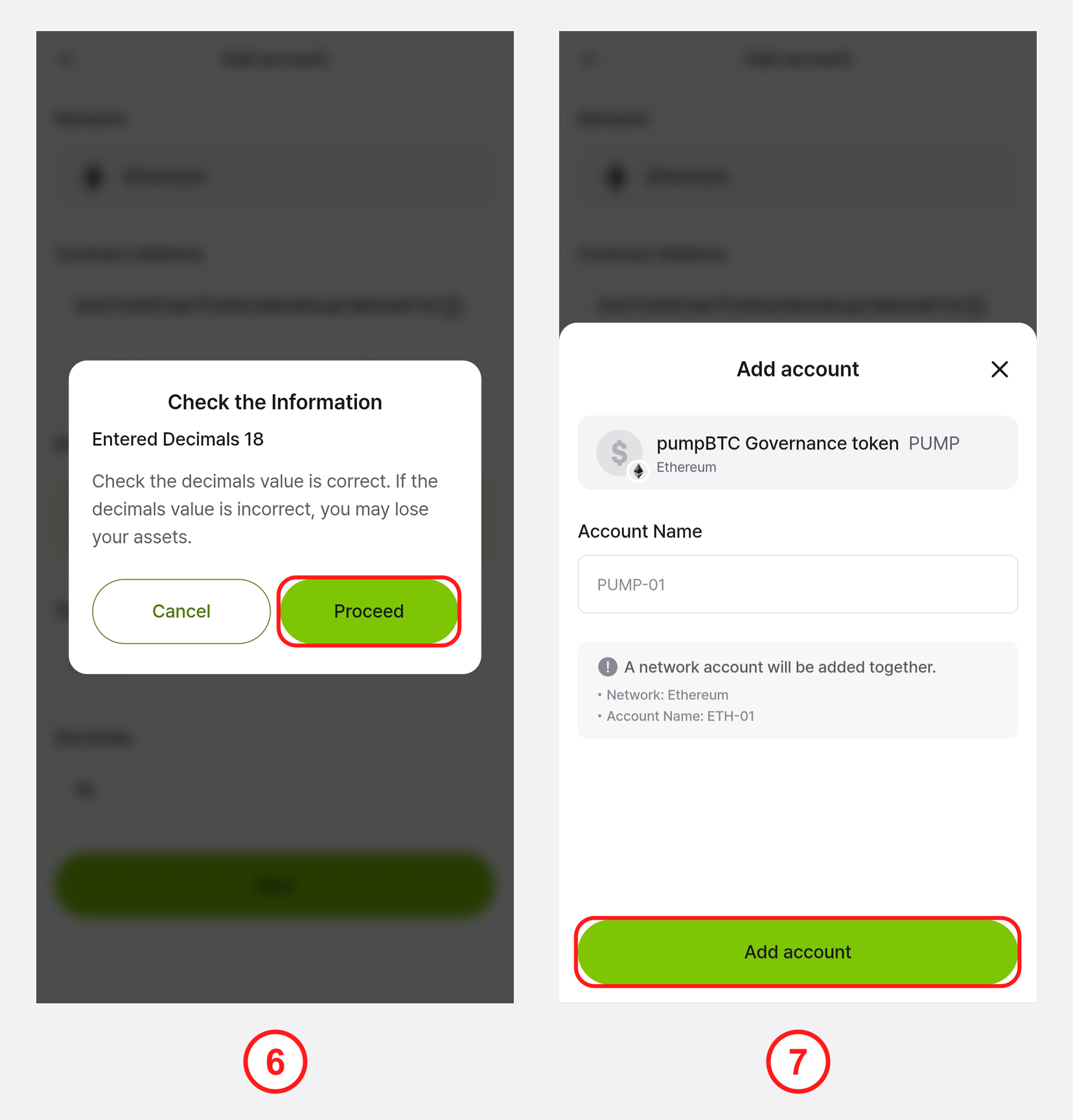
5) When you are asked to double-check the decimals value, confirm it is correct and tap "Proceed".
6) Enter an account name and tap "Add account" to add the token account.
You can look up the smart contract address, symbol, and decimals on a blockchain explorer or directly from the token issuer.