Data Backup / Restore
Data Backup / Restore lets you back up DCENT app data—such as your account setup, preferences, and DApp favorites—to an encrypted file, and restore it from that backup file when you switch phones or reinstall the app.
The data backup file does not include your mnemonic (recovery phrase), private keys, or wallet PIN. Please back up your mnemonic separately and keep it safe.
Access Data Backup / Restore
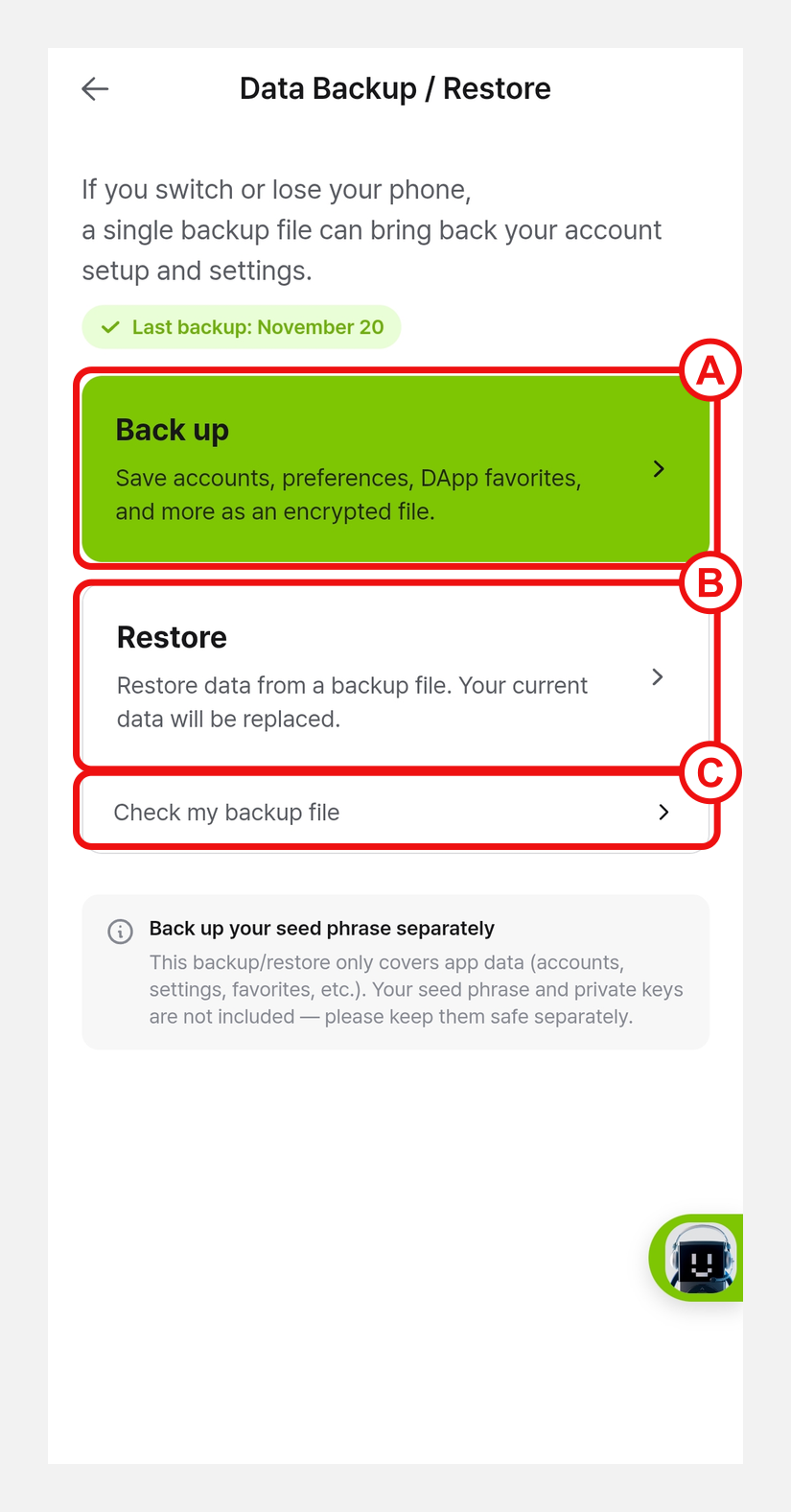
Tap the gear icon at the top left of the Home screen to open Settings, then tap "Data Backup / Restore" under Security.
Ⓐ Back up: Save your current app data as an encrypted file.
Ⓑ Restore: Import data from a backup file. Your current app data will be replaced with the contents of the backup file.
Ⓒ Check my backup file: Check that a backup file opens correctly and which wallets it contains, without restoring.
Back Up Data
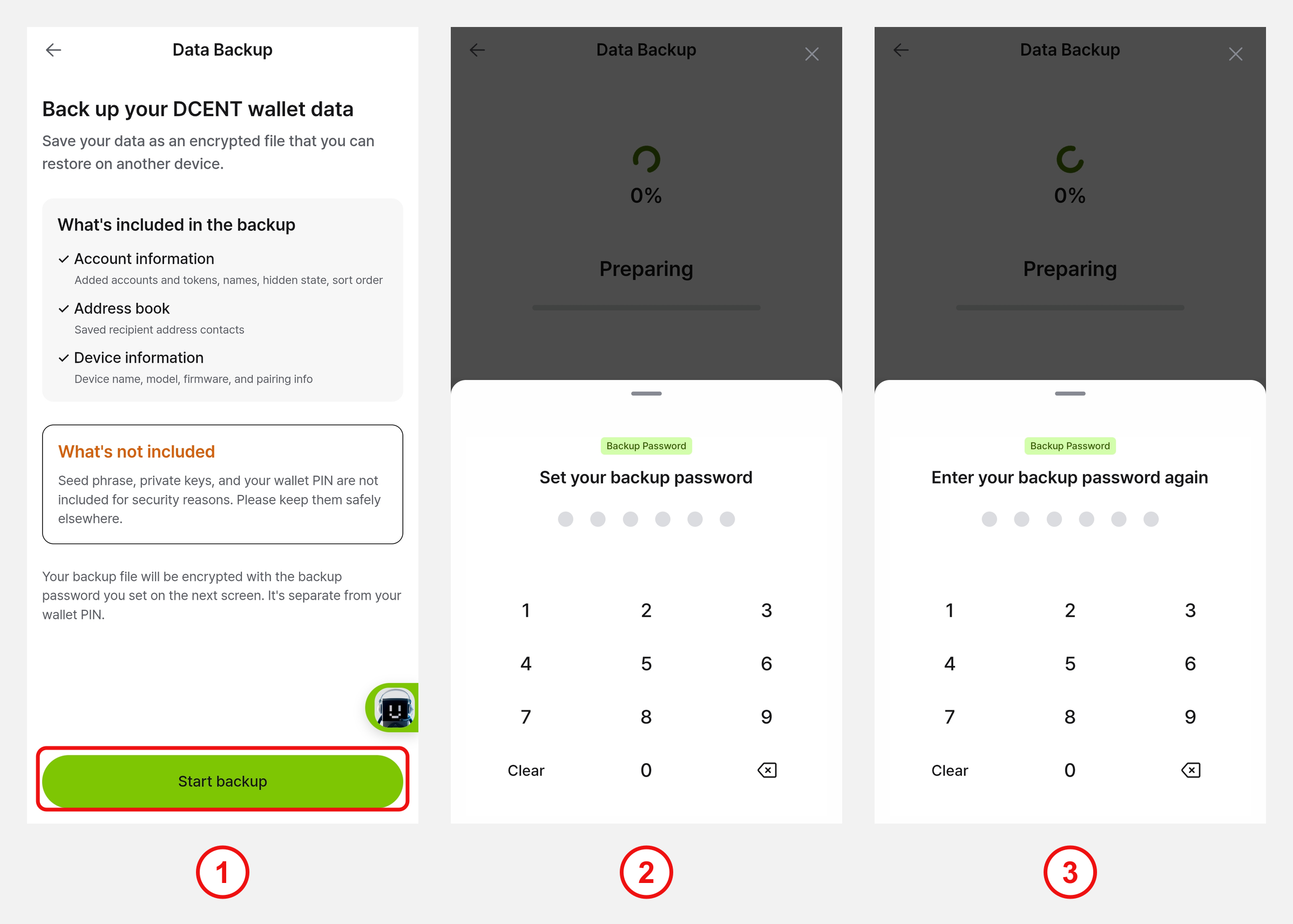
1) Tap "Back up" to see what is and isn't included in the backup. After checking, tap "Start backup".
- Included in the backup: Account information (added accounts and tokens, names, hidden state, sort order), address book, device information (device name, model, firmware, and pairing info)
- Not included: Seed phrase, private keys, wallet PIN
2) Enter a 6-digit backup password to encrypt the backup file.
3) Enter the backup password once more to confirm.
The backup password is separate from your wallet PIN. You'll need it to restore, so make sure you don't forget it.
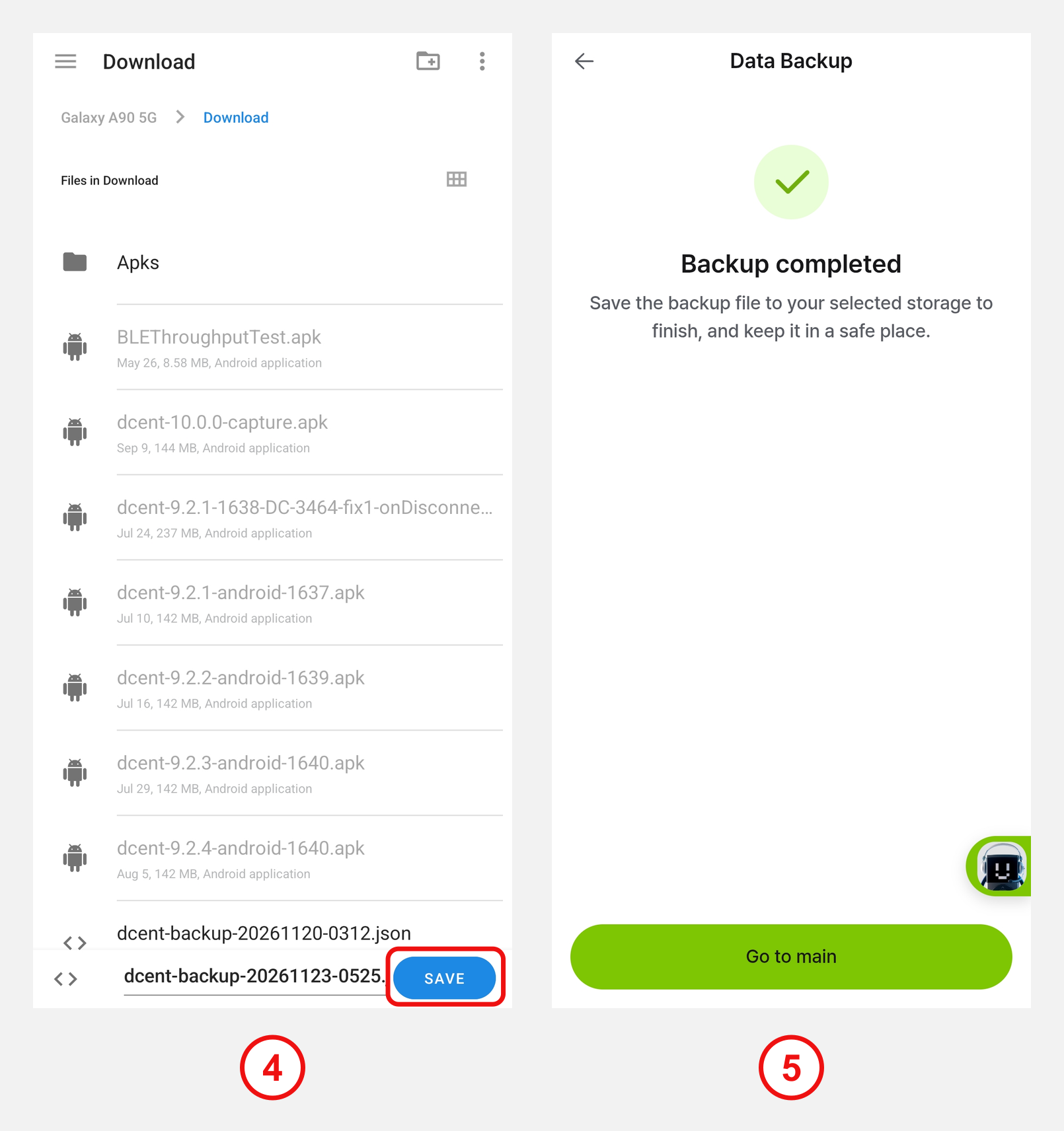
4) Choose where to save the backup file and tap "SAVE". The backup file is saved in .json format.
5) When the "Backup completed" screen appears, the backup is complete. Keep the backup file in a safe place.
Restore Data
Restoring deletes all current app data (account information, preferences, DApp favorites, etc.) and replaces it with the contents of the backup file. This cannot be undone.
Seed phrases are not backed up, so for wallets that need a seed phrase, complete the recovery with the seed phrase first.
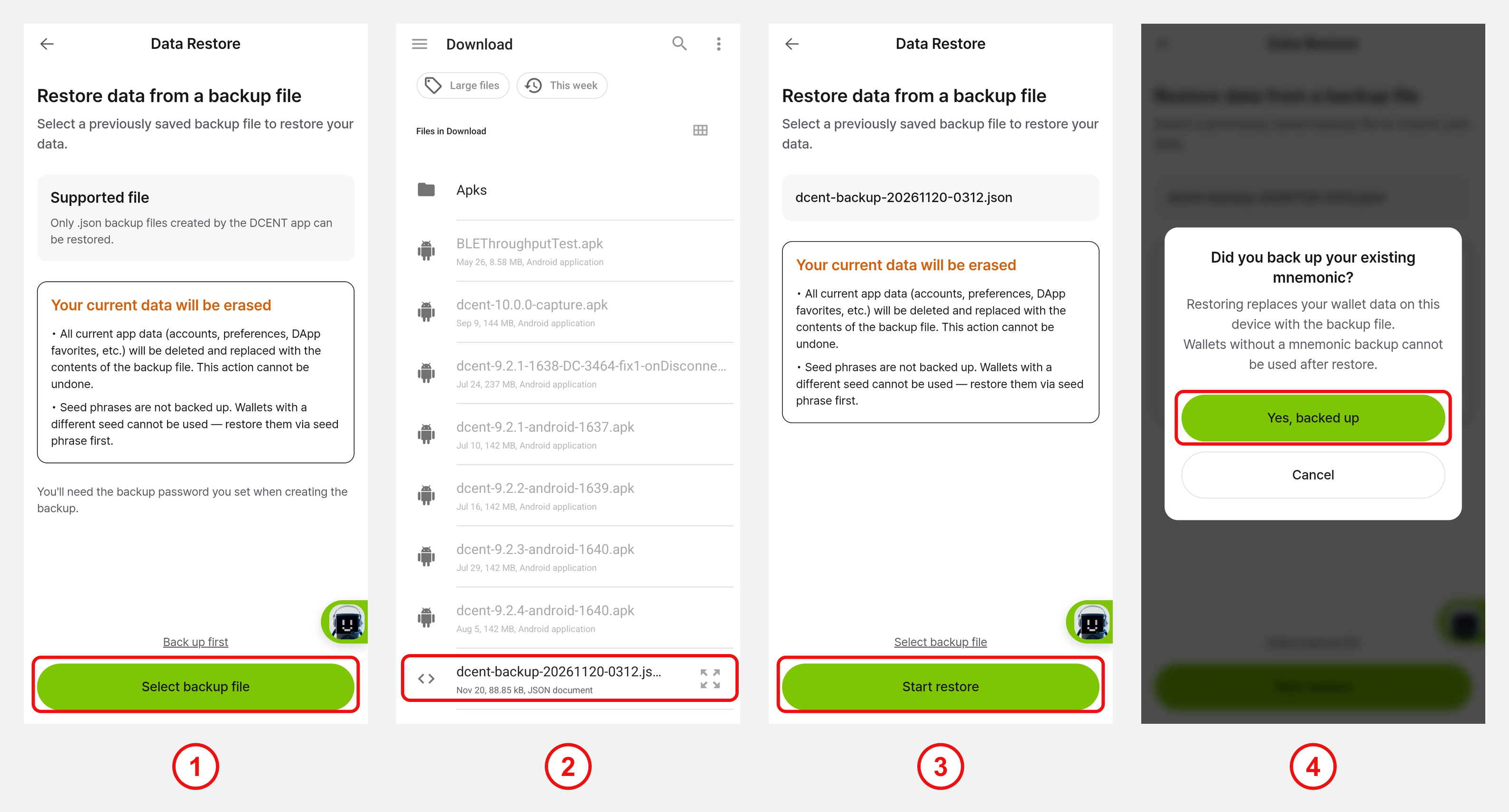
1) Tap "Restore", then tap "Select backup file".
2) Select a backup file in .json format created by the DCENT app.
3) Check the selected file and tap "Start restore".
4) When "Did you back up your existing mnemonic?" appears, review the message and tap "Yes, backed up".
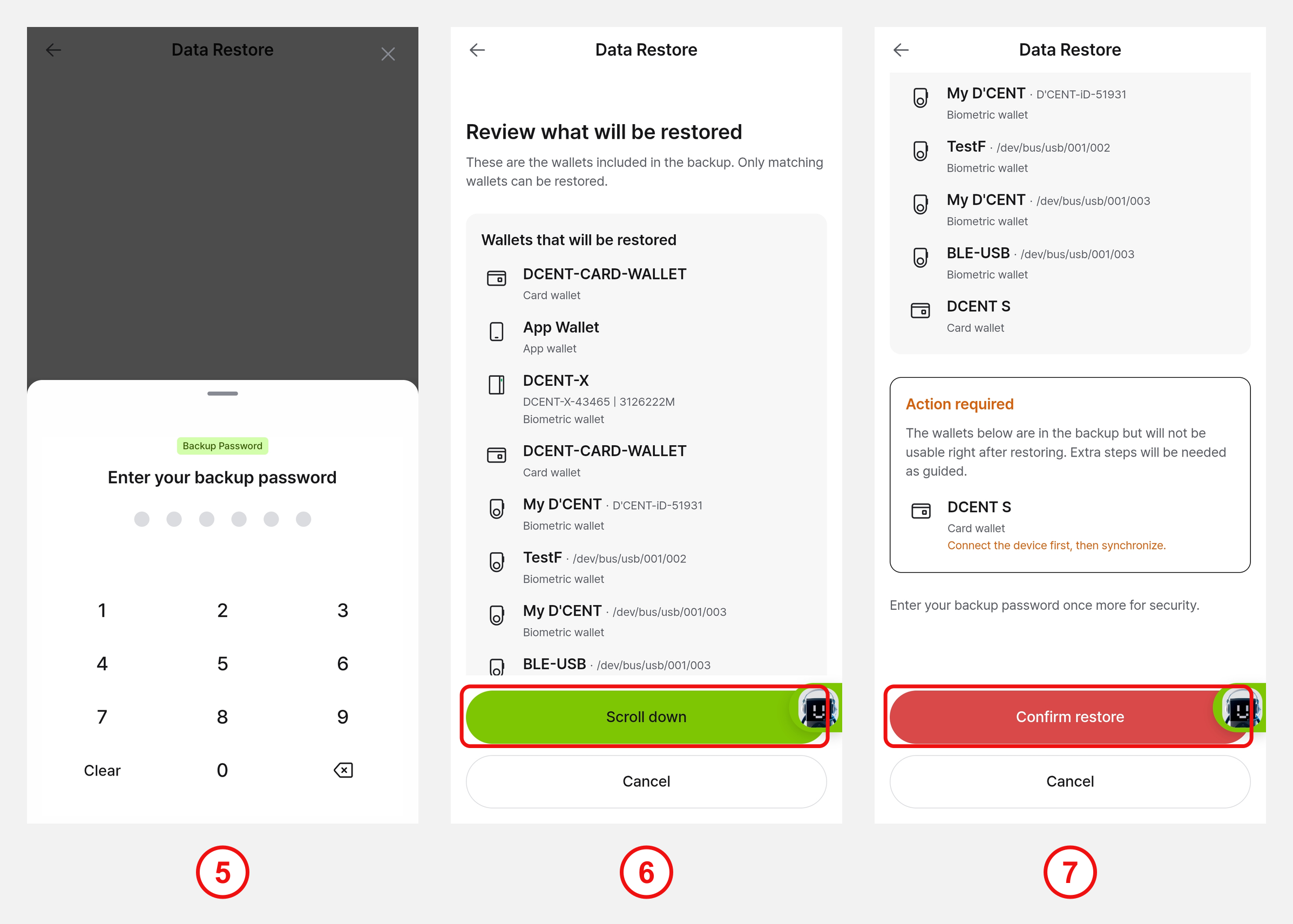
5) Enter the backup password you set when backing up.
6) Review the list of wallets that will be restored in the backup file, and tap "Scroll down" to check it to the end.
7) Tap "Confirm restore".
Wallets listed under "Action required" are in the backup file but cannot be used right after restoring. Connect the device first, then synchronize, as guided.
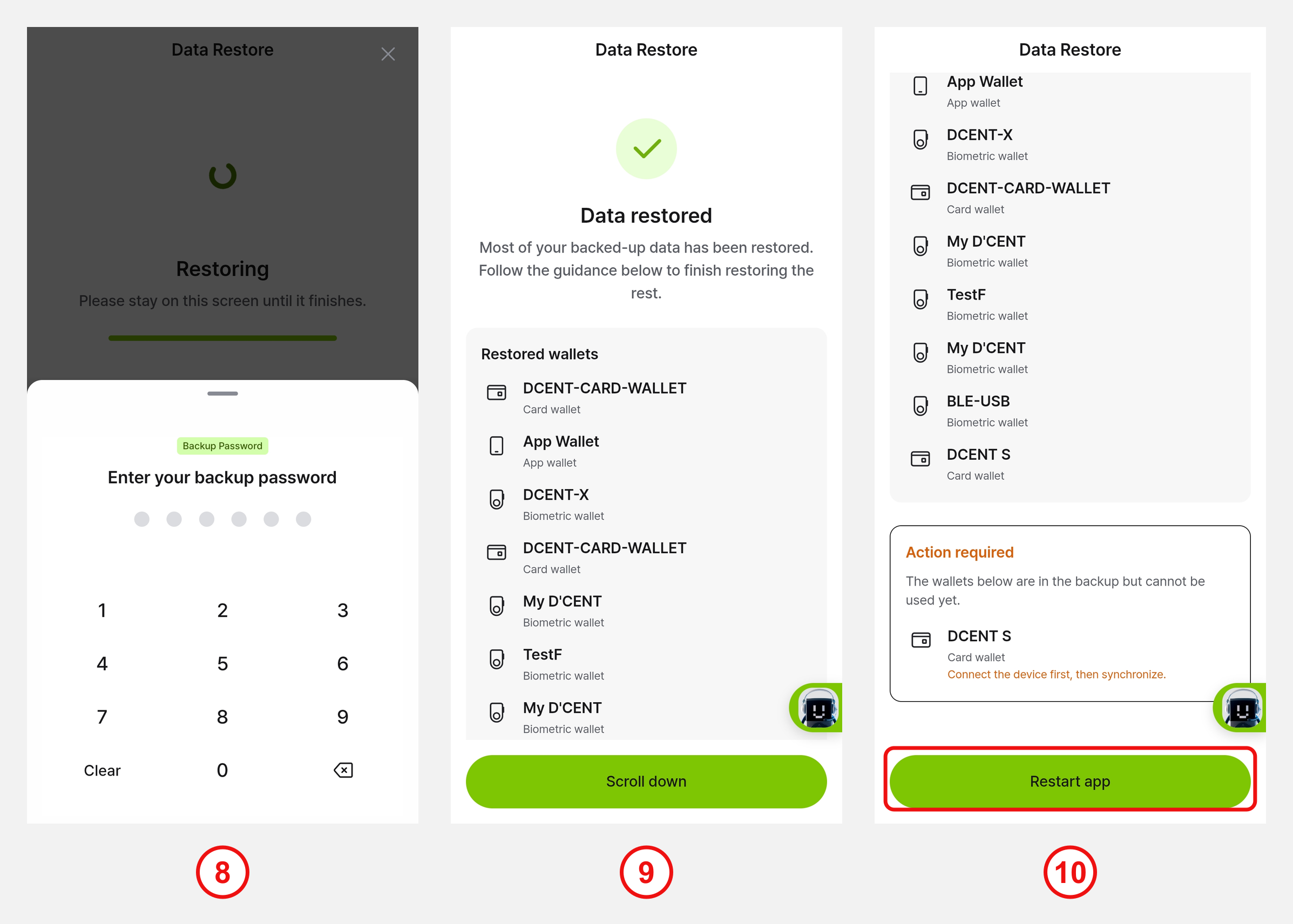
8) For security, enter your backup password once more to start restoring.
9) When the "Data restored" screen appears, check the restored wallets.
10) Tap "Restart app" to complete the restore.
Check My Backup File
You can check in advance whether a backup file opens correctly and which wallets it contains. This feature does not restore any data.
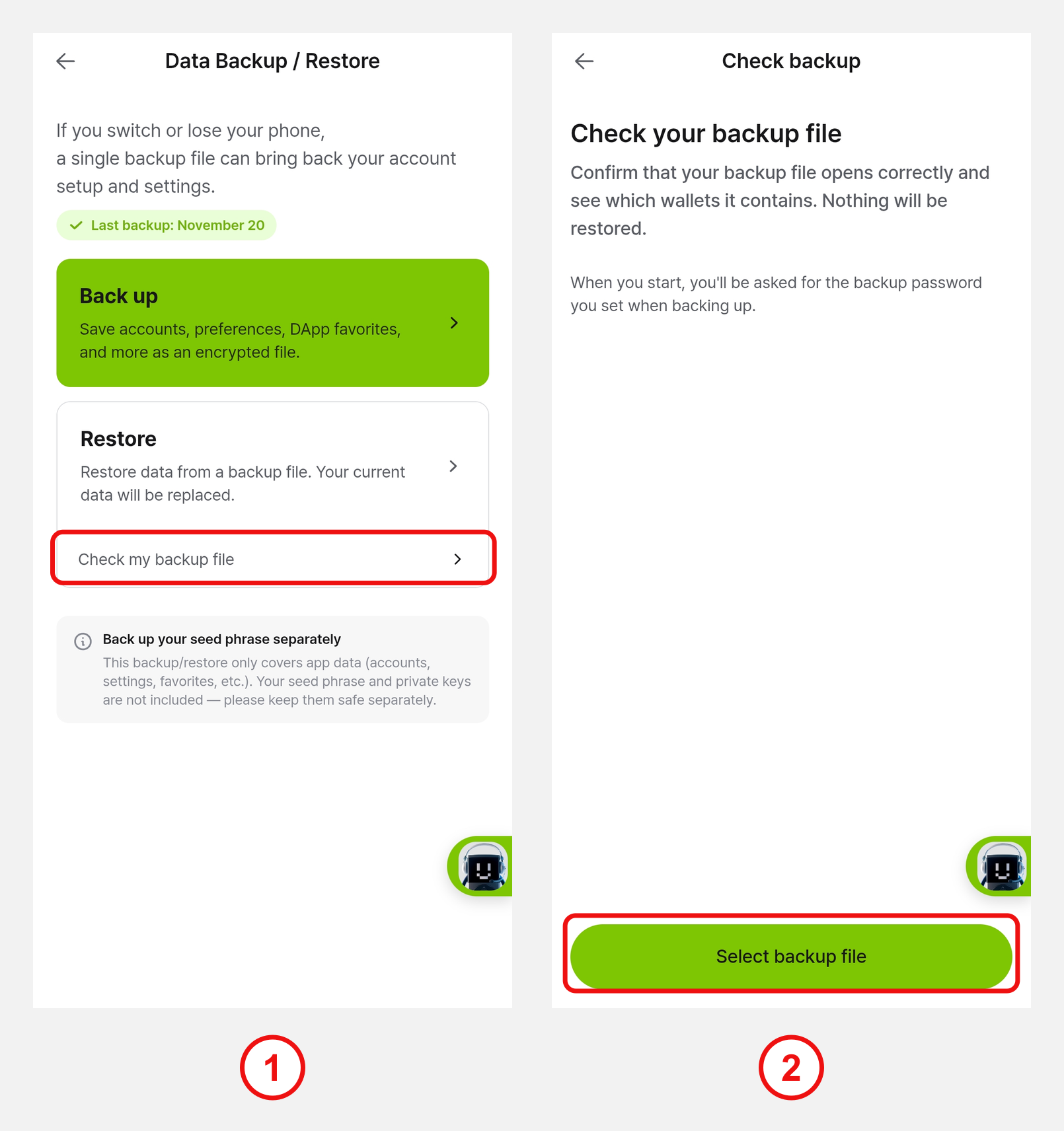
1) Tap "Check my backup file".
2) Tap "Select backup file" to choose a backup file, then enter the backup password you set when backing up to view its contents.