Biometric Wallet
This guide is based on DCENT mobile app version 8.1.0.
When your Biometric Cold Wallet is connected, tapping the More (⋮) button in the Settings tab opens the menu shown below.
.png)
Firmware update
You can check the firmware version of your Biometric Wallet. If the firmware is out of date, a "New" icon appears to indicate that an update is available.
.png)
Tap the "Firmware Update" button to check for the latest version and see how to perform the update.
For more details on firmware updates, click here.
.png)
Mobile firmware updates via OTG cable are only available on Android phones. Click here for more details.
Device Info
Tap the Device Info menu to see information about your Biometric Cold Wallet, including its Bluetooth name, firmware version, and KSM version.
You can also change the device name shown when the Biometric Wallet boots by tapping the edit icon next to "My DCENT".
.png)
Delete Device
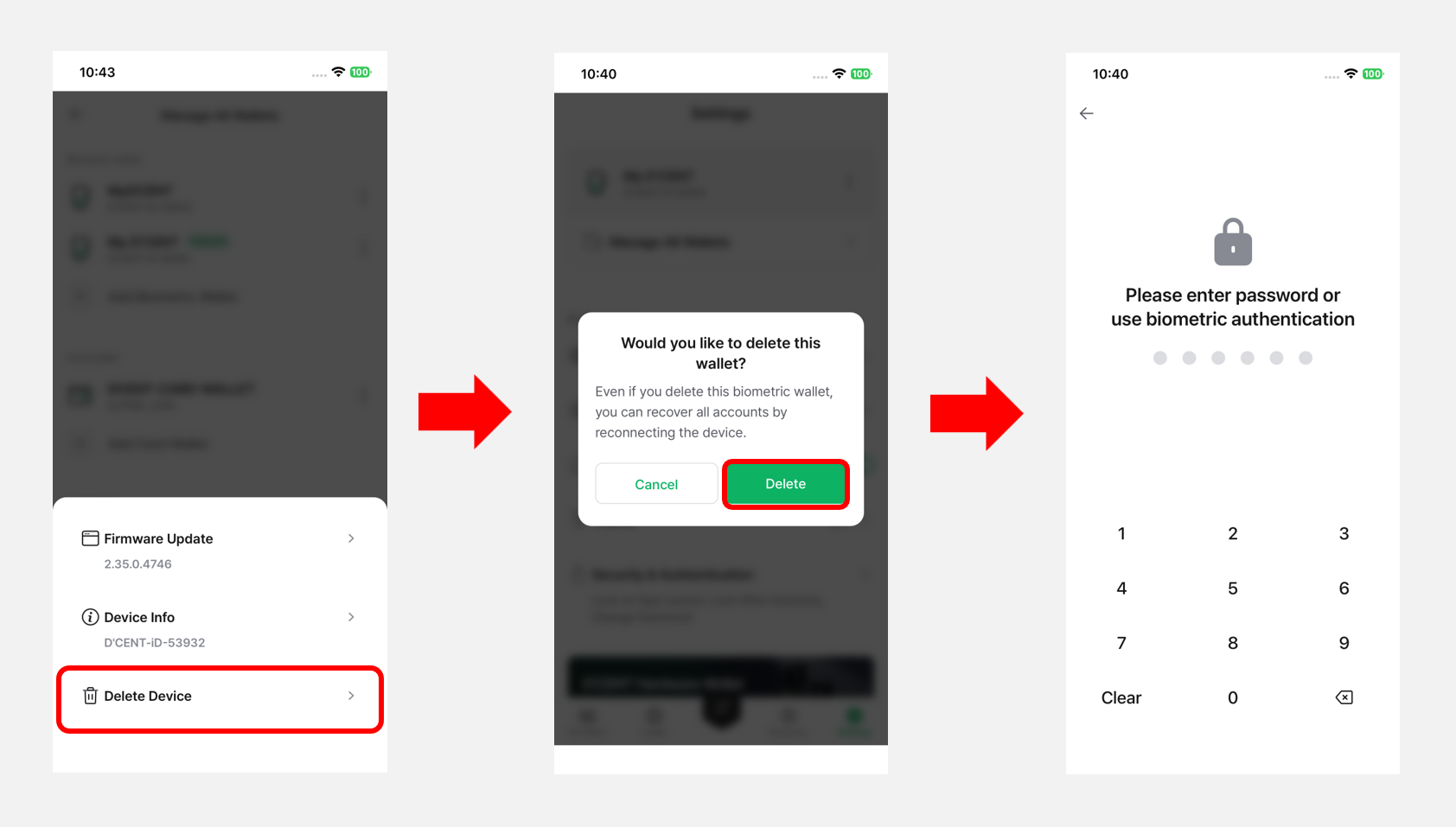
Starting from DCENT mobile app version 8.1.0, a "Delete Device" option is available for removing registered Biometric Cold Wallets. You can use it to remove cold wallets you no longer use directly from the mobile app.
Deleting the device from the app does not erase any of the private keys associated with your wallet accounts. You can restore your assets by reconnecting the device via Bluetooth.
When you tap "Delete", you will be asked to authenticate with your 6-digit app password or biometric verification before the deletion proceeds.