All-in-One Card Wallet
This guide is based on DCENT mobile app version 8.1.0.
When your Card Wallet is connected, tapping the More (⋮) button in the Settings tab opens the menu shown below.
.png)
Scan new card
Use the "Scan new card" menu to switch to a different Card Wallet.
Tap "Scan new card" and tag the new Card Wallet against your phone.
.png)
Change Card PIN
Click here for more details on changing the factory PIN to your own PIN.
Use the "Change Card PIN" menu to change the 6-digit PIN of the Card Wallet you are currently using.
Follow the steps below to change your PIN:
.png)
1) Tap "Change Card PIN".
2) Tick "I have checked the information", then tap "Start".
3) Enter your current card PIN.
4) Tag the Card Wallet against your mobile phone.
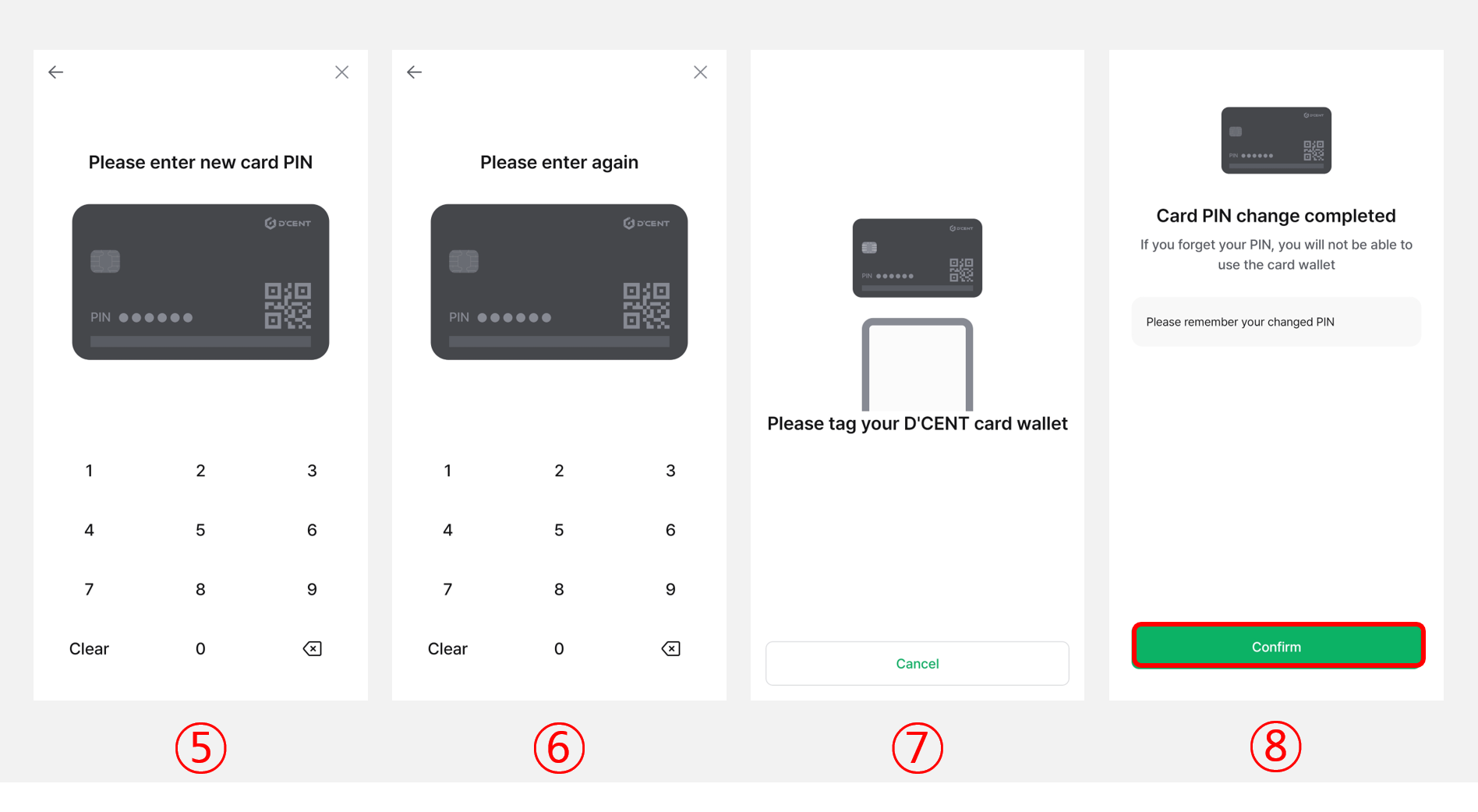
5) Enter a new 6-digit PIN.
6) Re-enter the new PIN to confirm.
7) Tag the Card Wallet against your phone again to apply the change.
8) Tap "Confirm" to finish changing the PIN.
If you forget your PIN, your Card Wallet may become blocked.
Backup Card
You can create a backup image of your Card Wallet in case the card is lost, damaged, or locked after 10 failed PIN attempts.
We strongly recommend creating a backup to protect your assets.
.png)
Click here for detailed instructions on how to back up your Card Wallet.
Recover Card
If your Card Wallet is lost, damaged, or locked after 10 failed PIN attempts, you can restore the backup image using a Backup Card.
A Backup Card is required to perform the recovery.
.png)
Click here for detailed instructions on how to recover your Card Wallet.
Card Info
Tap the "Card Info" menu to view your Card Wallet's address, the number of available backups, and other card details.
If you scan a backup card, the message "This is a backup card." is displayed.
You can also change the card name shown in the "My Wallet" tab from this screen.
.png)
Delete Card
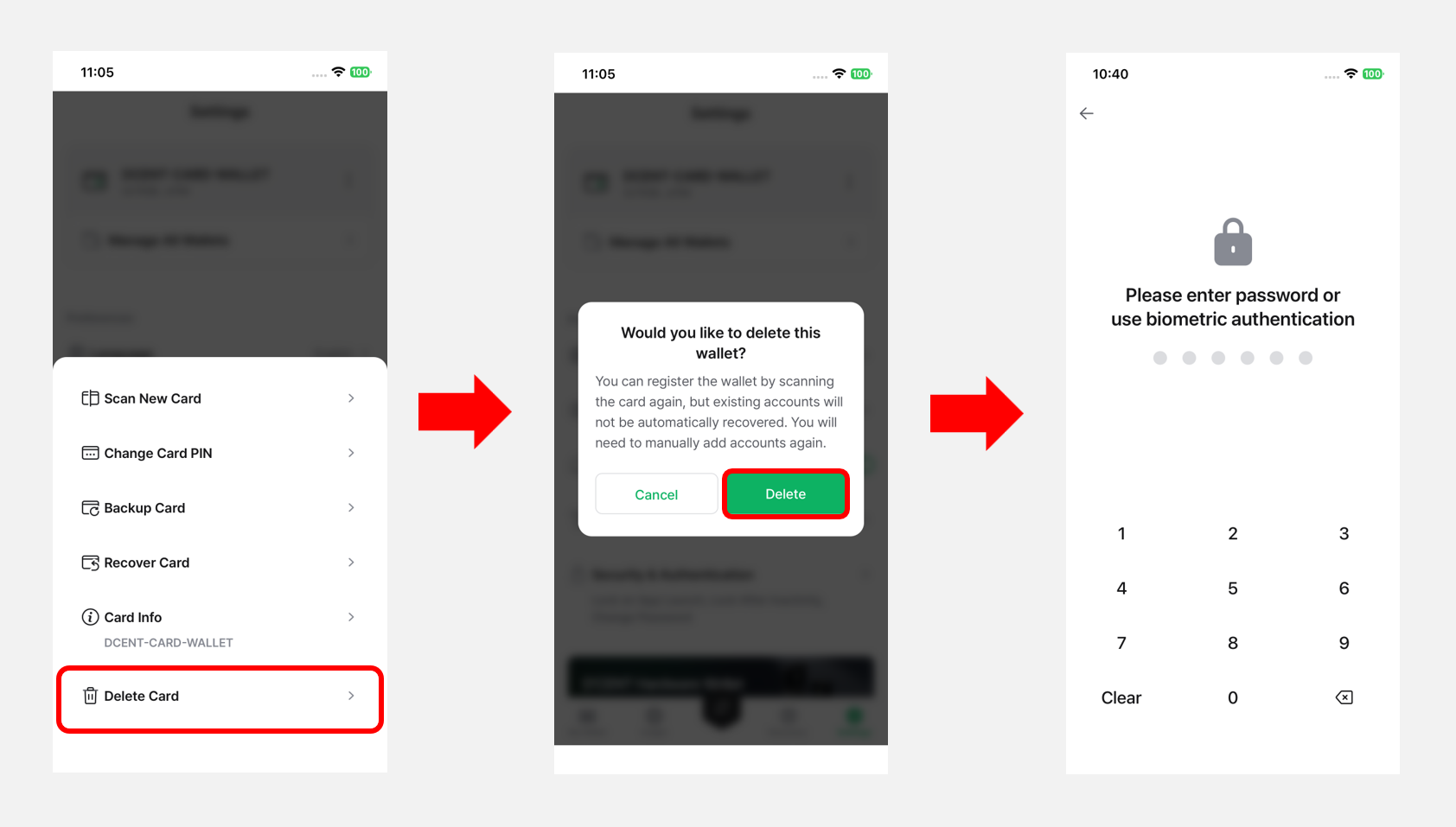
Starting from DCENT mobile app version 8.1.0, a "Delete Card" menu is available for removing registered Card Wallets. You can use it to remove cold wallets you no longer use directly from the mobile app.
Deleting the card from the app does not erase any of the private keys associated with your wallet accounts. You can re-scan the card to register it again, but you will need to manually re-add any previously used accounts to see your assets.
When you tap "Delete", you will be asked to authenticate with your 6-digit app password or biometric verification before the deletion proceeds.