DCENT S Card Wallet
This guide is based on DCENT mobile app version 9.2.0.
When your DCENT S Card Wallet is connected, tapping the More (⋮) button in the Settings tab or the Manage All Wallets menu opens the menu shown below.
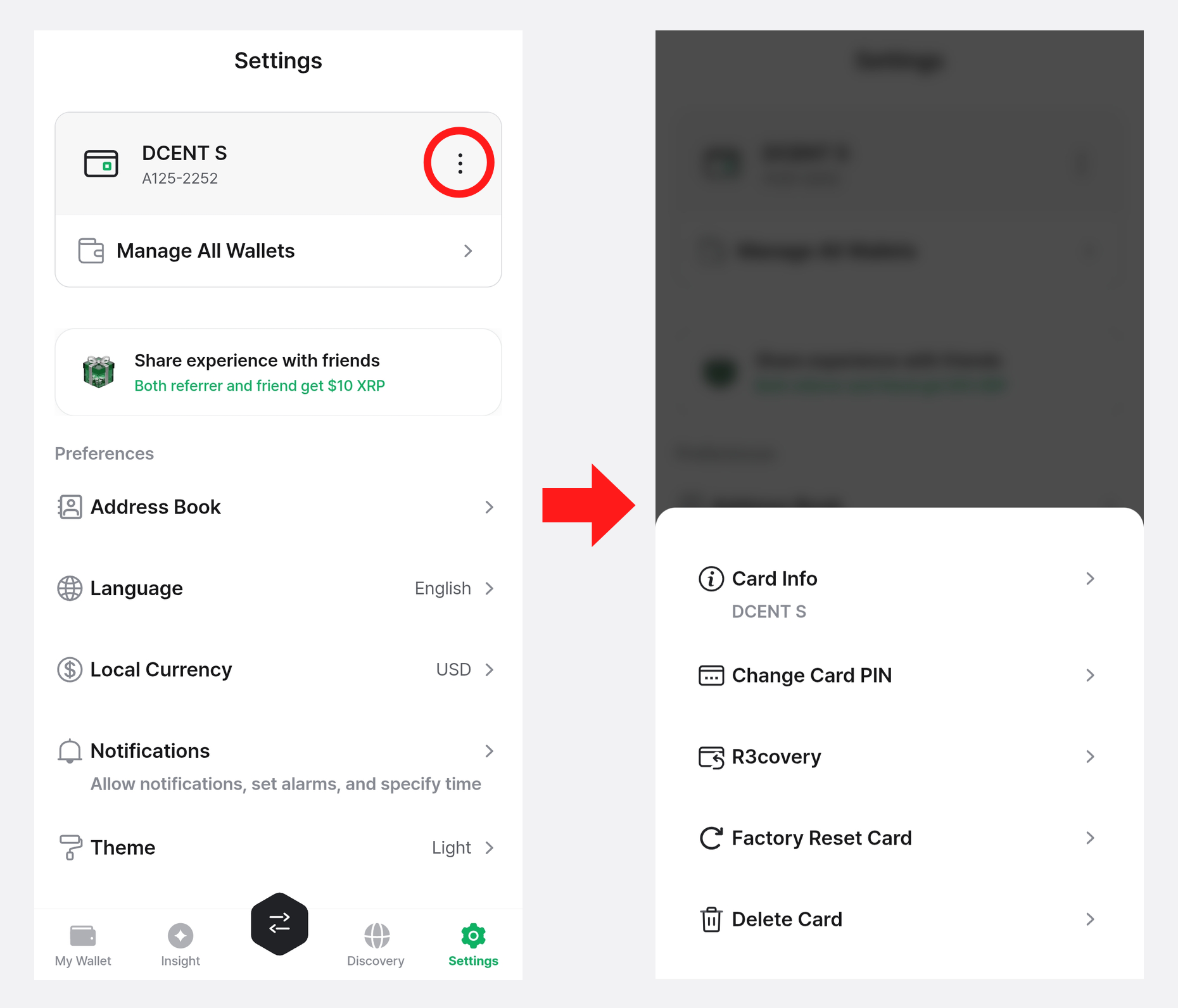
Card Info
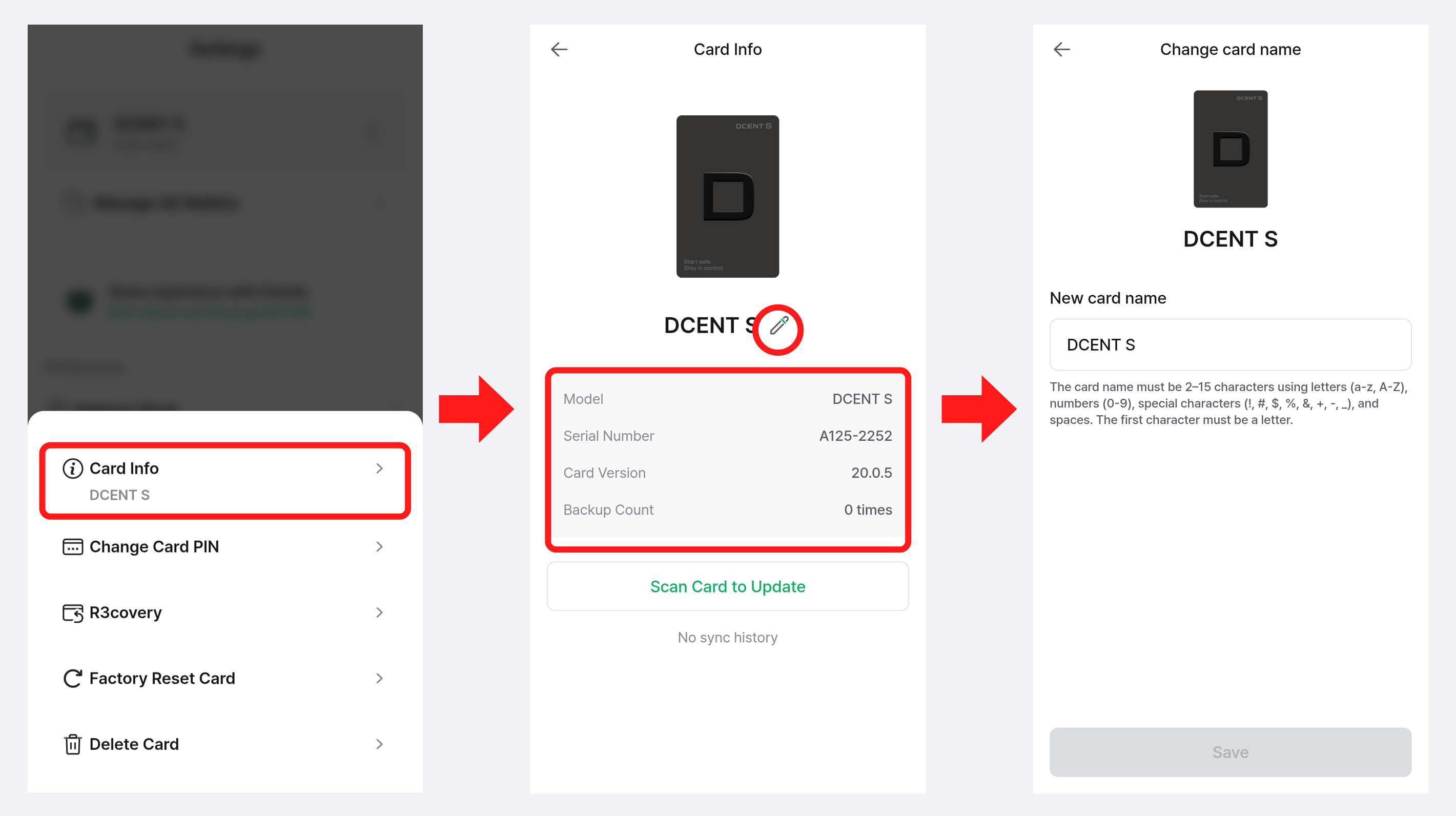
The "Card Info" menu shows your DCENT S Card Wallet's serial number, card version, backup count, remaining PIN attempts, and other details.
You can also change the card name shown in the "My Wallet" tab by tapping the pencil (✏️) icon next to the card name.
Change Card PIN
The "Change Card PIN" menu lets you change the 6-digit PIN of your DCENT S card to a new one.
Follow the steps below to change your PIN:
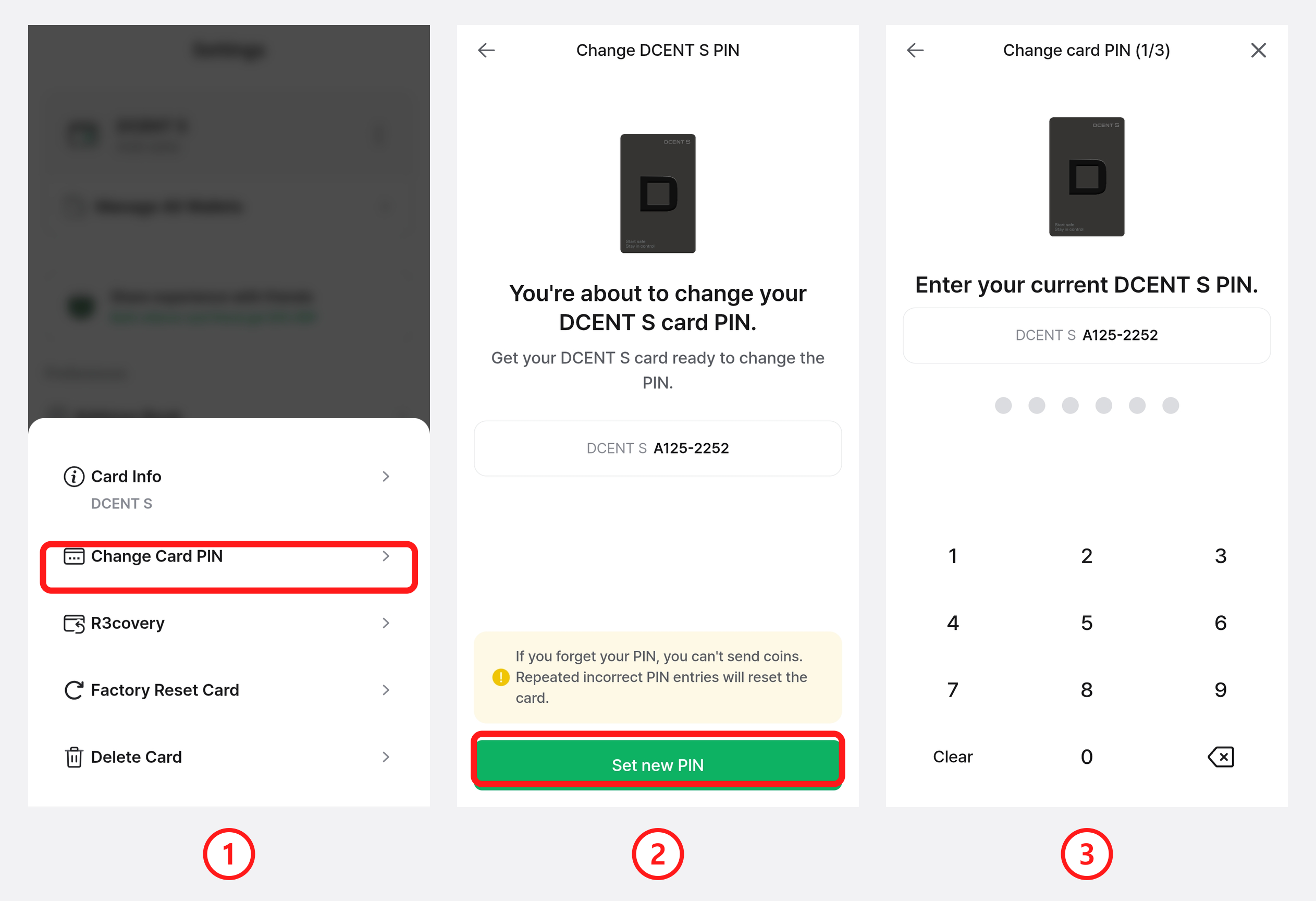
1) Select "Change Card PIN" from the management menu.
2) Review the information and tap "Set new PIN".
3) Enter your current DCENT S card PIN.
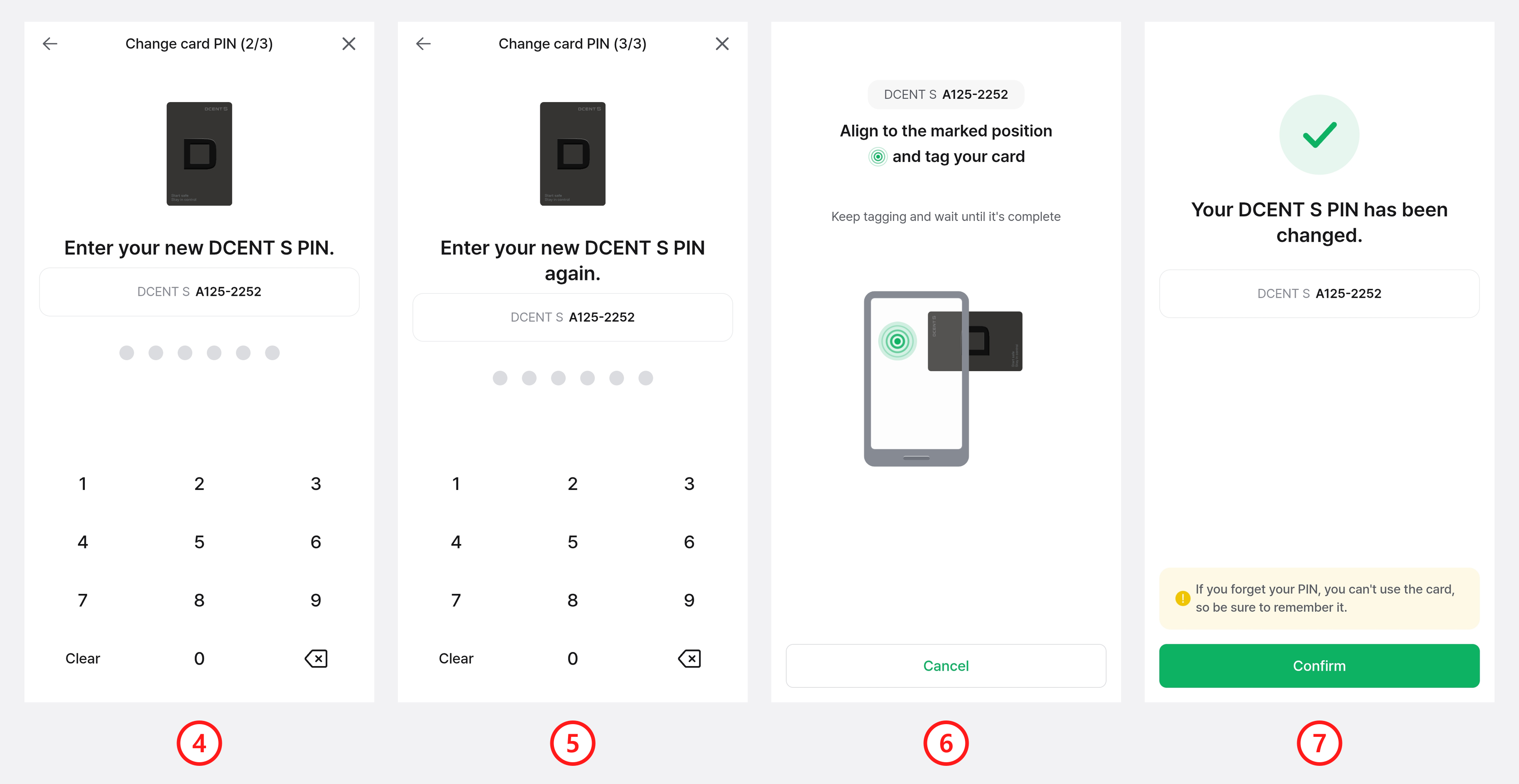
4) Enter the new PIN you want to use.
5) Enter the same PIN once more.
6) Following the prompt, tag your DCENT S card against the back of your phone.
7) The PIN change is complete.
Be sure to remember your new PIN. The DCENT S Card Wallet may be reset if the PIN is entered incorrectly 10 or more times.
R3covery Card
Selecting "R3covery" from the management menu lets you use the DCENT R3covery card to change the card PIN, back up, recover, and factory-reset your card.
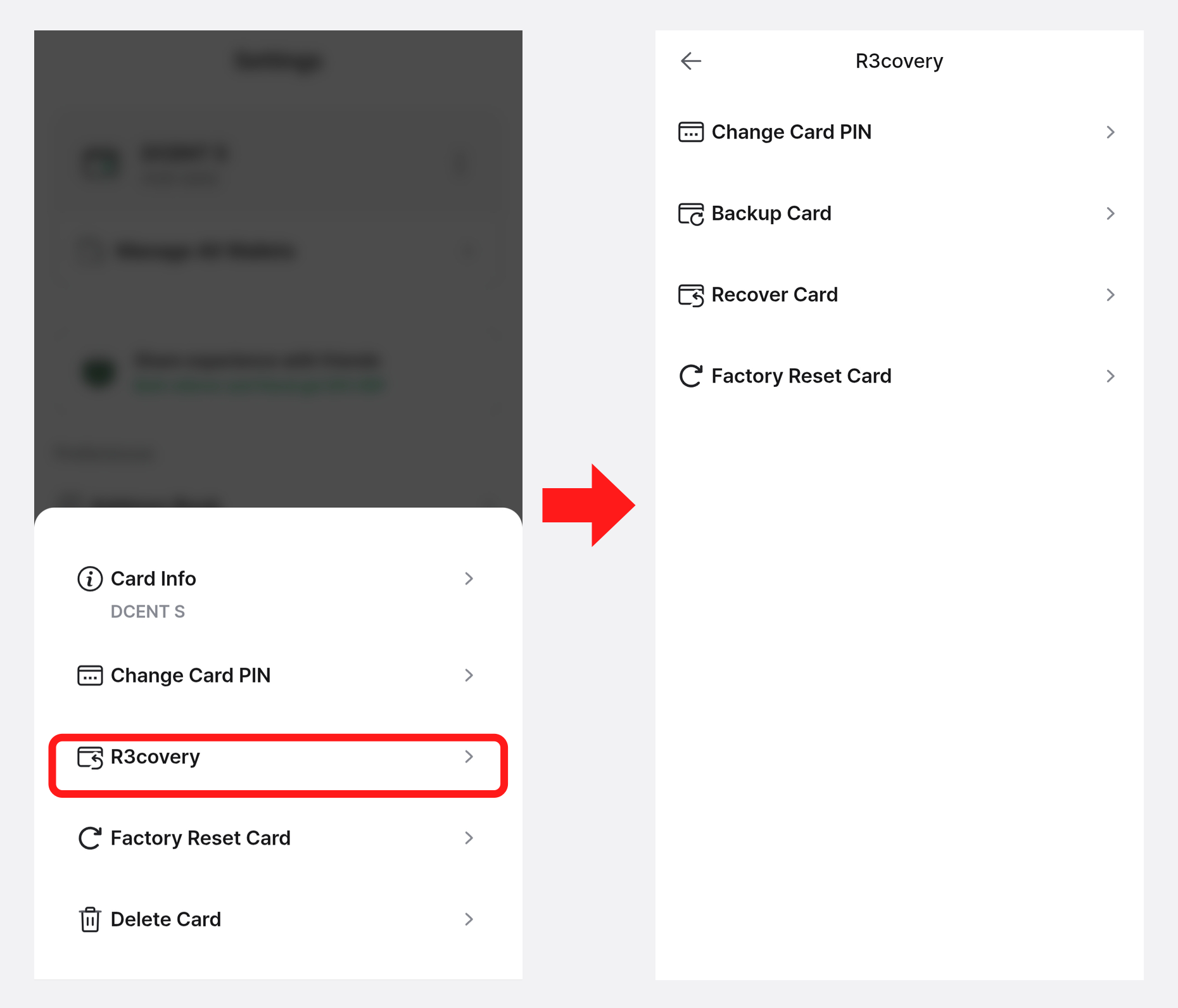
Change R3covery Card PIN
Change the 6-digit PIN of your R3covery card to a new one.
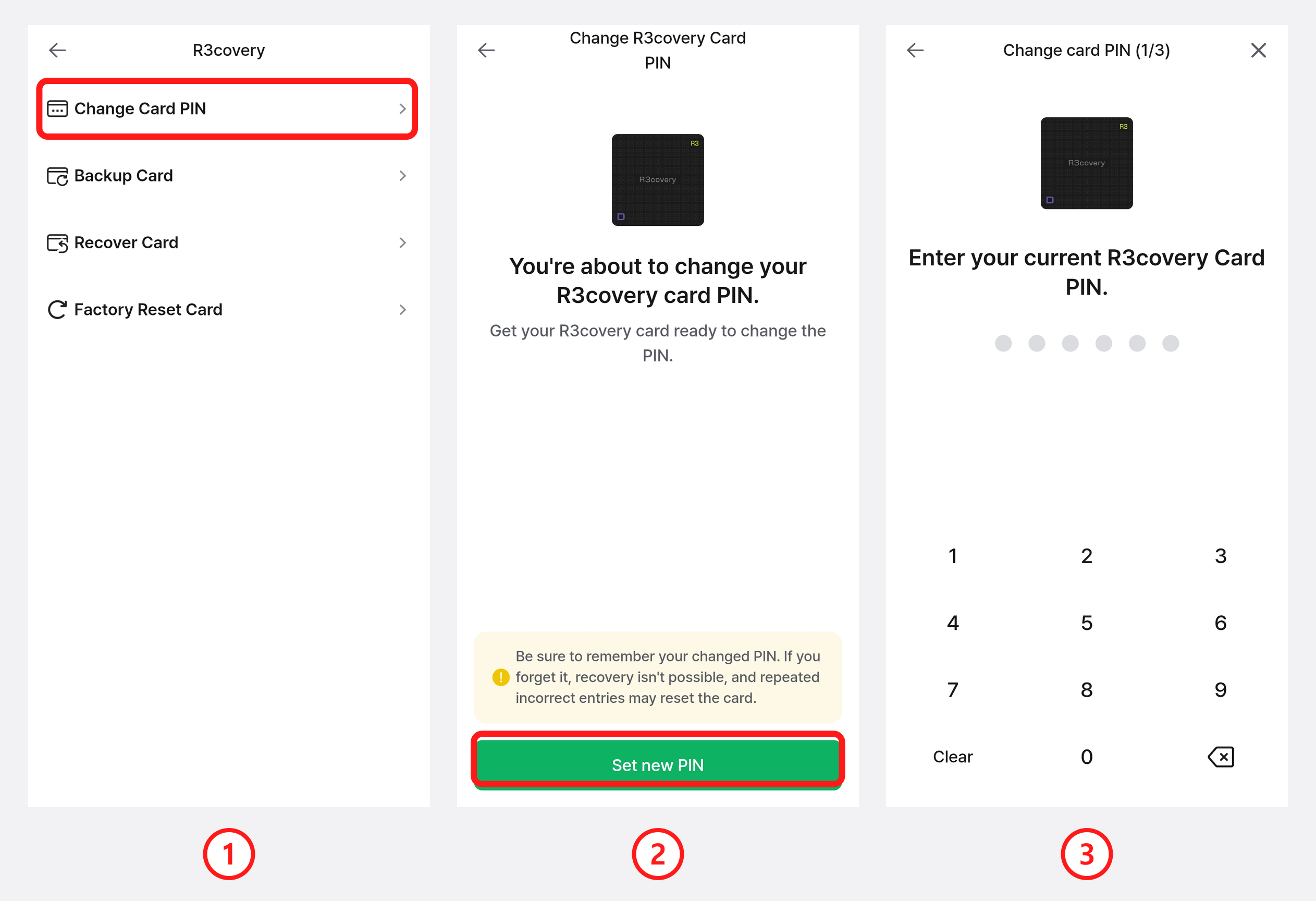
1) Select "Change Card PIN" from the R3covery menu.
2) Review the information and tap "Set new PIN".
3) Enter your current R3covery card PIN.
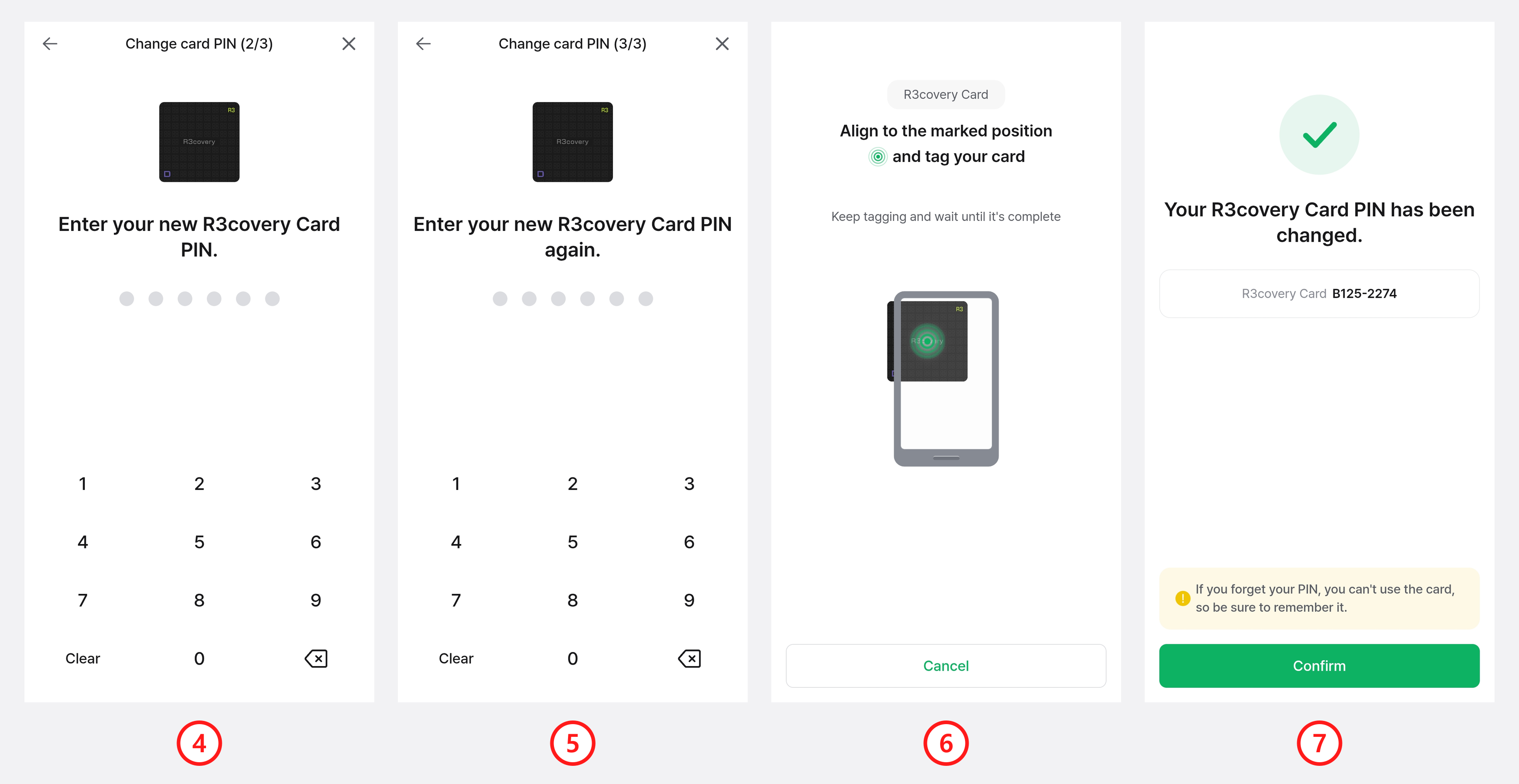
4) Enter the new PIN you want to use.
5) Enter the same PIN once more.
6) Following the prompt, tag your R3covery card against the back of your phone.
7) The PIN change is complete.
Backup Card
Back up your DCENT S Card Wallet to a DCENT R3covery card to prepare for card loss, damage, or a reset caused by failed PIN attempts.
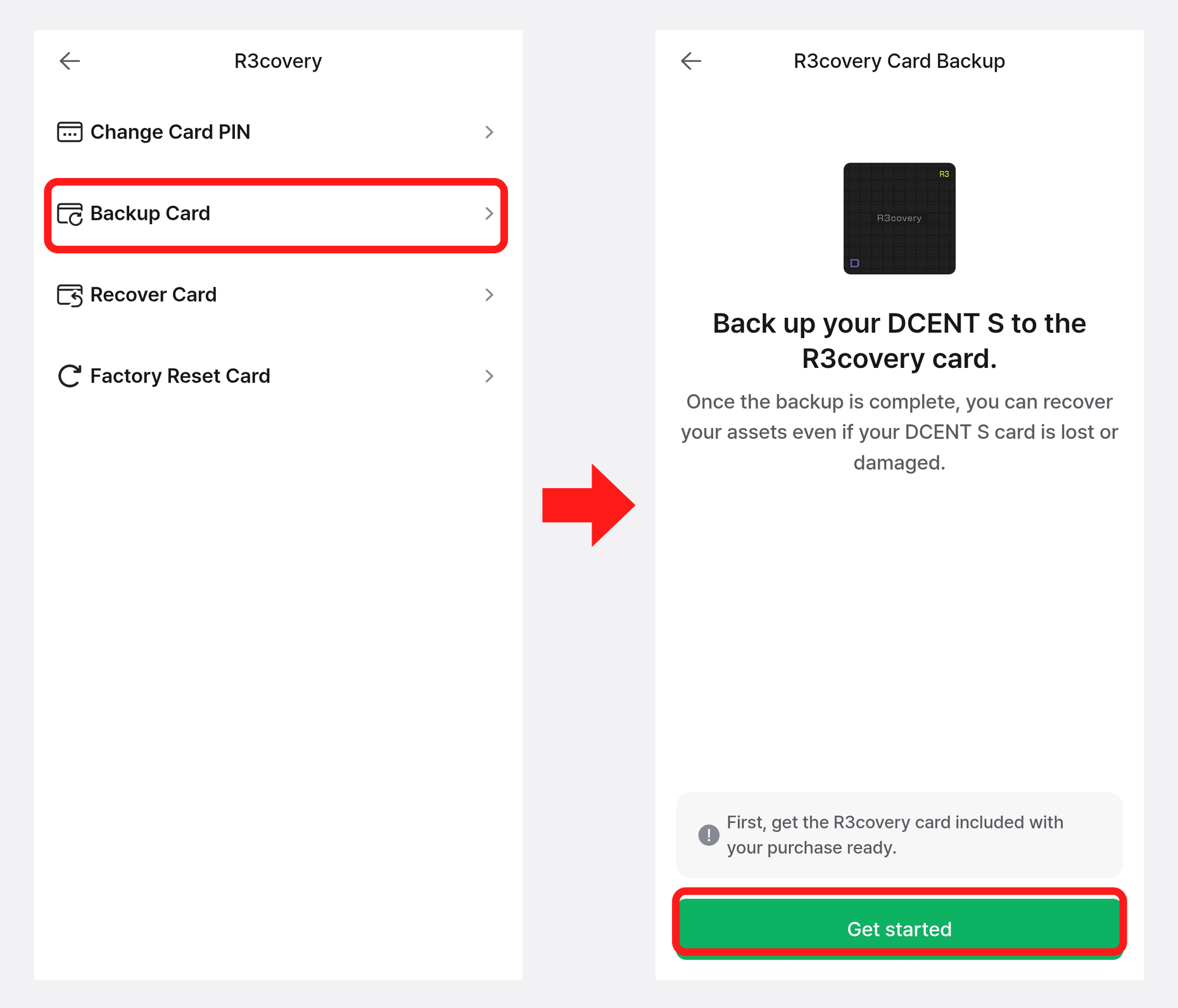
Select "Backup Card" from the R3covery menu and tap "Get started" to begin the backup.
For detailed backup instructions, see Back up with the DCENT R3covery card.
Recover Card
If your DCENT S Card Wallet is lost, damaged, or reset, recover your assets using your backed-up DCENT R3covery card or recovery phrase.
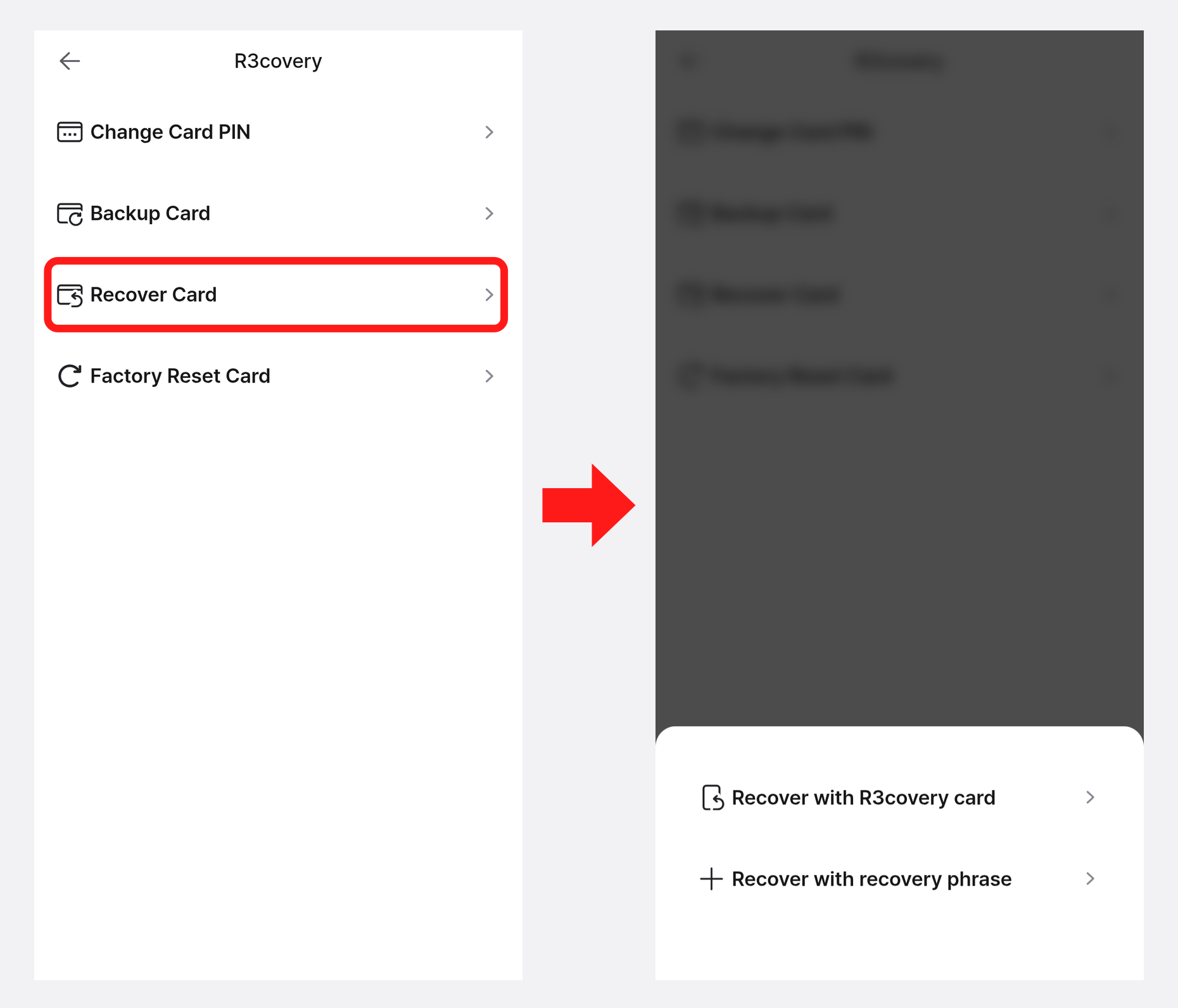
Select "Recover Card" from the R3covery menu, then choose Recover with R3covery card or Recover with recovery phrase.
For detailed recovery instructions, see Recover with the DCENT R3covery card.
R3covery Card Factory Reset
Reset the R3covery card back to its initial (empty) state.
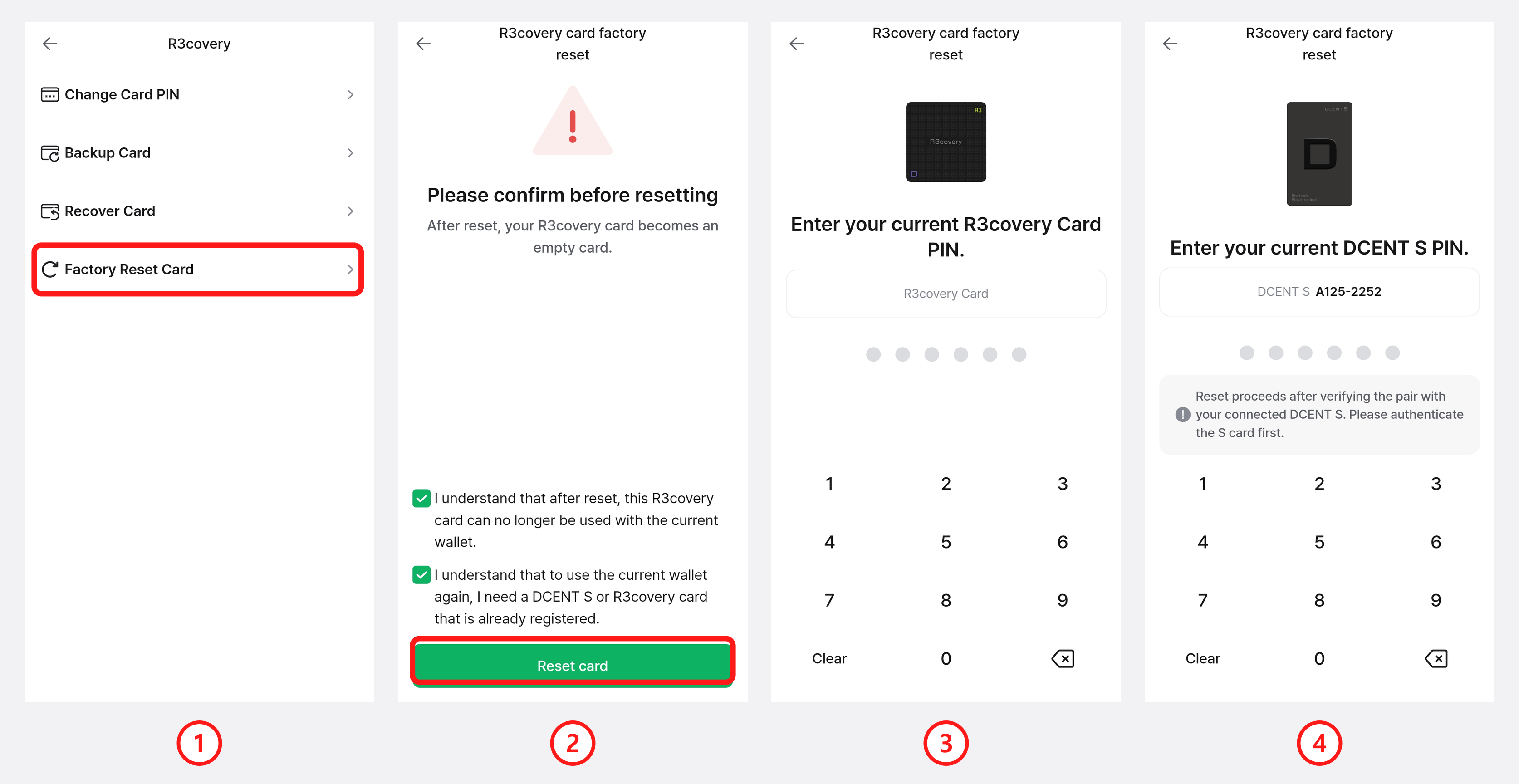
1) Select "Factory Reset Card" from the R3covery menu.
2) Review the information, tick both checkboxes, and tap "Reset card".
3) Enter your current R3covery card PIN.
4) Enter your DCENT S card PIN to verify the connected DCENT S card.
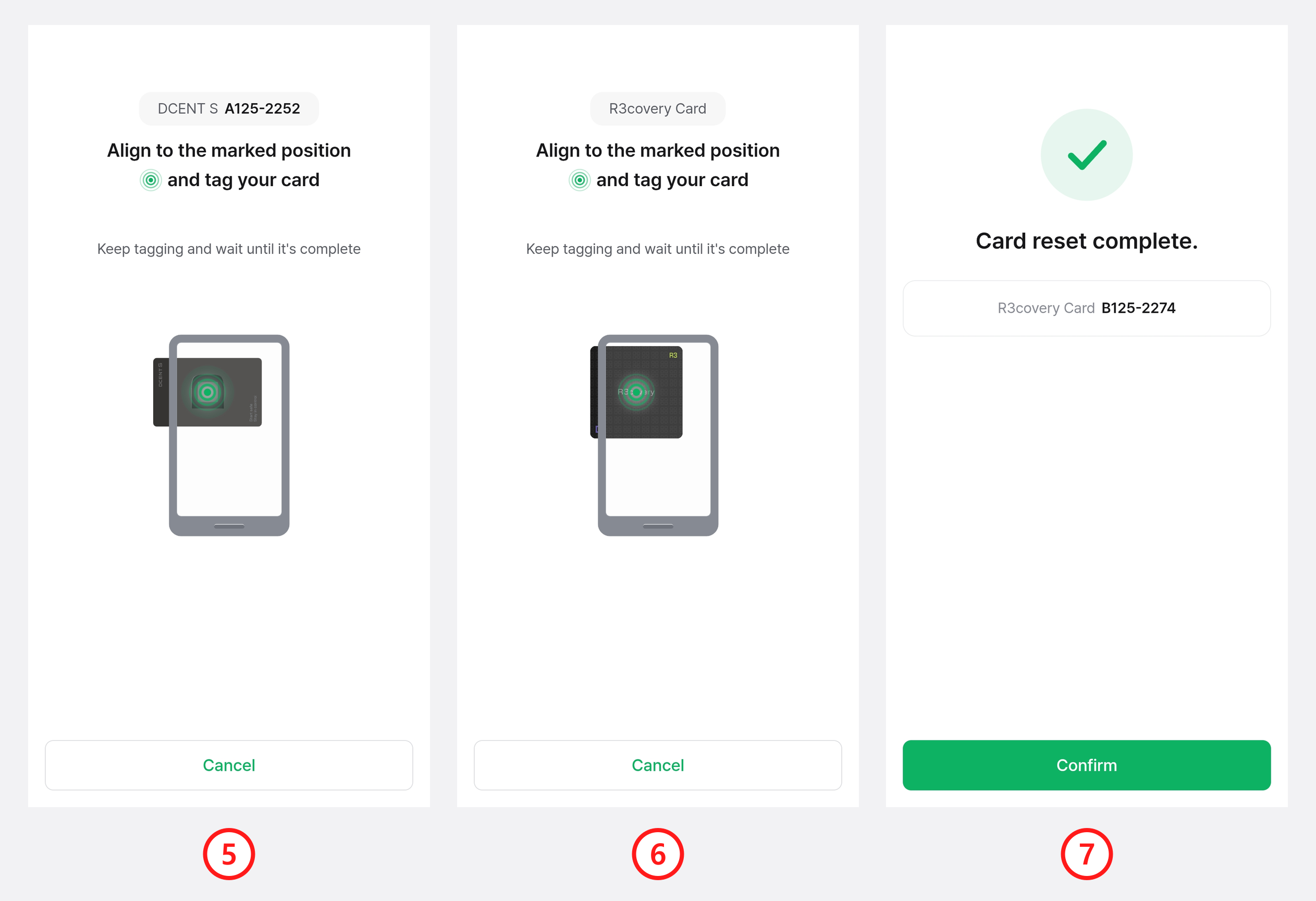
5) Following the prompt, tag your DCENT S card.
6) Then tag your R3covery card.
7) The reset is complete.
Resetting the R3covery card erases the backup data stored on it. If you have no other backup (such as a recovery phrase), you will not be able to recover your assets if your DCENT S card is lost or reset.
Factory Reset Card
Reset the DCENT S card back to its initial (empty) state. Resetting erases the private key stored on the card.
When you factory-reset a DCENT S card, it becomes an empty card and is also removed from the mobile app at the same time.
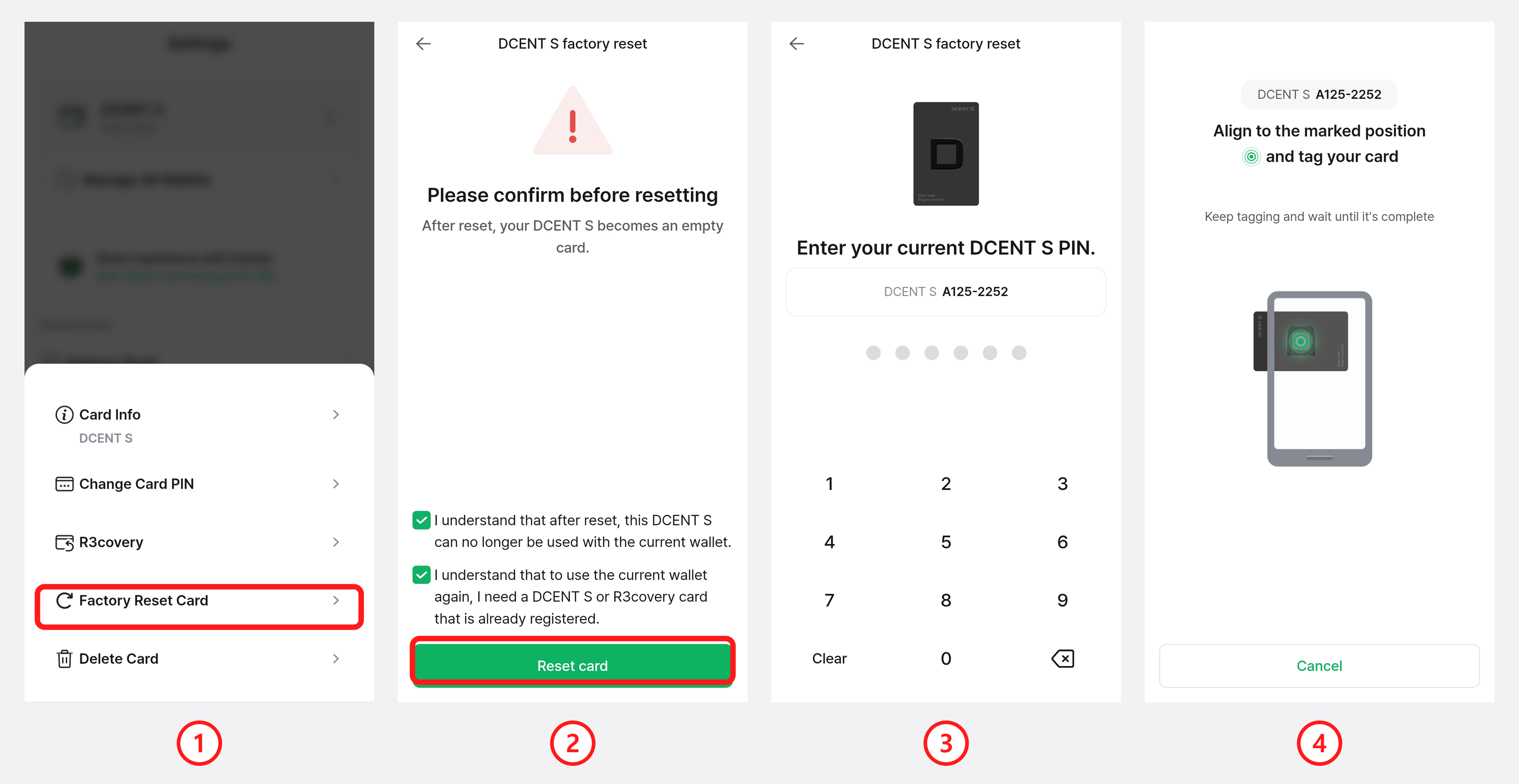
1) Select "Factory Reset Card" from the management menu.
2) Review the information, tick both checkboxes, and tap "Reset card".
3) Enter your current DCENT S card PIN.
4) Following the prompt, tag your DCENT S card to complete the reset.
Factory-resetting the card erases the private key stored on it. Before resetting, make sure your R3covery card backup or recovery phrase is stored safely. Without a backup, your assets will be lost permanently.
Delete Card
The "Delete Card" menu removes a DCENT S Card Wallet registered in the mobile app. Use it to tidy up cards you no longer use.
Deleting the card does not erase the private key or account information (assets) stored on the card. However, to see your assets again you will need to re-scan the card and re-add your existing accounts.
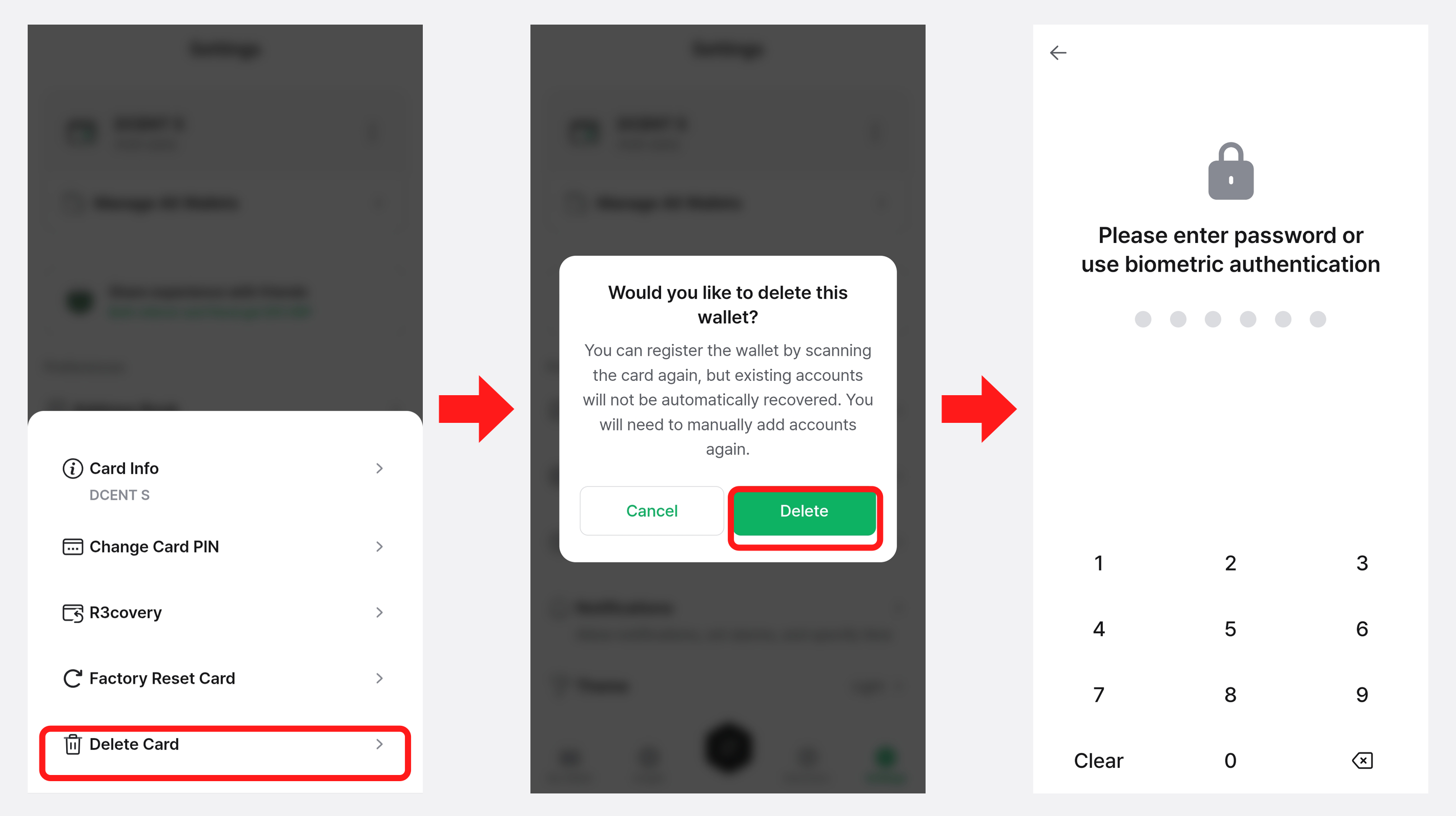
Biometric or password authentication when deleting is only required if you have separately set up an app lock (biometric/password) in the mobile app. If no app lock is set, tapping "Delete" removes the card immediately.