DCENT X
While DCENT X is connected, tap the more (⋮) button on the "Settings" tab or in the "Manage all wallets" menu to open the management menu shown below.
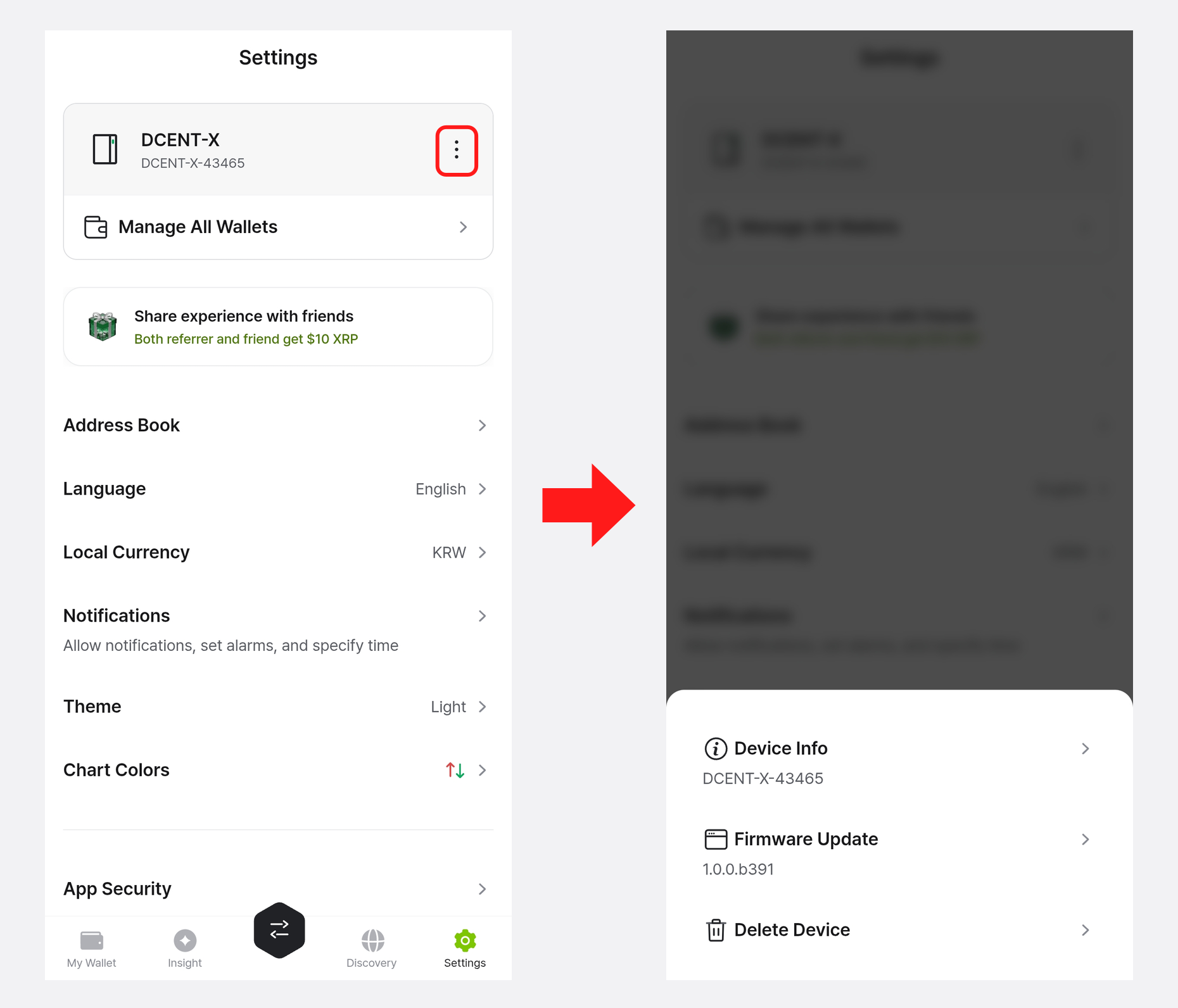
Device info
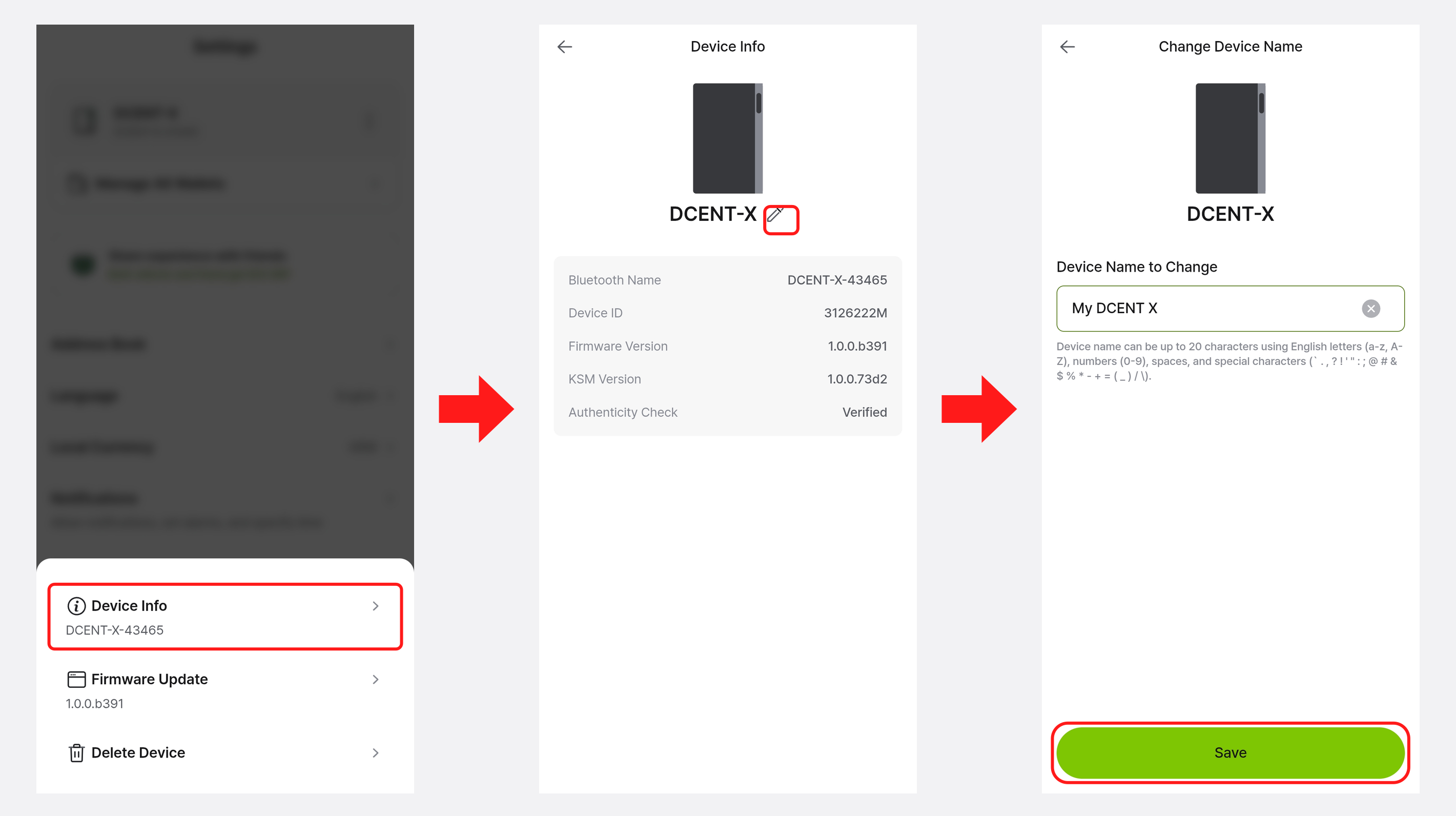
Select "Device info" in the management menu to see the DCENT X Bluetooth name, device ID, firmware version, KSM version, and authenticity status.
Tap the pencil (✏️) icon next to the device name to rename your DCENT X. The new name is shown on the device info screen and in your wallet list.
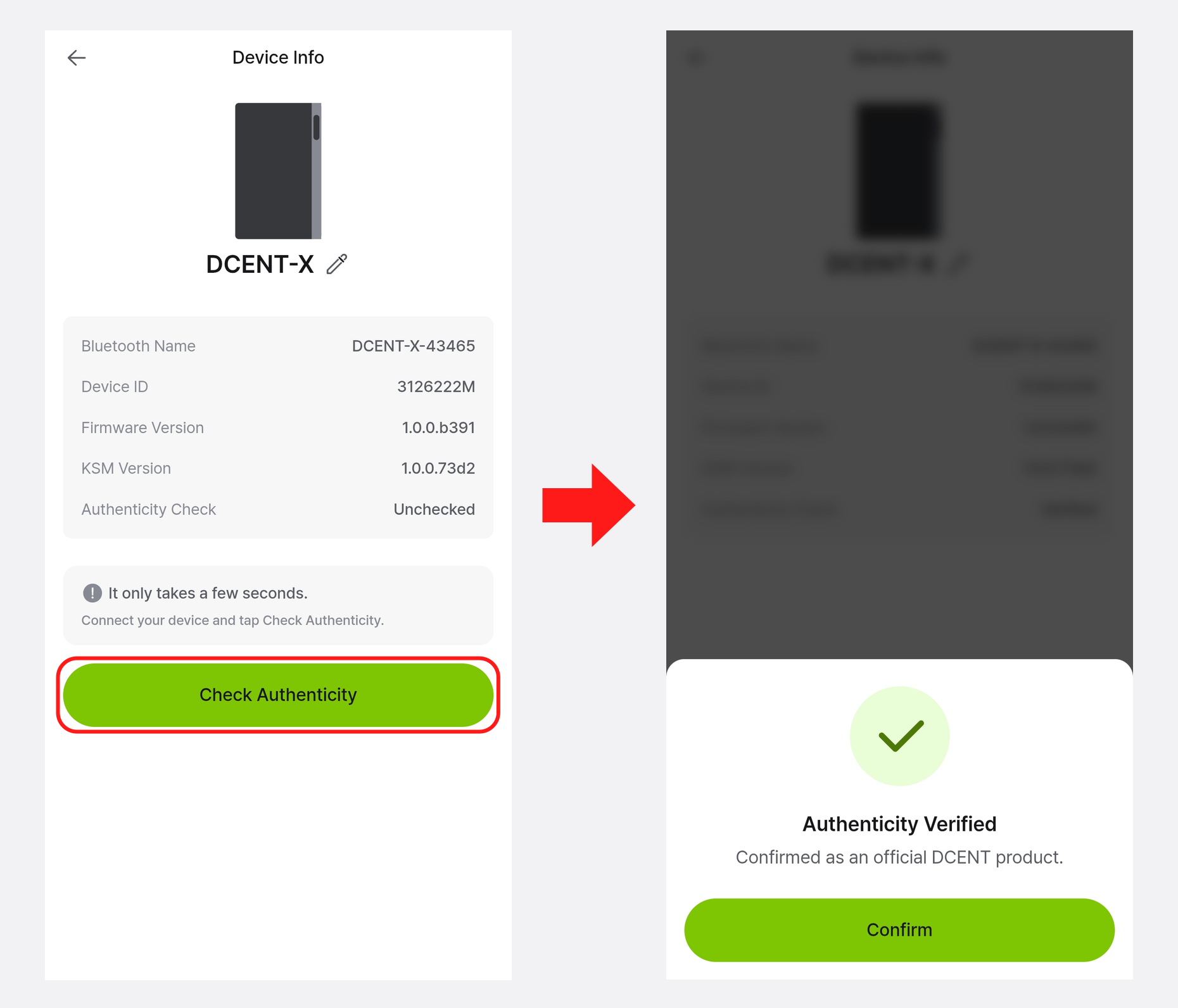
Authenticity check
The Authenticity field in Device info lets you verify that the connected DCENT X is a genuine DCENT product. If authenticity shows "Unverified", tap the "Verify authenticity" button with the device connected to check it.
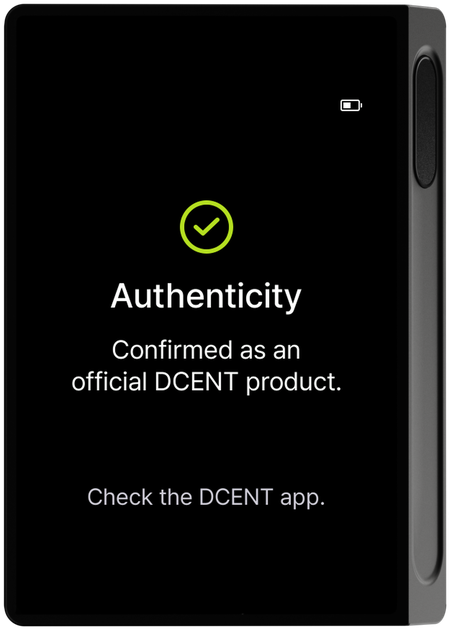
Once verified, an "Authenticity confirmed" message also appears on the DCENT X screen, and the authenticity status in Device info changes to "Verified".
Firmware update
Select "Firmware update" in the management menu to check the DCENT X firmware update status. A "New" icon appears when a newer version is available.
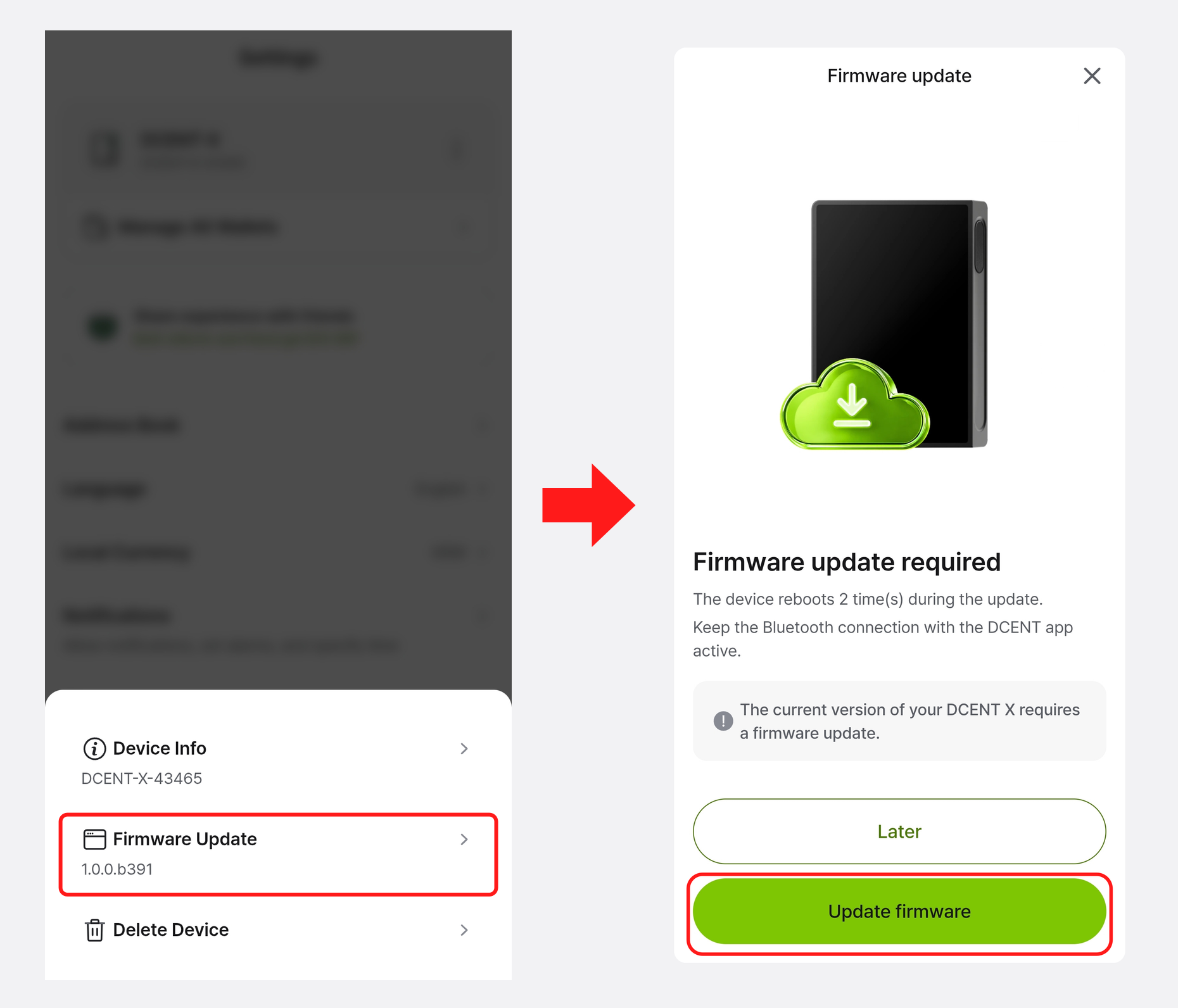
Tap the "Firmware update" button to see the current and latest versions along with the update method and precautions.
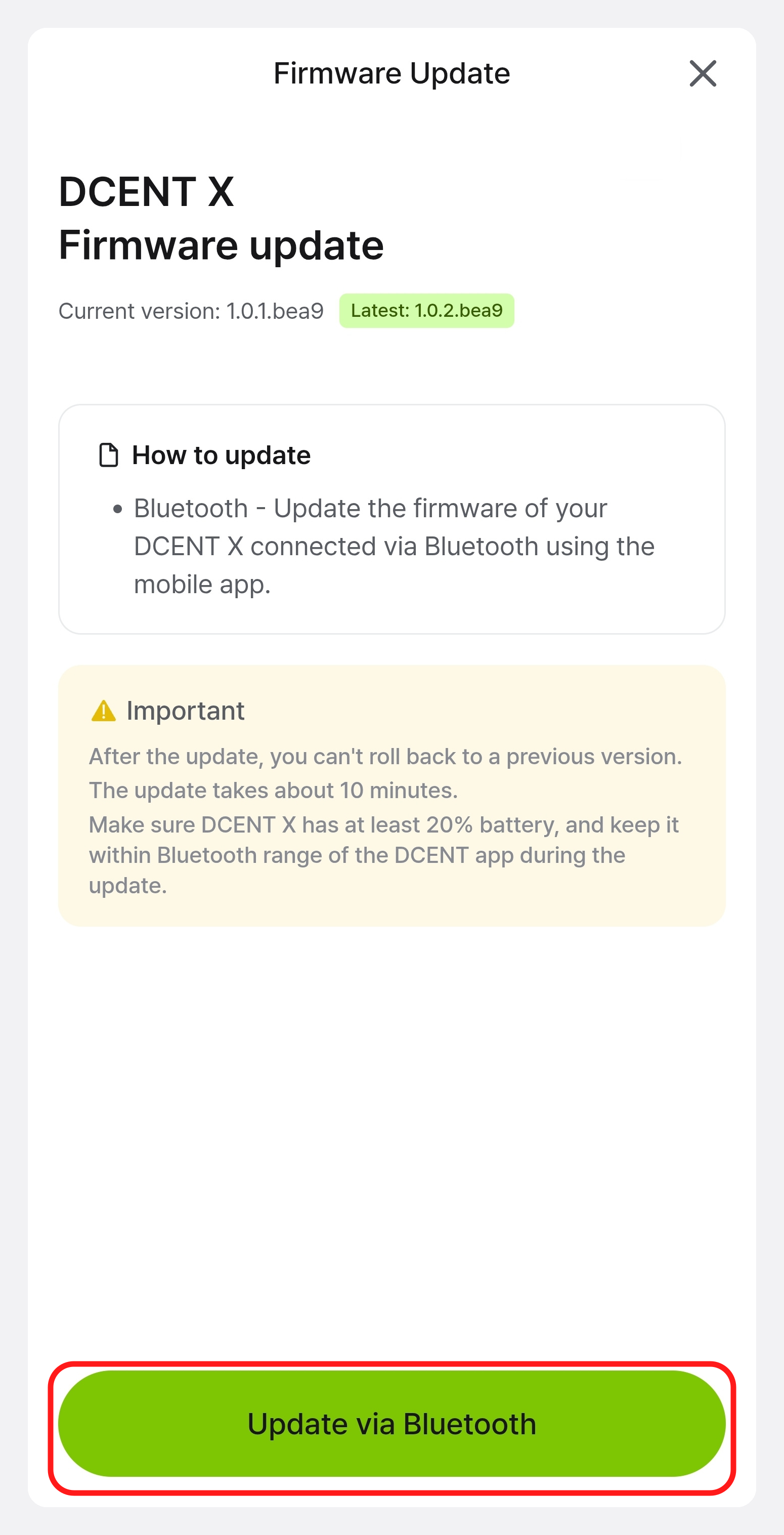
DCENT X firmware is delivered over Bluetooth through the mobile app — no PC or cable connection is required. For details, see Firmware update.
Delete device
Select "Delete device" in the management menu to remove the DCENT X registered in the mobile app. Use it to clean up a device you no longer use.
Even after you delete it, the private keys and account information (assets) stored inside DCENT X are preserved, and you can load your assets again by reconnecting over Bluetooth.
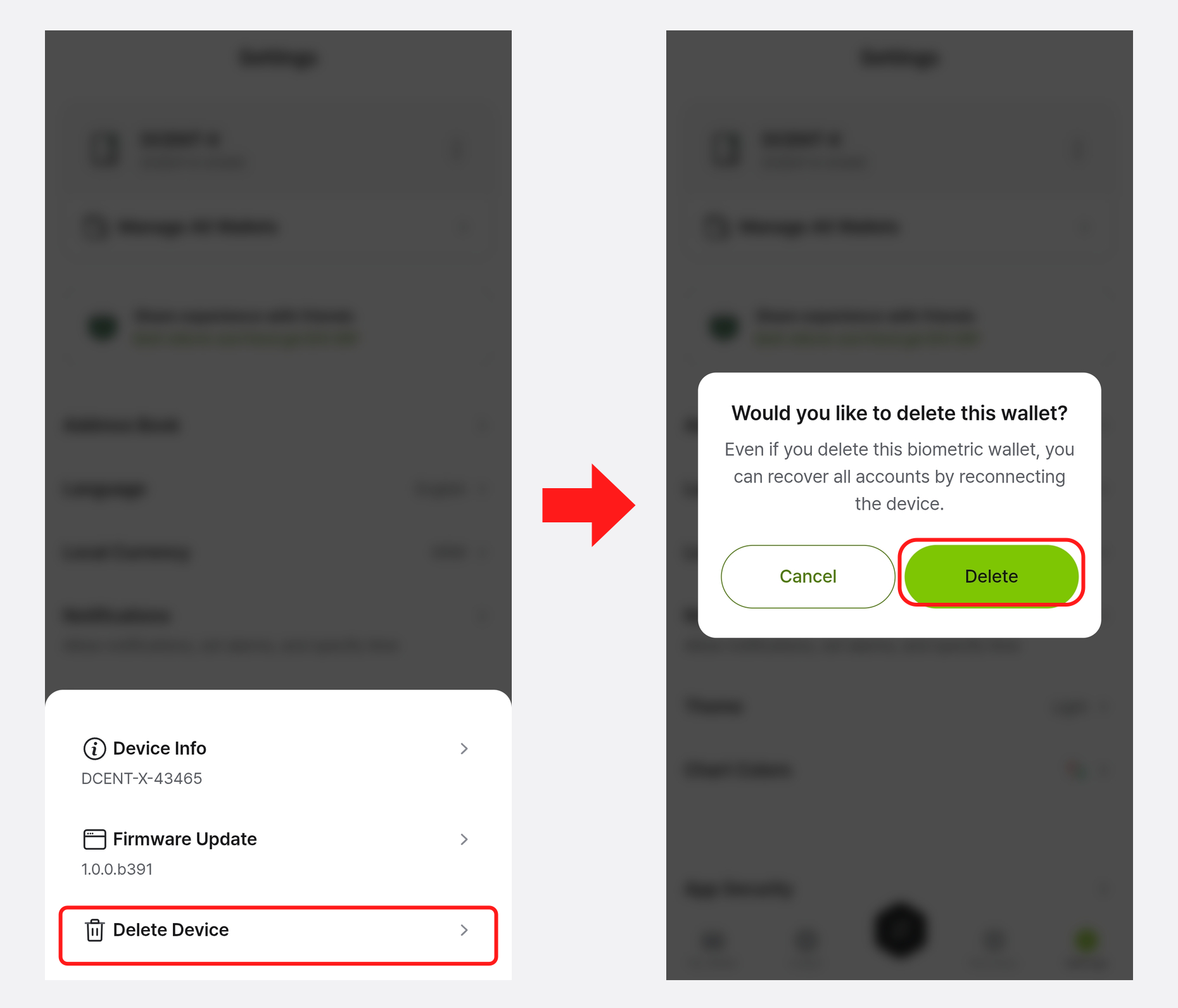
Biometric or password authentication when deleting is only required if you have separately set up app lock (biometrics/password). If app lock is not set, tapping the "Delete" button deletes the device immediately.