App Wallet (Software)
This guide is based on DCENT mobile app version 9.2.0.
Please update the DCENT mobile app to the latest version before using it.
Using the App Wallet
You can start using the App Wallet by selecting "App Wallet > Create New App Wallet" the first time you launch the DCENT mobile app after installation.
If you are already using a cold wallet (Biometric Wallet or Card Wallet), you can add an App Wallet later from Settings > Manage All Wallets by tapping "Add App Wallet".
.png)
If you have a mnemonic code from another wallet (Biometric, DCENT S, an external wallet, etc.), or if you reinstalled the DCENT mobile app or changed your phone, you can restore your wallet by choosing the "Import Wallet" menu. For detailed recovery instructions, see here.
App Wallet Initial Setup
When you install the app for the first time and select "App Wallet", complete the initial setup in the following order.
1) Review the permission request, then tap "Confirm".
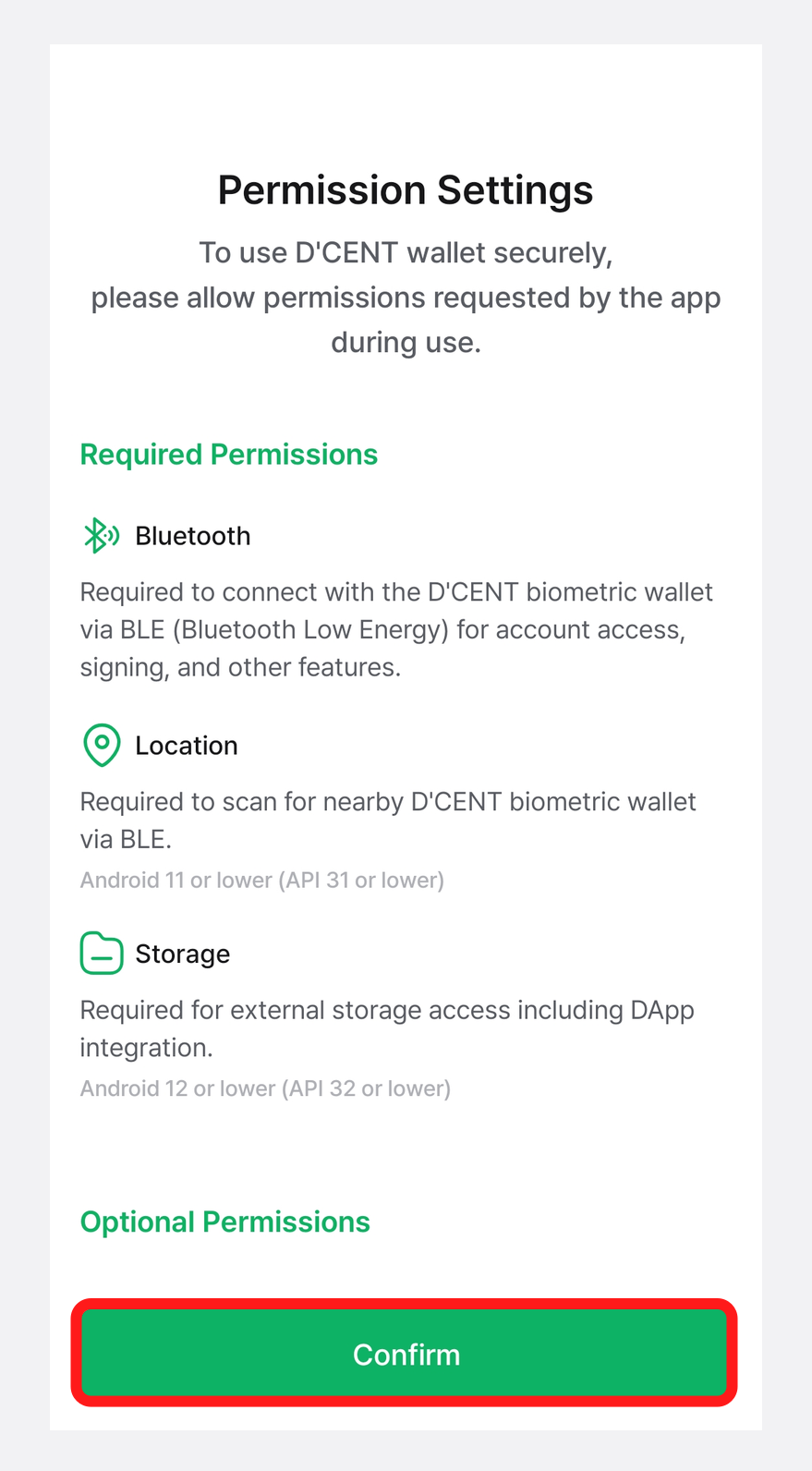
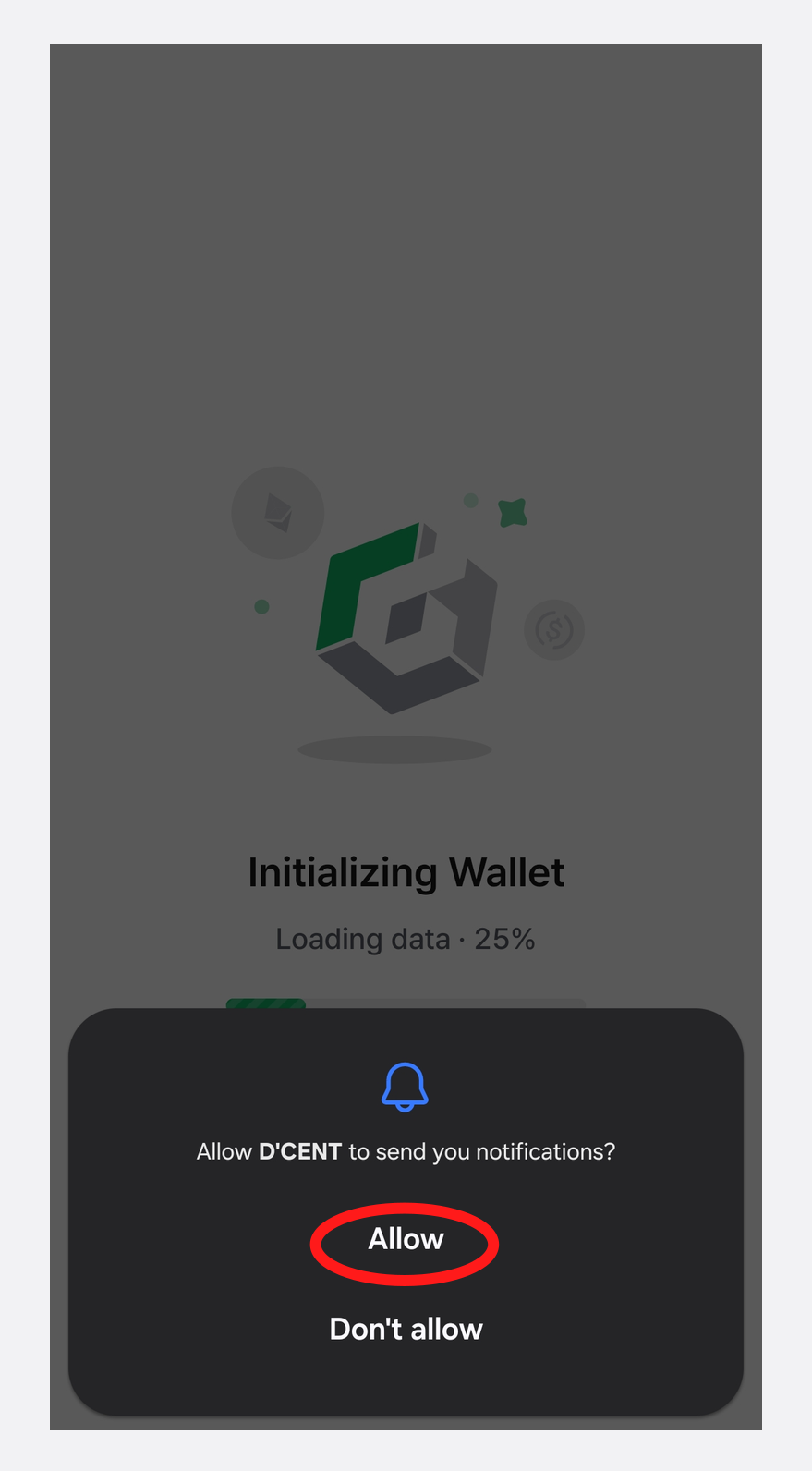
2) Tap "Allow" on the requested permission popups, such as Notification, to continue. You can turn notifications on or off later from the "Settings" menu.
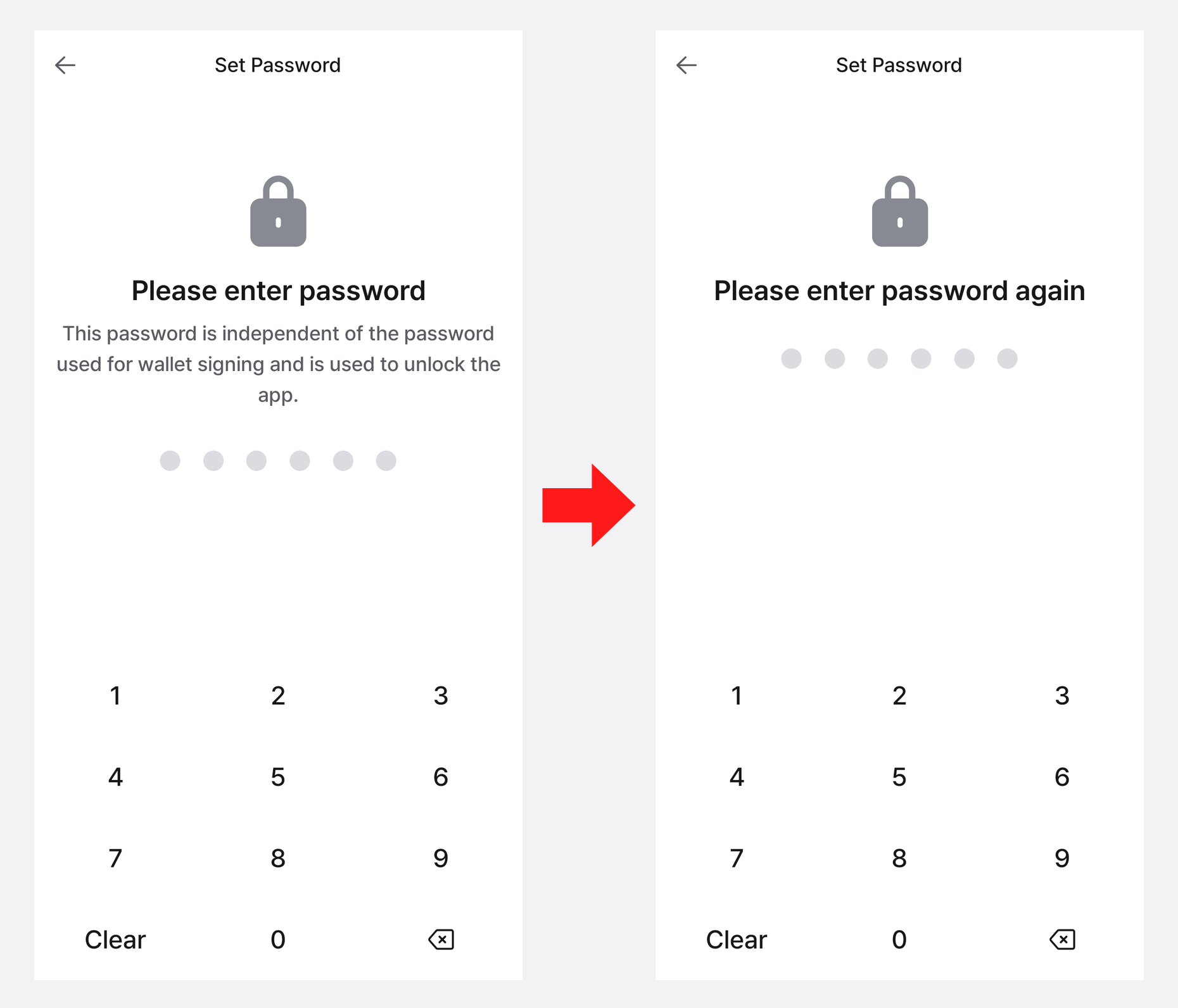
3) Set a 6-digit password to protect the app and enter it once more to register it. This password is used when launching the app, backing up, and making transactions, so be sure to remember it.
Once the initial setup is complete, continue with the mnemonic code backup below.
App Wallet Backup
The first time you use the App Wallet, the app reminds you that you need to back up the 24-word mnemonic code.
This reminder appears at the top of the "My Wallet" tab, when you add a cryptocurrency account, and inside the "Settings" tab.
Make sure you back up the 24-word mnemonic code of your App Wallet and store it in a safe place.
If you delete the DCENT mobile app or lose your phone without backing up the mnemonic code, you will permanently lose all assets in your software wallet.
Follow the steps below to back up your wallet.
.png)
1) Tap the "Backup" button in the banner at the top of the "My Wallet" tab, or go to the "Settings" tab and tap "App Wallet backup" to open the backup screen.
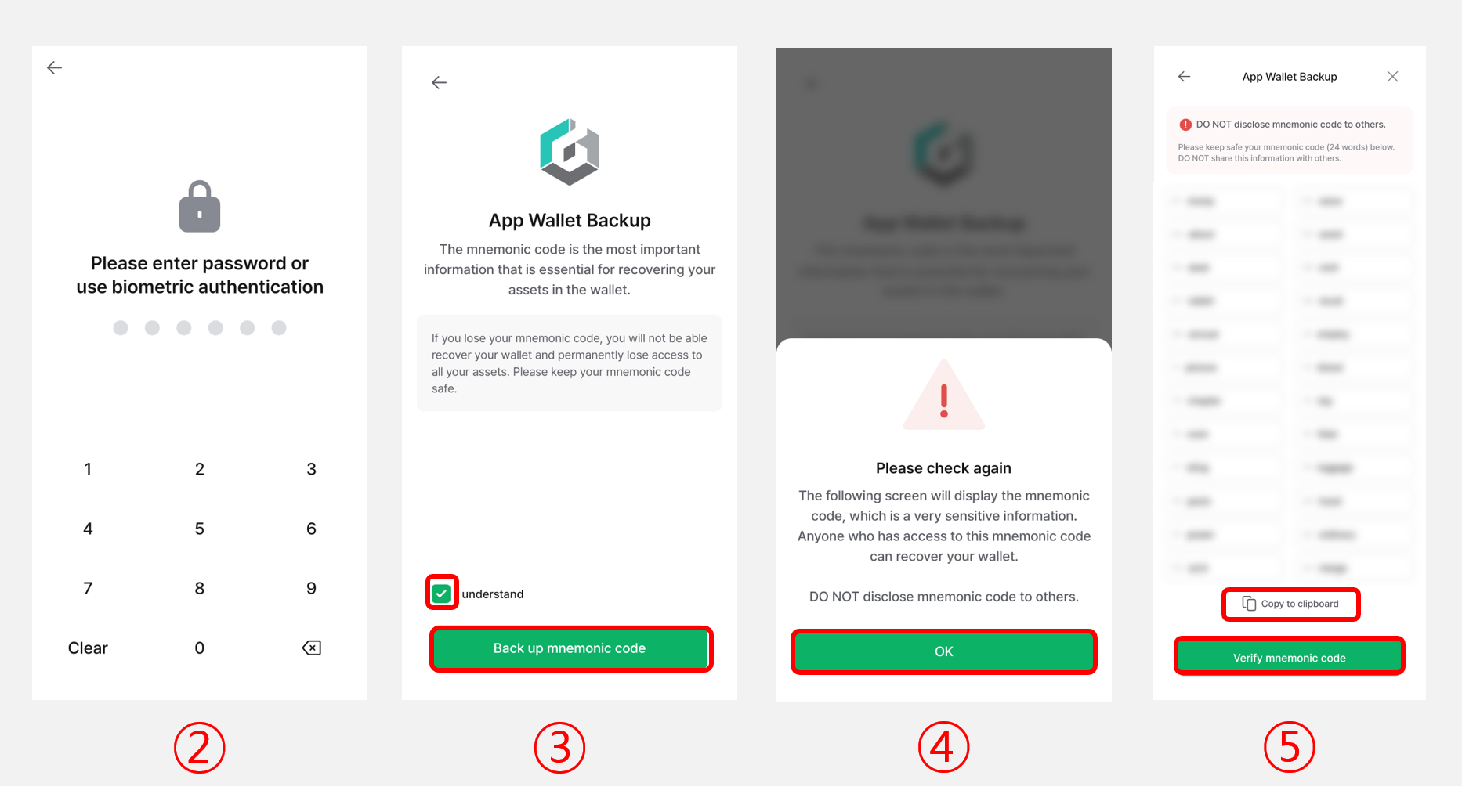
2) Enter the 6-digit password for the mobile app. (If biometric authentication is enabled, you can use it instead of typing the password.)
3) Review the sensitive-information warning, then tap "OK, I understand".
4) On the mnemonic screen, tap the screen to reveal the 24-word mnemonic code and write it down in the exact order shown. You can also tap "Copy to clipboard" to copy it temporarily.
5) Once you've written it down, tap "Verify mnemonic code" to continue.
For maximum security, write your mnemonic code down on paper and store it offline—for example, in a notebook kept in a safe place.
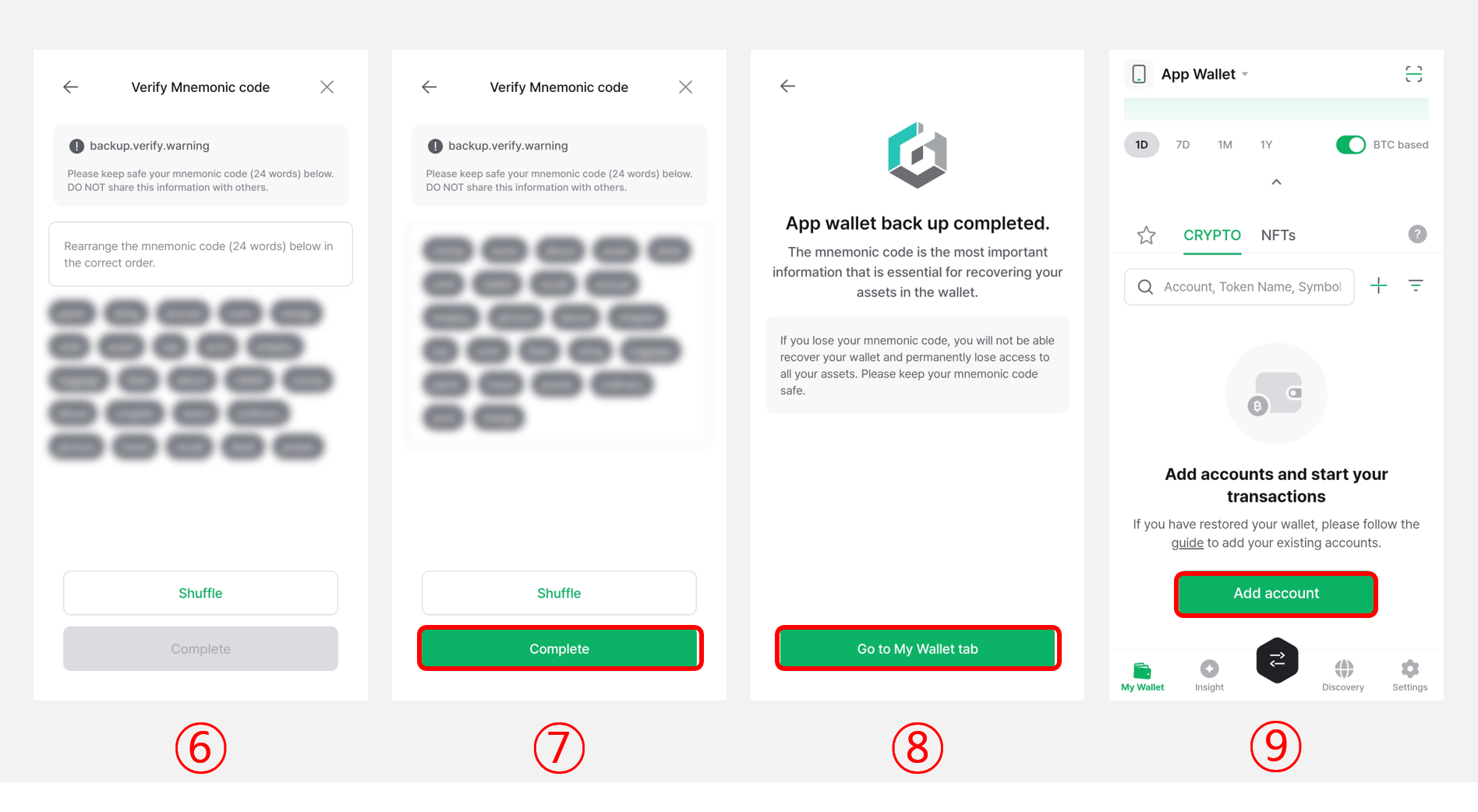
6) Using the words you wrote down, tap each word on the screen in the correct order, then tap "Complete".
7) When the backup is complete, tap "Go to My Wallet tab".
8) You can now tap the "Add account" button to add the coin accounts you need.
For detailed instructions on adding coin accounts, see here.
The same mnemonic code from your software wallet can also be used to recover the wallet on a Biometric hardware wallet.
For more information, see the guide on recovering your wallet on the Biometric Wallet.
Using Multi App Wallet
Starting from DCENT mobile app version v8.1.0, the Multi App Wallet feature lets you add new App Wallets even if you are already using one.
To create a brand-new App Wallet, choose "Add App Wallet" > "Create New Wallet". To bring in an existing wallet, choose "Import Wallet" and enter its mnemonic phrase.
Note: You can add up to 100 App Wallets with the Multi App Wallet feature.
Import Wallet
The Import Wallet feature accepts 24-word mnemonic codes generated by DCENT as well as 12- or 24-word mnemonic codes from external wallets.
Follow the steps below to import a wallet:
.png)
1) Open Settings > Manage All Wallets.
2) Tap "Add App Wallet".
3) Tap "Import Wallet".
.png)
4) Enter the 6-digit password for the mobile app. (If biometric authentication is enabled, you can use it instead of typing the password.)
5) Read the warning, tick the checkbox, and tap "Start" to continue.
6) Enter all 24 words of the mnemonic code in the exact order you wrote them down. You can also enter a 12- or 24-word mnemonic code from an external wallet.
You can use the "Paste" button to paste content from your clipboard.
After double-checking that every word is correct, tap "Import Wallet".
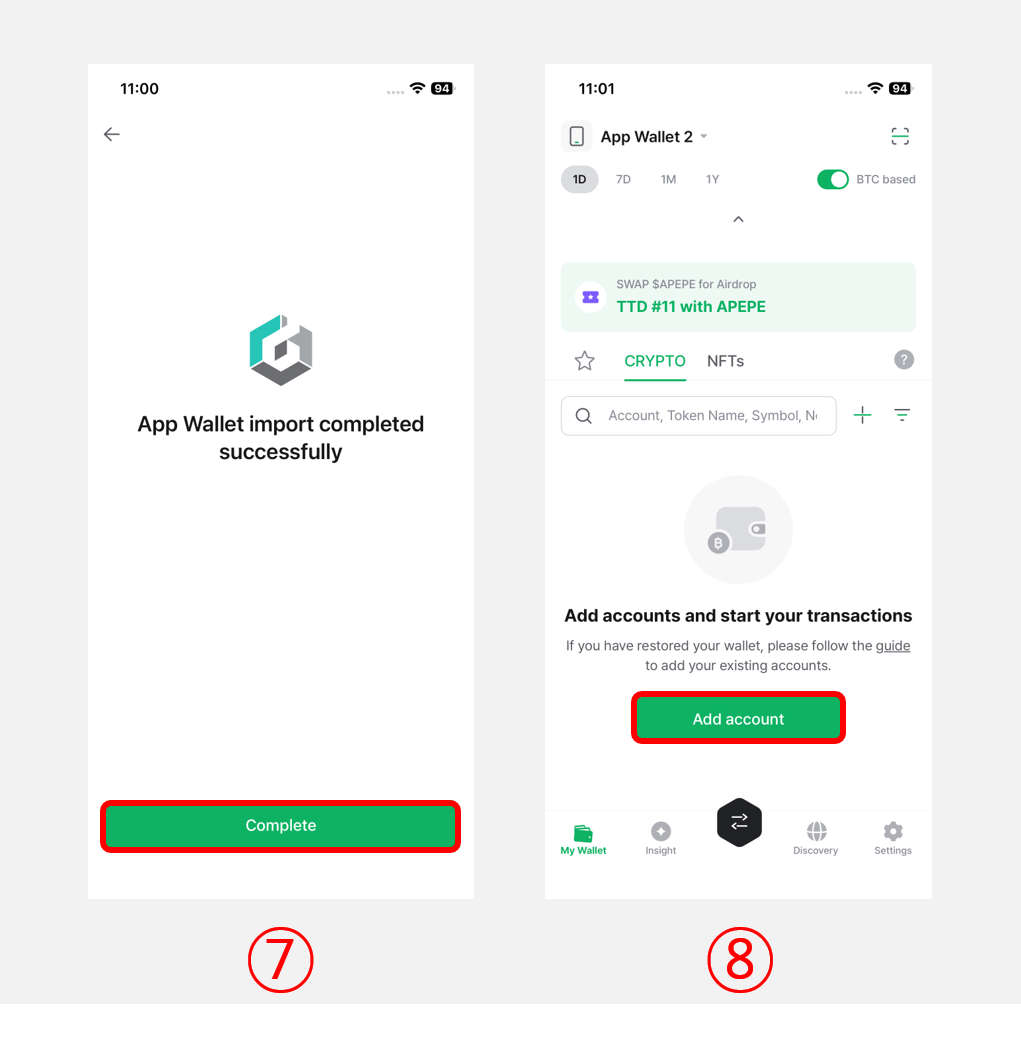
7) Tap "Complete" to finish importing the wallet.
8) After the import, you need to re-add your existing accounts to see your balances.
Tap the "Add Account" button and add the accounts you previously managed.
Important Notes When Adding an Account
Legacy Account Notice
Starting from DCENT mobile app version v5.3.1, for chains that use the Ethereum address format—such as Kaia, Ethereum Classic, and RSK—new accounts are generated using the same address format as Ethereum.
For more details, see the guide below.
If assets are not visible after recovering from an external wallet's mnemonic code
If you import a wallet using a mnemonic from an external wallet but the addresses look different and your assets don't appear, you may need to enable the Custom Path Account feature and manually add the matching "Vendor Lock-In" account.
For detailed instructions on Vendor Lock-In accounts, see here.
Change App Wallet Name
From the App Wallet Info menu, you can rename your App Wallet. When you manage multiple App Wallets, renaming them based on purpose or owner makes them much easier to organize.
(e.g., Wallet01, BTConly, MyAssets, ETHwallet)
Follow the steps below to change the App Wallet name.
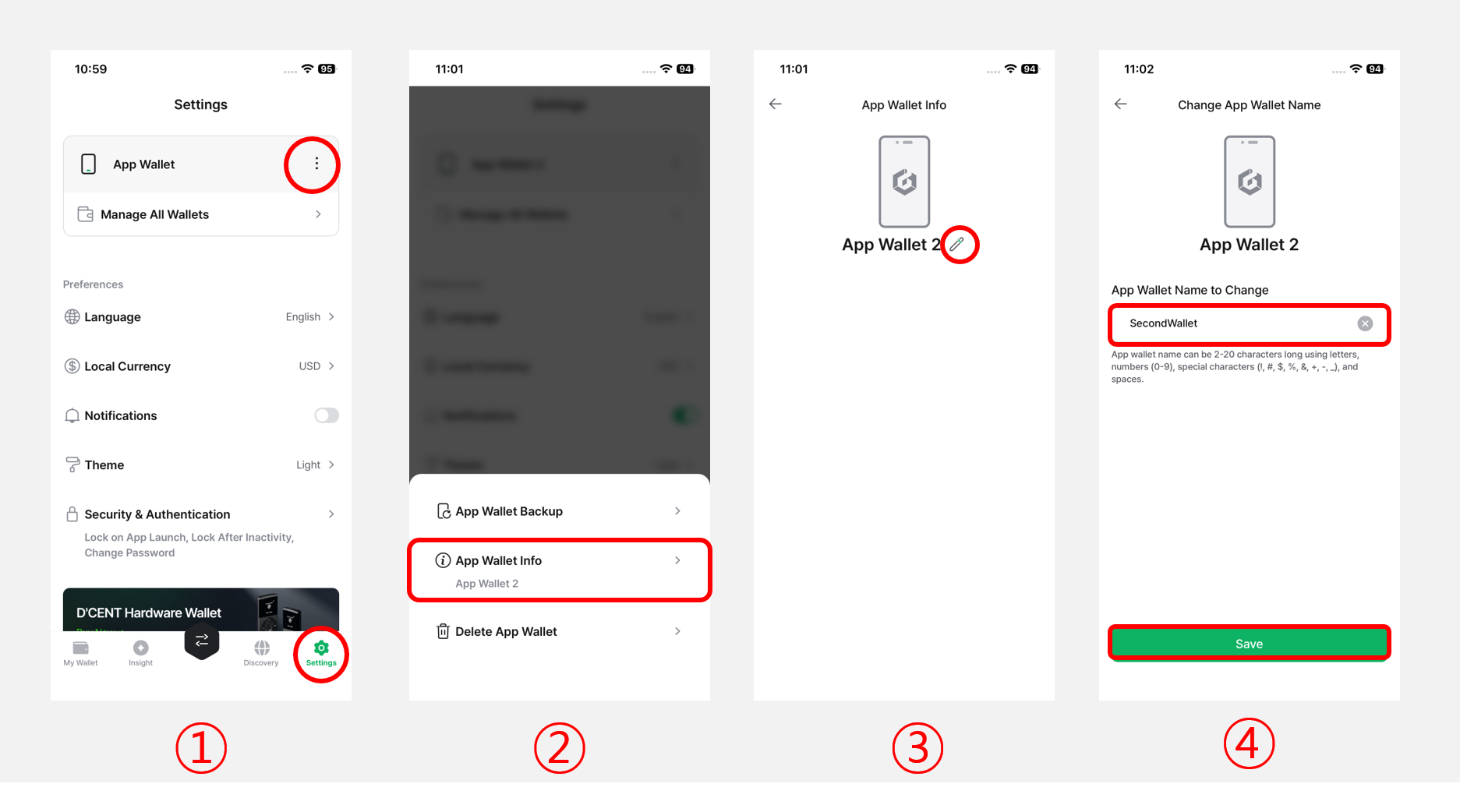
1) In the "Settings" tab of the DCENT mobile app, tap the More (⋮) button.
2) Tap "App Wallet Info".
3) Tap the edit icon.
4) Type the new name in the field and tap "Save".
Delete App Wallet
If you have an App Wallet you no longer use, you can remove it from the Delete App Wallet menu.
Important: Before deleting an App Wallet, make sure your mnemonic code is backed up.
If you delete the App Wallet without a backup, all of its assets may be permanently lost.
Follow the steps below to delete your App Wallet.
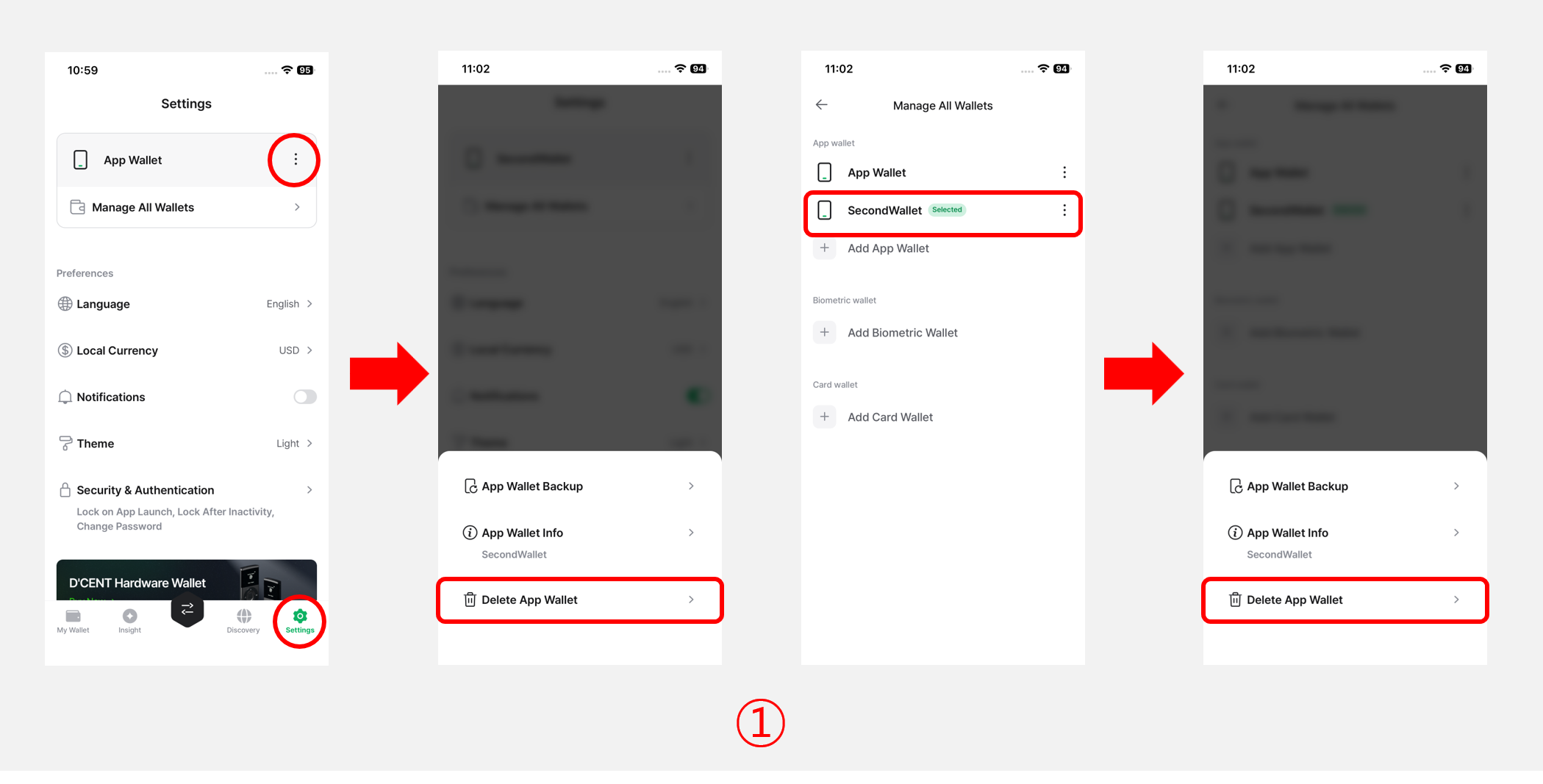
1) In the "Settings" tab of the DCENT mobile app, tap the More (⋮) button and choose "Delete App Wallet". You can also open the "Manage All Wallets" menu, select the App Wallet you want to delete, and then tap "Delete App Wallet".
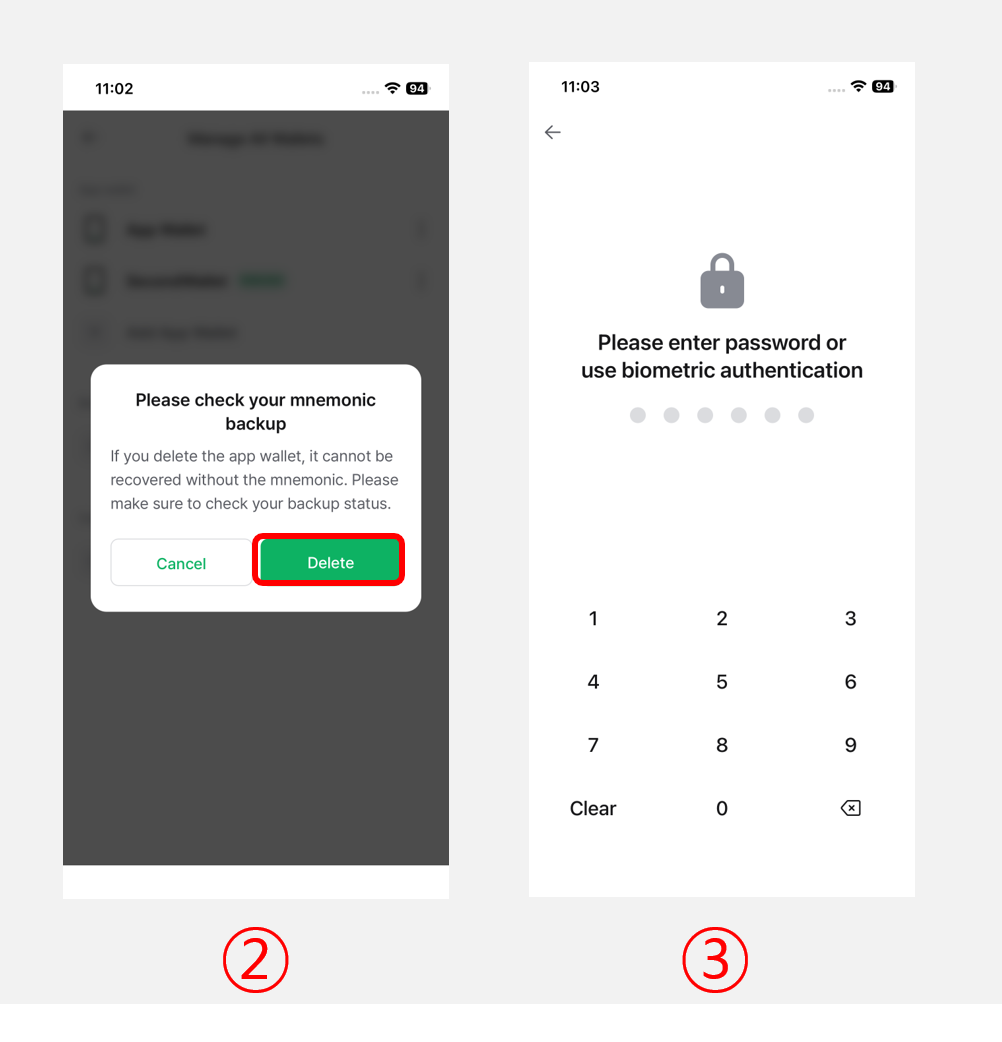
2) A confirmation message appears. Make sure your mnemonic backup is complete, then tap "Delete".
3) Enter the 6-digit password for the mobile app or use biometric authentication to finish the deletion.