Multi-Wallet Feature
This guide is based on DCENT mobile app version 9.2.0.
Please update the DCENT mobile app to the latest version before using it.
The Multi-Wallet feature lets you manage multiple cold wallets (Biometric Wallets and Card Wallets) and App Wallets from a single mobile phone. For example, you can keep 2 Biometric Wallets, 3 Card Wallets, and 2 App Wallets registered on the same phone.
To use the Multi-Wallet feature, make sure your DCENT mobile app is updated to the latest version.
Registered Wallet Button
Tap the "Registered Wallet button" at the top left of the "My Wallet" tab to view your registered wallets and quickly switch to another wallet.
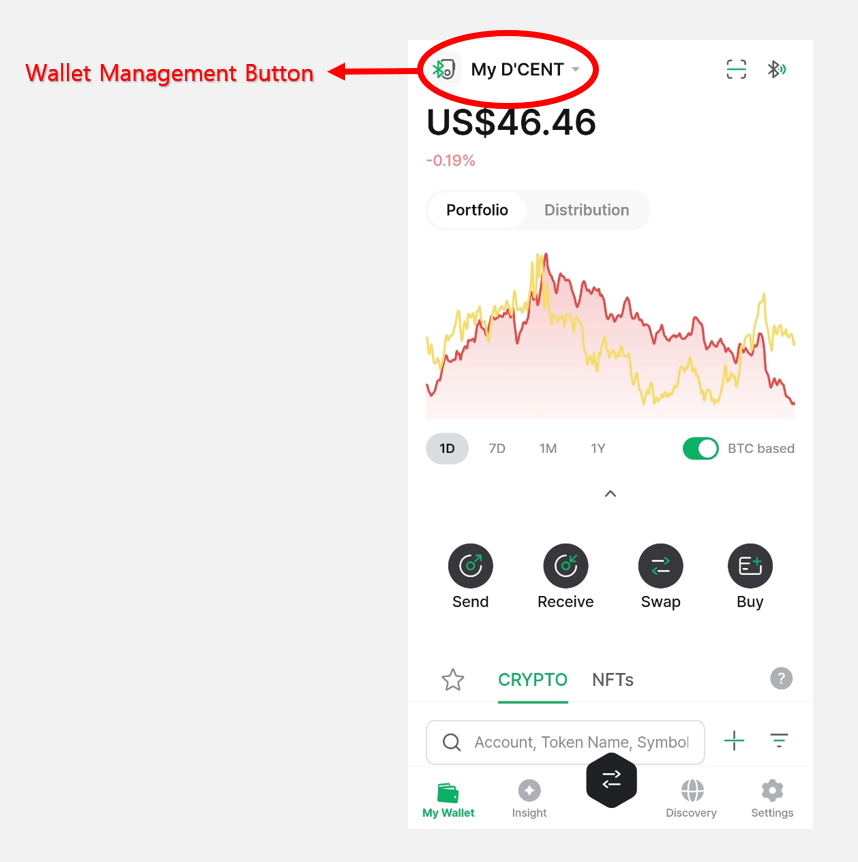
Adding and Changing Wallets
Adding Another Wallet
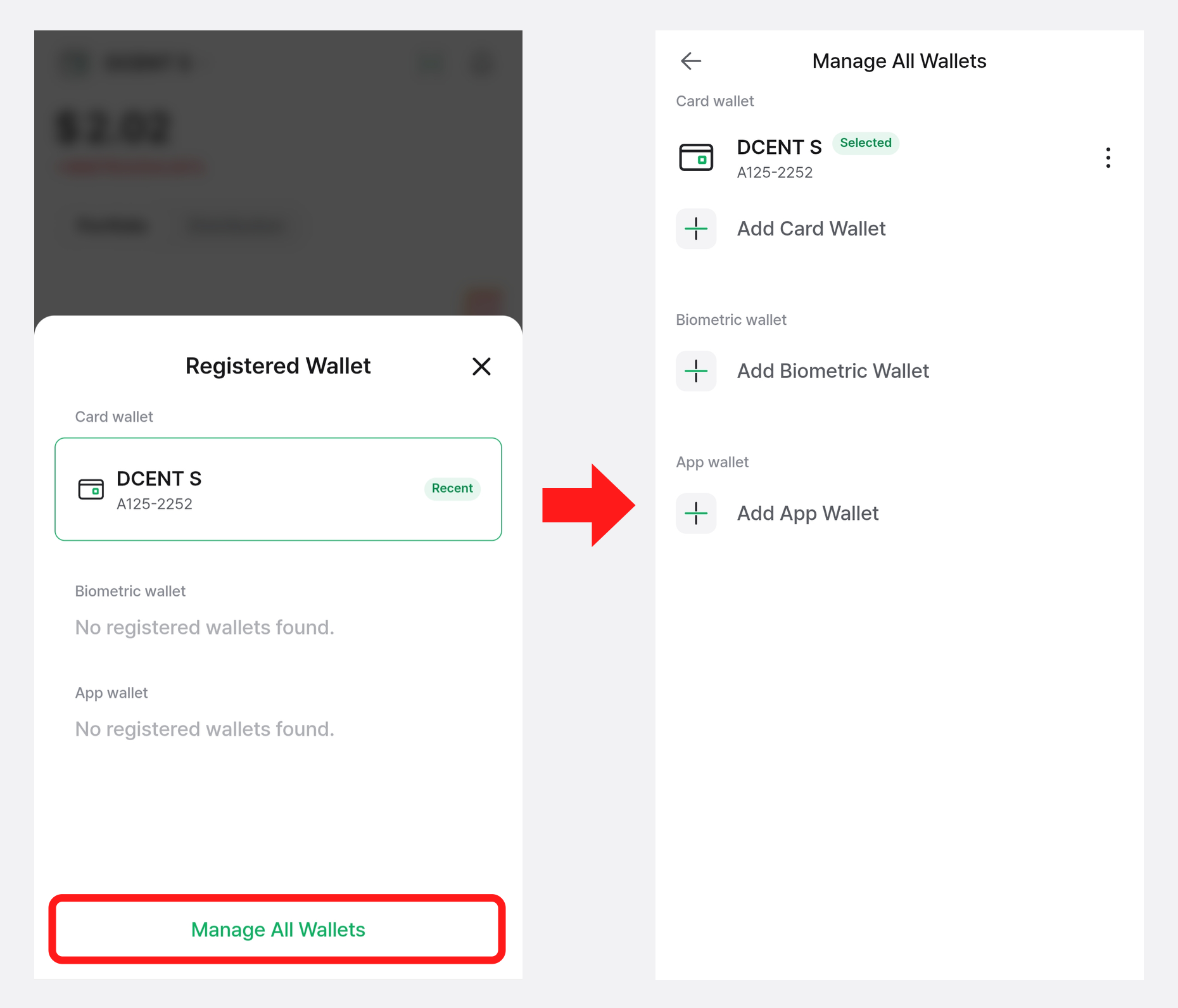
On the Registered Wallet screen, tap the "Manage All Wallets" button to add another wallet (Biometric Wallet, Card Wallet, App Wallet, etc.) in addition to the one you are using.
For instructions on how to add each type of wallet, please refer to the user guide below.
- Biometric Wallet (Android)
- Biometric Wallet (iPhone)
- DCENT S Card Wallet
- All-in-One Card Wallet
- App Wallet (Software)
Changing to Another Wallet
Tap the "Registered Wallet button" at the top left of the "My Wallet" tab, select another wallet, and tap "Change". The "My Wallet" tab reloads the portfolio and account information of the selected wallet.
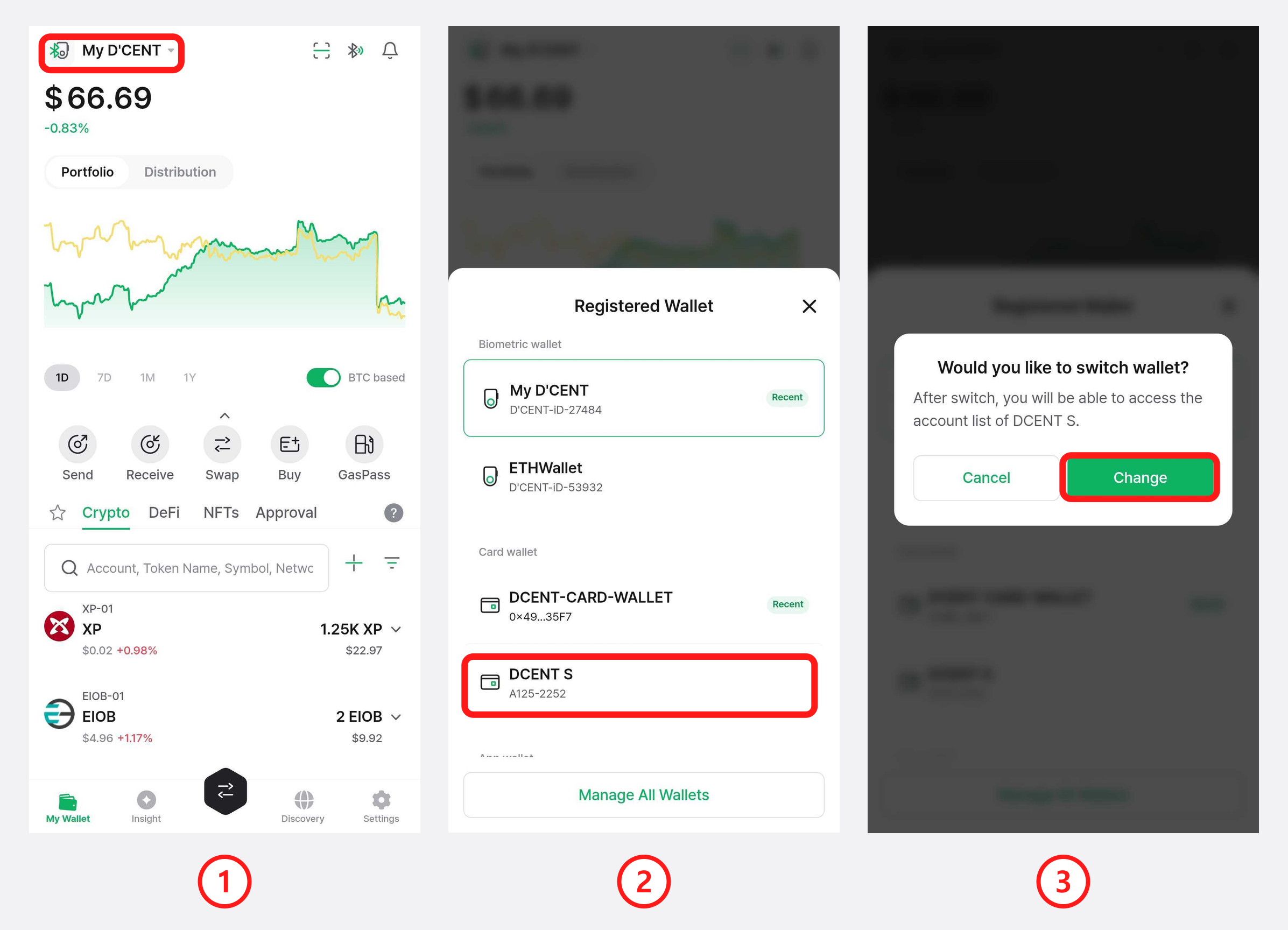
1) Tap the "Registered Wallet button" at the top left of the "My Wallet" tab.
2) Select the wallet you want to switch to from the list of registered wallets.
3) When the "Would you like to switch wallet?" pop-up appears, tap "Change".
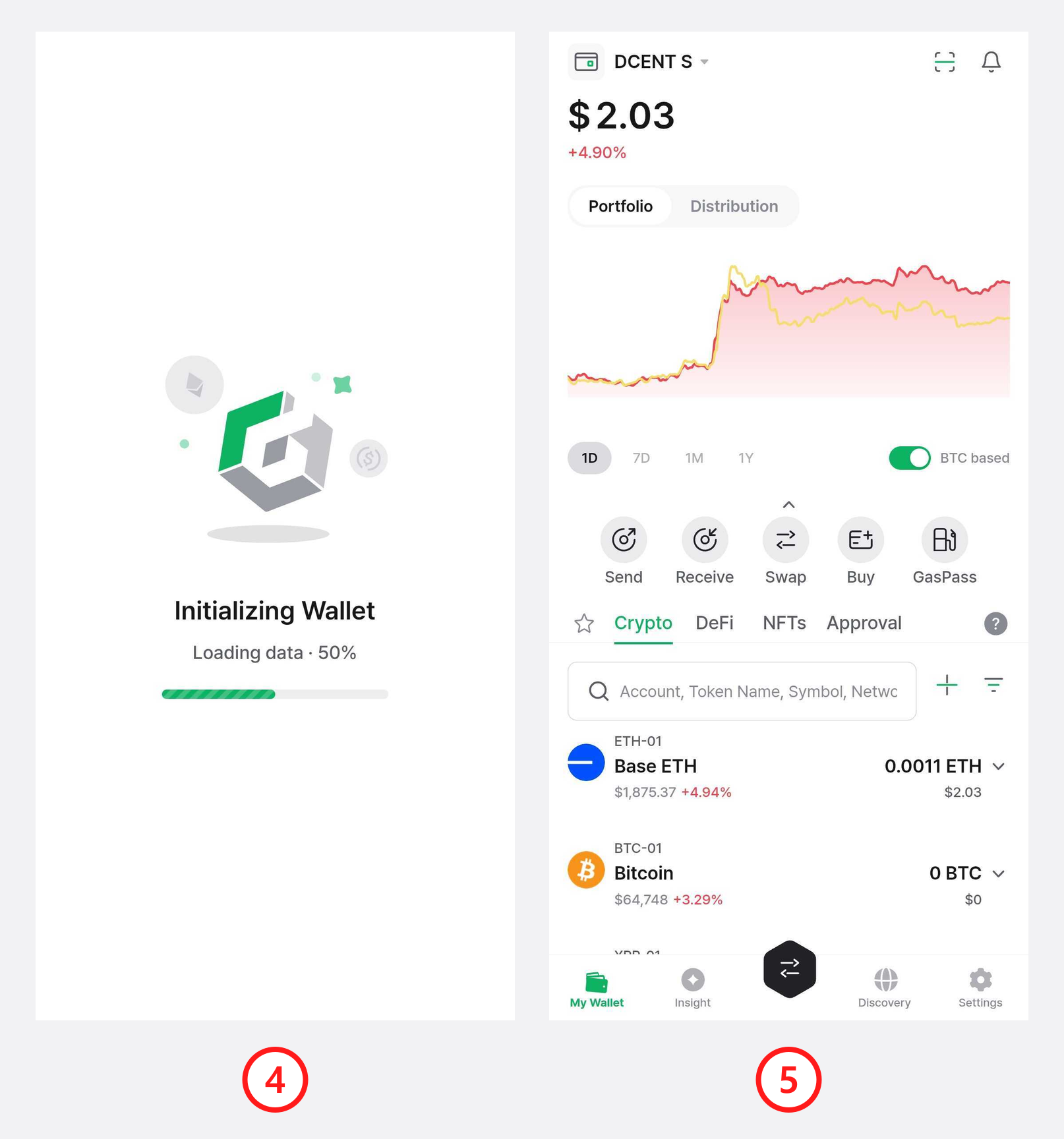
4) The data for the selected wallet is loaded.
5) The "My Wallet" tab switches to the portfolio and account information of the selected wallet.
If you use multiple wallets, renaming each wallet based on its purpose or owner makes them much easier to tell apart. (e.g., Wallet01, BTConly, MyAssets, ETHwallet, etc.)
For instructions on how to rename a wallet, please refer to the guides below.
Deleting Wallets
Starting from DCENT mobile app version 8.1.0, you can delete any registered wallet directly inside the app. This makes it easier to remove wallets you no longer use.
You can open the delete option by tapping the More (⋮) button in the Settings tab, or by selecting the wallet you want to delete from the Manage All Wallets menu.
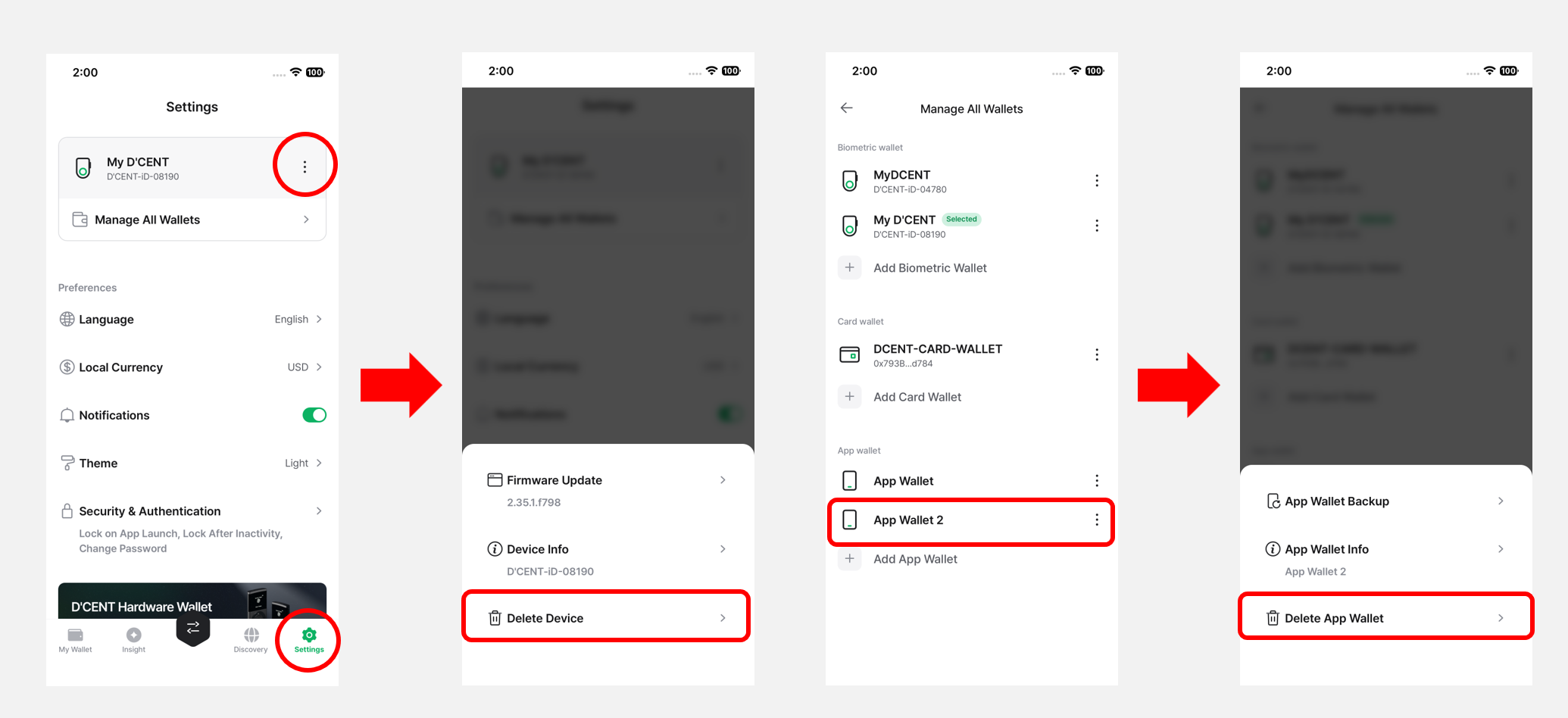
The warning message shown during deletion depends on the wallet type (Biometric Wallet, Card Wallet, or App Wallet).
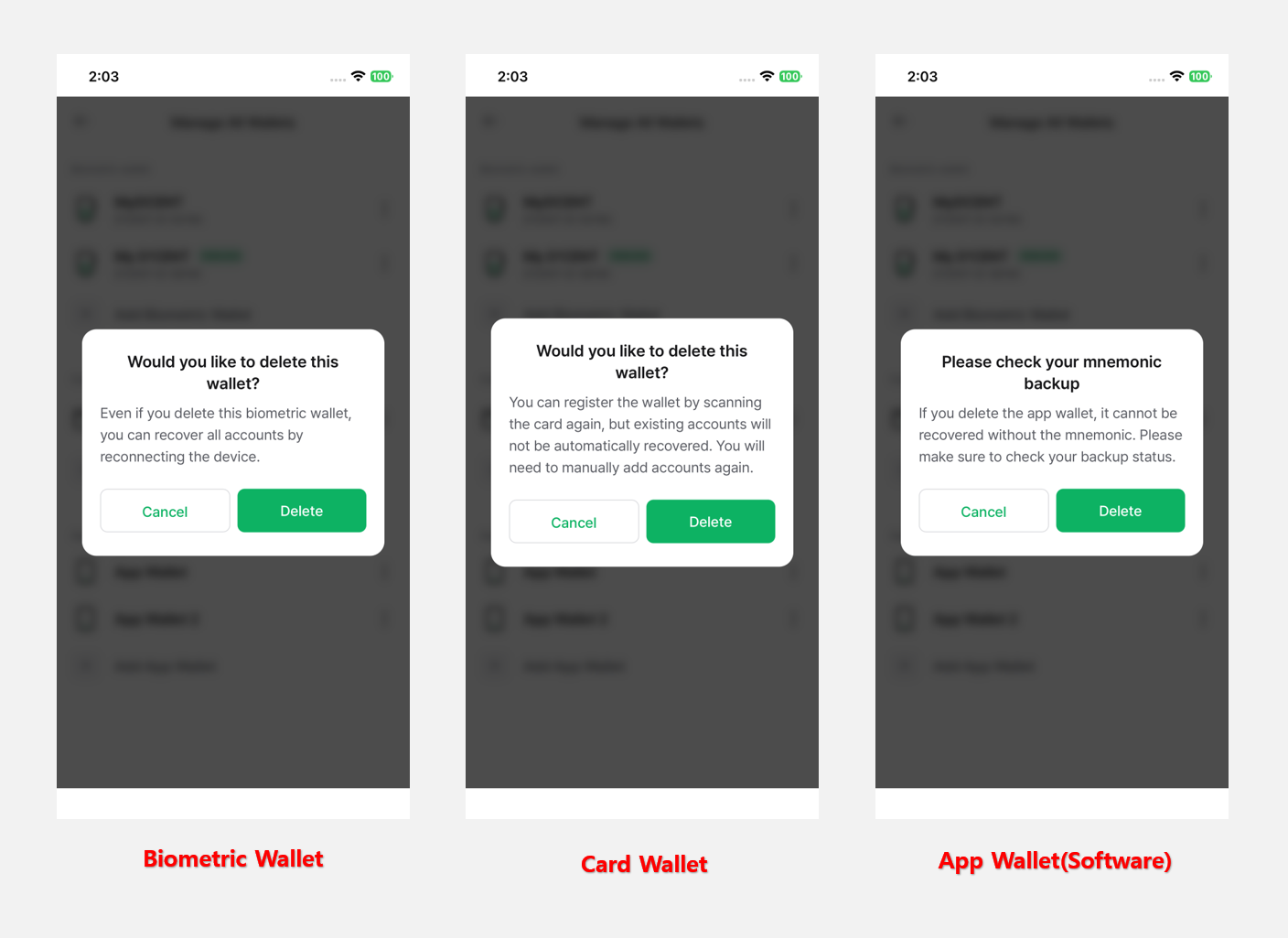
Please refer to the guide below before deleting a wallet to avoid potential asset loss:
- Biometric Wallet: After deletion, reconnect the cold wallet via Bluetooth and all previously used accounts will be restored automatically.
- Card Wallet (DCENT S / All-in-One Wallet): After deletion, you can re-scan the card to register it again, but you will need to manually re-add any previously used accounts to see your assets.
- App Wallet: Before deleting, make sure your mnemonic phrase is backed up. Without a backup, your wallet and assets cannot be recovered. To restore the wallet, use the Import Wallet feature, enter your backed-up mnemonic phrase, and then re-add your previous accounts.