PC Extension Program (DCENT Wallet for Chrome)
The PC extension program (DCENT Wallet for Chrome) is a program dedicated to the Biometric Wallet, and All-in-One Card Wallet and App Wallet (software) are not supported.
DCENT Wallet for Chrome is a Google Chrome browser extension for PC that lets you connect your Biometric Wallet to a computer to manage assets and use various Web3 services.
It offers the same UX as the DCENT mobile app, so you can use your Biometric Wallet on a PC just as easily.
How to Install DCENT Wallet for Chrome
Requirements for DCENT Wallet for Chrome
✅ Biometric Wallet required
(All-in-One Card Wallet and App Wallet are not supported.)
✅ It is recommended to use the Biometric Wallet after updating to the latest firmware whenever possible. Please refer to the user guide below for firmware update instructions.
Firmware Update (from computer)
Firmware Update (from mobile)
✅ Installation is available on a 64-bit Windows PC or macOS PC
✅ Google Chrome browser required
✅ A USB cable that supports data transfer must be used
(Please use a Micro USB 5-pin Type or USB Type-C cable depending on the charging port type of your Biometric Wallet.)
Once you are ready, you can install DCENT Wallet for Chrome from the link below.
Install from the Chrome Web Store
Initial Setup of DCENT Wallet for Chrome
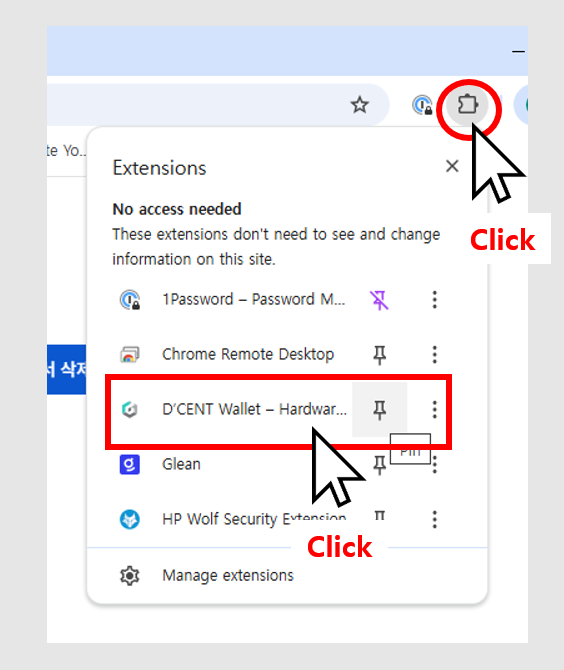
1) Click the Extensions button in the Google Chrome toolbar and select DCENT Wallet for Chrome.
Tip: clicking the Pin icon keeps the extension on your toolbar so you can launch it faster next time.
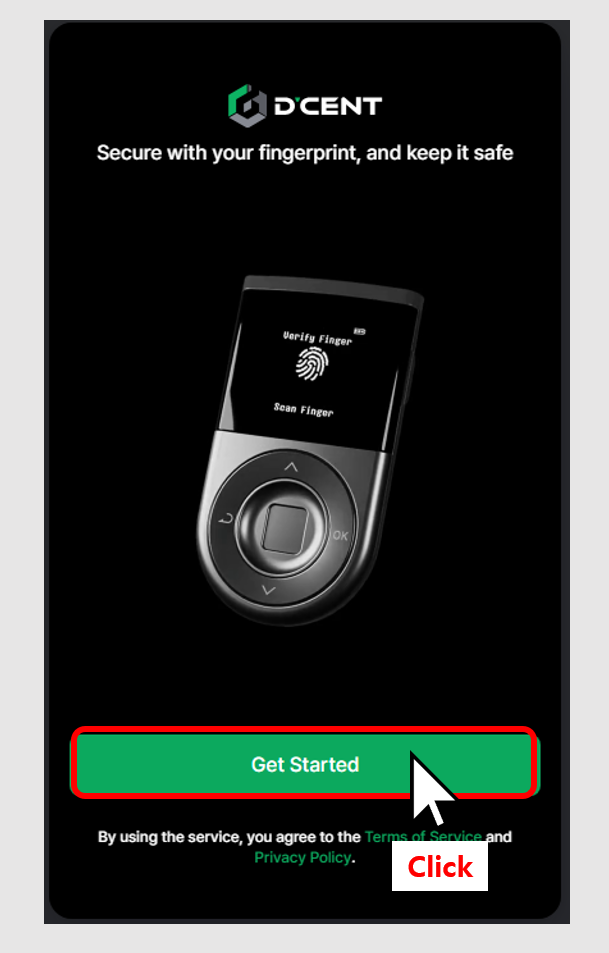
2) Click the "Get Started" button.
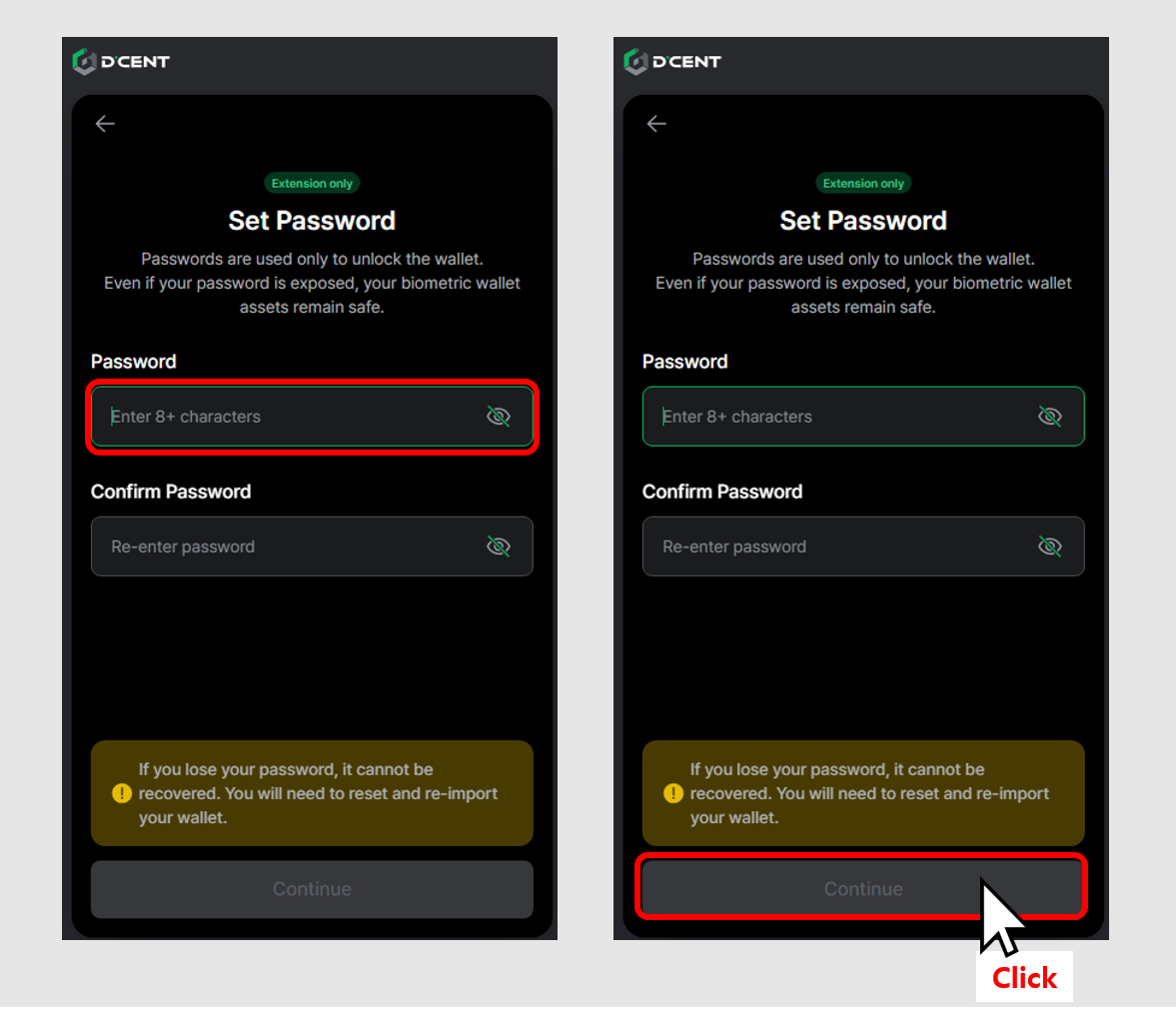
3) Set a password for DCENT Wallet for Chrome.
This password is used to unlock DCENT Wallet for Chrome and is separate from the password of your Biometric Wallet or the DCENT mobile app.
The password must meet the following requirements:
- Minimum length of 8 characters
- At least one letter (uppercase and lowercase allowed)
- At least one number
- Do not reuse passwords from other services
- For enhanced security, it is recommended to include at least one uppercase letter and one special character.
Re-enter the same password to confirm, then click "Continue".
If you lose your password, it cannot be recovered. You will need to reset and reinitialize the wallet.
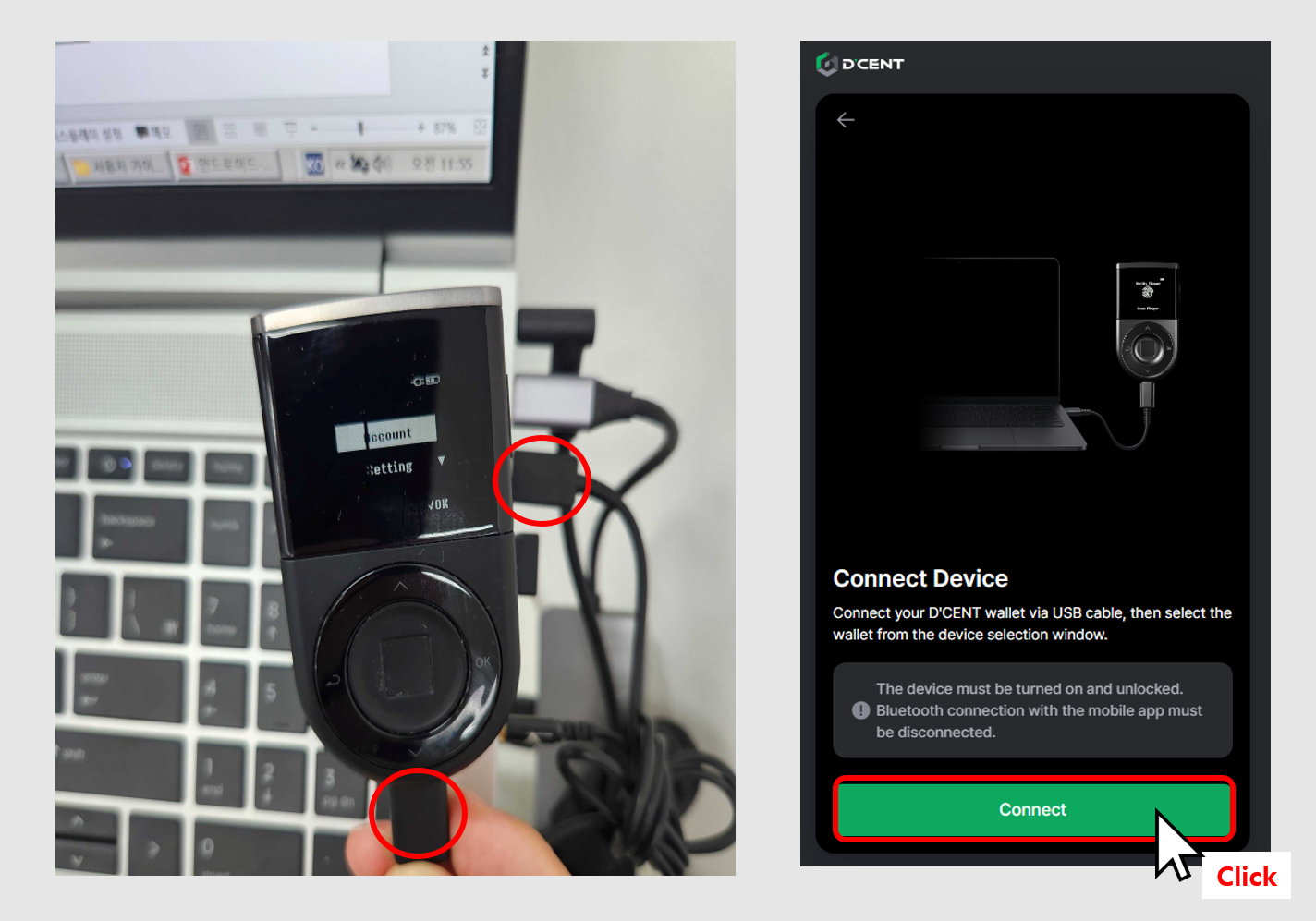
4) After setting the password, connect your Biometric Wallet.
Turn on your Biometric Wallet, unlock it with your fingerprint or PIN, and connect it to your PC with a USB cable. Then click the "Connect" button on the DCENT Wallet for Chrome screen.
5) When Chrome shows the device pairing popup, select DCENT - Paired and click "Connect".
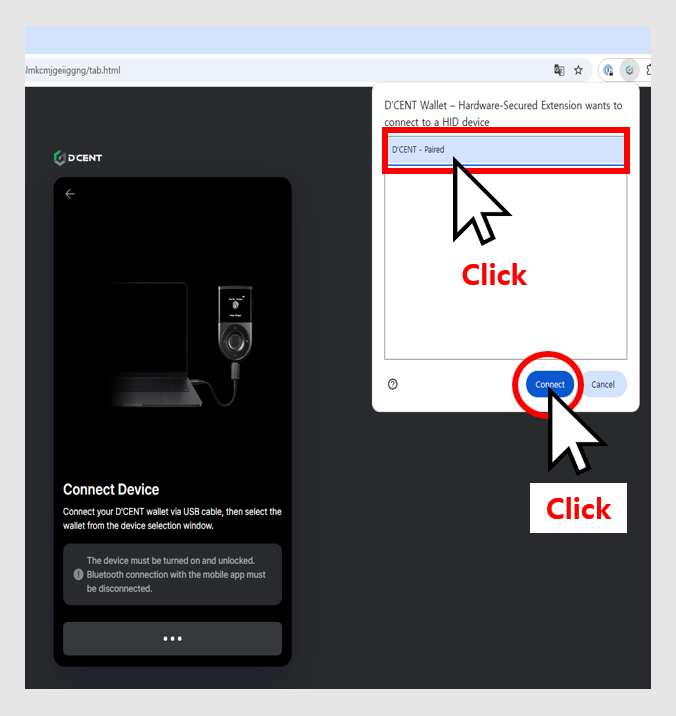
6) Your Biometric Wallet and DCENT Wallet for Chrome will start syncing. This can take a few minutes.
Once syncing finishes, the accounts and assets stored on your Biometric Wallet appear in the My Wallet tab of DCENT Wallet for Chrome.
For a stable connection, fully close the DCENT mobile app on your phone or turn off Bluetooth.
Using DCENT Wallet for Chrome
DCENT Wallet for Chrome shares the same UX as the mobile app.
You can use features such as Add Account, Send / Receive coins, Swap, and the DApp browser (Discovery) the same way on PC as you do on mobile.
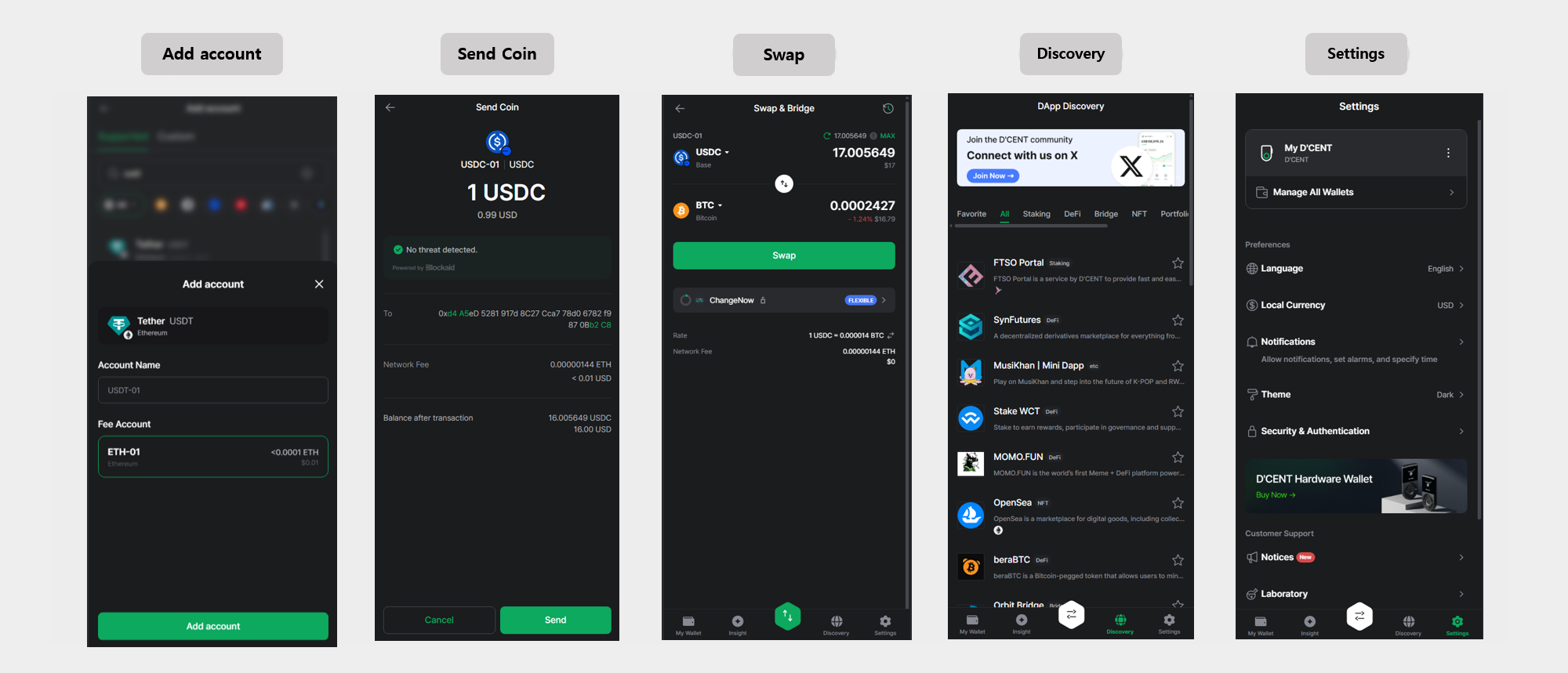
For basic usage such as Add Account, Send coins, and Swap, please refer to the user guides below.
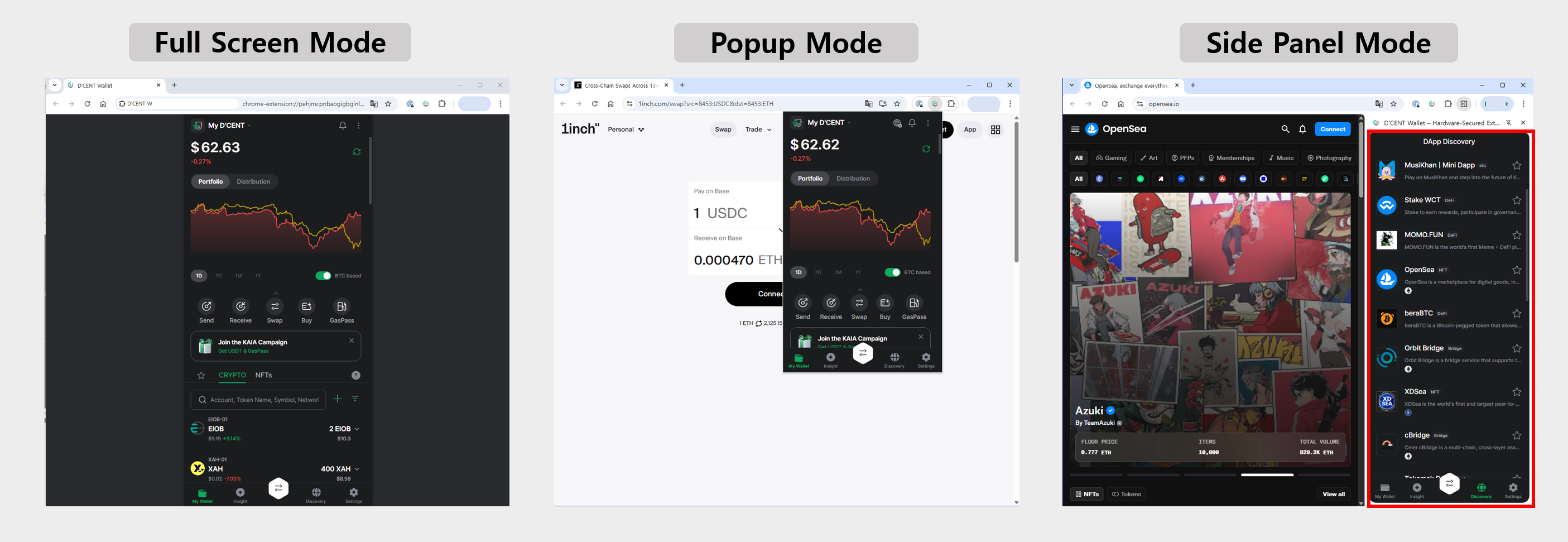
DCENT Wallet for Chrome offers three display modes you can choose based on how you work.
The available modes are Full Screen, Popup, and Side Panel.
To switch modes, click the More (⋮) button in the My Wallet tab.
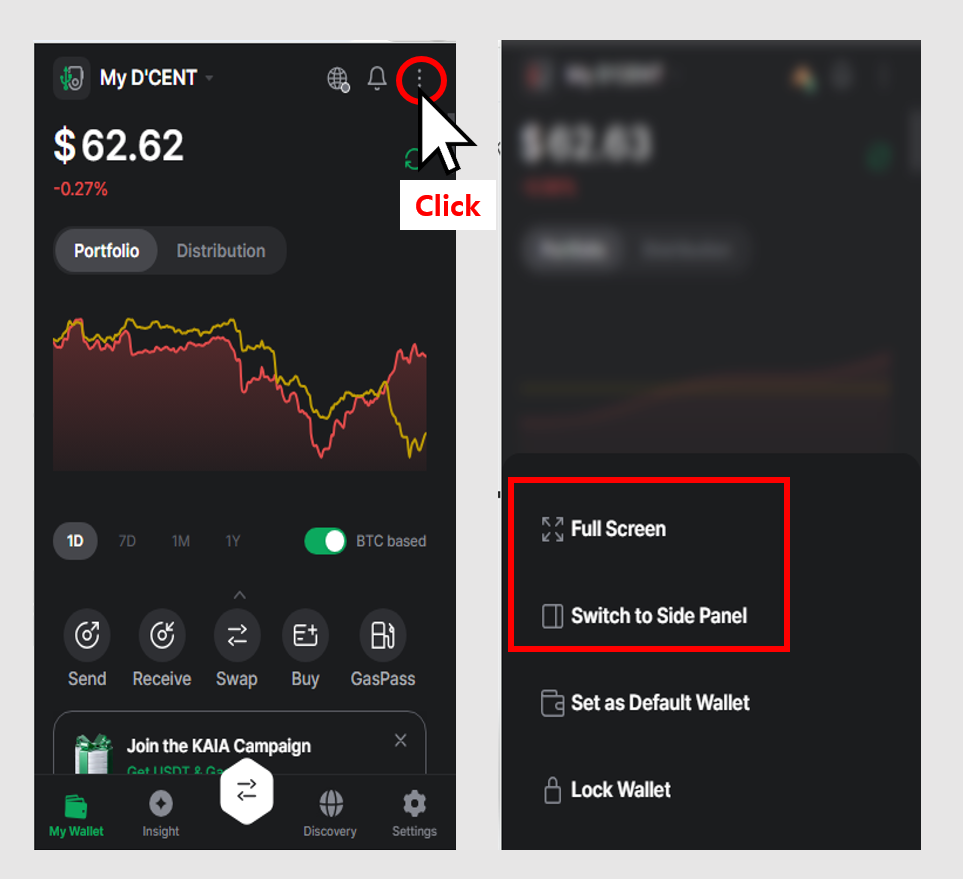
Connecting to a DApp in DCENT Wallet for Chrome
With DCENT Wallet for Chrome, you can connect to DApps from your PC without launching the mobile app.
You can open DApps from the Discovery tab in DCENT Wallet for Chrome, or by searching for them in your PC browser or entering the URL directly. When the DApp asks you to connect a wallet, choose DCENT Wallet for Chrome.
If you click a DApp from the list in the Discovery tab, that DApp's website opens in your PC browser.
For more details on the Discovery tab, supported networks, and the list of available services, please refer to the user guide below.
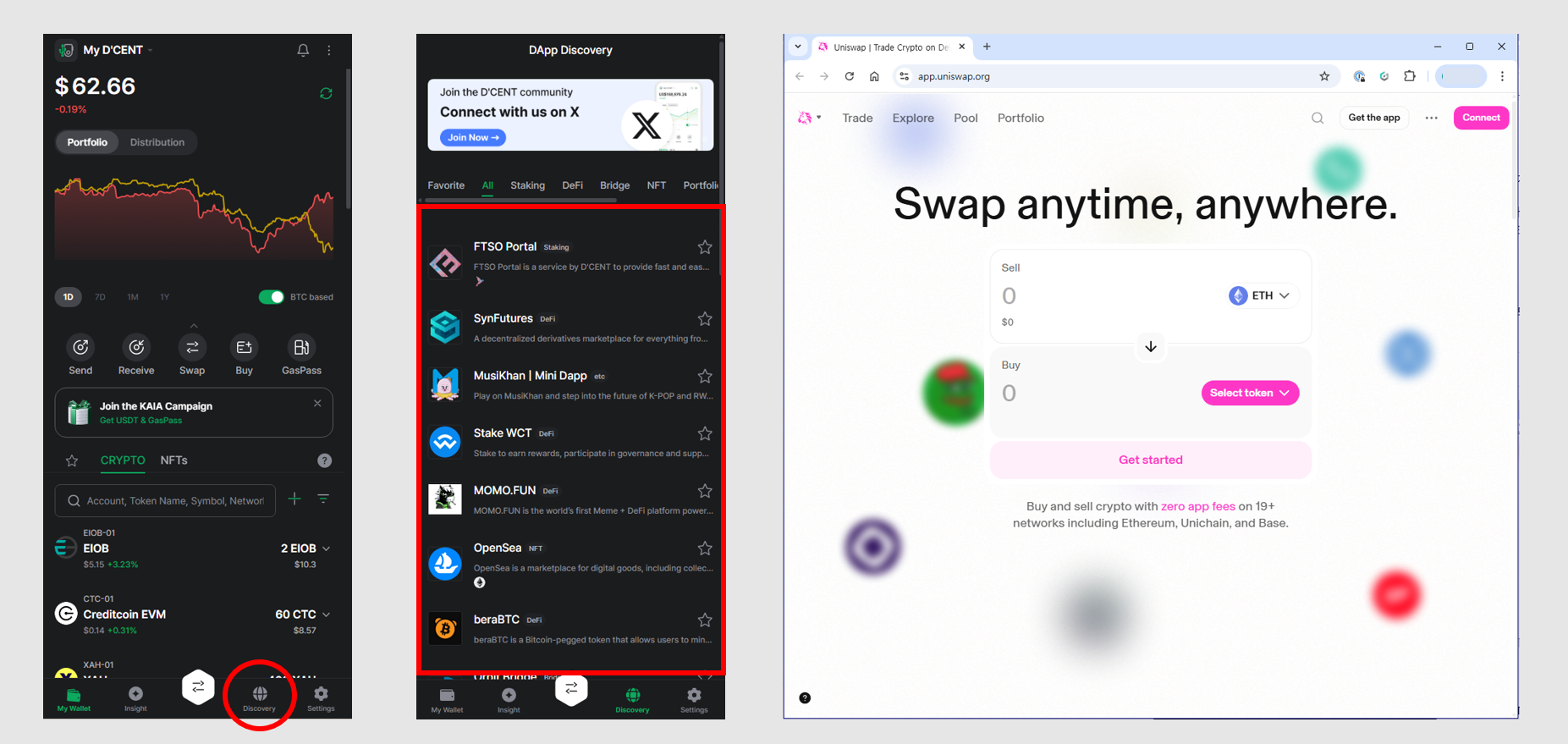
Connecting to Uniswap with DCENT Wallet for Chrome
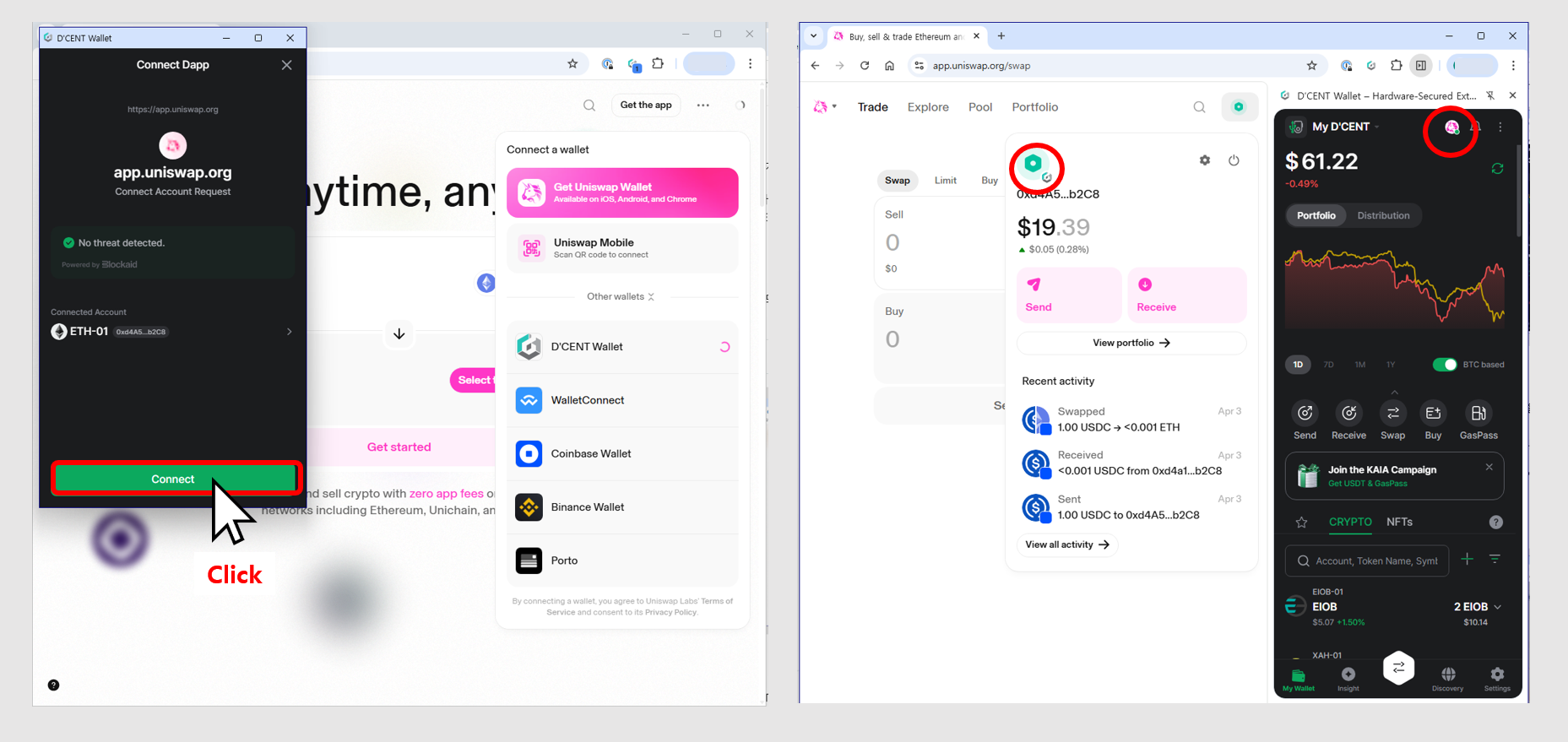
For EVM-based DApps such as Uniswap, you can connect using the DCENT Wallet option in the DApp's wallet selection menu.
1) From the Discovery tab, open Uniswap and click the "Connect" button on the DApp website.
2) In the list of wallet options, choose "DCENT Wallet".
.png)
3) A connection request appears inside DCENT Wallet for Chrome. Choose the account and network you want to use with Uniswap, then click "Connect".
4) Once Uniswap confirms the connection, you can start using the DApp.
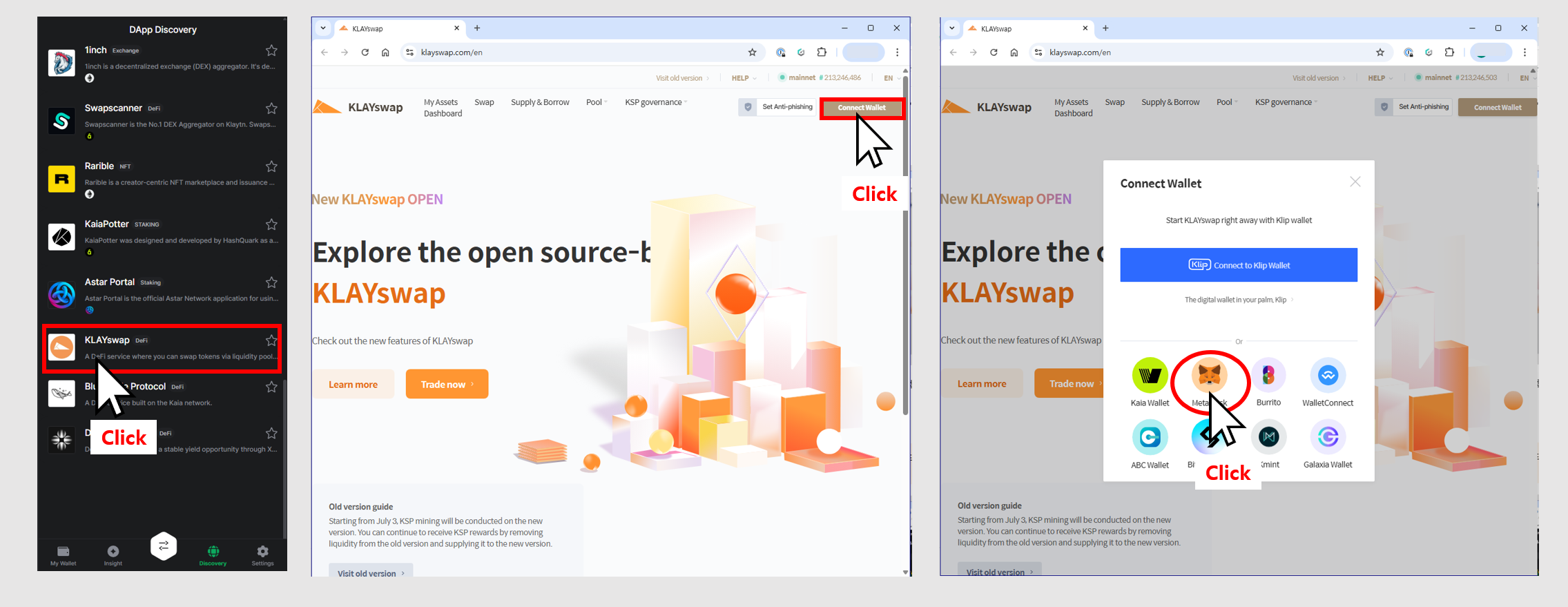
Connecting to KLAYswap with DCENT Wallet for Chrome
Some DApps such as KLAYswap or Swapscanner do not list DCENT Wallet in their wallet selection menu.
In that case, you can still use DCENT Wallet for Chrome by connecting through another extension wallet entry such as MetaMask.
1) From the Discovery tab, open KLAYswap and click the "Connect Wallet" button on the DApp website.
2) In the list of wallet options, choose "MetaMask".
3) A connection request appears inside DCENT Wallet for Chrome.
Choose the account you want to use with KLAYswap, then click "Connect".
4) Once KLAYswap confirms the connection, you can start using the DApp.
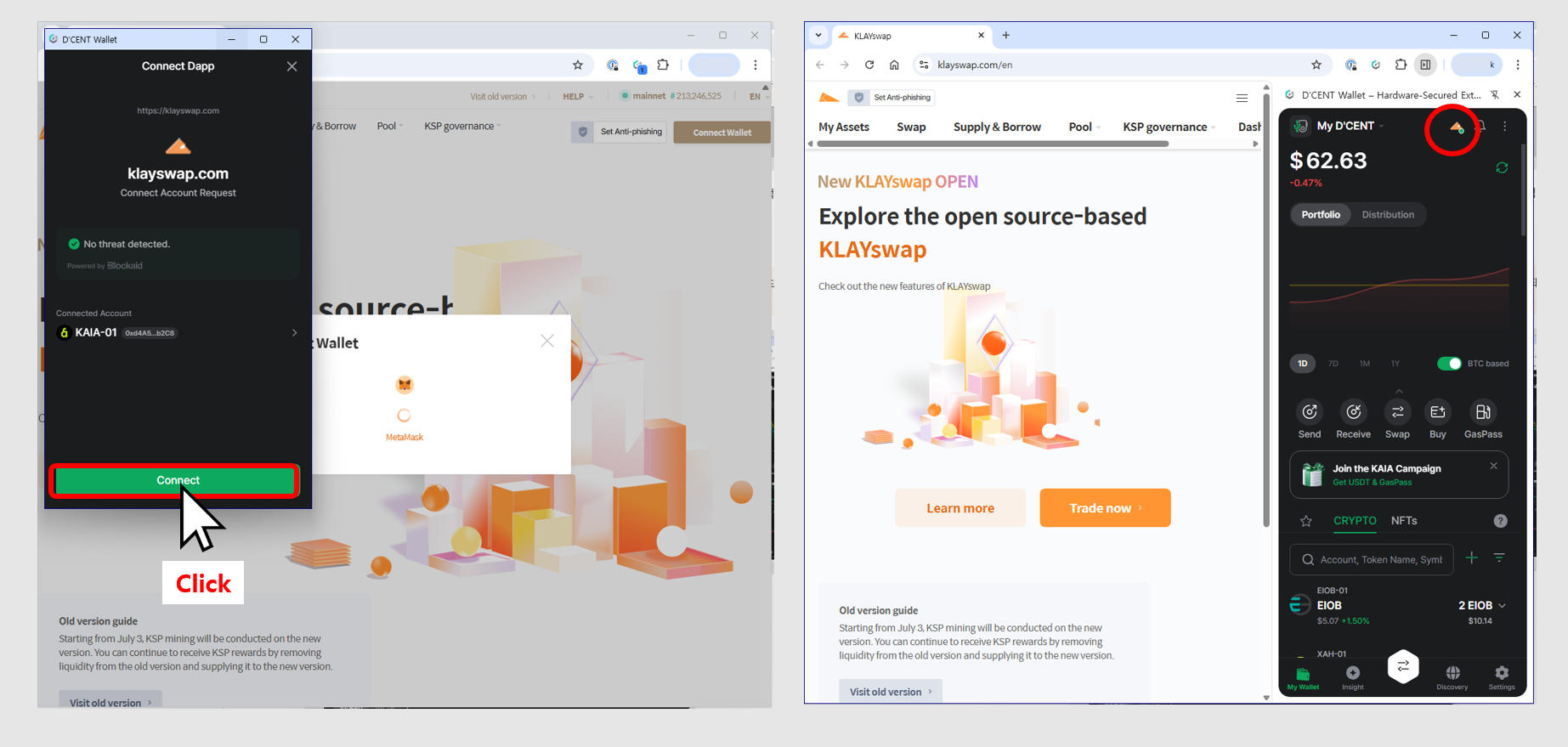
If MetaMask or other extension wallets are installed in your browser, you may need to disable them so DCENT Wallet for Chrome works properly.
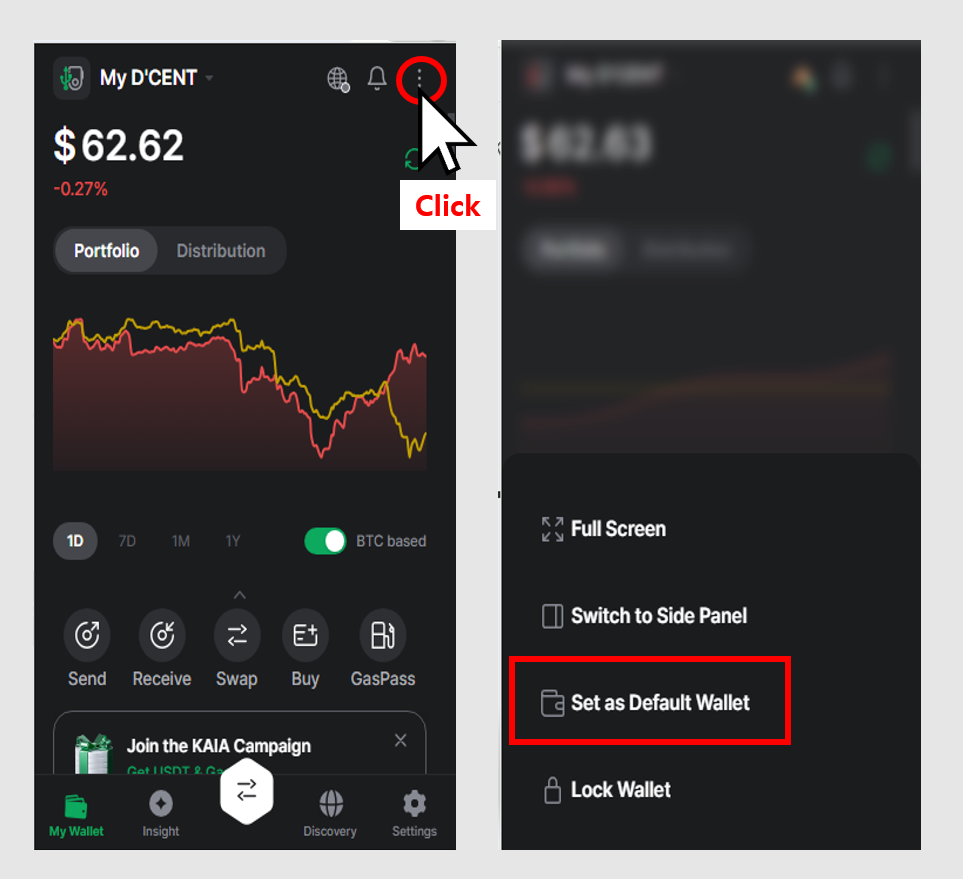
For convenience, you can set DCENT Wallet for Chrome as your default wallet.
In the My Wallet tab, click the More (⋮) button and select "Set as Default Wallet".
After that, DApps will connect to DCENT Wallet for Chrome automatically, without asking you to pick a wallet each time.
Disconnecting a DApp in DCENT Wallet for Chrome
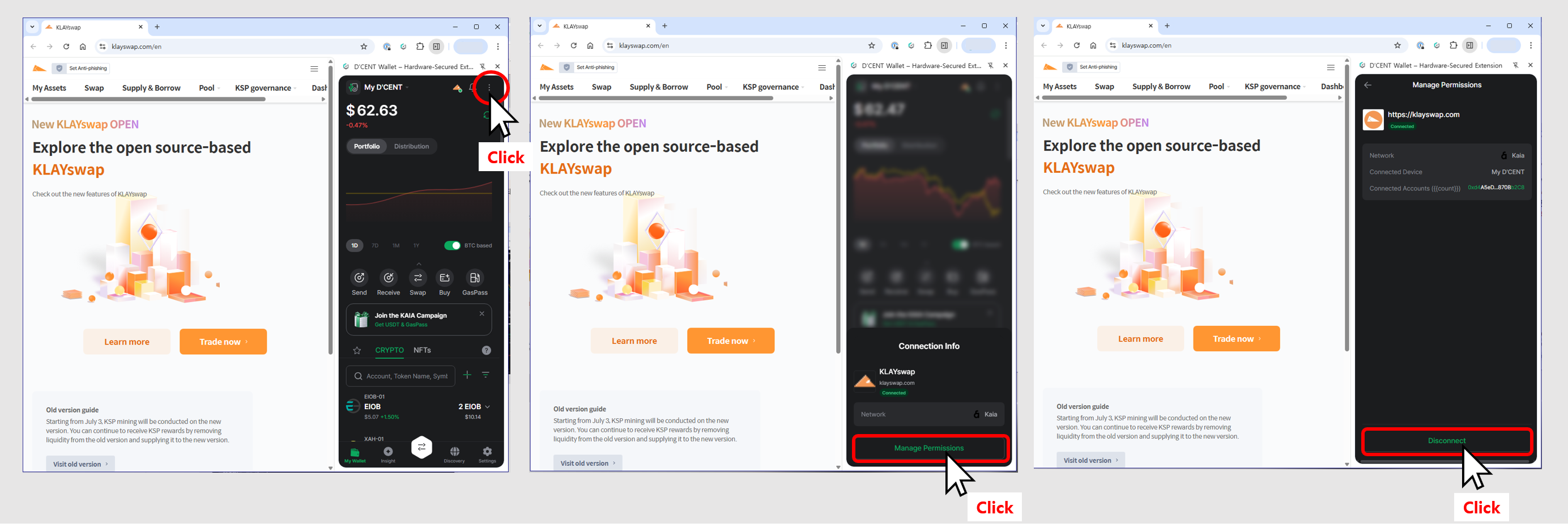
If you connected to a DApp by mistake or simply want to disconnect, you can do so in one of the following ways:
1) From the My Wallet Tab: Click the Connected DApps icon in the top-right corner → select Manage Permissions → click the Disconnect button.
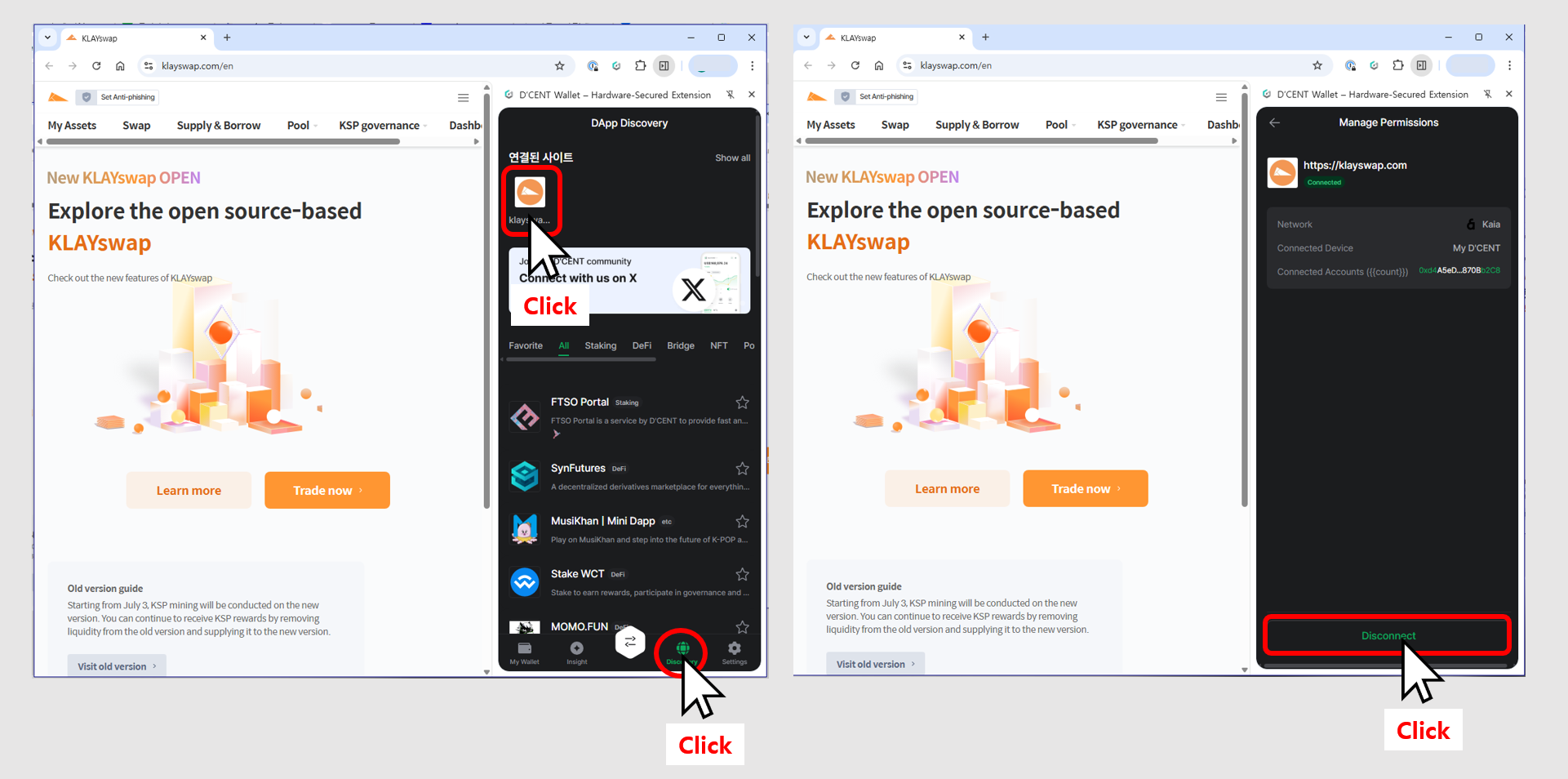
2) From the Discovery Tab: Go to Connected Sites at the top → select the connected DApp → click the Disconnect button.
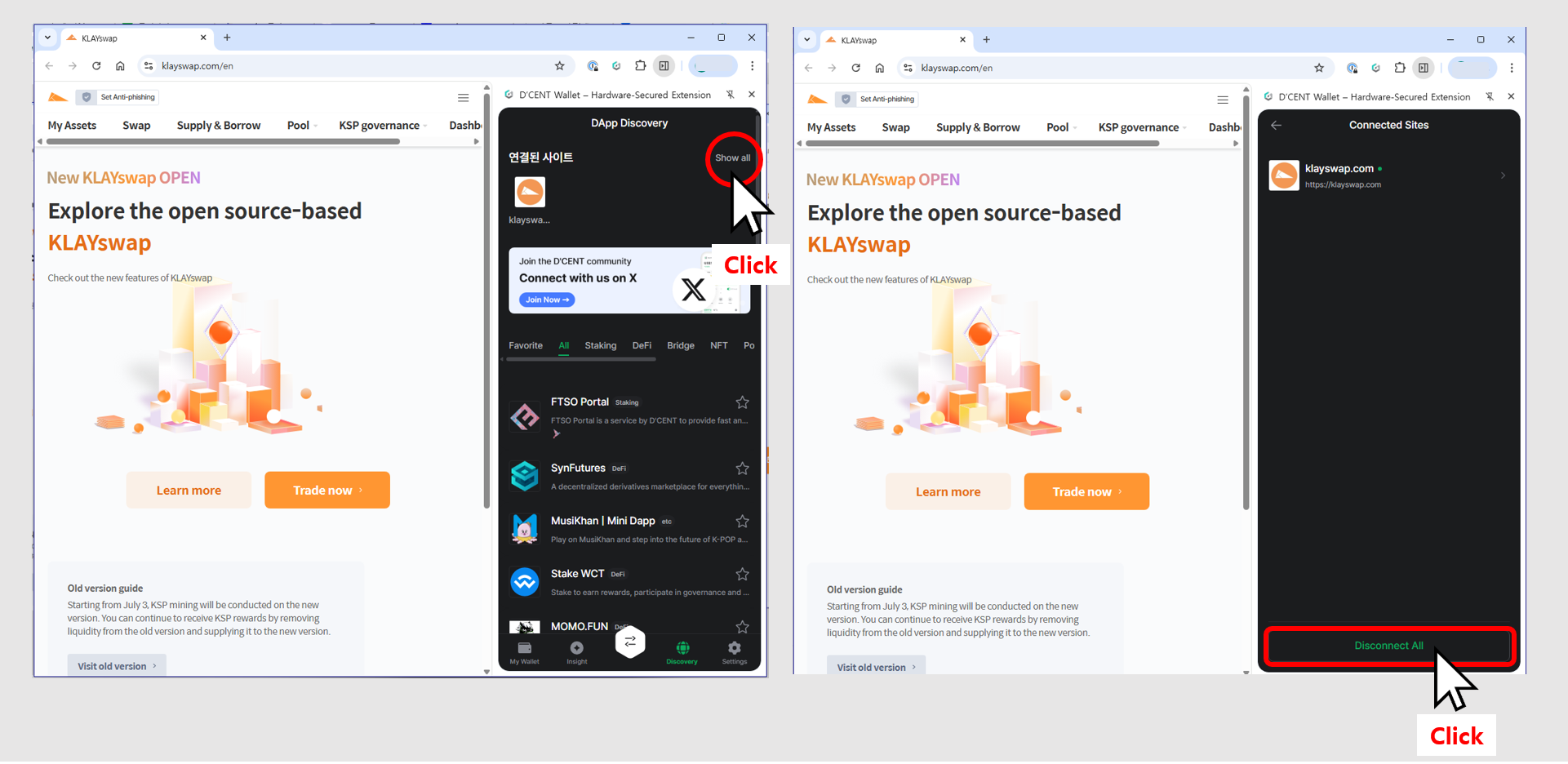
You can also go to Connected Sites → click Show all → then select Disconnect All to remove every connection at once.
Setting Auto-Lock Time and Changing Password
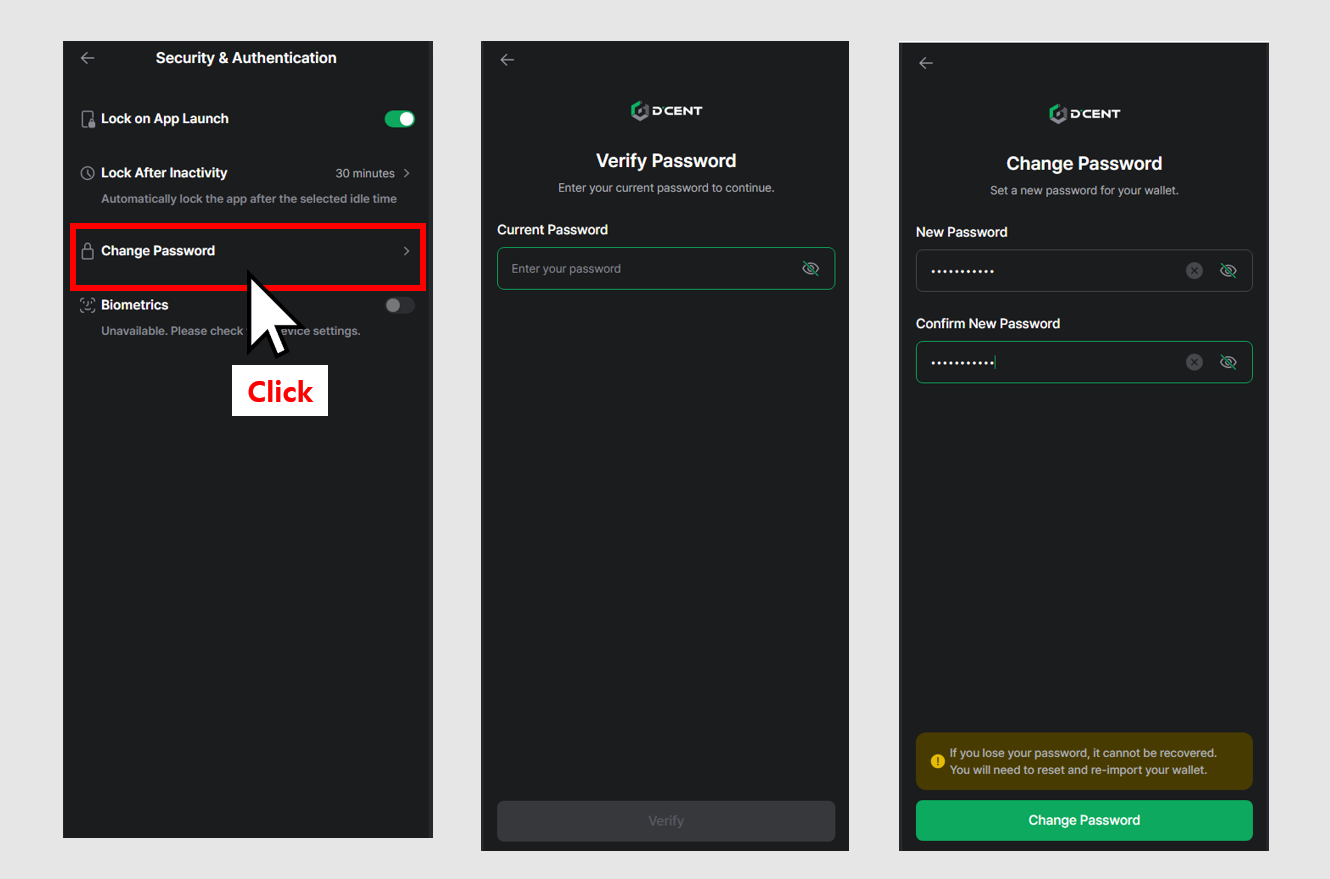
You can set the auto-lock time and change your password under Settings > Security & Authentication in DCENT Wallet for Chrome.
The auto-lock time is configured in the "Lock After Inactivity" menu. The default is 30 minutes, and you can change it to 5 minutes, 30 minutes, 2 hours, 6 hours, 12 hours, or Never.
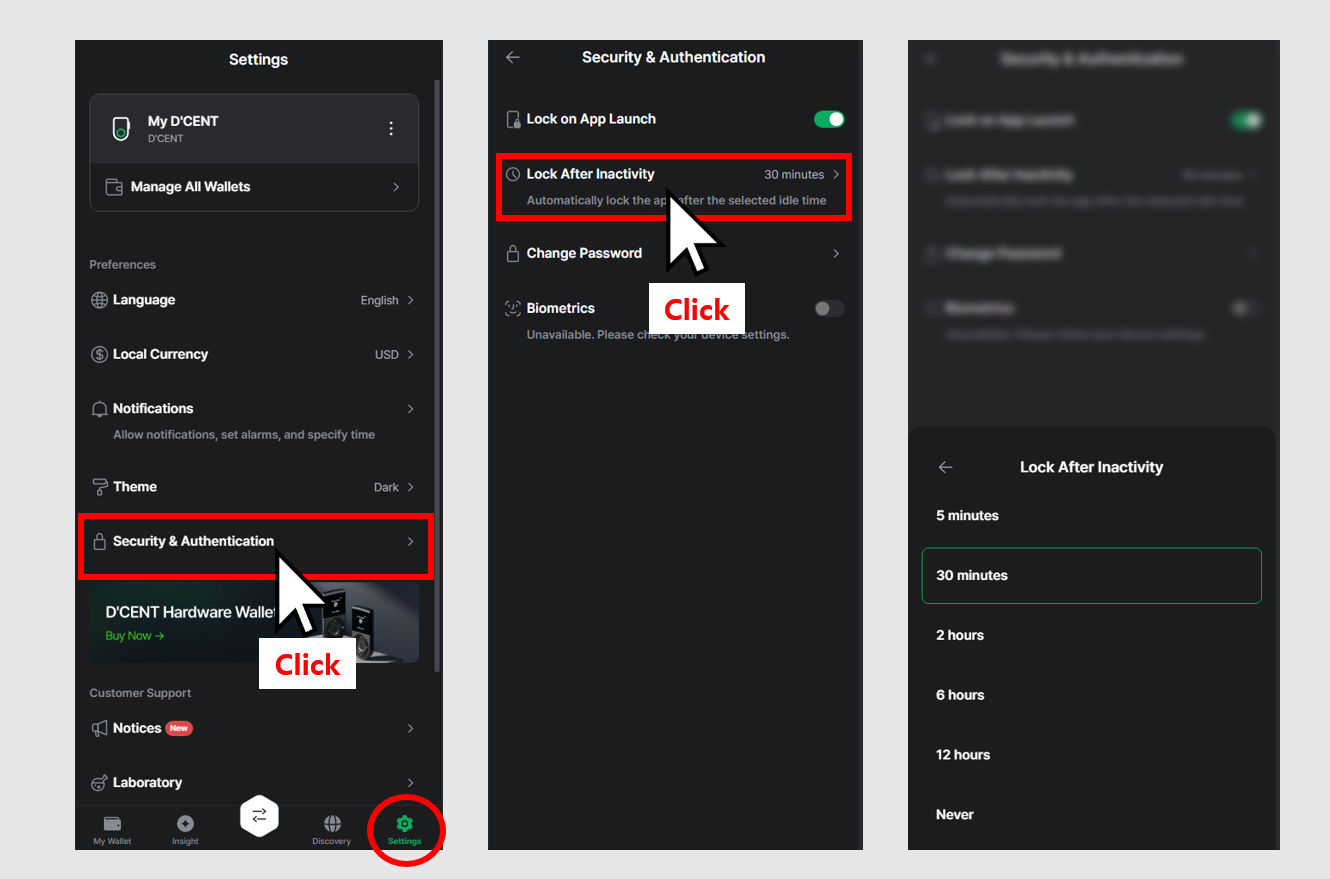
You can also lock the wallet manually by clicking the More (⋮) button in the My Wallet tab and choosing Lock Wallet, or simply by closing or restarting your browser.
For enhanced security, it is recommended to set a shorter auto-lock time or manually lock the wallet when not in use.
The "Change Password" menu lets you update the password for DCENT Wallet for Chrome.
This is the password you created during initial setup and is required to unlock DCENT Wallet for Chrome.
FAQ
Q. Is my wallet safe when using it on a PC?
A. DCENT Wallet for Chrome is protected by its own lock password and by biometric (fingerprint) or PIN authentication on the Biometric Wallet.
While the wallet is locked, no one can access it. Even if your password is exposed, every transaction still requires signature approval via fingerprint or PIN on the Biometric Wallet, so your assets stay safe.
Q. I connected via USB, but my DCENT device does not appear in the device list.
A. Please check the following in order:
- Make sure your DCENT Biometric Wallet is powered on and unlocked with your fingerprint or PIN.
- Try a different USB port or cable (the cable must support data transfer, not just charging).
- Make sure Chrome is updated to the latest version.
- Check that the DCENT extension is enabled at chrome://extensions/.
Q. Where are signature request notifications displayed?
A. Notifications appear as a popup in the Chrome notification area at the bottom right of your screen.
At the same time, the extension icon shows a badge with the number of pending notifications.
Clicking the notification takes you straight to the approval / rejection screen.
Q. I am not receiving any notifications. What should I do?
A. Notifications may be turned off in your OS or Chrome settings. Please check the following:
- Check Chrome notification settings
Enterchrome://settings/content/notificationsin the address bar and make sure no DCENT-related items are blocked. - Allow Chrome notifications on Windows
Settings → System → Notifications → Google Chrome → Turn notifications ON. - Allow Chrome notifications on macOS
System Settings → Notifications → Google Chrome → Enable "Allow Notifications".
Q. Why can’t I see the DCENT wallet option or why am I prompted to install a wallet on DApp services (e.g., KLAYswap, Swapscanner)?
A. Some DApps maintain their own wallet lists, so DCENT Wallet may not appear as an option.
In that case, you can connect using MetaMask-compatible mode.
How to connect:
- Disable other EVM wallet extensions such as MetaMask or Rabby
(turn OFF their extension toggle atchrome://extensions/). - Set the DCENT Wallet for Chrome extension as your default wallet.
- Select MetaMask in the DApp's wallet connection options.
- DCENT Wallet for Chrome will respond in place of MetaMask and connect normally.
Q. My DCENT Extension is not updating to the latest version.
A. This is normal behavior.
Chrome automatically updates extensions on a per-profile basis and checks for updates at regular intervals while each profile is running. As a result, an older version may temporarily be displayed in profiles that are not frequently used. The latest version will be applied automatically after some time.
If you would like to update to the latest version immediately, please use one of the following methods.
Method 1 — Restart Chrome
Chrome checks for extension updates when it starts.
- Close all Chrome windows completely.
- Launch Chrome again.
→ In most cases, the latest version will be applied shortly afterward. However, downloading and applying the update may take some time. If the version is not updated immediately, please wait a few minutes or use Method 2 below.
Method 2 — Manually Update the Extension
- Enter
chrome://extensionsin the address bar. - Enable Developer mode in the upper-right corner.
- Click the Update button in the upper-left corner.
- Verify that the DCENT Wallet extension has been updated to the latest version.
※ Chrome Web Store pages do not provide a dedicated update button. Only "Add to Chrome" or "Remove from Chrome" buttons are available.
※ Reinstalling the extension will also install the latest version. However, some local settings may be reset, so we recommend trying the methods above first.
※ You can check your current version in DCENT Wallet → Settings → App Info (Check for Updates). The latest available version can be found in Chrome Web Store → DCENT Wallet → Details → Version.