Set up the DCENT S Card Wallet
To use the DCENT S Card Wallet, you need to update the DCENT mobile app to v9.2.0.
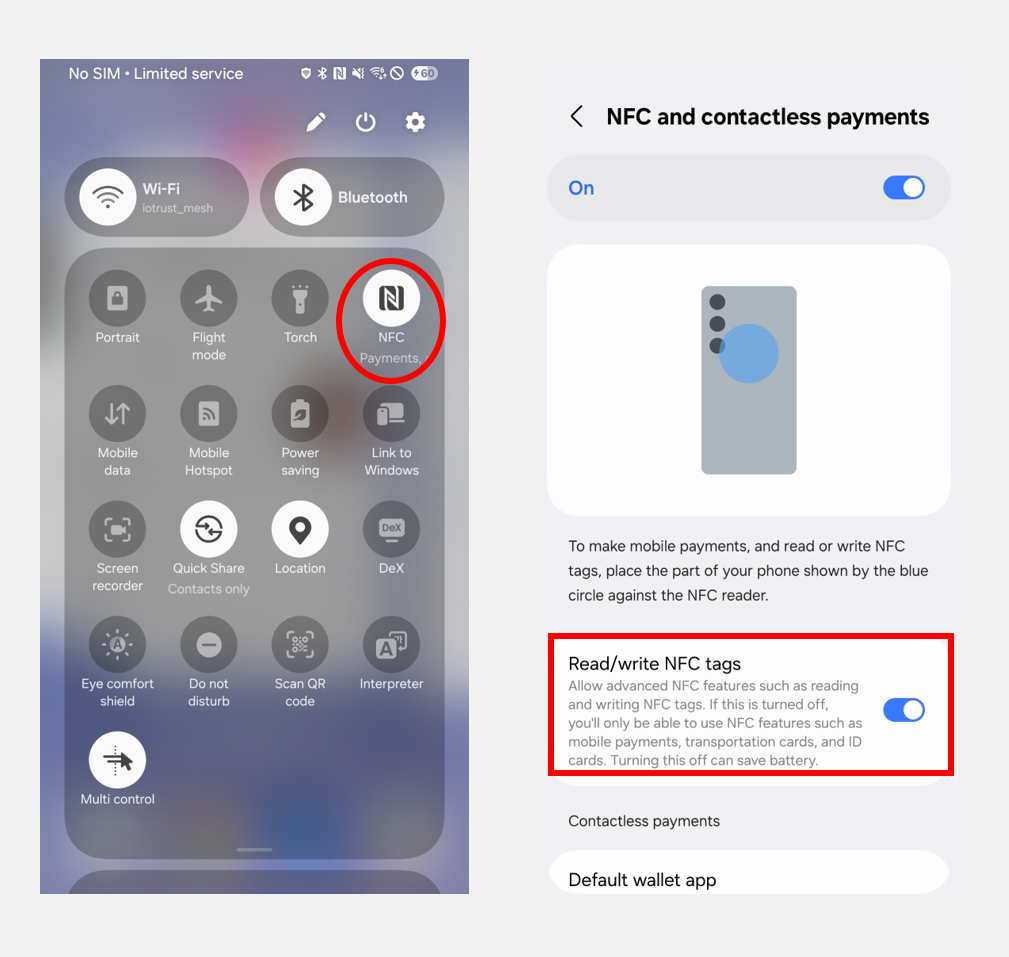
Enable NFC on your phone
On iOS, NFC is enabled by default, so no extra setup is required.
On Android, turn on the "Read/Write NFC tags" option in your settings.
Download the app (Android & iOS)
Search for "DCENT Wallet" on the Google Play Store or App Store, or install the DCENT mobile app using the official download links below.
Set up the mobile app
This guide is based on DCENT mobile app v10.0.0.
Select the wallet mode
When you launch the mobile app for the first time, you will go through the basic app setup and wallet mode selection.
If you already use a Biometric Wallet or App Wallet and have newly purchased a DCENT S Card Wallet, you can add it from the "Manage All Wallets" menu and use them together. For details, see Manage All Wallets.
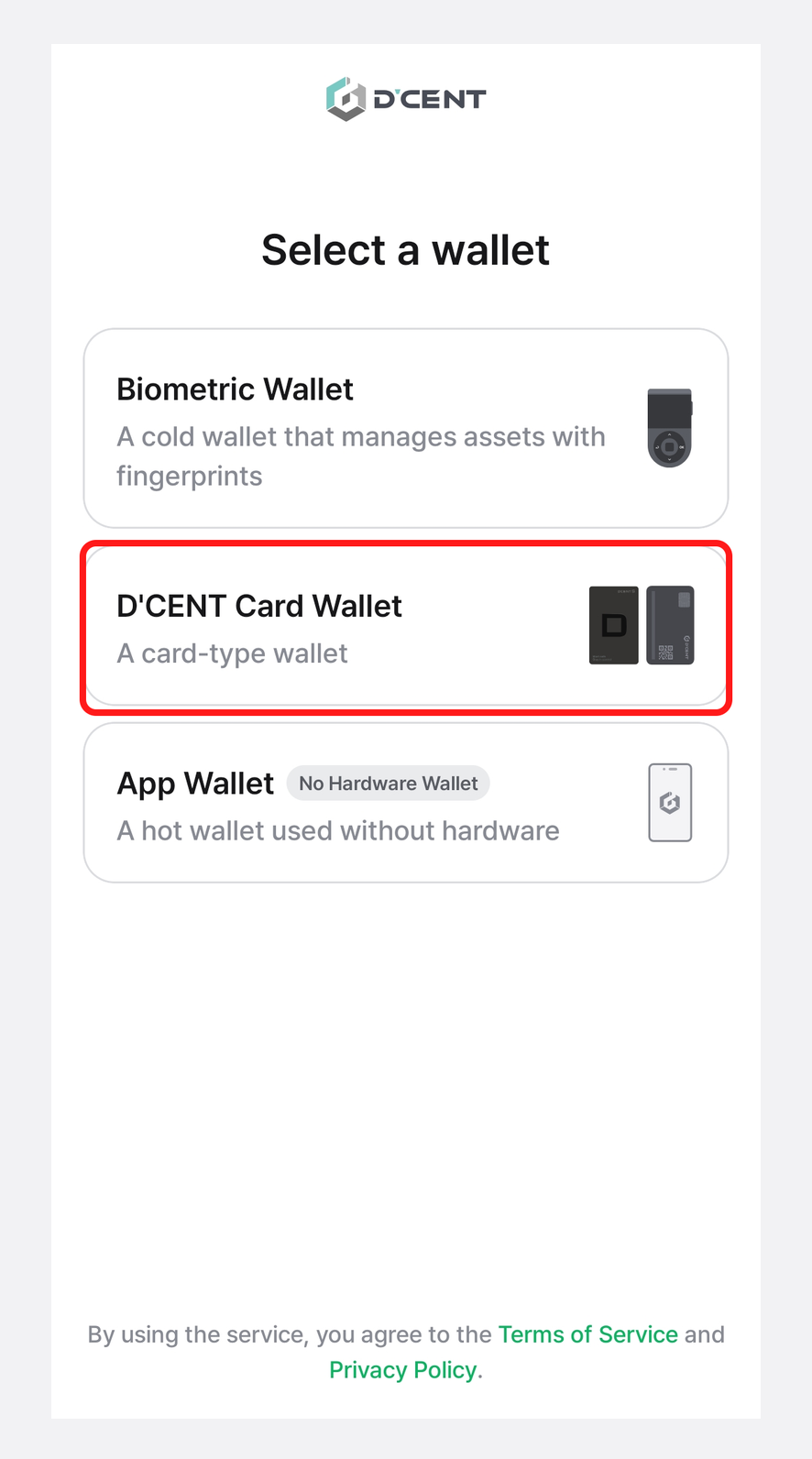
Launch the DCENT mobile app and select "DCENT Card Wallet" as shown below.
Set mobile app permissions
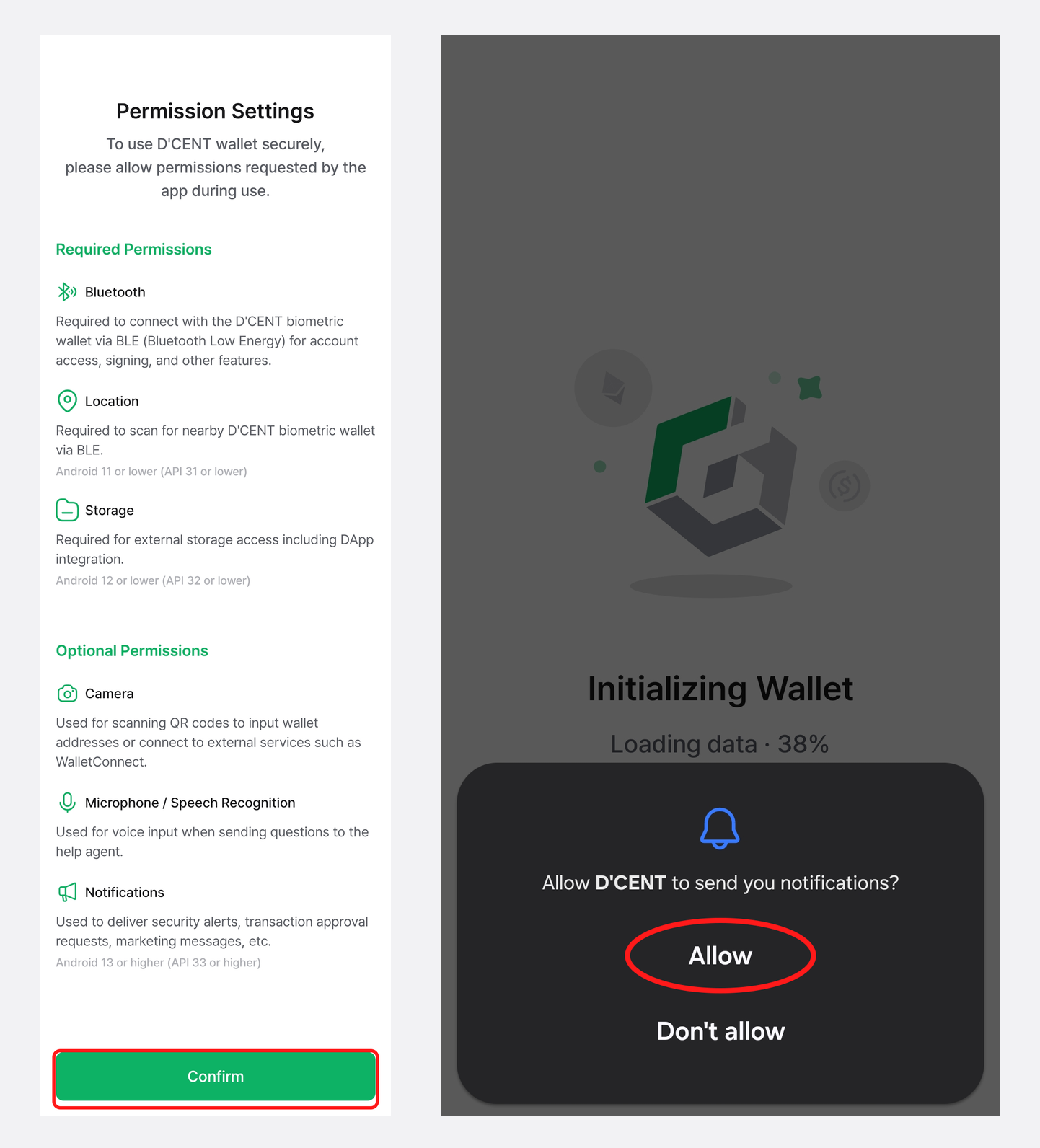
A pop-up will appear asking you to grant app permissions. Review the required permissions and tap "Confirm".
Next, when the notification permission prompt appears, tap "Allow" to continue. You can turn notifications on or off later in the "Settings" menu.
Set up the DCENT S Card Wallet
Scan your DCENT S Card Wallet
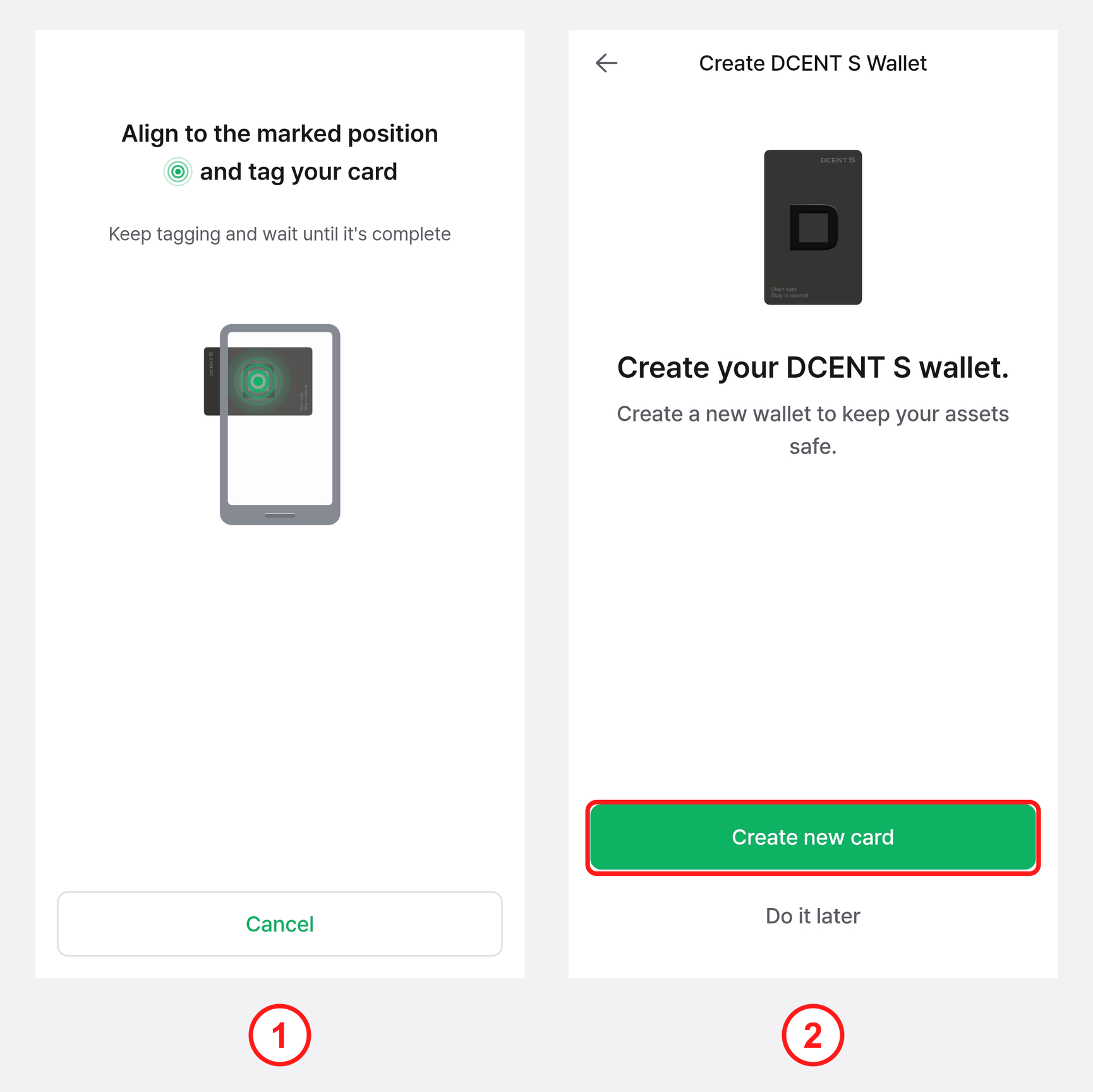
1) Following the on-screen instructions, tap the DCENT S Card Wallet to the back of your phone to scan it.
2) Once the card is recognized, tap "Create new card" to start creating the wallet.
The location of the NFC antenna varies by phone model. Check your phone manufacturer's manual to find the exact NFC antenna location before tapping.
A thick case, a physical card stored in the case, a ring holder (such as a phone grip), or metallic/magnetic accessories (such as MagSafe) can degrade NFC recognition. If the card is not recognized well, remove these items and try again.
If you remove the card too quickly, recognition may fail, so keep the card in place long enough.
Set the PIN
Set a DCENT S PIN to protect your DCENT S Card Wallet.
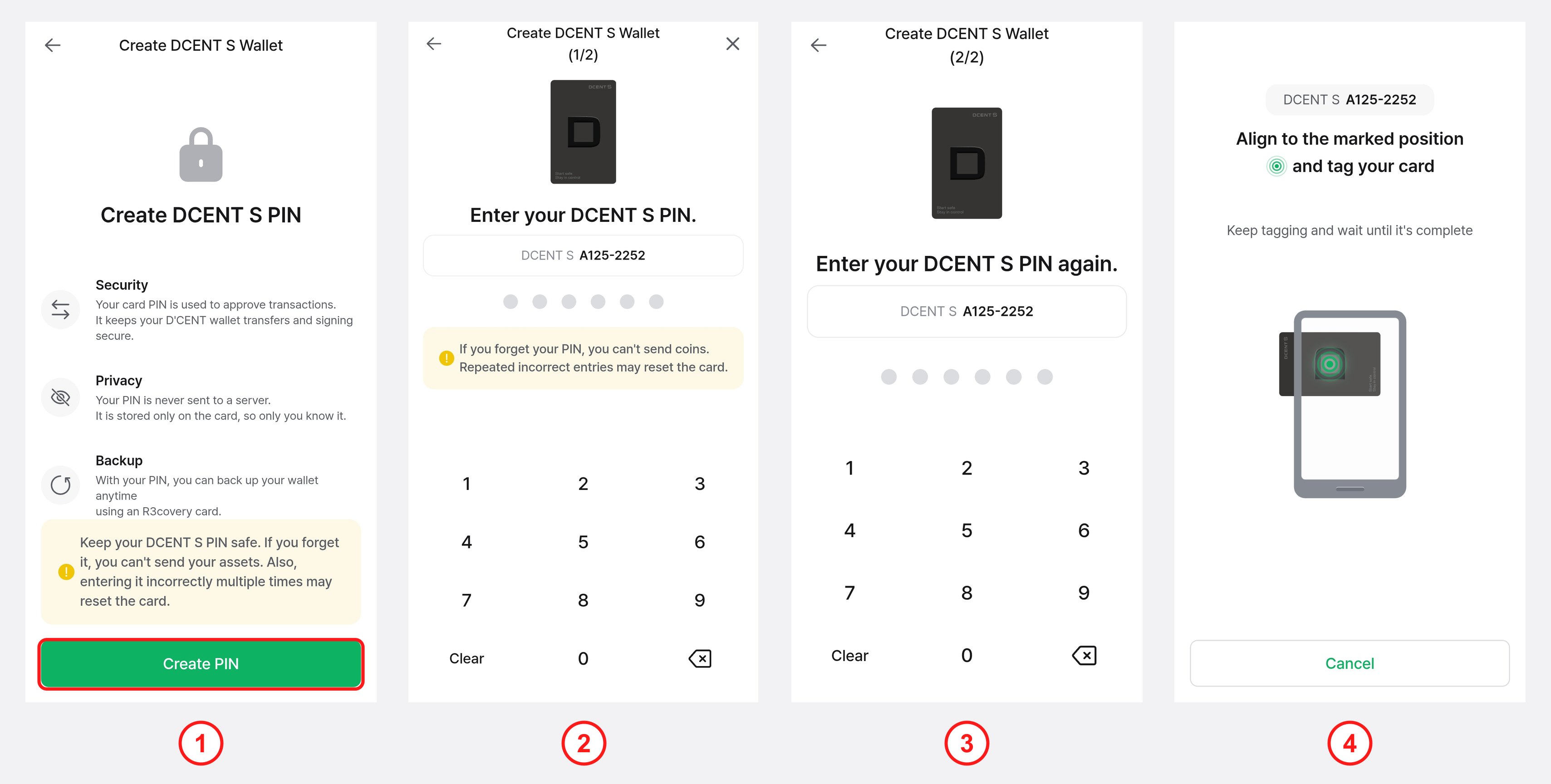
1) Tap "Create PIN" to start setting the PIN.
2) Enter a 6-digit PIN of your choice.
3) Enter the same PIN once more to confirm.
4) Tap the DCENT S Card Wallet to the back of your phone to scan it, and the PIN setup is complete.
If you forget your DCENT S PIN, you will not be able to send coins. For security, PIN entry is allowed up to 10 times; entering it incorrectly 10 or more times may reset the card, so be sure to remember the PIN you set.
If you have set a 6-digit lock password for the DCENT mobile app, be careful not to confuse it with your DCENT S PIN.
Back up your wallet
To prepare for losing or damaging your DCENT S Card Wallet, or for the card being reset after 10 or more failed PIN attempts, you should back up your DCENT S Card Wallet to the R3covery Card. You can skip this and back up later, but we strongly recommend completing the backup for safe asset management.
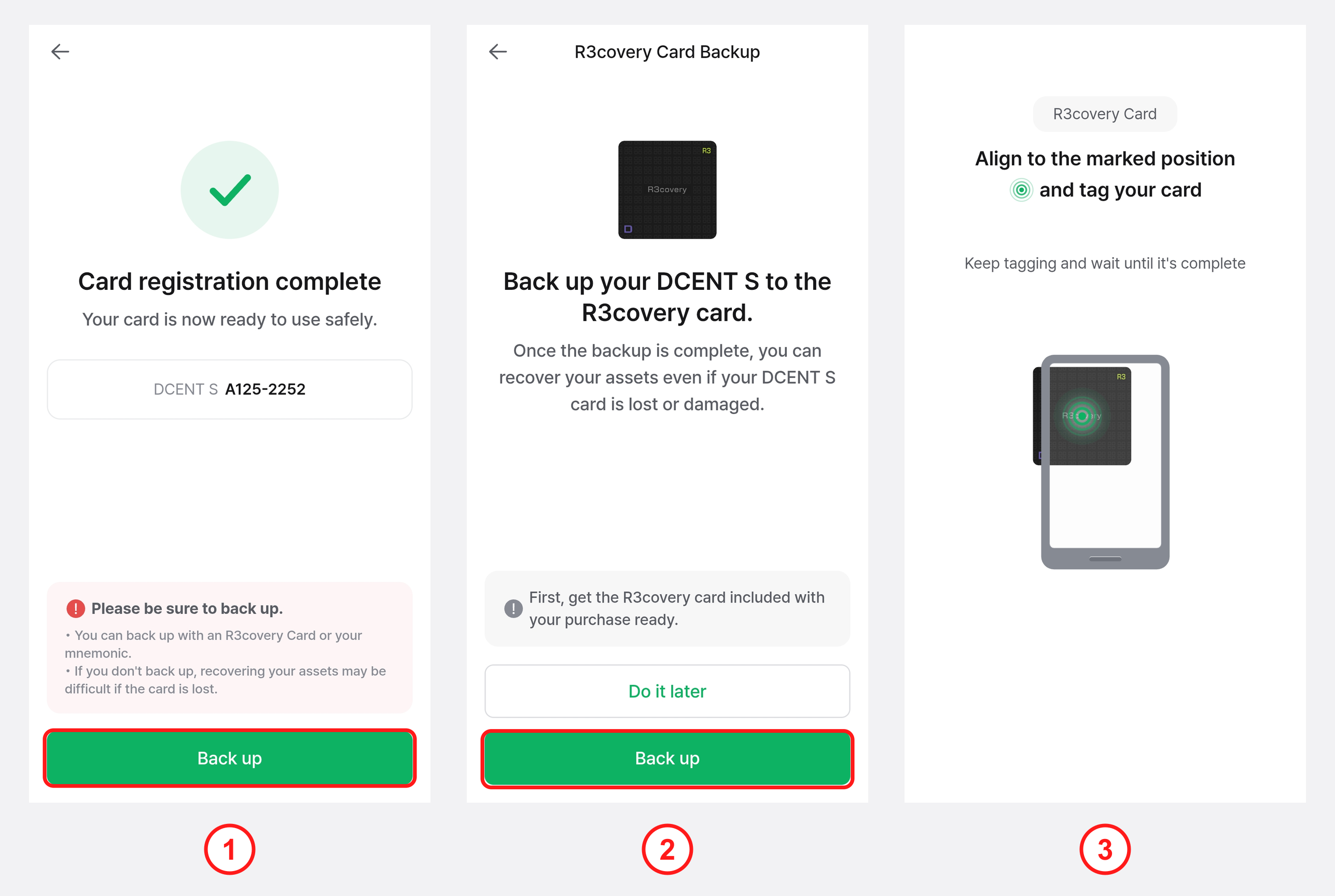
1) Once the DCENT S Card is registered, tap "Back up" to start the backup.
2) Prepare the R3covery Card included with your purchase and tap "Back up".
3) Following the on-screen instructions, tap the R3covery Card to the back of your phone.
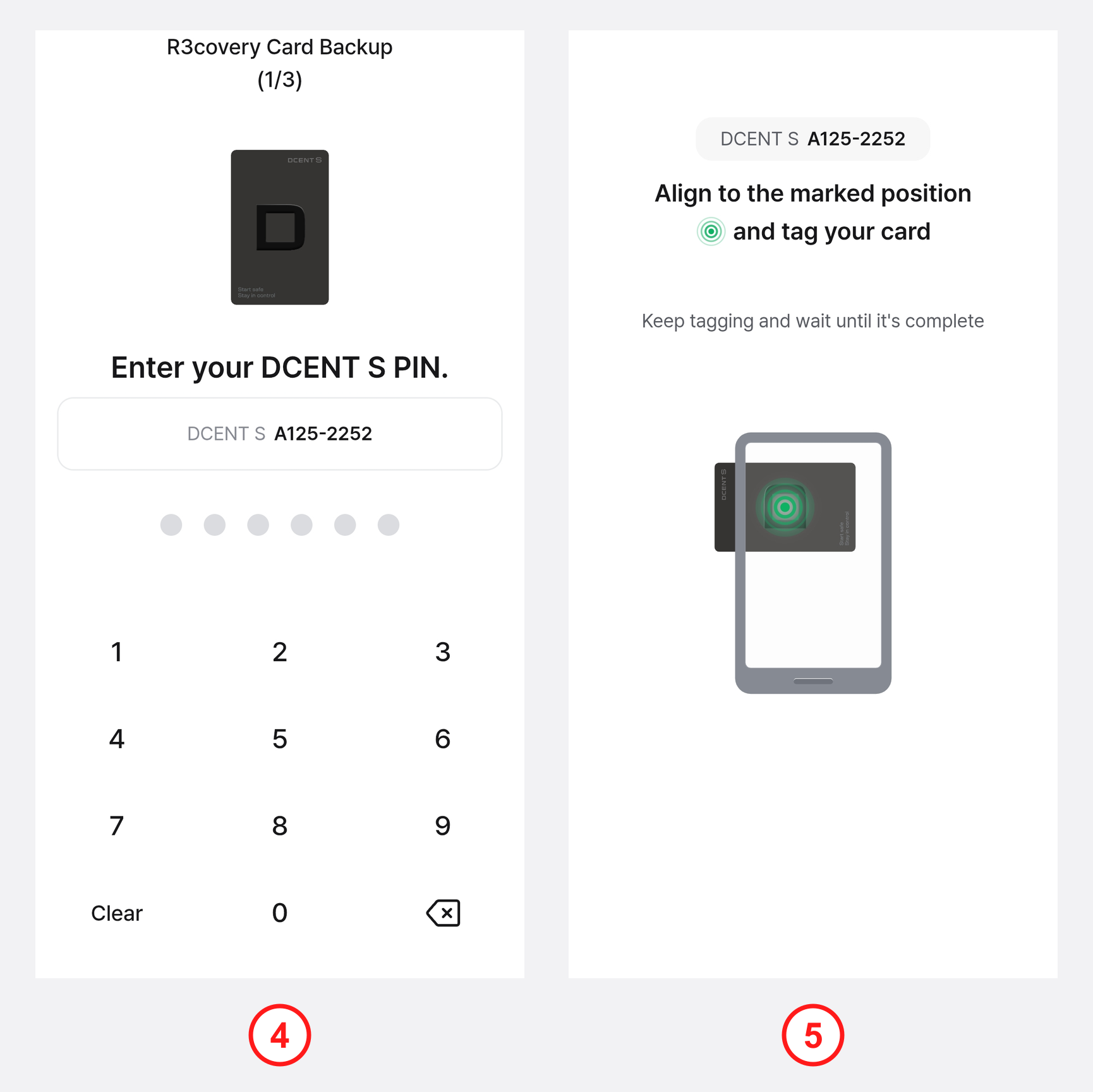
4) Enter your DCENT S PIN to back up the private key of your DCENT S Card Wallet.
5) Tap the DCENT S Card Wallet to the back of your phone to extract the private key.
At this step, you must enter the PIN of the DCENT S Card and tag the DCENT S Card — not the R3covery Card.
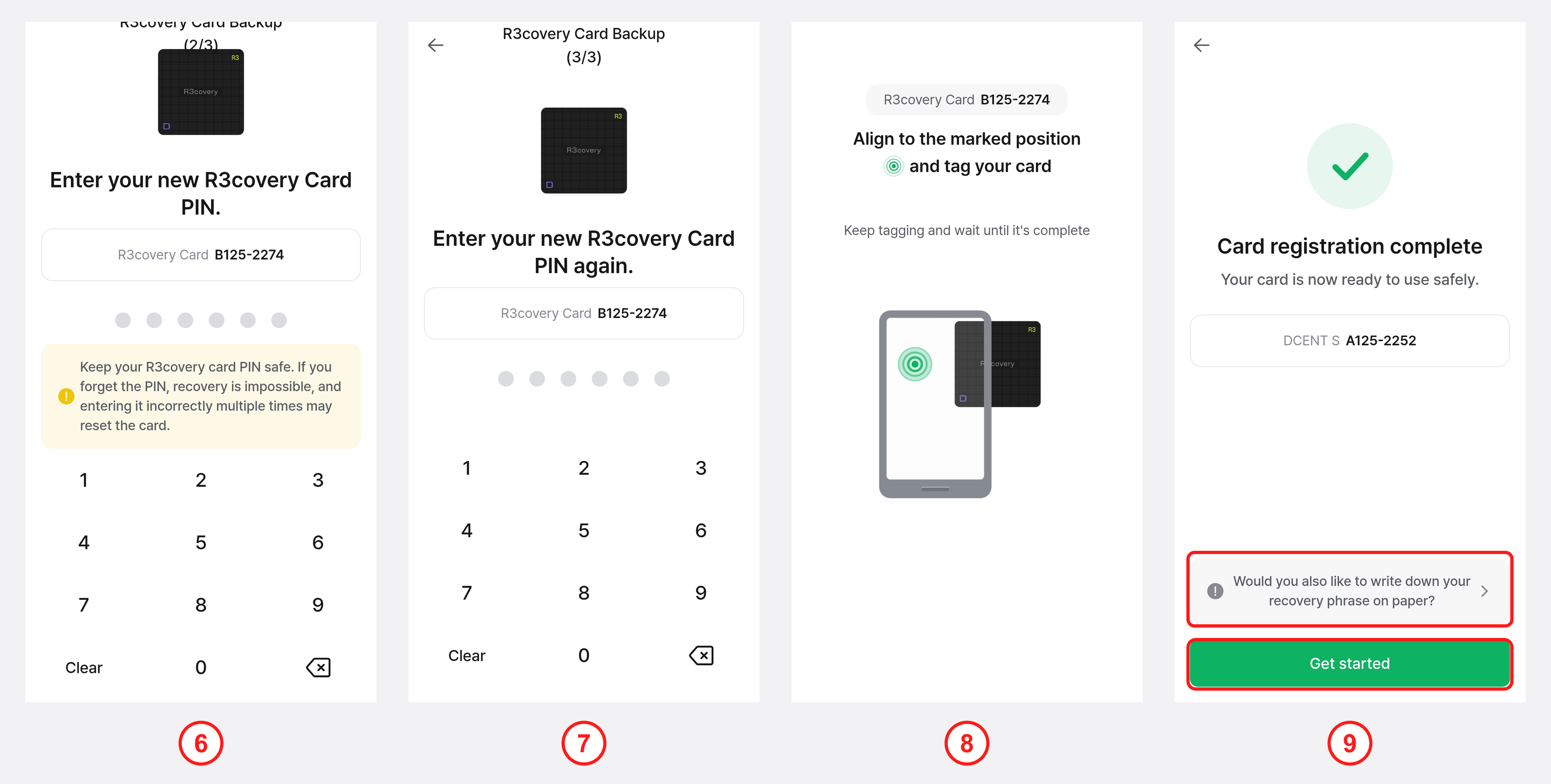
6) Enter a new R3covery Card PIN to protect the R3covery Card.
7) Enter the same R3covery Card PIN once more to confirm.
8) Tap the R3covery Card to the back of your phone to complete the backup.
9) When the card registration complete screen appears, tap "Would you also like to write down your recovery phrase on paper?" to record your mnemonic code as well, or tap "Get started" to go to the My Wallet tab.
You can set the R3covery Card PIN to be the same as your DCENT S PIN, but if you set a different number, be careful not to confuse it with your DCENT S PIN. Also be careful not to confuse it with the 6-digit lock password of the DCENT mobile app.
The R3covery Card PIN also allows up to 10 attempts; entering it incorrectly 10 or more times may reset the card, so be sure to remember the PIN you set.
We recommend viewing and recording your mnemonic code in case you forget both your DCENT S Card and R3covery Card PINs, or lose both cards. For how to view the mnemonic code, see here.
The R3covery Card used for backup is essential for recovering your assets if the card is lost or stolen, so keep it in a safe place.
How to check the mnemonic code
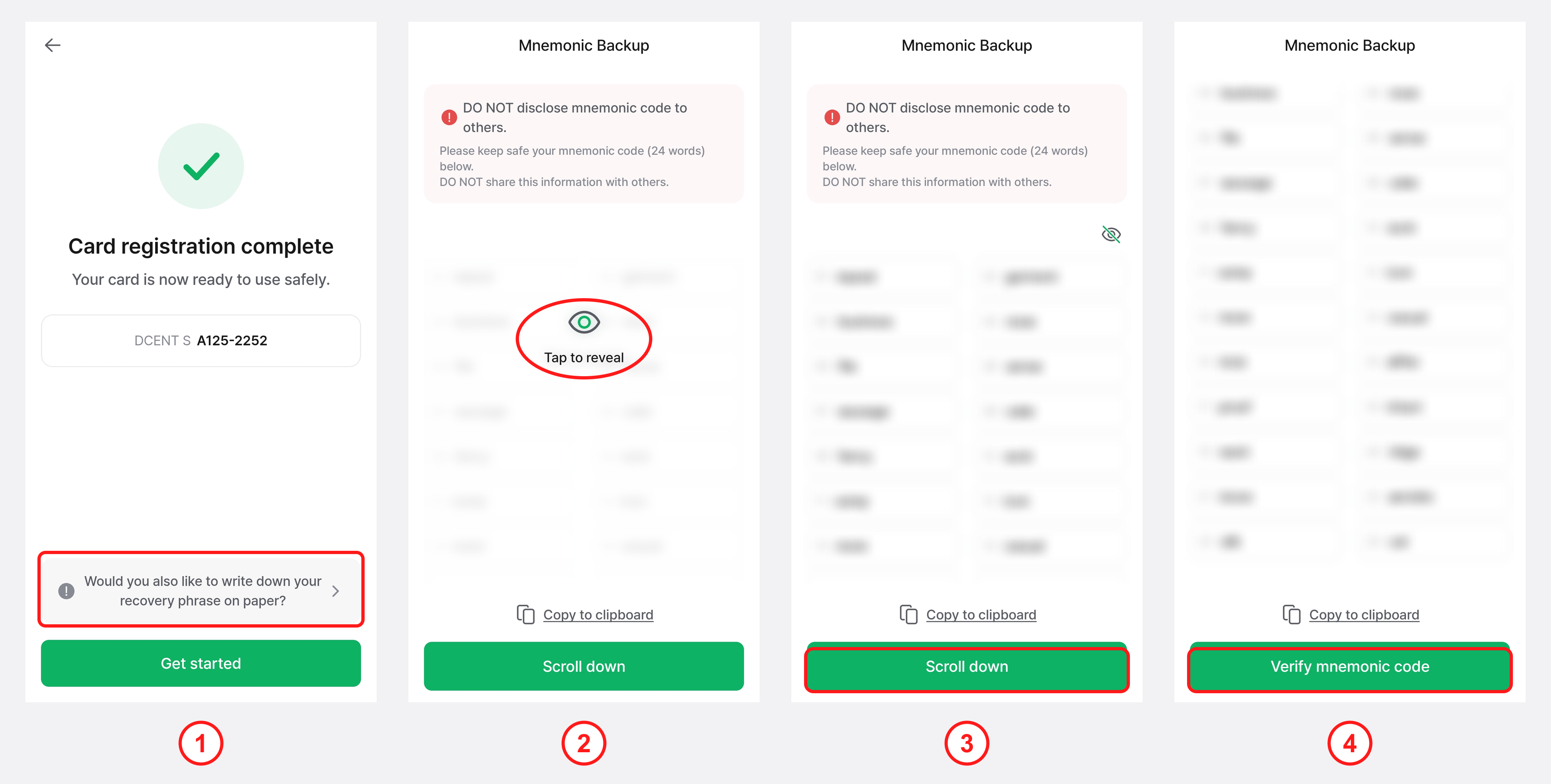
1) On the card registration complete screen, tap "Would you also like to write down your recovery phrase on paper?".
2) On the "Mnemonic Backup" screen, tap the hidden area ("Tap to reveal") to display your mnemonic code.
3) Record the 24 mnemonic words shown on the screen in the exact order. If not all of the mnemonic code is visible on the screen, tap "Scroll down" to see the rest.
4) Once you have recorded all of the mnemonic words, tap "Verify mnemonic code" to proceed to the next step.
For security, the mnemonic code is shown only once in the app. You cannot view it again afterward.
Never share your mnemonic code with anyone, and never store it digitally (photos, cloud, messengers, etc.). Always write it down on an offline medium such as paper and keep it in a safe place.
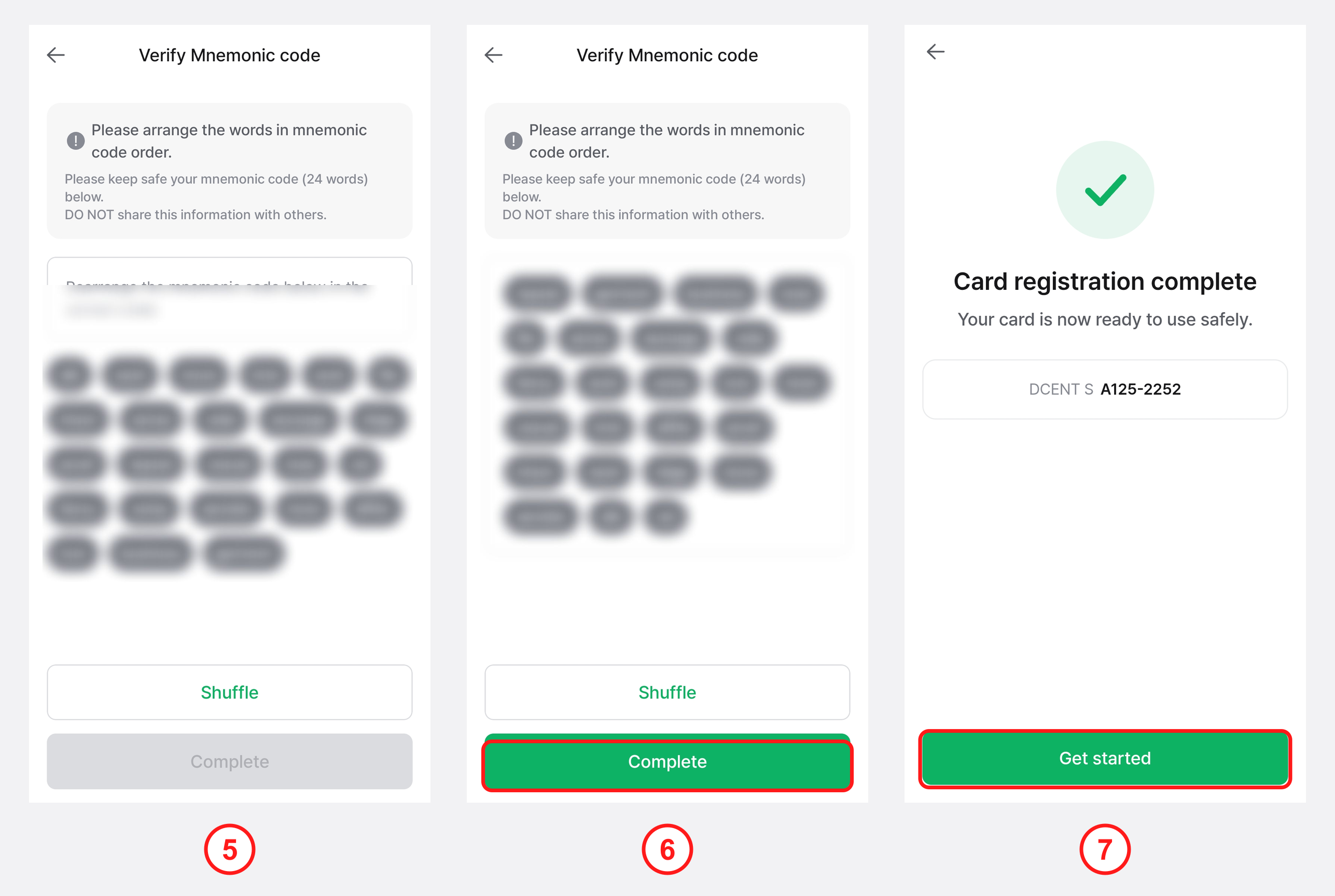
5) On the "Verify Mnemonic code" screen, while looking at the mnemonic code you wrote down, select the words in the correct order.
6) The words are scrambled at first; once you have arranged all 24 words in order, tap "Complete".
7) When verification is complete, the "Card registration complete" screen appears — tap "Get started" to use your wallet.
The mnemonic code (24 words) is the last resort for recovering your assets if you lose both your DCENT S Card and R3covery Card, or forget both PINs. Record it accurately in the correct order and spelling, keep it in a safe place, and never share it with anyone.
Your DCENT S Card Wallet setup is complete. You can now add accounts and manage your assets.
For how to add accounts, see How to use the DCENT S Card Wallet — Add an account.