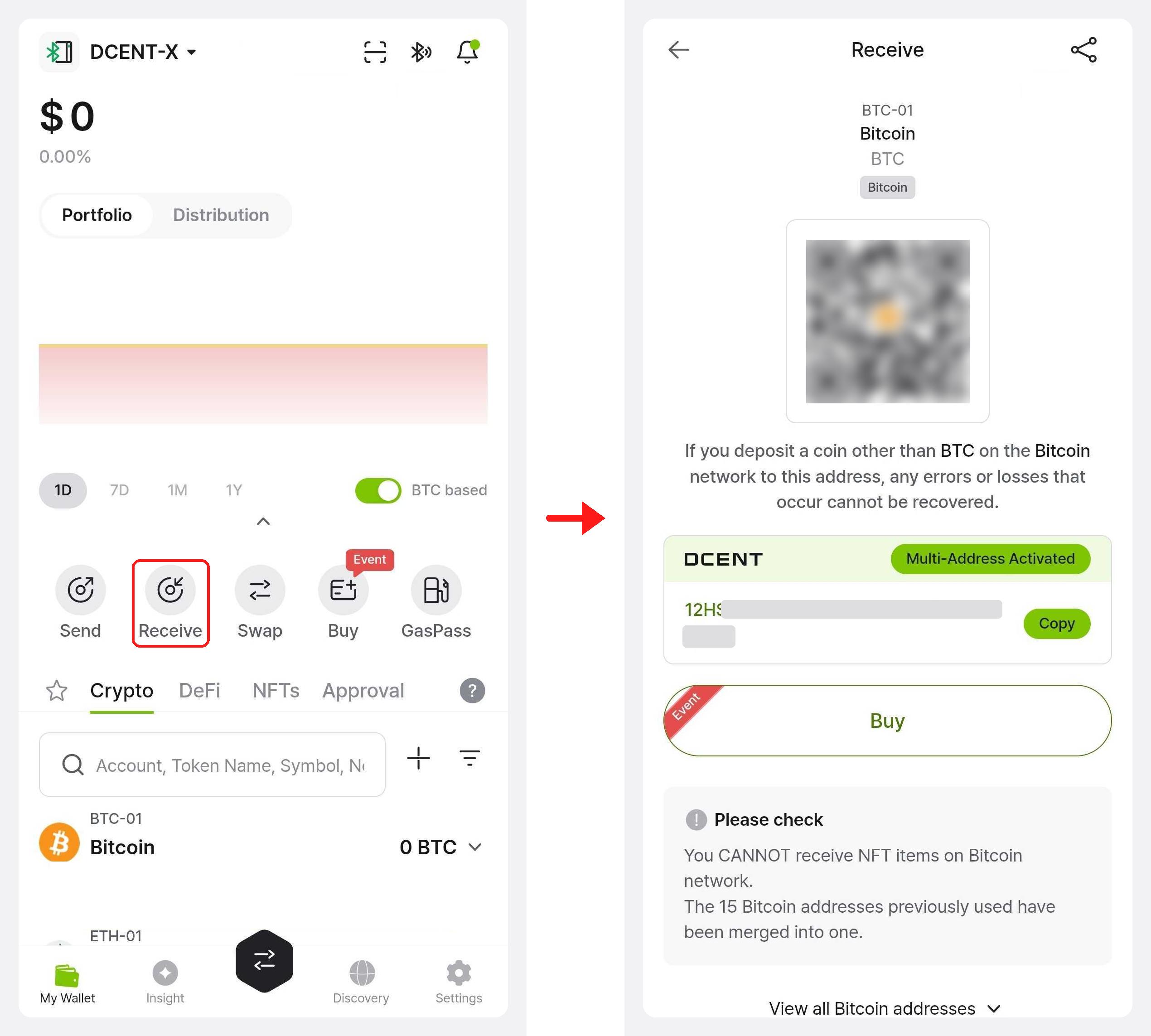
Checking account info
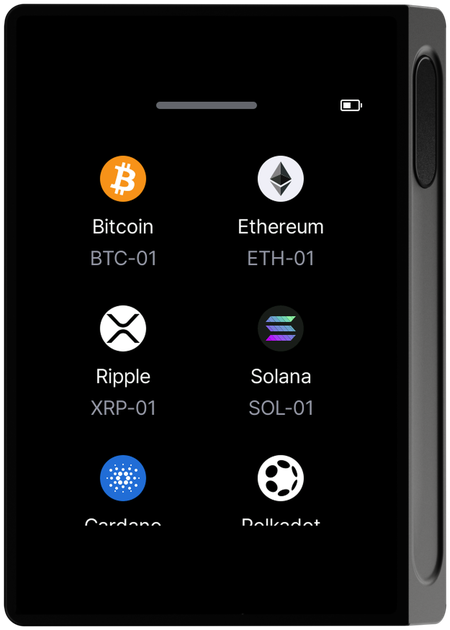
From the DCENT X home screen you can see the list of accounts synced with the mobile app and the address of each one. See Connect with the mobile app for how to connect.
Balances and transaction history are not shown on the device. The device only shows your account list and addresses (as QR codes) — check balances and history in the mobile app.
Viewing accounts in tile view
Tile view is the default view on the home screen. Each registered account appears as a tile showing the coin icon, the coin name, and the account name (for example BTC-01).
Switching to list view
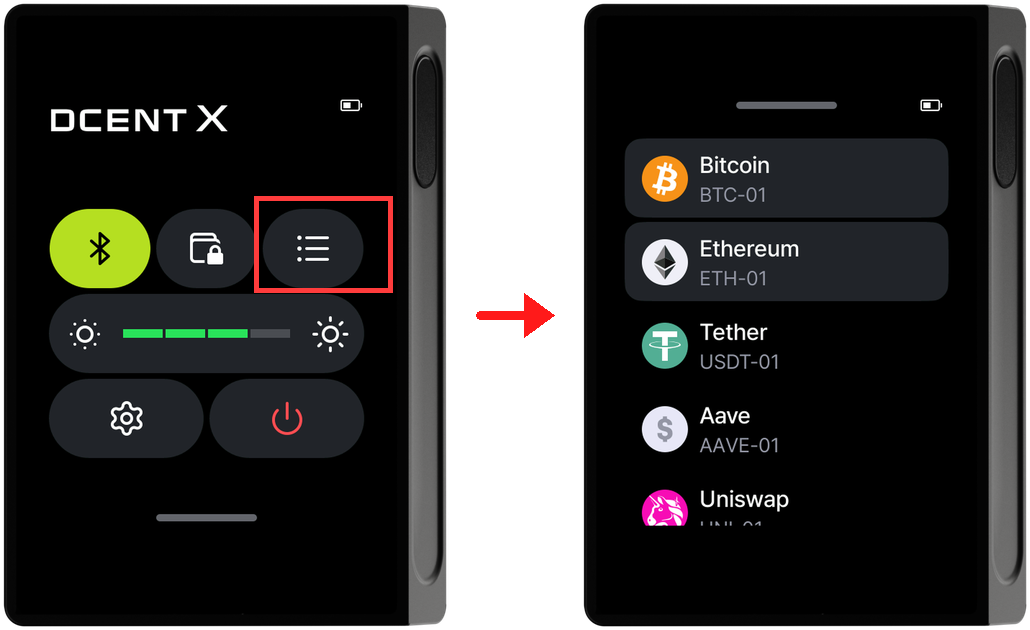
If you'd rather see your accounts as a list instead of tiles, switch to list view.
Open the Control Center and tap the list icon in the top right. The home screen switches to list view; tap the same icon again to go back to tile view.
Viewing tokens
Under a mainnet coin you can also see the tokens that run on that mainnet. If you have added tokens in the mobile app, they appear as a list; if you haven't added any, only the mainnet coin is shown.
Example — Ethereum
Ethereum (ETH) is a mainnet that tokens such as USDT, AAVE, and UNI are issued on. What you see when you tap Ethereum on the home screen depends on which tokens you have added in the app.
| Tokens added in the app | Tapping Ethereum |
|---|---|
| None | Takes you straight to the ETH address screen. |
| USDT · AAVE · UNI added | Shows ETH along with the three tokens as a list. Tap the token you want to open its address screen. |
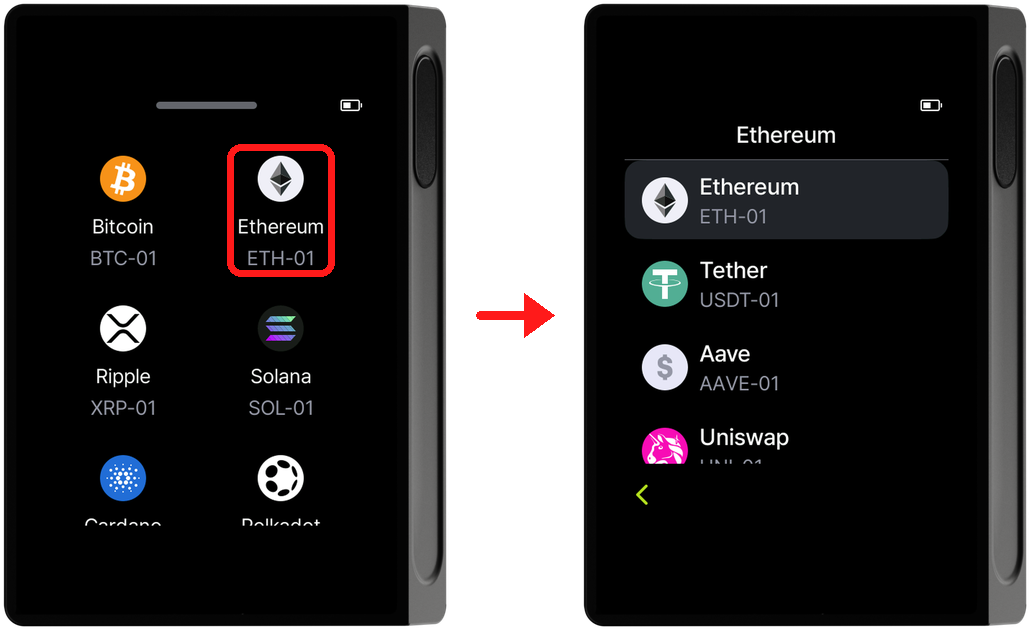
Coins that don't issue tokens, such as Bitcoin, always go straight to the address screen without this step.
Checking an account address
There are two ways to check an address: on the device and in the mobile app.
Method 1 — On the device
Tap the account you want to check on the home screen. For a mainnet with tokens, tap the token you want in the token list as well.
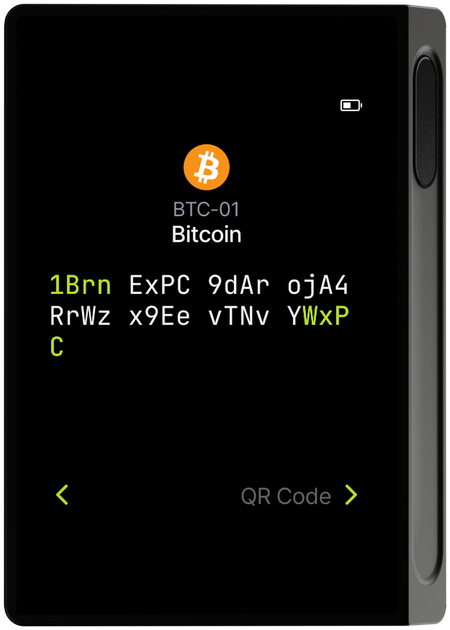
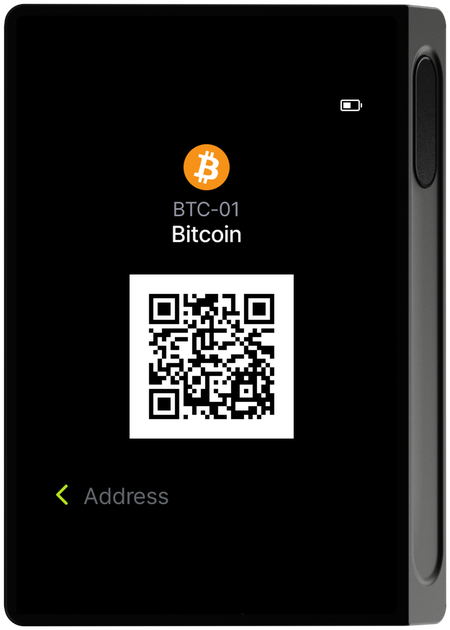
The selected account's address appears, and swiping forward shows the same address as a QR code — the other person can scan it to get your address exactly as it is.
Method 2 — In the mobile app
Tap Receive on the mobile app home screen to see the account's address and QR code. This is the easier option when you need to copy or share the address.