Connect with the mobile app over Bluetooth
DCENT X connects to the DCENT mobile app over Bluetooth (BLE) as soon as you scan the QR code shown on its screen with the app. If you've connected before, you can reconnect by simply tapping the Bluetooth icon in the app. The steps below are the same on both Android and iPhone (iOS).
On Android, you can also connect DCENT X directly with a USB cable instead of Bluetooth. See Connect with a USB cable for details.
Before you start
To connect DCENT X, first install the DCENT mobile app on your phone and allow the Bluetooth (and Camera, for QR scanning) permissions the app requests when it launches.
Download the app (Android & iOS)
Search for "DCENT Wallet" on the Google Play Store or App Store, or install the DCENT mobile app using the official download links below.
Basic setup for the mobile app
If you just installed the mobile app, set the wallet mode and grant permissions before connecting the device.
Select the wallet mode
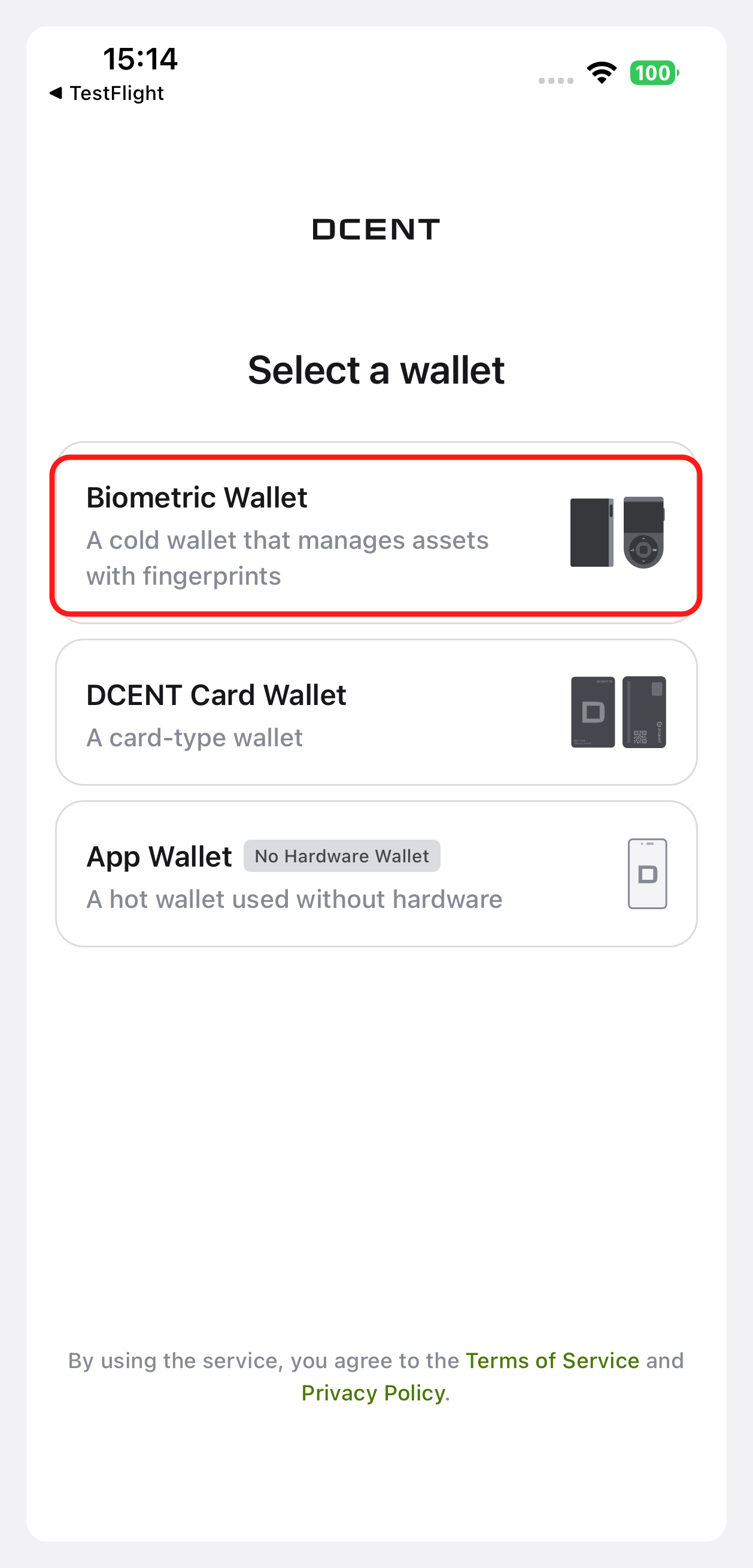
Launch the DCENT app and, on the wallet selection screen, choose "Biometric Wallet" (connect a fingerprint wallet over Bluetooth). DCENT X is a biometric wallet that connects over Bluetooth.
Set app permissions
The app shows which permissions it requests. Bluetooth is a required permission for connecting to DCENT X over BLE to view accounts, sign, and more. Review the notice and tap "Confirm", then tap "Allow" on the Notifications and find Bluetooth devices permission popups that follow.
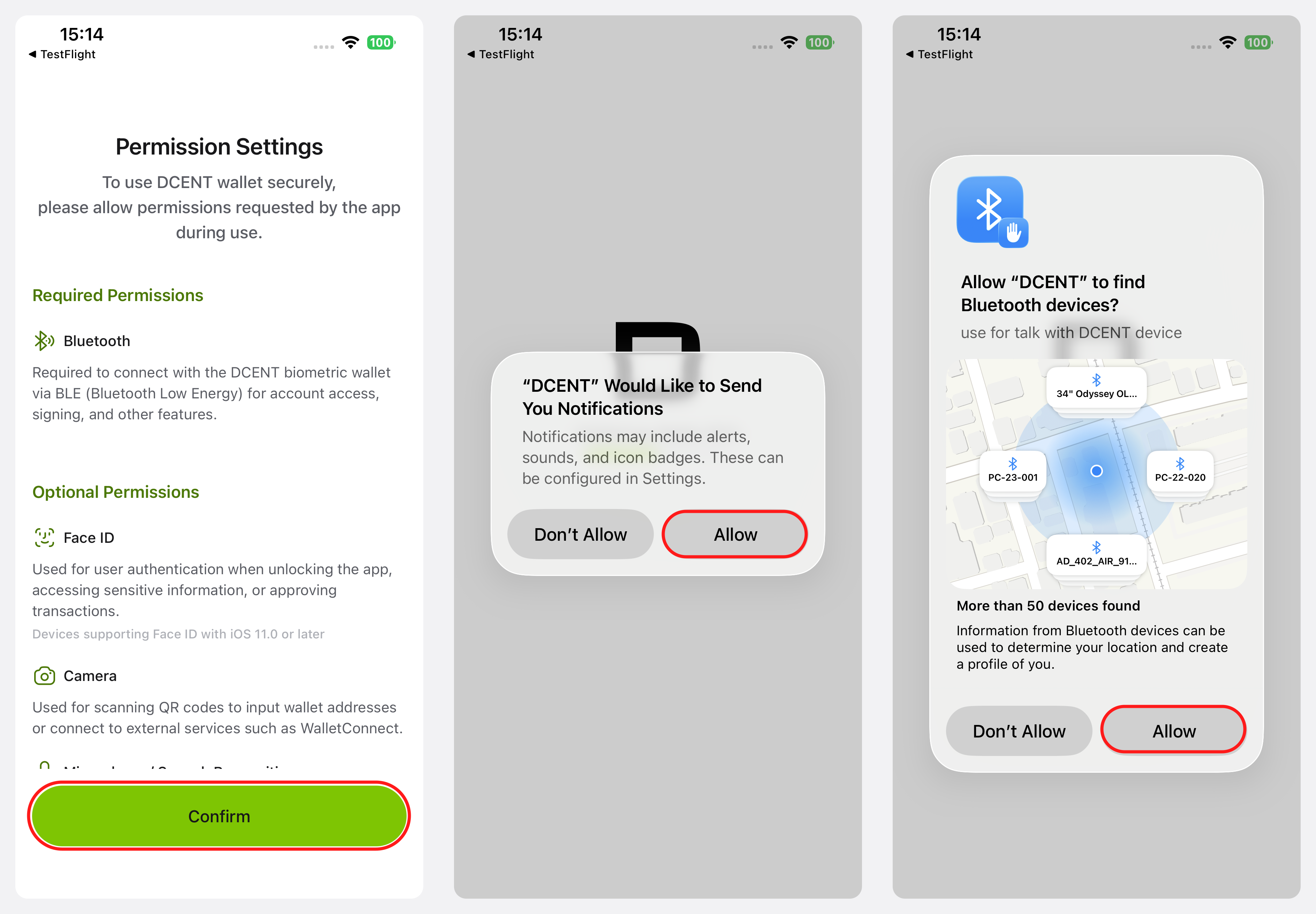
The screens above are from iPhone (iOS). The flow is the same on Android; only the nearby-device (location) permission popup for Bluetooth looks different.
Connecting during initial setup
When you power on a newly purchased DCENT X and select a language, the app connection screen appears. Connecting the app here lets authenticity verification and account syncing continue right away.
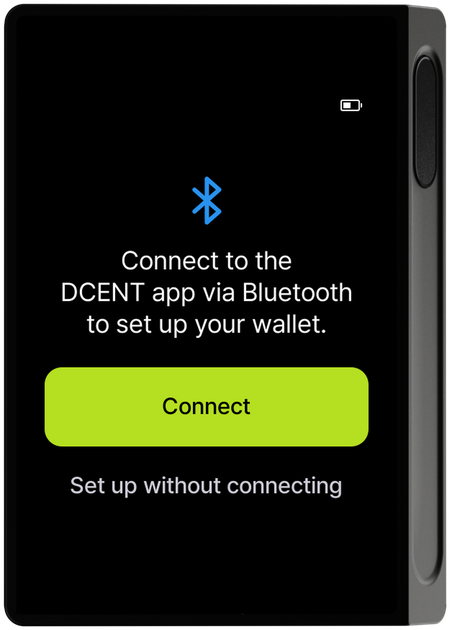
Step 1 — Select "Connect" on the device
On the DCENT X screen, select Connect. You can choose "Set up without connecting" to proceed without the app, but connecting is recommended for authenticity verification and account management.
Step 2 — View the QR code
The device screen shows a QR code and a device ID (e.g., DCENT-X-00000). Leave it on this screen and scan it from the app.
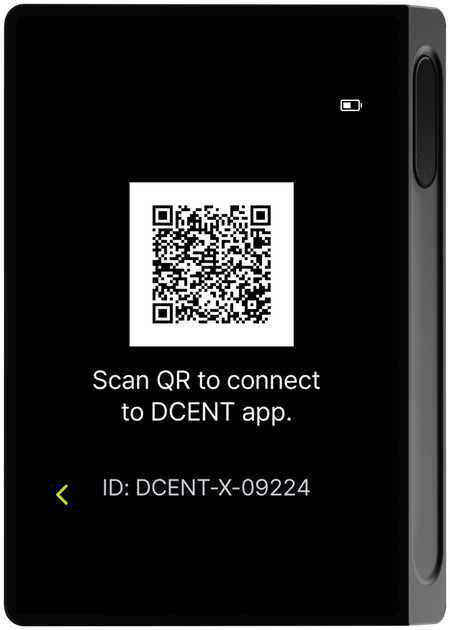
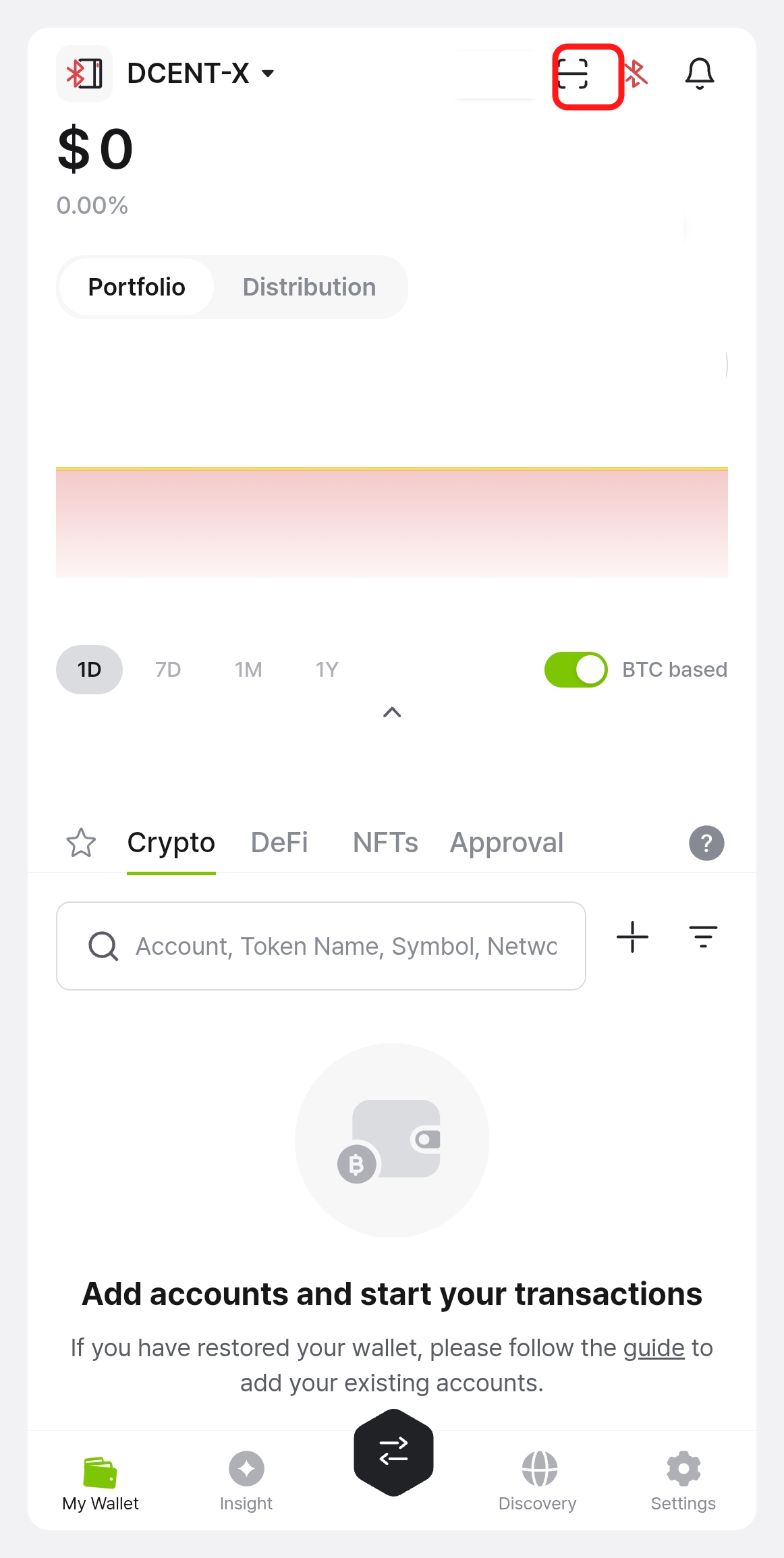
Step 3 — Scan the QR code in the app
Tap the QR scan button at the top right of the DCENT app's My Wallet tab to open the camera, then point it at the QR code on the DCENT X screen — it's recognized automatically.
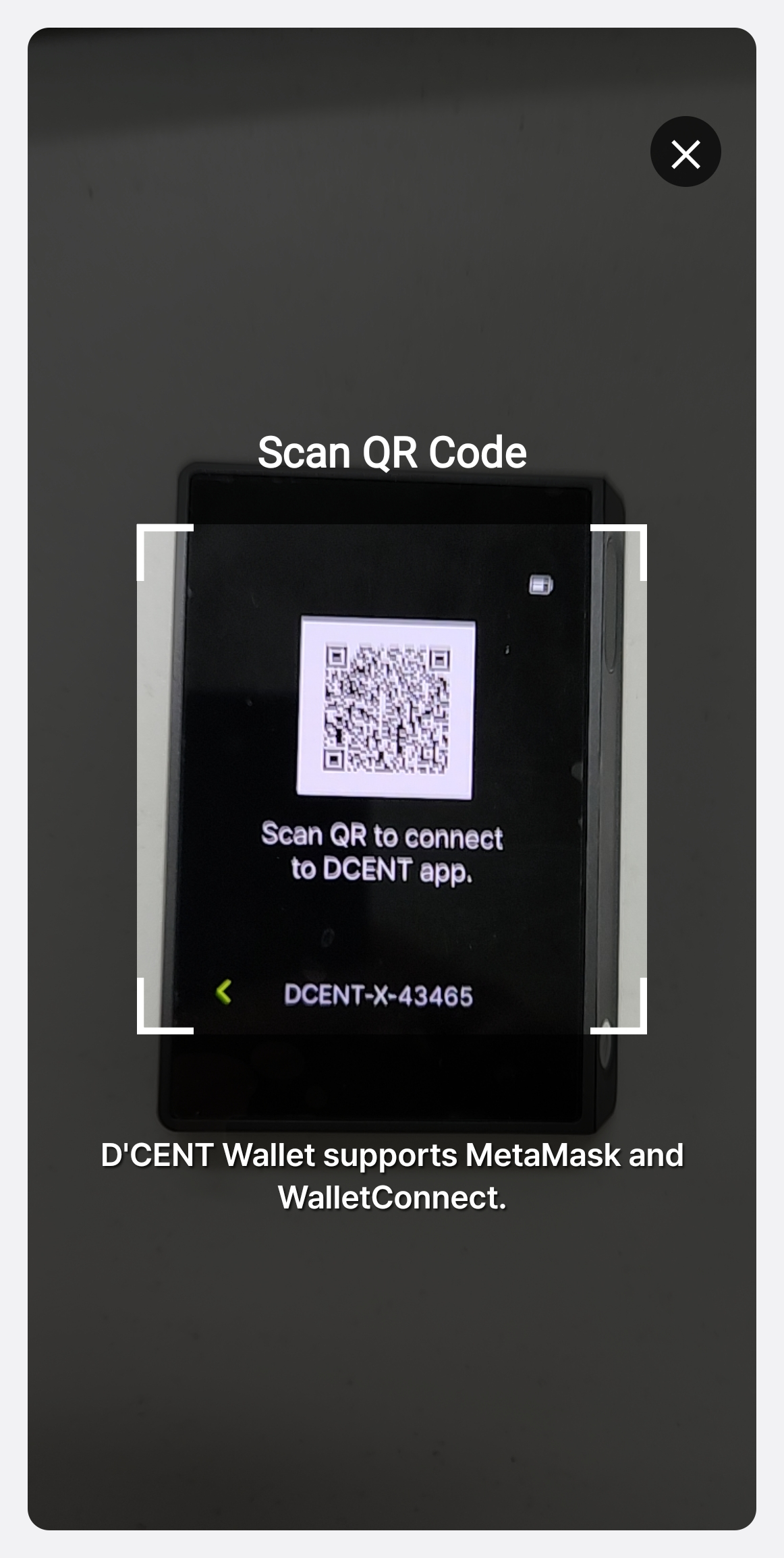
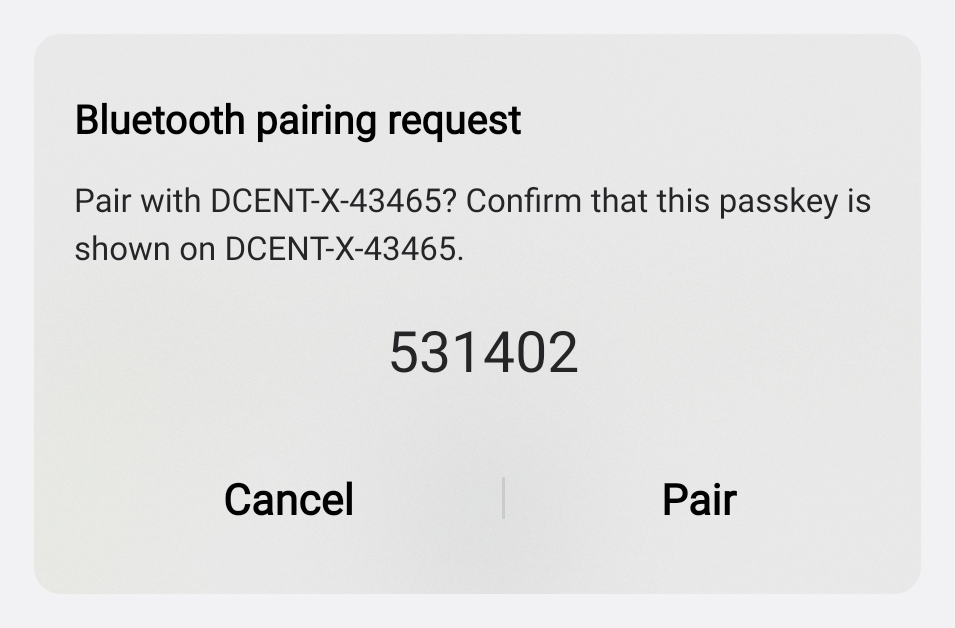
Step 4 — Verify the pairing code and allow
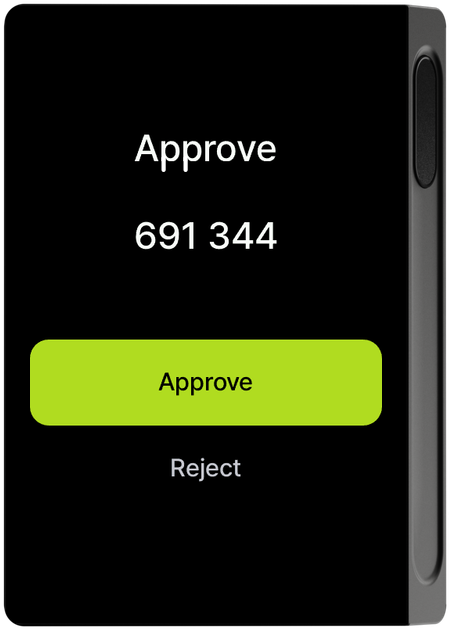
If this is the first time connecting this phone to the DCENT X, a pairing code appears on both the phone and the DCENT X screen right after scanning. Check that the Approve code on the DCENT X screen matches the code in the Bluetooth pairing request popup on your phone, then tap Pair on the phone and select Approve on DCENT X.
Once you finish pairing on the phone, a connection request appears on DCENT X. Following the app's guidance (Select the Allow button), select Allow on DCENT X to continue onboarding.
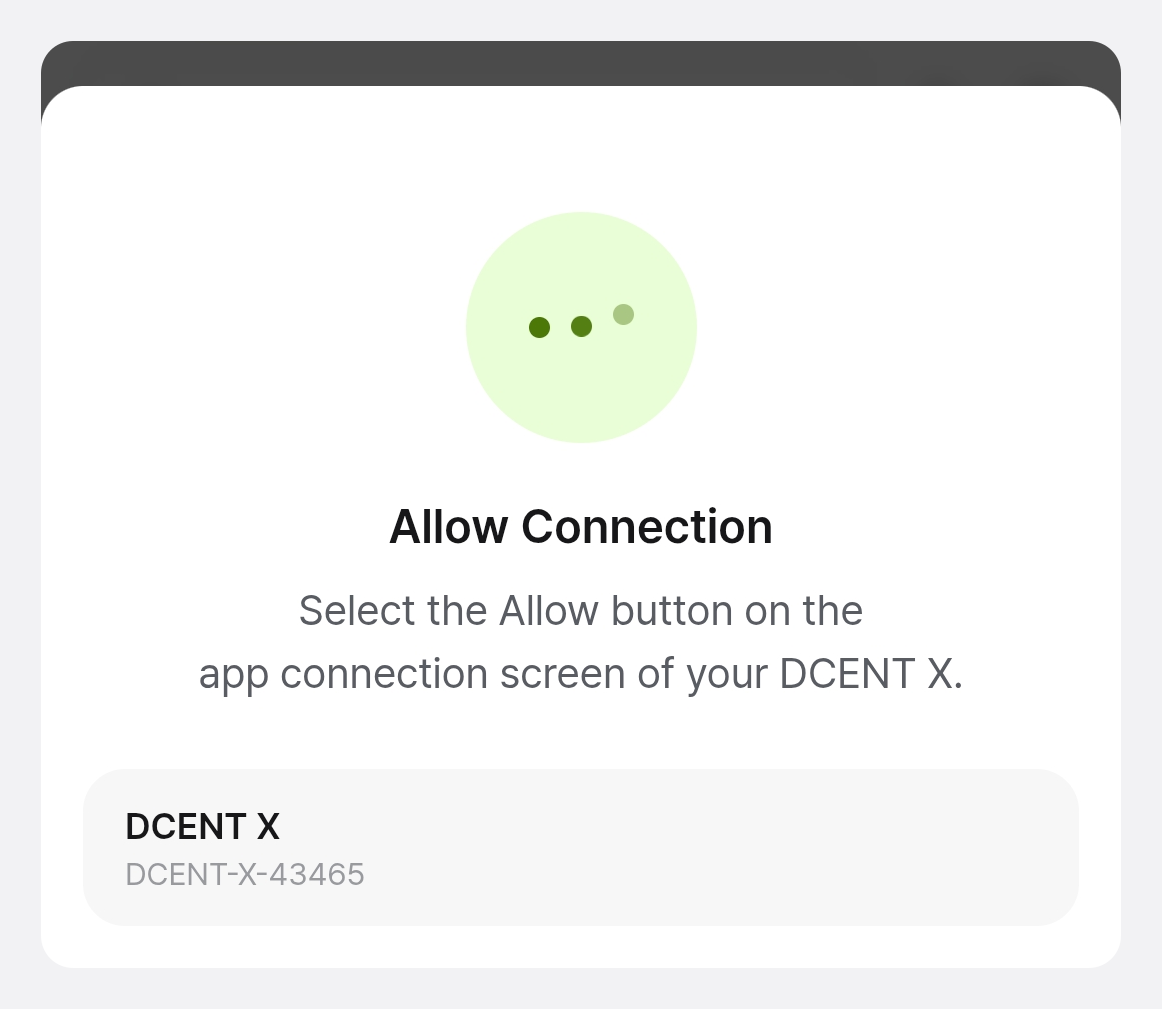
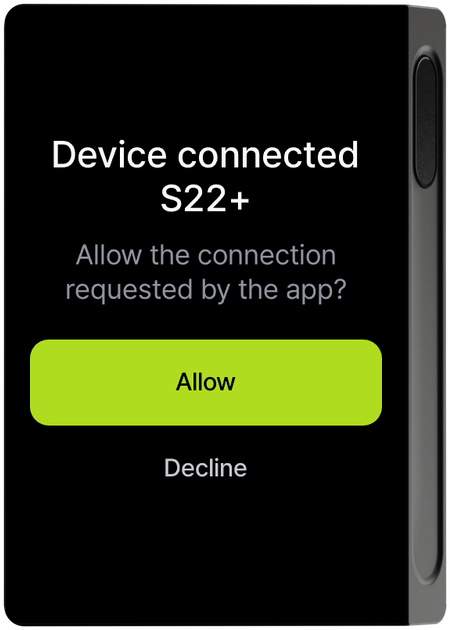
You must select "Allow" on DCENT X to connect successfully. If you don't allow it on the device, the connection won't complete.
Step 5 — Continue the initial setup
Once connected, follow the guidance on the app and device screens to continue the initial setup. See Initial Setup for the full procedure.
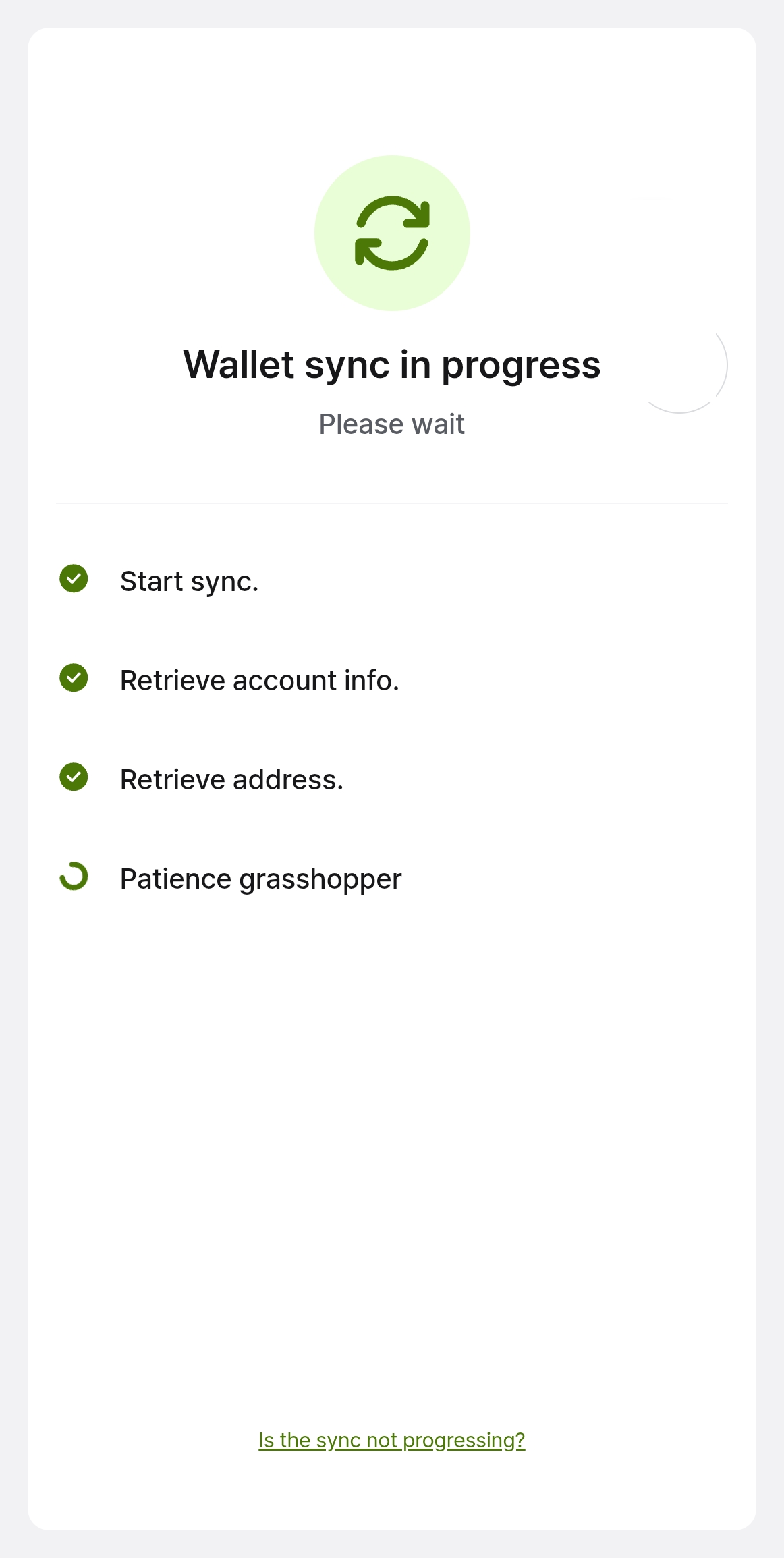
Step 6 — Sync the wallet with the app
When setup is complete, the account information stored on DCENT X syncs with the app automatically. Wait a moment for the sync to finish.
Step 7 — Add accounts
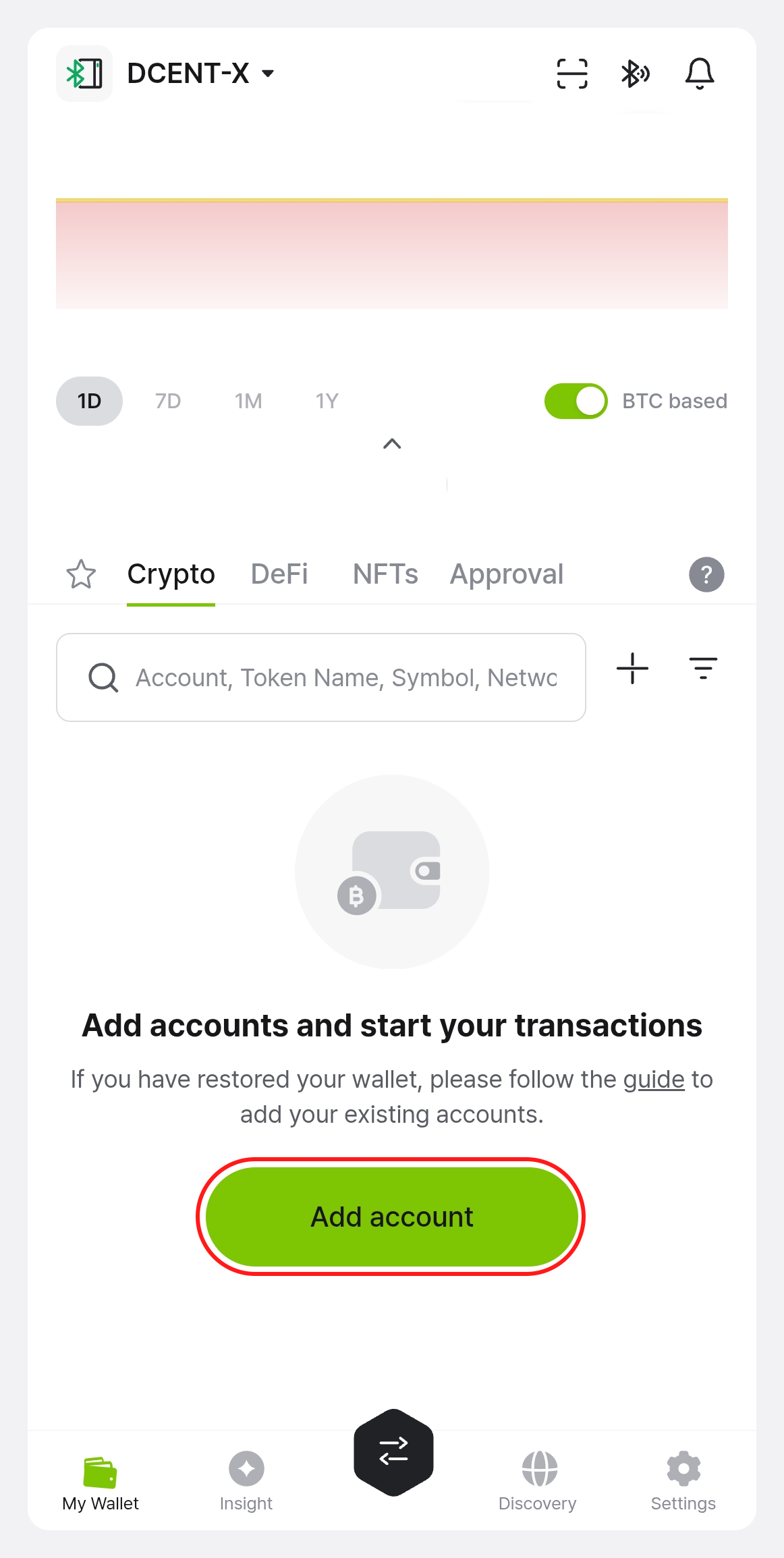
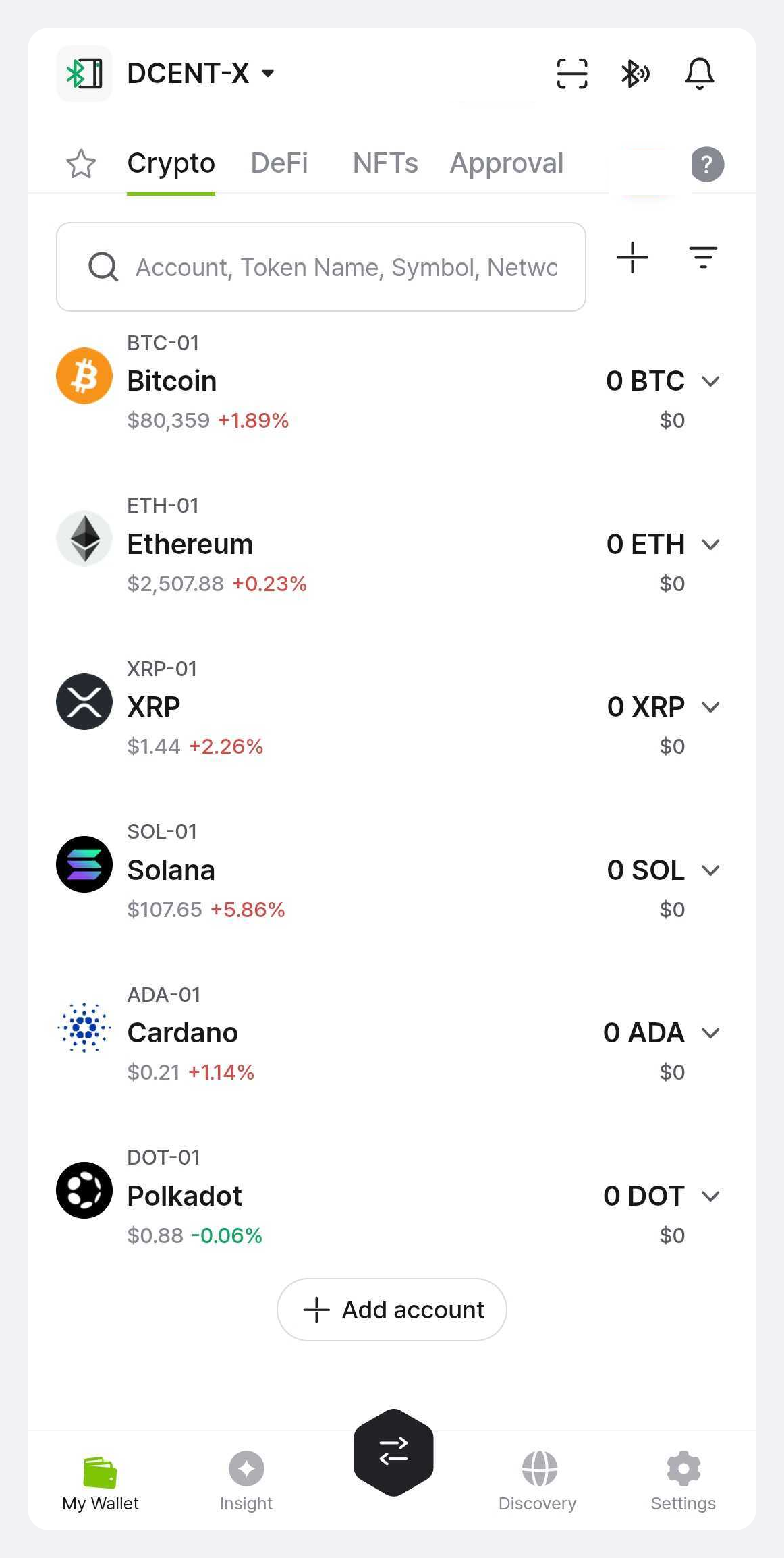
When syncing finishes, tap Add account to add the accounts you want to use and start transacting.
Connecting an already set-up device
If you finished initial setup without connecting the app, or you're connecting an already set-up DCENT X to a new phone, use the methods below.
If this is the first time connecting the phone, a pairing code screen appears while you follow the methods below. Check that the codes on the phone and DCENT X match, then approve on both. (See Step 4 — Verify the pairing code and allow for details.)
Common preparation
- Power on DCENT X and unlock it with your fingerprint or PIN.
- Pull down the notification bar to open the Control Center and confirm that Bluetooth is on.
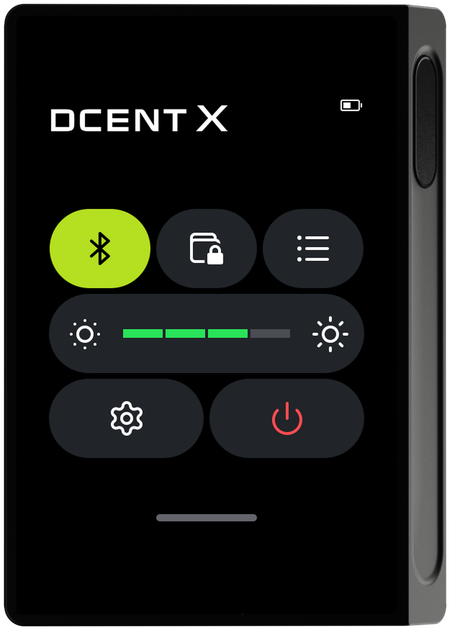
Connect with a QR code
Step 1 — Open the pairing screen on the device
On DCENT X, select Settings → Bluetooth → Connect device in order. A QR code and device ID appear, and the device enters the waiting-for-connection state.
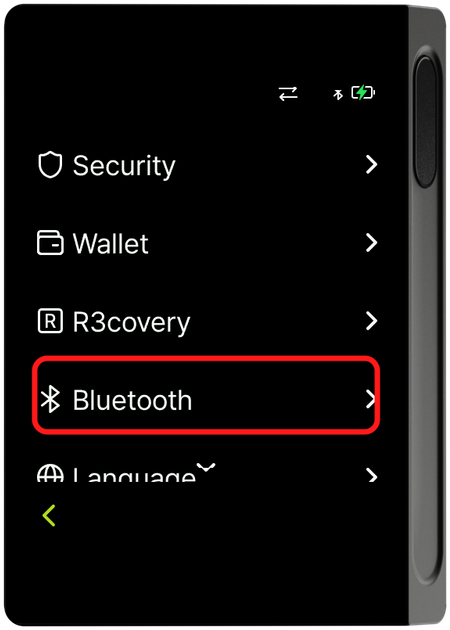
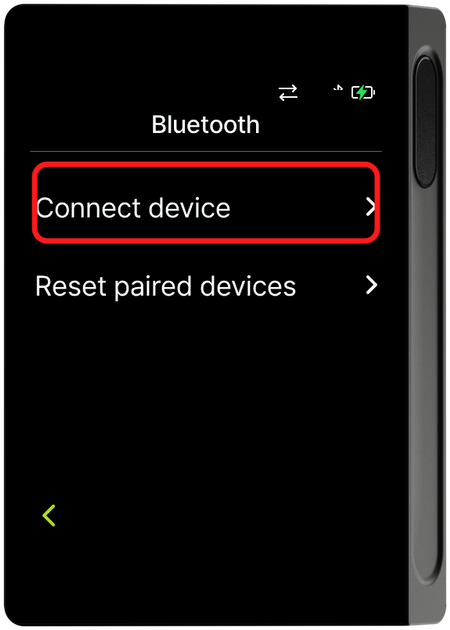
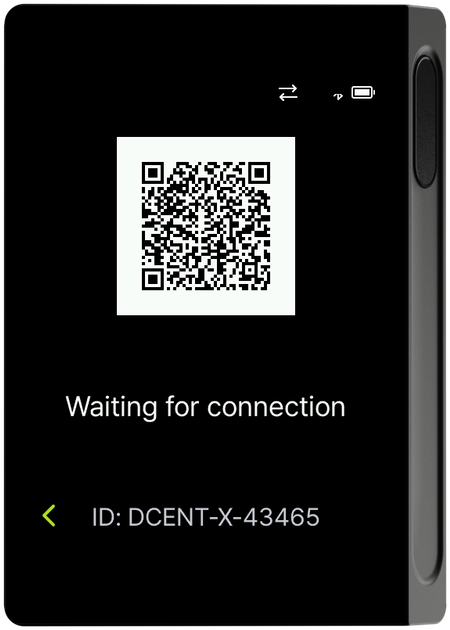
If accounts are already added, you can also open the Control Center and turn on Bluetooth to bring up the same connection QR code screen.
Step 2 — Scan in the app and allow
You must select "Allow" on DCENT X to connect successfully. If you don't allow it on the device, the connection won't complete.
Tap the QR scan button at the top right of the DCENT app's My Wallet tab, scan the QR code on the device screen, then select Allow on DCENT X. (If this is the first time connecting the phone, the pairing code screen appears.) The wallet then syncs with the app and the connection completes.
Connect with the Bluetooth icon
A device you've connected at least once can be reconnected with just the Bluetooth icon, without scanning a QR code.
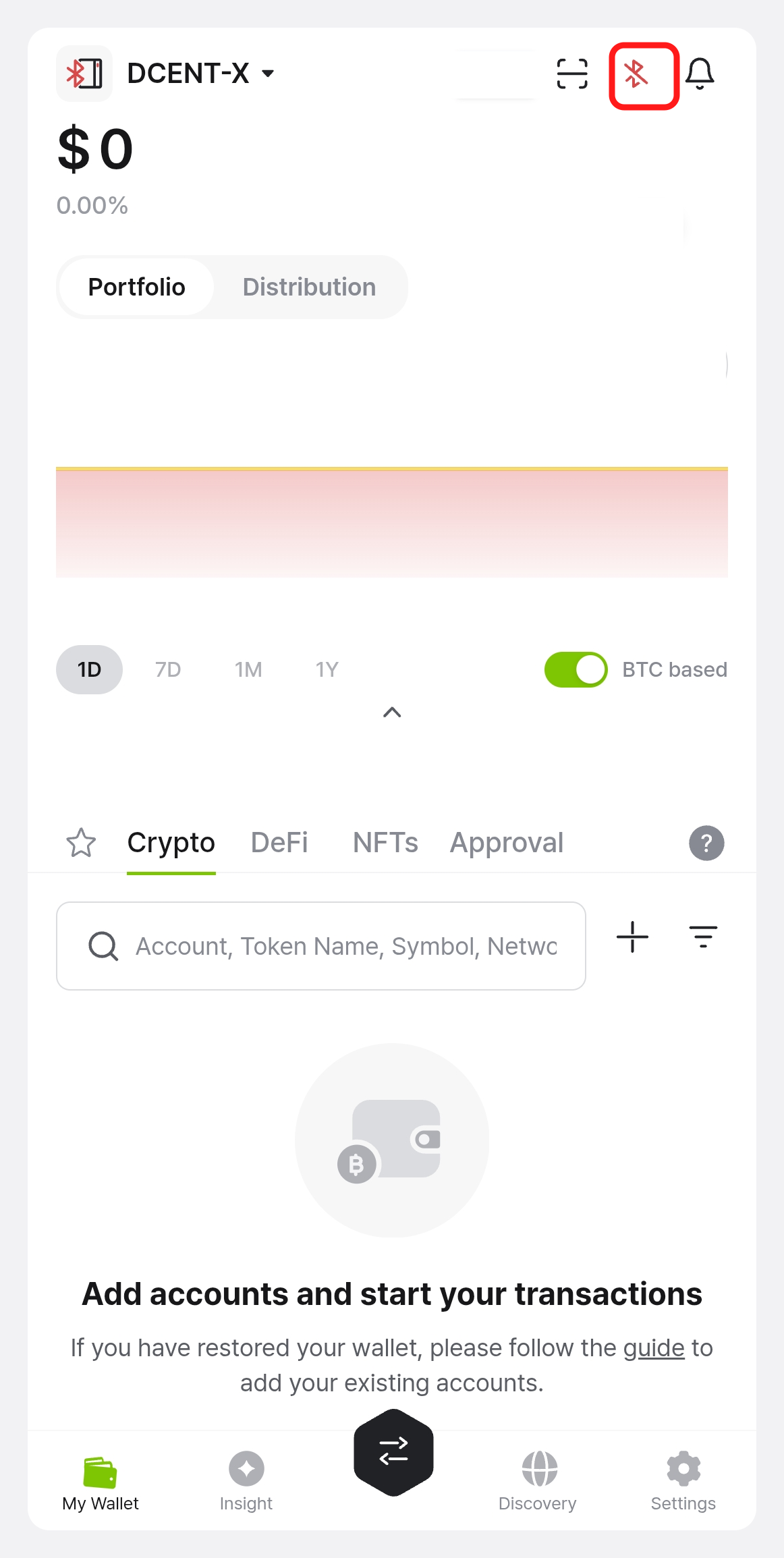
Step 1 — Tap the Bluetooth icon in the app
Tap the Bluetooth icon at the top right of the DCENT app's My Wallet tab.
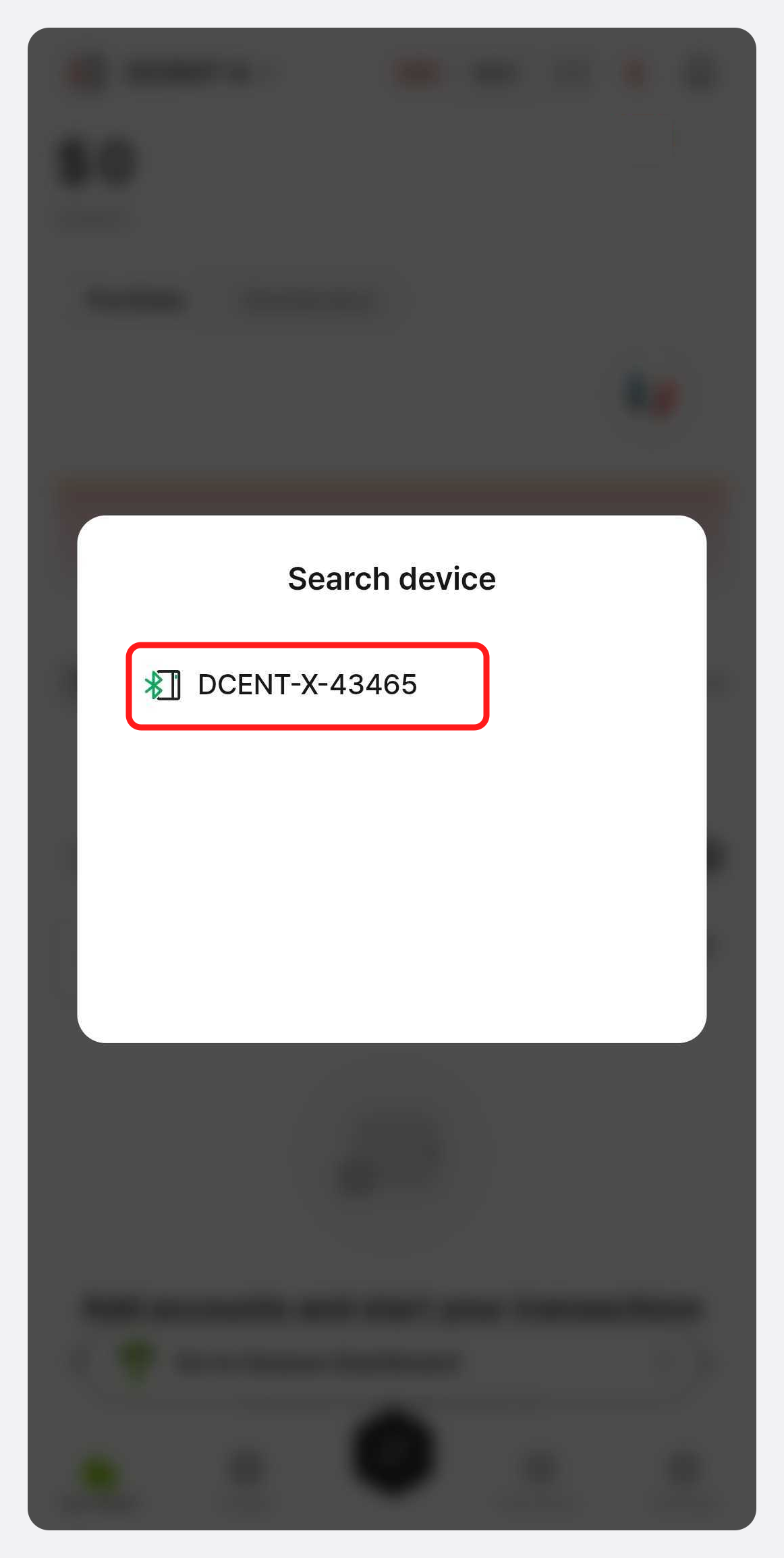
Step 2 — Select the found device
When the Search device dialog opens, select the device ID that was found (e.g., DCENT-X-43465). The number after the ID differs for each device.
Step 3 — Allow on the device
You must select "Allow" on DCENT X to connect successfully. If you don't allow it on the device, the connection won't complete.
Select Allow on the DCENT X screen. (If this is the first time connecting the phone, the pairing code screen appears.) The wallet then syncs with the app and the connection completes.
Syncing after connecting
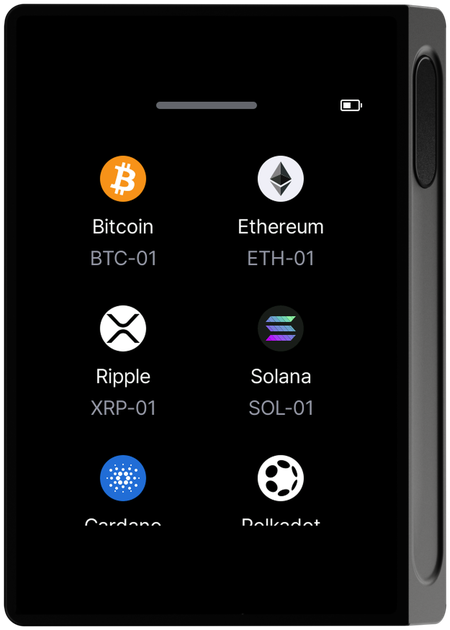
Once connected, the account information stored on DCENT X syncs with the mobile app. When syncing finishes, the accounts appear in the app's account list and on the DCENT X screen. The balances and addresses described in Checking account info are based on this synced account information.
Troubleshooting pairing issues
The QR code doesn't appear
If the screen didn't switch to the QR code view, open the Control Center and check the color of the Bluetooth button. If it's dark gray, Bluetooth is off. Tap it to turn it on, which switches to the QR code screen for connecting.
The connection drops
If the connection drops, the Bluetooth button in the Control Center turns dark gray again. Tap it to turn Bluetooth off, then tap it again to turn it back on — a new QR code appears, and scanning it from the mobile app reconnects the devices.
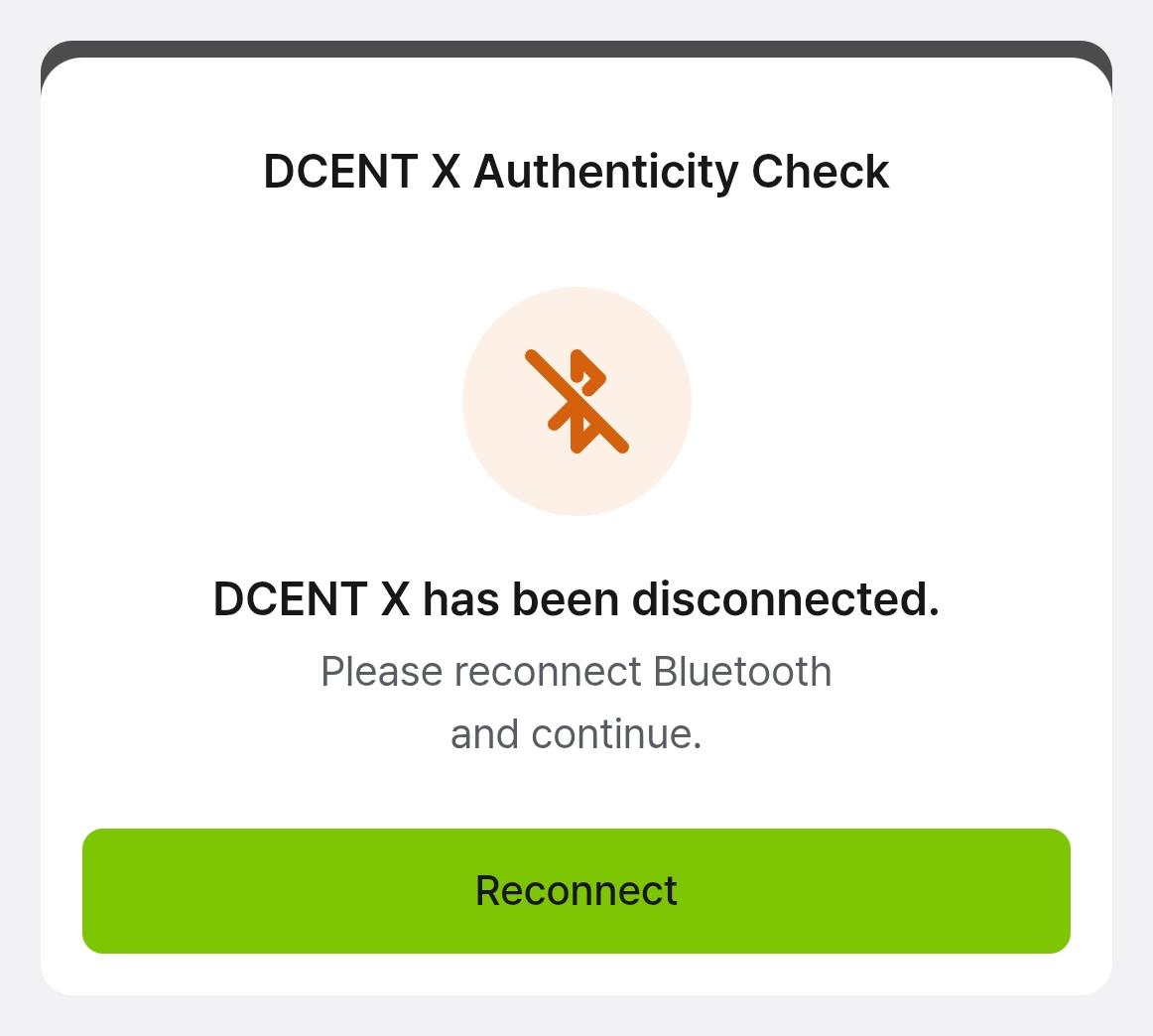
If Bluetooth disconnects during initial setup, the app shows a "DCENT X has been disconnected" screen. Tap Reconnect to reconnect Bluetooth, and the process resumes automatically with no further action needed.