Connect with a USB cable
You can also connect DCENT X with a USB cable instead of Bluetooth. This is useful when the Bluetooth connection is unstable.
You can use the USB charging cable included with DCENT X, or any USB-C to USB-C cable that supports data transfer or an OTG cable/adapter that you already own or buy from a store. Note that charge-only cables do not support data transfer and cannot be used to connect.
USB cable connection is supported on Android only. On iPhone (iOS), USB connection is not available — please connect with a QR code or the Bluetooth icon.
Connect your Android phone and DCENT X with a USB cable as shown below.
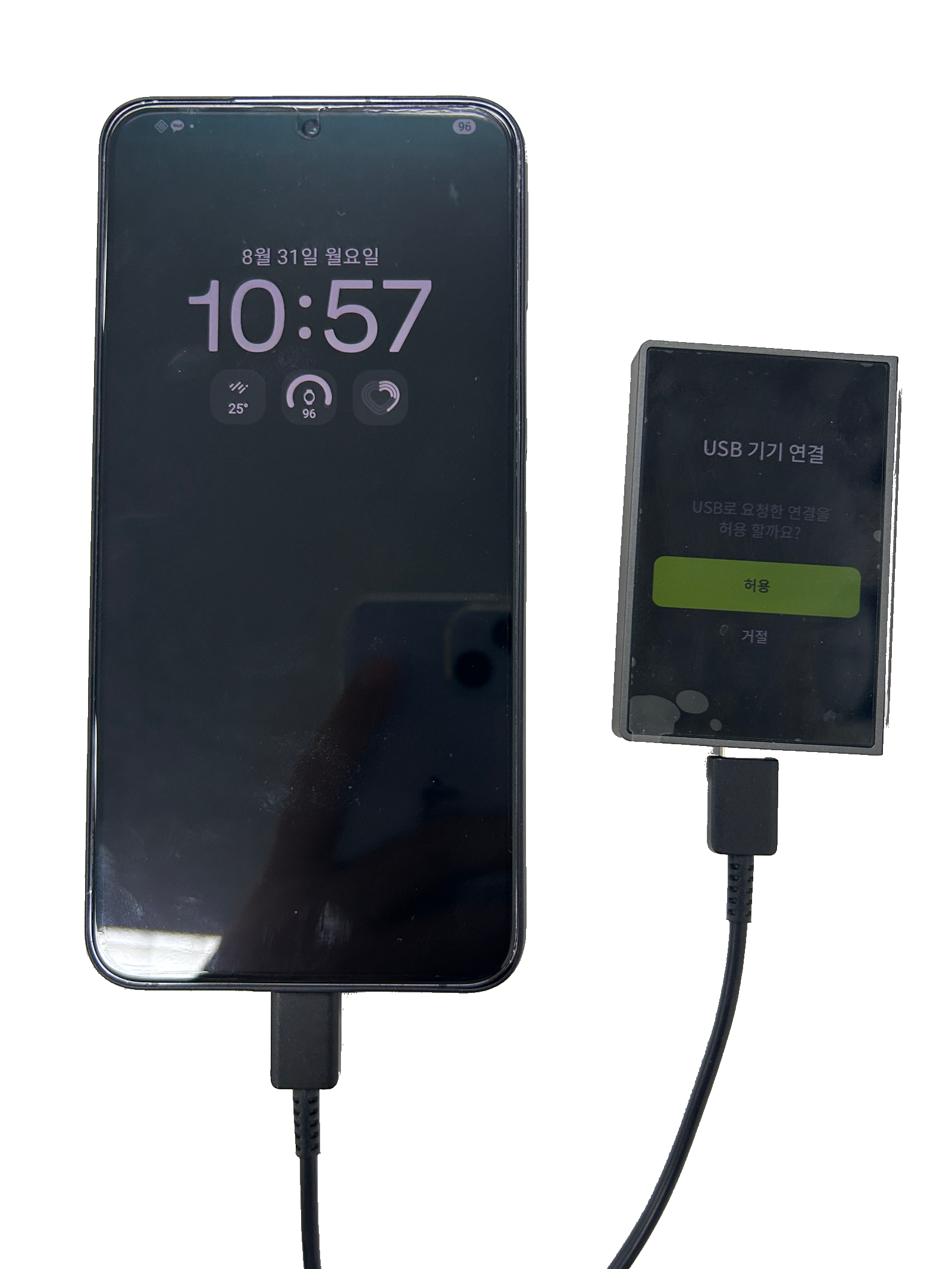
Step 1 — Connect the cable and allow access
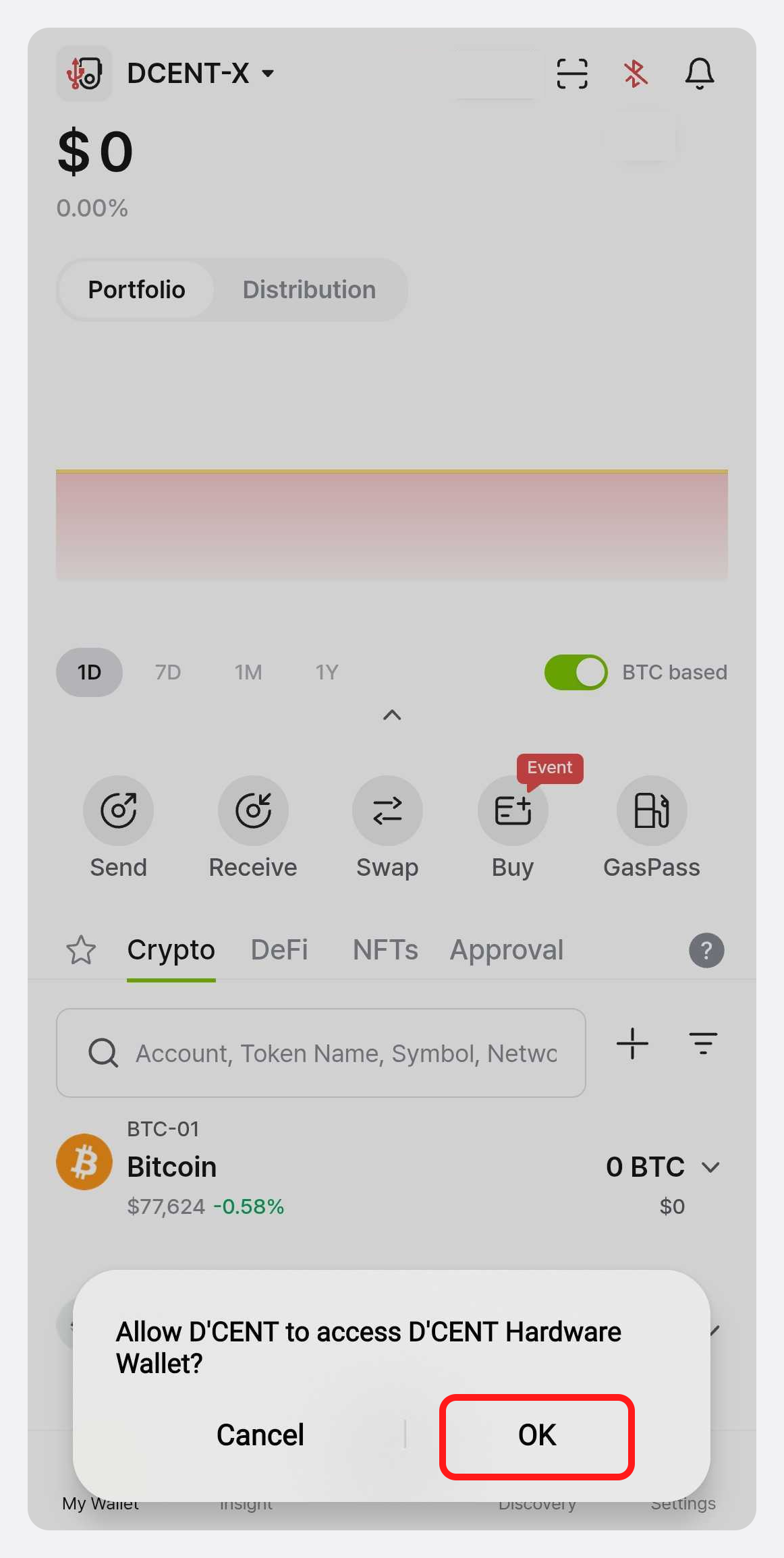
Connect DCENT X to your Android device with a USB cable. After a moment, the app shows "Allow DCENT to access DCENT Hardware Wallet?" — tap "OK".
Step 2 — Allow the connection on the device
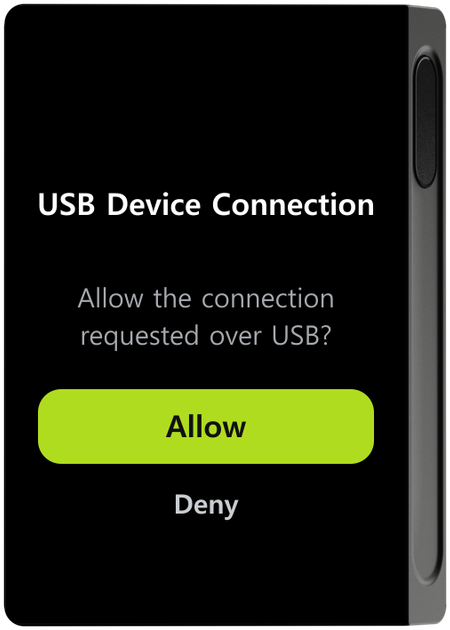
DCENT X shows "USB Device Connection — Allow the connection requested over USB?". Tap "Allow" to start connecting.
Step 3 — Sync and finish
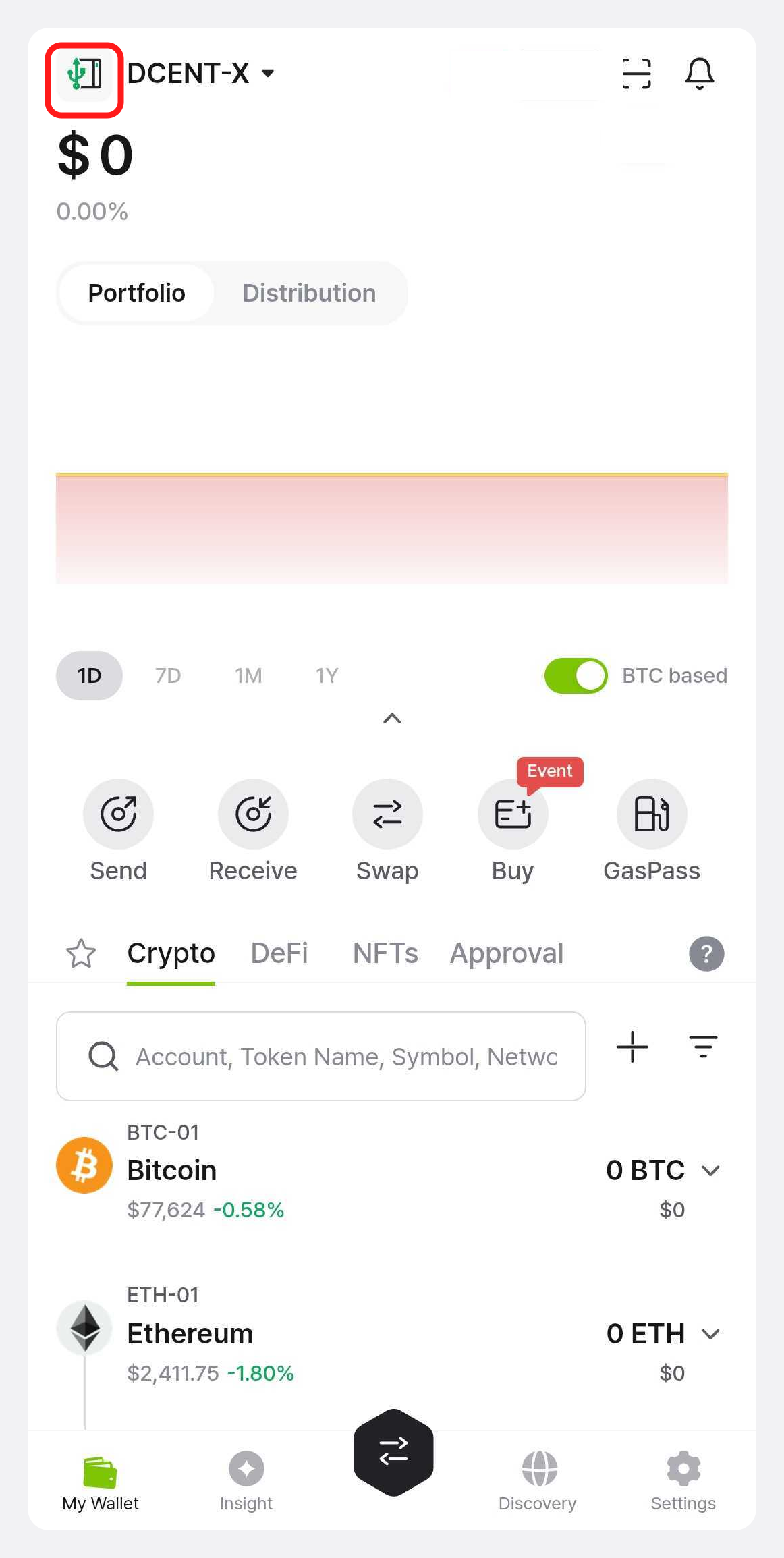
Once connected, your account information syncs with the app just like a Bluetooth connection. When syncing finishes, your account list appears. At this point the connection status icon at the top-left of the My Wallet tab changes to a green USB icon, as shown below, indicating that you are currently connected over USB.