Control Center
The Control Center is a drawer-style panel you open by swiping down from the top of the screen or tapping the top bar. It gives you quick access to passphrase wallet switching, power management, and Bluetooth (BLE) connection — all in one place.
First-time walkthrough
After you finish creating or recovering a wallet and tap Get started on the completion screen, a short walkthrough plays automatically before you reach the home screen, showing you how to use the Control Center.
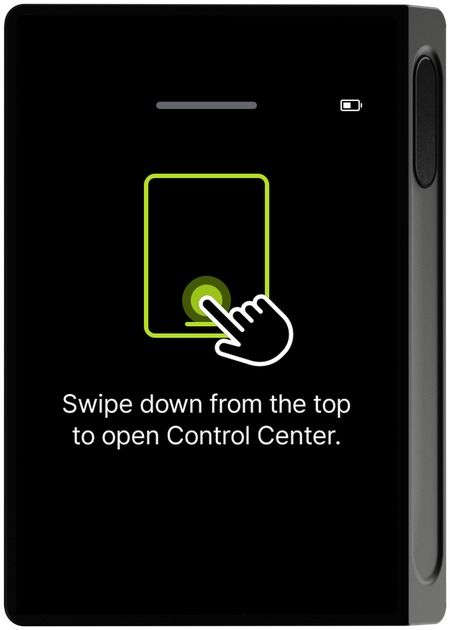
A finger icon slides down the screen alongside the text "Swipe down from the top of the screen to open the Control Center."
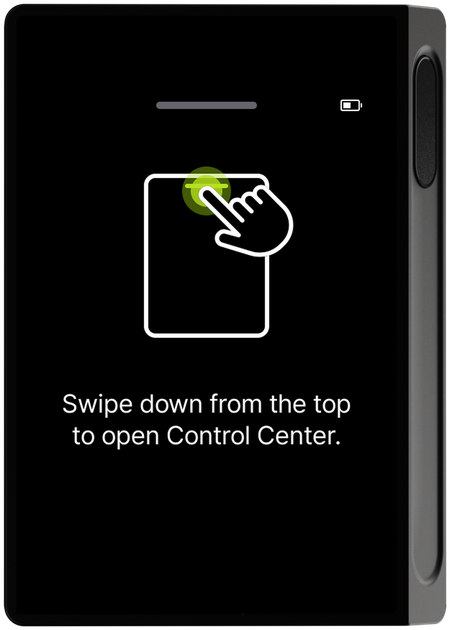
Once the walkthrough finishes, the actual Control Center panel appears on screen briefly, then closes automatically before taking you to the home screen. You don't need to do anything — the whole sequence plays on its own. This walkthrough is shown only once, right after you complete Initial Setup.
Opening the Control Center
Step 1 — Open the panel
There are two ways to open the Control Center.
- Drag down from the top bar area of the screen with your finger. The panel opens in real time as you drag.
- Tap the top bar briefly. The panel opens immediately, with no dragging required.
While the panel is closed, only a downward drag is recognized — dragging upward has no effect.
Step 2 — Close the panel
There are three ways to close an open Control Center, and they all work the same way.
- Drag the open panel upward (pull up) with your finger.
- Tap the handle bar at the bottom of the panel.
- Tap anywhere outside the panel.
Step 3 — Use the controls
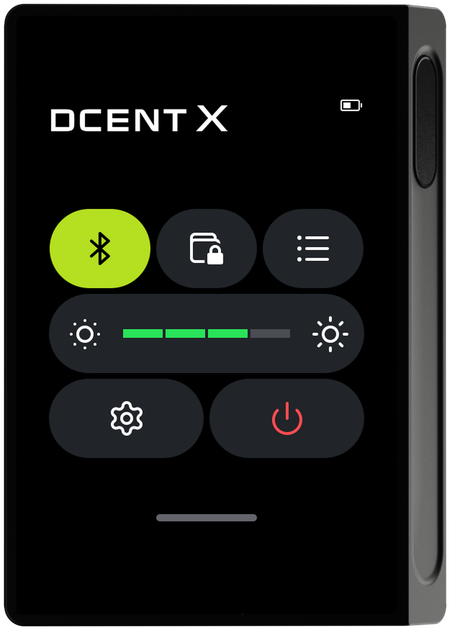
The Control Center contains 5 control buttons and a brightness slider. The top row has 3 buttons (Bluetooth, Passphrase, view toggle), the middle row has the brightness slider, and the bottom row has 2 buttons (Setting, Power). Each control looks and works as follows.
Bluetooth (BLE) button — top row, left
A button with the Bluetooth logo. It's blue when on and dark gray when off. Tapping it toggles Bluetooth on or off. Only turning it on from off switches to the QR code screen for connecting to the mobile app. Tapping it while it's already on just turns Bluetooth off, with no screen change.
Passphrase wallet button — top row, center
A card-shaped icon with a lock. If you have a registered passphrase wallet (a separate wallet derived from a 25th word), tapping this switches to it right away after PIN verification. If you haven't set one up yet, it takes you to the passphrase wallet setup guide. See Passphrase for details.
View toggle button — top row, right

A horizontal list icon. Tapping it switches the home screen's account view between tile view and list view, and the Control Center closes automatically. See Checking account info for the difference between the two views.
Brightness slider — middle row

A brightness gauge sits between two sun icons at each end. Drag the gauge left or right to adjust screen brightness in real time as you drag. The number of green-filled segments shows the current brightness level.
Setting button — bottom row, left

A gear-shaped icon. Tapping it closes the Control Center upward first, then switches to the Setting menu.
Power button — bottom row, right

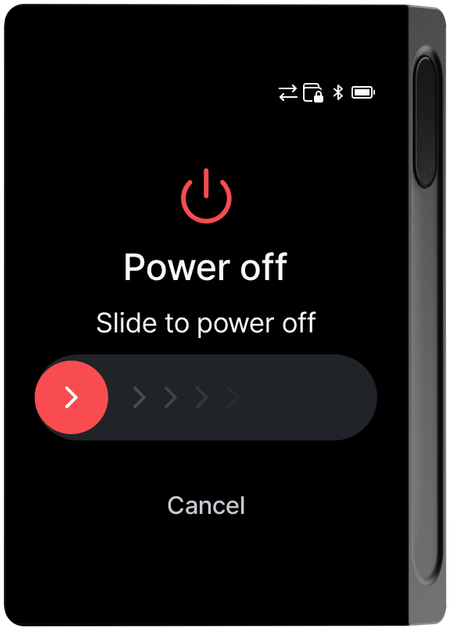
A red power icon. Tapping it switches to the power-off slider screen shown below — sliding it to the right actually turns off the device. Tap Cancel if you don't want to power off.
Viewing the BLE connection QR code
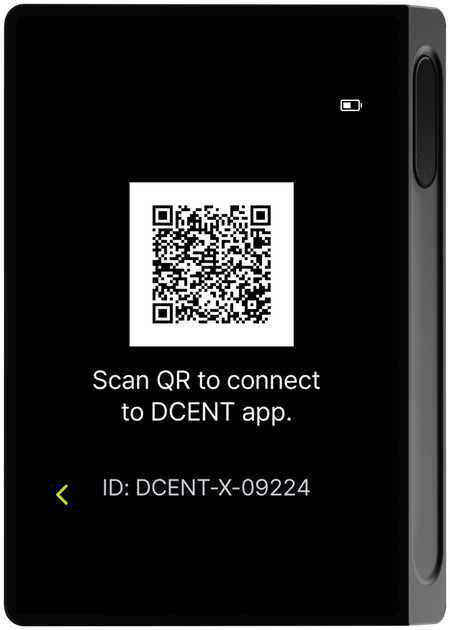
Tap the Bluetooth toggle in the Control Center while it's off to display a QR code for connecting. See Connect with the mobile app for the full connection procedure.
Once you've seen the first-time walkthrough above, no separate help screen appears again. You can use each control directly, using the descriptions above as your guide.