Firmware Update
Firmware is the software that runs inside DCENT X. Support for new blockchain networks, feature improvements, and security patches are all delivered as firmware updates.
DCENT X firmware is delivered over Bluetooth through the mobile app. No cable connection to a PC or a mobile device is required.
Before you start
Check these three things before starting an update.
| Check | Details | |
|---|---|---|
| 1 | App connection | DCENT X must be connected to the mobile app over Bluetooth. See Connect with the mobile app for how to connect. |
| 2 | Check the batteries | The firmware update cannot run if the DCENT X battery is below 20% or the phone battery is below 15%. Both the DCENT X and the phone must meet their battery condition for the update to start. We recommend keeping the device connected to power throughout. |
| 3 | An uninterrupted setup | The device must not lose power or disconnect during the update. Keep the device and your phone close together. |
Once the firmware is updated, you cannot roll back to an earlier version.
Checking for firmware updates
Go to Setting > Device Info.
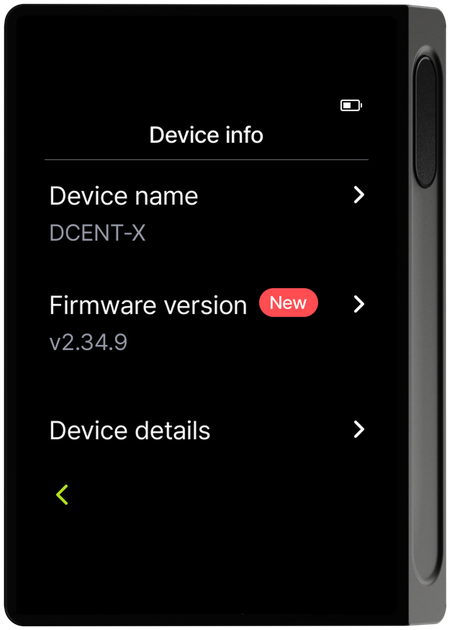
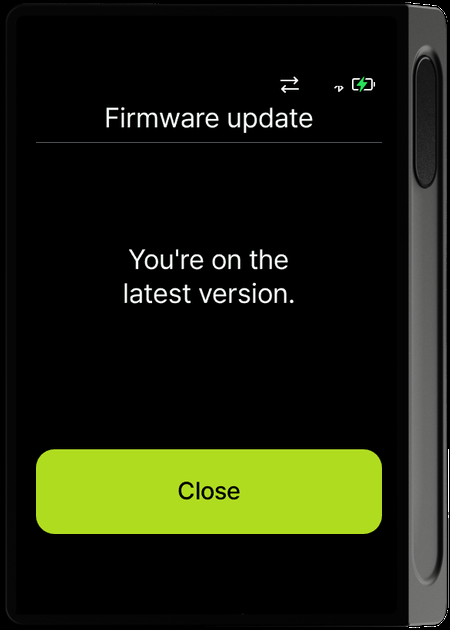
Tap Firmware update to see the result. If you are already on the latest version, the device tells you so and there is nothing to update.
If new firmware is available, the device asks you to update from the mobile app.
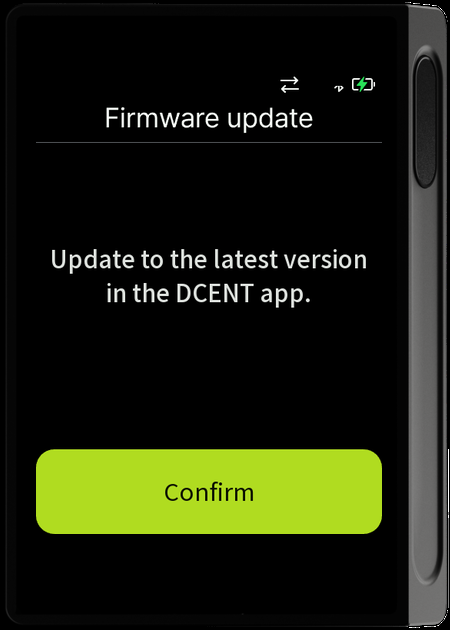
When you see this screen, follow Updating the firmware below in the mobile app.
Updating the firmware
The update runs from the mobile app. The device only shows progress; every action happens in the app.
Step 1 — Open Firmware update in the app
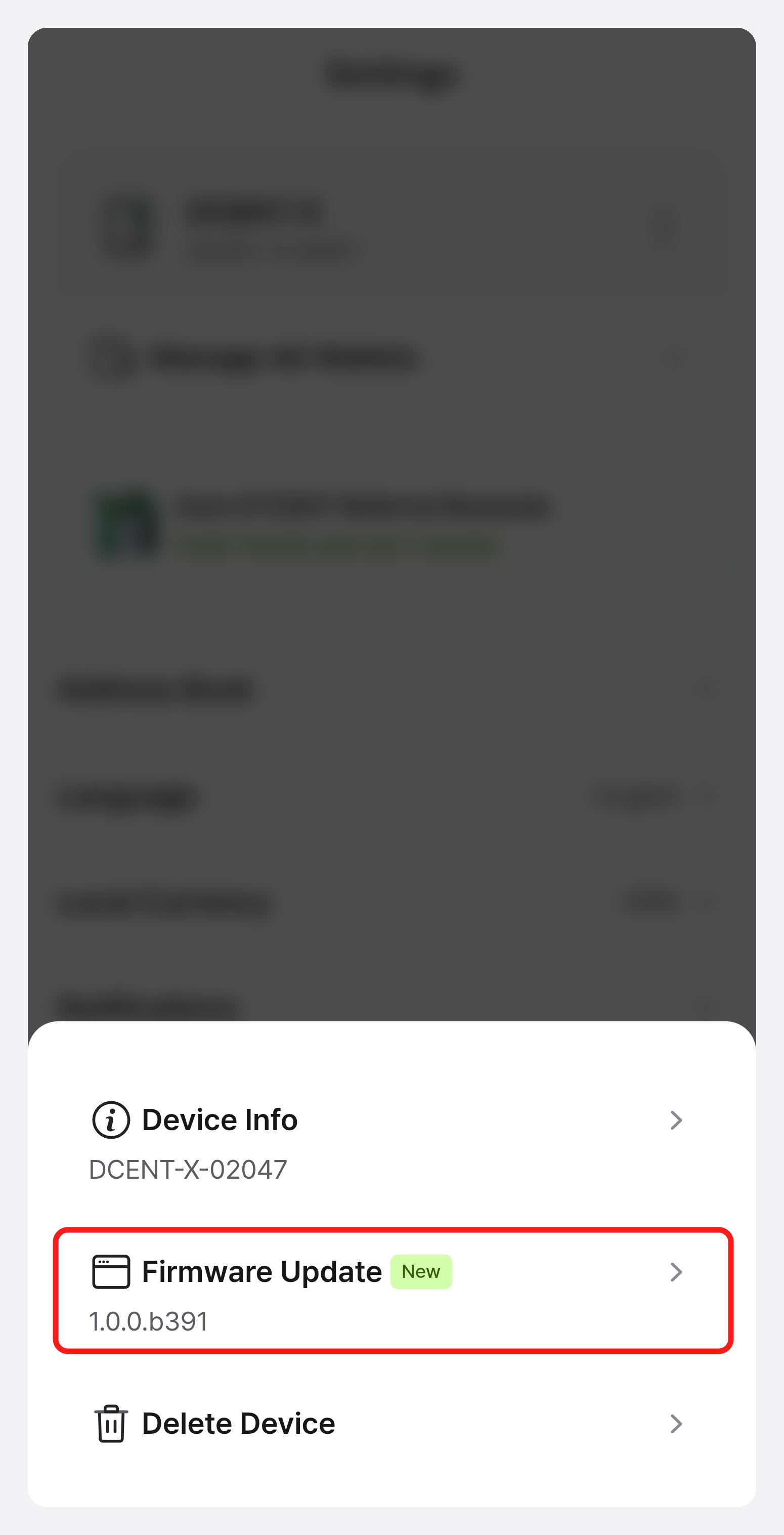
With DCENT X connected, tap the more (⋮) button at the top right of the Settings tab.
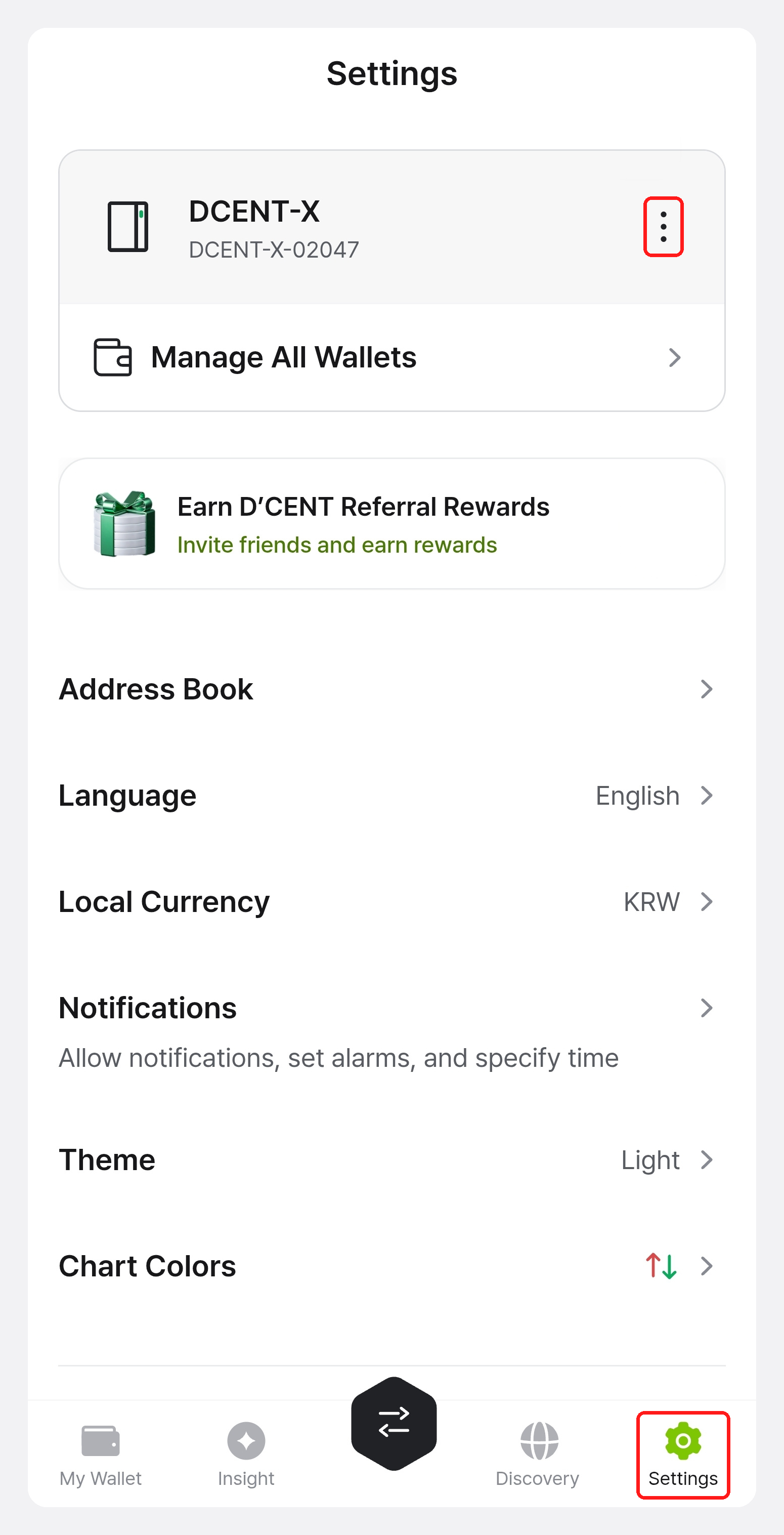
The wallet info menu appears. If new firmware is available, a New badge appears on Firmware Update. Tap Firmware Update.
Step 2 — Review the notice and start
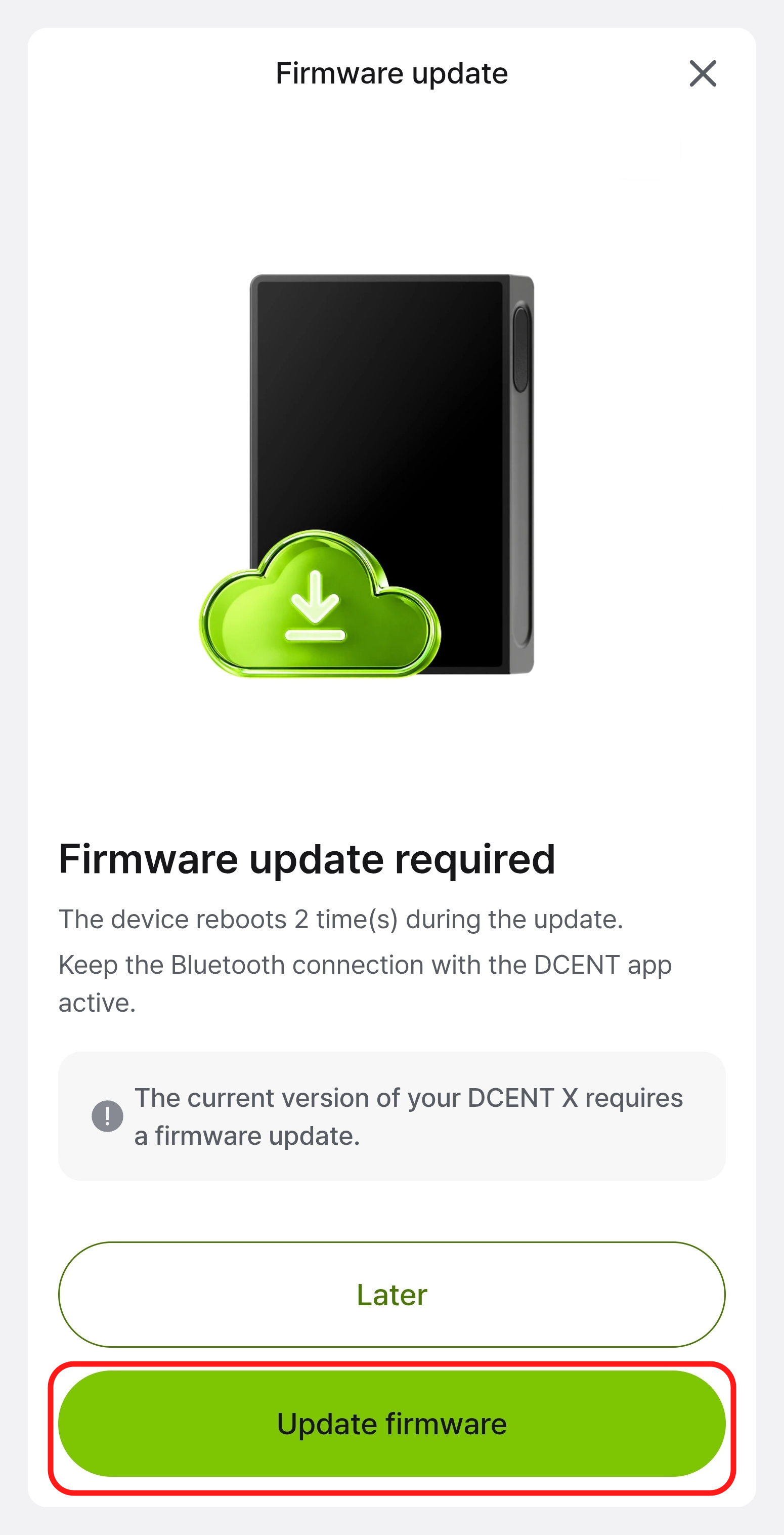
The app explains that an update is needed, along with what to watch for. Review the notice and tap Update firmware. To postpone, tap Later.
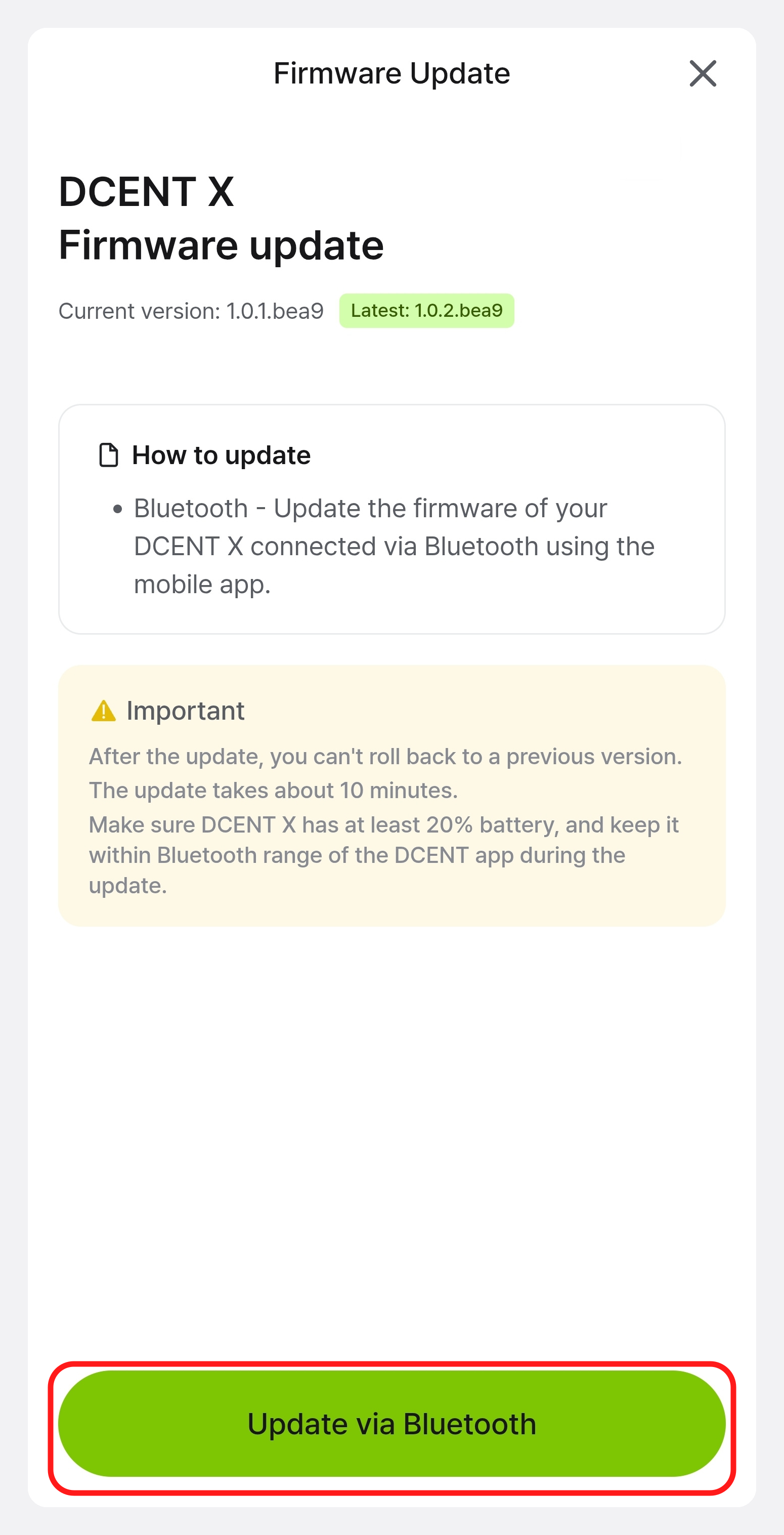
Next, the current version, the latest version, the update method, and important notes appear on one screen. Review them and tap Update via Bluetooth to begin.
Step 3 — Wait until it finishes
From here on, you only have to wait. The app handles the rest.
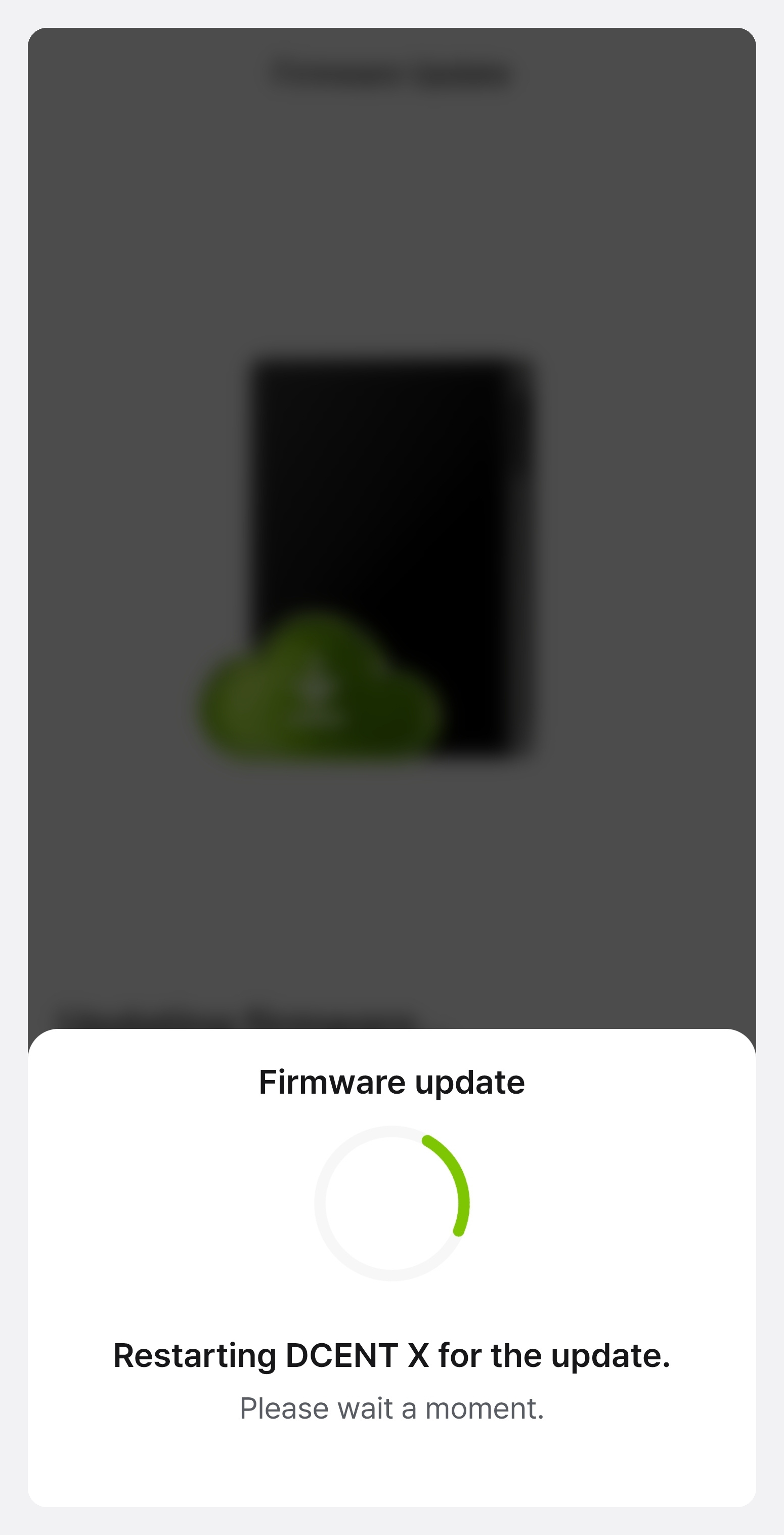
The device reboots during the update. Bluetooth drops briefly and a disconnection notice appears — this is normal. The app reconnects on its own.
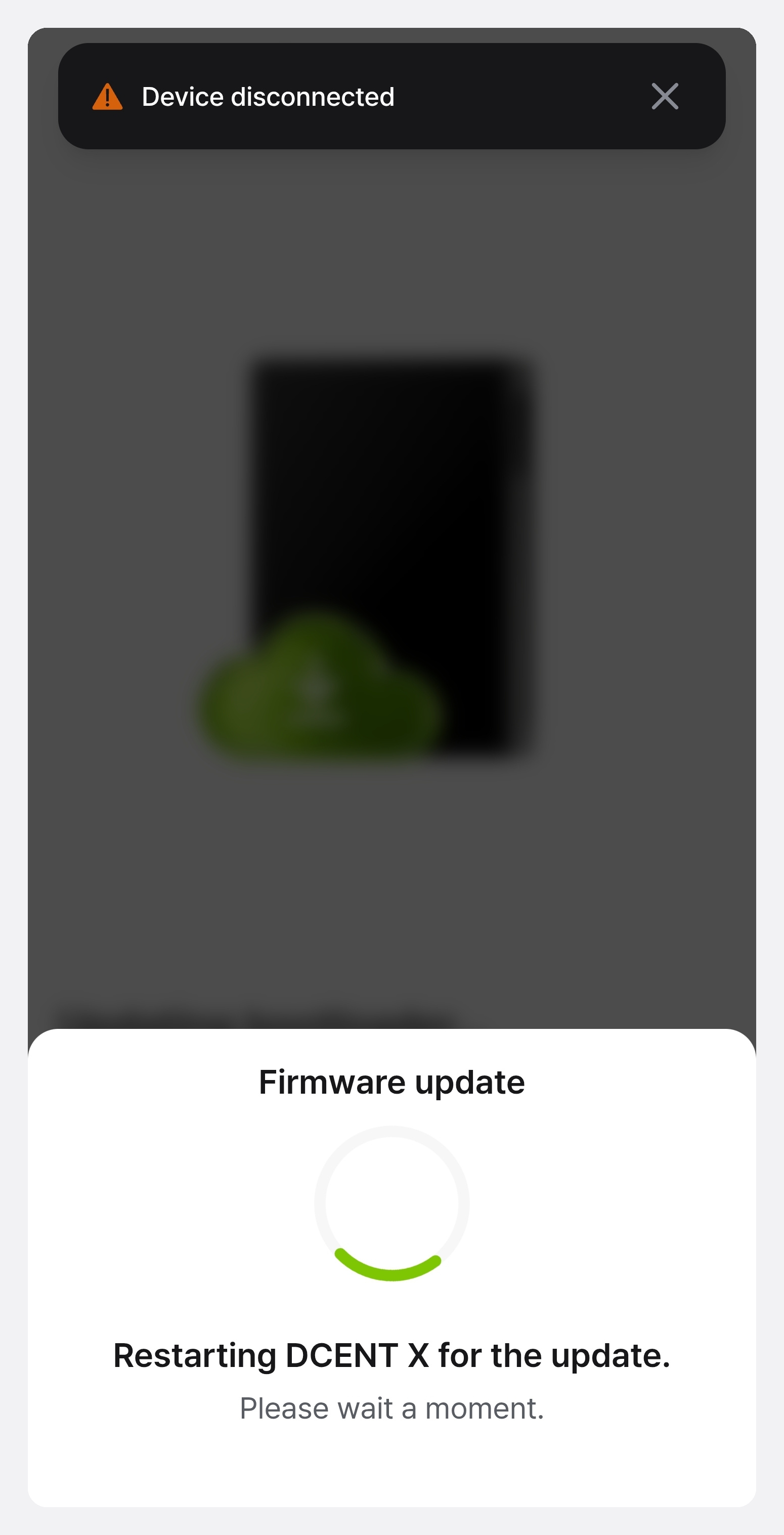
Once the device is back, the firmware transfer starts and progress is shown. While this screen is open, do not close the app or navigate away. Keep the device and your phone close together.
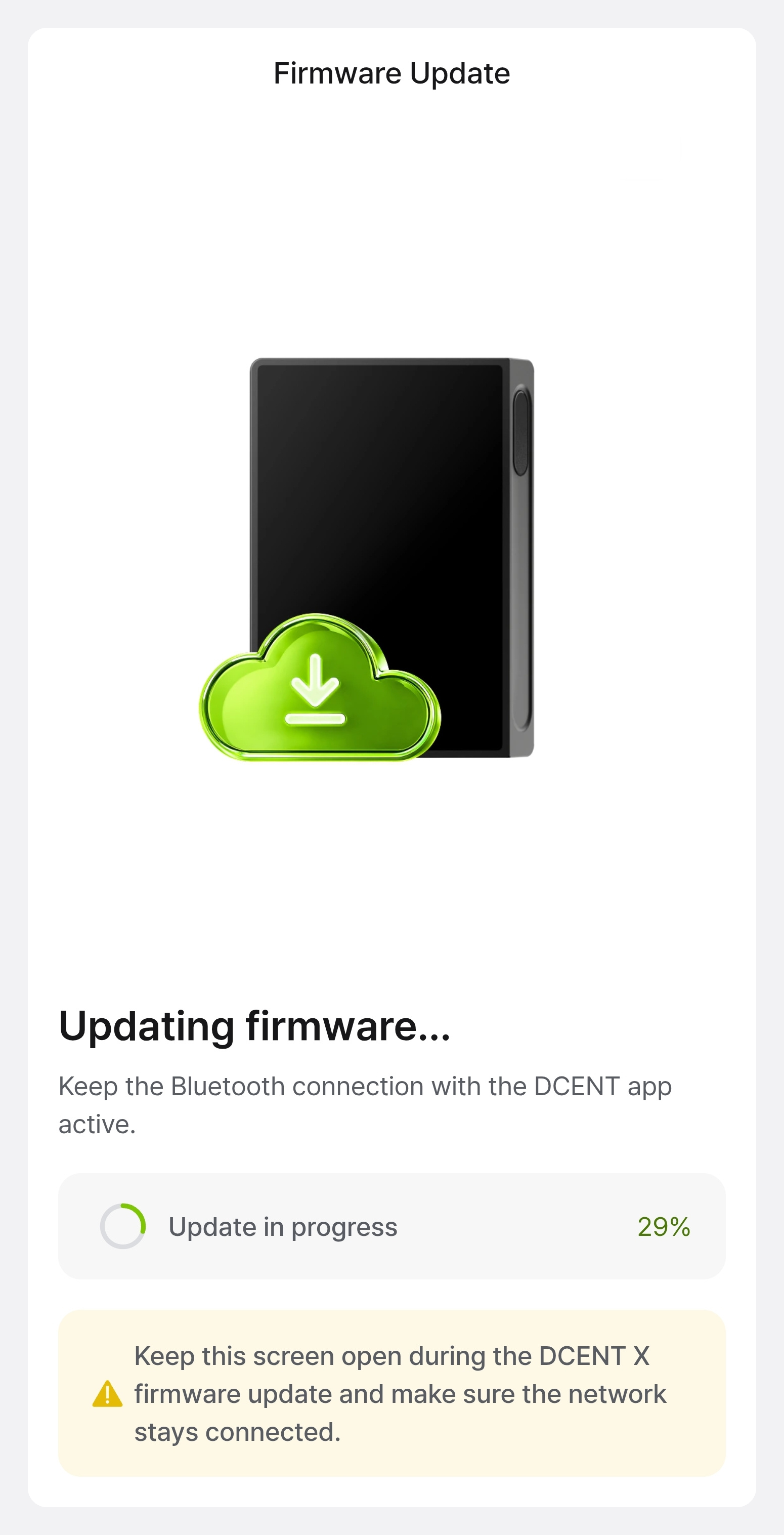
When the transfer finishes, the device reboots again to apply the new firmware. Depending on what the update includes, this can repeat several times. Please follow the guidance shown on screen.
Step 4 — Confirm completion
A completion screen appears when the update is done.
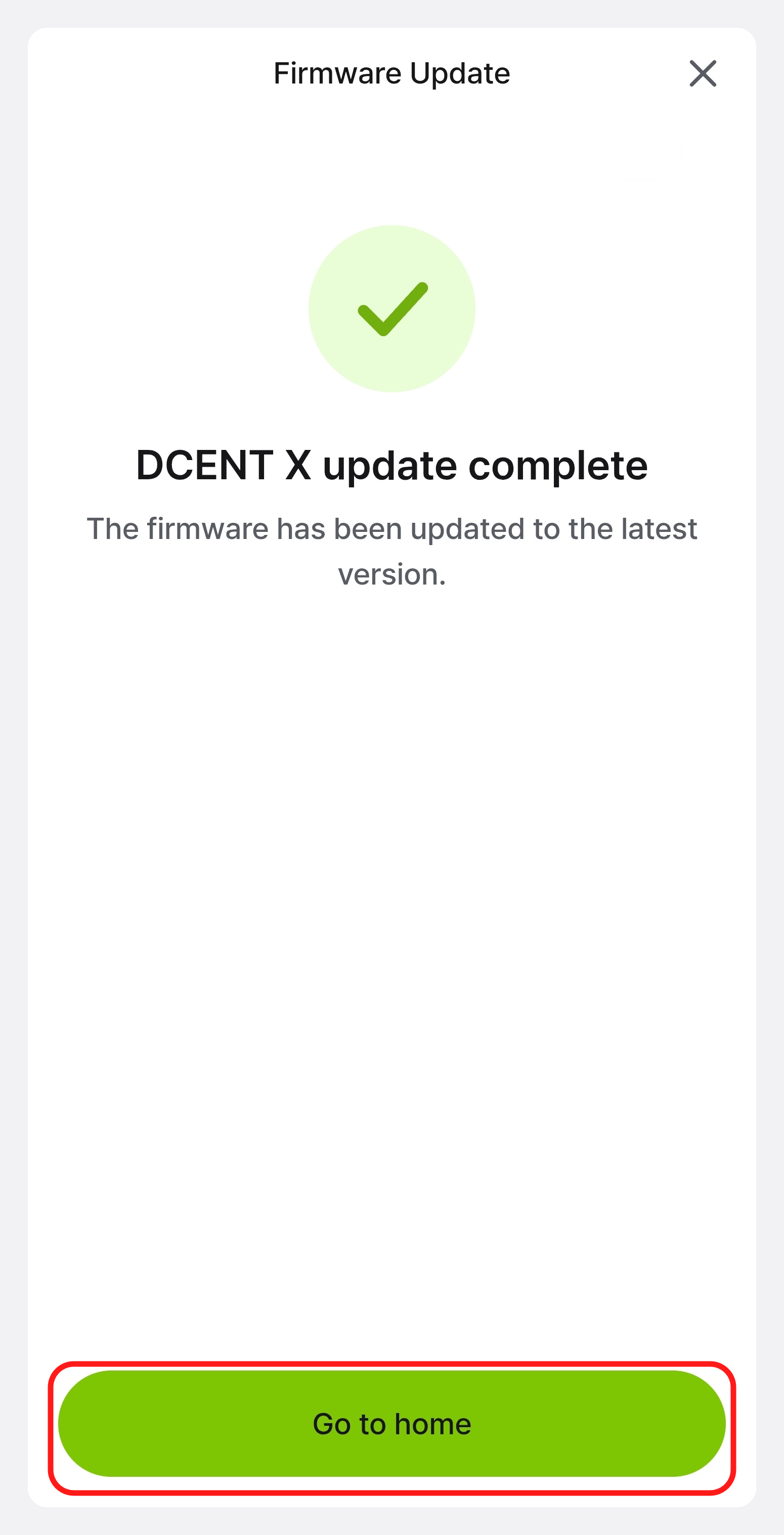
Tap Go to home to exit. You can verify the version at Setting > Device Info > Firmware update.
Do not do any of the following while the update is running. It can interrupt the update.
- Powering off the device
- Disconnecting Bluetooth from the mobile app
- Force-quitting the mobile app
- Moving the device and your phone out of Bluetooth range
If the update does not start
| Symptom | Cause | What to do |
|---|---|---|
| A Low battery notice appears on the device | The DCENT X battery is below 20% | Connect the device to power, charge it, and try again. |
| The update does not start | The phone battery is below 15% | Charge your phone and try again. |
| The app cannot find the device | Bluetooth is disconnected | Check the Bluetooth connection from the Control Center and reconnect. See Connect with the mobile app for the full procedure. |
| A disconnection notice appears during the update | Normal behavior while the device reboots | This is the expected notice in Step 3. Wait and the app reconnects on its own. |
| No New badge appears | You are already on the latest version | There is nothing to update. |