Recover with recovery words
This is the procedure for recovering your wallet by entering your recovery words (mnemonic) with the T9 keypad. If you have an R3covery card, you can also use Recover with an R3covery card.
For how to view and write down your recovery words (mnemonic) on DCENT X, see Initial Setup · Back up and verify your recovery words.
On the Choosing a recovery method screen, selecting Recover with recovery words begins the procedure below.
Step 1 : Select the mnemonic length
Select the number of words in your mnemonic. DCENT X supports 12-, 18-, and 24-word mnemonics.
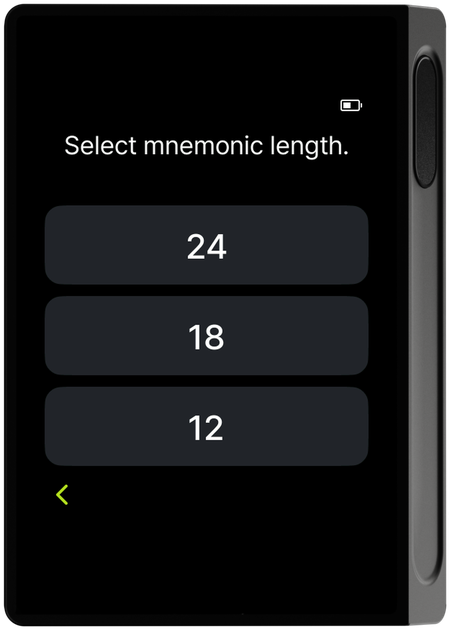
Select the same word count as the recovery card you recorded earlier.
A mnemonic created by DCENT has 24 words. To recover a wallet created with DCENT, be sure to select 24. (The 18- and 12-word options are for recovering mnemonics created by other wallets.)
Step 2 : Enter words with the T9 keypad
Enter your mnemonic words in order from the first word, up to the number you selected.
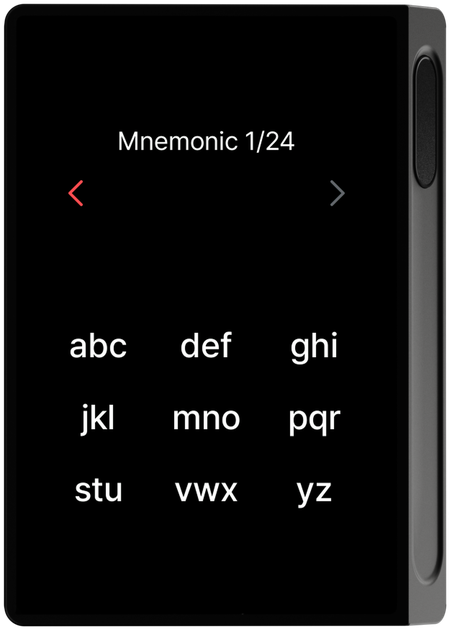
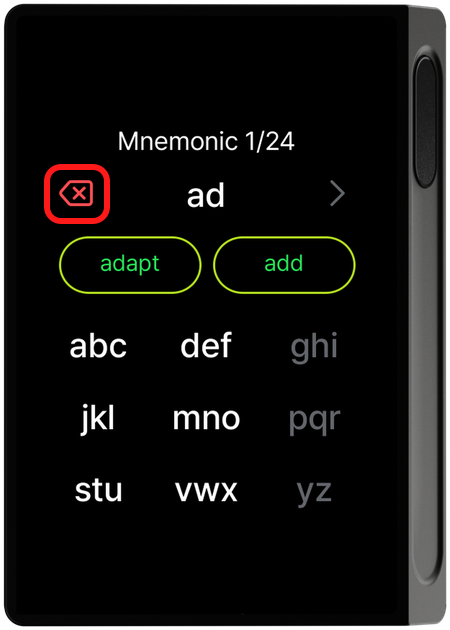
A T9 keypad, like text entry on old mobile phones, groups several letters on one key so you press the same key multiple times to pick the letter you want. The older Biometric Wallet stepped through letters one at a time with "Up/Down" buttons, but DCENT X uses this touchscreen T9 keypad to enter several letters at once.
(a) The 3x3 key groups and multi-tap entry
The keypad at the bottom of the screen has 9 keys in a 3x3 layout, with letters grouped on each key as follows.
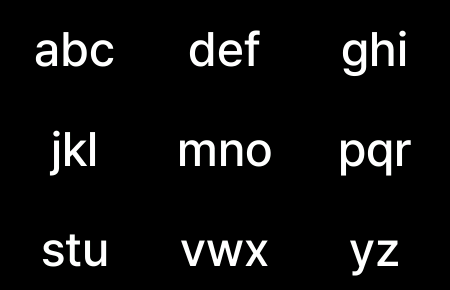
To pick a letter within a key, press the same key repeatedly to cycle through its letters. For example, pressing the "abc" key once gives a, again gives b, and once more gives c. Pressing a different key immediately confirms the letter you were choosing and starts a new letter.
(b) The underline cursor and 2-second auto-confirm
A purple underline blinks under the last, not-yet-confirmed letter. If 2 seconds pass with no other key press, that letter is confirmed automatically and the underline disappears.
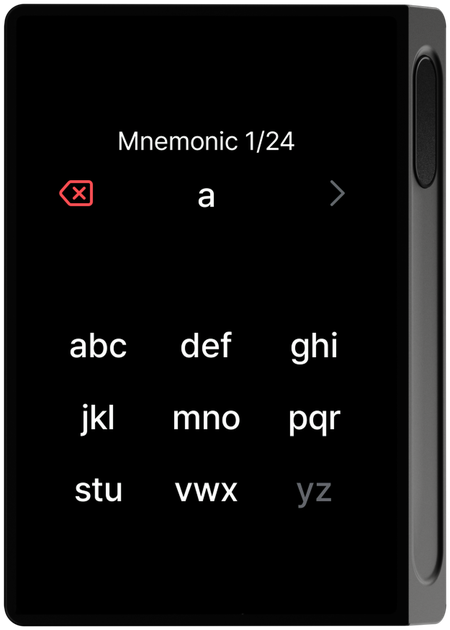

(c) The confirm arrow (letter by letter)
The arrow button to the right of the input row immediately confirms only the single currently blinking letter, without waiting 2 seconds. It does not confirm the whole word — to confirm a word, you must select it from the candidate list in (d) below.
(d) Selecting a candidate word chip
Once you enter two or more letters, candidate words starting with the letters you entered appear as horizontally scrolling chips in the middle of the screen. You must tap the chip of the word you want to confirm it — even when the candidates narrow to one, it is not confirmed automatically, so be sure to tap the chip.
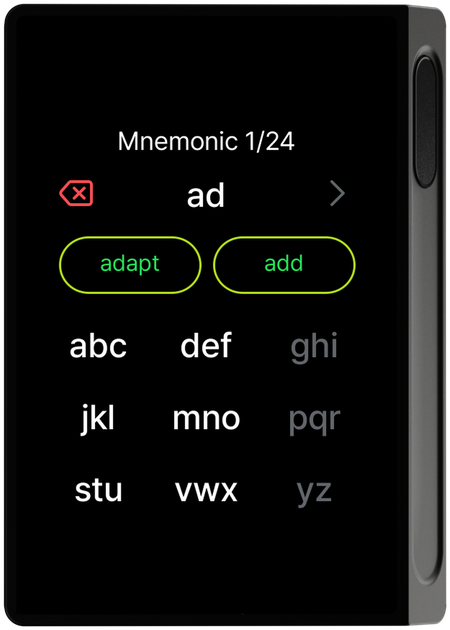

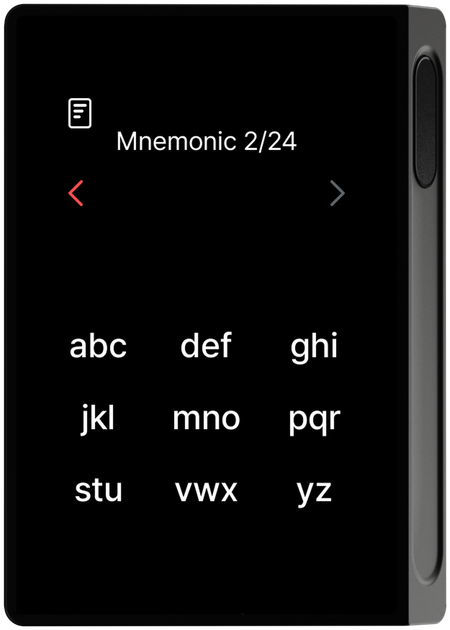
When a word is confirmed, the counter at the top ("N/24") increases and you move on to the next word.
(e) Keys are disabled when no matching word exists
Keys whose combination would start no valid word are grayed out and don't respond to touch. For example, if no word starts with "az", the key containing 'z' turns gray right after you enter 'a'.
(f) Delete and go back
The icon on the left of the input row behaves differently depending on the state.
No letters entered and no confirmed word — goes back to the previous screen.
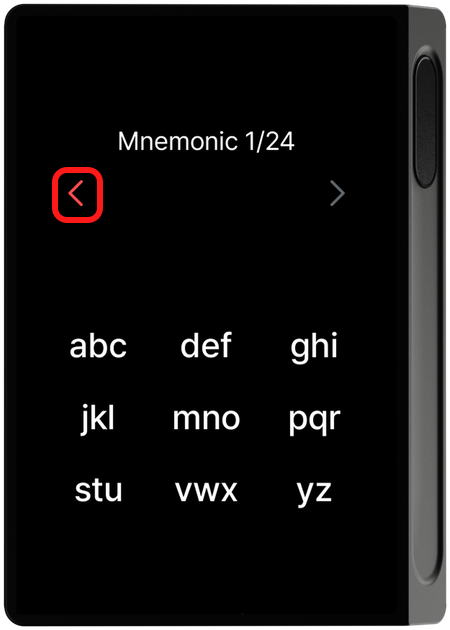
No letters entered but a previously confirmed word exists — goes back to the previously confirmed word, erasing it so you can enter it again from scratch (for example, if you just confirmed the 5th word, the 5th word is erased and you re-enter it).
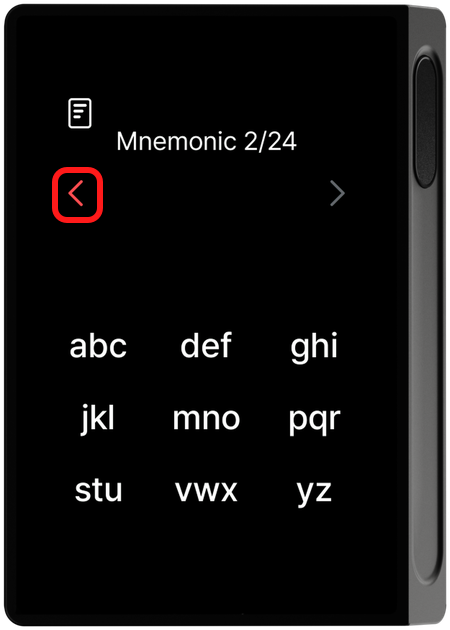
While entering letters — deletes one letter at a time.
Do not photograph or save your recovery words or recovery card as an image. You are responsible for handling your recovery words safely. DCENT is not liable for damage or loss of crypto assets caused by user negligence, such as theft of the recovery card or saving an image file.
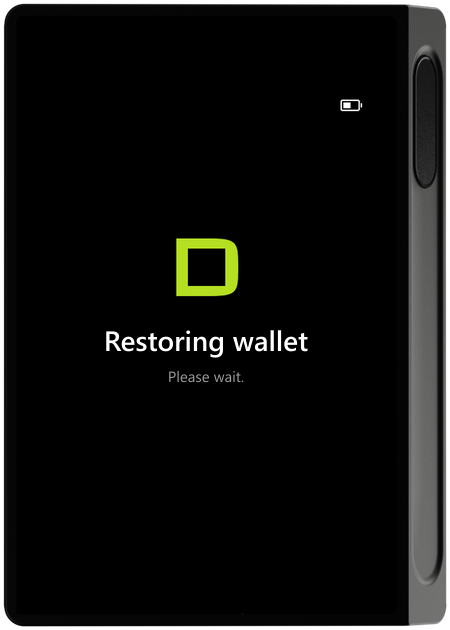
Step 3 : Recovery in progress
Your wallet is recovered from the mnemonic you entered.
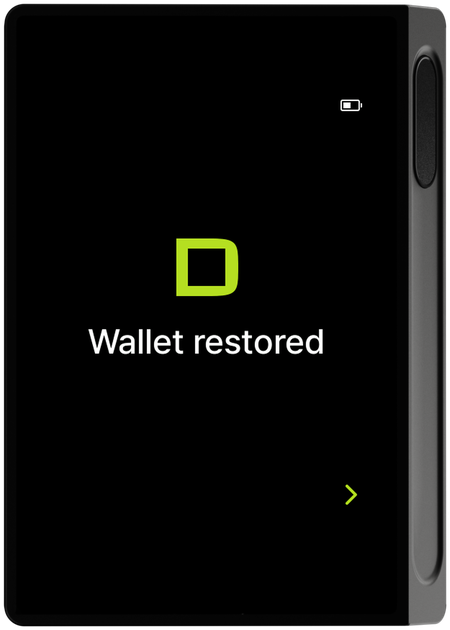
Step 4 : Recovery complete
When recovery finishes, a completion screen appears.
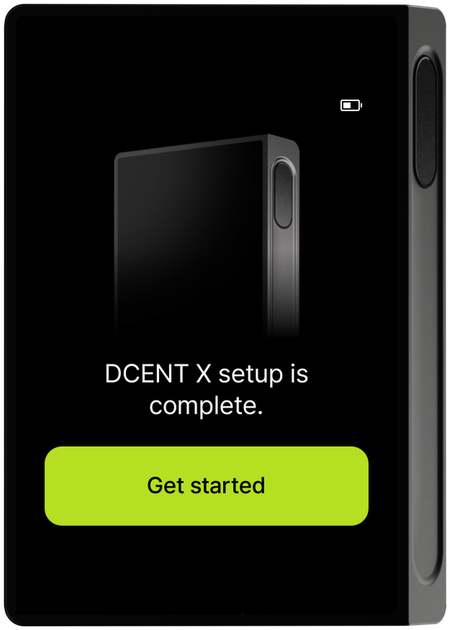
Step 5 : Setup complete
Once recovery is complete, the "DCENT X setup is complete" screen appears. Tap Get started to play a short tutorial on using the Control Center once, then the home screen appears (see Control Center for details). Now, refer to Connect with the mobile app to connect your wallet to the app and add back the accounts you managed before.
If you set up a passphrase wallet after initial setup, you must enter not only the mnemonic (recovery words) but also the passphrase you set to recover that wallet. See Wallet — Setting up a passphrase wallet for how to set one up.