Recover with an R3covery card
This is the procedure for recovering your wallet with an R3covery NFC backup card. If you don't have the card, you can recover with your recovery words in Recover with recovery words.
The recovery guide screens (what you need, the R3covery card guide, the passphrase guide) and the recovery method selection screen are already covered in Recovering your wallet. Selecting Recover with an R3covery card begins the procedure below.
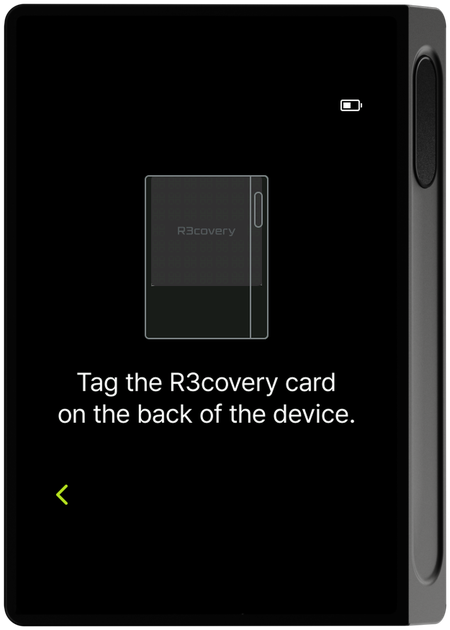
Step 1 : Tag the card
Following the guide, tag your R3covery card to the back of the device.
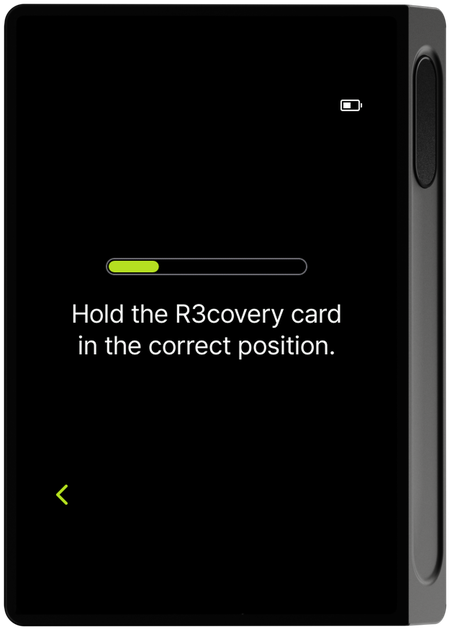
Step 2 : Reading the card
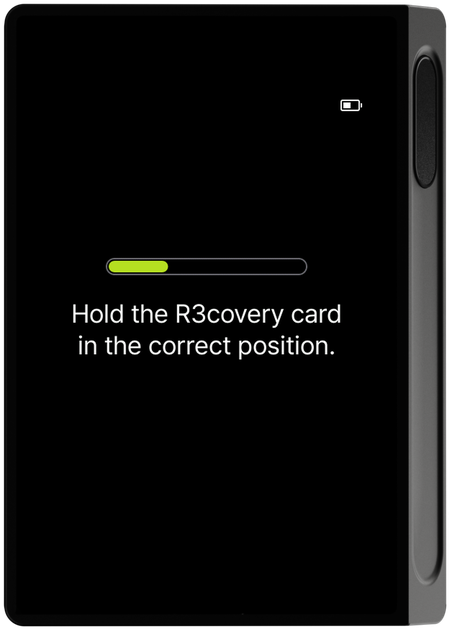
While you hold the card in the correct position, the progress bar fills as the card information is read. Reading stops if you remove the card partway, so keep the card on the device until the progress bar is completely full.
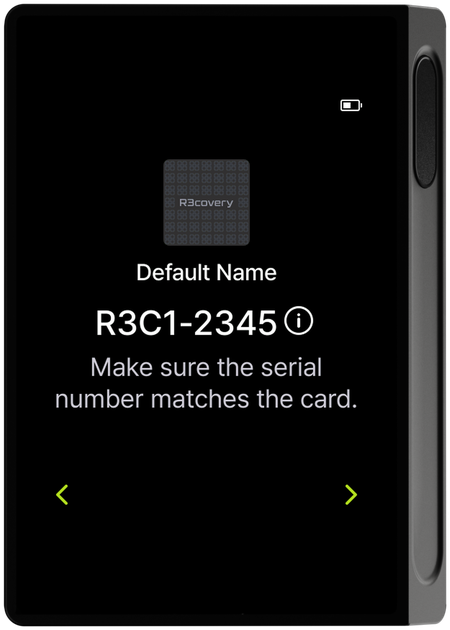
Step 3 : Review the card info
The recognized card's name and card number are shown. Check that the serial number written on the card matches the number on screen. Tapping the ⓘ icon next to the card number opens the card details screen below (optional).
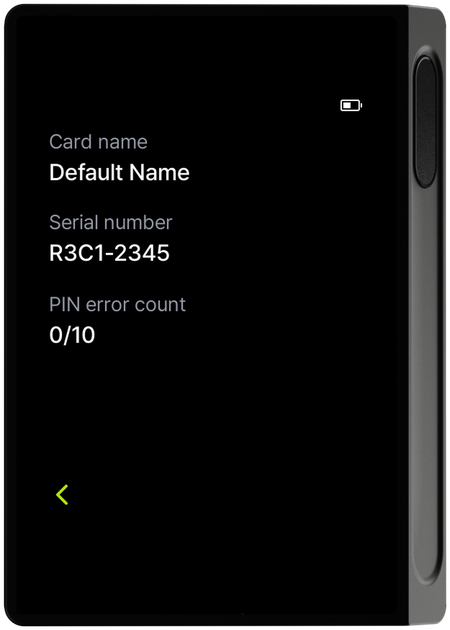
Card details (optional)
Shows the card name, serial number, and PIN error count (failures so far / 10 total) in detail. Tapping the arrow at the bottom left returns to the previous screen (card info).
On the card info screen, tap the arrow at the bottom right to continue.
Step 4 : Card PIN guide
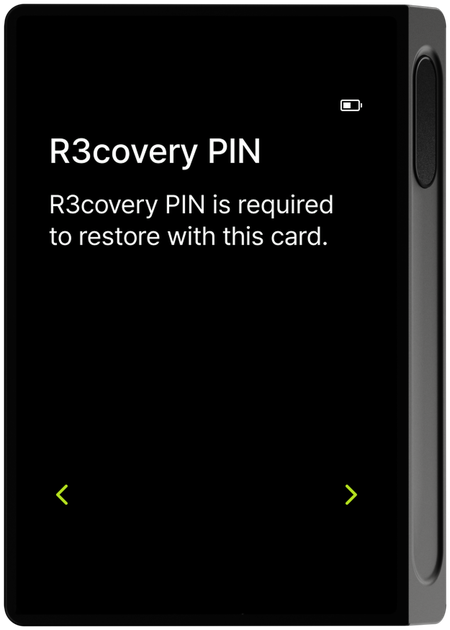
A notice appears explaining that recovering with the card requires the R3covery PIN you set when backing up to the R3covery card. Tap the arrow to continue.
Step 5 : Enter the card PIN
Enter the card PIN (6 digits) you set when backing up to the R3covery card to prove ownership. The number layout is shuffled randomly each time; after entering the full PIN, tap the check button at the bottom right to confirm.
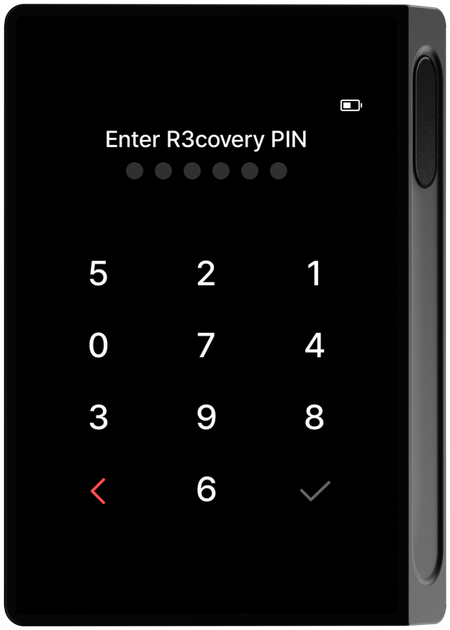
If you enter the card PIN incorrectly, an error notice appears, and 10 consecutive failures reset the card. This is separate from the policy where the device itself resets after 10 wrong device-PIN attempts — don't confuse the two.
Step 6 : Tag the card again
After the card PIN is verified, tag the R3covery card to the back of the device once more. While you hold the card in the correct position, the mnemonic backed up on the card is transferred to the device as the progress bar fills. Keep the card on the device until the progress bar is completely full.
Step 7 : Wallet recovery complete
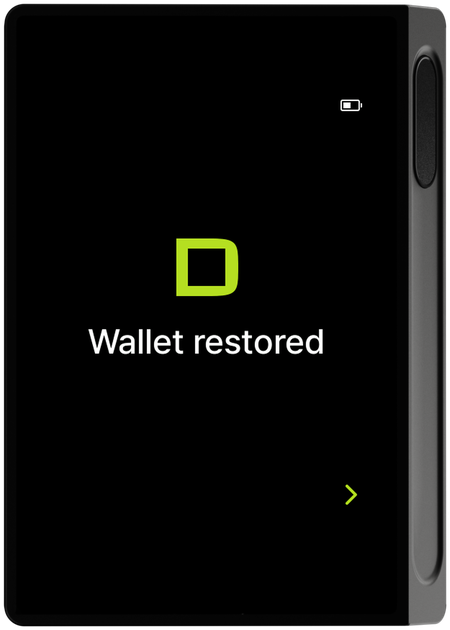
When recovery finishes, a completion screen appears.
Step 8 : Setup complete
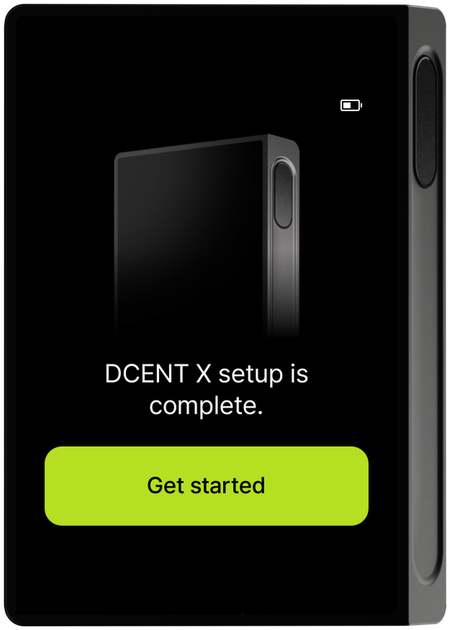
Once recovery is complete, the "DCENT X setup is complete" screen appears. Tap Get started to play a short tutorial on using the Control Center once, then the home screen appears (see Control Center for details). Now, refer to Connect with the mobile app to connect your wallet to the app and add back the accounts you managed before.
Recovering with a mnemonic
If you don't have an R3covery card, you can recover with your recovery words in Recover with recovery words.
If you set up a passphrase wallet after initial setup, you must enter not only the mnemonic (recovery words) but also the passphrase you set to recover that wallet. See Wallet — Setting up a passphrase wallet for how to set one up.