R3covery Card
R3covery menu
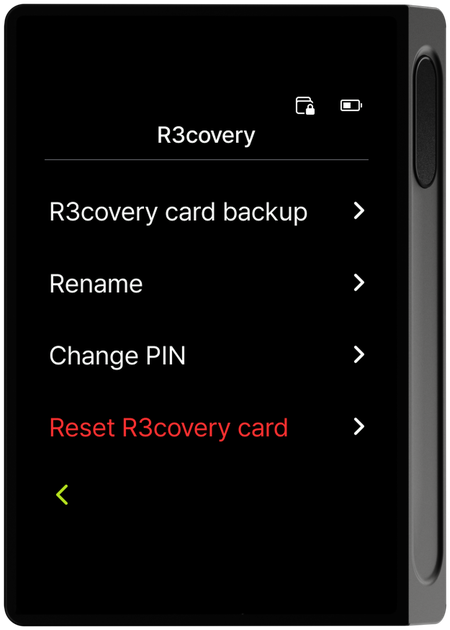
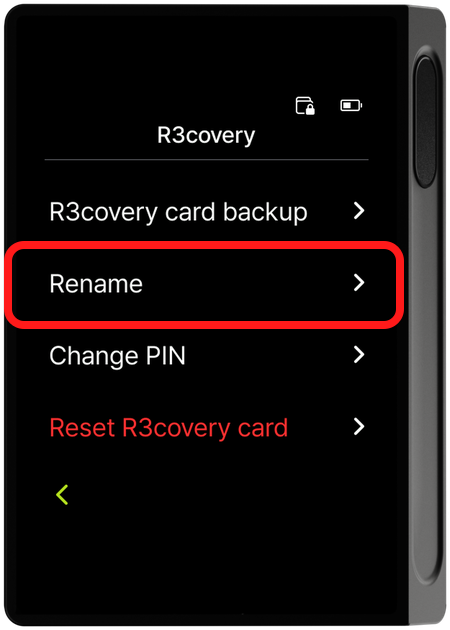
Under Settings > R3covery, you can use the following four functions.
- R3covery card backup: Save your current wallet's mnemonic code to an R3covery NFC card to create a new backup card.
- Rename: Give a card a nickname so you can tell multiple R3covery cards apart.
- Change PIN: Change the card PIN used to prove ownership of the card to a new value.
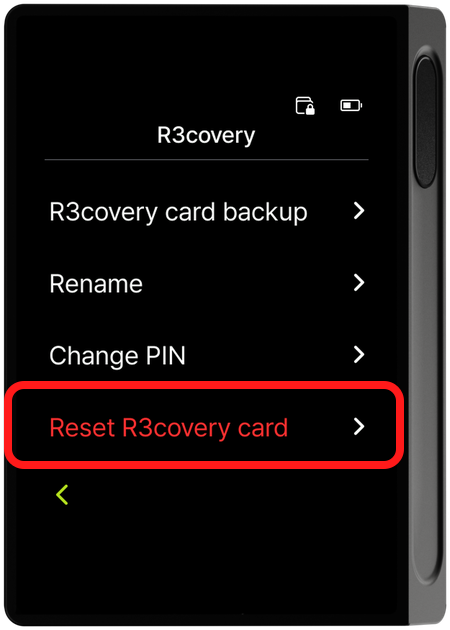
- Reset R3covery card: Delete the backup data stored on the card to return it to a reusable empty state.
Rename, Change PIN, and Reset all require the R3covery card to already be backed up. You cannot use these three menus on a card that hasn't been backed up yet.
R3covery card backup
The whole procedure is the same as Back up to the R3covery card during initial setup. Select R3covery card backup in the menu.
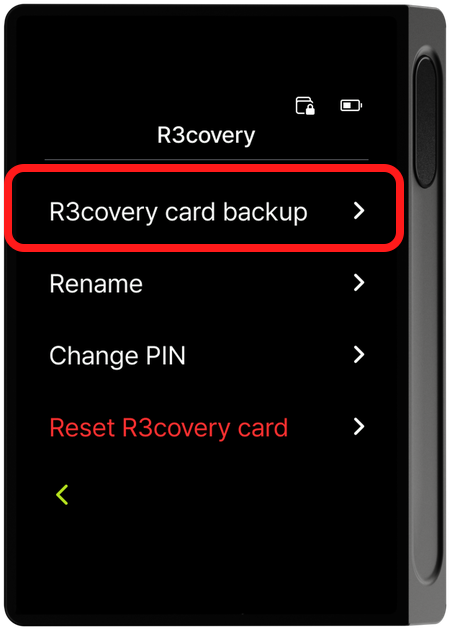
Use R3covery card backup to create a backup card or make one again — for example, when you lose your R3covery card and buy a new one, or when your card is reset after too many failed R3covery card PIN attempts.
Step 1 — Tag the R3covery card and confirm the serial
Prepare the R3covery card you want to back up and tag it to the back of the device; the card's serial number appears. Check that it matches the serial number printed on the card and continue.
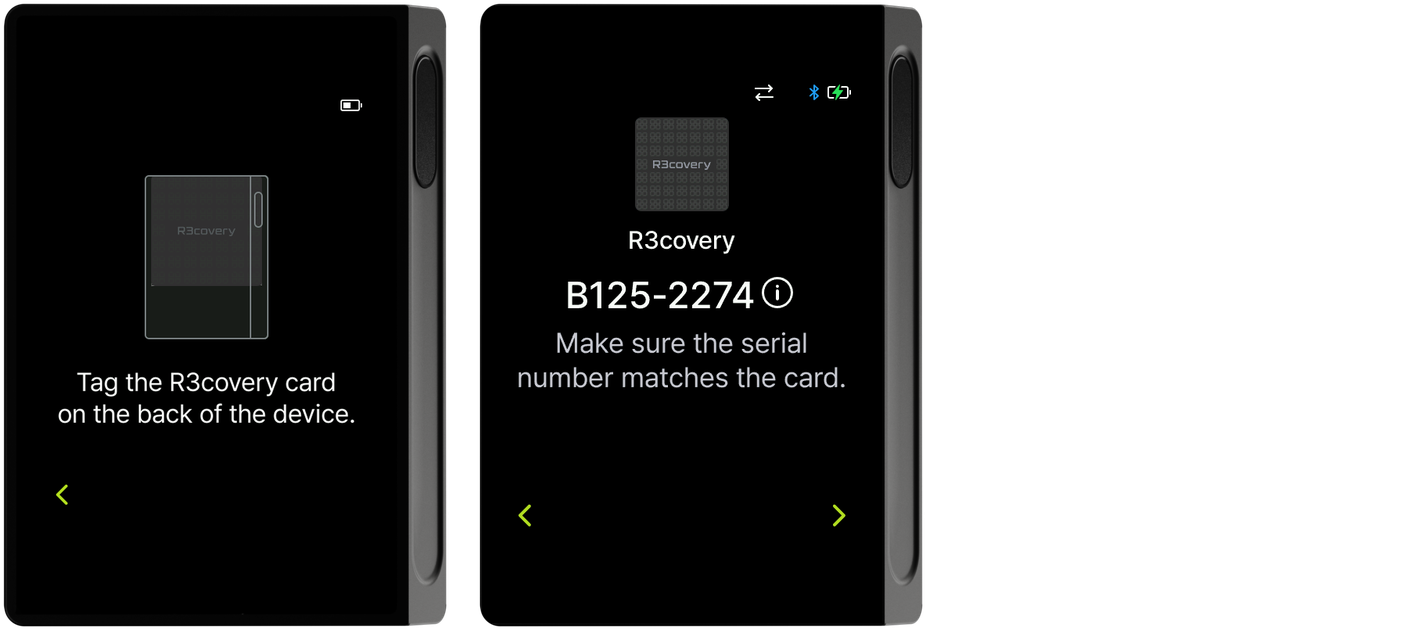
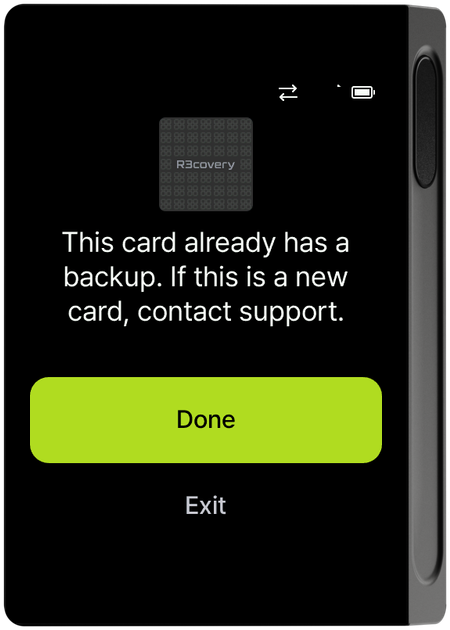
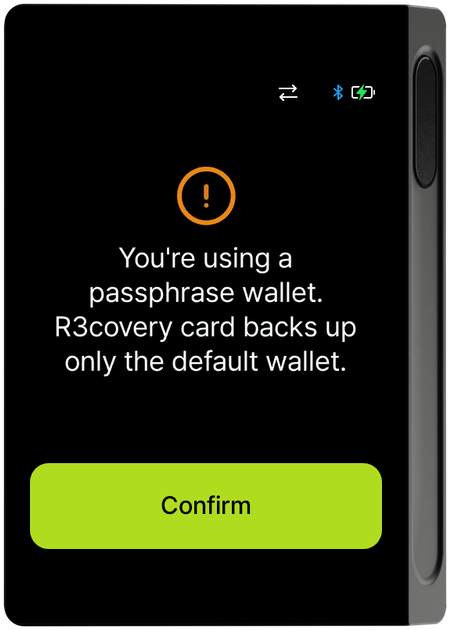
If you tag a card that is already backed up, a "This card already has a backup" notice appears. If you see this screen even on a new card, please contact customer support. Also, if you are using a passphrase wallet, the R3covery card can only be backed up from the default wallet.
Step 2 — Card PIN guide
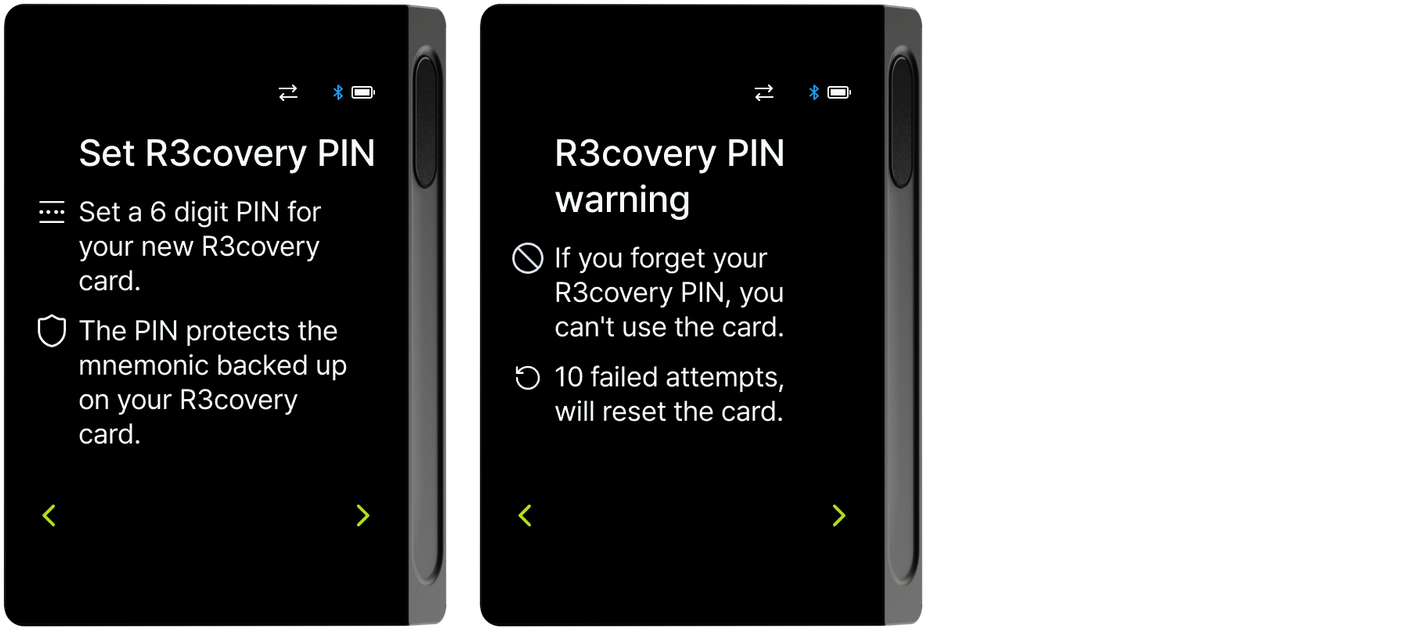
You're guided to set a 6-digit PIN for the new R3covery card, along with a warning not to lose the PIN.
Step 3 — Set and confirm the PIN
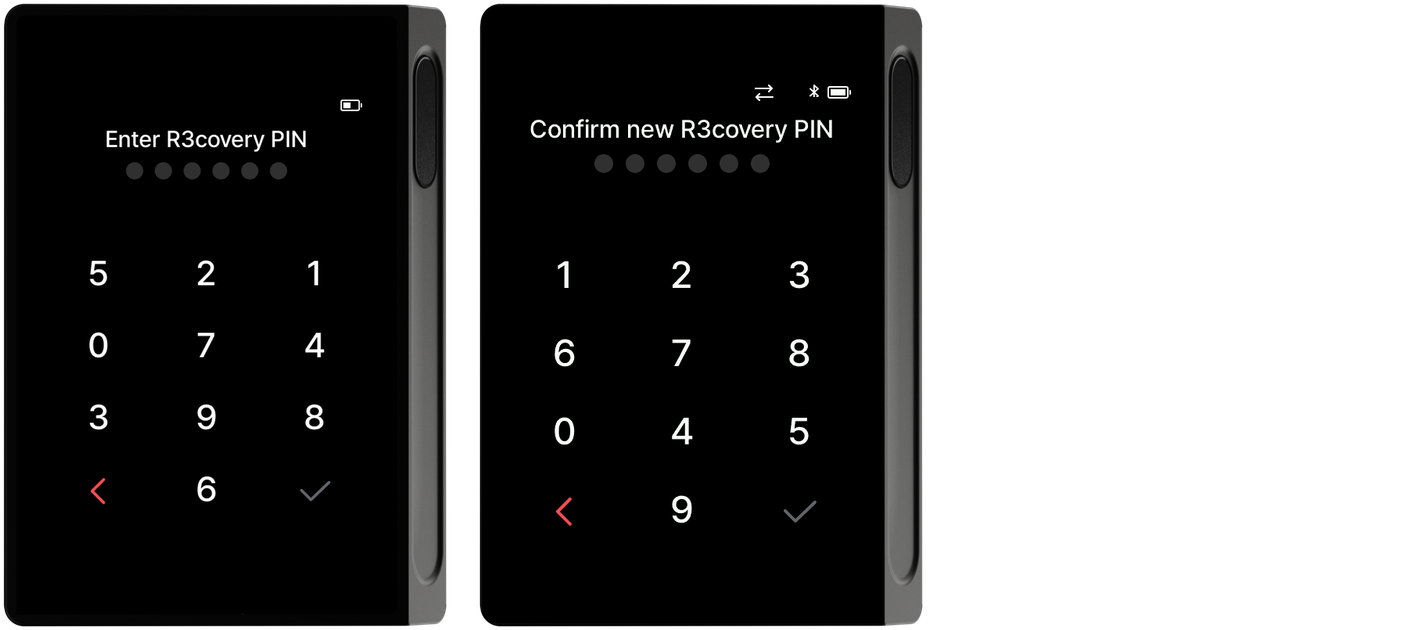
Enter a 6-digit card PIN, then enter the same PIN once more to confirm.
Step 4 — Tag the card and finish
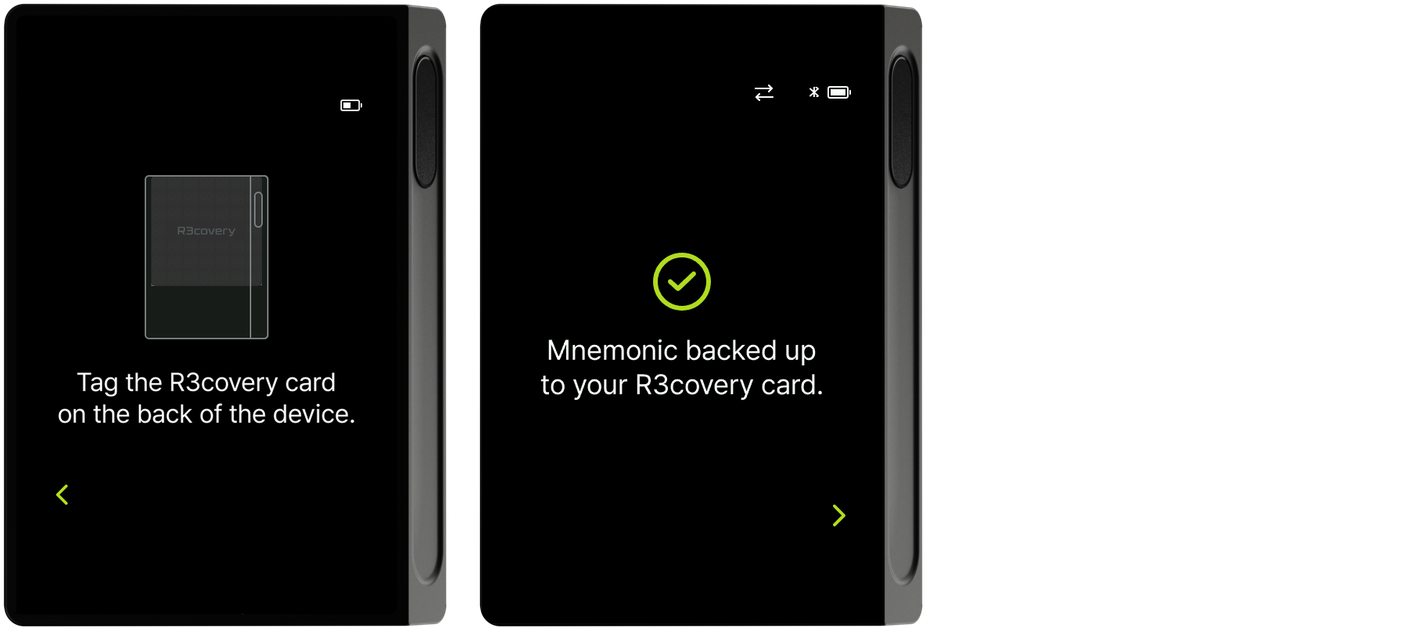
Tag the R3covery card again as guided; the mnemonic is saved to the card and the backup complete screen appears.
Rename
Select Rename in the menu.
Step 1 — Confirm the card and enter the PIN
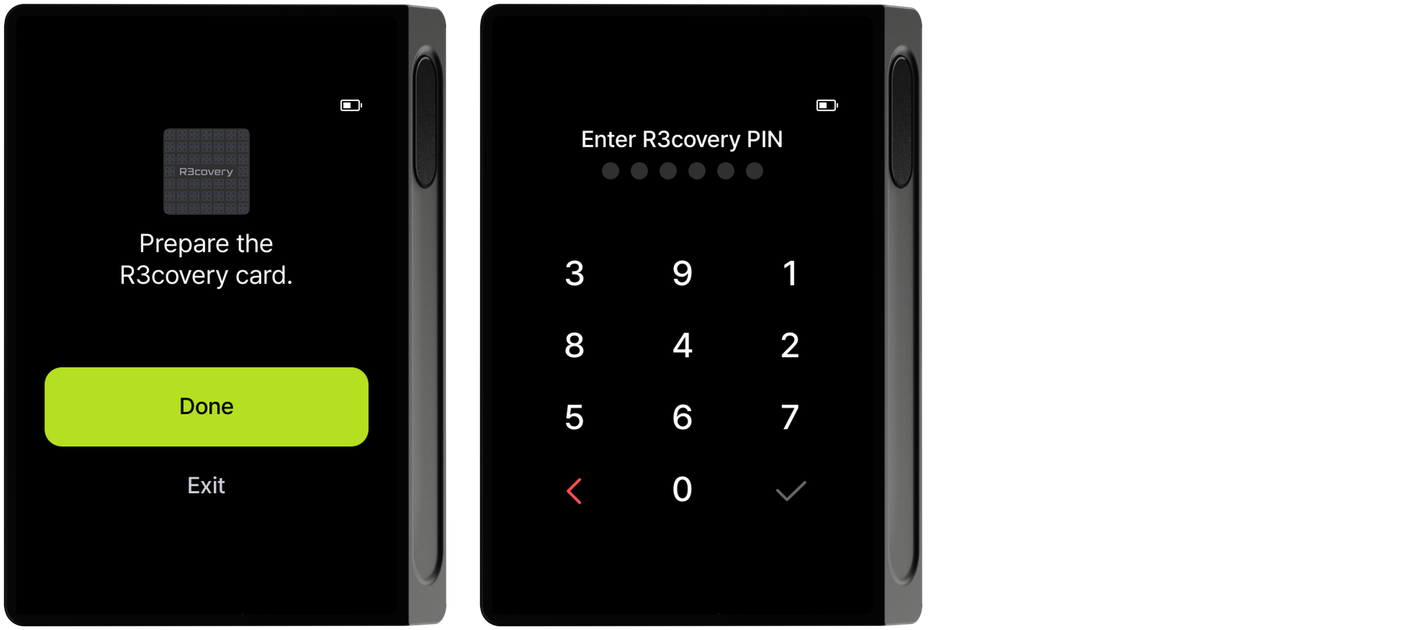
When you select Rename, a screen asks you to confirm the card. Tap OK, then enter the card PIN you set when backing up.
Step 2 — Tag the card and review the info
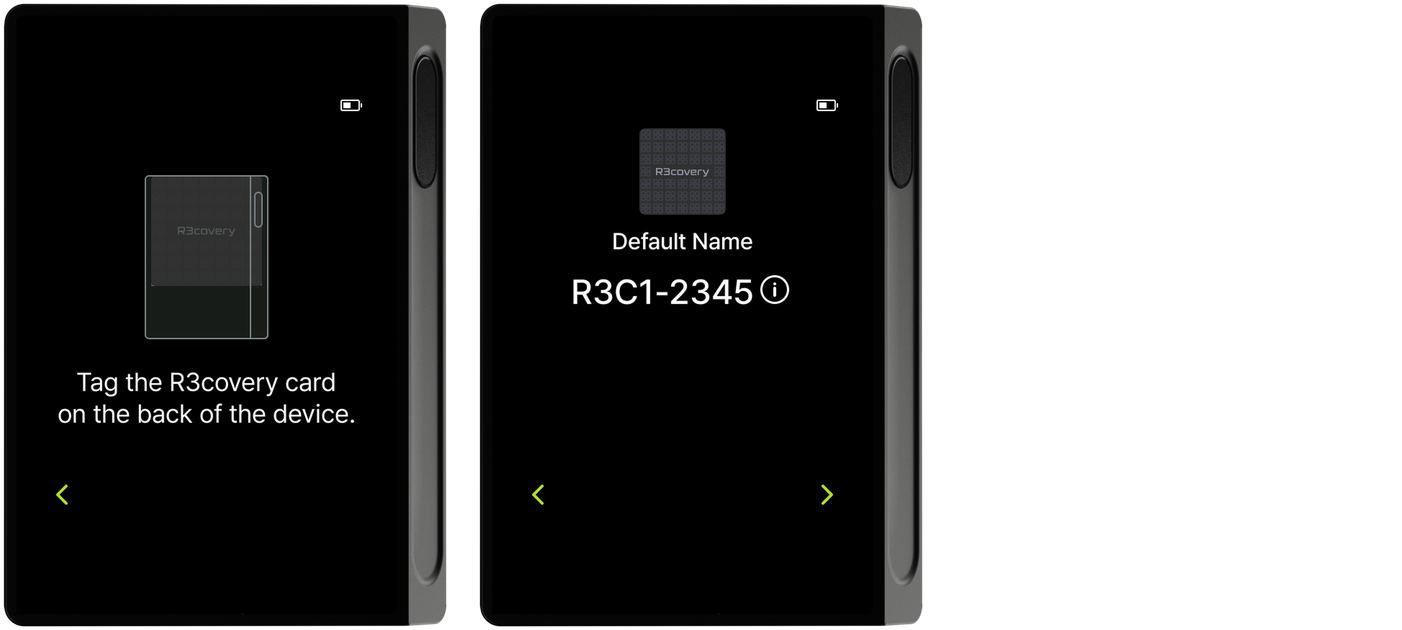
Tag the R3covery card as guided; the current card name and card number appear. Tap the arrow to continue.
Step 3 — Rename guide and enter a new name
A notice tells you a card name can be up to 15 characters. On the following T9 keypad, enter the name you want and tap Done at the top left.
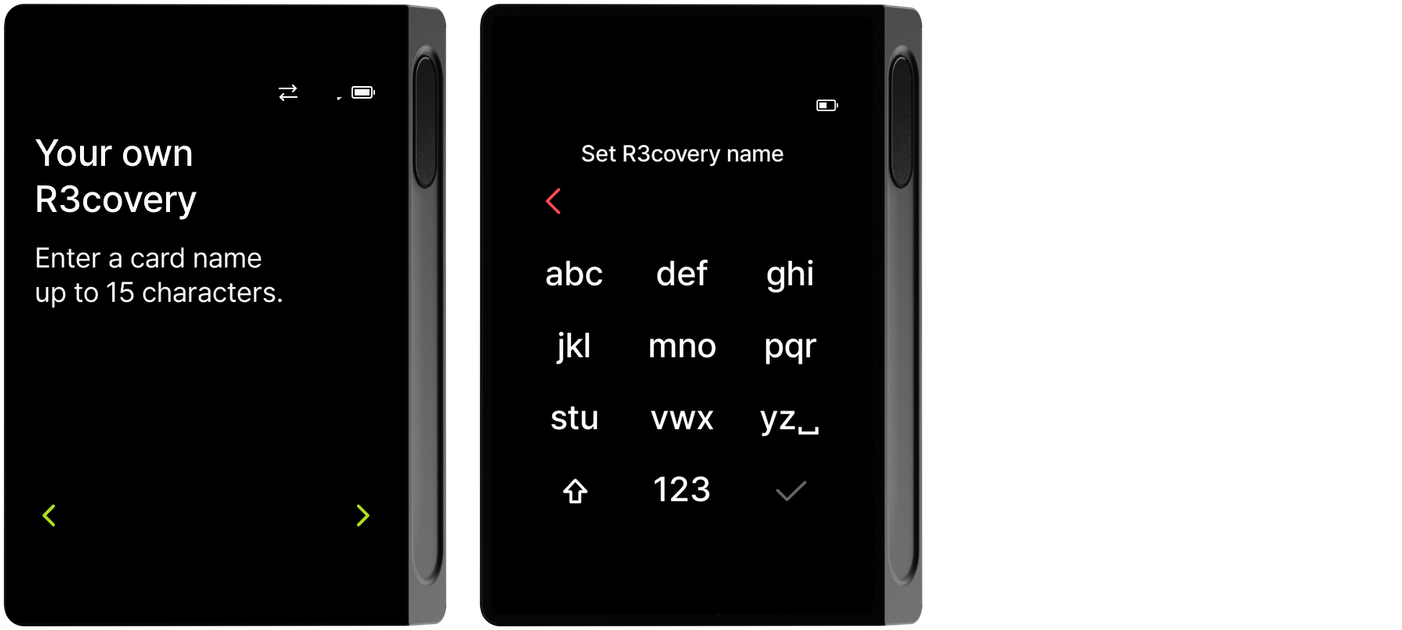
Step 4 — Tag the card and finish
Tag the R3covery card again; the new name is saved to the card and the completion screen appears.
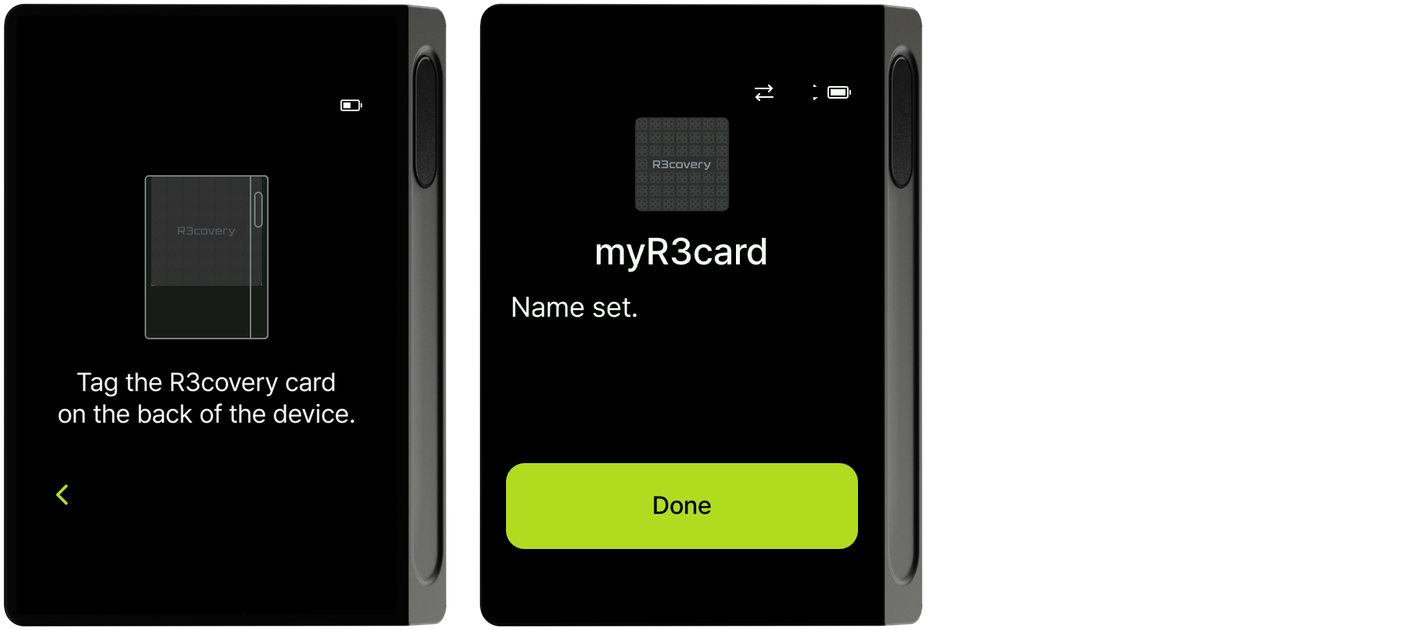
Change PIN
Select Change PIN in the menu.
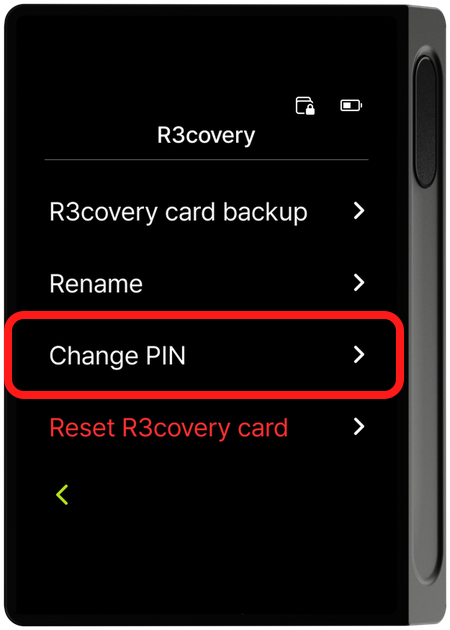
Step 1 — Confirm the card, enter the current PIN, and review the info
When you select Change PIN, you go through a card confirmation screen and enter your current card PIN. Once the PIN is verified, the card info appears; tap the arrow to continue.
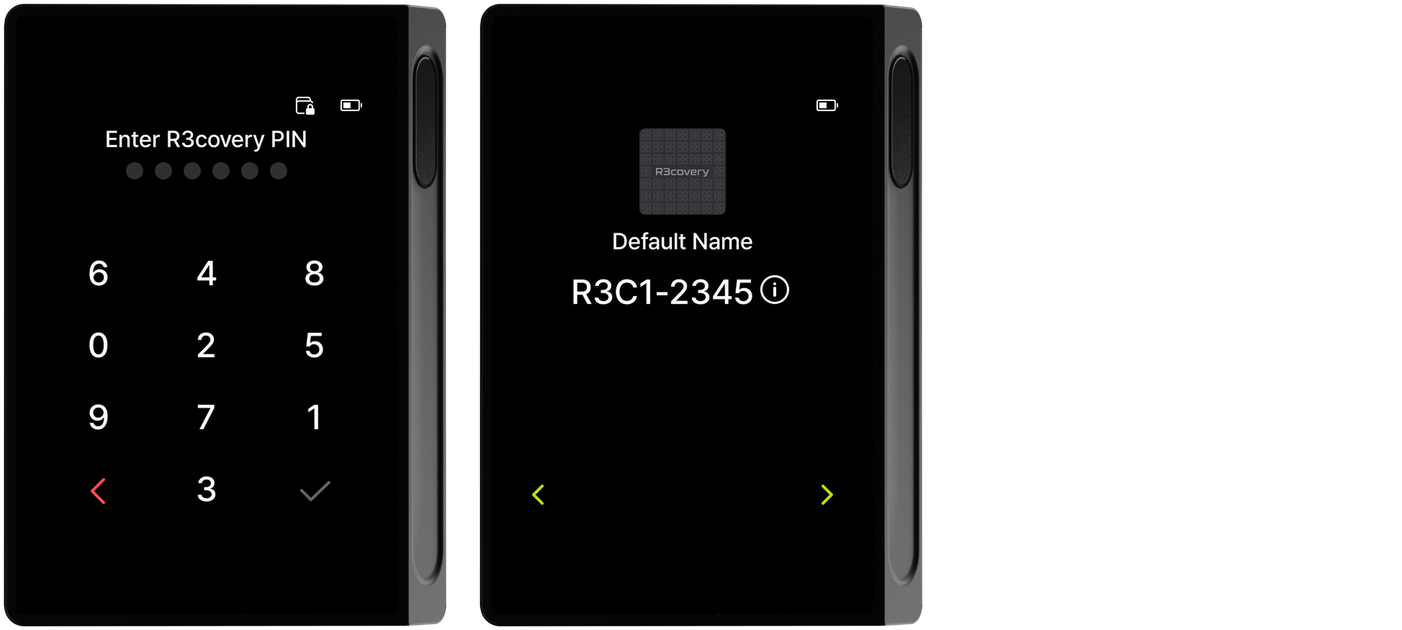
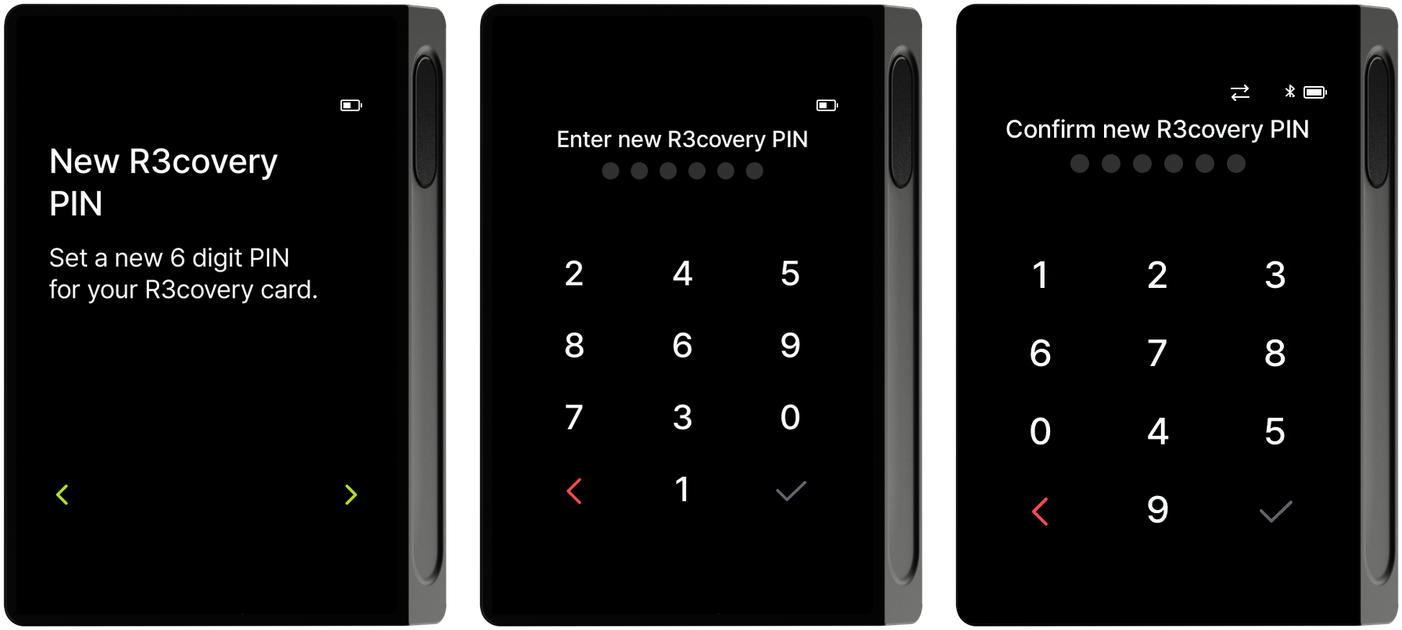
Step 2 — New PIN guide and entry
A notice tells you the new card PIN must be 6 digits. Enter the new PIN and enter the same PIN once more to confirm; the change is applied.
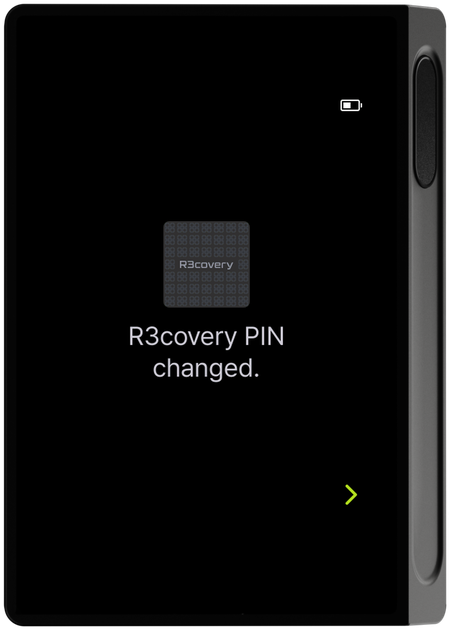
Step 3 — Change complete
Entering the wrong R3covery card PIN 10 times in a row resets the card. This is separate from the policy where the device itself is reset after 10 wrong device PIN entries, so don't confuse the two.
Reset R3covery card
Select Reset R3covery card in the menu.
Step 1 — Confirm the card and review the info
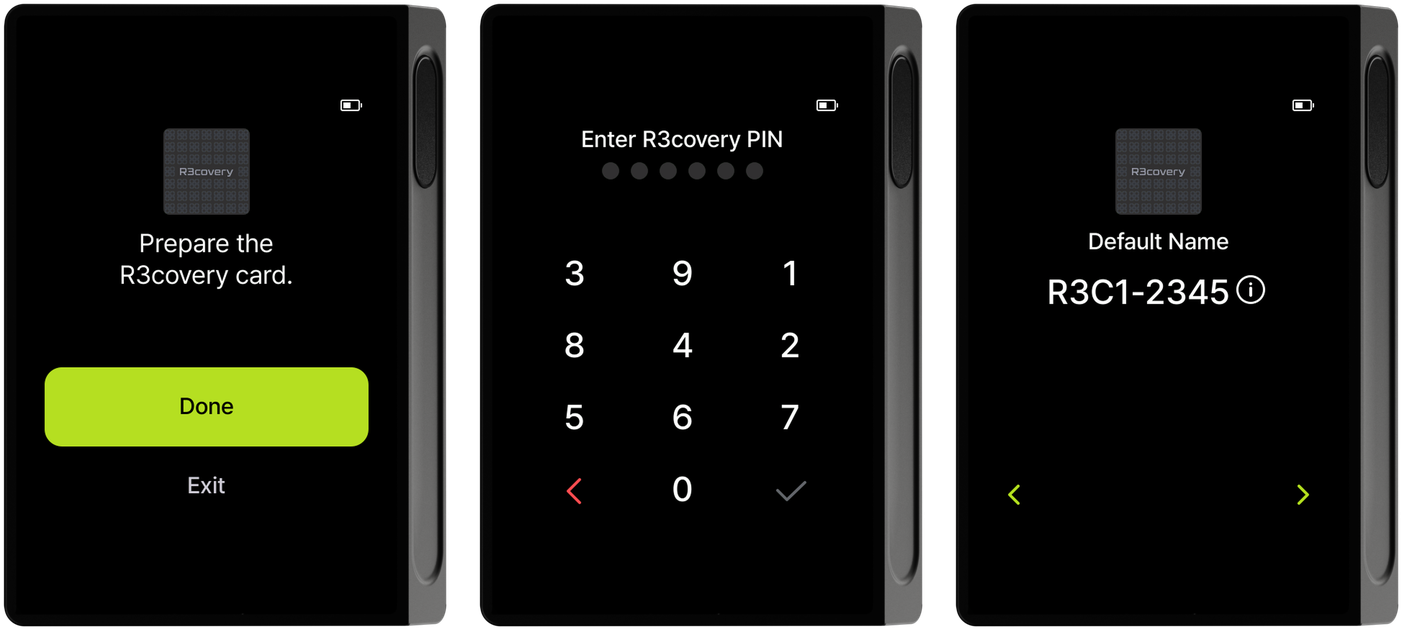
When you select Reset R3covery card, a screen asks you to confirm the card. Tap OK and enter the card PIN (the PIN entry screen is the same as above); the card info appears. Tap the arrow to continue.
Step 2 — Deletion warning and mnemonic check prompt
A warning appears that resetting permanently deletes the backup data stored on the card, asking whether to delete. If you have never confirmed your recovery words (mnemonic), a screen follows asking whether to check the mnemonic before resetting. Choosing Check and reset runs the mnemonic check first, and choosing Reset without checking resets right away.
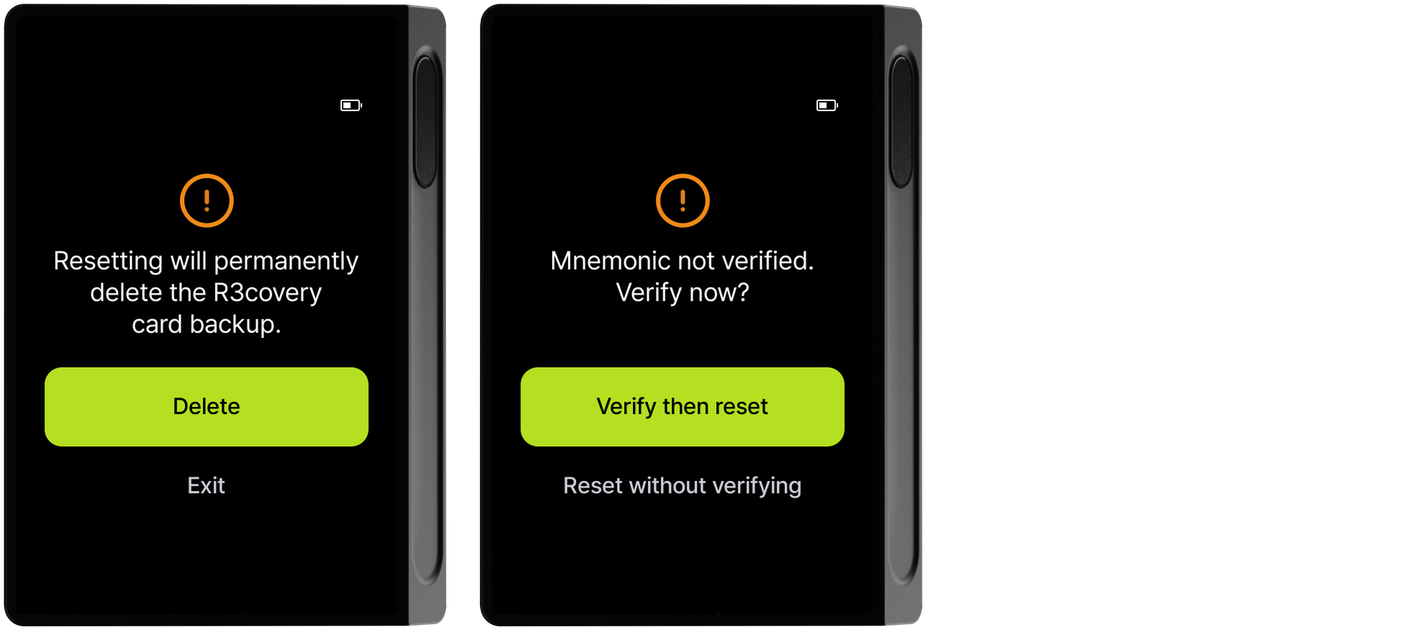
The mnemonic check is a safeguard to re-verify that you safely backed up your recovery words when you created the wallet. Resetting an R3covery card erases that card's backup data, so before proceeding be sure you have recorded your recovery words separately.
Step 3 — Reset complete
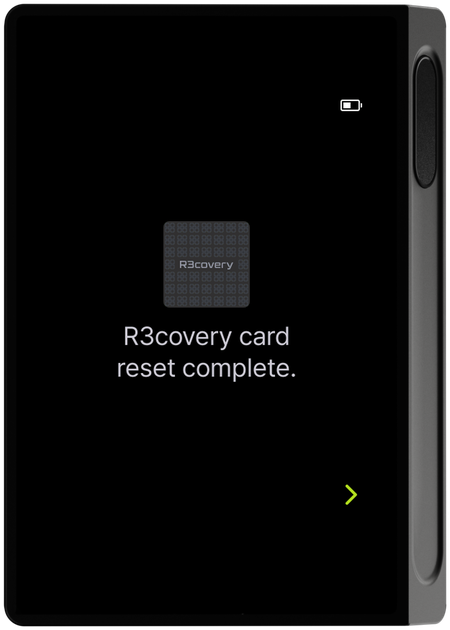
Once the mnemonic check (or skipping it) is done, the reset runs, and the following screen appears when complete.