Connect with Kaia Wallet extension
Using the Kaia Wallet extension with the Biometric Wallet
Kaia Wallet is a PC browser extension wallet for the Kaia platform. You can use Kaia Wallet to perform Kaia-based transactions, including KAIA transfers and BApp interactions, while ownership verification and transaction authorization are handled by biometric authentication on the DCENT Biometric Hardware Wallet.
[Get Kaia Wallet here]
Download Kaia Wallet from the Chrome Web Store
Download Kaia Wallet from the Firefox Add-ons Store
How to connect Kaia Wallet to the Biometric Wallet
1) Download and install the DCENT Bridge program on your PC. The bridge enables communication between your browser and the hardware wallet.
[DCENT Bridge program]
Download DCENT Bridge
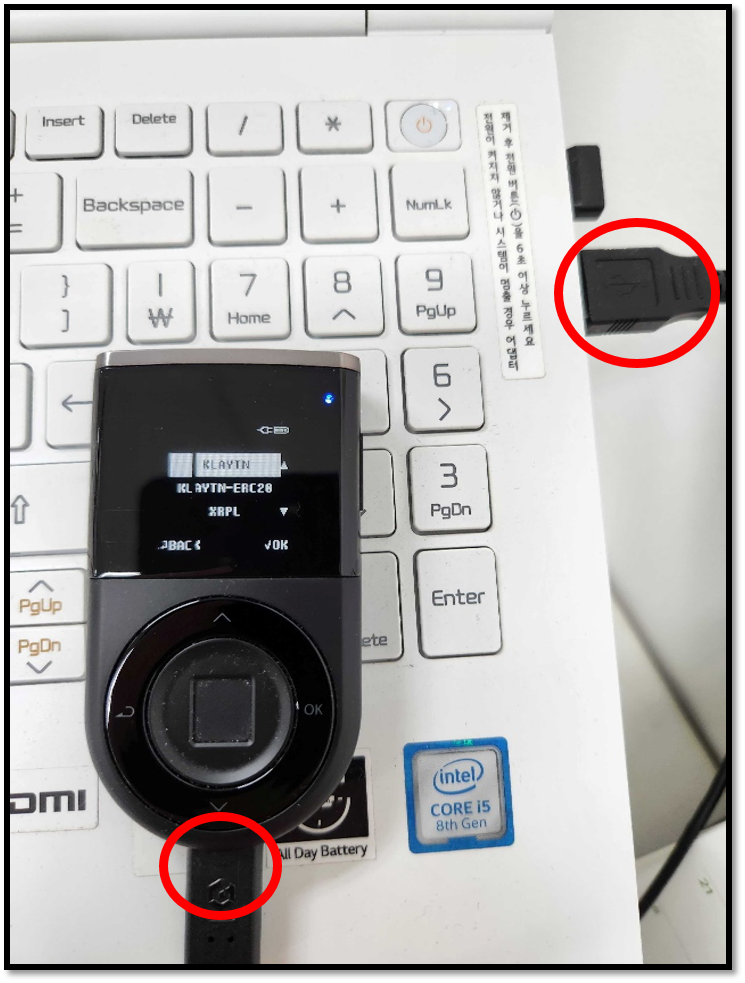
2) Plug your DCENT Biometric Wallet into a USB port and authenticate to unlock it.
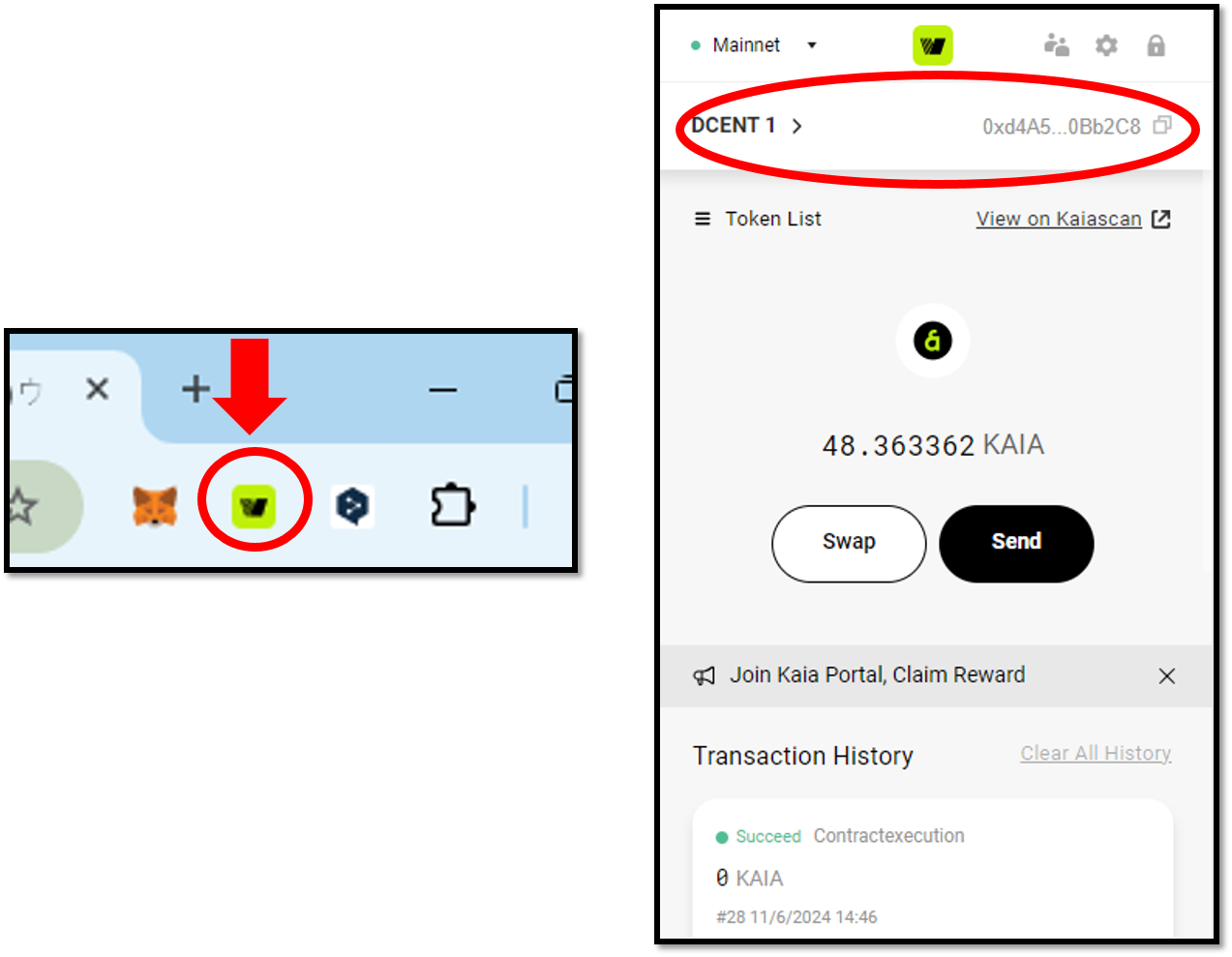
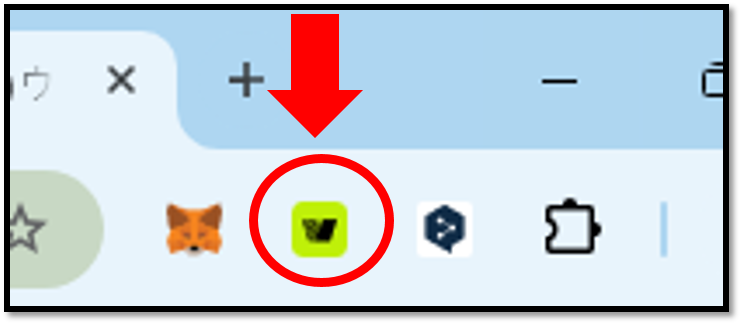
3) In your browser, click the Kaia Wallet icon.
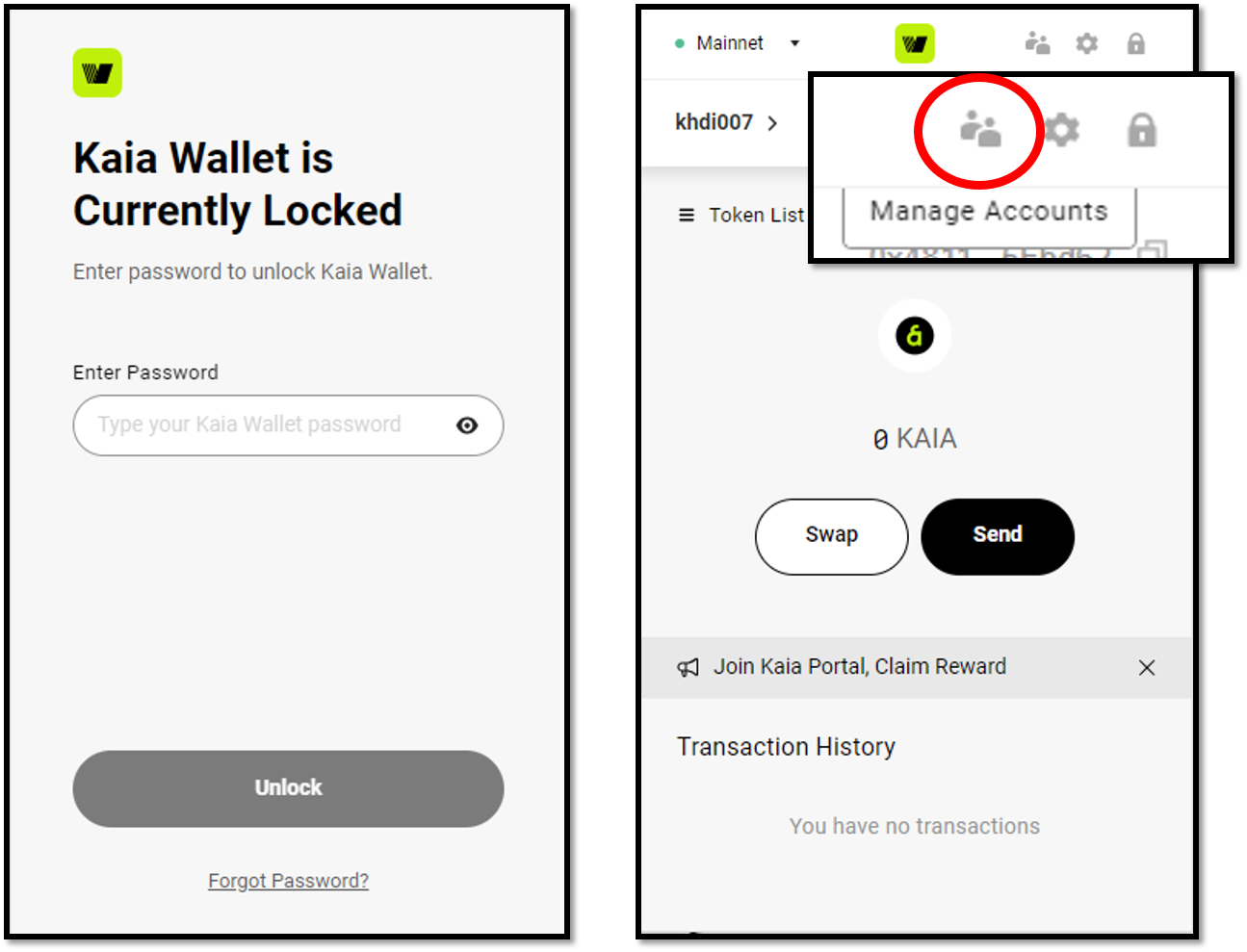
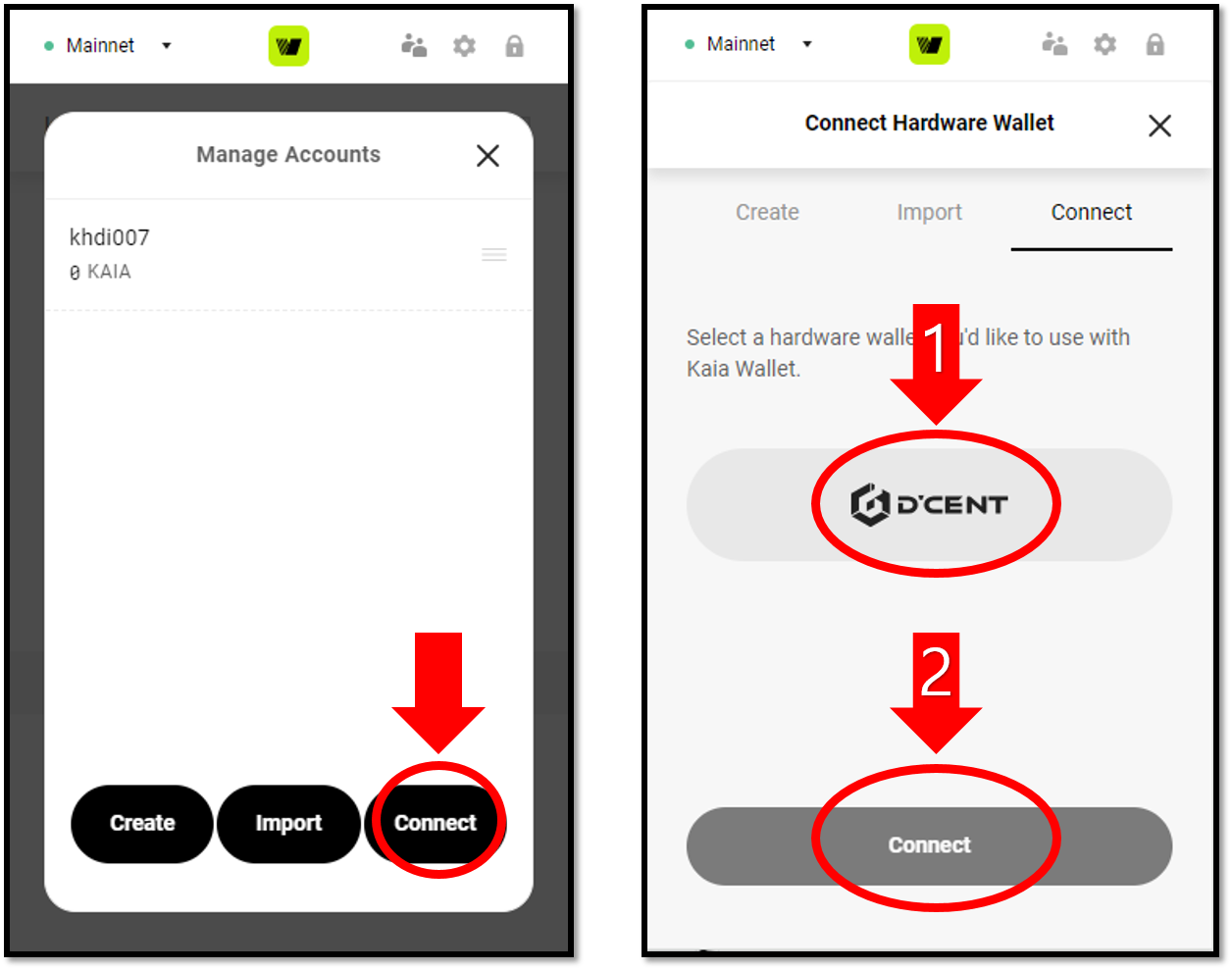
4) Unlock Kaia Wallet, then click the "Manage Accounts" icon in the top menu.
5) On the Manage Accounts screen, click "Connect". On the next screen, select "DCENT" as your hardware wallet and click "Connect".
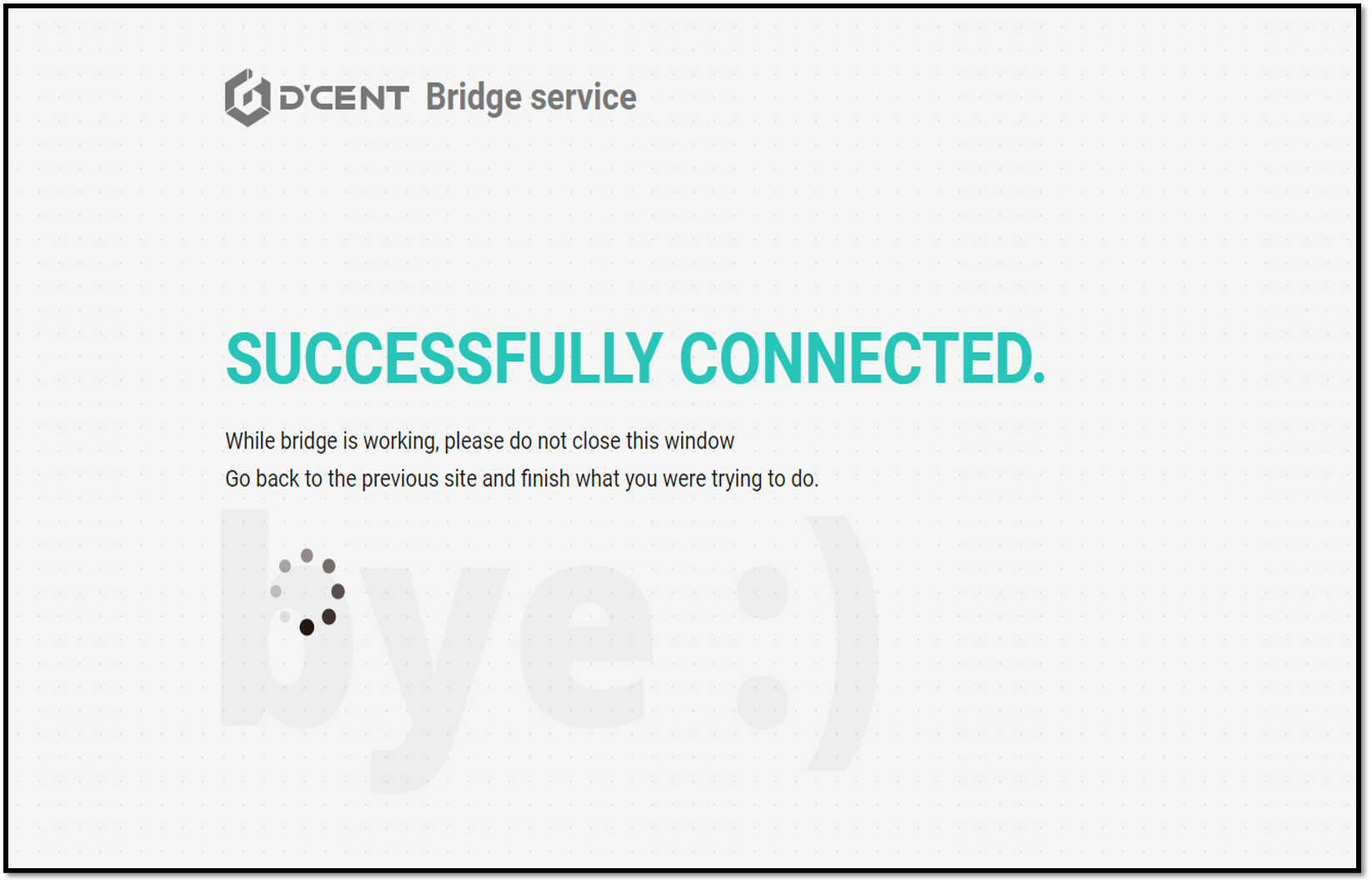
6) Your browser shows a page confirming that the bridge program is connected, followed by a screen to choose the account (address) to link. Select the account you want to connect and click "Next".
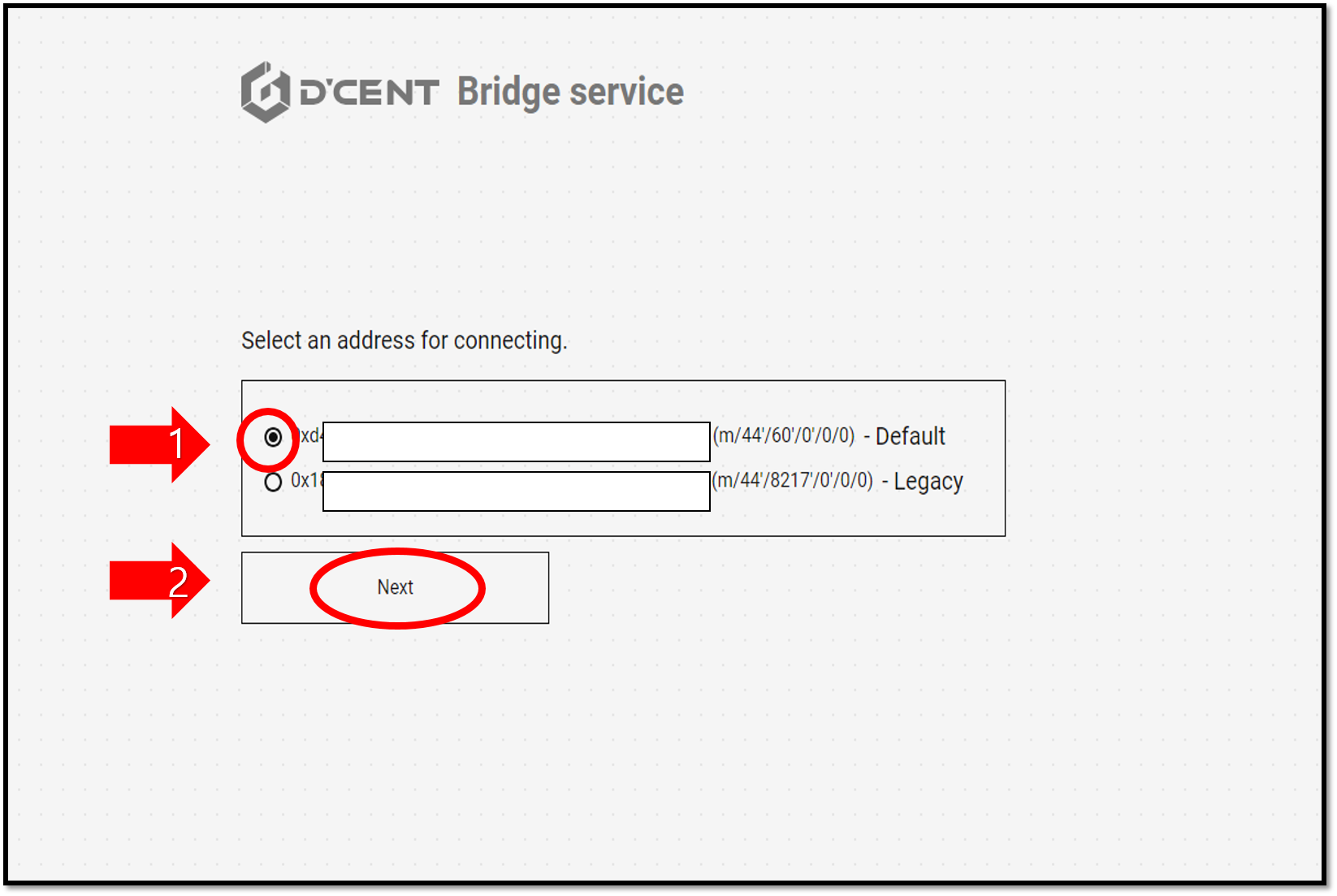
Only one Kaia account from the DCENT Biometric Wallet can be connected to Kaia Wallet at a time. Even if you have multiple Kaia accounts in your DCENT Biometric Wallet, only the first account you created can be connected.
In addition, if you have both a Kaia legacy account and a regular Kaia account, you can only connect one of them.
7) Click the Kaia Wallet extension icon in your browser again to open the wallet. Kaia Wallet now displays the Kaia account from your DCENT Biometric Wallet.