I sent coins from my DCENT Wallet, but the transaction is still showing as “Pending.”
This article explains how to check the transaction status and what actions to take when a coin sent from the DCENT Wallet remains in a “Pending” state for an extended period.
If your transaction remains in "Pending" status after sending from the DCENT wallet, it is usually due to one of the following reasons:
- The network fee (gas fee) was set too low.
- Blockchain network congestion or a temporary node issue is delaying the transaction processing.
You can check the transaction status directly on a blockchain explorer.
The example below is based on the Ethereum network.
[Check transaction status on blockchain explorer (Ethereum example)]
- Open the DCENT app and go to the [My Wallet] tab.
- Select the coin account you sent from, and tap the transaction marked “Pending.”
- Tap the TXID (transaction hash) to open the Etherscan explorer.
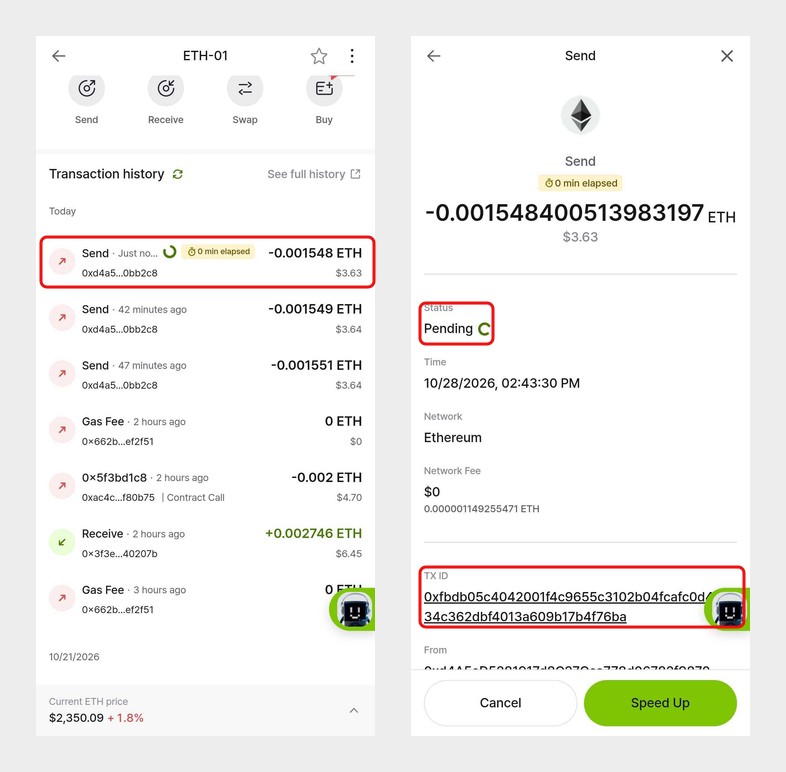
- Check the transaction Status.
- Status: Pending → The transaction is waiting to be included in a block. It may take several minutes or longer depending on network conditions.
- Status: Success → The transaction was successfully processed. Please check the receiving wallet or exchange to confirm the deposit.
[Use the Speed up feature (Ethereum, Polygon, BSC)]
If a transaction sent on the Ethereum, Polygon, or BSC network is not processed for a long time, you can use the Speed up feature in the DCENT app to get it processed sooner. Speed up resubmits the same transaction with a higher fee. The recipient address and amount stay the same.
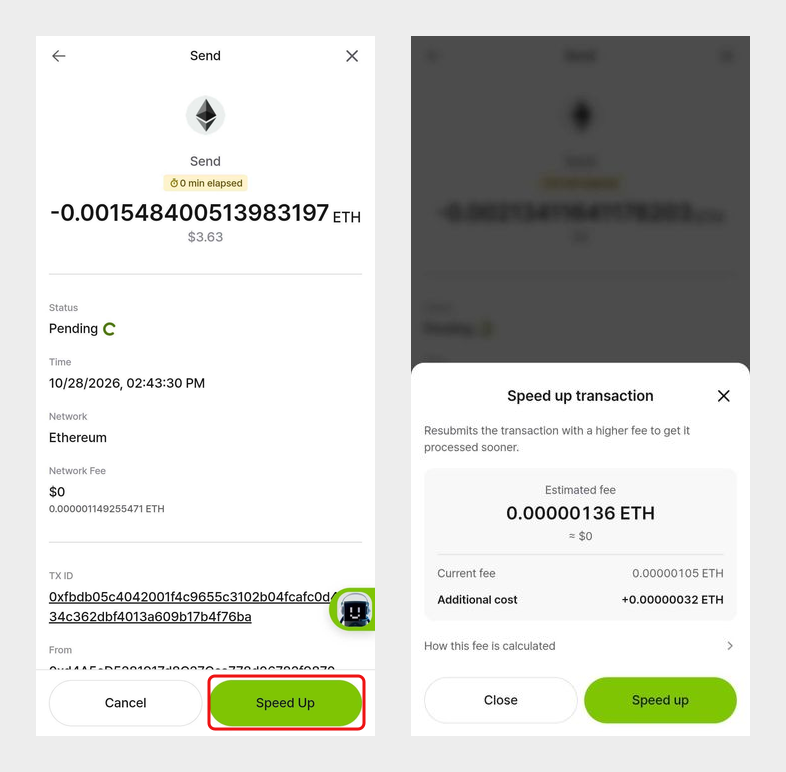
- In the [My Wallet] tab, select the coin (or token) account you sent from, then tap the transaction that is still being processed (shown with a spinner and elapsed time).
- Tap [Speed Up] at the bottom of the transaction details screen.
- Check the estimated fee (current fee + additional cost) and tap [Speed up]. For DCENT X, Biometric, and Card wallets, confirm the signature on the device.
- The details screen shows that the speed-up has been requested, and it changes to sped up once the network processes it.
- Supported networks: Ethereum, Polygon, BSC
- Supported wallets: DCENT X, Biometric Wallet, DCENT S Card Wallet, All-in-One Card Wallet, App Wallet (not supported on the PC Extension Program)
- Supported app version: 10.0.0 or later
- Eligible transactions: Only coin and token transfers sent with [Send] in the app. Swaps, token approvals, NFT transfers, and transactions signed in a dApp do not show the button.
- You need enough coin balance to pay the new fee (current fee + additional cost). Even when speeding up a token transfer, the fee is paid in the network coin such as ETH, POL, or BNB.
- If an earlier transaction from the same account is still being processed, you can speed up the later one only after the earlier one is processed.
- If the original transaction has already been processed when you tap the button, the message "The original transaction is already processed" appears. In this case, there is no need to speed it up.
- If you don't see the [Speed Up] button, the network is not supported or the transaction is not eligible.
If you want to cancel the transaction, see the Cancel transaction feature in the related question below.
[Transaction not found on blockchain (Ethereum example)]
If Etherscan shows “Transaction Hash not found on Ethereum,” the transaction may have been dropped from the network.
This happens when the transaction was not valid or expired before being confirmed.
- No funds were sent, and your balance remains unchanged.
- You can retry the transaction, but make sure to set a higher network fee for a better chance of success.
❓Related question