How to use my wallet when I change my phone?
If you've changed your mobile device, you can continue using your DCENT Wallet based on your wallet type as outlined below:
[For App Wallet Users]
The App Wallet must be restored using your 24 recovery words (mnemonic phrase).
- Ensure you’ve backed up your 24 recovery words from your previous phone
⚠️ If not backed up, recovery is not possible - Install the DCENT app on your new phone
- Launch the app and select [Import Wallet], then enter your 24 recovery words
- Re-add your coin accounts to restore access to your assets
Go to the App Wallet User Guide
🚨 Important Notice
Restoring the app via Google Backup, Samsung Cloud, or iCloud does not recover the App Wallet data. You must restore using your recovery words.
[For Biometric Wallet Users]
The Biometric Wallet stores your recovery words and private key in the device hardware, so you can simply connect it to your new phone via Bluetooth.
- Install the DCENT app on your new phone
- Pair your Biometric Wallet with the phone via Bluetooth
For Bluetooth pairing instructions with the Biometric Wallet, please refer to the user guide that matches your phone model.
[For DCENT S / All-in-One Card Wallet Users]
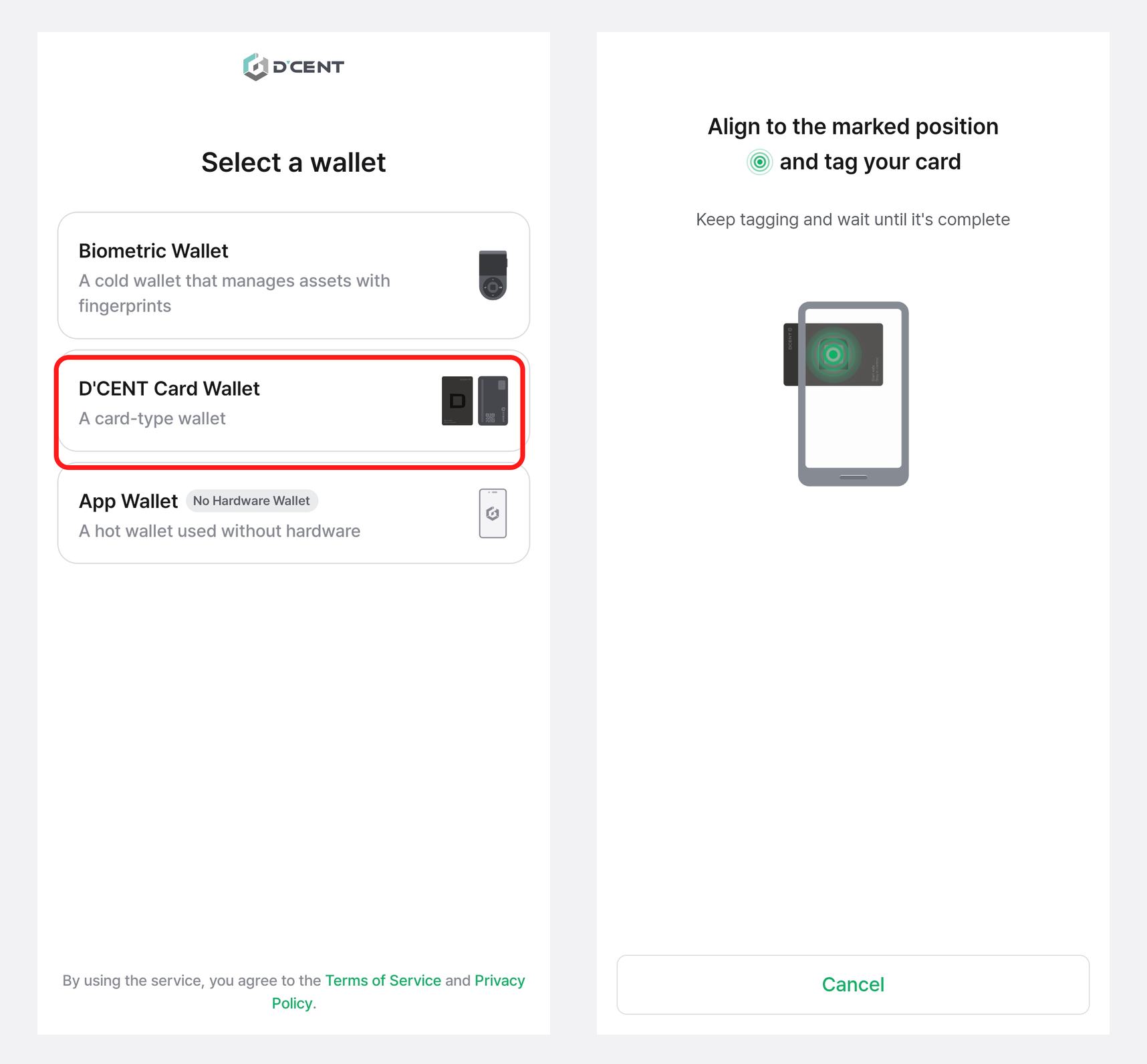
The DCENT S Card Wallet and the DCENT All-in-One Card Wallet are card-type cold wallets that connect via NFC tagging.
No special recovery is needed; just tag the card on your new phone.
- Install the DCENT app on your new phone
- When launching the app, select [Card Wallet]
- Tag your DCENT S or All-in-One Card Wallet to your phone
- If your previous accounts don’t appear:
Go to the [My Wallet] tab and tap [+ Add Account] to manually restore your previous accounts.