Recover Ethereum-based assets sent to Kaia address
Before you begin
You are solely responsible for any outcome that may occur while resolving a mistransmission. Make sure you fully understand the related information before using this feature. If used incorrectly, you may permanently lose the mistransmitted assets.
Kaia accounts created before mobile app v5.3.1 (now shown as "Kaia Legacy" accounts) had a different address from the Ethereum account. This guide explains how to recover Ethereum-based assets that were mistakenly sent to a legacy Kaia address. For more about legacy accounts, see Notes on Wallet Recovery - Legacy account.
Kaia accounts created from v5.3.1 onward (without the "Legacy" label) have the same address as the Ethereum account. If you sent Ethereum-based assets to this Kaia address, the assets are in your Ethereum account. Add the token account to your Ethereum account to see them.
The recovery process works in this order:
- Use a custom path account to create an Ethereum account with the same address as the legacy Kaia address.
- Check in a block explorer that the mistransmitted assets are at that address.
- Add the token account and move the assets to your original Ethereum account.
- Hide the temporary accounts and turn off the custom path account option.
The example below assumes Orbit Chain (ORC), an Ethereum-based asset, was mistakenly sent to a legacy Kaia address. You can follow the same steps for other Ethereum-based assets. This guide uses the DCENT app wallet screens, and the same steps apply when you use a hardware wallet.
Create a custom path account for recovery
Use the custom path account only as a temporary account for recovery. If you use this account with other services such as the DCENT dApp browser, it may not work properly.
This temporary account may also not appear again when you later recover your wallet with the recovery phrase.
Step 1: Enable the [Custom Path Account] option
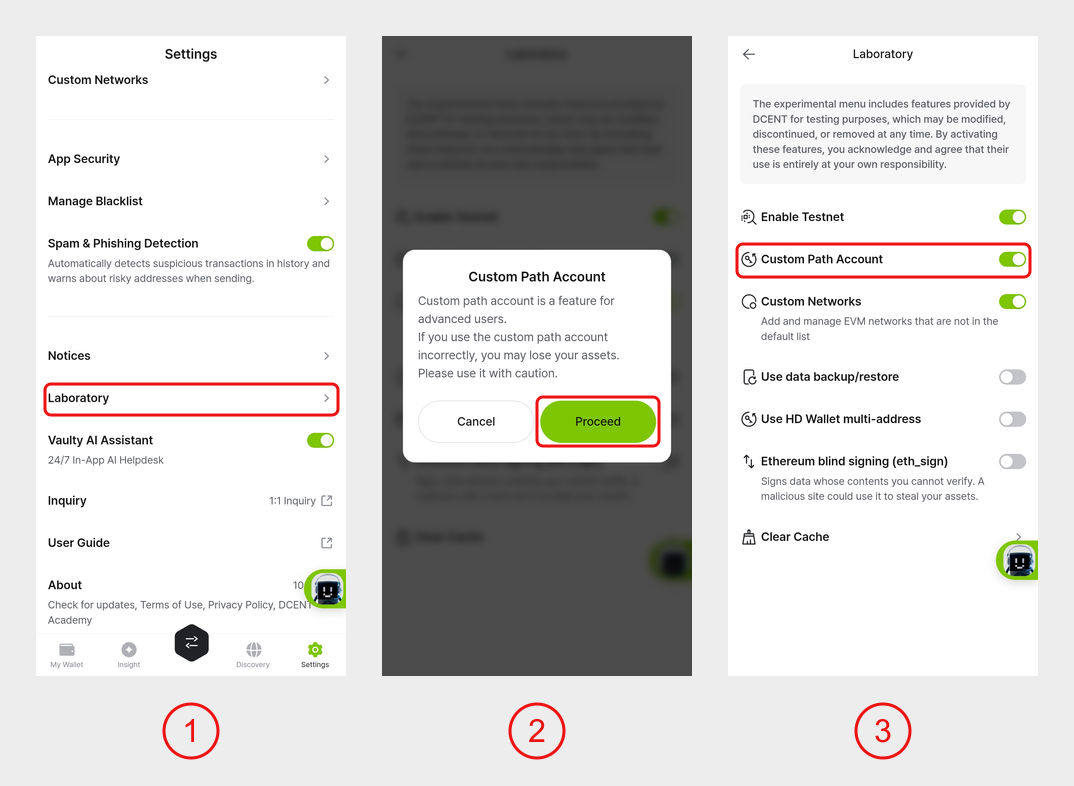
1) In the 'Settings' tab, tap 'Laboratory'.
2) Turn on the 'Custom Path Account' option and tap 'Proceed' in the pop-up.
3) Check that the option is turned on.
Step 2: Add an Ethereum account with a [Custom Path]
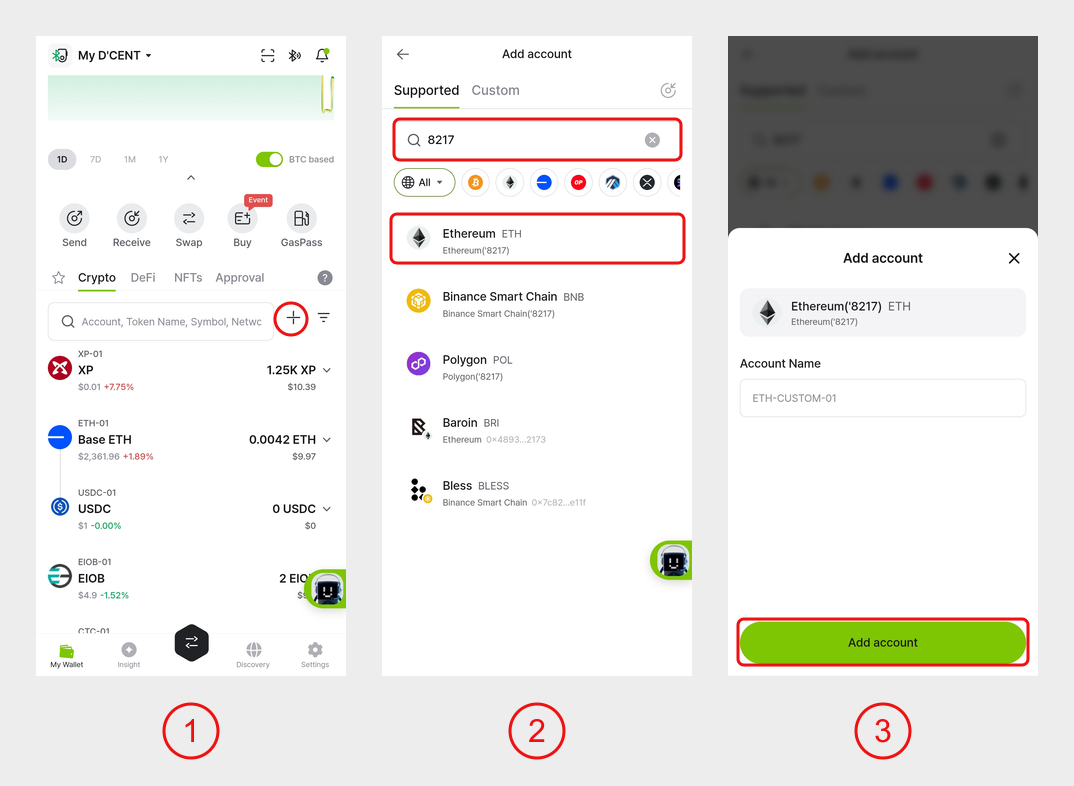
1) In the 'My Wallet' tab, tap the '+' button.
2) Enter '8217' in the search box and select 'Ethereum('8217)'. This creates an Ethereum account on the same path as the legacy Kaia address (m/44'/8217'/0'/0/0).
3) Check the account name and tap 'Add account'.
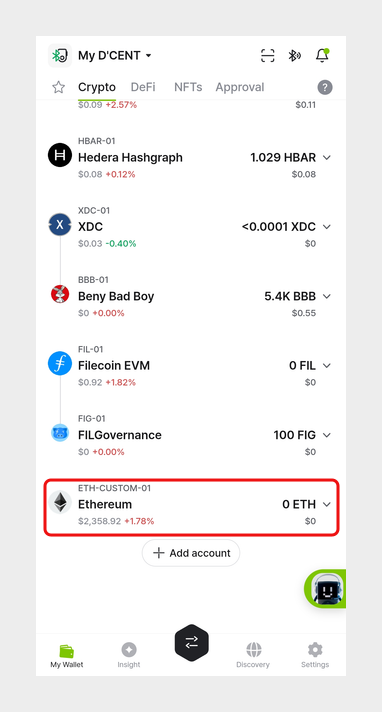
Once the account is added, the 'ETH-CUSTOM-01' Ethereum account appears.
Check assets on the Ethereum network
Check that the address of the account you just created matches the address you sent the assets to, and that the mistransmitted assets are still at that address.
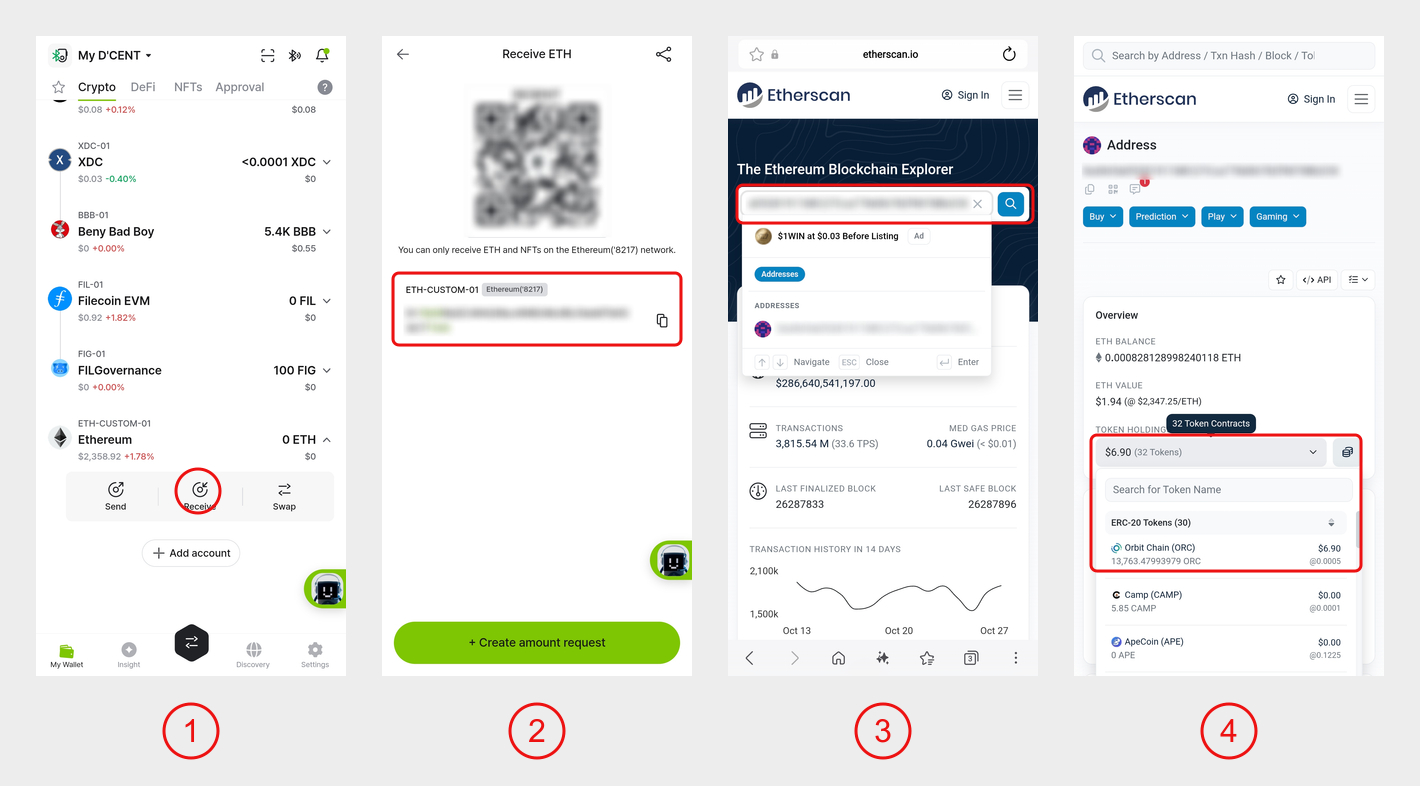
1) Tap the 'ETH-CUSTOM-01' account and tap 'Receive'.
2) Tap the copy button next to the address to copy it. Check that the copied address matches the recipient address in the withdrawal history of the exchange or wallet you sent the assets from. If you use a Kaia Legacy account, it is also the same as that account's address.
3) Open Etherscan (https://etherscan.io) in a web browser and search for the copied address.
4) If the mistransmitted assets appear in the 'Token Holdings' list, you can recover them.
If the copied address is different from the address you sent the assets to, they cannot be recovered with this method. Check the network of the assets you sent again.
Add a token account to the temporary account
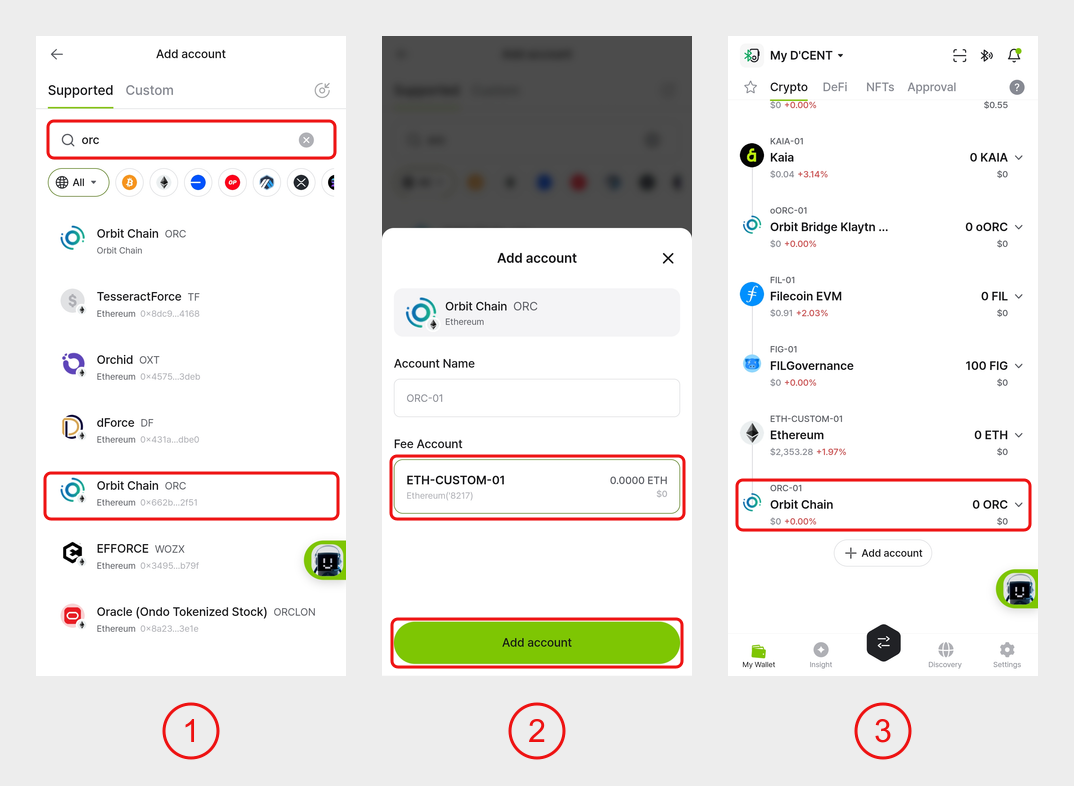
1) On the Add account screen, enter 'orc' in the search box and select Orbit Chain (ORC) with the network shown as 'Ethereum'.
2) Select 'ETH-CUSTOM-01', created earlier, as the Fee Account and tap 'Add account'.
3) The token account is added under the 'ETH-CUSTOM-01' account.
If the assets appear in the new token account, the account for recovery is ready.
Move assets to your original Ethereum account
Now move the assets in the temporary account to your original Ethereum account. When sending Ethereum-based tokens, Ether (ETH) is used for the network fee.
The fee charged when sending assets is paid to the blockchain network. It is not a fee charged by the DCENT wallet.
Step 1: Send ETH for fees to the temporary account
Copy the address from 'Receive' in the 'ETH-CUSTOM-01' account, then send ETH for the fee from another account or an exchange. Fees vary with network conditions, so we recommend sending a little extra.
Once the ETH has arrived, go to the next step.
Step 2: Send the mistransmitted tokens to the original address
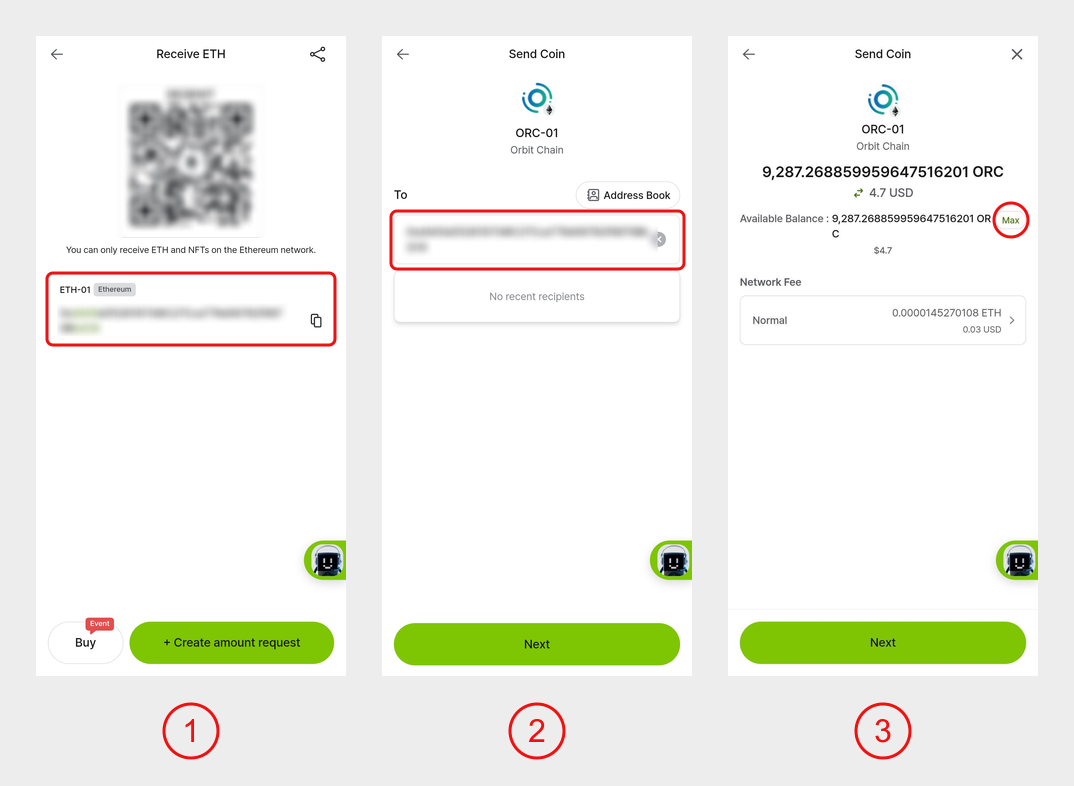
1) In your original Ethereum account (e.g., ETH-01), tap 'Receive' and copy the address. An Ethereum account and the token accounts under it share the same address.
2) In the ORC token account under the temporary account, tap 'Send', paste the copied address, and tap 'Next'.
3) Tap 'Max' to send all the tokens.
After sending, wait until the transaction is complete. Then go to the next step.
Step 3: Send the remaining ETH to the original account
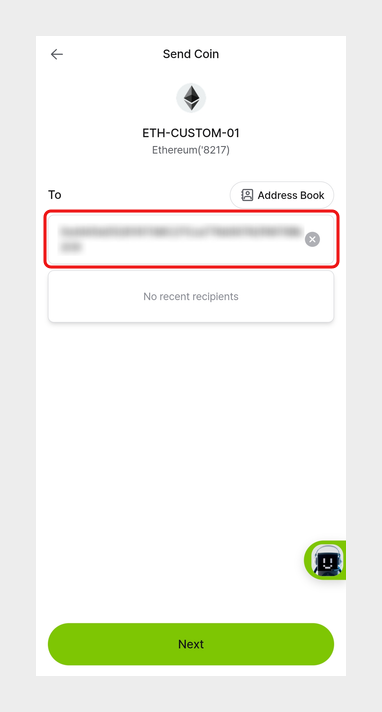
Send the ETH left over after fees to your original account as well. In the 'ETH-CUSTOM-01' account, tap 'Send', paste the original address, and tap 'Next'. On the amount screen, tap 'Max' to send the full balance.
Wait until the ETH transaction is complete, then continue.
Hide the temporary recovery accounts
All the mistransmitted assets have been moved to your original Ethereum account. Finally, clean up the temporary accounts.
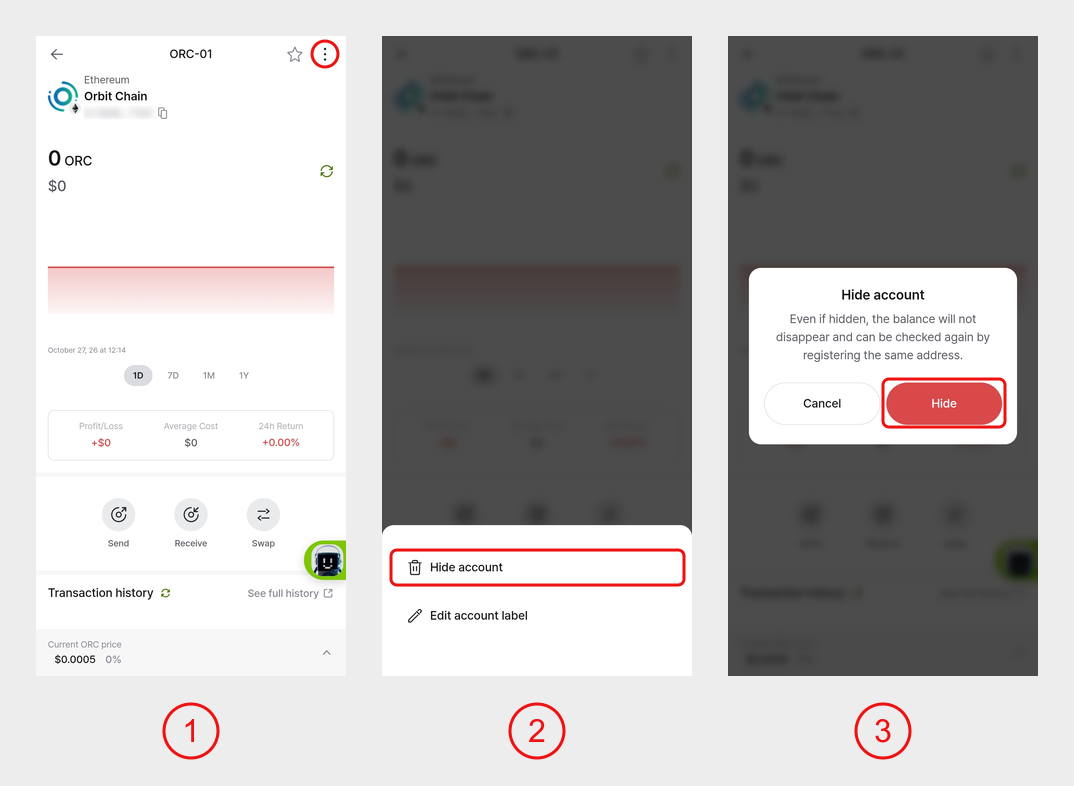
1) On the ORC token account screen under the temporary account, tap the ⋮ button at the top right.
2) Tap 'Hide account'.
3) Tap 'Hide' in the pop-up.
Hide the 'ETH-CUSTOM-01' account the same way.
Disable the custom path account option
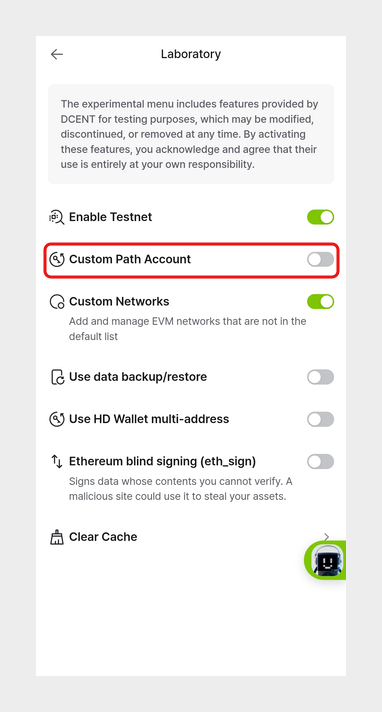
When recovery is complete, be sure to turn off the 'Custom Path Account' option again in 'Laboratory' in the 'Settings' tab.
All recovery steps are now complete.