Using WalletConnect
The DCENT mobile app supports WalletConnect, so you can connect to your favorite DApps from a PC or mobile browser using your DCENT wallet addresses.
✅ See the full list of DApps that support WalletConnect here: https://walletconnect.org/apps
What is WalletConnect?
WalletConnect is an open protocol that connects browser-based DApps to mobile wallets through end-to-end encryption by scanning a QR code. It lets you connect to DApp websites from a browser and sign transactions securely in DCENT Wallet without exposing any private information online.
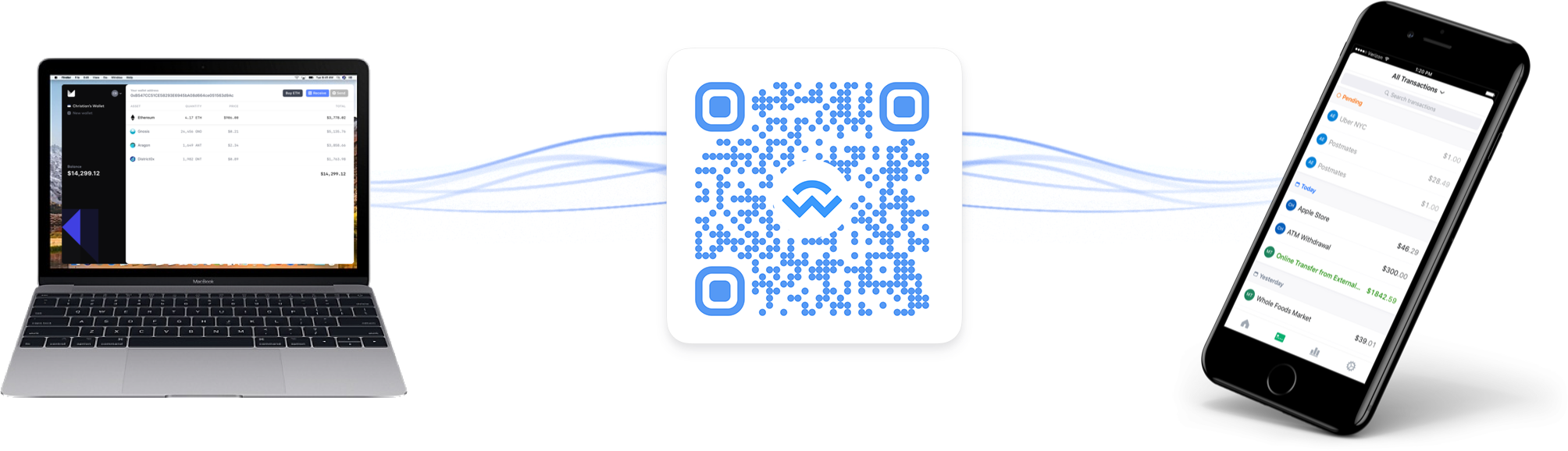
In this example, we will connect to a DApp called PoolTogether.
Using DApps in a PC browser
You will need both your DCENT mobile app and a PC to access the DApp website.
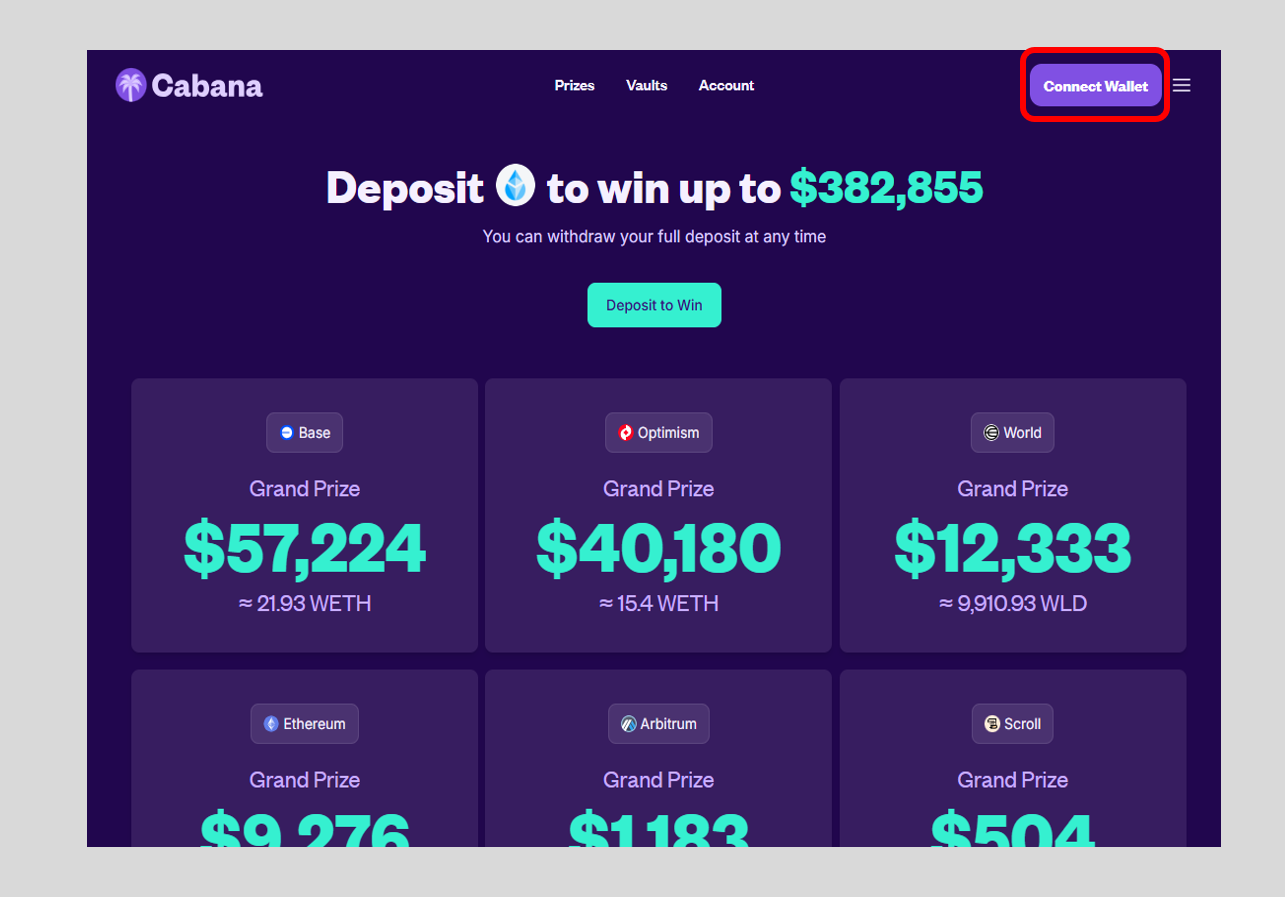
1) Open the PoolTogether website in your PC browser and tap Connect Wallet.
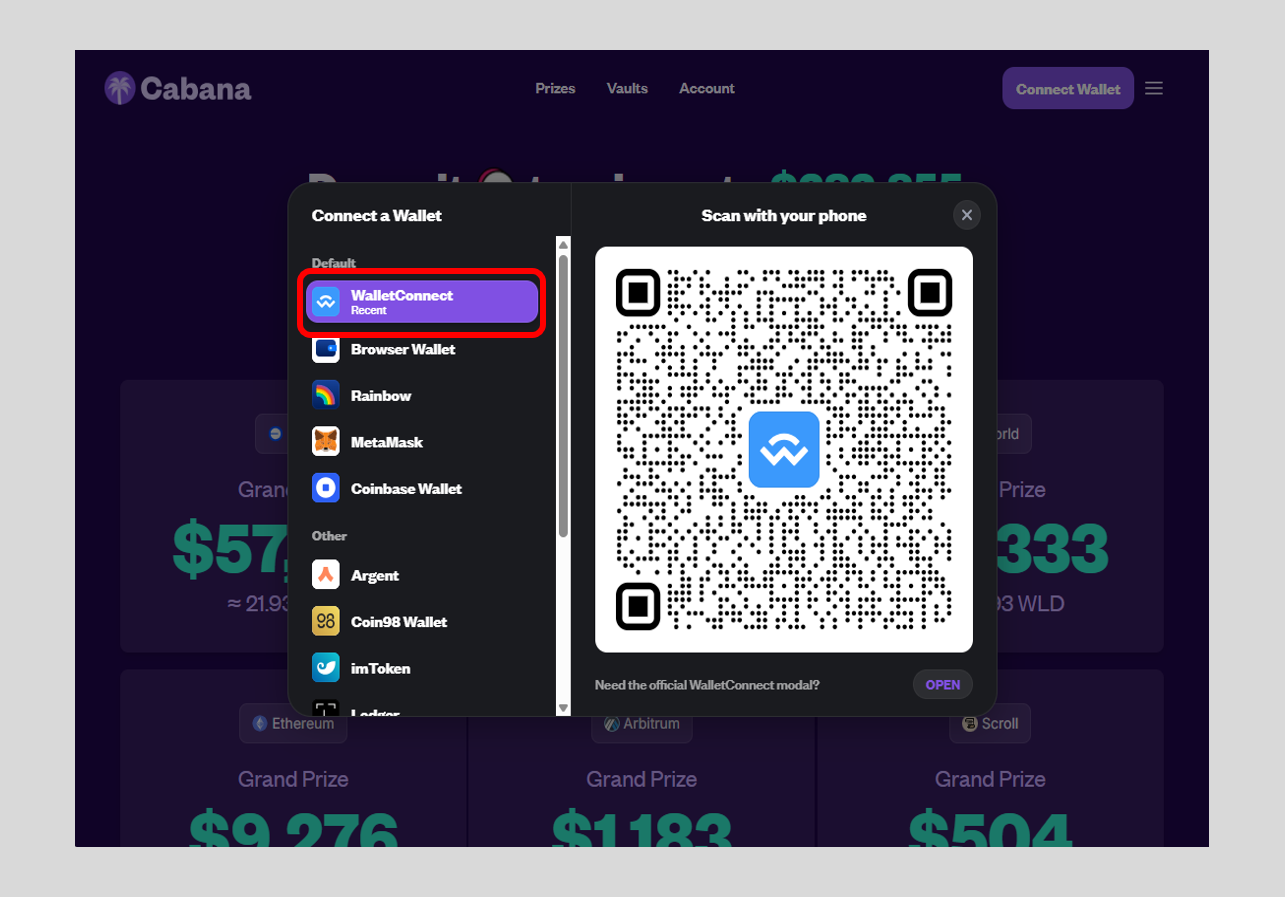
2) Choose WalletConnect from the list. A QR code will be displayed.
Connecting from the My Wallet tab
.png)
1) Open the DCENT mobile app and tap the QR code scan icon at the top right of the My Wallet tab. Scan the QR code shown on your PC.
After verifying the DApp site address, account, and network, tap Connect.
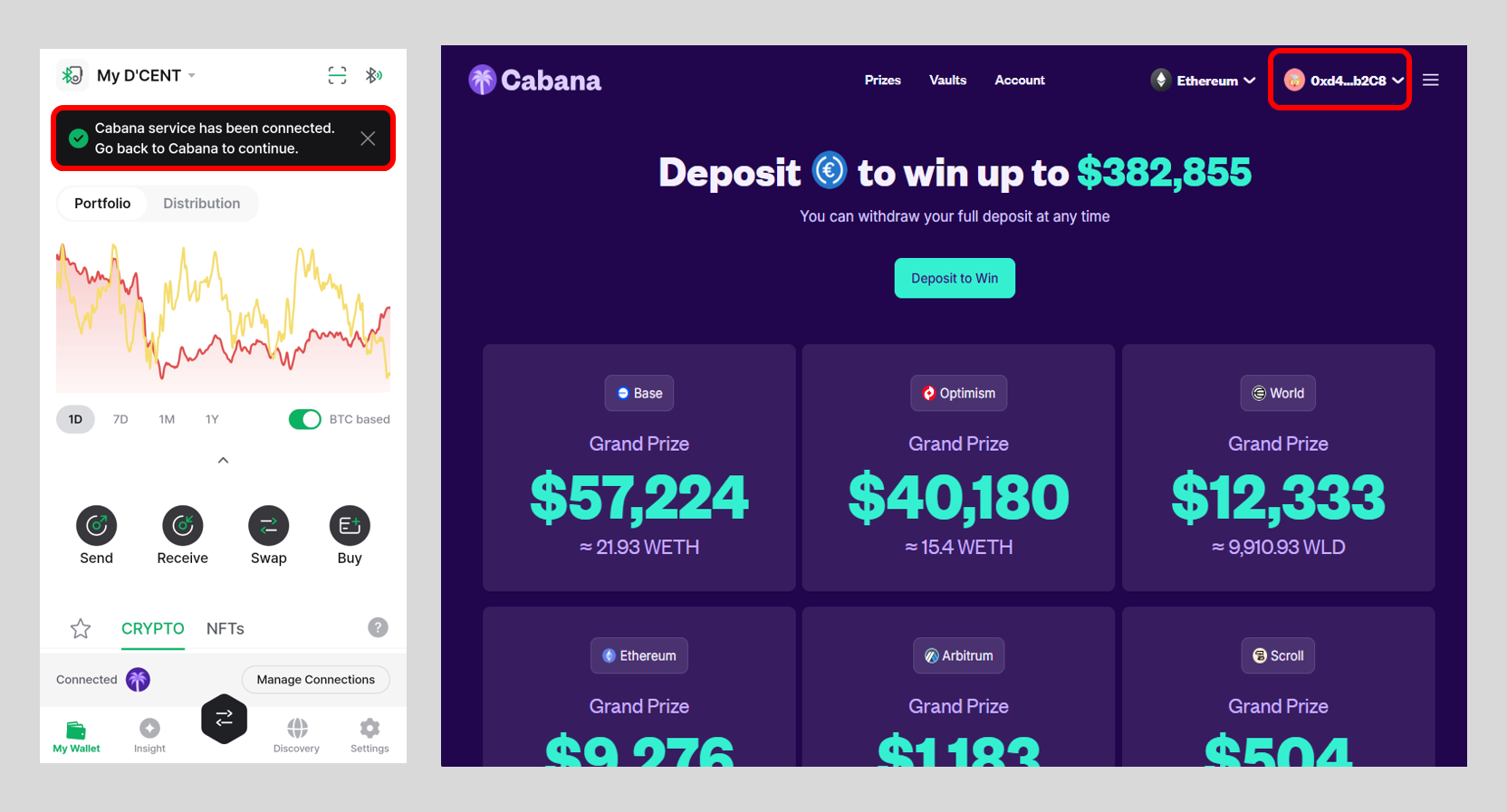
2) Once your DCENT wallet is connected to PoolTogether, you will see the following screens on your mobile app and PC. Notice the DCENT wallet address shown at the top right of the PoolTogether DApp.
Connecting from the Discovery tab
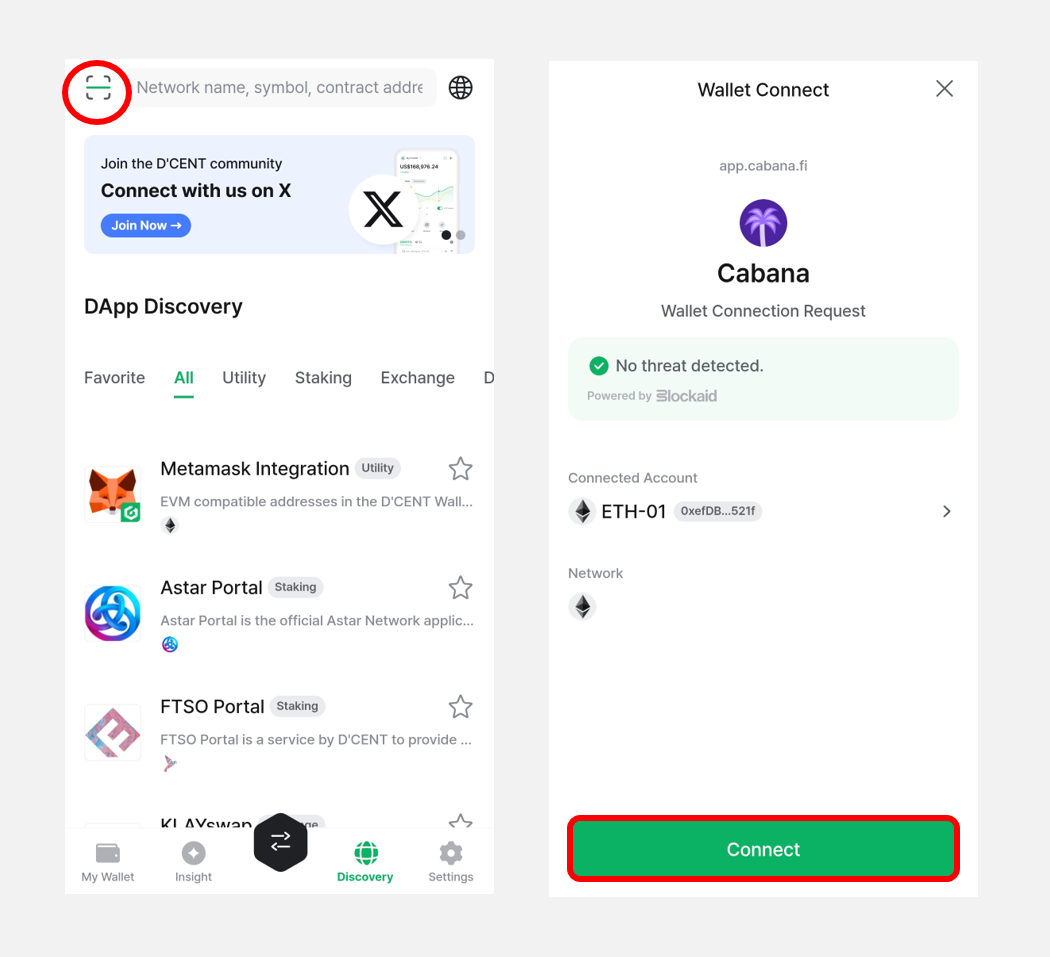
1) Open the DCENT mobile app and tap the QR code scan icon at the top left of the Discovery tab. Scan the QR code shown on your PC.
After verifying the DApp site address, account, and network, tap Connect.
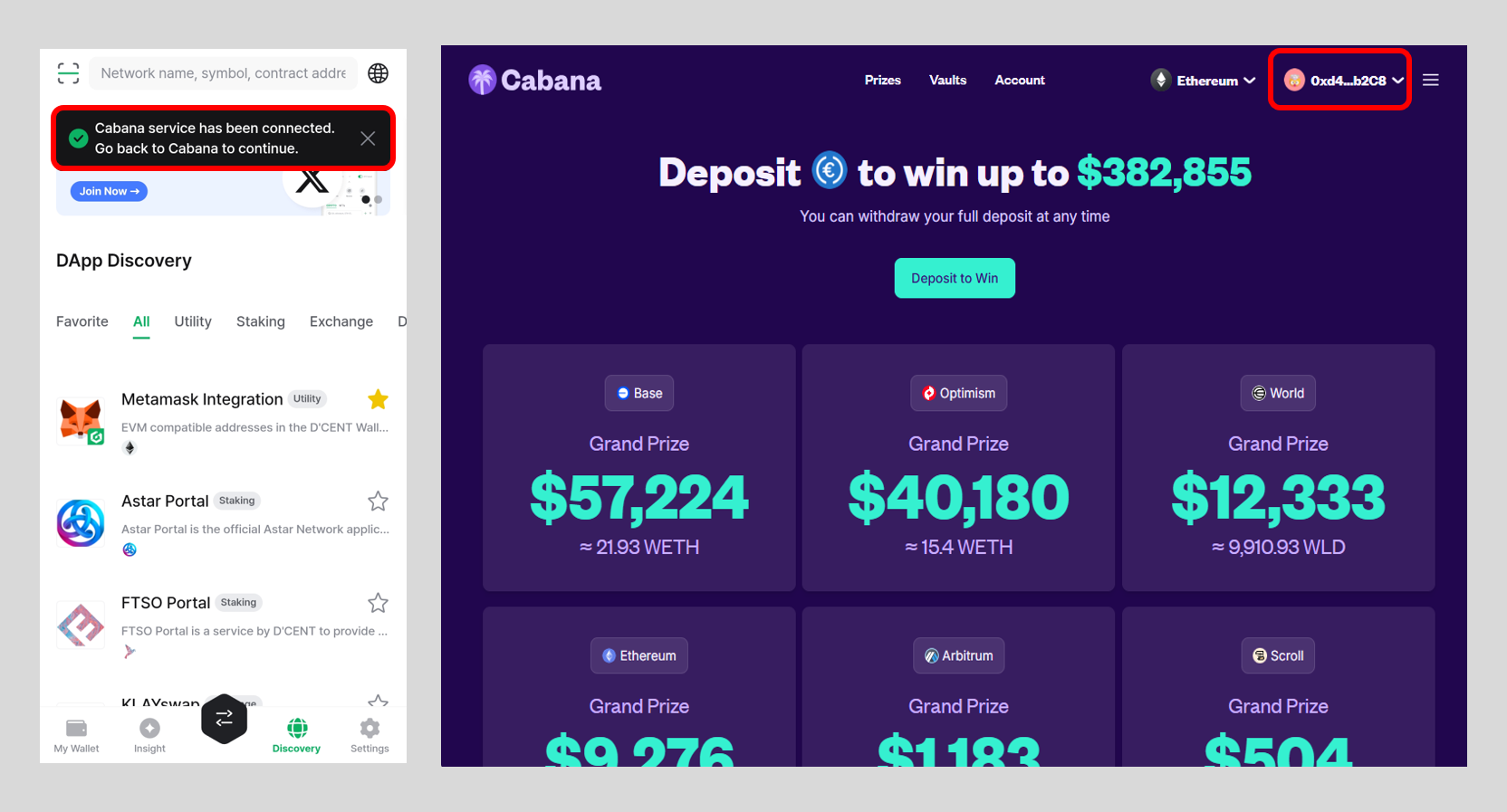
2) Once your DCENT wallet is connected to PoolTogether, you will see the following screens on your mobile app and PC. Notice the DCENT wallet address shown at the top right of the PoolTogether DApp.
Note: Whenever you perform a transaction on a DApp, you will be prompted to confirm it in DCENT Wallet.
Keep DCENT Wallet running on your phone and stay on this screen. If you switch to another app, the current DApp (such as PoolTogether) may lose its connection and you will need to reconnect.
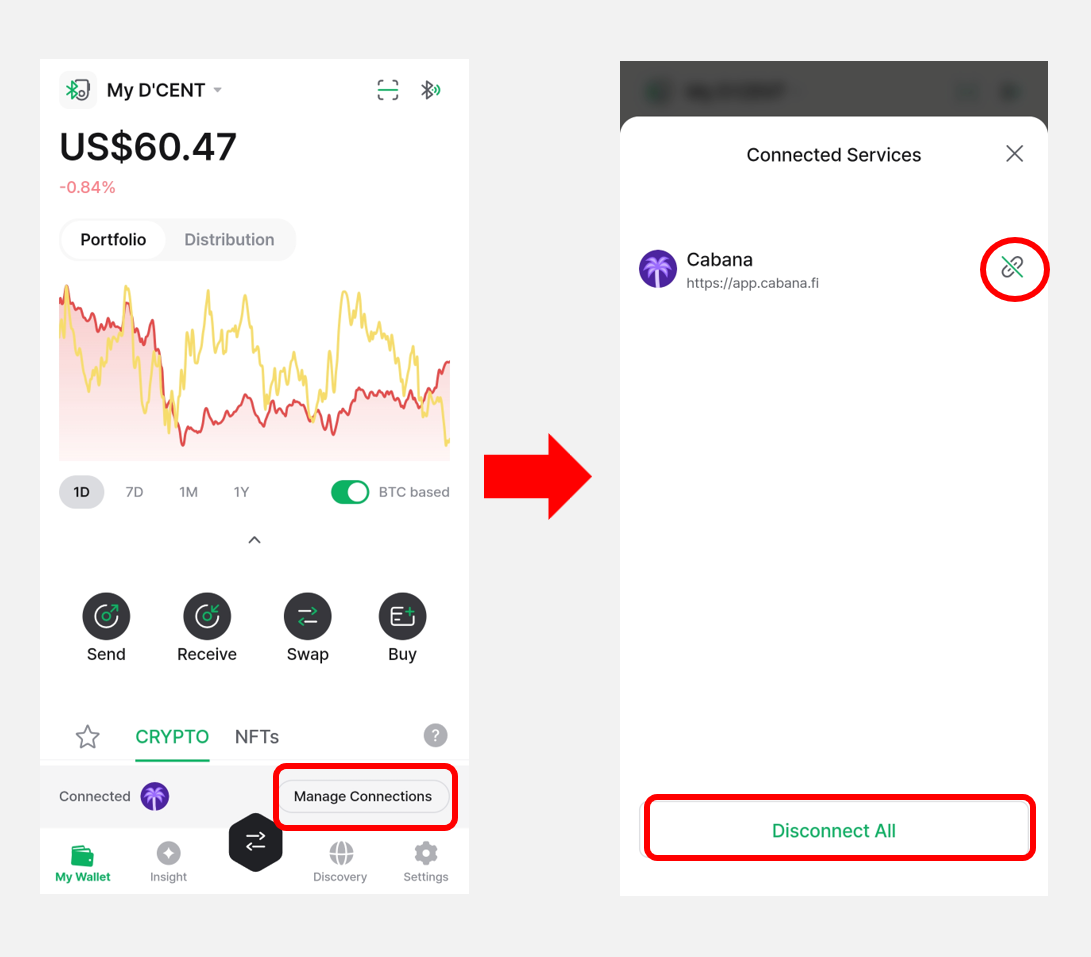
Make sure to tap Disconnect when you finish using the DApp.
Using DApps in a mobile browser
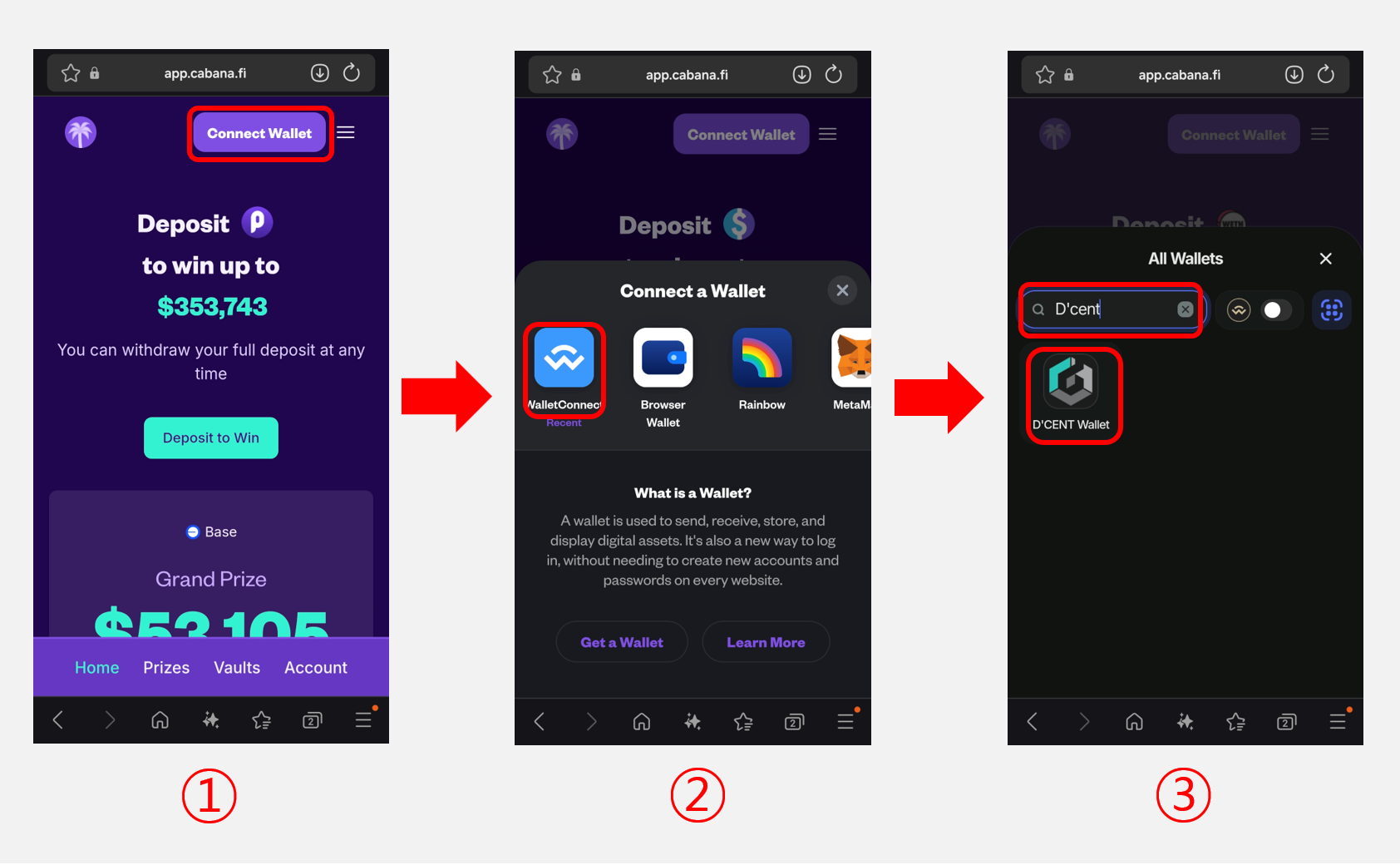
1) Open the PoolTogether website in your mobile browser and tap Connect Wallet.
2) Choose WalletConnect from the wallet options.
3) Type DCENT in the search bar and select DCENT Wallet.
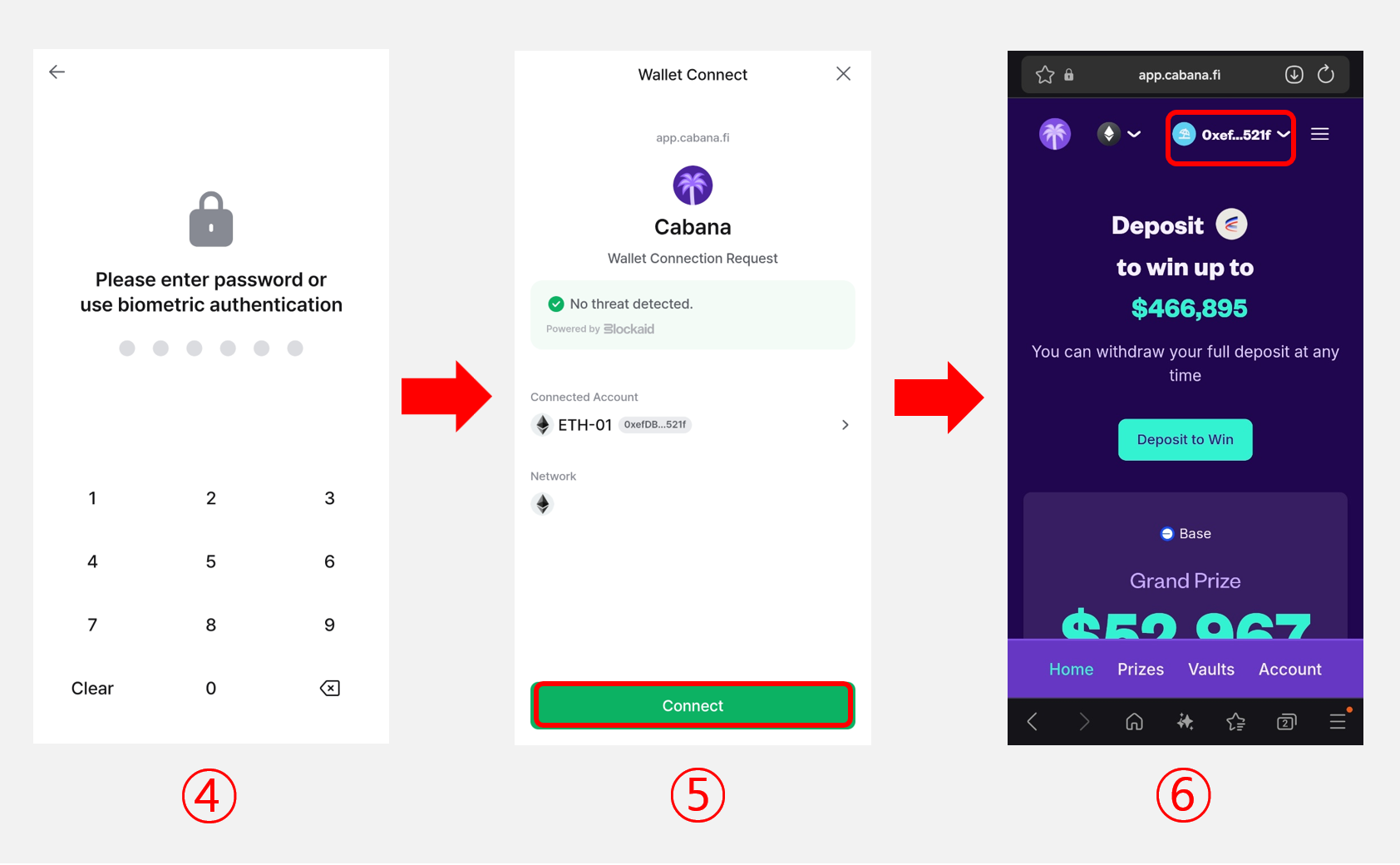
4) When DCENT Wallet opens, authenticate to unlock the app.
5) After verifying the DApp site address, account, and network, tap Connect.
6) Your DCENT wallet is now connected to the DApp.
Note: Whenever you perform a transaction on the DApp, you will be prompted to confirm it in DCENT Wallet.
Make sure to tap Disconnect when you finish using the DApp.
.png)
Using DApps via the DCENT DApp browser (Discovery)
DCENT Wallet has a built-in DApp browser that makes connecting to DApps much easier through its Web3 wallet (DCENT) integration. The advantage is that you only need a single app (DCENT Wallet) to access a DApp.
When you open PoolTogether from the Discovery tab, a wallet connection request is triggered automatically so you can connect your DCENT Wallet.
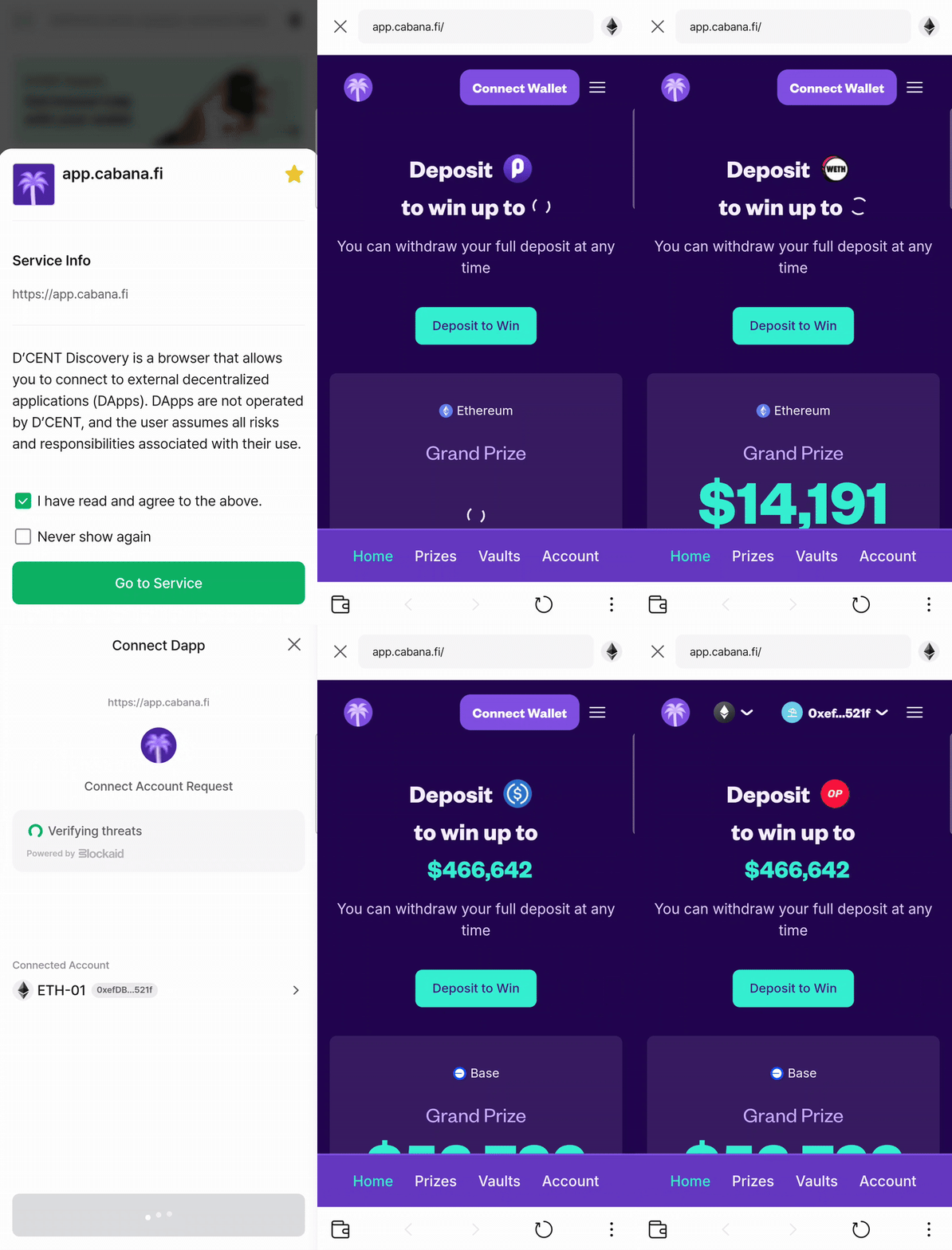
If a DApp does not support the Web3 interface, choose WalletConnect to connect. The steps are similar to the methods described above.