Swap
The Swap service lets you exchange one cryptocurrency for another quickly and easily.
DCENT Wallet's Swap enables seamless crypto exchanges across many blockchains by integrating with multiple swap providers (aggregators) to find the best exchange route.
A key advantage of DCENT Swap is that bridging, cross-chain swaps, and regular swaps are all available from a single interface. For example, you can swap USDT on Ethereum for USDT on Polygon without leaving the app.
Access the Swap service
1) You can open the Swap service from any of the following entry points:
- ① DCENT app → Tap the ⇄ (Swap) button at the top of the My Wallet tab.
- ② DCENT app → In the My Wallet tab, open one of your coin accounts → Tap the ⇄ (Swap) button.
- ③ DCENT app → Tap the ⇄ icon in the bottom Global Navigation Bar (GNB).
- ④ DCENT app → In the Insight tab, open a coin's detail view → Tap the Swap button.
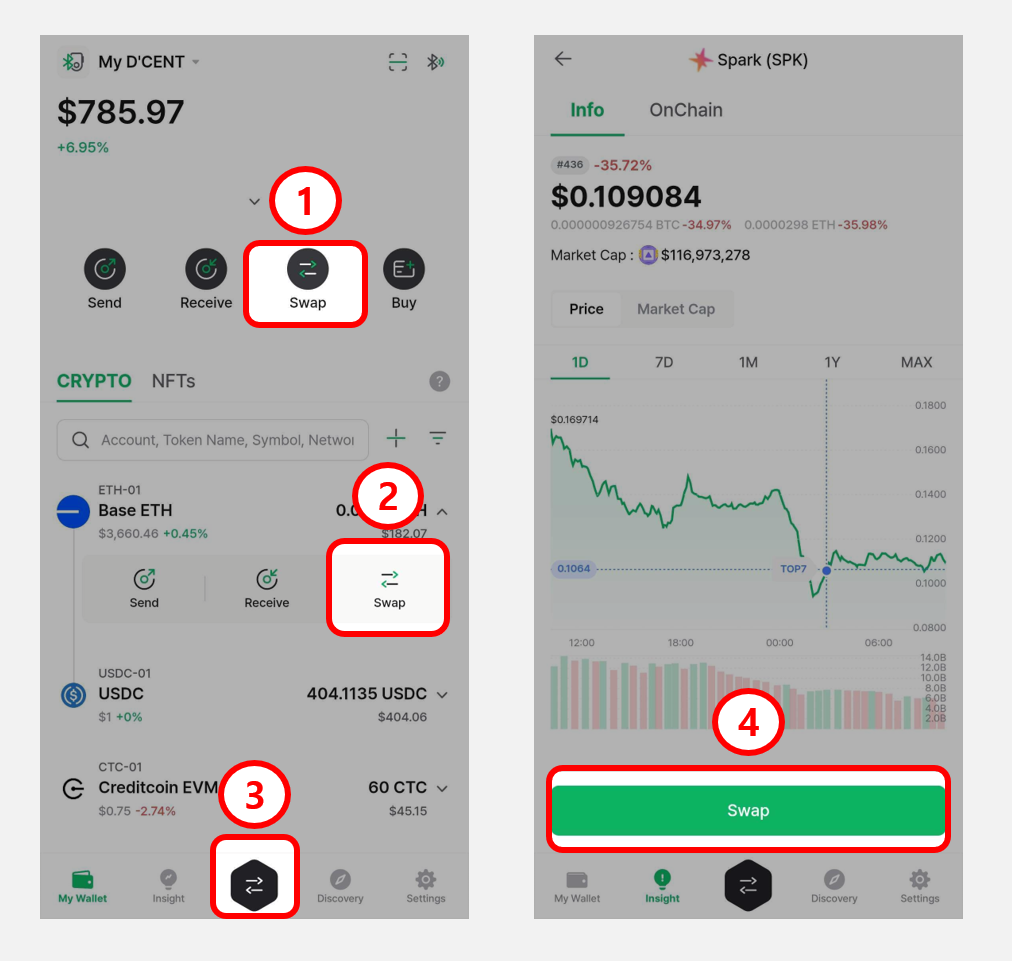
2) When you open Swap, you will see a screen where you can select the From token (the token you send) and the To token (the token you receive).
.png)
Choosing tokens to swap
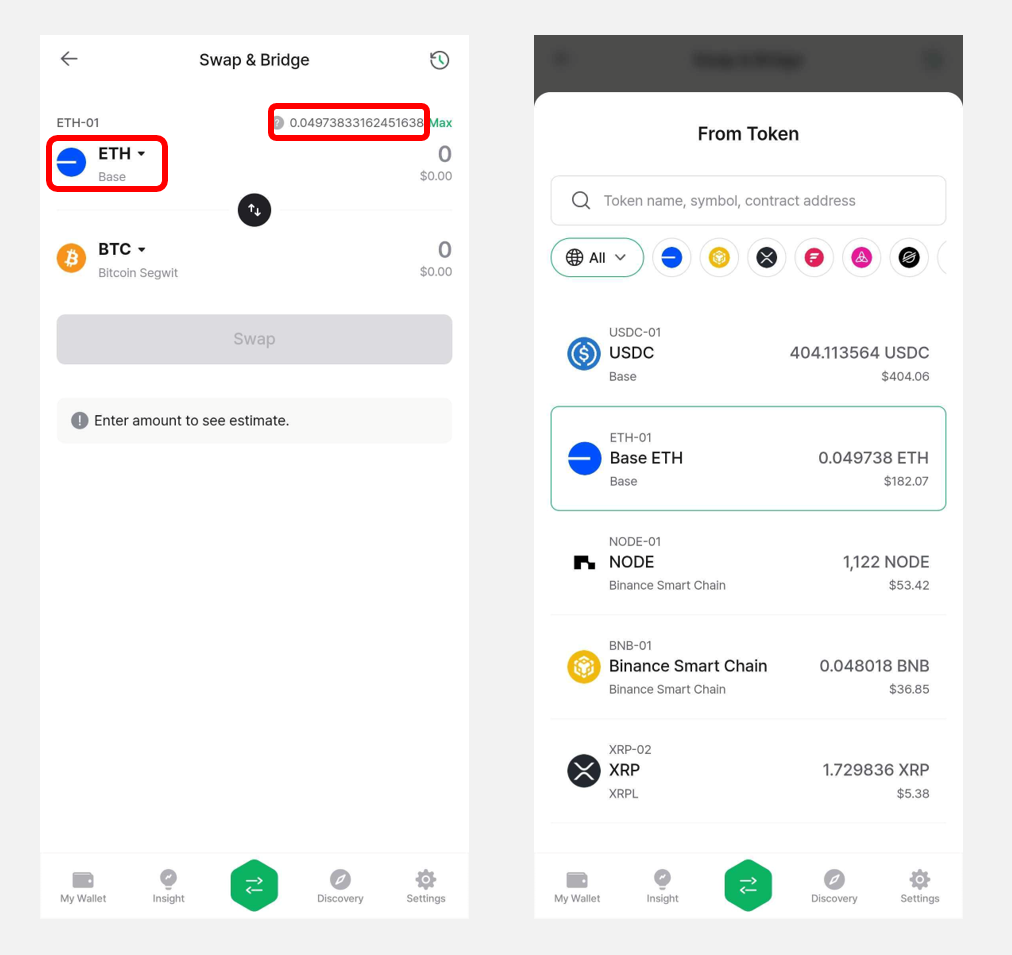
1) In the From section, select the token you want to send. Only tokens you currently hold in your wallet can be selected here.
Each token shows its network, account name, and available balance.
To change the sending token, tap the token account name as shown below. You can search for a token or pick one from the list.
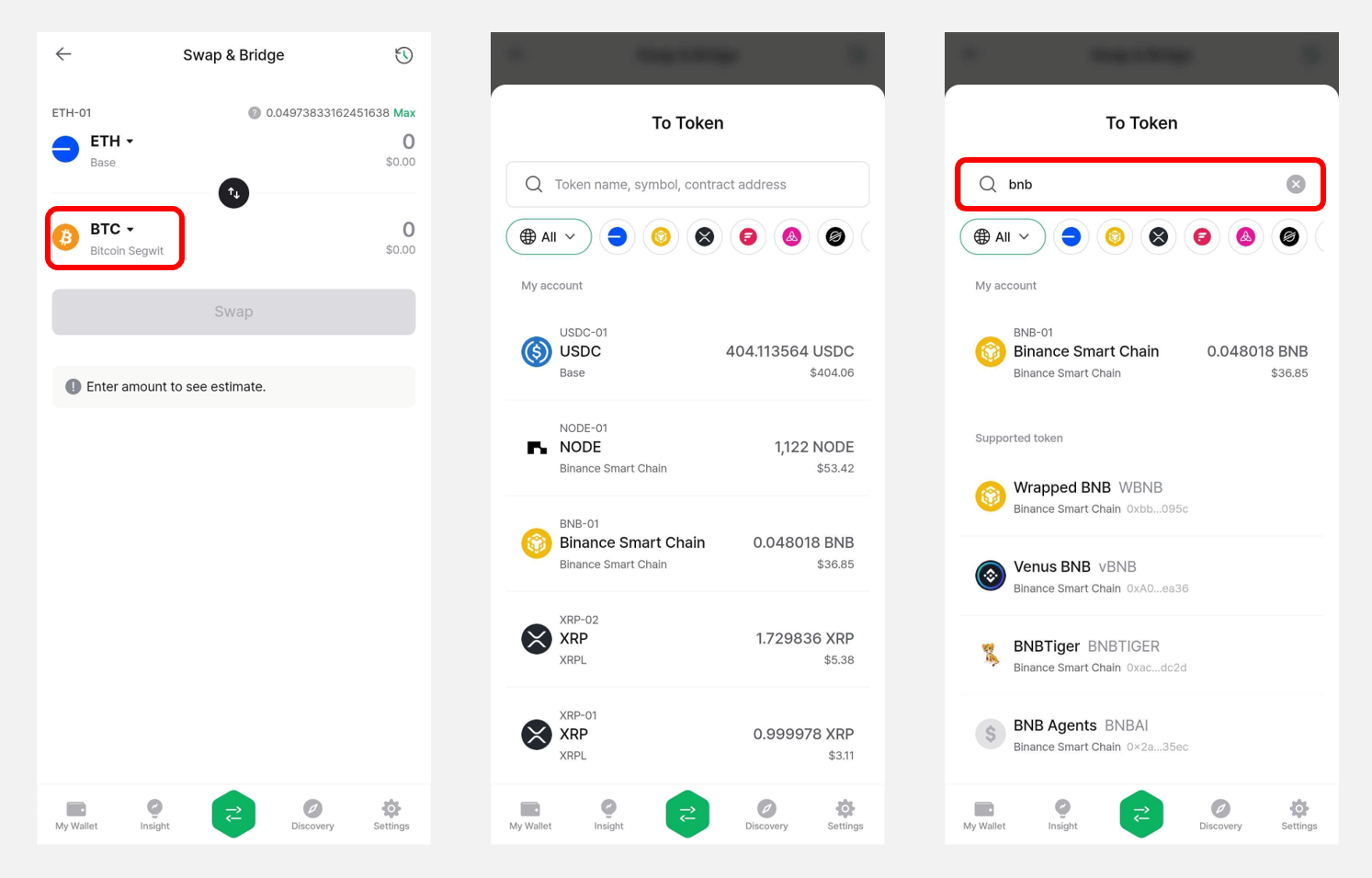
2) In the To section, select the token you want to receive.
Just like the From section, tapping the token account name opens a popup where you can choose a token.
If you want to receive a token that has not been added to your wallet yet, pick it from the To Token list or search for it by name.
Entering the swap amount and choosing a provider
1) After selecting the From and To tokens, enter the amount of the From token you want to swap.
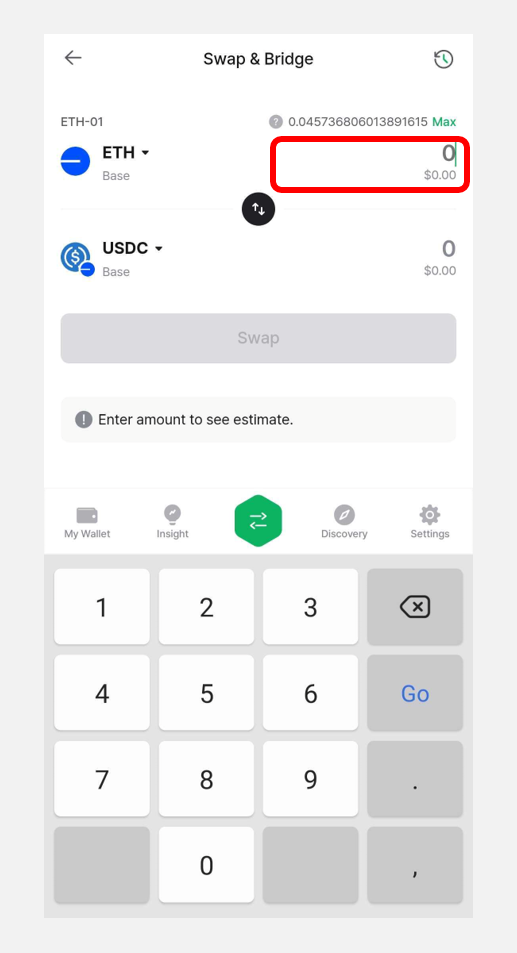
Each receiving token has a minimum swap amount. Check the displayed minimum before proceeding.
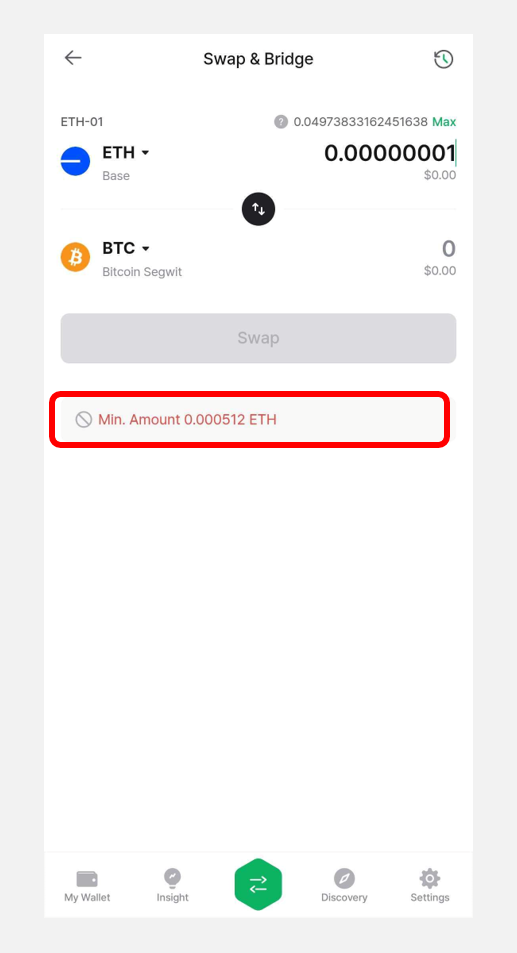
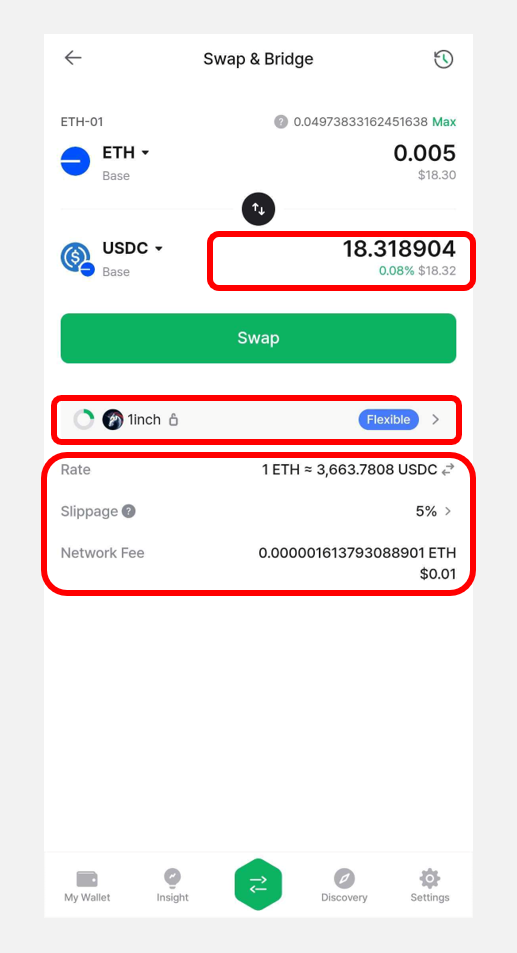
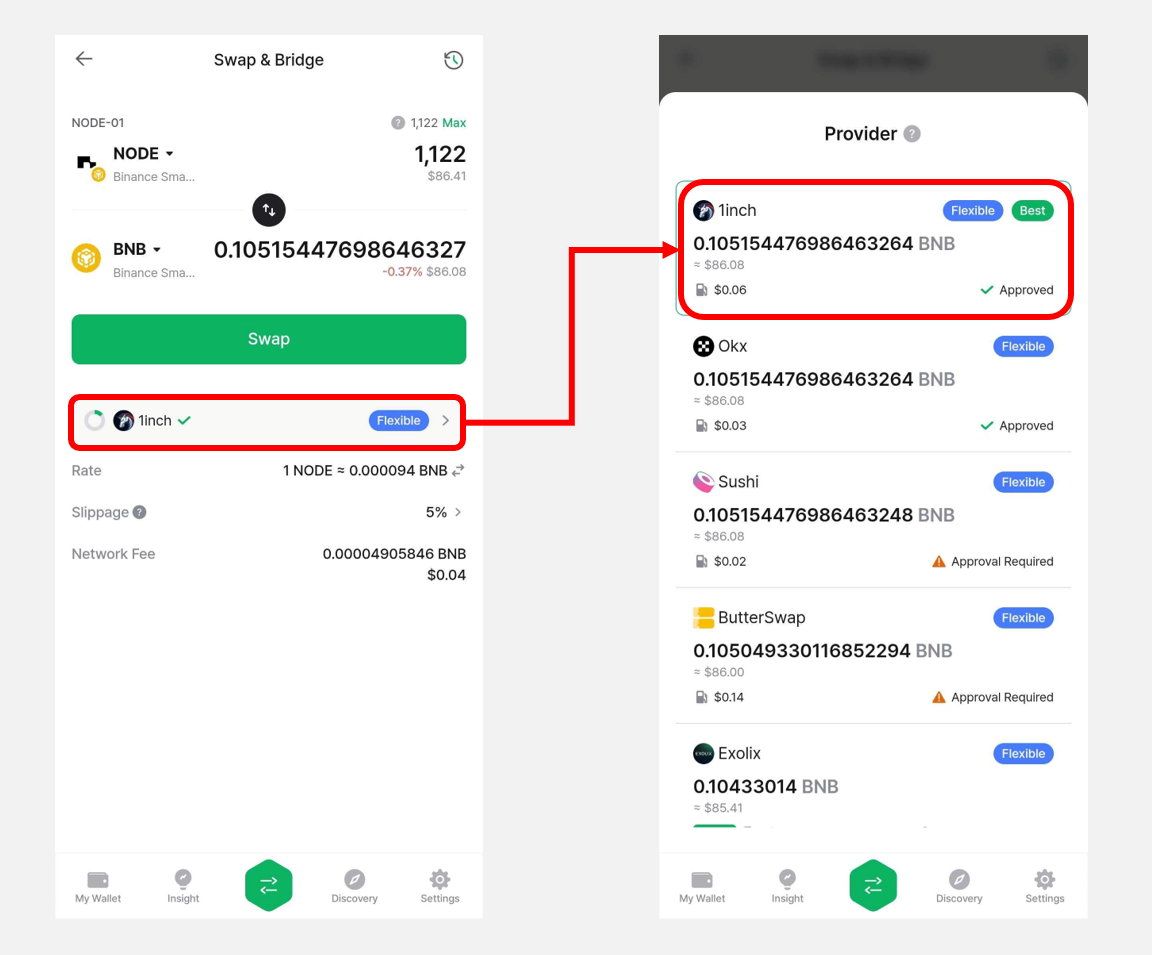
2) Once you enter the amount, the estimated amount and value of the To token are shown.
You can also see the provider offering the quote, the swap rate, and the estimated network fee.
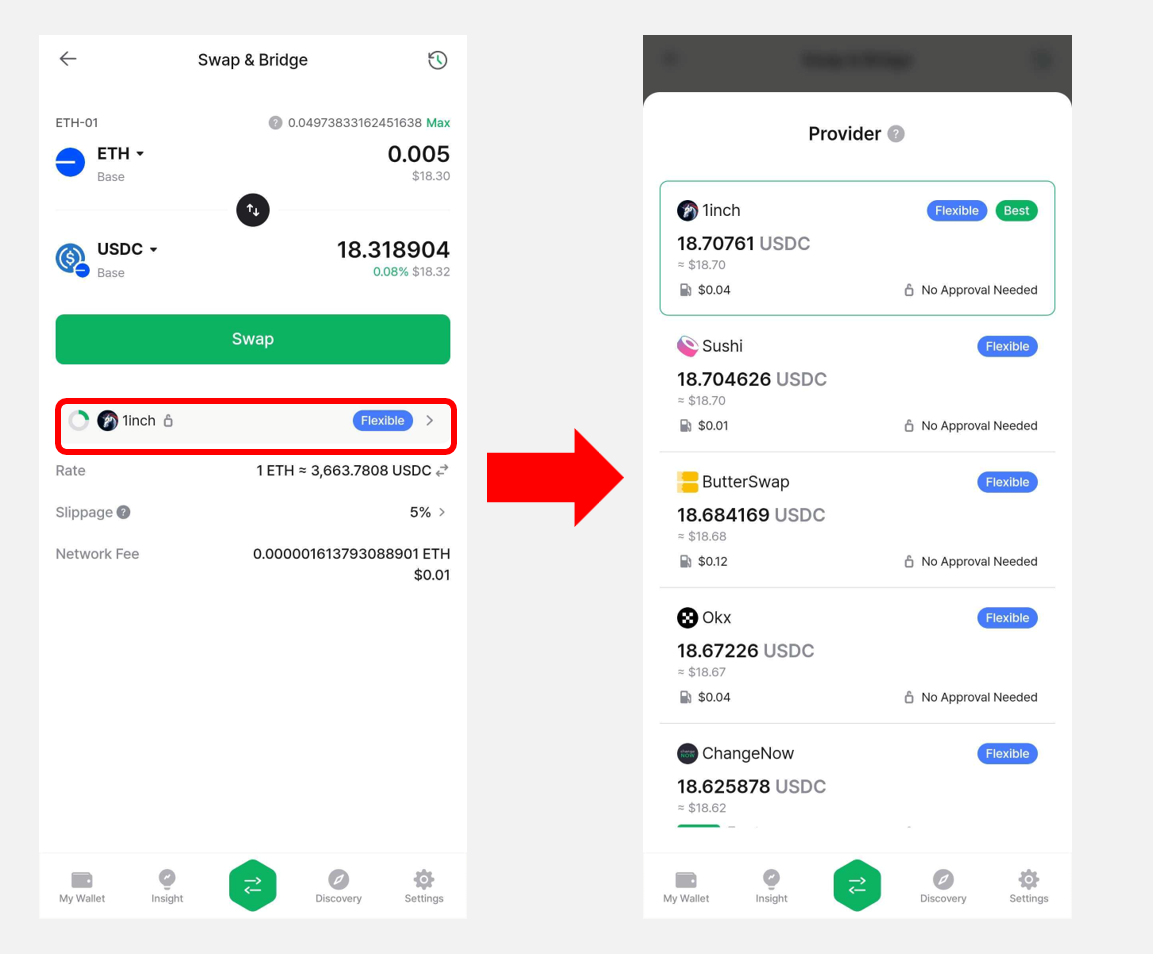
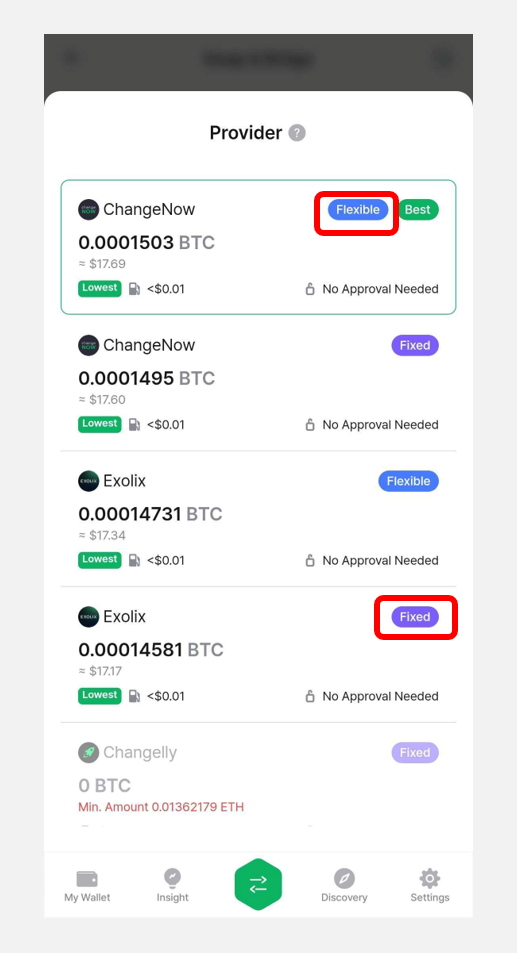
Tap the displayed provider to see other available liquidity providers and choose one that offers a better rate or is recommended for your trade.
Swap fees include the service provider's fee and the network (gas) fee for executing the transaction on-chain.
DCENT does not charge any additional fee for using the swap service.
3) If the receiving token has not yet been added to your DCENT wallet, an Add Account button will appear. Choose the account that will pay the network fee, enter a name for the new account, and tap Add Account to create it.
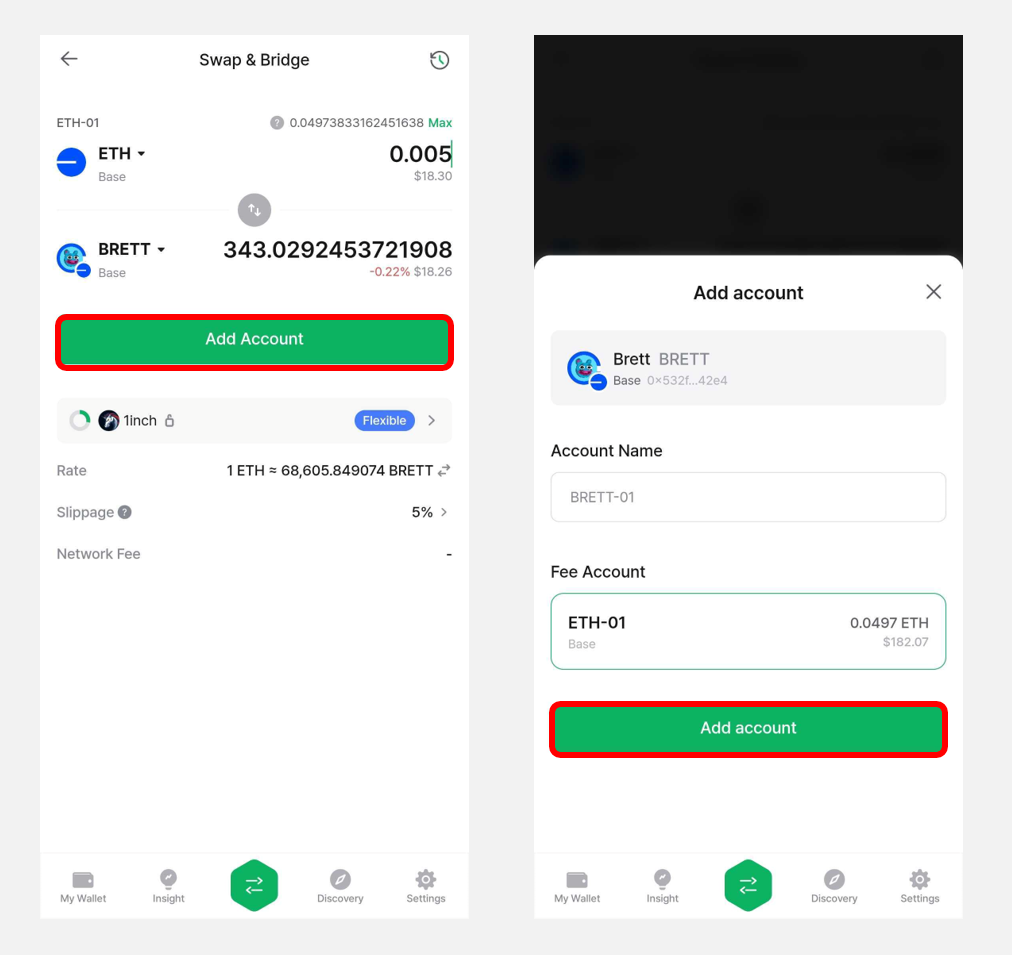
Slippage and exchange rate settings
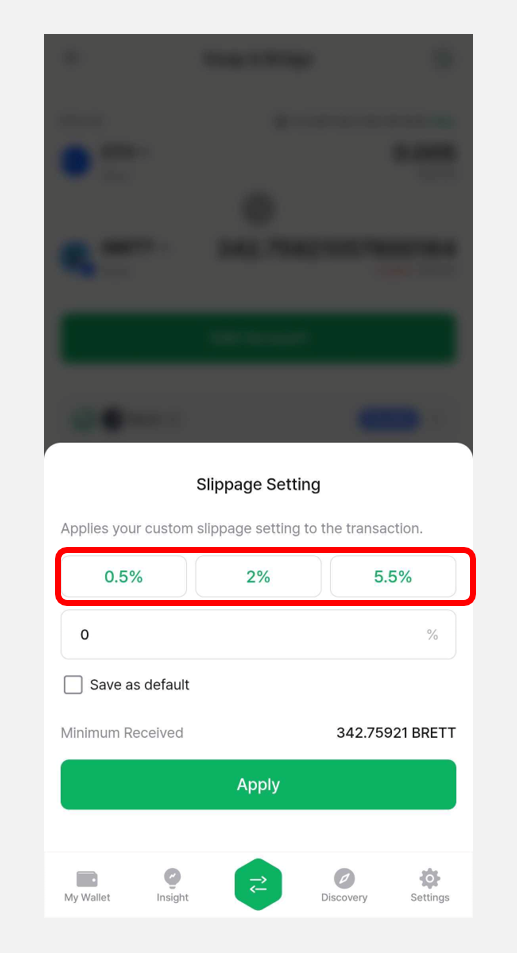
1) When the selected quote is from a decentralized exchange (DEX) provider
You can review Slippage at the bottom of the screen.
Slippage is the difference between the expected price when you place an order and the actual price at which it executes. It is more common in highly volatile or low-liquidity markets. By default, an optimized slippage rate is recommended for your trade.
You can adjust slippage manually. In addition to the 0.5%, 2%, and 5.5% presets, you can set any custom value between 0.01% and 50%.
When trading meme coins, raising slippage improves the chance of a successful trade. If a previous swap failed, increasing slippage can also help the trade go through.
2) When the selected quote is from a centralized exchange (CEX) provider
You can review the exchange rate. CEX quotes offer two rate options:
- Flexible (Variable): The rate can change with market movements.
- Fixed: The rate is locked in when you confirm the transaction.
Approving the token
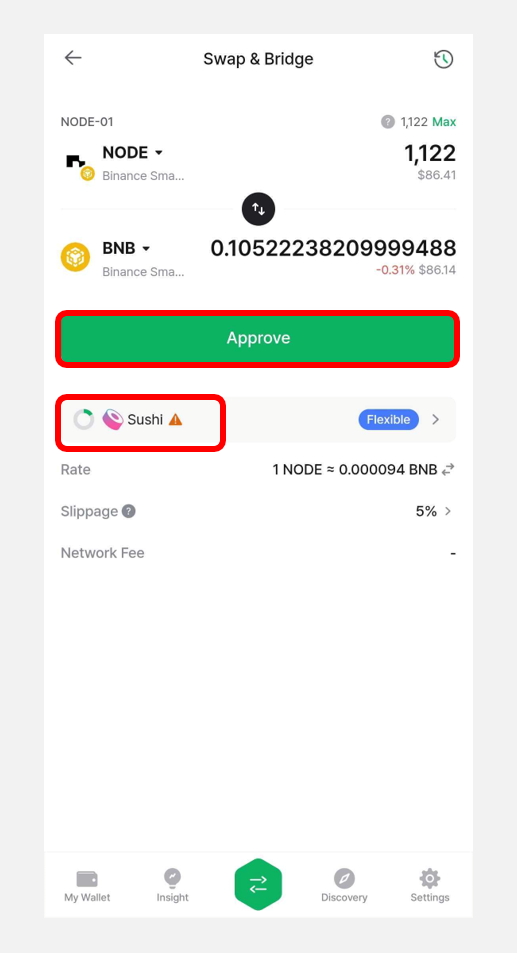
1) If the From token is an ERC-20 token and the trade is routed through a decentralized exchange (DEX), an Approve button appears instead of Swap. You must approve the token first before swapping.
This approval lets the DEX provider access the token for the swap. You need to approve the selected provider to spend the token before continuing.
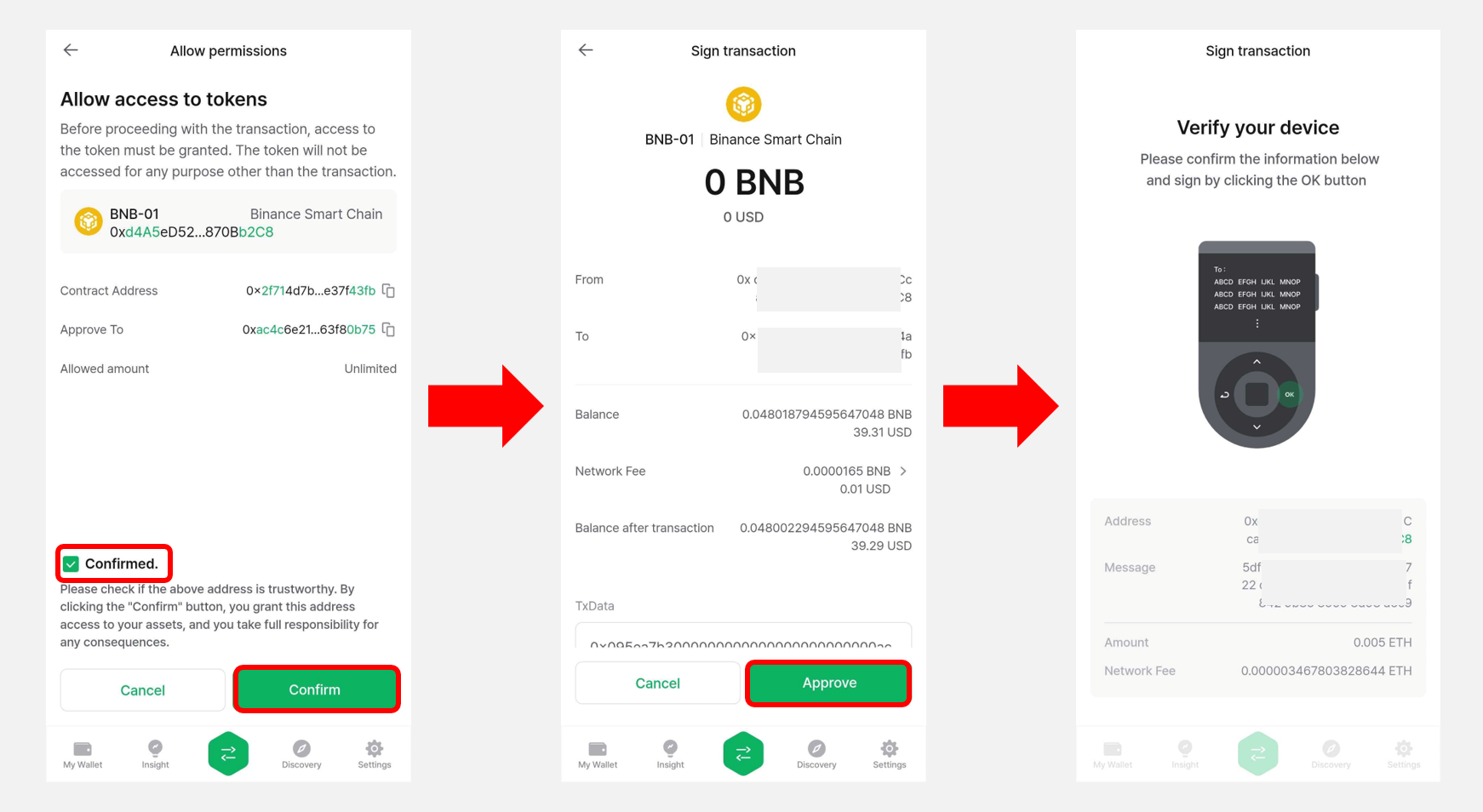
2) Tap Approve, tick the Confirmed checkbox on the next screen, then tap Confirm. Review the signature request, tap Approve, and authenticate with your fingerprint or PIN in the wallet to sign.
3) After the approval is complete, re-enter the swap amount. If the same provider is selected again, the Swap button will now appear, and the provider is marked as Approved in the provider list.
Signing the transaction and completing the swap
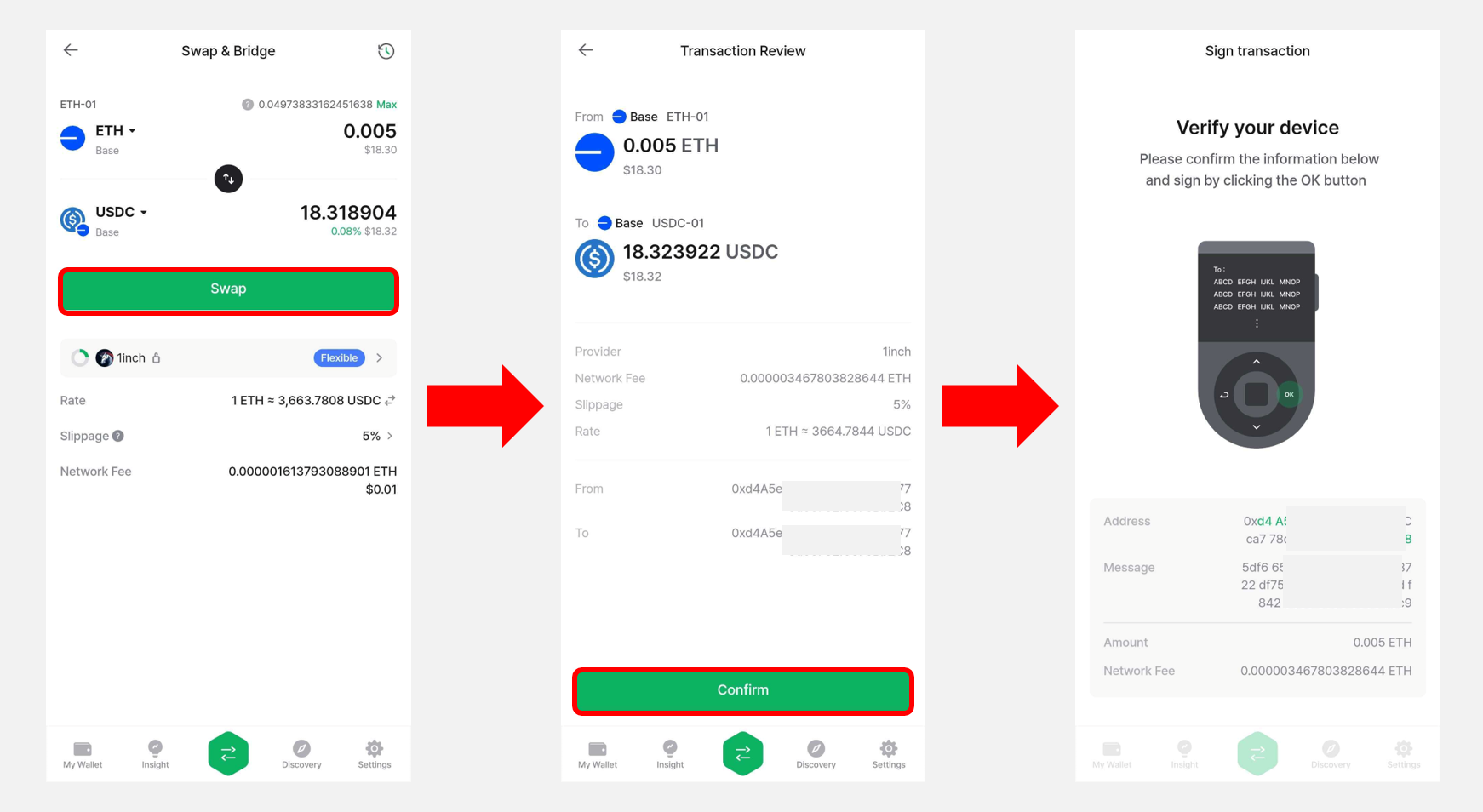
1) Once the token approval is complete, tap Swap. Review the transaction details, then tap Confirm or Send.
To complete the transaction, review the signature request and authorize it with your fingerprint or PIN in the wallet.
2) After signing, tap Swap History to check the status of your swap.
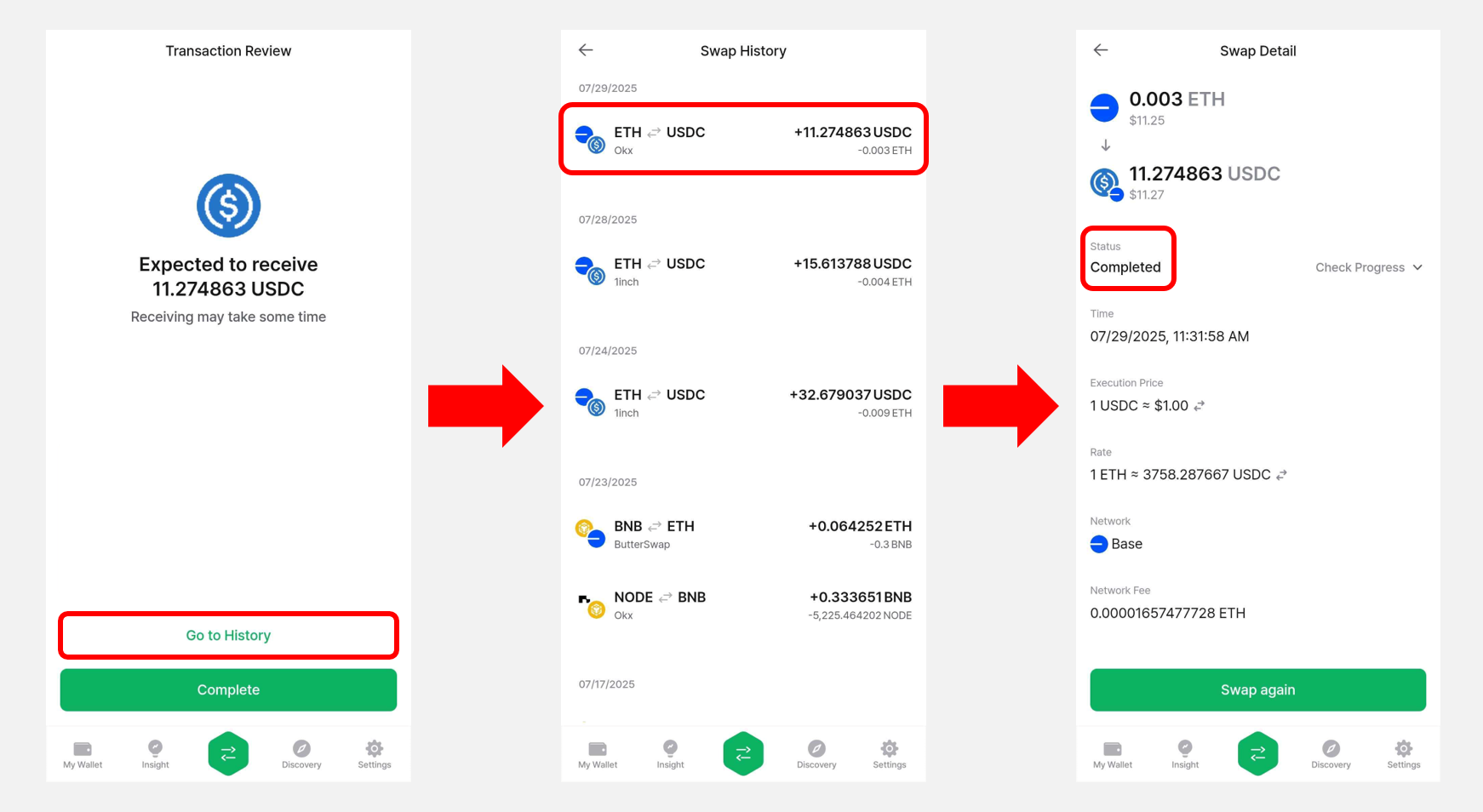
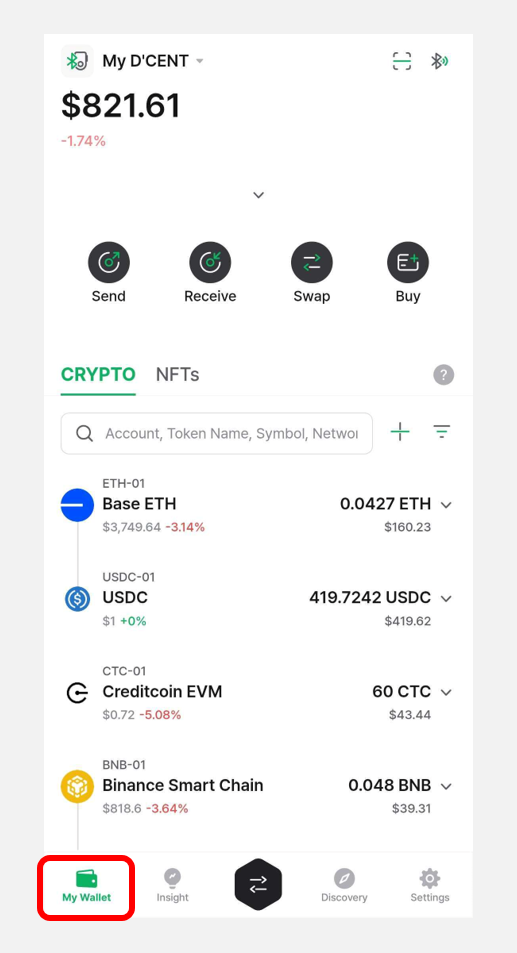
3) Once the status shows Completed, you can find the swapped cryptocurrency in the My Wallet tab.
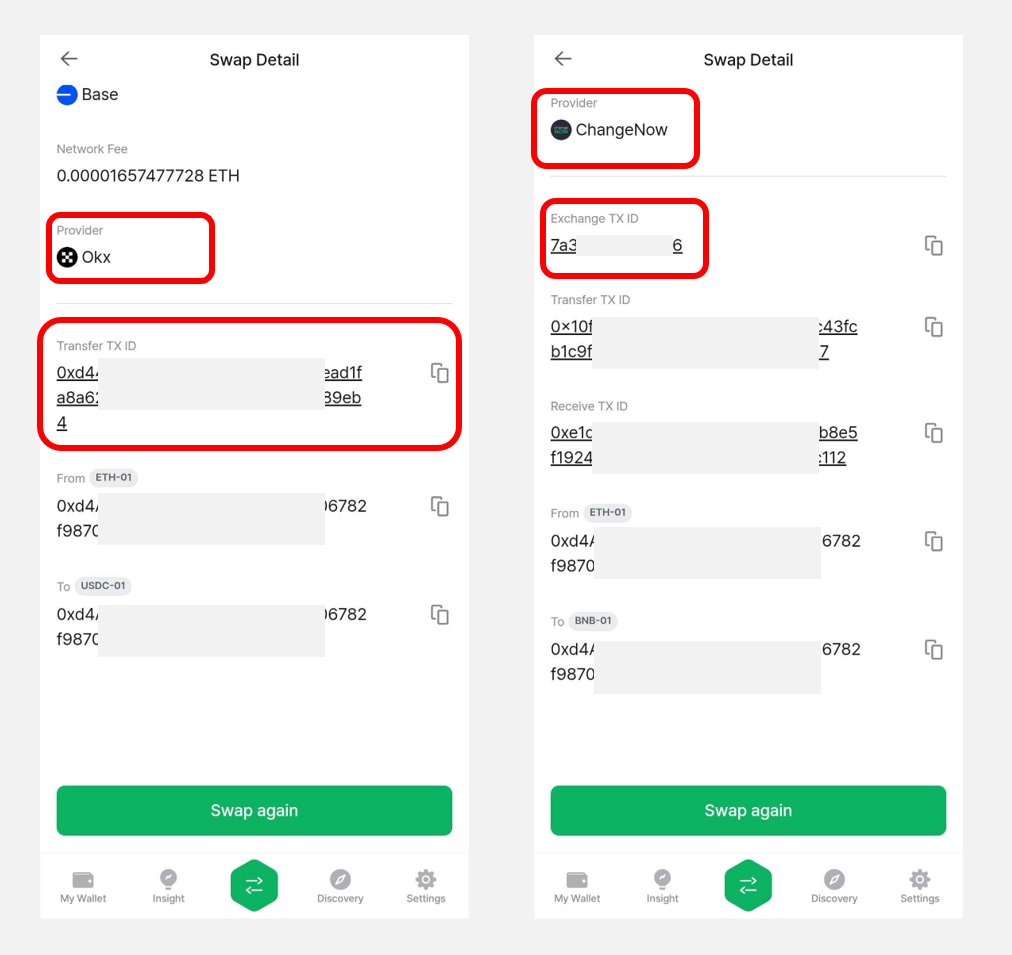
If the status shows Pending or Failed, or if it shows Completed but you have not received the cryptocurrency, contact the provider using the Transfer TXID or Exchange TXID (for ChangeNOW, Changelly, or Exolix).
You can find the provider information and TXID on the Swap Detail screen.
For any questions about a swap, please first check the help center of the relevant provider:
DCENT Wallet only acts as a bridge to external services (dApps) by providing an intuitive swap interface. DCENT is not directly responsible for any risks that may arise from using these third-party services.